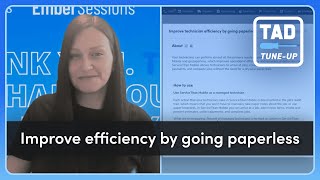
Crystal walks through ServiceTitan's paperless workflow feature, showing how technicians use the mobile app to estimate, invoice, and collect payments on-site. The system awards up to five adoption points and tracks managed vs non-managed technicians to measure efficiency gains.
Questions this video answers
Up to five points.
Over 50% of managed technicians who took an action in the last 7 days.
Over 80% of managed technicians who took an action in the last 7 days.
An icon that looks like a rocket ship.
Tapping "Arrive" in the mobile app.
Hi everyone and welcome to another episode in the TAD Tune up series. My name is Crystal Program facilitator here at ServiceTitan, and today we're going to be looking at another great feature in Titan Advisor called Improve Technician Efficiency by Going Paperless. We're going to look at exactly what this is, why it matters, and share some pro tips along the way. If you're ready, let's dive right in. Let's take a look at where you'll see this in Service Titan. On the top toolbar you'll see an icon that looks like a rocket ship. Click on the rocket ship and you'll land into the Titan Advisor overview from the business sections on the left hand side, navigate to selling and performing work under the launch phase. Under how you're using the feature, you'll find the improved technician efficiency by going paperless, you'll see that this is a required feature to get out of the launch phase and you can achieve up to five points. Let's click into our feature. Here you'll see the feature description, the KPIs associated with this feature and all customer types. This feature is recommended for scrolling down. You'll see how to use this feature and what we're measuring to score here, managed technicians need to complete actions like arriving to a job, adding invoice items, creating and presenting estimates, collecting payments, and completing jobs all through the app. Let's jump into mobile to take a look at some of these actions here. I've landed into the technician's mobile app on his dashboard and I can see that I have an assigned maintenance for Mary Brown. I'm going to click View Current Job. From here I can view the address and click Get Directions if I need information on how to navigate to the job site. If I'm going to need to call the customer beforehand, I can click Contact Details. This allows me to call the customer directly from within the app. When your technician arrives at the job site, simply tap Arrive in the app. This action logs your technician's arrival time, which subsequently keeps your dispatchers in the loop. By automatically updating the dispatch board after your technician's completed the maintenance, they may decide, depending on the condition of the equipment, to provide a customer with an estimate for replacement. Creating it is simple. You can generate it directly in the app. This not only saves you time, but also provides the customer with an instant, accurate estimate and it's a more professional, efficient experience for both you and the customer. To do this, click on Estimates on the left side panel and select the button Add Estimate. Technicians have the option of building out new options or selecting from pre existing templates. In this case, we're going to use the template AC Replacement and hit select from the Estimates page. The technician can place a check mark in the box of the unit replacement he personally recommends and select Present to present these options to the customer. The customer will always see the recommended unit first, but will be able to see all good better best options. However, in this situation, the customer decided she wanted to speak with her partner before proceeding and just wants to pay for the cost of the maintenance visit Today Another important feature is the ability to add items to an invoice directly from the mobile app. This could be materials, labor or any extra services rendered. For this maintenance visit, the customer requested a new filter replacement, so the technician will need to add this cost to the invoice. To do so, click Invoice from the left side panel. From the Actions menu, select Add Item and this will land you in your price book. This is where you can select items to add to the invoice. In this case I am going to add a dispatch fee and I'm going to use this search to search for the filter and here I can add the electronic air filter. Excellent. I'm going to select Done and when I come back to this page I can see that the total for Today's visit is $144. Next we have the payment collection. Once the technician finishes the work, they can easily collect payment right through the app, whether it's a credit card, cash check or financing. By processing the payment digitally, you eliminate the need for paperwork and can wrap up jobs quickly and securely. When the job is finished, the technician hits the closeout button from either the invoice page or from the left panel. When they click Closeout, if there's any remaining actions to be taken, they will be notified of these additional steps. In this case, we needed to collect additional customer signatures. Excellent. This job is now ready to be closed out. All these mobile actions are automatically logged and synced, which means less paperwork, better time tracking a full audit trail on every job, faster payment processing and a better customer experience. Let's look back at how Service Titan is measuring this feature. Service Titan is measuring these based on the percentage of managed technicians who took an action in Service Titan Mobile over the last seven days. If over 50% of your technicians took an action, you'll get two points. If over 80% of your technicians took an action,. You'll get five points. Now here's the critical piece. Only managed technicians count towards this metric. So what's The Difference let's look over to the knowledge base on the difference between managed technicians and non managed technicians. So your managed technicians are your service technicians, your lead installers, your installers who operate alone, and your comfort advisors. Your non managed technicians would be your helpers, your apprentices and your parts runners. Here's how you can verify or edit these settings for managed technicians. Head over to your settings gear. On the top toolbar go to People and Technicians and from this list you'll see a column called License Type. You can apply a filter to quickly see all technicians that are currently set up as a non managed technician. If I wanted to change this, I could click Edit and under the basic information look for License type. You'll click Change and you'll select Manage Technician. Click Save and you'll save once again on the technician's profile for the changes to take effect. It's important to note that that you are measured on all active managed technicians, which means you have technicians that no longer work for your company but are still set up as a managed active technician. Your points will be impacted. Service Titan prevents technicians from being deactivated when they have any scheduled in progress or on hold jobs assigned to them. You'll need to either reassign these jobs to other technicians, cancel them, or mark them as complete before you can successfully deactivate Technician. So first let's deactivate the technician's access to the mobile app. To do so, let's click Edit again. Under the profile, navigate to Service Titan Mobile Access and toggle off the access to disable his access to mobile and select Save. Next we're going to head over to the search bar. We're going to search for all jobs that contain our technician, and from this view we can quickly look at the status and confirm that all jobs are either in the completed or canceled status. Which means we can go and deactivate this technician. So to do so, let's head back up to our settings Here, go to People and Technicians and we can place a check mark beside the technician we'd like to deactivate. From the Actions menu, you'll select Deactivate and the technician will successfully be deactivated. All right, that brings us to the end of this TAD Tune up. Today we learned about how going paperless helps your teams work smarter, not harder. From everything to job arrival to estimate presentation to invoicing to collecting payment, every actions your technicians complete in the app help to improve visibility, add efficiency, and drive better results for your business. Thanks again for tuning in. Please check out other videos in the TAD Tune up series. And please check out our Ember program to learn more about other great features in the Titan Advisor like going paperless. Thanks again and have a great day, guys.