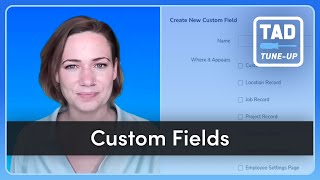
Megan Montgomery walks through setting up custom fields in ServiceTitan to match your workflows. You can create text, numeric, or dropdown fields, make them required for specific job types, and surface them to technicians in the mobile app for faster reporting.
Hello, my name is Megan Montgomery. I am a senior program facilitator here at Service Titan. I facilitate for Ember Sessions, Spark Sessions and Ignite Sessions. Welcome back for another episode of our TAD Tune up series where we walk through different features in Titan Advisors to find some different ways that you can leverage different pieces of the software and improve your workflows. Today I'm going to look at a feature that I really like, all based around custom fields. So if you're following along in your system and you followed along on some of these previous episodes, you're going to go up to the top right hand corner of your screen to our little rocketship, which is going to bring you into our Titan Advisor dashboard. Once you're in here, we're actually going to go look at the job booking and dispatching field. And then once you've gotten into the job booking and dispatching, wherever you've landed, we're actually just going to go ahead and look straight into the optimization tab. Now that you're in here, look for those little purple clocks that you see. And you should see one purple clock next to a feature called Customize fields to your specific workflows. Now, that little purple clock, it's there for decoration, but also to give you some information, right? So it's there to tell you that this is a quick win feature for us, meaning it's not a heavy lift to set up, but it can actually be a really big impact to your business if we're using them. So let's go ahead and open this one up and see why. So custom fields can be added to a lot of different pieces of service Titan to be able to leverage for additional reporting metrics. Sometimes it's a visual that's helpful or just collecting data in general. So there's a lot of different ways and different places that you can put them for this feature. All that it requires in the what to set up portion is that you have at least one active custom field. Now, once you have that established, it will go into how you're using the feature, which is basically just measuring the number of times that you've actually used a custom field in the last week. So if you've used it at least once, you should be receiving full credit for this specific feature. Now, how you're using it, what you're using it for, completely up to you, but here are some examples. So if you go up into your settings and you search for custom fields, you're going to see some custom fields in here. Now, if they come up on the call booking screen or just where it appears in general, that's going to be important for you to note because if you're trying to use this for a reporting KPI, something that you're trying to report on, it's going to matter where the field lives. For example, if it's on the job record, I'm probably going to be pulling reports. If I want to look for this something, a trend in this specific field, I would be looking at a jobs data set to pull for this specific field. So if I on the call booking screen am collecting information about how long people wait before they call us when they've got a clogged drain, something like that, I can pull report on the jobs data set to see that I could also add a custom field, something around, you know, what size filters, different homes are using, things like that, where I can pull reports as well and I can collect it right from the job booking screen. You can even make these specific to job types now. So I'm going to go ahead and add a custom field so that you can see. But basically I could just add a name here, choose where I want it to go, where I want it to live, and I can even opt to make it a required field if it's being displayed on my call booking screen. But if you wanted to, you could even make this specific to a job. So if I'm doing for example a filter change and that job type and I want to get on that filter change job, the filter sizes, then I could add this as a custom field. So basically anytime someone calls and I start to schedule a filter change job type, this will populate on the screen for me to complete and it won't let me continue booking the job unless I fill in this field. And I can do it with just filling in text, I can do numeric, or I could do a dropdown and put some options of different filter sizes in here as well. The other great thing about this is technicians can actually see this from the the mobile app as well as long as the fields are completed. Now the last thing about custom fields that make it really great, really awesome to be able to use is that you can pull reports on these, including if I want to collect information on my technicians and my employees, maybe it's a certification number, maybe it's a birthday, an anniversary, a T shirt size, anything like that that I want to retain from an employee or technician standpoint. I could actually add that as a custom field, add it to those areas where it would appear and then how I want it to be completed. Now, once I do that, I can go to my settings and to my technicians, for example, and if I edit one of my technicians and scroll all the way to the bottom, you will see any custom fields that you've added to live on that space. Now, if I need to pull a report of all the birth dates that we have in a certain month, I can go to my reports for this one because it's on the technician page. I want to pull a technician data set. So I'm going to just going to pull a technician performance. And when I edit the columns here down at the bottom, you will see we now have the ability to report on this custom field. So that's what I have for today's TAD Tune up series on custom fields. Stay tuned and follow along for some of our other features as we go through all of them in Titan Advisory.