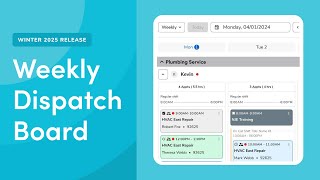
ServiceTitan's Weekly Dispatch Board gives you a seven-day view to schedule long jobs and manage technician workloads. Filter by team or skill, drag jobs onto the calendar, and check how many hours each technician has booked each day. You need View Dispatch Board permission to access it.
Questions this video answers
View Dispatch Board permission.
You.
Let's take a look at an overview of the Weekly Dispatch Board in Servicetitan. The Weekly Dispatch Board streamlines managing extended duration jobs by offering an actionable seven day view of technician schedules. It enables more strategic job appointment handling and ensures optimal technician utilization, changing how jobs are viewed and managed. You can use the Weekly Board alongside the Daily Board to start and finish all your dispatching workflows in Servicetitan. This eliminates the need for time consuming external workarounds. The Weekly Dispatch Board requires the View Dispatch Board permission. Other permissions may be required to complete dispatching tasks.
To access the Weekly Dispatch Board, click on Dispatch in the main menu, then.
Click on the Daily dropdown at the top of the Dispatch Board. In this example, we're already on the Weekly Dispatch Board, so we'll click Weekly instead. At the top of the Weekly Dispatch Board, you can click on the date and select the starting day for the seven day period you want to view. Click the Back icon to view the previous seven day period or click the Forward icon to view the next seven day period. Click Today to jump to today's date. Click the Filter icon to filter the board by business units, teams or skills and click the Refresh icon to see updates from other dispatchers. In the center of the Weekly Dispatch Board, you can click the Collapse icon or Expand icon next to each technician and each team to adjust your view. See each technician's total number of job appointments and the total duration and hours of those job appointments for each day of the selected week.
See each technician's shift schedule, non job events, and job appointments for each day of the selected week and click on.
A job appointment card to use the Job details fly out or click the More Actions icon to use the Quick.
Action menu at the bottom of the Weekly Dispatch board.
You can click the Collapse icon or Expand icon on the Jobs tray bar to expand or close the Jobs tr. You can also fully expand the Jobs tray and keep it open in a separate window to monitor manage job appointments in the unassigned assigned alerts, Hold Paused and Canceled tabs. Now that you've taken a look at the Weekly Dispatch Board, see our related documentation to dive deeper into the Weekly Dispatch Board.