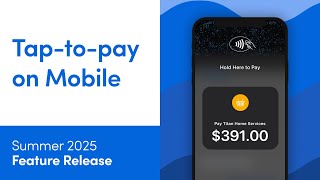
ServiceTitan Mobile's Tap to Pay now works across devices: a non-NFC tablet displays a QR code, an NFC phone scans it to process payment, then returns to the tablet with updated details. Keeps credit card fees low and speeds up the workflow.
You. Let's take a look at an overview of the Tap to Pay Multi Device Experience. The Multi Device Experience allows you to scan a QR code on an iPad or Android tablet that doesn't have the NFC or Tap to Pay functionality and finishes the transaction on a device that has NFC enabled. This eliminates the need to log in to a separate instance of Servicetitan on another mobile device to collect a payment with Tap to Pay. Tap to Pay on Mobile has lower credit card fees compared to manually keyed in transactions. The Multi Device Experience ensures you can still take advantage of this even when using a non NFC tablet on Servicetitan Mobile. Once the payment has been collected on the second mobile device, you can instantly return to your tablet to close out the job or complete other tasks in Servicetitan Mobile. In order to use the Tap to Pay Multi Device experience, go to your tablet and access the mobile app. Then access the job and go to the Invoice tab. From the Invoice Tap Pay and choose the amount the customer is paying. You can either select the full balance or enter a different amount. Then tap Tap to Pay. Once you do, you'll see a QR code and instructions on your second mobile device that has NFC enabled. Scan the QR code. This automatically sends you to the payment screen on your second mobile device. Tap Tap to Pay and complete the transaction. When you're finished, return to the tablet and tap Close on the Scan QR code screen. Service Titan Mobile will automatically refresh the updated payment details and you can continue your work as usual. Now let's watch the Multi Device Experience in action. Now that you know how to use the Tap to Pay Multi Device experience, please see our other learning resources for more information.