The New Field Mobile App Is Here!
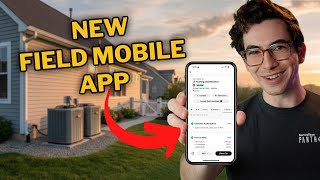
Richard Kohberger walks through ServiceTitan's new native Field Mobile app for iOS and Android. Companies get 45 to 120 days' notice before the transition, which targets completion by early 2026. The app handles job workflows, estimates with AI enhancements, invoices, signatures, and payments.
What's going on, everybody? It's Richard Kohberger. Hey, the blue collar nerd. And in this video we're going to be talking about the new Technician Field Mobile app. So as you've hopefully heard by now, it's been a long time coming. The Technician Mobile app is being replaced with a new app. This new app is built as a fully native iOS and Android app, which, if you don't know what that means, don't worry about it. It's not really that important. Just know that it's going to be a lot more stable and reliable and it's going to have the ability to plug in to the native or already existing fuse features of the operating system. So for example, iOS has the ability to annotate, like draw on pictures already built in, so you can just use that tool within the app. Now. Now, the first half of this video is going to be talking mainly about the logistics of this whole transition period. So the first half of this video is more geared towards like managers, trainers, admins, that sort of thing. So if you're wanting to use this video as technician training and you just want to jump straight into the app, or, or if you're watching this video in the future when the transition's already happened and the stuff I'm about to say about it doesn't really matter anymore, then just jump to this timestamp right here. Right here. And editor, just make sure that the timestamp is on my hand. Now some of you are already using the new app, especially those of you in the commercial new construction space. But now the time has come for residential companies to start transitioning over as well. By the way, this video is not the only resource that you have at your disposal. We've also got Knowledge Base articles and academy videos and a transition checklist and I'll link to some of that stuff in the description box down below. Now, this is going to be a slow transition, so not everybody is transitioning over all at once. And you're kind of able to do it ahead of time if you want to. You're at the very least able to start training ahead of time. So basically how it's going to work is everybody across the board is going to get at minimum a 45 days notice ahead of your date to switch over to the new app. Bigger companies are going to get up to 120 days notice and that'll be your quote, unquote, like official time to transition over. But you all have access to the new Field Mobile app right now and you can Start using it whenever you want. Just go to your respective app store, be that the iOS app store or the Google Play Store, and search for Service Titan Field. This is the one you're looking for. It looks like this. Then, on the office side, under your technician permissions, make sure that any technicians that you want to be able to use the new Field mobile app have this permission enabled. It's the one labeled New Field Mobile App Experience. As long as they have that permission enabled, then they can just log into the new app using their existing credentials. And as long as they also have that other permission for the classic mobile experience, then they can still use the old app too. At least they can still use the old app up until your official go live date that Service Titan provides you to switch over to the new app. Okay, so the date that Service Titan provides you, that is the hard cutoff date. Like on that date, you switch over to the new app and you can't log into the old one anymore. Ahead of that date, though, even if you haven't heard from Service Titan yet about what your date is going to be, you can go ahead and start playing around with the new app and use them both. Now, you also don't need to transition every technician in the company all at once. In fact, I recommend that you don't do that. I would get a few technicians, maybe one to three, and get them going on it and then let them sort of help the other technicians along. Now, an important thing to understand is that this new app, it is a completely new app. It's a ground up rebuild. And at the time of me recording this video in late September of 2025, it's pretty far along. But not every single feature from the old app, you know, 10 plus years of features that have been slowly trickled into that app, they're not all in the new app just yet. Which is why one, the old app is still around for the time being, and two, Service Titan is looking at the data of what features every company is using and taking that into account when they set the transition date for that company. Now, I'm going to list a few features that are not currently in the app as of the time of me recording this video. But this is not a fully extensive list. And this list is going to fall out of date, like almost immediately because updates to the app are happening much more frequently than the regular update cycle of Service Titan. So take this with a grain of salt. Just because I say something's not in there right now doesn't mean that it's not in there when you're watching this video. Even if you're watching this video only a couple of weeks from when I posted it. I'm going to put a link in the description down below to a list that will be kept up to date of all of the features and which ones are and are not in the app. But as of this particular moment when I happen to be recording this video, two way technician chat with the customer is not yet in the app. The content portal is not yet supported in the app. Technician scorecards aren't in there yet, non job technician forms aren't supported yet, regular forms are, but specifically non job technician forms aren't there yet, nor are PDF forms and payroll sign off and approval isn't in there yet. We also don't yet have certain inventory features like the creating of requisitions. Okay, so those are the most notable things that aren't there yet in my opinion anyways. But again, check that link in the description box down below for an updated list. The goal is to get everybody transitioned over to the new app by early 2026, like January February of 2026. And we realize that some of you rely on a few of those features that I just mentioned that aren't in the app yet. And so we can't reasonably ask you to switch over to the new app if we haven't put in features that you heavily rely on. So updates to the app are happening frequently to get those things added in. Now, if it is coming up on your transition date, your official Go Live date on the new app, and there are still features missing that you heavily rely on, please do let us know about that voice that because it's not our goal to make this difficult for you, it's our goal to make this as smooth as possible. So if we missed the mark somehow, if we misjudged how heavily you rely on a particular feature, or we thought a particular feature was going to be in there by your Go Live date and it got delayed or whatever, please just let us know. We'll do whatever we can to remedy the situation. With that said, eventually you will have to transition to the new app one way or another because at some point the old one is simply going to cease to exist. We can't maintain both of these things. Okay, so now even if you just heard a feature that's not in there yet that you heavily rely on, that doesn't mean you should like put this off and not worry about it yet. I would still start training on the new app. It's kind of up to you how you handle that, of course, but I would at least get everybody in a room and put eyes on the new app so that they they're A aware it's coming and B, have seen what it looks like. You could also go ahead and have everybody download it, log in, use the next environment. I'll show you how to get into it later to just play around and kind of start getting a feel for it. And like I said, if you're able to, I think it's a good idea to get one or two technicians, you know, fully transitioned onto it so that they can kind of be the team leads to help the other technicians when the rest of the transition happens for you. Now, something I want to call out that is different with the new field mobile app is that, you know, with the old app you were able to like, access it just through a desktop, like in a regular web browser. So, like, if you were in the office and you just logged into service Titan using technician credentials, it would essentially just open up the mobile app in your web browser. That worked because the old app was not a native app. It was more like just a webpage that was sort of wrapped in this app shell. And so you could load it on a phone or an iPad inside of that app shell, but you could also just load it on a web browser outside of the shell, and it was essentially the same thing. That's not the case with the new app. The new app is not just a website wrapped in a shell. It's a true native application. That means that that trick isn't going to work anymore. You have to log in using the actual app to access the mobile side. All right, now, before we jump into the new app and I start showing you around, I just want to call out that this is a big change, and big changes are hard. Doing a big transition like this means that we, servicetitan, are asking all of you to take on some training that you otherwise wouldn't have had to do. And learning to do your job on a brand new app, even if that brand new app is better, slows you down before it speeds you up. You have to take some time aside to learn it, and then you can't rely on your muscle memory for the first couple of weeks. So it's an investment, and it's only a good investment if it's worth it. We don't take that lightly. And I do think that this is going to be worth it if you've used the old mobile app regularly, like on a Day to day basis as a main point of your job, you know that it was just time. It was a weak point of the product. So if you're feeling a little bit right now, like, man, this is so annoying. I can't believe I have to learn this new thing. Now, just take a pause. Think back to that time that you were in that 130 degree attic and 20 minutes into a long form and then the app crashed on you and you logged back in and the form was empty and you had to start all over. And you're trying to keep your cool and you're trying not to yell because the customer's downstairs and if they hear you, you're going to get fire. Excuse me, Just. Just trying to think about that time. All right, with all that said, let's jump into the app. So first of all, you might notice I'm demoing this app on a phone. The new app is much more phone optimized than the old one. That's not to say you have to use a phone, you can absolutely still use your tablets. But now phone is an option without being super infuriating. So when you first open the app, you're going to be on your jobs tab here and right there at the top, I've got a notification telling me that I can choose my preferred business terminology. So I can either tap take me there, right there where it says business terminology, or I can go into accounts at the bottom tabs. That's where my settings live. And at the top, I can choose between residential or commercial business terminologies. So just choose whichever one you do the most of. It's just going to change some terminology around to be the thing that's more likely to be used in your particular niche. So I'm gonna stick with residential. But if I were to switch over to commercial, for example, I'll tap into this job here. I've got a tab here for location info. And where I switched over to commercial terminology, it would say job site info. It's a minor thing, especially that particular example, but it is an option to switch between the residential and commercial terminologies. All right, while we're there, I'll go ahead and go over the rest of the settings. So I've got appearance settings. Right now it says use device settings. If I tap into that, that allows me to switch between light mode, dark mode, or use my device settings. So, for example, I have my phone set up to go into dark mode at a particular time of day. And so if I said use device settings, that means when that particular time of day hits, the rest of my phone is going to go into dark mode, and Service Titan is going to go into dark mode as well. However, if I wanted to lock one in, I could just select it here. I'll say dark mode. And now, as you can see, the entire app is in dark mode. This is mainly a preference thing, although dark mode does have some advantages in that. One, it's less strain on your eyes, but two, if you have an OLED screen, which most modern phones do, a dark mode actually uses less power. So you could potentially squeeze a little bit more out of your battery life by staying in dark mode. For me, though, my personal preference is to use the device settings so that it's bright during the day and then dark at night. So that's what I'm gonna stick with. But you do you. Okay, we've got media upload quality. Standard quality is gonna be plenty for most people, but if you really wanted to upload the highest possible resolution photos, you could do that. Just be aware that that's gonna take longer to upload and use more data. All right, Clear external media. So you know how, if you're an H vac technician, if you scroll through your work phone's camera roll, it's just like evaporator coil after evaporator coil. So when you take a picture through the app, it uploads it to the job, but it also saves it to your camera roll. But it's going to upload it to a specific field mobile app album. And by coming here, you can clear everything out of that album. The pictures still stay attached to the job and everywhere that they need to be attached in service Titan doesn't touch any of that just locally on your phone. It clears it out so it's not taking up space. Okay. Under that, we have the option to manually update the price book, although that's much less necessary with this new app. Unlike the old app, the new app very frequently checks in and keeps the price book constantly updated. So you would really only have to come here if you were having some sort of problem or if somebody literally just added something to the price book, you know, 0.2 seconds ago, and they were like, okay, download it right now. Okay. Then under General, we have the option to switch environments. Right now we only have the Go and the next environment in here. The practice environment will be added at some point. Practice is generally the environment that I recommend for general training, because the next environment is named the Next environment because it has the features of the next release in it already. So generally its main purpose is to train on upcoming features, not for generalized training. But for now, we only have going next in the new app. So next we'll have to do for general training for now. Now, a limitation of the app today as I'm recording this video, is that when you switch environments, you'll see that my button here says apply and sign out. So in order for the change to take effect, you have to sign out and sign back in. All right, I'll close out of that. All right, so under there we have a link where we could change our password if we needed to, a link to open up the help center and about area that just shows terms of use privacy policy. And under there is a link to provide feedback about the Field mobile app, which, if you have feedback, especially right now in this early phase, is the best time to provide feedback because it's still so new. It's when things are the most malleable and when the most people you know internally here at Servicetitan are working on it. So if there's something you'd like to see, definitely add that feedback here as soon as possible and then your link to sign out. Okay, cool. So that's under our account tab there at the bottom. Let's switch back over into jobs. I'll close out of this business terminology notification because we already took care of that. Okay, so here's today's schedule. There's my next upcoming job. I could also tap view all there next to today's schedule to see more jobs, so I could see a longer list of upcoming jobs. I don't have any more upcoming jobs, but I could also see previous jobs and paused jobs. And jobs in the hold status also show up here under pause, as you can see. So let's go to today and let's jump into our next job here. Okay, so we've got our link to call the customer, our link to open up our maps and get directions, and then also a link to launch Field Assistant, which is a newer feature. It actually was in the old app, but it's still pretty recent. And this might not be called Field Assistant anymore. When you're watching this, it's actually being renamed to Atlas, and it's an AI chatbot that by default can give you information that's held in service Titan about this job. So for example, I could ask it a question like, when was the last time another technician was at this job site? And it'll answer that question for me without having to poke around and dig through the app to Find that information. If I go back, I can also see that there are calculators and diagnostic tools in here. So for example, there's a duct sizing calculator, there's a sub cooling calculator, all sorts of handy stuff in here. Now that's by default. And as you can see, there's a couple of locked options. Those are locked behind Field Pro. With that you get diagnostic troubleshooting as well as equipment information. And I'll get more into Field Pro in a separate video. All right, so under that I have this horizontally scrolling menu of tabs. So here I'm under job. I could go to location info equipment on the equipment tab. I've got filters up here, so I could filter things down, for example, like maybe I just wanted to see things that were out of warranty. And while we're on the equipment tab, I want to talk about a really cool feature that's new with this app, which is that when we're adding a piece of equipment. So we do that by going to the add button there. And then equipment is one of the options. I'm given an option to scan in equipment information through a photo. So I can choose that option, just point the camera at the equipment tag, take a picture of it, and then the app is going to use ocr, which is optical character recognition, to just read and automatically fill in things like the model number and serial number, saving me the time and frustration from having to type that in myself. All right, next on the menu is forms, estimates and invoice. And if you didn't want to have to horizontally scroll to see all the menu options, you could tap on this little hamburger icon, this little menu on the far left, and then see all of the options right there. Okay, so I'm back on the job tab. Now I'll scroll down. Here we've got our location info, any pinned notes, any tags associated with this location. And then at the bottom I have this more section. That's where I can listen to the call recording with the office, assuming I have the permission to listen to call recordings, I can see any purchase orders that are associated with this job. And I can also see the financing history. So if the customer had any open financing applications or had applied for financing in the past, I would be able to see that here. All right, so at the very bottom right, I've got my dispatch button. So let's go ahead and dispatch and arrive to this job. So I'm dispatched. I'm arrived. Arrived now. Yes. Okay, so at the top, now I can See, I am in the working status. By the way, that little purple badge icon means that this customer is a member with us. All right, so we're on site now. Let's do our thing. Let's go to our forms here and let's say we're going to fill out this heating checklist. So this is what forms look like in the new app. You can collapse and expand sections. If the form is broken out into sections, you can collapse one or multiple of them to kind get them out of your way. I believe that this particular form only has one section, so if I collapse it, yeah, pretty much everything's gone. So we'll expand that back out. All right, so a couple of things are already filled out for me. That's just based on how the form was built in the office. That's not really related to the new app at all. All right, so let's fill this out. I can specify what unit this is for. I'll say it's for the basement overall system health. We'll give it a seven out of ten. All right, now under each question on the form here, I've got a button for media that I could tap to attach a photo or video, plus a note button that I could use to put in any additional notes. Those are customer facing notes, by the way. Now, one thing that is improved with this app is that when I am attaching photos, be it attaching from a form or just from the main job page, when I go to take photos, I can take multiple photos at once and have them all be uploaded without having to go back one by one. Take one picture at a time like it worked in the old app. Okay, so I just took three pictures. I have a review button at the bottom that gives me a chance to uncheck some of them if there were certain ones I didn't want to include. So I would do that by tapping on the little blue check mark in the corner, or if I tap on the photo itself, that opens it up to where I can name the photo. So I can tap that edit pencil there and I'll call this teleprompter. I could also tap that little sort of adjustments icon in the upper right hand corner there, which will open up this screen that has that pencil in the lower right, which is where I can go to draw on this image, annotate it, whatever I need to do. All right, so now I've gone ahead and attached those photos to that particular question on the form. Now if I wanted to just attach a photo to the job in general, without tying it to a form, I could come back to the job page here and say add, and I get several options there. So I could attach equipment, invoice, item, add, estimate from a template, purchase orders, and take photo or video. So I could take more photos from here and same thing, say review, choose which ones I want to include, and say add. All right, so we filled out our form, we took a few pictures. Now let's go ahead and create our estimate. So I'm going to tap over to that estimates tab there. Currently, I have no estimates, but I could add estimates either from a template or by creating a custom estimate. So for this example, I'll do it the hard way and create a custom estimate. All right, so at the very top is where I name my estimate. So let's say I was building like a good, better, best estimate package. Let's call this one good. So good. And rename estimate. All right, I'm able to mark this estimate as recommended if I wanted to do that. And then that little icon to the right with the two squares stacked on top of each other, that's the duplicate button. So once we build this out, I'm going to duplicate it to build my better option, and then I'll duplicate that to build my best again. This is a scenario where I'm building all of this manually, so it's going to take a minute. Ideally you would have proposal templates in place, so you can just do one tap and it all just populates. All right, next under there is my estimate summary, so I can add that in. So I'll say replace flame sensor on upstairs, 80% furnace. All right. I come from H Vac, by the way, so all my examples are going to be H Vac. Sorry, everybody else. Okay, now at the bottom there, you can see we have the option. We're adding this right now to all estimates. This is our first estimate, so there's only one anyways. But if we had multiple, we could check off which ones we want to add the summary to. So if we're doing similar things, like let's say, for example, on any one of my three options, I'm going to be replacing the flame sensor. It's just on the upper options. I'm going to do other stuff as well. Well, now I can go ahead and copy this over to the other ones so that I don't have to type it in every time. Okay, now you'll also see that at the bottom there, I have this little enhance button with the little TI icon that's the Titan Intelligence logo. So I could put something kind of quick and dirty in here and then let the AI sort of flush it out and make it sound more professional for me. In my example, it only added the word the because it was already kind of just fine. But let me see if I can give you a better demo there. All right, so if I was real sloppy with it and I made it say put flam sensor in upstair furnace and then I said enhance. Now it says install a new flame sensor in the upstairs furnace. So that's really handy. And before we move on with the workflow, I'll point out that this enhanced with TI feature. It also works with invoice summaries and it's actually a bit more powerful with invoice summaries. But there is a setting on the Office side that has to be enabled in order for that to work. That setting is found under Settings, Invoicing and Generative Content Rules. So you'll want to make sure that this switch up here is enabled. Generative Invoice summary and for the invoice summary generation, you're actually able to customize the back end prompt of what the AI is being told to do. So our instruction here says create a refined bulleted summary highlighting the work the technician provided. And the technician will actually have the opportunity to edit the prompt per invoice summary. So one thing you could do in addition to just telling it to format it certain ways and flush it out in certain ways, if you have like Spanish speaking text but mostly English speaking clients, you could add in, translate to English in the prompt and it will do that. That way a tech who is more comfortable speaking and typing in Spanish can just do that and have it be translated into English or pretty much any other language for that matter. So then on the mobile side, when you're filling out an invoice summary, this is what that would look like. We have that toggle switch at the top to enhance it. With Titan Intelligence we can put in our kind of quick and dirty invoice summary. You see, I've got one in there that's short and riddled with typos. Under that is our prompt instructions that will be pre filled with whatever we put in at the office, but we can edit that if we need to. And then we can also specify that in our invoice summary we want to include additional details from other places like the job summary or completed forms. So I'll include data from the job summary here and then I'll tap generate and then there we go. It gives me a nice, clean, professional looking bulleted list, just like my prompt told it to. I can make any edits if I wanted to do that, or if I'm good with it. I can just say save summary. All right, so that's how it works with invoice summaries. It's a little bit different than how it works with the estimate summaries, but both of them do offer some form of enhancement with Titan Intelligence. All right, anyways, moving on with our regular job workflow, all right, we can attach documents if we had like a PDF brochure or something we wanted to include. Findings is also a feature that was in the old app, but I feel like a lot of people didn't know about it. That's where you can attach particular form questions to this estimate to kind of provide proof. So like I'm saying, I want to replace the flame sensor here, so maybe I can link to my question on the inspection form where I found that the flame sensor wasn't working properly. Rebates and energy savings. You may or may not see that's under a feature gate called I think the H Vac product pack. So if you don't see that and it's something you would like, you can ask your CSM about the H Vac product pack. That's a manager's note text. Don't worry about it. You can add notes which are internal notes so the customer doesn't see those. And then we can add in financing options as well. So we've got service finance integrated here. We can put in some service finance plans. And then at the very bottom is where we actually add our items to the estimate. So I'll say add here. This is an example account. So I'm hoping we actually have a flame sensor replace flame sensor. Universal. Perfect. I'll add that in. I get some suggestions for additional things, but for this example I'm good. I'm just going to say done and add to estimates. All right, that's our good estimate built. So I'm going to speed this up a little now. Let's duplicate this. I'll say duplicate estimate. I don't want it to be called good copy. I want it to be called better. So I'll rename it here better. And then my flame sensor servicer material is already on there because I duplicated it over from the last estimate. But let's say on this one I'm going to replace the igniter as well. So I'll say edit, add items and replace hot surface Igniter, we'll tap add and done. Then at the bottom we'll say add to estimates. So there's our better. I'll edit the summary to mention that we're replacing the igniter here as well. There we go. Save. And then one more time, I'm going to duplicate this. This will be the best option. Rename, estimate. And maybe on this one I'm also going to put in a UV light. All right, so I've mentioned the UV light now in the summary. Save. Then we need to actually add that UV light to the estimate. So I'm going to edit our items, add items, find the UV light. You get the idea. All right, so there's our three options built. Now, that was kind of a lot of work and sort of a pain in the butt. So I would really highly recommend utilizing estimate templates, at least for those sort of common everyday packages that you're going to be offering. And then even if you need to make some little tweaks and add stuff in or delete things out, it's still going to be much faster if you have that template as the starting place. Because if you have estimate templates built out, it's just one tap. You say add from estimate templates, pick from the list there, and it's just one tap. Boom, you've got your three options, four options, whatever you need technicians. If you're watching this and you don't have proposal templates where you just tap it once and it fills everything out for you, they have to be built out from the office. So that means somebody in your office hasn't. Hasn't built them for you. So maybe a service manager could do it. Service manager, you in the room. You in the room, buddy. Should really build those. Makes everybody's life a lot easier if you build those. Just saying. Just saying. Anyways, once we're ready to present to the customer, we're going to tap present proposal and we can slide between our good, better and best. If we tap this share icon in the upper right hand corner, we can email or text message this proposal to the customer. So let's say we were going to text it, we can choose which ones we're sending it to. Add contacts. Then the customer could review the proposal on their own device and sign off on it. Or of course, they could also sign and accept from your device if you're presenting to them. You could say accept and sign estimate, sign here and put in their signature. And we get asked if we're performing this work now or later. For this example I'm going to say we're performing it now. So I'll say apply now. If I screw up that selection, the do work now, do work later, I can change it. So I'm going to go back over into estimates now. I'll scroll. There's my better estimate that I sold. It says sold for now, but if I tap the little kebab menu, that's the three dots I'll see I have the option to switch it to perform work later. All right, then I'm going to go do the work, I'm going to come back and I'm going to collect the customer review and acknowledgement signature that just says, yep, the work was done to my satisfaction. So I can tap sign right next to that. There's our invoice and at the bottom it's asking for a signature. We'll say sign here and we'll sign off on it. All right, and done. Okay. Then finally under that we can collect our payment. So we'll just tap pay there. This is just an example. So I'm just going to pretend like I'm collecting cash for this and I'll say pay the 350. Cool. So now we're marked as paid under that. I have my option to email this invoice to the customer and once I'm done with all that, I can just say close out and complete job. All right, so that's the full workflow of completing a job. All right, finally I'll go back here. We have one tab we haven't talked about yet, which is time. This is where you can go to view your timesheets and also add timesheets. So the new field mobile app supports different ways of timekeeping. The old traditional clock in, clock out method, that's called legacy timekeeping now. And then we also have something new which is called flexible timekeeping. Flexible timekeeping will also have to be its own video at some point in the future. But flexible timekeeping is more automated for the day to day job stuff. So working time and driving time, all that is just automatically tracked based on the status of the job. So when a technician dispatches, it's tracking that driving time and when they arrive, it's tracking that working time. And then flexible timekeeping is also more granular in that you can clock in and out of specific activities. So you can clock into training, for example, Again, kind of a separate thing that's going to need its own separate video at some point. But that's where the timekeeping is in the app, by the way. Something I haven't mentioned yet is that because the app is a native app, that means it does have multilingual support for languages like Spanish and French, and it's just going to automatically adjust depending on your device's settings. So if the device itself is set to Spanish, then the app is going to be in Spanish. Do keep in mind though that any content that you put in from the office isn't going to be translated. So if the device is set to Spanish, yeah, the app is going to be in Spanish. But if you wrote all of your price book in English and all of your forms in English, that's not going to change. Anyways, that's all I got for today. I'm going to include some additional resources in the description box down below to help you through this whole transition and to help you learn how to use the new app. So be sure to check that out. Be sure to hit like if you like this video and found it valuable, be sure to subscribe to Surface Titans YouTube channel. If you haven't done that already, hit that bell icon so that YouTube notifies you anytime we upload a new video. Video. Appreciate it. Peace.
More from Bill



Capturing the 80%: How SmartAC’s Gen-2 Targets Non-Membership Homeowners | Podcast Ep. 296

Build better customer data with every booking in ServiceTitan | TAD Tune-Up Series

The Biggest Change for Roofers Coming From Other Roofing Software to #ServiceTitan?


