Tutorial: How To Set Up & Use Commercial HVAC Service Agreements In ServiceTitan Software?
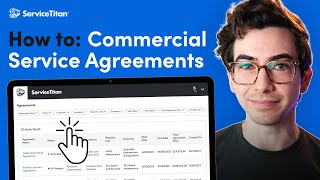
Step‑by‑step instructional walkthrough (YouTube tutorial) showing how to configure and use commercial service agreements in ServiceTitan. Covers creating a service agreement template, revenue recognition (immediate vs deferred), mapping price‑book tasks and GL accounts, building agreement proposals, visits and scheduling, pricing/billing schedules, profitability tracking, materials planning and reporting.
What's going on, everybody? It's Richard Kohberger here, the blue collar nerd. And in this video I'm going to be showing you how to set up and use commercial service agreements in ServiceTitan. So step one is to set up a service agreement template. To do that, we're going to come into settings and look for service agreement. There we go, right there under operations. Now for me, in my example account here, I already have one set up. So I'm going to click Edit here to open that up and show you what's inside. But if you are just starting and you don't have one yet, you would be clicking add up here. So the first field up here is the name. Mine is named Storebooks, Cafe and Bookstore because that's the location where I intend to use this. Although a better name might be Deferred Revenue template. So I'm actually going to rename mine to that. I say that because the main purpose of the templates is to set up the revenue recognition settings. Basically everything else you can set up individually per client. But the template is mainly locking in revenue recognition settings, which means if you handle all of your service agreements the same way in that regard, you always use deferred revenue or you always use immediate revenue recognition, then you might only need one template set up. But anyways, there's our name. We've got a tag field where we can automatically apply a tag to any location that has this service agreement template active on it. So for my example, I just made a tag called Agreement Client. By the way, you're able to create a new tag from this dropdown so you don't have to navigate away. Okay, and then it's time for the meat of what we're doing here, which is the revenue recognition settings. So. So we're going to get into some light accounting speak here. If you're totally unfamiliar with any of these terms and you don't know anything about accounting, I highly recommend working with somebody who is for this particular part of the setup. So we've got two options for recognition here. We've got immediate recognition. That's the simpler option, but less of the accounting best practice option. With immediate recognition, when you sell a service agreement, you recognize all of that revenue all at once. That is very simple. But the reason that it's not the generally accepted accounting principle is that you have a liability. When you sell a service agreement, you haven't done all of the work yet you're agreeing to do work throughout the year. So with deferred revenue recognition all of the money that you collect upfront for the service agreement that goes into a liability general ledger account. And then as you perform those services that you are promising to perform, that revenue gets moved from the liability account out into a revenue account. So you're recognizing it. Since that's the more complex option, that's the one I'm choosing to select here so that I can kind of walk you through it a little bit. So first we need to select the general ledger account that's going to hold the funds that we collect until we perform the work. This needs to be a liability account. Okay. The next step is choosing how we want to handle agreements that get canceled. So the recommended option is this middle option here. Give the option to create a charge refund invoice. Basically, that means that anytime somebody in the office cancels an active service agreement, they're going to be given the option to write refund work that's been paid and not done, or charge for work that has been done and not paid. So you can give that office person the option, but not the obligation to generate that invoice every time. You can choose to always generate that invoice and not give the office person the option to not do it. Or you can choose to never have that invoice automatically created. That's the best option if you would prefer to have, like, an accounting person come back in and handle it later. For my example, I'm going to leave the middle option selected. Okay, now we need to choose the services in our price book that are going to coincide with our deferred revenue setup. If you've done deferred revenue with memberships, this works the exact same way. But basically, we need three tasks set up in our price book that we're now going to select and map here. The first task is the billing task. That's the task that's going to show up when you sell the agreement. And it should be tied to the liability account. This is the task that parks the money there in the liability account. Then you need one negative liability task and one positive income task. And both of these tasks will populate when you actually go to perform the promised work. So the negative liability task that's tied to that same liability GL account that the billing task is tied to, and it's going to charge a negative number to reduce your liability. Take that money out of the liability account, and then you have the positive income task that is adding that same amount of money that you just took away from your liability into, into your recognized revenue account. So you charge for a service agreement. You have this task that puts all of the money into a liability account, so you have that amount of liability. Then, as you go and perform the work, one of these tasks will take the money out of the liability account, and then the other task will put money into your revenue account, recognizing that revenue and reducing your liability. Okay, this next section for default values, you'll notice that that is optional. It's optional because everything under here can be set up individually as you're setting up a particular service agreement for a location. So anything you put in here will populate as the default values for these fields when you go to set up a service agreement. But you can also choose to just leave this blank and set it up per service agreement. And for my example, that's what I'm going to do. So I am done here. I'm going to hit save, and now I have my template done. So let's set up a service agreement for a location. So here I am. I'm on the location page for my fictional store, storebooks. I've got a section here for service agreements, and I can click this create agreement button. So we're going to fill in the agreement name and then we're going to select the agreement template again. That's mainly selecting how we want to recognize this revenue. So I've got my deferred revenue template here, and we're going to select a business unit. Okay. And just to be clear, what we're creating right now is a proposal for a service agreement that we can either not sell or hopefully sell. All right, so let's hit create. And then that brings us onto this screen where we can set up the rest of the service agreement. So we can type in an agreement summary here, over here. Okay. And then we choose a document design. This is the like document for our proposal that we would send to the client. So there is a default one here. I'm just going to select that for this example, but you could also create your own. To do that, you would go back into settings, search for the document templates. You'll see that a server site and default is already in there. But we could click new template and then from here we can design our own custom PDF with a drag and drop experience. Or if you didn't want to start from scratch, you could also come over to this kebab menu and make a copy of the default. And then you can make edits to that so you have more of a solid starting place. I'm not going to spend too much time building one out here just because it's kind of separate from what this video is about. So for my example, I'm just going to stick with the service Titan default. Now, to be clear, if you already have an internal document that you like or that you just don't want to change from just because the change management is difficult, you can, you can still have your person out in the field build out their proposal the way they've always done it, and then somebody in the office would basically duplicate that here in the service agreement setup. I don't necessarily recommend doing it that way because it is duplicate entry. You're doing the same work twice. But I also totally understand the difficulty that can come along with getting people to change their processes. Plus, maybe the duplicate entry could actually be a plus side for you if you want somebody in the office to kind of have the opportunity to look over what the person out in the field drew up. Up to you. But my recommendation is always not to do the duplicate entry. I will also point out though that as of the time of me recording this video, this whole service agreement setup process is an office side only experience. So if you do have a field person building these, they would need an office side login which is free to add anyways. With all that said, I'm going to click Continue to next step here. Here we're going to add the locations and the associated contacts that are tied to the service agreement. So we can either create a new location or add existing ones. I'm going to add my existing location here, just check that off, hit Add to agreement and then if we hover over here, we can add our individual contacts billing schedule, check in checkout. So whatever contacts you've already got built onto that location will just show up here for you to check off. Or you can create new ones. I'm just going to say that my preexisting contact is the contact for all of these things and then we continue to the next step. Okay, on this step we can select individual pieces of equipment at this location that are covered by this service agreement. So I don't know, maybe they've got five rooftop units, but you're only covering three of them under this agreement. And in that case you can tie those pieces of equipment here. This is an optional step though. You can just hit Continue to next step and it will let you move on. Since I don't have any pre existing equipment on this location, I don't have a select existing equipment button. I only have an Add equipment button. I'll Just put in a piece of equipment real quick. Okay, so let's say I'm covering this piece of equipment and we'll go on to the next step. Okay, now we're on our scope of work step where we set up the duration and how we want to renew this. So I'm going to say that this is a one year agreement and I'll choose to enable auto renew so that this agreement renews itself. We can pick a proposed start date. So it's got November 1st here pre selected for me. I think I'm good with that. So I'm going to go ahead and click continue. Okay, now we're still within the scope of work. We're going to add all of the visits that are included in the service agreement. So in my description of this agreement here, I think I said that this was a quarterly filter change and inspection. So that's what I'll put in here. And we can choose our visit window. This is basically when it's going to show up on our follow ups page that it's time to book this. I'll show you what that looks like later. But I'm going to say that we're going to. We can book this anytime within the month of November and I will say apply. This might be a good time to point out that service agreements do not create recurring services. So if you've used Service Titan memberships in the past, then you might be familiar with the concept of recurring services as kind of an entity in the software. This doesn't use recurring services, but it does set up a different entity known as visits which go on the location and can be spent in a similar way as recurring service events. Not a super important detail. If you haven't used memberships and you don't understand what I just said, don't worry about it. Okay, then we're going to choose our job type. This is going to be the job type that's pre populated whenever we're booking one of these visits. Okay. And next we're going to set up our cost estimates. Now these cost estimates are for the purposes of our profitability calculation. So we have the ability to look at budgets versus actuals on these service agreements. So we can enter in here our estimated labor cost and our estimated material cost. That way later we can go back and see how our estimated costs compare to what actually happened. And that way we can make educated decisions on if we need to adjust any pricing on this. So I'm just going to throw in some totally made up numbers here. Don't judge any of this, I'm going to say it's 16 hours at 150 bucks an hour and our estimated material cost is 650. Now keep in mind what you're estimating here is the cost of like predicted work, not any additional repairs that you might do based on your inspection while you're out there. So these are my numbers just for what I think it's going to cost to change those filters and do those inspections, but not to do any repairs that might result from those inspections. Okay. And then we can add a task summary. This is basically going going to automatically be added to the job summary field when this visit gets booked into a job. And then we can select any tied equipment that is covered in this particular visit. So I'll check that off there and say save. Okay. Now that's a quarterly visit, so that's one out of four that I need to make. But I don't need to manually make them all. I can come to this kebab menu here and say copy. And then I can select the other months where I want to perform these visits. So our first visit we said is going to be in November of 2023. So I'll say I'll do the next visit in March and then the visit after that in June and then the visit after that in September. And I just click copy visit and boom, all of those are made for me. Of course, if anything's going to be different about those visits, I can go in and make some edits. You also have the option up here to add extra travel cost per visit. This is also going to feed into your budget versus actuals. I would recommend only filling this out if this is like an abnormally long drive for you. That way you can account for that extra time. Now that I have four visits built out, I've got up here my total estimated labor cost and my total estimated material cost. All right, so I'm going to click continue to next step. Okay, and now we're on our pricing setup. So we've got two things here. Service agreement pricing. That's the pricing that we're going to set up for the service agreement itself, how much we're going to charge for this agreement. And then we can also tie a client specific pricing rate sheet to this agreement and that would apply to any additional repairs that we do. Okay, so let's start with service agreement pricing here. Going to click add. So basically we've got our labor cost that we estimated here and our material cost that we estimated. And we're Just going to put in how much we want to mark that up and if we want to add any surcharge on top of that, which is going to calculate our price for our service agreement so we can put in some numbers there again, totally made up numbers. And that gives us our total cost, total markup, total surcharge, our total agreement price that we would be charging to the customer our gross margin dollars and our gross margin as a percentage. That's the only way to do it as of the time of me recording this video. But there is an opt coming in the near future to just straight up enter in a price if you already have a number in mind. Okay, so I'm going to click save on that and then again, this is optional but I'm also going to set up a client specific pricing rule. So I'm going to select this rule here and click Save rule. Now, a couple of things to understand about what we're doing here. Any client specific pricing rate sheet that you attach to the service agreement is going to take precedent over any client specific pricing rate sheet that might already be tied to this location. Also, this client specific pricing rate sheet tied to the service agreement is, is going to apply to any job that we do for this location, whether it's for the service agreement or not, so long as the service agreement is active. So basically, if you're trying to offer your customer special pricing for being on your service agreement, then you would want to do this. I have a separate video on how to set up client specific pricing and I'll leave a link to that in the description box down below. All right, we're going to click Continue to next step. And now we're on our billing schedule and payment terms page. I'm going to say since this is, you know, quarterly filter changes, I'm going to charge them quarterly for invoices per year. Save and continue. Any payment terms that I've already got set up I can select here. So due upon receipt. Or you could do like net 30, net 60, whatever it is. For my example I'll just say due upon receipt. Then we choose the payment method that we're expecting. Save and continue. And finally the billing address. All right, we're going to continue to the next step. Okay, so now that is all set up as I'm recording this video. You can see a message here that we're still working on the preview feature to just show you what you've set up here. But for now you have this option to download the PDF and then here's what The PDF looks like again, I use the Service Titan default setting. You're able to customize this to look however you want. But this is basically my proposal that I would now send to the customer. Now, as of the time of me recording this video, the way to send this proposal is to download that PDF and then send the PDF in a separate email client. However, the team is working on a way to send the proposal directly through ServiceTitan. Okay, so I'm going to hit close here. That brings me back to my location screen where I can see under Service Agreements here, my new draft. So from here I can change the status of this service agreement. Right now it's in a draft state, but I could mark it as sent or I can mark it as rejected, accepted and activated. So let's say that they've accepted our proposal and we're good to go. I'm going to say activated. Great. So now let me take you into the follow ups page. I'm going to click Follow ups in the main navigation bar up here. And then we have two service agreement related tabs, Service Agreements and Service Agreement Visits. Service Agreements is just kind of a dashboard to see all of your service agreements. We've got lots of filters up here, like say I only wanted to see the activated ones for example. And I've also got the tab Service Agreement visits. And this is where an office person would go to actually schedule out these visits. So here you can see all four of those quarterly filter change and inspections that I owe to that customer. We've got all of our visit windows here so someone in the office can come in here. Let's say we're going to filter by date and say next month. So I want to see all the agreements that we owe for next month. And there I can see my first quarterly filter change and inspection that has the Visit window of 11:1 through 11:30. It's October as I'm filming this, so that's next month. So then I would scroll over here to the very end and say actions and book a job and then book the job from here. Now you do have to book these visits either the way that I just showed you through the follow up screen or through the page for the individual service agreement which I'll show you later. But as of the time of me recording this video, you cannot book these visits just from the call booking screen like normal because then the system won't know to spend the visit. Now as far as billing for these goes, it works the same way as memberships. If you're Familiar with that. So on the accounting screen here we have this recurring billing button where we can create a billing run. So I could say all of the things that are due between now and let's say the end of next month search. And then I can see there's my storebooks customer who would owe me for that first November visit. So I could say generate and charge invoice. That's really for if they have a credit card on file, which for a commercial service agreement is not likely. So we can just come down here and say only generate invoice and then generate invoice and then we could email that invoice to our contact. That's the manual way to do it. I would recommend doing it manually for the first few months. And then once you've got things down and you feel comfortable, you could set up automatic billing rules where you could just automatically have those invoices generated on whatever you want. A monthly cadence. A weekly cadence, whatever you want to do. Just make sure that you do. Check off this box down here that says apply this rule to service agreement invoices. And then of course, back on the accounting screen, we have this invoices tab where you can see all of your invoices that you've generated and you could email them out from here. Okay, now let me actually click into this service agreement and let me show you the kind of dashboard for it. So every service agreement, if you click into that, you'll get this dashboard screen. On the first tab here you can see how many visits you've completed. You can make some scheduling notes if you wanted to do that. We've got a table of all of our remaining visits. We've got an overview of our billing status, how much we've billed, plus our billing schedule and our next billing date. Next we have this details tab where we can download that agreement PDF. We can assign an account manager. This is a handy feature because you can filter by this on that follow up screen. So I'll assign my guy Chris Hunter here as the account manager and then let me take you back to the follow up screen. So now I'm back on the service agreement visits and follow ups. And if I'm Chris and I only want to see visits that I'm responsible for scheduling and I can filter by account manager here, say Chris Hunter, say save, and that would filter everything else out. Now I only have the one agreement set up and it's assigned to Chris, so it didn't really change anything, but you get the idea. For example, if I selected Brittany Here and said save, I would see nothing. Okay, back here on the service agreement page, I can see what client specific pricing I have assigned to this, what business unit template tags, the summary that I entered earlier, which I can edit. You can also set up a not to exceed limit. So if this customer has given you a certain limit, let's say anything over $500, they want to be approved through this contact. You can say that here. Boom, there it is. Anything over $500 must be approved by the billing manager. And by the way, that not to exceed limit is going to be automatically copied into the job summary for any visits that that we book for the service agreement so that the technician can see it. You can also add a service level agreement. So if you've promised them anything special that's outside of the norm, maybe we can say we guaranteed same day emergency calls and then we can document that information here. Okay, then under financials, over here we have our profitability tab. This is where we can see our estimated cost versus our actual costs and how much variance we had, as well as a visit by visit breakdown of expense details. Now, something I want to point out is that this profitability tab is going to be more accurate for you. If you book any additional repairs that are outside of the service agreement, like expected work, anything that you find and you're like, okay, we need to actually fix this. It's going to be more accurate on the profitability tab if you book those out as separate jobs. That's because what this tab is looking at is all of the costs that were associated with the service agreement visit. So if you go out on a service agreement visit and you find that something needed to be replaced and then you replace it on that same visit, well then that material cost and that labor cost is going to be part of that visit. And so it's going to show up as your actual expense on this tab, which can muddy the waters a little bit because now this tab is showing actual costs that are outside of what you were actually estimating for, which was just what's encompassed in the service agreement itself. So if you book the repairs out as separate jobs, you avoid that problem. Just something to be aware of. Okay, next we've got a billing and invoices tab where we can see any invoices that have been generated for the service agreement. And under operations, we have a visits tab where we can see all of our visits. And we're also able to book them from here as well. We have our equipment tab where we can see all the equipment associated with the service agreement. Okay. And we also have this materials tab. So here we have this little dropdown where it will expand into all of our four visits. And then we can add the materials that we're expecting to use on those four visits. Any materials that you add here are going to auto populate when the technician actually goes out to do the job. So those materials will be automatically tied to the job. We're also able to pull reports on this so that we can build out purchase orders ahead of time. So for example, for my first visit here, I could click add material. Just for example sake, let's choose this filter and then I could edit the quantity. Maybe they have eight units. So I'm going to say eight and there we go again. Now those filters are going to be automatically tied to the job when we go out. They will be added as non chargeable materials. Plus we can now pull a report ahead of time to see that we're going to need this. And then we can put in that purchase order. And there you go. I mean that's the basics of it. The only other thing I do want to show you is the reporting that we have for service agreements. For that I'm actually going to use a different example account because since this one only has one service agreement, we're not going to get very much data in our reports. Okay, so here we go. I'm in a different sample account which as you can see has more service agreements set up inside of it. So let's go into reports. So there are two data sets related to service agreements. There's a Service Agreements data set and a Service Agreements Visits dataset. And you're of course able to build customized reports based on those data sets. You will have a couple of pre configured reports, one of them just called Service Agreements. And that's just going to be kind of a general overview report. And then Service Agreement visit materials will be the other pre built report. And that's the one that you would pull to help you create pos for the things that you're going to need for your upcoming service agreement visits. But in addition to that, of course you can build as many reports as you want. For example, you can see in this account here, Service Agreements activated last month Service Agreements auto renewing this month, Agreements canceled last month, Agreements expiring this quarter. So there's a lot you could do here. So I might just pull a general service agreements overview report, just kind of show you what we're working with. So here I'm running a report I'm filtering for anything that's activated and or auto renewing. So basically this is now a list of all of my active service agreements and I can view related information, start and end date, the total agreement price, the billing schedule, whether auto renew is enabled or not. And of course I can come over here to edit columns and change what information I'm wanting to see. And as you can see, I've got a lot of data at my disposal here. Now something I did specifically want to show you were some of these service agreement aggregate profitability columns that we can add. So let's actually create a new report here. This is going to be a report based off of the service agreements data set. This is going to be a service agreement profitability report. So let's put in our estimated labor costs compared to our actual and our labor cost variance. We can do the same thing with labor hours, the estimated versus the actual look at the material cost variance as well as the variance in our total cost. And we can also throw in our gross margin percentage here. And for this example, I think that's good enough. But of course you have all of these other data points at your disposal as well. We'll call this the service agreement profitability report. And then let's run one. I'm filtering again for all of my activated service agreements. I'm going to run the report and then there we go. Now I can look at all of my budgets versus actuals in aggregate, which helps me quickly identify problems, especially because I can filter these columns. So for example, let's say, okay, I'm looking for any service agreement that I have where my gross margin percentage is less than, let's say 40%. So I can just say I want to filter for gross margin percentage is less than 0.4. So I want to express 40% as a decimal. I'll say filter and there we go. Now I have a list of all of my service agreements specifically that have a gross margin percentage under that threshold of 40%. So I can start digging in and see what's going on with my budgets versus actuals to see where we're going wrong. Assuming of course that we're looking for a gross margin percentage greater than 40% that is just a made up number. We could do the same thing based on any of these columns. So if I wanted to filter for things that had a higher total cost variance, let's clear this filter here and then let's just filter for a total cost variance that is greater than or equal to let's say 5000 filter and then there we go. I've got two service agreements here where the total cost Variance My budget versus actual has a difference of $5,000 or more. Super, super useful stuff. Anyways, that's all I got for today. Be sure to hit like if you liked this video and found it valuable, be sure to subscribe to Surface Titan's YouTube channel. If you haven't done that already, hit that bell icon so that YouTube notifies you anytime we upload a new video and leave me a comment down below and let me know what you think. Please remember that your engagement through likes, comments and subscriber numbers are the ways in which my success is measured. Appreciate it. Peace.
More from Bill



Capturing the 80%: How SmartAC’s Gen-2 Targets Non-Membership Homeowners | Podcast Ep. 296

Build better customer data with every booking in ServiceTitan | TAD Tune-Up Series

The Biggest Change for Roofers Coming From Other Roofing Software to #ServiceTitan?


