A solo tutorial video by Brad Hart (Make More Marbles) demonstrating an automated scheduling workflow that connects Calendly → Zapier → Zoom → Google Calendar. Hart explains the step-by-step Zapier setup, shows a live screen demo of booking and calendar events, estimates the monthly cost (~$25), and closes with calls-to-action for his sites (makemoremarbles.com, marketyourcourse.com).
Questions this video answers
Calendly, Zapier, Zoom, Google Calendar
About $25 per month
Brad Hart
makemoremarbles.com and marketyourcourse.com
Chapters
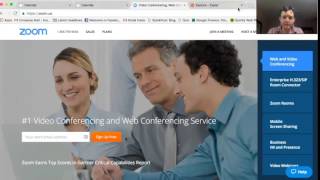
Hey, guys, what's happening? This is Brad Hart. Welcome to Make More Marbles. And tonight I want to show you something that saves me so much time it is ridiculous. Guys. So if you're like me and you run a business, you probably talk to a lot of people on the phone. And I have been looking for ways to make the scheduling process and the call process as quick, easy, painless, and high quality as possible. So I've switched over a couple different times. I used to use Google Voice to make phone calls. I still do as a backup. I. I've used Uber Conference. And now I'm sticking with this video software which I'm actually recording on right now. It's called Zoom. And I have a well earned workflow that automatically has somebody schedule themselves onto my calendar. I get the invite and then it immediately sends out a Zoom link that's their unique ID to their calendar as well as mine. And then we're both set up so that when I arrive on the meeting, they know exactly where to be and they're there and there's no problem. And this is using three tools which you can get, two of which are, I believe, free, or have a free version, maybe one or two of which you might want to pay for. So I pay for calendly, it's like 10 bucks a month. And I pay for Zapier. No, I don't think I pay for Zapier. I have a free account. I pay for Zoom. So you're looking at like a $25 a month investment. But this will immediately get rid of all of your scheduling problems. People can schedule, they can reschedule, they can unschedule, they can schedule for certain amounts of time. It's just brilliant. So I've talked about the benefits. Let me dive right into exactly how this goes. I'm going to share my screen and show you exactly what happens. So here we are. Here are the three things you're going to need. Make sure I'm just on this Chrome window. Cool. So here are the three things you're going to need. You're going to need Calendly, which is a calendar appointment tool, which is great. I highly recommend it. And essentially you're just going to pop in and pick the one that you want to use. I have 45 minutes, I have two hours, I have 20 minutes, depending on what I'm trying to do. I have a lot of different types of calls that people can sign up for. And you can make these public calls or private. If people go, they can only see the Link. It's all good. You can do a lot of different things with this. Then I use Zoom, which is video conferencing software, which I'm actually recording on right now, and I'm sharing my screen with right now, which makes very tiny files, like megabytes instead of gigabytes, so that you can upload them quickly to the cloud. I can record all my calls and keep a record of them for training purposes, as well as whatever else I need to do. If I need to share a meeting with a team, if somebody couldn't be on or they want to recap, bam, goes up to Vimeo, we've got it. Private links, the whole thing. Awesome. And then we're gonna pop over to Zbier and we're gonna tie this all together, right? So these two things, Calendly and Google Calendar and Zoom, wouldn't normally talk to each other, right? So you need a way for that to happen. So that's where Zapier comes in. And you can do this with a free plan, and I'll show you exactly how. So first we go into Zapier. We want to connect everything. So I'll show you my Zaps. You know, if you're making more than 100 calls a month, you might have to upgrade. But for now, I'm good to go. So we're gonna basically duplicate this Zap. I'm gonna show you exactly what it looks like. So essentially, we went in and we set up Calendly as the trigger, right. And gave it all this information. And then we. So I'll just walk right through it, right? So Calendly is the information we gave it. We just connect. It's really simple. Invitee created. Cool. Then we set up and test the account. Cool. We test that step. Right? That's all tested. The next step is. That's the trigger, right? So this triggers this action to happen. So we want to create a meeting in Zoom. So then we go through these five steps. You connect Zoom, you create the meeting, Zoom account, edit the template. Now, here's where it gets a little bit dicey. And this is why it's really important to pause this video and make sure you have this all correct. So the topic, first name and last name, these are all pieces of information that Calendly will provide to Zoom, right. When it makes the meeting. And then you pick the start time and the duration, and that all comes good. And then we continue. We test that. We're good. The last thing you want to do is connect your Google Calendar. Now, I use iCal, which is linked to my Google Calendar. So this goes through Google Calendar. So it goes through Calendly, goes through Zoom, and then goes through my Google Calendar. I'm going to show you how this is set up on the back end and I'm going to show you this in real time, how it works to connect to my actual calendar. So then you go and you create the third step, which is Google Calendar. Cool. You set that up, you create a detailed event. Now this is important. You want to create a detailed event. There's different things you can do here. And again you're going to connect the correct account and you're going to do the correct email. And this is where it gets a little bit dicey. So basically you want to have this as your prefix and then the message that comes through is the meeting id, Right. The message that Zoom sends Zapier is the meeting id. So that's what you want to grab here. So you see the little Zoom icon? The message is an actual number that will be used to verify the id. And you just have to add the beginning part because the ID is the unique identifier that's private to your actual meeting. So that needs to be appended to the end of that link. So all I did here is I took the beginning of a link that any Zoom meeting would generate and I just put this piece as the variable which creates the link. Right. Then we got the event start time, the event end time, and all the rest of this you can just ignore. Then you test that. Once everything's tested and set up, you turn your zap on, make sure it's on. That's up on top right here. And now I'll show you how this works from start to finish. And this is brilliant, folks. So let me just go to one of my calendly pages. So this would be a 15 minute phone call. I'll book it for Monday and I'll confirm it. And then I'll just go ahead and put in my own email here. Support is fine. That works. Coaching. And it doesn't matter, but there's the. There's that. Cool. So now we've got an event scheduled. So what's happening is this is now telling Zapier to tell Zoom to make an event which is going to end up on my Google Calendar. And I'm just giving it a second to do all that. It happens usually right away. Sometimes it takes up to 15 minutes, depending on the server load. But essentially this is what's going to happen. So now I go to August 22nd on my calendar. Okay, now this has shown up right in my calendar. So you get two invites. Now this one is from Calendly. It gives them, it gives me a high level overview. So this would normally be somebody else's name. This is my name. It gives the information they put in on Calendly. It gives them a link to cancel or reschedule this event if they need to. I don't have to be bothered. And here we go. We've got a email with the link already there. I want to click on that. I can go right to the zoom meeting so they're ready to go. And this also sends out reminders, Calendly up until then. So if this has been useful for you, it saves me a ton of time. You're into it for like 25 bucks a month. I really recommend it. This saves me tons and tons of back and forth scheduling and hassles and everybody knows where they're supposed to be, there's no question about it. And I still have their phone numbers as a backup, which is great. If you like more videos like this is my pleasure to make them, please check out makemoremarbles.com and if you're looking for more help with systems like this, sales funnels and marketing funnels, check out marketyourcourse.com and we would love to help you get stuff like this set up in your business business so that you can earn more money and make more sales and serve more people because you're not spending your time on countless messages back and forth about what is happening when. Cool. Love it. Talk to you guys soon. Check me out. It's been Brad Hart. It's been an honor to serve you. Have a good night.