Advanced Teams Tips
Catherine Sanders Reach shows legal professionals how to use Teams beyond basics: embed apps like Adobe Sign and DocuSign, run approvals and e-signatures in chat, organize files across SharePoint and OneDrive, and use breakout rooms and live captions in meetings. She covers slash commands, notification settings, and how Teams replaces email for solo practitioners and firms.
Chapters
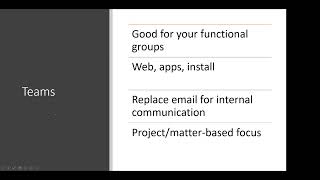
So good afternoon, everybody, and welcome to today's learning objectives webinar. And this one we're going to be talking about advanced tips for Microsoft Teams. And when I was thinking about putting this together, I thought, what's advanced? Um, so some people are going to have more experiences than others. I'm going to kind of walk you through some of the basics and ramping up quickly to more advanced things. There's, uh, one thing about Teams is it's constantly changing and constantly evolving and constantly adding new little features, many of which are kind of hidden. So that's one of the things I want to kind of show you is what's been hidden. But I want to run a little poll and get a sense of who I've got here. So if you will indulge me in answering the question that hopefully has popped up on your screen. Okay. So out of the participants today, many of you are sole practitioners, and then we've got a couple of people in slightly bigger firms, and then we've got one person in what I would consider a big firm. Of course, some of you are coming from government organizations and counsel's offices and things like that. So Teams is the most useful when you have multiple people, but if you don't, it still has the video conferencing. Marty and I were talking about before we started recording that Zoom is super easy, But Teams continues to improve from the video conferencing perspective, and I'll show you what I can about that. Pretty much if you can do it in Zoom, you can do it in Teams, but there's a couple of additional features in Teams that you don't have in Zoom, and mostly having to do with presenting PowerPoints and things like that. So I'll end the poll. And I'll show you our audience today. So Teams is good for functional groups. It's got a web version. So Victoria, my teammate today, is going to be on the web version. Um, there's an app that you can install on your desktop. It's pretty much one of the things about the Teams in the browser is that it's almost on par from a feature perspective than the thing that you install on your desktop. And then there's apps, so you can get Teams on your phone as well. So when I look at the overall Microsoft 365 experience, you can get Office and get all, you know, OneDrive and your files and You can scan documents and do all that stuff with the Office app. Then there's the Outlook app. And then there's To Do if you use To Do. And there's Teams. So there's a lot of apps in this ecosystem and they did what they could to reduce the number of apps that you install, but there's still a lot. And then one of the things that in theory you can do with Teams is use chat for internal communication instead of email. And so you don't have to manage your email at least for internal, and you can also kind of organize where things— you don't have to organize it, basically. You can chat with different people. You can chat with the entire firm. And I'm going to show you some interesting things that they've added to the chat. The chat is actually significantly more functional than it was to begin with. One thing to remember with Teams is that it has kind of two backbones, both of which are fairly transparent, which is that— It's all the functionality is tied to and using Microsoft Exchange and Microsoft SharePoint. But you don't have to figure that out. It just works. And in Microsoft 365 Business versions, all of this stuff talks to each other, which we'll also look at too, because it makes life a little bit easier. So anybody have any questions? Do please feel free to chat. Victoria is going to help me monitor it. And yep, so a couple of people said they didn't work for firms per se, and honestly, it doesn't matter. Teams is built for any workplace. It obviously— there, it's not a legal-specific application, so you can work. In fact, sometimes I think it works almost better in a corporate environment or in a municipal office or government office. Academics use it, so it's, um, it's widely used. So I'm just going to kind of run through the screens in Teams and show you the different things that you can do. So I'm literally going to start at the top and work my way down. Again, if you have any questions, just go ahead and chat, but we'll go ahead and dive into it. So when you go into Teams, and I'm using the installed version, but again, it doesn't, doesn't really matter. You can use the web version as well and it looks pretty much the same. Yesterday I installed two little, they're not really installs, it's more that I pinned these to my sidebar. When I went into the browser, those were there. So that's all good. But if you start at the very top, It gives you two options, my activity, and I'll see what I've sent to people so I can kind of look at what I've done. And then the feed, which is everything that's happened across anything that I have access to in Teams. And then you've got this little, um, button and you can filter. So if I needed a filter, if I had a whole lot of activity, I could filter this activity. And then in the settings here, you can go through and you can set up your notifications. And so if I've missed any activity emails, then email that to me as soon as possible. But you can also say, you know, on a schedule or do daily so you're not overwhelmed. It depends again on how busy things are. Notifications, I can either get it through Windows if I'm on Windows, but again, this works on a on Macs as well. Um, get message preview. So I usually encourage people to go through and look at these settings just to make sure that everything works the way you want it to, and you can kind of, um, make edits. And this is basically for you. This is not making any global changes to the settings. The other thing is right across the very top of the bar, You can go up here and those settings are right there as well. You can do keyboard shortcuts. On occasion with the installed version, I check for updates, so I make sure that I have the most recent updates for the software. So I did that yesterday. Um, it will continue to run in the background. You don't have to close the app or anything. And then this is me and it's It's called Presence. And so one of the things that's interesting is that— see how it shows that I'm in a meeting? That's because it knows from my Outlook calendar that I'm in a meeting. So if you're using your Outlook calendar, it automatically will set you as in a meeting because it's in your personal Outlook calendar. If I want to send a status message or set something up, I can say, um, You can kind of give people a notification. You can show when people message me or have it turned off if you need to do some deep work and not be disturbed. Clear messages after today, after an hour. We'll set it for an hour so I don't even have to remember to go change this message. Um, and then click on Done. You can also schedule your out of office right here. So now if anybody looks at my status, they can see that I'm doing a webinar till 1. It's going to display until 1:13, and I don't have to go back and change that. So again, this, this lets other people in your work environment know whether you're available to chat, which is useful because chat is the next thing that we're going to look at. So with chat, you can chat with individuals. You can chat with multiple people. You can chat with the entire group, everybody in the firm. And you can also spin up a video conference or just a call directly from chat. So say Victoria and I were going back and forth chatting, and then— and this happens to me all the time— we go back and forth with chat, and then I realize, you know, I need to pick up the phone. Well, I don't have to pick up the phone and call because we're both in the application, uh, if we've been chatting back and forth. So I can just click on the video conference and call her without moving to a different application or doing anything else. And then, you know, we can get what we need done. Um, there's some other little buttons. So, and one of the things to be aware of is that you mouse over things to see what it is. I can add someone to this message if I want to. So if Victoria and I determined that we need Erin to get in on the conversation, I can add her to this conversation. So she'll see the, um, the prior conversation when I add her. And then if you want to pop this out and have it on its own screen, you can do that. It has some prebuilt responses, or you can type in a new message. One of the things to be aware of is that across the bottom of any chat message, there's a whole lot of options. So you can change the formatting. You can set delivery options so you can give it a high priority if you need somebody to pay attention to it. You can add attachments. Then there's this thing called Loop. So if I click on Loop, to insert a Loop component, start with an empty message. All right, so I'll go ahead and send this to Victoria. I've got my empty message. What Loop does, and this is kind of new, is I can add bulleted lists, checklists, numbered lists, paragraphs, tables. Or a task list. And it, it's just adding additional formatting options really. So for a task list, if I pull in a task list, I can add a title and we'll say And produce and promote, if I can spell right, promote link. This is going to be assigned to me. You have to put an Good thing is it prompts you to do things. And then I'm going to @Victoria. For this assignment, and then I'm going to give it a date. So this is just a quick way to add a task list within chat. And again, this is new, and I'll send this. So now I've added this Loop component, which they're building out this entire thing. Now, one of the things in theory is this is going to show up in my task list in To Do. Other things you can do is add emojis and GIFs and stickers. All of these very important, obviously. And then I can schedule a meeting from within chat. And you can also do this thing, which I think is a kind of a new trend is to give people praise in a remote working environment, or even not so remote, um, giving— just remembering to give everybody kind of a little attaboy once in a while. So I'm going to— I'm going to give Victoria the Courage badge because she had the courage to get on with me today. Okay, and then now I can make this public or I can just make this private to her. In this case, it's just private to her. Again, these aren't very important things, but it actually does make a difference, especially if you're a manager, to remember to say thank you. One of the things that I try to remind people when they are— when you're managing people Remember to thank people as much as you can, because there will be the times where you have to, you know, kind of correct their, um, whatever they're doing. And it helps if you've been kind to remember to say thank you more than you have to, uh, tell them what they've done wrong. Other things that you can do is this task button here. That's just for me. So I can create a task from chat that goes into my to-do list. So it doesn't really have anything to do with the chat itself, but rather that I'm going to send a chat to Victoria to, um, tell her I'm going to do something, and I want to create a task to remind myself. Again, this is all within chat, so chat has become a lot more functional. And then if you click on this ellipses over here, there are more things you can do if you've added other apps. I've added Approvals and Updates, and so I'm going to add an approval and I'll show you what you can do with this. So again, this is If you're in a larger organization, this makes a lot more sense. If it's just you or just you and one or two people on the team, it's not going to be as useful. But if I want to create an approval, and we're going to add Victoria, she's the person in our chat. And then I can add an attachment, and if I click on attachment, I can look at my OneDrive, upload it from the computer, or click on attach link, and I can link to an existing file. I'm going to pull one from my OneDrive. I don't even— it's not attaching the file, it's linking to the file. This is only something that you can do if you're using OneDrive. Now you can add other cloud-attached storage. So if you're using NetDocuments or you're using Dropbox or Google Drive or something like that, you can actually add other files, attach storage. Then I can add custom responses. I can also send it another environment, and that other environment is different from the default. The default is just a Victoria, but I can actually expand this to a team that we're already in, things like that. And then once I'm done with that, I click Send. I agree to the privacy policies. Underlying service: Power Automate. Power Automate, we're going to go through, but Power Automate is part of the Microsoft 365 product. So don't worry about this so much because you're not— this isn't giving access to a third-party tool. This is all within the Microsoft 365. So that's sending that off. The other thing you can do down here, and remember when I showed you approvals before, couple of different options here. We can just have an approval for, say, a document, but you can also send something for e-signature if you use Adobe Sign or DocuSign. So again, this is probably in the situation of a larger organization where you need somebody— say you were in-house counsel or you were city council and you needed somebody within your team to sign a document— you can send it straight from Teams through chat. And then You've got templates. You can create approval templates. If you find this is something that you use a lot, you can do that. The other thing that's kind of new to Chat is, again, this thing called Updates. And in order to get these two little buttons, just click on this More Apps, and then you go and search for the app. So it's there. So if you go, where did you get that? That's where I got it. So go back to the Chat with Victoria. And then one more thing I wanted to show you can do, and again, this one is called Updates. And there's a couple of different— again, this is all Power Automate in the background. So the examples are certainly not from legal. So you can write an update or request an update. So I can request an update, start from a blank template. And then we can add choices: yes, no, text, date. We'll add it, um, So basically you're pushing out in this one a form, and you can also make it a template so you can use this over and over again. And again, it tells you the underlying service is Power Automate. That's part of your 365 subscription, so you don't have to worry about it. So chat has gone from being kind of an instant messengery type of activity to giving you a whole lot of functionality. So if you've never used Microsoft Project or any of the other things that are in there, or rather on Tasks by Planner, You could, you could do a lot of actual work in terms of approvals and things like that just within chat. So any questions about that? Katherine, very quickly, this is, this chat is live time. I mean, real time. So you're really intruding into your recipient's workflow. Correct? It is true. You can turn off notifications, though. So if I did not want to be bothered by all this stuff, then I can turn off notifications. I can— again, you just go up in your settings and you can set a do not disturb. You can say I'm not checking today. You can, you can close the app. Since I'm getting notifications through the app, if I have the app closed, I'm not getting it. Now they will get email if you set it up to get email notifications. Then anything that's important, I can get notifications. So again, you just go in your notifications and say I just want this daily. Um, and so it's, it's really— it's not any more intrusive than email. I don't know about you, but I turned off my email notification pop-ups a long time ago. I check email when I'm going to check email. So different teams are going to use this in different ways, but you don't have to, uh, have to make this intrusive. They can go back and check. And again,, it'll show up that you have a new chat, and it'll also show up in your activity. So you remember across the board what you did. There are a couple of— okay, so that's, that's about it, I think, for chat. Again, if anybody has any questions, let me know. Oh, I wanted to show you one thing that they've added that's new. Well, actually, this isn't new. So if I've shared any files with Victoria, like the one— so this post-production list fluid, that is a Loop. And it is the Loop file type is.fluid. Again, Loop is really new. They're still developing it. It's not in every— it's not in all of the Microsoft products yet, but it has been incorporated into Chat. If I look in organization, if my organization had an org chart built in, I could see who Victoria reports to, any activity that I have with her, whatever groups we shared. And then I can also look at her LinkedIn profile. So, um, Because Microsoft bought LinkedIn, you're going to start seeing more and more of LinkedIn kind of coming into play in Outlook and Teams. And the nice thing about this is that I can kind of see, you know, if I don't remember where Victoria was before she came to NCBA. And this is the kind of thing where it just gives me some new talking points. In smaller firms, this isn't going to be a big deal. In bigger firms or when you have new team members, you can go, oh, hey, from your experience with Toshiba, it sounds like you used Teams a lot. Is there anything I'm missing? You know, how can we use this better? Things like that. Or one of the things, I just did an expert series for NCBA, and we talked about creating a knowledge base of people. And almost creating your internal LinkedIn. Well, this is built in. So if you've got enough people in the firm where you want to see past experiences, oh, it looked like you, you know, at one point worked for Duke Energy. I've got an environmental issue with, you know, on a zoning project. And do you know any of the regulatory framework from that side of the fence working with Duke? These are— so while it may seem esoteric or unnecessary to be able to see someone's LinkedIn profile from within Teams, it actually can come into play if you just think about how you may be able to use the data. Again, you can make calls and video conferences with people within your organization, and these are just— it, it basically keeps you a running list of who you've made calls with, and if they leave you a voicemail message, it transcribes the voicemail. Um, files. So remember I said you could add cloud storage? So down here, if I had Dropbox or Google Drive or some other document repository, NetDocuments, something like that, WorldDocs Web, iManage, you can add other cloud storage by clicking on this button at the adding other cloud storage. Otherwise, you've got your recent files, and this is all the files that you've used within Teams recently, then just the files that you shared within Teams. And then this is my OneDrive, so I can access my OneDrive from here. And if I wanted to share a folder, um, or rename it or open it OneDrive, I can kind of go in here and, and, you know, work with my own files. Again, they're trying to create kind of a landing space for you so that in theory you're living in Teams. So the things that I added in chat with the updates, you can go back and I, I just went to this little apps button and right-clicked and added it. So Here's some other things. Sorry, I don't go into apps, go into this. It'll see, it'll show you the recent things that you've done. If I want to pin this, you right-click on it and pin. So then it appears in your sidebar there. So you don't have to go to this every time. So here's my, anything that I've sent that required an update, or I can create new ones. From here. And then again, the approvals, anything I've sent for approval, I can add something new. This is only going to show me when I've been— someone's asked me to approve something. It apparently does not show me, which would be nice to know when I've— what I sent in addition to what I've been asked to approve. If you have Adobe Sign, it actually shows you what you've sent, um, for approval through Teams. And similarly, if, if you have DocuSign, it'll show you what you sent. So again, it's trying to give you a dashboard to access everything. This little Apps button here, um, you've got apps that are popular on Teams. So some of this stuff is Microsoft products like Projects, Milestones, Power Apps, Channel Calendar, Roadmap, bunch of different things. But you can also incorporate YouTube and products like Clio. So this is where you would, you would find these. You'll note that in the Industries area, They lump everything in professional services. There's no specific for legal. The other thing down here is workflows, and workflows are basically all built on Power Automate. So Power Automate is a lot like Zapier in that it creates connections between disparate products and different, different apps and creates a little automated Automation. So I'm just going to show you a simple automation in this. So the editor's picks, you can create your own, but I find that it is easier to find one that's already been built and kind of edit it as necessary. So I was just looking at this notify channel, you'll be out of the office. So Marty, if you don't want to be on call and you don't want people to let you know, you can tell this channel I'm not going to be in the office today, so don't bother. Um, so I'm going to click on forward emails to a channel, which I think is really helpful. So if I'm going to keep this default name, it tells you what it's connecting, Microsoft Teams and Office 365. While I am already signed in, It always asks you to sign in, and then you just kind of follow the bouncing ball and you click next. So if I get an email from Victoria, but this can be anybody in the firm or outside. So if I want to put the email, if, if say I want every time Marty emails me to go into a particular channel, I'll put him in there. Um, and then I'm going to select which team to add it to. So in this case, I'll have it sent to, this one. And then we only have one channel in here. I'm gonna show you all what that is and add workflow. Simple as that. So if Victoria emails me, it's gonna go into this general, channel for this team. So this is really weird, but Teams, um, primarily consists of two main things, or three: chat, um, video conferencing, and then this button right here that we've avoided up to now called Teams. This is actually Teams Workspaces. And to me, this is where the power of Teams really comes into play. So you can create multiple project-based or matter-based groups. And so if I go down and create a team, then I can create one from scratch. Private means that people need permission to join. So these, um, This is within your own firm or organization. Public means anybody in the organization can see it. So we're— I usually default to private. And you can give it a description and then create. They give you a lot of praise through this process. So I can add an existing group of people or particular people. So I'll add Victoria, and we'll add Cheyenne, and we'll add Amy. You can change people's roles. So If you're an admin and you were asked to create a team, you can make someone else a co-owner. You will maintain ownership status, but you can create a co-owner. And once you do that, what happens is it creates a workspace for this team, and it has 3, 3 things that it creates. You have chat just within this Teams workspace, shared files, and you can upload files for this particular team to work with, and then a wiki. And a wiki is just kind of loose notes, and I'll show you what all this looks like. And so it creates— it automatically creates this general channel. You can add additional channels. So if I want to add, um, I can also choose only specific people within this team have access to this channel or everybody on the team. Um, also if you want people to know it's there, show this channel in everyone's channel list, click on add. What it does is it creates another channel. And again, with the default communication, the post, which is just chat, same features that you have in chat over here exist here, files, wiki. Okay. So how you might use this in a firm or an organization, you can think of it as each one of the channels could be a client or It could be a, um, a matter, or it could be a project. It really depends on how many clients you have, you know. Are you— do you do a lot of transactional work where you have a lot of individual clients, or do you have a client that has a whole lot of matters? So you may create, you know, it really depends on, you know, from the structure perspective. If I had a practice that had 3 primary practice areas— estate, trust and custody, then I would probably create a team workspace for each one of my practice areas. And then within that, I would add the client matter as individual channels because the team of people who are working on these client matters are probably going to be about the same. If you're in an organization where you're more project-oriented, you know, you can do it by project. So it just kind of depends. I think the, The hardest part of figuring out Teams workspaces is thinking about the structure and how this is going to work. The other thing is it only shows you active teams, but I have a whole lot of other inactive projects going on. So I can always see those. Once I get active in the hidden teams, they'll appear in my primary teams list. So to kind of show you what some of these things look like, I'm going to go up in here. And you can see this is the chat that I've had with Victoria. And this, if I want to see who's in on this team, I click in this, I click on Manage Team. And I can see who's in here and I can remove them if I need to. I can give them a different role if I need to. All that kind of good stuff. I can see what channels are in here. I can make individual settings, so I can add a team picture. So you can see in this one, I added a team picture. I can change the member position, permissions, who can add channels, who can add apps, guest permissions. And I'll show you what guest looks like. So you can control— again, in a small organization, you probably don't need to exercise a ton of control over this, but If you have a larger organization and you want to kind of quell some user behavior, if they get crazy, you can. You get analytics, you can see what apps are available to you, and then tags. Now, um, tags don't work in Teams the same way that they do in other applications, and quite frankly, The way they work right now, I don't think they're all that useful. So there's that. So going into the general channel, you can see that I've got, you know, again, the, the chat files that I've shared. These are automatically shared just within this channel. And these are some documents from my desktop, some documents from my OneDrive, and it's really easy to add them. Add a whole folder, individual documents, OneNote notebooks, um, forms, Excel workbooks, whatever you want. You can add them and they link. If I want to open this, just to be aware, if I click on this, it's going to open within Teams and I can edit it on the screen. I can also just add comments. If I am more comfortable in the desktop app, click on Open in Desktop App here, and when that happens, it's literally going to open in Microsoft Word on my desktop. I can make edits to it, and then I can close it., and it will automatically save back to the space. So I think that's kind of neat. You can also go and look at versions. You can do all sorts of things with this. You can also open this in SharePoint if you want to do some additional work on it, like adding additional fields to this if you want to see, you know, the date created, you can go and open it in SharePoint and add additional columns. Or I can add more cloud storage here. I can also filter and create different views. And then I can add a shortcut to OneDrive. They keep reminding me of that. But at any rate, Then the next area, this is that wiki that I created, and I just— you cannot change the name of posts or files, but you can change the name of the wiki by just right-clicking and clicking on Rename. So beyond that, these are the things that you get out of the box: posts, files, notes. Then You have this plus button, and the plus button lets you add anything else you want to. So if you want to add additional wikis, if you want to add a specific Word document, if you want to add a Microsoft List, if you want to add a Microsoft OneNote notebook, you can add all of these things, and basically they live wherever you set them up, but they're visible and viewable from within Teams. So you're not moving anything, you're just viewing it. Um, there's also all these other apps, and this is when you're getting outside of the Microsoft ecosystem into others. So if you're a Clio user or a Law Toolbox user or a NetDocuments user, you just type in Clio, and this is the integration between Clio and Teams. Or if you are a PracticePanther user, you can type in PracticePanther and they don't have one. NetDocuments does. So there's NetDocuments and NetDocuments Share. So if you're using other tools that are web-based outside and there's a some sort of API between Teams and the tool that you use, you can add them. So I'm just going to show you an example. In our organization, we use a product called Asana for project management in our marketing department. So I added Asana by going over and clicking on the button and type in Asana. I click on this, it says, okay, you know, there's permissions, select the workspace from Asana and click save. So I already did all that. And then you'll have to log in. To Asana. Once you've done all that, this is what happens. I can add new tasks directly from Teams into Asana. However, that's not all that useful to me. I really want to see the whole project plan within that. So all I can do with this Asana kind of API plugin is add new task. But that's, that's not everything in there. So what I wanted to be able to do is kind of embed Asana in Teams. So I did that. And now what you see is I'm going to pull up basically instead of going to another website, it just puts a frame around this product that we're using. That's not part of Teams, it's not part of Microsoft, but we are using it and I'm able to kind of embed it. For everybody in this Teams workspace. So the way that I did that is I click— I hit the plus button, and it couldn't really be any easier. I just click on Add a Website. So I'm going to say A to Z. And find, add a website, and I just say what tab name I want it to be and paste the link, log in, and this is what you'll see. So again, if you're using other web-based tools, if you don't like the way the Clio API works, you can just embed Clio into this. So I think that's, really handy again so I'm not jumping all over between Teams and my browser and everything else. So any questions about that? And I'm going back to look for questions. Does it have to go through Teams or will they send through email? So one person was asking back about Adobe Sign. Does it have to go through Teams? No. You'll see what you sent from Teams in your Adobe Sign, because basically, just like I've kind of integrated Asana into Teams, all the stuff that I do here in Asana will appear in Asana as well. Anything I do through Adobe Sign in here will also be in my, I'll prove it to you. So anything that I sent out. So these are some things I sent from, from Teams through that new approval process. That are also showing up in my Adobe Sign through Acrobat Pro. Okay. All right. So the next thing is, this is an outside product that I incorporated. You can also incorporate other Microsoft products. The one that I think is really useful for for law firms is this Tasks by Planner. And Planner is a project management tool. And so I've just got some samples. So say we were doing a, a plan for a, either a template for working on an estate plan or for an individual. So I've got all these tasks. So if I click on this, I've got, you know, task, then I would, I can, these labels are actually useful. So I can go in and create labels. So if I want to create a label, I can start editing the existing ones. And so we can say this is for So if you want to add additional kind of context, you can add labels, and then you go through and you can create— I've created these buckets: onboarding, gather information, generate documents, so on and so forth. I'm— you can say not started, you can do medium, start date, due date. Notes. I put in a checklist. So sometimes when you create a task, you realize there's some subtasks that need to go in there. So you can add subtasks, you can add attachments. So if you have a template that you want someone to use, um, for gathering information, that kind of stuff. And then everything that is done within this particular task is tracked. So all activity is tracked down here. When you're finished, then you just click the button and it's done, and it automatically goes down to the bottom under Completed Task, and it doesn't go away, so I can see it. So if I want to add a task, So this is the quickie version. For any task in a task management product, and I don't care what it— what you're using, you've got 3 main things. What it is, when it's due, and who it's assigned to. If that's all I wanted to do, then I can do that. Anything else is gravy. So if I click on this, then I pull up this whole card. That's where I can add my labels, start dates, do you know, progress, priorities, descriptions, sub-checklists, attachments, all that kind of stuff. But just a simple task is What is it? Who's assigned? And when is it due? And again, you can do this in a Kanban board. So you can go to do, doing, done. You can create multiple, what they call swim lanes. Or if you go, I don't like the way this looks, you don't have to like the way it looks. Click over here and go to lists. Now your checklists are oriented as a list, and you can click in and see the task itself, and you can click it off here, and you can sort by due date, you can sort by bucket, all that kind of stuff. So again, you, you're, you're not stuck with this board view. You can go to a list view. You can also look at this in a chart and see who's been tasked with what. Um, who's late, who's completed that. So you get kind of this chart. If you want to see it on a calendar, you can see it in a calendar view. So, and then there's lots of filters. So I can say I just want to see what's due, um, and have been assigned to Victoria and so on and so forth. So this is a totally different product called Task by Planner. It's, it's the Project itself, or the Planner is a product within Microsoft 365, but it's one of those things I think significantly enhances Teams. So, okay, we're running up on time and I didn't show you video conferencing, so let's hop into a video conference. I am going to turn off my camera. So you can see this. So I can start a meeting immediately with the people in this particular team, or I can start a video conferencing from my, from Outlook. We're just going to do this really quickly. So you can see that the, my settings are going to be for this particular workspace. Things you can do: toggle on and off the camera. I can add background filters so I can blur my background. It's something you're pretty used to. You can add all sorts of pretty screens if you want to. And then with the computer audio, you know, this is all for you setting up what audio you're going to use. And then once I'm happy with all of this, I'm going to click Join Now. And I've started the meeting. I can add participants, copy the meeting link, and send it via email. I'll just be in here by myself. And so you can show the participants panel. Um, these are the people in that particular, uh, workspace, so that's why they're suggested. But I can send this to anybody. If they're a Microsoft 365 user, they can use Teams installed or on the web. If they're not, they can just click the link. They don't have to log in or anything. Just like in Zoom, you've got chat. Again, you've got some enhancements to the chat that Zoom doesn't have in terms of formatting. Loop, so you can add tasks. So pretty much what you have with chat in Teams, you have chat within the video conferencing. You've got the same reactions that you have in Zoom. You can create breakout rooms, you can create the number of breakout rooms, you can assign participants to the rooms in advance, um, or manually. And this is something that a lot of mediators use Then under the More tab, you can basically test your, um, the strength of your internet. You can add meeting notes. So I like meeting notes. If you pop meeting notes up and take notes, what it does is, because I started in a Teams space, it basically creates a wiki Names it the name of the meeting where it lives, and I can start adding notes to my— and other people can add notes as well, so people can all be taking notes at the same time. Then other things, obviously, you can record, you can turn on live captions. Those are the background effects. Other things that you can do are how you want this. Now this, you have to wait until people are in here, but I can create this thing called Together Mode. And Together Mode, just, it's kind of goofy, quite frankly, but the pandemic caused us to do goofy things. So you can create basically a little conference room. So everybody's little floating head is sitting in a chair around a table, things like that. The share is interesting in terms of sharing content because you've got, um, you can include computer sound or not. You can create a shared collaborative whiteboard, uh, and you can share just your screen, um, just a window, or you can share a PowerPoint live. So you can also do just content. If I do Standout, let me share this PowerPoint. So when I share a PowerPoint, I can also put myself on top of it, which is a little goofy. And then you can prevent participants from moving through shared presentations. So this is actually a shared presentation, they won't be able to see my notes, but they can see what's coming next. If I want to turn that off, I basically turn off their ability to do this. So we'll stop sharing. So your share options are very, very similar. In terms of sharing just screens, but you also have the whiteboard and you have— I can do content side by side. I can do— so here, I'll just share this. So now I'm sharing my screen. This is very meta. And how I want it to be positioned and change the size. All that kind of stuff. So, um, and then to get back, I'll just click there and stop sharing. So those are the tools. Again, very, very similar to Zoom, just a couple of bells and whistles in terms of being able to take meeting notes, having whiteboard spaces, um, and, and the live presentation. Other than that, not hugely different. Okay, so it's 1:02. What did I not cover that you want to see? All right, I'll show you one more thing. The search. Search is important. So if I type in a slash, these are a bunch of commands. I can send a quick message to someone, I can call someone. So you don't even have to go kind of navigating through all this stuff. Just type in slash and I'll say call hit enter and Amy, and it would just place the call. So the, the search, in addition to being a regular old search where I do a search for someone's name, I can see all the messages with them, um, that I have, uh, and I can say I just want to see You know, just that team, from, date, all. So, and if you have someone across the organization that you're chatting with a lot, you can filter out and just see the chats that you want to get back to. I can see this person's a guest, any files that I have shared with this person. And again, I can look in a specific team for a specific file type, the date modified, all that stuff. By the way, remember when I said you could invite people from outside the organization? This particular, um, workspace is all people outside the organization. So one of the things that happens is this person is not in the team. When she emails me, I forward it from Outlook into here, and there's a button in Outlook that says send to Teams. So if you're working on matters internally and you get an email from a client and you wanna push it over into the Teams chat so everybody sees it, then you just click Send to Teams from Outlook and you can move that email. It doesn't take it out of your inbox. It just moves a copy of it with whatever files are attached, all that kind of good stuff. And it also creates a file called.eml. So you can see all of the, the emails additionally with the attachments. So it, it actually puts the— see how this is a.eml? These are emails that I forwarded. So this is, you know, and as you can see from our files, this is the primary purpose of creating a Teams workspace for these externals is because we're sharing a ton of files and it's just much easier. We can, I can open this up within Teams and see our track changes and comments and all of this other stuff without having to go into OneDrive and share the file and do all that stuff. It's just all kind of in one place for us. Okay. Any questions? Did anyone learn anything that they didn't know already? Oh God, yes. Okay. All right. I will remind you again, this is how you find me. You can email me and I promise to respond. I am going to stop the recording. And then I'll let y'all ask any questions that you were too shy to ask live. So just give me 1 second and I'll stop the recording. And thank you for coming.










