Do I Still Need That File Server? Considerations for Moving Your Shared Files to SharePoint
Daniel Cohn and Catherine Sanders discuss whether law firms still need on-premise file servers now that Microsoft 365 offers cloud alternatives. The webinar covers how SharePoint, Teams, and OneDrive replace file server functions, migration steps, technical constraints like app compatibility and file locking, and why you need third-party backup since Microsoft 365 only provides snapshots.
Chapters
Are we recording?
Hi, so welcome everyone to today's learning objectives webinar, and with us today is Daniel Cohn. He's a Solutions Architect for DynamicQuest. From his bio, my— I think my favorite part other than his bona fides is that he acts as a universal translator between client sales the project and support engineers, admin and management, so that he helps us understand, you know, everybody understands where they are without using language that completely flummoxes us. So like I said, if you can put your questions in the chat, we'll hold them to the end. And Daniel, if you want to go ahead and get started.
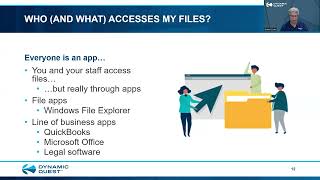
All right, I appreciate that very much, Katherine. I suddenly disappear or you can't hear me, just give me a high sign. Thank you very much for allowing DynamicQuest to come in and share some of our expertise. I love working with the North Carolina Bar Association, great group of folks, and we very much value our relationship with the Bar Association. I will apologize in advance. My voice is a little raspy. I have a slight bit of a cough. Nothing COVID-related. I actually am a singer and was in a concert 2 weeks back and sang a little bit too hard, and I'm recovering from that. And then as my job is in sales, I am the solutions architect, so I do solutions design for our solutions from DynamicQuest. I do a lot of talking, so I haven't had a chance to really recover. This topic that I'm going to talk about today, do I still need that file server in my office? It's very timely. A lot of people are moving to the cloud, and a lot of applications have moved to the cloud. And because of that, people are really questioning whether they need anything in their office besides their PCs and their connection to the internet. And in many cases, the answer is no, you really don't need anything beyond that. So there are practical considerations though for making that decision, and so this is really designed for that. This is really designed for those people who are not the most technically inclined. I'm going to try to not get technical on it, and for very technical questions, I'll definitely save those at the end so I don't glaze people's eyes over. I am very good explaining technical concepts to it, but my goal here is to talk about the considerations, not the nitty-gritty of how it's done. So if you are the IT or the CIO person, you might feel like this is a little, a little too high level in the sense that it's not getting into the weeds where you might want to be. But for most folks, they're trying to make this decision. They don't necessarily have someone to do it, or they're dealing with a company like DynamicQuest where they need their advice. They want to know a little bit more so they are on a more equal footing. That's what this is all about. So what I'll be covering is what is my file server really doing? It's easy to think that it's just sharing files, but there's more to it than that. And before you decide to get rid of it, you need to know what it's actually doing as it goes along. You also need to understand who and what accesses those files, because your use of them may not be the way that they're truly being used across the system. And it's important to know that as you make this decision. And then what does it really mean when we say it's in the cloud at all? What does that mean for sharing, security, all sorts of stuff? Pretty much it's going to boil down to 3 major issues. First one's technical, as you would imagine. Are there reasons that I can and cannot go to the cloud and get rid of that file server because of some technical reason? But there's a lot of cultural reasons for it, and this is where most practices are going to struggle on what's the value of doing it versus not, how it's going to affect my people, etc. And then lastly, there's a financial consideration. Nothing's free. Whether you're keeping the stuff in that file server in your closet or whether you're moving it into the cloud, there's costs associated with that. I'll end up with a little practical advice on how to make that decision, and then we'll take questions. Now, the last time I got to present— excuse me— was in October of 2021, and it was the larger concept of should I move my entire practice to the cloud. And I again tried to give a very high-level answer to a complex question. All right, but very quickly, all I said is that the way applications work is they all have a way of presenting their data. There's logic about how they massage all that data, and then there's where they store it. All right, it's that green layer we are really concerned about when we're talking about file servers moving to the cloud. So in the old days, you had some big computers, right? Uh, it took up entire rooms, but essentially there was a lot of business logic. There was a way of getting stuff out, usually versus a teletype, and then there were large disks that were supporting it. And nowadays you can get all that stuff on an iPhone, right? So the iPhone is the presentation, it's also got a computer built in that's doing the logic, and it's got memory built in. And the PC, same idea. And the local area network, which is what— when you say you have a file server in your office, this is what you're talking about. PCs, etc. And essentially, um, and I should— no, I don't have that ready to go, but essentially there's business logic and data access happening on that server, and then there's more stuff happening on each individual PC. All right, so everything still works the same no matter how it's done. And even in the internet, it's the same thing. It's just the business logic and the data access, instead of being on a server in your closet, It's in the cloud, but everything else is just the same. So very quick, this is what we're talking about here is should I move from here to here? Okay. And we're going to talk about the practical considerations of that. Now I'm going to do some disclaimers here. What we're talking about when we say file sharing in the cloud, I'm talking specifically about Microsoft 365, also known as Office 365, using SharePoint, OneDrive, and Teams, the built-in file cloud file access. All right, it requires Microsoft 365 licensing. Many practices have already made the move to pushing their email up into the cloud. And this is essentially, do I put my files there as well? I know that there are other technologies for doing this. There's Google Workspace. You can move files into Dropbox. There's, for a while, Citrix had ShareFile, but they've retired that. But there are lots of ways you could move this stuff out. But I'm not going to be talking about those here. I'm talking specifically about Microsoft because the Microsoft piece has Everything that we're talking about, the apps, the whole bit, as opposed to just some pieces of it. Okay, so when I'm talking about file sharing in the cloud, think Microsoft 365. That is the big decision because it kind of comes with those subscriptions and you need certain ones to do it. Microsoft 365 Business Basic, Standard, or Premium. Office 365 Enterprise E1, E3, E5. Or Microsoft 365 Enterprise E3 or E5. If you're already running those, this is definitely for you. If you're thinking about making that move, this kind of gives you an idea of where the software you would need for it. When I talk about applications in the cloud, though, I'm talking about anything, not just Microsoft. All right, whether it's a hosted version of, of WorldDocs, whether it's, you know, the web version of, you know, Tabs3, which is now, you know, something else, LexisNexis, doesn't matter. I'm just talking about applications that you access usually through a browser or a very simple application on a PC where no data, no data is kept locally. No servers are required in your office. It's usually on a browser or remote desktop client. You run something like a Citrix agent, something like that, and that maybe you have a local app on your PC that's accessing that data in the cloud. Like Microsoft Office desktop apps. Okay, so the file sharing, we're talking about Microsoft, but for applications, anything that's cloud-based. Okay, so I just wanted to level set when I use those terms. So what does my file server really do? Okay, the main thing is file sharing. Green again, and this was— we were talking about the same colors that we were talking about in the in the stuff. There's also printer sharing and network management. I'm calling those the blue layers. They're not really presentation, but I needed a color that you could see. All right, and then there's business logic, application services, email services, database services. Those can all be happening on the computer that is your file server. If your file server is doing any of those red items, application services or email services itself, as in it has its own email server on it, or it's running a database server like SQL, you can't get rid of it to go to the cloud yet. You haven't gone to the cloud enough to get rid of that file server. So that's really what that previous presentation was all about, getting rid of those services and moving them up into the cloud. But if the only thing that's sitting there is the file sharing and maybe printer sharing and some network management, Now you can. So we're going to talk about what those are. The network management side of it. This is all stuff that can be done by both Microsoft 365 and by other network equipment that you have to have to get to the internet anyway. Technically, there are some technical terms here. You don't have to worry about what they mean. If you do understand them, great. But there's something called Active Directory that defines your users. Security, addressing, etc. All of this really boils down to this box is doing some user and device management. It's handling security, and it's assigning and resolving addresses on the network of different devices. All of that can be done by different boxes. You don't need the file server to make that happen. All right, so if that's all it's doing is file sharing and network management, We can deal with it. Same thing with printer sharing. This can all be done by Microsoft 365 or by just setting up the printers directly on PCs. There's a way around those two blue items. So because of that, pretty much if all your applications are already in the cloud so that all you have are local PCs or tablets or Macs, whatever, on a network with the internet and everything else is accessed through the cloud, and maybe you have some file sharing and printer sharing and network management going on, you probably don't need your file server anymore. And that's a way that we can now move off of it, and we'll explore that in more depth. But if you are doing application services, if there's a piece of code that has to run on your local server, you can't do it. That means you have to actually switch out your applications. Okay, so that's a very quick first test of can I do this at all. Okay. Now, who and what accesses my files? For file sharing, you think of yourself and your staff as accessing them, but really what you're doing is you're interacting with an application that accesses those files. So you don't really touch the Z drive in this file. File Explorer does, or maybe QuickBooks or Microsoft Office or a piece of legal software. Everybody's really an app. You just happen to be driving the app with your mouse and keyboard. So apps access data. That's the main point to take away here. If your apps are in the cloud, all of their data is usually in the cloud and there's nothing local in your office. So if you're doing file sharing and everything else is in the cloud, you're probably just using Windows File Explorer and Microsoft Office and its open/save dialogs to get at your files that are on that server. And everything else is being used by apps in the cloud, not touching it locally. Now you might upload some files from the local file server into the cloud. That can happen. But as far as you're concerned, those apps aren't touching your network. You just might make some stuff available by putting it in the cloud for them. Okay. So when you're doing file sharing in the cloud, what you're doing is you're moving from the picture on the left to the picture on the right. You have client PCs that are accessing through an app, a file server, going to local storage versus having a local PC accessing data that's in the cloud. And I explain that in more depth here. That left picture, file sharing on your file server, users on PCs who use an app to access a file that's across the network. That's shared by a file server box sitting in the closet or whatever that stores those files on a disk. And those files are on what we call network drives, and they map a drive letter to it— S, Z, Y, something like that. And they have a name, UNC name— that's called Stanford Universal Naming Convention— but it looks like my server shared files, blah blah blah, right? That's as technical as I'll get with it. All you're doing is you're switching that out with users on the PCs who use an application to access a file, same thing, across your network, but this time going all the way to the internet where the file is shared by Microsoft 365 SharePoint or OneDrive. We'll get into that. And that's stored on files in Microsoft's disk, which may be anywhere in the world. And files there are stored in SharePoint sites. Don't worry about what the sites are, they're just stored in SharePoint. And they map to something called a document library instead of a drive letter. And that document library uses a URL, essentially a web address. So something like mydomain@sharepoint.com/sites/myfiles. So things are really, really similar when you share on a local area network the file server versus sharing in the cloud, even though the underlying mechanics are a little bit more robust and a lot more is happening, as for your users, they're pretty much the same. So much so that they look the same. So when you're in, let's say, Windows File Explorer, you might have shared drives that represent where you get your files. Where when you're using SharePoint, you have a SharePoint site, essentially your practice name, and then you have different sites underneath it. And after that, they just look like folders, just like anything else. So file sharing in the cloud and on your local file server, very, very similar from that perspective. So it seems like a no-brainer. Well, man, why wouldn't I do it? To complicate things slightly, we're going to talk about 3 ways that Microsoft 365 stores those files. They have 3 different facilities. The first one's called OneDrive. I want you to think of OneDrive as a private directory just for you. It used to be called a home directory. It might be a private share. Some people have a U drive or an H drive that only they can see. That's where you keep your documents. It's on your desk. It might be your— it's, it's, it actually mirrors your desktop as well as your documents folder, but it's something that only you have access to. It's a great place to keep your initial drafts or stuff that is only meaning to you, and maybe you might share some stuff with it, just one or two people. There's another thing that comes with Microsoft 365 called Teams. Teams is a great way of collaborating with other people. So it's for ad hoc collaboration, and the Teams file sharing is works in progress. It's a way of making it so you don't have to email documents back and forth. Everyone has access to them, and if you're a member of the team, you can see stuff. And if you're not a member of the team, you can't. Excuse me. Teams might be a short-term project. It might be a department. It could be all sorts of different things. But Teams is a great way of sharing this data. And Teams is actually just a very simplified but robust functional interface that sits on top of SharePoint. All right, which is the next thing we're going to talk about. SharePoint is— think of it as a file server and a web server on steroids. This is where your entire organization has its workspace. It's where you store your final works. It might be departmental libraries. It might be your internal intranet, but it can also be made public, just like a public website. So you can have external transfers between entities that you deal with, doctors' offices or insurance companies or whatever. It can be your public websites that are refreshed with data. It can be client websites where clients can, can come in, ask questions, do research, exchange information, or vendor websites where maybe some of your legal services firms are using the websites. It can be a ton of stuff. I don't want to overcomplicate it. What SharePoint can do is amazing. Most people start with it though, just as being a big file share in the cloud where everyone shares their files, stuff that's meant to be shared. So the takeaway from this is you'll use personal stuff in OneDrive. If you happen to use Teams, All right, then you'll be able to store files there and access them very easily. And all the security is kind of built into Teams. And then SharePoint will be where you do your real— what you would think of as the file server, where what you normally kept on the file server or should have kept on the file server, you'll keep it in SharePoint. So these are all things that come with all these subscriptions that I mentioned before. You get them quote unquote, for free. If you have email and those subscriptions, you have all this. So now you have a place to put what was on the file server up there. So let's say you decide that you are going to do it. We're going to get to the considerations after this. Practically, how do I do that? On the practical side, what we do is we synchronize your file server's local user directories with the Microsoft 365 so that we understand the security of who's entitled to see what. Then we literally move the files off the file server up into SharePoint. Essentially, we usually just put it into one place and then divvy it up later. And while we do that, all the security is duplicated. Then we take any personal files you have and we move them into OneDrive. These are already private anyway. And then we connect your PCs to Microsoft 365. Right now they're connected to the file server, part of that network management piece. We take them off of that file server and we join them right into Microsoft 365. It's called Azure AD versus local AD. We set up your printing. All right, that might be done through Azure printing, or it might just be installing some printers. A lot of practices, especially the smaller ones, might just have one printer. All right, that does a whole bunch of stuff, and they just connect it to that. Then we'll take a couple of that network management functions off and we'll move them to like the firewall. We'll do a final backup of all your data just to make sure we didn't miss anything, and then we'll decommission and shut down your server. We'll tell you to keep it for a while till you feel 100% confident, and then you can wipe the server and e-cycle it, get rid of it. So that's 10,000-foot How do I get rid of my file server and move my files into the cloud? And we do dozens of these every month, right? This is, this is bread and butter stuff. It's a well-understood process. There's a million tools for it. We're quite adept at that. So if it's that simple, if I'm just changing where my files live and I just put them up in the cloud, it's that easy to move them out and everyone does it. Why on earth do I still need this thing? I already know about the, the— if I have an application service or email or database, I can't do it. But if I only have network management and printer sharing and file sharing, isn't this a no-brainer? Can I just do it? The answer is probably. I would say for 90% of the cases, yes, but there are situations where you don't. And now we're going to get into what are those technical considerations. So this is the meat. So let's talk about technical considerations. As I mentioned, when you have a local file server, you're usually dealing with either UNC names or drive letters. When you're dealing with files hosted in the cloud, it's usually done with a URL. There's ways around it that's underneath the covers, but those are That's at a very high level. It's a different way of talking. So now the question becomes, can your application handle it? If it needs to talk to your file server for whatever reason, will it understand stuff that is already in Microsoft 365? Doesn't know how to talk to Microsoft 365. So that's why I talk about Microsoft 365-aware apps. So you may have something like NetDocuments, all right, and it wants to talk to your local file server and it knows how to talk to that. But if you say it's up in SharePoint, they go, we don't know how to do that. Now that's not the case. I know that NetDocuments can do it. At least I feel pretty confident it can. Um, I think, I believe it's Microsoft 365 aware, so you can move the stuff around and it has no problems with that. And they have a way of saying, okay, you're migrating all your data from here to there, no problem. But you have sometimes situations where the application only knows how to talk drive letters, and you do have a need to access that local file server because that's where you're keeping the data. It's not actually kept in the cloud. If your app, if your cloud application does that, that may be a technical reason you have to keep the file server. So it's really application dependent. We don't run into too many that work that way, but we, we do run on occasion. Some things just don't like to do it. A good example is QuickBooks. QuickBooks doesn't like to talk to Microsoft 365, doesn't want to use that, doesn't like the way it file locks and things like that. So it's not a good thing if you use QuickBooks desktop, but you want to move the file into SharePoint, that, that tends not to work very well. You're much better off using like QuickBooks Online. Okay, there's ways around it that we can get it off, but that's beyond the scope here. Just in terms of can I move my files from my file server into the, into the cloud, some applications the answer is no. The other thing is there's something called cross-linked files. If you really are a whiz at, let's say, Excel, and you have an Excel file that references another Excel file, all those links between the files, those tend to be done with Thrive Letters and UNC. And if you have to update 1,000 files to move them into SharePoint, that might be a technical reason not to do it. There are tools to fix that, but It's something to bear in mind if you really do a lot of cross-linked documents that depend on drive letters. That's a reason to not go there. Usually you'll know though. That's not the sort of thing that you wonder about. You either use it or you don't. So you'll know. And then file locking is, does an application expect that it can control that file because it thinks it's local on that network? There are a few things that work that way. An example is Outlook with archive PST files. They expect to lock them in a certain way. They can't be put up in SharePoint for that. There's a different answer to fix that problem called Exchange Online Archives, but it's something to consider. Those are the main technical things that we run into that make us go, uh, we're not sure we can do this for you. The other thing is that when you move stuff up into Microsoft 365, you want your apps, your cloud apps, to be aware of it, which is great. It's also really nice if they'll support something called single sign-on, so that when you sign into Microsoft 365 and then you go access your application, it knows who you are already. So that's a reason. If you have to constantly re-put in passwords every time you move applications That's a reason to think maybe not. Security is always a big deal, right? And we push cybersecurity like it's going out of style. You want to make sure that as you move into the cloud, or if you're already in the cloud with your apps anyway, you're probably used to multi-factor authentication. But if you don't, if you're not using it today for your Microsoft 365, you really want to turn it on if you move your data up there because you want to make sure you know who's accessing your data and when they did it, and are they really them. That's what multi-factor authentication is doing. It usually sends a code to your phone, either a yes/no prompt or a please type in a 6-digit code, etc. If you don't have the ability to do multi-factor authentication, moving your data in the cloud becomes a security risk, so maybe you don't want to. This shouldn't be a reason to stop. Multi-factor authentication, especially if you've moved your mail into Microsoft, you should have it. And if you don't have it, please let us know, we'll help you get it. It's, it's the number one way to prevent cybersecurity incidents. You do have to deal with access management. You have to make sure you know who's using what. In a lot of practices, everybody has access to everything. You may not want that. When you move the stuff into the cloud. You also want to make sure that because it's in the cloud, it's going to be encrypted in transit, at rest, that the applications can deal with that. And you want to make sure you have auditing turned on. So these are things that have to be available in the cloud platform. They are there with Microsoft 365. You just have to make sure you do them. So it's— it makes the project of moving it a little bit more complex. It's not a reason not to do it, just letting you know that there's a lot more than just picking them up and moving. You have to make sure it's all safe when it gets there. And then backup and resilience. If you move into the cloud, you want to make sure that— now with Microsoft 365, all this stuff is there: geo-redundant data centers, versioning, cloud-to-cloud backup. Cloud-to-cloud backup, that's an add-on with Microsoft. All right. It's usually a third-party piece. Um, but if you— for some of those other platforms that said we weren't going to talk about though, if they don't offer these things, geo-redundant data centers and versioning, you don't want something to happen to your data in the cloud and you can't get it back. Okay, so Microsoft 365, it's in there, it's like prego. But if you're considering other platforms, those are things to consider. The other thing is it looks different when you access it. Instead of using Windows File Explorer exactly the way you thought, you might access it through a browser-based library like the picture here, where it's actually inside of a browser with an address. And then your documents might be here, and then there's folders down in here. It just looks a little different. And if you're not used to it, that's, that can be hard to deal with. Microsoft has a way of presenting where it wants to store the data inside SharePoint and OneDrive called backstage. We usually turn that off for people because they don't like it.
Right.
But it's definitely a different sort of file dialog than what you're used to. And then to get it to show up in File Explorer, you have to turn on it's called sync, and you have to use a OneDrive client. It's kind of native in Windows 11, and Windows 10, you had to kind of do this with some extra work. And so there's considerations there. Sometimes the value of having it up in the cloud isn't there if it's going to be that much of a change. But I just want to make you aware those are technical considerations about, eh, is this really worth it to me? That might influence some of the other ones, the cultural and the financial. Okay, and then lastly, other technical considerations. There may be requirements for e-filing. You know, I know Odysee's in the middle of being rolled out and all that. Um, third-party services, electronic medical records, government systems— some of these kind of expect that you're already using cloud. Sharing. All right, they don't want to go to, you know, you have to upload something from your file server in order to make it work. It's extra steps where they're already integrated with some of this stuff. So these might be technical considerations for actually pushing you to move there. If you have multiple offices, all right, or work from home, which a lot of people did with the pandemic, there's real reasons to put stuff up in the cloud because making sure you had access to a local file server was actually problematic. So I don't want to make the technical considerations all sound like they're reasons not to do it. Sometimes the technical considerations are reasons to do it. And if you're really into the concept of secure data access anytime, anywhere, you definitely want to be in the cloud as opposed to doing it on a file server where you have to build an access system. So those are some of the technical considerations. That you'll either grapple with, or you can always use a consultant, someone like a DynamicQuest or whatever, or your version of us, to answer these questions. What are the ramifications if we do try to move this stuff out? Now the next part is cultural, and I'm not going to try to generalize. If you guys can see me, I've got nice gray hair, I wear glasses, I have a old eyes, old fingers. Um, I happen to be very, you know, young at heart when it comes to, uh, technology because I understand all that stuff. But we deal with a lot of practices where any change is the end of the world. And so changes can be really hard, especially for older staff, especially for staff that might be technically challenged, and they just want the new system to look like the old, and it doesn't, and it rocks their world. Um, I had a legal practice where Microsoft changed the icons for file open, for print, and they had heart attacks just because the icons had changed. And we had to work through— they wanted the address of Bill Gates so they could chew him out personally. I'm we had to show them what they could do. They had ways of accessing data and putting on their, their, their— was it the base numbering, uh, Bates numbering, whatever it's called? Um, it, it had to change when they moved into the cloud, right? And the way Adobe, uh, Acrobat Pro worked for all that, there were some slight changes that rocked their world, and they decided it was worth it for them But that was a big piece, was just the cultural considerations of can my staff handle it not looking the way it was. The other thing is some people aren't comfortable with the cloud for whatever reason. They want to see their IT investment, they want to be able to touch it, know where it is, know who has access to it. They just don't trust the cloud. You can trust the cloud, don't get me wrong, it's highly secure. DynamicQuest runs our entire business in the cloud. Cloud. And people can be worried about whether the cloud provider, Microsoft, are they going to hold my data hostage if I don't pay my bill? Or, you know, what happens if— these are real things you have to think about. If you're not comfortable with it, it's your practice. You get to decide if that's worth the money if this isn't something you like. So those are some of the cultural considerations. On the flip side though, especially hiring new staff, young hotshot lawyers and all the rest, secure data access anytime, anywhere is something that they are used to. It's on their iMacs and their AirBooks— excuse me, the MacBooks. It's on their iPhones. They can get anything from anywhere. They're used to it. And so they're going to expect it when they show up at the practice. A lot of people have been doing work from home. They want to be able to access it on any device that they have. For better or for worse, we are an always available society. Things happen at all times that we have to be prepared. And if all you have access to is your tablet, you want to be able to get your data there. Moving into the cloud is a reason to do that. So it also gives you competitive advantage. If literally in the courthouse you can connect to the network and get the files and presentations and access trial works and do all that good stuff that you need, that's competitive advantage over other firms. So there are cultural considerations to go there. Again, these aren't reasons not to. Some of them are, but there are other reasons on why you definitely do. And then there's, of course, the main one of financial. Capital expenditures versus operational expenditures. People have orientations about what they like and what they don't like, and this definitely has an impact on that. Duplication of resources, usage charges, cost control— go into all of these. So on-premise, when you have your stuff in your own office, just go keep that file server, you're usually in a CapEx orientation, right? You're going to do periodic purchases or maybe leases, but you're going to— they're going to have a cash flow impact. But once you have it, you don't pay again for that for another 5 years. You own it. You can depreciate it. You can sell it. It's yours. You can beef it up. You can flex it up, but usually you can't flex it down. You can't make it smaller if you decide to get rid of half your staff. And when you're done with whatever that file server was doing, if you don't need it anymore, doesn't matter. It's still on your books. You have to decide what to do with it. And there's a cost of ownership that goes with it. Usually you need an IT services or an IT person to take care of the care and feeding of that file server. Got to keep it up to date, maintenance, got to back it up, security, got to build all this stuff around it. So there's cost of ownership with the CAPEX. When you file share in the cloud though, you're usually doing OPEX, continuous payments while you're using that service. So as long as you stay with Microsoft 365, you're going to pay them a monthly fee. Might be an annual fee, but still the idea is you continue to use it till you're done. You have a nice predictable IT spend, number of users times the cost of the license. I know what I'm going to spend every month. You don't own the asset, so you can flex it up or down as needed. And I say that with quotes because Microsoft changed the way that they allow you to flex down. But in general though, you have a lot more flexibility. And when you're done, you can just say, I'm done, and you stop the service. And you're, you know, whether you're moving it to someone else or whatever, but you get to turn off the payments. And there's a lower cost of ownership. There's less services associated with, because it comes with the cloud subscription, so it might be none at all. Still have to deal with backup, still have to deal with security that you want to do probably outside of Microsoft 365. But it's much lower cost. There are people who are CapEx-oriented and OpEx-oriented, and people who like CapEx don't like to go to the cloud usually. They don't like that I have to pay forever. And there are other people who, I don't want to deal with it, I don't want to own it, I am happy to pay every month to not have to deal with it. So it's just who you are culturally, and therefore financially, how does that work for your finances? You do have duplication of resources for on-prem. And if you have multiple offices, you might have to have file servers in each office that are duplicating the data between them so that everyone has access to it and gets it in a reasonable time. That's more money. All right. Plus you have to build these site-to-site networks on top of it using VPNs, all sorts of stuff. So there's resources involved to share that data when you're keeping your own file servers. When you go to the cloud, usually there's no duplication of resources. All you just need is your internet connection. So those are some of the financial considerations of, yeah, we could save some money if we have a multi-office practice where we're getting rid of not just one file server but maybe 7 file servers. Okay, so those, you know, that helps with that. There are usage charges on the flip side. On-prem, usually it's buy it once, use as much as you need. You can flex it up, but essentially you bought it, use it as much as you want. With the cloud, it's usually buy it as you use it. The more storage you need, sometimes you can pay more for it. You can flex up and down, but there may be other charges. Ingress and egress charge. Now with Microsoft 365, none of that's there. But for other aspects of what you can add to it, you can add things like Azure Files and Azure Blob Storage and all sorts of stuff. And those do have usage-based charges to go with it. All right, so for the file server— excuse me— in Microsoft 365, those usage charges aren't there. But for ancillary services, there may be. So something just to consider. And then cost control. With on-prem, once you bought it, you've done your financial analysis, you decide you want it, you're going to depreciate over 5 years, etc., etc. You know what you paid for it. Your price is quote-unquote locked. Now there may be some monthly or annual cost of ownership pricing, but Again, that's usually locked as well. With the cloud, you might be subject to price fluctuations. And that's, again, with Microsoft 365, they made it that if you commit to an annual term, they'll lock the price during that annual. But at the end of that, they might push the price up. So over a 5-year period, you might see 5 different price hikes. You don't get to control that. So if cost control is a big issue, Maybe on-prem really is the right answer. Depends. You have to kind of put it all together. So some practical advice here, and I'll try to wrap it up here so we can have time for questions. Usually the culture takes a higher priority than the technical or financial, to be honest. If your people are uncomfortable with the cloud, if you're uncomfortable with the cloud, don't go there. No one's telling you you have to. However, if all your apps are already there and the only thing left is the file server, that probably is not your biggest issue. It might be, but it probably isn't. But having your people be happy and productive and able to use their systems will usually take a higher precedence over whether, you know, as long as costs are roughly the same, over the technical considerations. If there is a technical consideration though, you know, that's all there is to it. Um, on the flip side, if your people want all those advantages of cloud— secure access anywhere, anytime, any device— you're definitely going to go to the cloud. It's the only way to get it. So why should you keep your server? If you, if you're a CAPEX, I need to touch it, see it sort of person, You're going to keep it. If you have extensively linked files, you got to really think about it. There are tools to take care of that, but it's a reason to keep a local file server so you don't have to deal with that. And if your staff doesn't adapt well to change, or if you have a CapEx orientation, those are all reasons and they're perfectly good to keep your server. There's nothing wrong with that. Migrate to SharePoint though if you want secure access from any device anytime, anywhere. If you don't really use link files, and if you don't know what those are, again, then you don't. All right. If your staff does adapt well to change, or if you really like OpEx, all very strong reasons to move into SharePoint. Some practical advice: people are more adaptable than you give them credit for, or they really give themselves credit for. Change is hard, but it's worth it. We often overestimate the value of what we have and underestimate what we're going to gain. Um, but we change our minds all the time, and the stuff that we kicked and screamed against last week is now just the way it's done. So if you've done changes just moving into the cloud already, getting those apps, you've been through this and you've probably seen that it's surmountable. But if every time you move an app into the cloud it's been pulling teeth and no one's happy then don't. All right, questions and answers at this point. I will stop sharing my screen and we will just kind of talk.
Thanks, Daniel. I have 2 questions for you, um, and I'll give them to you in order. And for the rest of you, if you can type your question, send it in chat, or you can, um, open your mic. But the first question, this is a great question, um, with 365, can I synchronize my data so that it exists on the cloud and my local device so that I can access it when I don't have good internet, modify the devices, and have them update on the cloud when I do have good internet?
Yes, the answer to that question is most definitely yes, and it's designed to work that way. When you set up SharePoint, this is one of the places where I really want to slap Microsoft. When you're syncing locally, you're using something called the OneDrive client, even though you're syncing both OneDrive and SharePoint with it. I wish they said it was just the file sync client or something, but they use the word OneDrive. You go, I don't want OneDrive, I want the SharePoint. Yeah, you do it through the same interface. And when you do that, you set it up and you can define that you always want to leave it in the cloud and you only want to bring it down to your device when you need it. A lot of people do that because it saves on storage on their local device, which is really important for things like tablets and iPhones and such. On the flip side, if you know that you are going to, let's say, be going into court and everything has to be on that laptop, You can sync everything and say, I want it always available on the device and it will be there and you can make all the changes you want. And when it reconnects to the internet, it'll compare to what's happened with other people accessing that file and it'll allow you to reconcile those changes. And of course, if nobody else has changed it, it simply says, oh, my changes are the right ones and it syncs it back up.
Great. Thank you. Another question: if you close your office and quit paying for cloud services, how do you wipe the information off of Microsoft's cloud so that it doesn't remain on their servers?
Yeah, okay, so this is an element of trust, okay? And I'll answer the really the question that goes before it, which is how do I know that Microsoft can't see my stuff? You know, how can some, you know, can some tech at their data center in Iceland, because I have one up there, um, can they look at my data? And the answer is no. It's encrypted in transit. So the moment it leaves your PC, it's encrypted and can't be looked at while it's traversing the internet. And when it gets there, it's encrypted at rest, so they can't see it. All right, so you are trusting Microsoft that they— and they don't have keys. They can't— and you can't call up Microsoft and say, oh, I forgot my keys. And, uh, my computer won't talk to it anymore and I can't see it. Can you pull it for me? No, the answer is no, they can't. And we sell other services to provide backups for just that reason. So Microsoft can't see your data, so there's no value in them keeping it. So when you cancel, they keep it for a certain amount of time, and that's normally a 30-day and then a 90-day window. After 30 days, it becomes available only to the administrator of the account, and after 90 days it's gone. Nobody can get it back, not even Microsoft. So, but there's again, element of trust. Are they lying to you? No, they're not. And no one's ever sued Microsoft and discovered that the data was actually being kept for some bizarre reason. But if you cancel your service, it'll be gone within 90 days. They keep it around just in case you go, oops, never mind, I want to restart my service, I want all my data back. That's why they kind of keep it around for 90 days. It's still inaccessible. It's only accessible to someone who's an administrator, but it's there. But after 90 days, it's gone and it's gone for good.
Yeah, so it's not, it's not like your file server, your local drive. You have no control over actually wiping it. You have to assume that Microsoft is honoring their terms of service and that if you quit using the service, they will delete it. But since storage costs money, it only makes sense for them to actually be motivated to get rid of your stuff.
Exactly. Yeah, you don't pay for any of the storage. And I'll put the caveat on that. You're allowed to have 25 terabytes total across your entire organization— emails, SharePoint, OneDrive, the whole bit— 25 terabytes, which is not— that's a pretty big for most practices. Most people don't hit those sorts of numbers. Most of our clients are 5 5 terabyte, 10 terabyte. If you need more, you can get more through other facilities within Azure. But because you're not paying for that 25 terabytes, they don't want to hang, you know, they're not going to just leave it hanging out there. They want to get that space back. You can change the retention periods. You can customize it and say instead of it being 30 and 90, I want it to be 14 days and 30 days. And if you customize it that way, then after 30 days it's gone. All right, so you can, you can change what the defaults are as well.
And there's archive solutions and offsite backup and all the other things. There's, there's lots and lots of ways to address.
Yeah, those are the ancillary services. Most people don't realize that Microsoft 365 does not back up data. It keeps Snapshots of it for a certain period called the retention period, which defaults to 14 days. After that, it's gone. All right, I noticed in the chat there's a question on versioning, so I'll just go ahead and answer that one. SharePoint and OneDrive do versioning. They keep 10 versions back by default, and that is also customizable. So you can simply right-click on a file and say, I want to look at the version that was stored 3 days ago at 4:00, this sort of thing, and they'll keep track of those. So those are there. But let's just say somebody, you know, you get ransomware or whatever and someone takes over your PC and actually goes into your stuff and maliciously starts deleting your data. You can't go to Microsoft and say, I want you to restore my data. They don't offer that service. It's not part of it. So you need a third-party, what's called cloud-to-cloud backup, where they take the Microsoft data and they store it in a different cloud from Microsoft, outside of Azure. Most of the— usually that's like anywhere from $2, $3, $4 a user. It might be sold by the, the gigabyte of storage used. Different vendors do different things. We always recommend for Microsoft 365, you also have a cloud-to-cloud backup that goes with it. So if anyone maliciously does something, whether they're internal malfeasance or some sort of hack, you can restore your data because Microsoft won't do it for you. And so it's low-cost insurance to make sure you can get the stuff back. And as lawyers, you understand, if I need to look at something from 3 years ago, if you need it, you need it.
So, and this holds true for any online document. Cloud Storage, Box, Dropbox, Google Drive, whatever. None, none of the online document storage products are backups. There is a level of backing up that is being done, but they're not backups. So you're going to be looking at a Carbonite or a Backupify or a Backblaze or some other product that has a lot of other benefits as well as backing up your cloud data.
So we consider it such a critical piece that it would be bad business practice if we didn't mention it. So whenever we sell Microsoft 365 licenses, we also quote cloud-to-cloud backup at the exact same time and say you need this. And if you don't get it, we want you to sign something that says you understood that you were offered it.
And I will— when I send you all the recording, I'll send you an article that I just wrote on backup. Just so you have all the basics on all the things you need to think about backing up. There was another question from someone who had been using box.com and is asking, should we switch to SharePoint? If so, what's the cost professional assistance with the setup and transfer? I guess I'll give my answer to that, Daniel, if you want me to. So you're not— Yeah, go ahead. Funny position. Box, I love box.com. That was what I used for my online document storage. It works beautifully with Microsoft products. That said, it's an additional expense and it doesn't give you a whole lot of additional bells and whistles. It's not a document management system like a NetDocuments. It's not, you know, it— I love Citrix ShareFile because it had that additional encryption through email piece that, you know, you got and you got, the right signature product with it. There were a lot of extra bells and whistles with Citrix ShareFile that were worth the money. Unfortunately, I don't think that Box has kept up functionally with giving you a lot of advantage to pay for it separately from your, your 365 subscription. And SharePoint is robust enough, I think, to feature level with box.com. I don't love SharePoint's interface as much as I like Box's, but All that said, it— you may— you'll save money and not be out of functionality if you switch over to SharePoint. And in terms of moving, setup and transfer, you can pay somebody to do it. If you have a local IT person, they should be able to do it not without too much difficulty. Because it really is a kind of a drag and drop situation. They'll need to set up— Everybody with the OneDrive app on their computer and migrate the files, and you probably want to put them somewhere locally first or, you know, keep the old one up and running just like Daniel was talking about when you move off the file server. Just, I liken it to if anybody ever remembers Swiss Family Robinson, keeping the ship. Don't blow it up yet because you might have to go back to the wreckage to get some files off of it or something didn't transfer over. So there, that's, that's my answer to that question.
And I agree 100% with everything that Katherine just said. Along with that, though, the more advanced subscriptions, which I highly recommend, come with much more advanced security. Something like Microsoft 365 Business Premium not only gives you all the Office functionality— SharePoint, OneDrive, Excel— all the apps, all that sort of stuff. It also comes with extensive security in the cloud, digital rights management, Azure Rights Management. What can someone do when you send it to somebody? Can they print it? Can they make it into a PDF? Can they copy it and redistribute it? You can control all that with the advanced subscriptions on what they can and cannot do with this data. In addition, it also gives you advanced functionality and security on your workstations. So it allows you to control your workstations and manage them, making sure that there's local encryption on the hard drive. So if the laptop is stolen, people can't do anything with it. All of that's manageable, monitorable with the advanced subscriptions. When your data happens to live in Box, it's not playing in that game. It can't be controlled through your 365. So the nice thing about moving into SharePoint point is not only do you get rid of the box payments, but you get all of the advanced capabilities. Now, if you buy Business Standard, you don't get any of that. If you buy Business Basic, you don't get that. You only get it with Business Premium. All right, for smaller practices, essentially you can get the Business Series if you're 300 people or less. All right, which I think is going to probably be the majority of people are probably on this call. Business Premium is the right answer for a million different reasons, but security and manageability are big ones. So if your data's in Box, as long as you can culturally handle the switch from Box to SharePoint, there's lots of good reasons for security and manageability to move it into Microsoft 365. Business Premium subscription.
And I think the Business Premium subscription just went up to $22 per user.
$22 per month with an annual commit.
So that's a good bit more expensive than the $12.50 for Business Standard, but you really do get, you get the mobile device management, the information rights management, litigation holds, a lot, a lot more sophistication primarily on the, not the functional side, but the security side.
So we, we always recommend when you have Business Basic or Business Standard, we recommend adding something called Azure Active Directory Premium Plan 1, right, which is a $6 subscription that gives you a large chunk of the security, not all of it, but a very large chunk of it. Stuff that's really important in today's cybersecurity where we're especially with cyber insurance requirements. So it doesn't become a $12.50 versus $22, it becomes an $18.50 versus $22. That's only $3.50 a month the user. If you have a practice that's got 20, 30 people in it, we're not talking about stuff that's breaking the bank here.
And then we had another question: is there an advantage, any advantage, for a sole practitioner with with no employees to use SharePoint, or is OneDrive sufficient?
In that case, OneDrive really is sufficient if you're not sharing it, all right? Then you do not need the complexity that SharePoint can add to it because you're not doing Teams, you're not doing SharePoint. OneDrive simply becomes your document repository, yet it is still available to you completely in the cloud. So it gives you all the advantages without any of some of of the— I don't want to call it management hassles because it's not, it's not difficult, but it gives you everything you want. So the fact is, though, if you have a Business Basic, Business Standard, Business Premium, you have all three no matter what. It's not like you only buy OneDrive. So, but yes, there's no reason to use SharePoint for a sole practitioner.
And, and amazingly, I'm the only person in my organization who uses OneDrive. We don't use SharePoint. We still use file servers. I use OneDrive myself to store my files and to share files with other people in the organization and share files externally all the time. So even if you're in, if you're in a firm where you don't really control stuff, if for your files, you can still use OneDrive. And save, save the WEE files on your file server or switch over to SharePoint if you can get them to. If you're not the decision maker, you still have some options if you're a 365 subscriber.
Yeah, I will also give a quick practical piece of advice, which is don't build out your file sharing using OneDrive. If your intent is to share files, don't use OneDrive. I had a company of about 6 people did it all in OneDrive themselves. And then complained about how poorly it functioned. I came in and said, really got to move, migrate you from OneDrive into SharePoint because that's really the facility to do this. And they were not necessarily— they fought the expense but finally realized that it was costing them money to deal with the frustrations. Yeah, you definitely want to use SharePoint and OneDrive and Teams for the for the functionality that they were originally designed for.
I, I had an attorney call me and, and say, you know, we got set up where I'm using my OneDrive and my assistant has access to all of my files at the top level. I want to be able to create a folder that she can't see. Um, how do I do that? And you can decouple it, but you have to actually go into SharePoint to do it. And so that's not The best practice and the way Microsoft describes the difference between OneDrive and SharePoint is OneDrive is your me drive and SharePoint is the we drive. Or the way I describe it is think of your local drive, the C drive that you used to have access, that you have access to on a local machine versus the file server. And that's, that's the difference between OneDrive. There's, that's real basic because with OneDrive you can share files with other people, but it is not defaulting to sharing with everybody. That has a— that's an activity you have to, uh, add on. Are there any other questions? Well, in that case, thank you everybody. I will send the recording. I will send, um, Daniel's contact information if he is cool with that.
So if you have specific questions, we are always at available to provide advice to help you with any of these things. This is not a sales presentation by any means, but obviously it is what we do. If we can be of service to either through Katherine or directly to us, we're happy to do so.
Awesome.
And I will always answer just questions. I believe in bread upon the waters.
Thank you so much. And yes, I will send the, the PowerPoint and the PowerPoint that Daniel did when we talked about Moving to the cloud generally and some benefits and risks there. And then the PowerPoint for this and some articles about encryption and backup. As usual, I will gather a bunch of resources so this will be as useful as possible. And again, thank you, Daniel. And y'all have a great day. I'm going back to the beach to pick up more shells.
Enjoy. I wish I could say the same.
All right. Thanks.
Thank you all.










