Getting More Out of the Tech You Already Have
Catherine Sanders Reach shows law firms how to stop buying new software and use what they already have. Microsoft 365 tools like Planner, Lists, and Power Automate can replace expensive third-party apps for task management, scheduling, and client ticketing. The key is reading release notes, training staff, and actually changing how you work.
Chapters
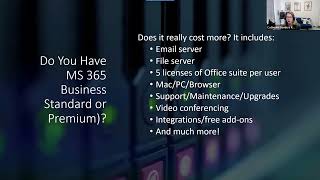
This is a program I've done a couple of times with different people, and I guess the best part about doing it via Zoom is that we actually get to see things instead of just showing you screenshots. So again, just let me know if you wanna see something. Um, I just wanna kind of start out with most everybody has a tech stack, and when we talk about a tech stack, it's all the different tools that you have available to you, some of which you may or may not be aware that you have, and then of course, some of the tools that you have that you really haven't fully leveraged. Oftentimes it's a lack of training or just unaware that the products you have will do some of the things you want to do. Um, the other thing is a lot of times I work with firms and they've got, uh, a copy of PC Law or something like that, and they really haven't upgraded it in a decade. And so you're obviously not going to get the latest and greatest features., and also if it's not supported, you know, you don't want to call customer service and those kinds of things. So making sure you're up to date with the latest versions of things, that you pay attention to— anytime I go and update or upgrade or update an app, I always read the little what's new, and that helps me keep up with literally all the little things I might have missed. If I was just going around my regular workday. So for instance, when I update Zoom, the Zoom application, it'll have somewhere on there, it'll have a little button that says what's new, and I go actually read it. Sometimes it's just a bunch of security updates and not all that interesting, but sometimes it actually shows you something new and useful. Then the other thing you can kind of do is in terms of seeing, do I need to get new technology? Ask your team, what makes you crazy? What do you wish we could do? I literally got a question this morning from someone who said, you know, right now I'm managing all of my tasks with my associates via email. I have no way to check and see if they've done what I asked them to do without going back and emailing them again. Those are the kinds of things where you don't want to necessarily put it on their calendar because you want your calendar to be a space where, um, a, you know, it's, it's, I tend to use my calendar for things like this where I have a Zoom meeting or I have a physical meeting, um, and not necessarily a task management tool. Um, but, and with a calendar, you can't really see if somebody's done something. And so she said, what's in the Microsoft 365 suite that I could use? Well, first thing I said is, do you use a practice management application? And And she said, "We do, we use one, but they can change the deadline dates in the task in my practice management system." So, two things that I would take action on is first, contact the practice management provider and say, "Okay, is there some sort of administrative setting that we can choose so that people can't change the task deadline?" And then the second is if— If you can't, then what do you already have that you can use and what's going to be the best use case? And so for this, for instance, I thought about, okay, she has Microsoft 365. There are tasks built into Outlook and they have been forever, but they're kind of clunky. And so there's also a To-Do app, but To-Do is really good for your personal task, but it's not so great for assigning tasks. You can assign tasks, but they don't get email notification and there's no real good way to check on, especially if you've got multiple assignments for people, there's no good, real good way to check and see what's in jeopardy of not being done, all of that. And so people are familiar with Teams, but Teams doesn't really have a project tool or a task management tool built into it without adding an additional product from Microsoft called Planner. Now Planner is set up like a project management tool, but you don't, you, it's kind of free-flowing. You can do whatever you want to. And so So for her, she can assign tasks, put a deadline, and then she can actually track across her boards who's doing what, what's in jeopardy. They get email notification of what's due, and they also get a reminder via email, all this automatically, if something is in jeopardy of not being done. So that's the kind of stuff is you kind of go through the thought process of, okay, here's a problem I need to solve. Looking at the technology I already have, what works, what doesn't, what's the best way of making this work, and then experiment a little bit with it. And then the other thing is, you know, ask your clients or see with your clients, what could I do to make this better? How could I make this easier to work with you? So a lot of firms have some sort of time billing and trust management, um, products, an accounting product like QuickBooks, maybe a practice management application, maybe a client relationship management or a CRM, um, application, and an office suite. But there are a lot of other things that you need to be able to do in a practice. So document assembly— wouldn't it be nice if you put in the information, um, into one place, and then when you needed to generate a, a an engagement agreement or, um, an invoice or something like that, you're not rekeying this information, you're putting it in that it just automatically populates a document. Well, if you have a practice management application, most all of them have that functionality built in. It's just a matter of getting started with it. Metrics and reporting— what kind of KPIs do you need to be able to track? Um, realization rates, uh, collections, things like that. Um, Conflict checks. Can you do fuzzy searches? Can you do DBA searches? Can, you know, can you do a full conflicts check that's a little bit more sophisticated than, you know, sending an email to everybody and saying, do you know of a conflict here? Shared calendars is another one a lot of people look for, and this is— you can do this through Google Workspace, you can do it through the Microsoft 365 suite, you can do it through a practice management application. Similarly with shared contacts, even if you're not using a CRM, maybe you just wanna be able to make sure that everybody has access to the contacts. And these are things that you have to kind of set up. I, if you have a practice management application, that's probably the easiest way to do it. But if you don't, there's certainly other ways to do it. Something that comes up a lot is email marketing lists. And so I get firms who are like, we want to have a master email marketing, um, list and we wanna be able to send messages to everybody. But they're often doing things like using Outlook and BCCing in batches. And that is not the best way of doing things, especially if it's for marketing. You want to use a tool that is ready-made to be able to send marketing e-blasts, let people subscribe and unsubscribe, track clicks and open rates, those kinds of things. Client portals is another tool that I think is sorely underused in law practice. Because most of you are going to need to be able to communicate with your client and be able to share documents and have your clients upload documents, possibly share calendars with due dates, tasks, things like that. And if you think of a client portal like what the healthcare industry has adopted wholeheartedly, um, something like, um, MyChart, the most of the practice management applications that are cloud-based have some sort of client portal, and it's a matter of getting up and starting with it and thinking about the best cases for using it. And then other client communications tools. A lot of clients want to text, and obviously a lot of attorneys are rightfully a little bit nervous about having full-on conversations about representation via text messaging, but certainly reminding people of upcoming deadlines or reminding people that they need to be at court, you know, early, or that the parking lot Next to the courthouse is full, so they needed to use the annex lot or whatever. Text messaging for client communications is super helpful, but then all of the issues with using your own personal cell phone to do that texting comes into play. And so what tools do we have where we can use that kind of stuff? So many of you have the Microsoft 365 Business or Standard, Business Standard or Premium Suite. And I've heard from some attorneys, well, it's, it's more expensive. If you think about the cost of it, business standard is $12.50 per user per month. And premium is, um, depending on if you can get it on a deal, $22 a month, but I just recently saw it for $19.50 a month. I think they had some sort of advantageous pricing, but, and the premium version basically gives you some additional security features. Um, But with this, you're paying for an email server being a hosted Exchange server, a hosted file server, 5 licenses of the Office suite on for each user. So I can install the Office suite on my phone, on 2 different laptops, on my tablet. And I always laugh because I have no idea what you do with the 5th license. Um, you give it to your dog or something, um, because That's a very generous number of licenses. In the old licensing model with Microsoft Office, you got one install of the applications and, you know, and so if you want it on another device, you don't get it. You can go through the browser, which they have Mac and it works on Macs. It works on PCs. It works in the browser. That $12.50 a month or $22 a month is also paying for support, maintenance. And upgrades. And let me repeat that word: support. If you have Microsoft 365 and you're struggling with something, you have support built in. If you're the administrator, or you can have whoever has the administrative license to go in, you can actually get on the phone with them and they will, they will go pretty far in helping you. I know back in the day, if you had a problem with your computer, you'd call Microsoft support and Microsoft would say it's Dell, and Dell support would say it's Microsoft, and everybody would point fingers. Point fingers at each other and say it's somebody else's problem to solve. My experience with the Microsoft 365 support is that they're incredibly generous with their time and willing to work with you to help you get things up and running. So, and then you get video conferencing, so you don't necessarily have to have an additional Zoom account, even though this kind of gets me to the whole concept of best of breed versus good enough. So some people really love Teams for video conferencing. I actually prefer Zoom. That said, it's a whole nother additional cost. And so if I were having to pay for all of this stuff myself, I would probably have to ask the question, is Zoom that much better? And does it work that much better that I'm willing to, you know, add that additional spend? The other thing is with Microsoft 365, and to a greater or lesser extent, um, the Google Workspace, there's a lot of add-ons and free integrations so that you can get all your tools to talk to each other effectively. So there's a whole lot in the, uh, the Microsoft 365 suite. So it's I think it's actually an incredibly cost-effective way to get so many tools. And yes, again, I agree, Zoom is better than Teams. That said, when you start— and one of the things, a little exercise I like to have people do is kind of start writing down everything you use and how much it costs, and then look at the cost and go, is this— for instance, I use Calendly for, um, scheduling. Microsoft has a tool called Bookings and it's pretty good. It's not as good as Calendly, but do I need to spend another $12.50 a month or $15 a month for this additional tool if it's not so significantly better that it's worth it? And just, you know, looking at those kind of just looking at the math. Then the other tool that I really like is Adobe Acrobat Pro DC. As we move into e-filing, everybody is going to need to have a way to convert documents to PDF, combine multiple documents into a single PDF, run redaction, date stamp for some of you, add hyperlinks, be able to access it via the cloud or on your your phone. One of the nice things about the Acrobat, um, licenses that I get, uh, Acrobat on my phone, and it's, it's a great scanning tool. You can also get electronic signatures. So if you have Adobe Acrobat Pro DC and you have RightSignature or you have DocuSign, then you have to ask, what am I getting through those applications that I can't use through the Acrobat Pro DC for eSign. Probably not a whole lot more, and it's just another spend. I can also share documents easily out of Adobe. There's collaboration tools. I can add a lot of security to the documents and all of that. So again, it's kind of looking at some of the core products that you have and are you using them to their greatest extent? Similarly, And I love, by the way, that PowerPoint now gives you all these ridiculous video enhancements because I didn't actually put this in there, but it keeps you looking at it. If you have a time billing or practice management application, I'm just going to go quickly through all the things that are typically showing up in these applications. Some of them may be add-ons or additional spends, But since it's all gonna be integrated, it may absolutely be worth the, the upgrade. So a lot of 'em now are building in CRM capabilities either by, you know, if you have Clio, you can get Clio Grow and you can get websites, have those, that contact management, create email campaigns. So you can, you know, basically it takes the place of a MailChimp or Constant Contact, profitability reports, what type of matters are most profitable. Profitable in terms of the time spent, the money collected, all that kind of stuff. Intake workflows. So you, you send a potential client an intake form, they fill out the information, it kind of tracks this whole kind of lead and intake matter cycle so that you can see where do people drop off. I, I had an attorney who contacted me and he said, I'm pretty sure that I'm losing clients because when they contact me about having me do some work, I send them an engagement agreement in the mail and then they— I never hear from them again. And so I— and I realize my competitor down the street is sending these engagement agreements out electronically and the person can open up the email on their phone, sign it with their finger, and send it back. And he realized that just that small thing was losing clients potentially because going through snail mail was inconvenient. And given that, you know, they had talked to a few lawyers, they went with the one that was fastest. And so he got an e-signature tool and he said that this made a huge difference, not only for attracting clients, but also just getting a lot of things moved forward. Similarly, with your practice management applications, if you've got something that's cloud-based, PracticeMaster or not, sorry, not PracticeMaster, Clio, Rocket Matter, MyCase, Casepeer, there's gazillions of them at this point. Most of the cloud-based ones have some sort of client interaction tools. So you've got client portals, like I said, the kind of MyChart for law firms. E-signature tools. So if you go, I don't need all that stuff that Adobe Acrobat has, I'm perfectly happy to use the Kofax Power PDF tool that does everything without e-signatures. You may have e-signatures built into your practice management application. Um, client interviews, apps for your clients to install on their phones so they can, you know, correspond with you, upload documents, upload pictures of documents, all that kind of stuff. Um, Client texting is something that is being built into, um, the practice management applications more often. Credit card processing, um, a lot of people use LawPay, and LawPay does integrate with most of the practice management applications, but a lot of the practice management applications have their own payment processing now. Um, e-payments, ACH payments, all these things that make it easier for your clients to work with you and keep them up to date. And get you out of the business of having to respond to emails and phone calls because they're able to kind of self-help. And if you use MyChart, you know that there's a benefit to it. I can ask my healthcare providers questions, I can see my upcoming appointments, I can do e-check-ins, I can pay my bills through my phone, I can do all this stuff. And it gets me out of the business of trying to, you know, call my providers, track it down, and I've also got this kind of running history of, of, you know, everything that I do. Some of the front office management features you get with practice management applications: shared calendars, deadline calculations for through court rules either built into the product or as an add-on, contact and conflicts, Storing your emails and text messages with the matter, document storage, and association with client matter. So you've got a dashboard for a client matter where you can see everything that has to do with that. You cannot equivocate that in the Microsoft 365 suite or Google Workspace very effectively, if at all. You can't run a report across Some of the tools have built-in internal messaging, so similar to the Teams product that's in Microsoft 365, except it's within the app. Workflows and task management, phone notes, document assembly. Remember when I said you could put in all the information about a, a new client and generate an engagement agreement without having to rekey all that information? That's what document assembly is. It's very, you know, small basis. So document assembly, capture time, a lot of the tools are building in more sophisticated ways to have it track time for you really quickly or just start a stopwatch as you're doing activity so you don't have to go back and rerecord it and then getting dashboards. If you're managing partner, you know, having a dashboard that shows you realization rates, collection rates, who's— how much time people are billing, all those kinds of things in one place. And then the back office, invoicing, payment processing, managing your trust account. A lot of these things are starting— we're starting to see more accounting products and features built into the, the practice management applications. So a lot of firms still use QuickBooks and have integration with their practice management. A lot of this stuff can be done through QuickBooks, but we are also seeing products building in more and more of the, the accounting, check writing, general ledger, chart of accounts, bank statements, reporting, things like that. So sometimes it's a matter of moving to a different product. Sometimes it's a matter of just seeing what the product that you have will do, seeing if there's additional products that can be added on that have a tight integration. So don't discount fully investigating what you're already using before you go off and explore third-party tools. That's going to be another expense. So breaking down some of these other tools that most people have, Adobe Acrobat or Microsoft 365. Adobe Acrobat recently completely revamped the interface, which makes me crazy because you learn something and then they change it, but you can revert back to the old view, which is something that a lot of these, uh, these kind of hybrid install web products will let you do. They'll, they'll mess around with the, the interface on the install product, but you can revert back. So I'm, as I mentioned, you've got, e-signatures. You can send for signature, you can get others to sign, you can put your own signature and document before you send it out. A workflow that I use a lot is somebody will send me a form and in Word, So I'll take that, that form, I'll convert it to a PDF. I'll fill it out with the, the type, um, type tool. And then I have taken a picture of my own signature and I will just drop it in there. And then I print it to PDF. So it, it fixes all of that, the secondary layering on top of it, um, and send it off. So then I have a nice clean copy of my signed document. Whereas trying to figure out how to do that within Microsoft Word is a real pain. So you've kind of got the ability to work with stuff that people send you and also send, send documents to people that make it easy for them to work with. And it's very, very similar to DocuSign. There's also a new interface. In the new interface, there's web forms. So this basically takes that form that you would've sent as an attachment, and it adds it as a link, and it builds it in a web-friendly format so they can open it up in a browser. So they don't even have to have a PDF reader at all. They can just go and view it through a browser, sign the documents, and then everybody gets a finalized copy in PDF. And I know I'm kind of flying through this stuff. If you want me to show you how to do something, or if you have a question, please don't hesitate, um, to chat with me and ask. So I mentioned that I use, um, Calendly for scheduling, but Microsoft 365 has a product called Bookings, and Bookings will let you integrate with your calendar. And basically someone, you can send them a link and they click on the link and they can say, I want to do a 1-hour consultation, and they can see your free busy time and schedule time on the backend. There's all sorts of stuff that I can do to kind of manage my own time. I don't let people book back to back on my calendar. I— the meetings are an hour long. It sends them a Zoom link, so I don't have to remember to send that later. It puts it on their calendar. I can send reminders. People can reschedule, all of this kind of stuff. And even if you have an assistant who helps with these things, um, they, they too can use this just to make it easier. The one downside to this is you really do have to keep your calendar, your electronic calendar, updated. So how many of you are using a, um, a physical calendar where you write down all your appointments and stuff. So when you do that and you're not actually putting out on your electronic calendar, tools like this don't really work all that well because people will book time because it'll appear free. So that is one pretty significant behavioral change is that you're going to have to ditch your day planner. And for some people, that is absolutely a no-go., but it does make life a little bit easier. I do wanna show you before we get too far into this, where all of this extra stuff is. So it, you're probably going, okay, well I don't, I've never seen Bookings. So where is that? If you go to office.com and you're logged in with your 365 account, you have this home screen. It shows you recent documents you've been working on. And then you can see your task management and your calendar. So I can flip between my calendar and my to-do. I can quickly open Outlook, Teams, Word, all these other things. All of this is opening in the browser. But if you go into this square of squares in the upper left-hand corner and click on it, you'll see there's all these applications that you have access to in addition to other tools that you have integrated with Microsoft 365. 365. So if I want to go and see every single possible thing, I click on Explore All Your Apps, and then I click on All Apps. When you pay for the 365 suite, these are all of the potential apps that you can use. "Will it show WordPerfect and Timeslips when you open up that section?" No, it will not. So Timeslips and WordPerfect are not part of the 365 suite, so those are not going to be visible to you. You could— WordPerfect being an installed application, I don't think there is a, browser-based version of that or Timeslips, those are still going to be in your system tray or your Start menu. And you can add, you know, you now, if you have a Windows 10 or Windows 11, you, you can customize your Start menu, um, pretty extensively. But this is the 365 suite just to kind of give you a sense of the things you may not know you have. And so, um, For instance, for bookings, this is where you would find bookings. And when you open it up, you can share your bookings page. You can see that I'm at the admin for this. I can go to the booking page. Whether it's available to anybody, um, just people in my firm, there's no self-service. Um, and then you can see what my bookings page looks like, whether, um, I can send a specific link for an initial consult. You can actually take payments if you charge for initial consultations. You can actually use this to take payments. Um, Or review estate plan. I can send people links to these things. You can see free busy time. You can add a little kind of survey tool. So name, address, phone number, or the default, but you can add other, other fields that you wanna collect on as well. So there's a lot you can do with bookings and it's, I don't wanna say it's very easy to set up, but it's relatively easy to set up. Another thing that you have through the Microsoft 365 suite that you may not be aware of is dictation and transcription. And the reason you may know that you have dictation in Outlook and Word, but you may not know that you have transcription. And the reason is because transcription is in Word Online and not in the application. So if I open Word in the browser, um, let's just open up a blank document. So up here in your toolbar, you have that Dictate, and Dictate is in the software and in the browser and on your phone. But there's also this transcribe button. And if you click on transcribe, say you're doing a Zoom meeting or a Teams meeting and you've got an audio file of that, you can upload the audio and see if you can find an audio file. I feel like I'm gonna look in my videos. And it basically takes this document, uploads it into OneDrive, um, OneDrive. Transcribes it. Depending on the length of the recording, it may take a minute. So we'd come back to that. And the other thing, I don't know if you noticed, is that you can also just record directly in here. So if you want to record something, so this obviously is very short and— it shows Speaker 1. If you had multiple speakers, it actually identifies the different speakers. I can go in and say for Speaker 1, I want this to be Catherine, and I want to change all Speaker 1. And now all Speakers 1 will be shown as Catherine, and you can go through and make those changes so your speakers are identified. You can actually listen to the different parts of the audio transcript and edit the text, and then you can drop it all in either by go to add document and just the text with speakers' names, with timestamps and speakers. So if I just drop in the text, here's the link to the audio file and here's the transcript. So it can be very clean looking. And then this document, once you save it, will, if you open it in the browser, will open it up with the transcript. Over here. So if you've got a deposition recording or something like that, this is just, you know, one of those things where if you've been giving audio files to an assistant to transcribe, this just gives them a quick way to be able to have the tools do some of that work. So they clean it up more than they're typing it up. Another tool that you have built in with Microsoft 365 is in a product called Teams, and it's chat. Does anyone use chat in Teams for internal communication at your firm? Okay, I'll ask it a different way. Would anyone consider using a chat tool? And I can kind of give you a reason why. If you think, well, email works, email works, but we— our email is just so full of all sorts of different communications. You've got client emails, you've got vendor emails, you've got correspondence with other attorneys, you've got internal emails with your team, you've got email newsletters, all, all the stuff, all in your inbox, all crowding for attention. It's really hard to triage your inbox when you have all this stuff. So one of the things I usually suggest is remove all of that, the, the internal team communication to a chat app like Microsoft Teams or Slack. At my work we use Slack, but Slack is a third-party tool and we have to pay for it, whereas Teams is built in. So Teams is another application that you have with the Microsoft 365 suite. It does a whole lot more than just chat, but I'll pull it up. So one person says we use chat in Teams, but try not to use client-specific information in chat because I don't know how to maintain that communication as part of the client file. I think that, um, The question is internal communication about a client matter. Is that part of the client record? There is a way to extract a Teams chat because that from a record retention and governance standpoint, that is often part of it. So, for what it's worth, if my mine look a little— mine looks different than yours. That's because I've upgraded to the new Teams. And when I do that, see where I remember I was, I said I always look at the what's new just to see what have they added that looks, you know, looks like it may be helpful. But just from a chat perspective, having chat and being able to search through it. It also, you know, if it— if you're using this through Teams video conferencing, it also saves the chat from your video conference and any files you attach, a recap, the recording and transcript. Everything that has to do with that meeting that we had on, um, Teams meetings is also saved in my chat. And then when we have communications, um, just within the organization, we have all that. And I'm pretty sure there's a way to export it. I'll find out for you and I'll put a link in, um, when I send y'all the recording. Okay. Notemate. So one of the other things though that I wanted to show you is, so when I go to chat with people in the firm, so say I'm gonna start a new chat and I'm gonna chat with Cheyenne. And Erin, Amy. Okay, so I can chat with as many or as few people as I want. And basically, it creates a threaded discussion, and you can have as many of these as you want. You can also search through all with it. So it just keeps it kind of out of your inbox. But the other thing that you can do is if you use the Teams workspaces, I can forward emails into the Teams workspaces. And this is where it gets even more interesting. So this is a workspace that I created. So we have just posts and files. But one of the people we were collaborating with, basically, I wanted to forward her emails that were sent to me to the group. And so every time I got an email from her, what I would do is go over from her email. I'll just show you an example. And I can send this to Teams with a single click. If you really wanna get creative, I actually wrote a rule that says if I get an email from this person, automatically put it in this team's workspace so that we were all kept up to date with what was happening, even if everybody else wasn't, CC'd on the email, and then I can add subject lines now. And there's all sorts of other things you can do in chat. You can assign people tasks and, and all that kind of stuff. Yes. So Picking Notes, you can have Matter-specific teams, so I can create as many teams as I want and, and within a workspace, you can have— it creates a general by default, and then you can add channels within it. So that's a whole program, and I do have a recording for that. But you, you can get pretty creative and manage a lot of communication and files and things like that. I would really think that the practice management applications you have are probably a little bit more sophisticated for that kind of purpose, but sometimes depending on what you have, they don't fit your needs. And so you do have this tool. There's also a tool in 365 called Lists, and lists are really interesting because, um, It's basically a combination of a spreadsheet and a database. You can search through it, you can add to-do items, you can follow up. And I will send y'all a little article and video on how to use lists, but it's, it's kind of, you have to have a use case for it. And so the use case that I created, well, there's two samples that I've done. One's for what I call client ticketing. So, you know, if you use an outside IT department or even an internal IT department, depending on the firm size you're in, there's always a ticketing system. So I contact IT, I have an issue, they issue me a ticket, and that ticket is tracked until it's closed. Think about that in terms of working with your clients. So you may have a receptionist or you may have a paralegal who answers phones, or you may have someone who answers the phone, but it needs to be— the actual work needs to be done with someone else. So you have a client ticketing system in your Microsoft Lists and you say, okay, this is what the issue is, this is who is assigned to, um, this is the status on it, here's, uh, additional documents. Is this person a client, a potential client, um, a former client? And that way you have kind of a running list of all the things that need to be dealt with that are phone calls coming into the firm, they're being handled by a receptionist. Again, if you have a practice management application, you may have something that works better than this. Um, but this I think works well. The other thing is if you don't have a good conflicts checking system, not so much to check for conflicts, but the workflow required to actually make sure it happens. So for instance, you get a potential new client, you need to do a conflicts check. Your billing department may search through your time slips or timekeeping because that's where all your clients are, your practice management, or if you have a true conflicts checking system. But then you also want to do that secondary check where you send an email out to the firm and you want to make sure that everybody has actually responded to it. And so, you know, did someone do the conflicts check at a high level? Was that email sent out? Did everybody respond? Respond to it? Have we thoroughly done a conflicts check? You can track all this kind of thing in a Microsoft List. And so thinking about those kinds of things that are firm-wide, need to be checked, need to have visibility, can have assignments, follow-up, all of that kind of stuff. It's just, it's just a different kind of tool. Collaborating on documents. I think we've probably talked a lot about this if you've participated in any of my programs, but the ability to have multiple authors collaborate, they've added a new, a new option for sharing files. So I'm gonna show you my OneDrive real quick. So if I want to, share this file with y'all, or with— we're going to pick on Peggy. So if I click on this, I can open it, or I can open that folder, share it, copy it, or add it to my favorites. So I'm going to— I tend to like to look at what I'm sending people because I don't know about you, but I've picked the wrong file when I've, uh, looked at it. So I tend to wanna open something to take a look at it before I share it. And then I can click on Share and click the Share button. Then I can choose whether the person can edit or view. Actually, I'm gonna pick a Word document here because you have a few more options. All right. So I'm gonna share it. I will share it with Peggy. It's not pulling up. I'm just making this up. It'll eventually— yeah, there we go. Um, then I can say, um, and this is why I wanted to show this to you in Word. I can give her full editing rights. Or I can say she can view and she can't make any changes, or I can have it sent for review and that gives her the ability to add comments and track changes and nothing else. So we'll send it for review. We'll send a message. If you wanna see additional options, you can click on the, um, that button and you can show, um, if If you give access to anyone, it doesn't require sign-in. You can again choose whether they can review it. You could give them a deadline date. You can set a password for it. If it's people in your organization, which I often do, if I may share this with people in the bar, but assuming that someone may need to forward it to someone else, I'll just make it where anybody in the, the bar can open it. And then people you choose, which is what we did. And then again, apply and then send now. And I can send it and it just goes and it'll show up on my sent mail, or I can copy the link and go over and start a longer email or reply to a thread or whatever, an email. I'll click send and off it goes. And then when I open this here, um, in a second, it will show that this file has been shared and I can stop sharing it with her and do all sorts of other things. So this is one of those, um, applications where I get out of the business of attaching files and creating multiple file versions. Um, if Pegine gets into this, then I'll be able to see that she's actually in the document, I can go back and look at my versions. So it's, it's, um, it's gotten a lot better in terms of the, uh, the multi-author collaboration. As you saw, I can send a file securely from OneDrive or SharePoint. I can do this from Adobe Acrobat as well. Um, I can see who's viewed it, um, conversations around it that we've had via email. There's just a lot, and this is all through the 365 suite and OneDrive. And yes, it has different colors for different users. So it's, it's, it's pretty slick. It used to be I much preferred Google Docs for multi-author collaboration, but I just think we've, we've moved on. In OneDrive, you can create a folder and send a request to upload a document. And the nice thing is they can't see anything in the folder. This is not collaborating on the folder. This is literally saying you can upload a document. So if I create a folder, Give it a color. So then I can go and select this, and at the top, click Request Files. And then you click next and I'll send it to myself. I can put in a message and click send. When your client or whomever you're asking to upload documents gets this, they'll fill out the information, they'll upload the documents because— and let me see if this— please do not judge me for what you're about to see because this is my Gmail and it's a mess. When it shows up, I'll show you the link that, that your clients would get. But again, they can't see anything in the folder. So you could do that. Just for one. I mean, you could create one link for all of your clients to upload it because their name will be appended to the, the file name. If you've been asked to participate in a Doodle conference or a Doodle kind of poll lately, you know that Doodle, the free version, has so many ads. It's just a giant mess. So I like Time, FindTime, which is built in as an add-on to Outlook and it basically lets me say, um, find a time that works with your schedule and they can click on it, but it's all integrated with my Outlook, so there's no ads. Um, you do have some document assembly functionality built into Microsoft Word. There's two ways to do it. You can use the developer tab and create kind of a fillable template, or you can use mail merge or a combination of both. I will tell you, this is for internal use only. I wouldn't send this to a client, primarily because they'd have to have Microsoft Word and they'd have to know how to use it. But for internal purposes, if you just need something where someone can go in and fill in the blanks or pull data out of somewhere else into a spreadsheet and dump it into the document, there are plenty of other document assembly tools out there. But this one you have built in. And then I love the templates in Outlook and I'll show you. So if I'm gonna send a new email, I can click on View Templates and I have all, all these templates, just things. So I get a lot of questions for, you know, do you have suggestions for IT for small firms? So I have this as a template and I just drop it in. In, or I want to book some time on your calendar. I just have all of this pre-written. And sadly, I get a lot of questions about how do I complain about a lawyer. And so I have that as a template. And so rather than going back into my sent mail and copying and pasting, I just have all this. And so this is built in, it's in your ribbon and you just click on it. And when you start to add your templates, you just go all the way to the bottom. You click on the plus sign, you give it a name, you put in your text, and then you have it. And it works, um, in the browser and it works in Outlook. It does not work on your phone. The day that it works on my phone, I'm gonna be very, very excited. If you're using SharePoint for document libraries, it's, it's something that you may or may not be aware of, is that you can check in and check out documents in your document library in SharePoint. You can see who created, who modified, you can see versions, you can add tags, you can do all sorts of stuff with document libraries in SharePoint. So as a server replacement, OneDrive is really a place for personal documents, which you can share out of. But I've seen firms, um, where it's a sole practitioner and his assistant, and the IT person just set it up where he had his OneDrive shared— everything was shared with his assistant. And so of course he called and said, I want to be able to have some things that are not shared with my assistant. And I had to break all the permissions that were set up to be able to do that. There's just kind of not the best way around it. So if you're setting this up, think about SharePoint being your, the firm server for shared files, and then OneDrive is where you can share things with other people, but it's primarily more like your C drive. And if you want to see where SharePoint is, it's in that list, and it's very easy to create a document library or an intranet. You just click on Create Site. And then you choose what you want to have in it. So when you set up a, a, a library, you put all the documents that you wanna share. You can add little news items. You can have templates, March. You can do all sorts of stuff. And you can even add real-time chat from Teams if you want to. So SharePoint is the backbone of 90% of Microsoft 365, and it is incredibly powerful. So I mentioned that Microsoft To Do is a task list. It's really useful for, um, your stuff. You can assign people tasks, but as I mentioned, it, it gets bogged down pretty quickly because there's no really good way to see if they're working on the task, what's overdue, in a clean way, especially if you have assigned things to multiple people. So for that, I prefer Planner because I can create a plan. You could do it by Matter, you could do it by client, you could do it, you could set them up in a variety of different ways. And then you just create these little tasks and you say, what, you know, what the main task is, any subtasks, due dates, assignments. And then when you do all that, you can actually go and look at— we're just gonna go into one in Teams. And you can go and look at charts and you can see which tasks are not started, which are in progress, and then scroll down and see who, who's finished with their task, who's kind of lagging on which tasks are late, all that kind of stuff. And you can really get a bird's eye view of all of the tasks who they're assigned to, whether they're in jeopardy of not being done, all that kind of stuff, and then dig in and, and manage the task more effectively. Again, this is one of those examples of it is not best of breed. There are products for management that are way better. And I, I like monday.com a lot, but for something that you already have built into the system, especially if you're just getting started with task management like this, you've got this. I just read an article about the updates to OneNote. OneNote is now really, really powerful. It's visually a lot better. This, they, you now can stack your notebooks up on the left-hand side in a panel, which I like. It's now part of Teams. So when you create a new Teams workspace, it creates a Microsoft OneNote notebook. I have a whole class on that. You also have forms, so you can send forms and get, you know, if you want to ask your clients, how are we doing? That kind of stuff. You don't have to go get a third-party tool and it all integrates with your Microsoft 365 suite. If you have Edge, the Edge browser, you can get Bing. Chat for Enterprise, and I just wrote an article about that. But if you have been hesitant to play around with ChatGPT or something from a privacy and security perspective, one of the things to be aware of is Bing Chat Enterprise, which you get through your 365 subscription, does not save your search history. Your personal and company data are protected. It doesn't phone home. It's, it's a lot. It's one of the few where you can feel pretty clear that it's not reporting back and saving all this stuff. If you wanted your own YouTube channel, you have Stream. So you can record a Teams video conference and put it in Stream. You can record tutorial videos. In Stream, you can upload existing videos, you can record videos, you can create playlists. Say you needed to have training videos for onboarding new, um, staff, or you wanted to have a whole series of tutorial videos for your clients on how to prepare for a deposition. Anything that you can think of that you might wanna create a quick video, um, you can do this through, um, Stream.. So it's obviously a lot more secure, uh, than using something like, um, YouTube because you control all the content. You don't have to worry about ads popping up during your videos and things like that. There's another tool called Sway. If, um, you ever wanted to design a newsletter or something like that and you're paying for Canva, you could use Sway or you can use Microsoft Designer. And Microsoft Designer has artificial intelligence art generation, so you can generate whatever image you want and then turn it into an Instagram post or a marketing piece or a flyer or newsletter, whatever you want. And it's free. It is not part of the 365 suite. It's actually a free tool. Just if you have a Microsoft account, but it is going to become part of the 365 suite soon. Sorry, I'm running out of time. Ooh, I'm way over time. So sorry. Power Automate, if you wanna go beyond rules, you can set up all sorts of automations. Remember when I said that I had email sent to a Teams workspace? That was through an automation. I just said, if I get an email from this person, send it to this Teams channel and chat. So going behind, beyond just like writing a rule that works only in Outlook, you can do this across the board throughout the Microsoft 365 suite and other applications as well. So in the interest of time, I'll send y'all the slide deck. I'll send you a ton of videos if you wanna dig into any of these tools a little bit more deeply, but someone had asked me if I could show the new interface for Acrobat, and I will. So this is what Acrobat looks like now, and this is Adobe Acrobat. It's a little cleaner. Someone said yuck. I tend to agree. So the real yuck— the homepage looks pretty similar. Um, what I find really yucky is if I actually open up a document, um, all of my toolbars are shrunk up over here., and then I have to click on All Tools. Um, it's just every— we used to have, um, tools on the left. You could create your own tools. It, it, it's streamlined, but yet harder to find things. And so, um, you can revert back to the old version if you don't like this interface. I'm just trying to get used to it because That's what I do. And yes, one of the reasons that we see these changes in these applications is because they're trying to create a consolidated interface between the desktop and the online versions. So basically the desktop version is what you're looking at. It's not going to look as— it's not going to look as streamlined. In the, the installed version because they can do more with software. When you put it in a browser, you're limited. And so instead of trying to figure out how to make it more sophisticated in a browser, they dumb it down in the software. And this is true across the Microsoft 365 suite as well as Adobe Acrobat. And for the person who said, I'll stick with Kofax, Frankly, unless you need— if you have e-signatures somewhere else, I would probably stick with Cofax too. A, Cofax is, I think, a little less than $200 for a license, which you can keep for several years. The interface looks— it, it's more tab and ribbon oriented, so it looks a lot more like, like Microsoft tools that you're used to. They don't change the interface dramatically every 5 seconds. And functionally, except for the e-signatures, it's pretty much the same. And for the person who asked, do I have any documents or videos under understanding the difference between SharePoint and OneDrive? Yes, I do. I will— I have all of this collected on one page and I will, I'll send it to you. So, um, that's me. I will stop sharing, and I thank you all for hanging with me for longer than I meant to, but there was a lot to go over.










