Google Power Search for Lawyers
Catherine Sanders Reach teaches lawyers to use Google strategically for research, covering advanced search operators like site:, filetype:, and AROUND/ to craft precise queries. She explains how to evaluate sources rigorously, preserve vanished content with the Wayback Machine and Perma.cc, and use privacy tools like Incognito mode and DuckDuckGo.
Chapters
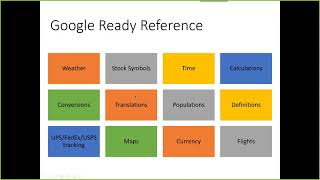
Okay, so welcome everybody to today's learning objectives webinar series, and we are going to talk about Google Power Search for lawyers. So why are we even talking about this? Well, there were a couple of court cases back in the early aughts, and they actually had judges and other people recognizing that the internet and the information you could find on there could be useful, and in fact should be part of your due diligence in terms of of looking up the information and finding it. So there's nothing to say that you cannot do a Google search. Of course, we are going to talk about evaluating the sources. It's just like anything else, though, whether you're doing it in print or doing it on Google or doing it on a paid database, you still want to evaluate the source as well as you can. But it's definitely something that you should consider. So the internet does have limitations. For one thing, when you use a search engine, the search engine is giving you the results based on what it's indexing. And so a lot of paid databases are not going to be indexed by Google or Bing or Yahoo or any of the search engines. So it's, it's not necessarily going to give you everything that's on the internet. If there are sites that they use a little piece of code code called "no robots.txt" which means they don't want to be found through a Google search. The other thing is obviously there's not a lot of barriers to putting things up on the internet. So you have to really evaluate the sources and we'll talk about a little bit more what that means and some helpful tips in terms of evaluating the sources. But you know, I think the old thing that we used to say is "Nobody knows your dog on the internet." Although now I believe it's cat. If we're looking at recent events. But, you know, the internet is not going to give you every answer, and so don't get rid of your paid databases just yet. But it is a great place to start with gathering information. So things like some primary legal information that you can get— you can use Google Legal Scholar to look up a case, but if you're a North Carolina Bar member, you've got FASCASE. So, you know, that's, that's again kind of the difference between free resources and paid resources. You often get stronger search. You have a better sense of what you're getting and all of that. So when in doubt and you already pay for something or you have access to it because you're paying for it, use it. The internet, however, is really good for things like articles and current awareness, kind of getting a sense of what's going on in the world and also getting background or information on kind of cutting-edge legal topics, the reality is the print cycle of information is slow. And so if you're relying on peer-reviewed research and published articles, they'll eventually appear on the internet, but they're not as quick to be kind of cutting-edge. And then if you need background information, kind of getting up to speed on a topic. We used to have all sorts of print resources that were fantastic for that, but now you can actually just Google something. And again, as long as you evaluate the source, you can get really good information from articles that people have published and made available. And then the thing that it's really useful for— company information, government information, kind of about companies, finding people and then getting what in the librarian world we call ready reference. You know, specific information like what's the, you know, population of New Guinea, things like that. It's very useful for getting fact-based information that you need to look up. And then you, of course, want to evaluate the resource. And one of the reasons we talk about evaluating resources so much is because there's a couple of things to be aware of. And we are gonna talk about Google as the search tool that I'm gonna focus on. There's obviously other search engines, but mostly with Google, especially to be aware of is that it makes a lot of assumptions based on your usage of Google. And I will show you why sometimes that's very useful. But you know, it knows where you are by location and your IP address. It knows what you searched for before if you're logged in. And it does all that to give you better results. So it's not— I mean, they do— your privacy is leaking out your ears when you're using Google and many other things on the internet. But it's not necessarily because they're evil. It's because they get— you get better results when they know more about you, your behaviors, where you are, what you've searched for in the past, things like that. So if you don't want Google to track you, you can— we're going to look at a couple of different ways you can do that. But The other thing is with the Google search engine, they keep their algorithm and how they give you results very close to the vest because there are marketers out there who are trying to figure out how to game the system and get their search results up at the top of the page. If you've ever worked with any marketing companies, they'll make some suggestion that they can get you in the top of the search rankings. That, that is something that Google is constantly trying to make sure is not that easy to do. Because they're trying to keep it somewhat equitable. All that said, Google search results are based on two things primarily: popularity and relevancy. And so sites that have a lot of links back to them tend to be considered more popular. So it's looking at keywords and how popular the site— the search is, or the site is. So it's already kind of filtering out, which you can adjust if you need to. But that's kind of how the search engine algorithm is working and what it's going to deliver to you. Then, of course, once you get the results, you need to pay attention to what kind of resources is legitimate. If you don't know the source, look in the about us. If you find a statistic, find out who sponsored the survey, because a lot of times you'll find, you know, again, if you would go back to that example of pasta makes you thinner, probably that survey was sponsored by the, you know, wheat manufacturing companies or something like that. So obviously everything that you get off of a Google search, you have to scrutinize and evaluate what— why they're giving it to you, who's put it out there, what their motivations are, and all of that, whether it's a legitimate source. Get multiple sources if you can to confirm something, especially if you're gonna rely on it. So one of the things that Google has done is to create a new little thing in the search results to try to help you assess the source. How useful is it? I don't know, but we're gonna look at it and I'll show you what I'm talking about. So there's been a lot of controversy about how many masks we should be wearing. So And as you see, because I'm logged in, Google knows what I've recently searched as well as what other people have searched. So it starts making suggestions for you. So I did just search for how many masks should I wear. When I get the results, the new thing you'll notice is that there's this vertical ellipses. And if you click on it, it tells you about the result in terms of a little bit of the information about the source. And so It's pulling from Wikipedia, which again, you know, supposedly Wikipedia is a good source of information. So they're pulling it from Wikipedia and then that it's secure. And if we scroll down, look for other things, you know, CDC, obviously they probably didn't need to tell us that was a legitimate source of information. Of course, you can question that as well. Okay, so this one, World Health Organization, yeah, we're going to trust that. When you get into the second page of results, which you may never actually check the second page of results, but as things start kind of giving you different results, you see different resources you may not like. I don't know what FREEP is, so I'm going to go and see before I even click on it, you know, it looks like it's possibly legit. The other result that they're giving you is if they don't have a Wikipedia definition, they're going to tell you— well, this one does too. The other thing that I found that they're telling you is that they don't have a Wikipedia definition of their results. They're going to tell you when Google started indexing it. And so if you see that a site has been online for 10 years and Google's been indexing it for a long time, this isn't this isn't something that just cropped out yesterday. And so that's the kind of thing that they're trying to give you information about. So the other thing, as I mentioned, if you're not into Google tracking you, in addition to using the incognito search through Google, but Google still tracks you through incognito, there's a couple other resources you can use to get Google-like results without all the kind of previous knowledge that Google applies to the results that you get. So one is Startpage, and Startpage is a private search engine. They don't, they don't collect your history. They don't pop up. They don't save things with cookies. They basically kind of give you a clean search. I like Startpage, but the one that I use more frequently is something called DuckDuckGo. The reason is because I use Chrome as my primary browser, and DuckDuckGo has a Privacy for Chrome extension. And basically what that does is it it changes your default search to DuckDuckGo so that you're not being tracked. You still get Google results. You just don't have all the tracking and the cookies and the cache and the history and all that. So it's a private search engine, but with the extension, you don't even have to think about switching over. When you type in something into the Chrome universal search bar, you get results from DuckDuckGo. And then the other thing is I got their privacy browser app because you can actually use their browser as a search browser on your phone. And it's all free. And it adds a little bit of extra encryption, all that kind of stuff. So DuckDuckGo is something that I experimented with. I really like it. But I'm going to show you where sometimes being tracked is good. So looking at Google again, if you're okay with using it, then one of the things to think about is just that kind of fact-finding that we were talking about. And Google is very good at providing just really quick results. So just to show you a for instance, there's a lot of— and again, this will be in the materials that I'm going to send you— there's a lot of words that you can use to kind of trigger an instant result. And so if I type in weather and we type in Durham. And so I put the word and a colon and then where I was looking, and it gives you instant results. So you can do that with all sorts of different things. So if I just wanted to go straight to look at how stocks were doing for Apple today, then I just type in stocks:Apple. And in your materials, I've given you kind of a list of One that I use quite frequently is the Define. And obviously I did the search before. And it gives you a dictionary. It tells you that it's from Oxford Languages, so you know where it's pulling the definition from. It also has this— if you see this little speaker-looking icon, if you click on that, it will pronounce the word for you. So I was a voracious reader as a child, but I would skip over big words and not try to sound them out. Or there's just words that you have read many times but never spoken out loud. So this I find very useful in terms of making sure I don't mispronounce things if I'm going to attempt to say them out loud. So there's all sorts of— and then translate, you know, kind of doing like, how many cups are in a pint? So I can say one pint And it, again, it kind of already knows and it'll do that translation. Now the cool thing is sometimes it brings up, especially with math, it'll bring up a little calculator so we can actually do the calculation. If you're cooking or needing to do something like that, you need to translate Fahrenheit into Celsius, all that kind of stuff, instant results with these kind of little calculators built in. So Google is fantastic for getting instant straightforward answers for questions like this. The other day I was guest lecturing for a law school class and we were actually talking about research and I said, "Which is heavier, ice, snow, or water?" And I said, I'll come back to you for the answer later in class. And so I did. And I asked, and I had told them that they could Google it. And then when I asked them the answer, nobody had one. It's like, why didn't you just Google it? I told you you could Google it. This isn't a trick question. This is— there's no reason to sit around wondering practically anything anymore. You can get an instant answer. It'd be great if we could remember it all, but we can't. So Google is your friend when we are thinking about kind of that ready reference information. Also really useful for tracking packages. If you have a tracking number for many of the major carriers, you just put it in Google and it'll pull up the response for you. So for that, Google is extremely useful. Now we're going to look at some of the specifics when you get into Google and it's giving you information. So the search settings, it's not something I'm going to go through too much, but just to be aware that You can turn on or off Safe Search. So protect yourself from scary looking things. You can hide the private results. And private results are basically when Google gives you results pulled from some other Google activity that you have, like Gmail or something like that. If you don't want to see that, you can turn it off. If you're looking for where Google hid advanced search, it's under Settings. So you actually can go and click on Advanced Search. Frankly, I just Google, Google advanced search and go right to the page. But there are some settings that you can go and explore through to see what you can change, which isn't too much. Now, the next thing is definitely based on it tracking you, but it has its uses. So if I go to, and if you're logged into Chrome or a Google account, then you can go to myactivity.google.com. What that's going to give you is, and you'll notice that you have some control over this. So I don't know why I have my YouTube history turned on, so I'm going to turn it off or pause it, and then we'll go back to my activity and web and app activity. So I have an Android phone, so it's tracking me more. I have my location history turned off because I really don't need Google to know where I am. It would probably give me better results if I had this on, but there it is. I have it turned off. So interestingly enough, you can go through and you can filter by date and product. So this is all the stuff Google knows about me. When did I, have I searched for books? What have I done in Drive? So it gives you a lot more than just the search results or your search history here. You can filter. And then if you want to turn some of this off, you go over here to Delete Activity By, and you can get rid of this history. And then you can go and tell it to stop tracking you. So if, if Google tracking you everywhere makes you a little bit nervous, go into Google My Activity or myactivity.google.com, and you can start kind of regaining your privacy. All that said, remember when I said I tried DuckDuckGo as an extension so it wasn't tracking my search history? And I actually missed that, and the reason is because I use the Google history based on what I've searched for probably far too often. So to give you an example, and to find your search history, you can either go— if you're in Chrome, you can go up here to the vertical ellipses, go to History, and then click on History, or you can just hit Ctrl+H and go directly to your history. You can see your entire search history. You can clear it out too if you don't like it being saved, but it kind of helps because yesterday my freezer broke, and so as I was trying to figure out whether it was still under warranty and all that kind of good stuff, I got the really long serial number and typed it into Google, and then later on after going back and forth with this, I decided I would buy a new refrigerator. Well, I want to do a side-by-side comparison of the features of my old refrigerator and the one I was looking at, and so I wanted to go back to— without having to find the serial number again and type it in— because I knew I'd searched for it I can just search my own search history and there is— when I actually put in all the information, I can go back to that result. So the fact that you can search your own search history or go back to a search that you did before, if you found an article that you thought was useful but you didn't save it, it's just— I find that the search history and it tracking me is actually helpful. So I went back to Google and turned off the DuckDuckGo. Now if I wanted to keep something to myself, I would probably just go to DuckDuckGo and do a search. Again, it's kind of— we're always in a constant waiting match between usability and privacy. So it's something to think about. So when we look at Google search results, there's obviously some things that you need to know. So if we go and do a search I'm just going to do a really simple one. And it conveniently does remember what you search. So when you're looking at all of this, then things to be aware of— typically you're going to have ads at the top. For this search, not so much because people aren't paying for ads. But it also asks you things like or it shows you people also ask for this information. This is useful not only to see how people have phrased this search and see if you can get better search results based on what other people have asked for, but also if you're doing search engine optimization for your own website, you should probably make sure you get keywords not only for the keywords that you put in, but what other people are looking for. And then as you scroll down You'll see the ads here on the bottom, but there's usually some ads usually at the top or the bottom. So just be aware there's nothing necessarily wrong with an ad, but you want to make sure that you are getting what you want. And sometimes it's not that you want to click on the ads. So that's one thing to be aware of. And then the other thing is, and if we go back and do a slightly different search, you'll see that we get a different type of results. So if we look for North Carolina estate planning attorneys, the results we're gonna get are different. So it depends on whether you're doing a keyword search to get information or you're looking for a business or help with something, then you're gonna get different results. So you've got the people who've done the paid ads, and then you're gonna get what they call the Google 3-pack. And this is based on results from Google My Business. So Google My Business, you probably have a presence on Google My Business whether you like it or not. You can go and claim it. You can customize it. And it's free to use to do that. But that's, that's why this is coming up because you're looking for a product or service. And then you'll get a lot of the directories pop up when you do searches like this. People also ask, and so on and so forth. So just getting a sense of what you're getting when you do the search is important. The other thing is that you can do a lot of refinement without even— excuse me— having to go to a Google advanced search, just by typing in the Google search and making a few changes. So if I type in, I got hit by a truck at work in North Carolina, This is where that popularity and relevancy thing comes into play. So we've got results. The results are not necessarily going to be the newest results. They're going to be the most popular and the most relevant for your search terms, which doesn't always mean that the information is the freshest. So if we just want to see results from a particular period of time, if I go into the Tools button and I click Anytime, then you can see that I can get results. And this is especially useful for news and things like that. If I want to see the most recent information, I can go in and look at the past hour, the past week, or do a custom range and you can actually set your date range to look at. So that's, that's one of the things that I use with some frequency. The other thing is looking at refining your results by source. And so that's when you can go back to your search results and go, okay, I'm really interested in news. This isn't a great search example, but I can just get it based on news or images or videos or maps and other things like that. So you can pick kind of which collection of information that you get from Google. "All" is going to give you more, you know, big sites and things like that, or you can kind of customize it. And then there is another way you can refine, which is verbatim search. And this is really useful for when you have someone's name that is not the usual spelling or word that's not the usual spelling. You probably realize that Google is kind of correcting the spelling when you misspell something. Sometimes you actually intentionally want to find that misspelled or differently spelled word. So you can go back into Tools, under All Results, click on Verbatim, and that's going to force the results based on your words no matter what they are. They're not going to correct the spelling for you. So sometimes that's an important thing to be aware of. Now we're going to talk about advanced search. And so the Google advanced search, you can either memorize the Boolean or you can just go to Google advanced search. But I want to walk you through a couple of those. So, and like I said, I just usually go to Google Advanced Search. And then you can kind of, without having to memorize all the Boolean connectors, you can just craft a much more specific search. So if— and they also kind of show you how you would structure this if you didn't go to Advanced Search and just memorize some. So all the default in Google is the Boolean AND. So you never have to actually type in "and" between words because that is the default. If you want to have an exact word or phrase, you need to put quotes around it. And then you can start getting more refined. There's an "or" operator, and the "or"— the default search connector is "and," but if you go into Google and do an "or" search, that's going to give you this word or that word. It's going to expand the result set. And then you can also do a minus sign in front of a word to get a different type of results. So you actually remove certain words from your search results. So there, you know, example is if you don't want rodent or Jack Russell Terrier, You know, if you type in bass, you may get bass guitars, you may get fishing results. And so it's usually one of those things where you start realizing, oh, I'm getting a bunch of extraneous results. You go back and refine the search with a negative to remove all of the additional terminology that you don't necessarily want. There's more options here. What I want to show you that I think is actually really useful though is things like File Type, which is down here. You can search for specific types of files. So if I search for, let's see, I'm gonna look for— I want to find just Excel spreadsheets. So I'm gonna put profit and loss. And, but say I want to see an actual spreadsheet because I'm actually trying to create a profit and loss statement. So I'm going to say profit loss, and then, uh, sorry, I keep jumping out of the slide deck. So I have a profit loss statement, and then I'm going to put file type and a colon, and then you can put PDF, DOC for Word documents, XLS for spreadsheets. And when I do the search, you'll see that the results that I get are going to be— and they change how things look all the time. But these are all Excel spreadsheets. So if I open it up, it's actually going to take me into a spreadsheet. So that's one of the ones I really like. The other one that I like is the site search. So if I type in site colon and say I want to search the American Bar Association's website, if I go to the American Bar Association's website and use the built-in search, you get a very different set of results than if you use Google to search the entirety of their index and then restrict the results to just that domain. And that's what this search is doing. So I'm going to say AmericanBar.org and then put my, my keyword search. So we'll say I'm not going to be quite so darned— ethics remote. See if anything comes up. So now you see that we get really relevant results because what's happening is we're getting everything that Google knows about this, the results from this, and then restricting it just to the American Bar Association site. Well, you'll get different results. This is great for government websites and other sites that they have search engines built in, but it doesn't always give you the kind of results that you're looking for. So if you're struggling with, I'm getting erroneous results, try either a site search or you can actually just restrict this to a particular type of top-level domain like a.org or a.gov. So you can see that in my results, I'm just getting results from.orgs. So these are the kinds of things that I find super useful in terms of creating search results that get me to what I need. And, and you can again construct these using the Google advanced search, or you can just memorize some of these so you can use them more effectively. But what I think is even more interesting is the stuff that Google doesn't tell you about in the advanced search. And that is some little Boolean connectors that you can use to do searches. And so they have a wildcard search. Again, if you've been using paid search databases, this is something that you remember from the past. Now we're so used to being able to do natural language searching that we just type in a sentence or a question and it goes off and does what we need it to. But sometimes you— again, you're being fed stuff based on popularity and relevancy. Sometimes that's the right one, but sometimes you get a lot of extraneous results. So what we want to do is control the results that we get. The wildcard connector, the star, is very useful because if you can't remember a word, like in my example here, "feed a"— I can never remember if it's "feed a fever" or "starve a cold" or "feed a cold and starve a fever." So you can actually go in and get a good sense of how that phrase is put in search results. You can also put— and this is an old Boolean connector that works in Google— you can force a search to look for something. So that you, in this example, you look for Time Warner or Comcast before they run for the net neutrality phrase. And so the search results— and usually the search results are often the same whether or not you use these the Boolean connectors, but quickly you'll see a major difference if you leave them off versus if you use them once you get down a little bit farther in the search results. And then probably the one that is least known is the around proximity search. And so you're used to, and again, legal research databases having the ability to force words to appear within a certain number of other words, or in some cases sentences or paragraphs. The Google Boolean is not that flexible, but if I type in "net neutrality" in quotes, so I want to make sure that those two words appear together, and then you type in all caps around and then paren 5, and then I'm going to put in Comcast. That means I want to see the phrase "net neutrality" within 5 words of the word Comcast. And then you get, you know, it'll be within 5 words, which doesn't mean exactly 5 words. If you want to see another example, if I type in "mice dogs," again, the default is AND, so I'm getting mice AND dogs. And you get some funny results. And for a while, the, the word dogs is very close to mice, but as you go down, you'll start seeing, you know, that dogs is no longer as, as important to the search. So we can just put around, again forcing the word dogs and mice within one word of each other. That was a very strange search, and I have absolutely no particular background reason as to why I'm using it. This is something that happens with some level of frequency. You go do a search, click on the link, and the page that you wanted is gone. And you don't have a lot of recourse, but there's a few things that you can do. And so one of the things is that Google and Bing and Yahoo cache Pages. You may or may not actually be able to get to it, but it's worth a shot. So I show you where they've moved it because Google likes to mess around. It's like never sits still. So if I do a search for duty to Google, if I clicked on one of these and the article is no longer there, I can go back to my search results and they used to have this here, but now they've moved it under this little ellipses thing. Click on it and I can click on cached and I can go to a web cache version of this. Now you've probably heard of the Wayback Machine, which is actually archive.org, and archive.org also attempts to archive pages so you have a fighting chance of getting back to something if it disappeared. But the reality is They don't do it consistently. So if we go to the NCBAR website, we can see what they've cached. So this is, you know, this is a well-indexed site. It's a popular site. So they, you know, I can go back to 2011 on a particular date snapshot and see what the site looked like then. This should be pretty pretty fun to see what NCBI.org looked like. So sometimes, depending on what it is you're trying to look for that has disappeared, you can find a cached page or you can find in the Wayback.org access to pages that are no longer there. And sometimes it just is gone. So if you are linking to things that, say, in a brief or a motion or letter to your client and you think it's possible that this information may disappear off the web and I really can't afford to have that happen, there's a site called Perma.cc and it's free for limited use for lawyers as individuals to use. And basically what it does is it creates an archive of any page that you tell it to. And so if you need to link to something and you need to make sure that it sticks around, then you can go and sign up for Perma.cc and basically create your own little mini archive. So the links that you put into the document will go exactly where they're supposed to go, and you don't have to worry about if a site goes down. What also happens is people move from one platform to another. They'll do redirects, but sometimes redirects don't work, so your pages will disappear. So this is one way you can combat that. The other thing, which I do pretty frequently, is if I see content that I think is going to go behind a paywall or that I think it may disappear, I will archive the entire page in Evernote. You can use Evernote, you can use OneNote, and basically archive the entire page so you can get back to it if you need it. So we talked a little bit about Google News, but I just want to give you an example of where refining to news is useful. Useful. So I'm going to do a search for— so I heard that the Windows 10 interface is changing, which I was like, please stop. So if I type into a regular Google search Windows interface change, then again, we may or may not be getting the freshest and latest information from this. So there's something— it's from 2018. Well, this is recent news. So the first thing you'd probably want to go do is go into Tools, click on that anytime, and say, "I want to see the past month." That way we know, again, that we're going to get results that are a lot fresher. And then the other thing you can do is— this, this would be something that I would be looking in a news source, probably not just a regular Google search. So I would just refine again with news. It keeps your date restrictor on there, and then I can also sort by date. So we can get the absolute latest on what we think is going to happen with the Windows 10 interface from news resources and outlets that tend to track that kind of stuff. So that's, that's when you can start remembering all these little things and get better results based on what you're looking for. Also, Google has this thing called a custom search, and I'll show you what it looks like only because it's interesting for your own personal use. So you can type in Google custom search. You do have to have a Google account to do this. They have renamed it to Programmable Search Engine by Google because again, they never stop making changes. But I'm just going to go into see and see if I can get there. Yep. So because I'm logged in and I've created some of these before, I've got some to show you. Now I can go in, type a new search engine. What you're doing here— remember when we did the site restrictor to the search? Well, what if I had 3 or 4 websites that I just want to search for just within these 3 or 4 websites? You can actually create this little custom search. So you would give it a name and then you would add pages. So I'll show you some examples of some that I already created. So when I was in Illinois, if I just wanted to search the sites that had the codes, opinions, and regs, what I did was I created a custom search and I said if I do a search here, I only want to search these sites. And so when you do that, you can do a search and you can see I'll just do a really simple search, and you can test the search as well. And so if I do a search, this is restricting the results just to Illinois bills and statutes and regs. So I can get to those results without having to sift through all of the Google index results, but also not having to search each one of these sites individually to find it. So that's kind of the concept behind this creating your own, what they're now calling programmable search. But I'm going to show you some examples of what other people have done that kind of helps you. So by the way, you can create one of these Google custom searches and share it. And so that's what these people have done. These folks created a social media search engine. It basically says I'm going to search Google, and then I'm going to give you only the results from— and you can click the boxes— Facebook, Twitter, Instagram, LinkedIn, Pinterest. So it's the same Boolean search results, but you're restricting it only to results from those social media sites. One thing to be aware of— social media sites, public information. So you're not going into Facebook and doing a search based on something you, you know, like your connections or seeing things that are flavored by your login or your connections or something like that. So I like the social media search engine because it kind of gives you neutral results. So for instance, I was helping a committee do some judicial evaluations and they wanted to be able to search the judges' social media profiles, but they didn't want to log in as themselves. So I said you can just get public results without having the bias or the exposure that the fact that you were friends with someone who was friends with that person and they didn't have their privacy set in a certain way. This kind of eliminates all that. The other one that I think is really cool, and again this will be in your materials, is the ABA went through and created a Google custom search or programmable search for all of the online law review and journals in one place. So You can actually go and do a search. We'll see if I can get there quickly. Alright. Again, see how useful it is that it remembers everything that I do? Again, creepy, but sort of useful. Oh, that's not even the one. Let's see. Law Technology Today. So this is searching across pretty much most of the peer-reviewed publications from law schools, but also some other resources. So if I type in a search here, and I, I like this for, again, kind of more cutting-edge topics like bias and artificial intelligence. We're going to put that in quotes. And you can see that you can do all the Boolean connectors. So that's why I suggest memorizing the ones that are useful. We're going to ignore that. And then you're just— you can see a lot of the results here are from SSRN. So you're getting academic papers, kind of cutting-edge stuff. And then the one thing that you don't get with this is that ability to focus the date. But it's something to know about. And then there's another one that, that basically searches across large law firm websites. Because a lot of large law firms are putting out really useful and again, cutting-edge information. So if you were looking for how businesses are going back from COVID and whether or not they can require their employees to get vaccinated, this would be a place to search. I want to show you Google Image Search because there's some, some things that may be helpful to you again for more investigative research. So if you go to Google Image Search, you can usually, if you don't remember, I mean if you type in images.google.com, then that's going to take you right to the Google image search. I had a friend of mine who asked, how do you get a compilation of all the social media logos into one image? Because he's putting together a PowerPoint. So if I go into Google image search, I can just do a regular search, but like so many things, Google also has an advanced image search. So you can do a more refined— and this is not the kind of thing I would tend to memorize because it's— the filtering is a lot different. And so you've got the usual suspects, all these words, the exact phrases, but then you can narrow your results for all sorts of things. By size, by aspect ratio, by color, the type of image, whether you want a face or a photo or click art. Areas of the country. Safe search, you definitely want to turn that on. The types of files, you know, again, stuff that you probably know off the top of your head for the advanced search. But you could— and then usage rights is interesting. Commercial and other licenses. So for this friend of mine, I typed in And then we'll do logo, and I won't set the search up, but I wanted to get something that he could use for his PowerPoint, so I'm going to look for transparent images, which is in here somewhere. As an option. Oh, and then, well, somewhere it's in here. And then usage rights, we're going to do Creative Commons licenses. And then we're going to search. And this is exactly the kind of thing he wants. Images. Now I remember what I was looking for. This filter for transparent images. This doesn't come up until you get the search results. So now I can go and change size, color. I only want results that are transparent. So when I copy and paste this, if I have a background on a PowerPoint slide, this doesn't cover over it. It, it sits on top of it. Again, not so confident that I know how useful that is. But if you put a lot of PowerPoints together, we want to make sure these are Creative Commons licenses and all that kind of stuff and you can use it. Of course, if you're going to use someone's logo, you probably want to check their about page and make sure it's absolutely okay. The other thing that you can do with Google Images, and this might be more interesting from an investigatory perspective, is search by image. So if I can paste in the URL of an image or I can upload an image. So you're trying to find somebody and you have a picture of them and you want to see if they're popping up on the internet anywhere, then we'll— I'm going to upload my headshot and see what Google comes up with. So oddly, a possible related search is for women. There's the image that I uploaded. There's some results. Visually similar images, if you ever want to find out if you have a doppelganger out there. You can look at that and upload your own picture. And then here's the sites that have matching images. Now in the past, it's because this one has a very specific background, it tends to be finding the one with that same background because it's basically facial recognition and color matching. That's what it's doing when it's doing the image searches. So it's looking for shapes, colors, some facial recognition, but it's not 100%.. So if I uploaded a different picture that didn't have such a specific background, it would be— it would give me different search results. So if you've got a couple of pictures of somebody and you're tracking them down, this image search may help. So we're running out of time, and I, like I said, I have a paper that is going to cover all of this. So what I want to do is skip over to the Google Maps. And I just wrote an article about this, but I just wanted to show you what that looks like. So you can go to maps.google.com. You can type in an address into Google and it'll take you to Google Maps, but just to show you some things. So I'm going to type in our work address, and because I've been there before— so things to be aware of is obviously it shows you a picture that you can go to. You can get directions to this place, what businesses are actually in that place, and then the interesting things. So the default is a map search, but you can also go to satellite or terrain. What if I click on traffic? It shows me live traffic and whether it's busy or not. So I don't know why, but there's always a little delay right here because of the light. I can also look at typical traffic, and then I can see typical traffic based on a day or live traffic. So typical traffic at a particular point in time during the day. Is interesting. So now you can see it's kind of switched over, and it shows me for Monday at 4:40 PM. So, you know, that's one of the things that you can get. The other thing that I think is useful is the Street View. So if I click on Street View, I find that But if you take this little— and they have a cute name for it which I cannot remember— and drag him over onto an area, sometimes it takes you to where you mean to go, and sometimes you get some interesting results. In which case, this is the back porch of the bar. And you can see up here in the upper left that this is the back porch taken by— I I'm guessing one of our members, and the date that it was taken. If I want to get the Google official, then I can go down and again we're going to go to Street View here, and then I can pick the picture. That's going to take me to Street View. All pictures are Street View in 360. If this were a popular place that other people took pictures of, we would see more pictures over here. When I click on it, you've probably done this, but you can, in quote, "drive around." You just drag the mouse around and you can see what it looks like. And if I wanted to drive down the road a little bit, go into the parking lot, so on and so forth, you see I get these little Cursors, I can put my cursor on it and I can go around. Now you might say, when was this picture taken? Once you start driving around, you kind of lose that. But if we go back to the, this in quotes, still picture, it's not consistent. But if you look up at this little clock icon and click on it, they've actually taken two stills. Of this address, one in 2012 and one in 2018. And it'll tell you the month and the year. And that's what's been captured by Google officially for this address. So those are the kinds of things that you can get, not just directions. And I just, I literally read before we started today that Google Maps will now let you pay for parking and parking decks through Google Maps, which I think is— could be really useful, especially if you know where you're parking. So there's a lot of options in here. Transit. If we look at terrain, I think we have to turn off the Street View. And you can look at satellite views if you needed to see how, how dense woodlands are around a particular area. And, and then on the right-hand side, you can kind of zoom in to different places and then again kind of move things around. So lots and lots and lots of different different options here with Google Maps. And that is all the time we have. I've got some stuff if you're interested in YouTube searches and Google Scholar, which I wasn't going to spend much time on. There is a Google patent search for those of you who need it. It's not nearly as good as the paid databases. Track your stocks. And that's my contact information. I will send you the recording of this plus the paper that goes into gory detail about all this and more about the Google Maps, and I appreciate your patience and time and attention.










