How to Effectively Leverage LinkedIn
Catherine Sanders Reach shows lawyers how to build a complete LinkedIn profile, create and share content with hashtags and tags, find relevant groups, and network by sending personalized connection requests. She covers analytics, privacy settings, and how to use LinkedIn Business Pages for law firms.
Chapters
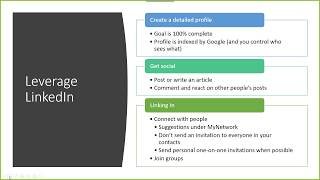
So welcome everyone to today's session of learning objectives from the Center for Practice Management. And today we're going to talk about how to effectively leverage LinkedIn. And many of you probably already have a LinkedIn account. It's a matter of whether you're using it effectively or not. And so that's what we're going to talk about with some live demos. And I will record the session and send you the link, and it'll also go in the video archives with the other learning objectives webinars as soon as I can get it out there. So just kind of as a reminder of how powerful LinkedIn is, there are 590 million users globally. 165 million are in the US. Kind of 57% of the users are between 30 and 65 years old. Often college graduates. And if you look at the statistics of other lawyers using LinkedIn, it's almost universal. The ABA Legal Technology Survey Report this year said 98% of lawyers are on LinkedIn. So the question is, how effectively is everyone using this? Not only to connect with other lawyers, but potential clients and generally getting information. So I've kind of divided this into different sections. First, we're going to look at creating a complete profile. One of the nice things about your profile is, is if you make it public, this gives you good Google availability. It's really hard to get search engine optimization for a website these days, but if someone just searches your name on Google and you have a— I'm going to show you how to create a public profile in LinkedIn, then people will be able to find you through LinkedIn. So it's, it's a good marketing tool as well as a communication tool. You can post content, you can write articles, and then react and communicate with other people about things that they've posted. And then we're going to talk a little bit about how you connect with people and how you find people to connect with in your network. The other thing is, I will remind you A lot of times LinkedIn will pop up and say, do you want to connect your contacts with LinkedIn? And basically it goes into your Google contacts or your Outlook contacts and sends an invitation to everybody in them. Do not do this. The reason is because most of us have contacts in our Outlook or Gmail that are old, may not be people we want to contact with, a lot of clients, things like that. So even though it, it kind of bug you about that. Resist the urge. And then we'll talk about some other things in terms of like groups and interactivity. So first thing we're gonna cover is looking at your profile and what you can do with your profile. So I am gonna hop into my actual profile because that's the only one I can show you. And this is the homepage of LinkedIn. We're gonna focus on the LinkedIn browser-based interface. There is obviously an app for Android and iOS. What I would suggest is you get everything set up in the desktop browser version and then use your mobile device to get on the app, post things, like things, comment on things. But it's— you can make updates. It mostly works like the browser, but there's some limitations. So mostly I'd get everything set up here in the browser and then kind of interact with it on the app. So kind of walking through a LinkedIn profile. So what we wanna do is you go over here and you click on this, and that takes you to your profile where you can edit different things and tells you a good bit of information. So starting from the top, you can put your picture in. Your picture is very important. You want a good clean headshot. If you don't have a good headshot, you know, you can have a friend with a camera and take pictures. Outdoor lighting is best. I like interesting backgrounds. Some people have some really very clean backgrounds. Just Try to make it not look like Olan Mills with the gray model-y background if you can help it. Also make sure that you have rights to use your profile picture. And then the other thing is you can add kind of a larger background image. This only shows up when someone's looking at your profile. And I change mine by the season. You can put your firm's logo up there. You can put a picture of your building. You can do all sorts of things with this. So, you know, the sky's the limit in terms of making changes to that. And then the next thing is obviously your name. And if you've got a double name like I do that's not hyphenated, you just have to put your maiden name in there like this. It's a little— there's not a lot of options unfortunately, but this will work. And then you just go through and for each of these sections you can click the pencil icon to make any changes. So they want your former name and that's how I put it. If I had a hyphenated name, I would just be able to put it all there. It also makes it where you can change the visibility. You want to have a headline which will be pulled from your most recent experience or your job. Unless you change it, and then your current position. And then you don't have to show your education in the introduction, or you can. I think that it's useful because anything that your connections can see that helps them relate to you, so for instance, if you went to school locally, you know, that, that kind of immediately sets up the network, so The more the better in terms of what you can do to show people what kind of connections you potentially have. And then pick your industry and then click save. So kind of going down, there's this kind of about section and it should be briefer than what I have. And that shows way up at the top of your profile. And it basically is a description of who you are and what you're about. And it really depends on what you're really trying to get out of LinkedIn as to what you put in there. So if you're on a job hunt, then you may say, you know, looking for opportunities in X, Y, or Z, or recently graduated and looking for work with a firm that's doing X, Y, or Z. You can change this as often as you want to. Keep it brief and do fill it out. A lot of people don't actually fill it out. So that's, that's one thing to be aware of. If you are looking for jobs, you have this opportunity to say that you're open to job opportunities, and if you click on the pencil again, you can say where you are, what types of jobs you're looking for, who you make this available to—recruiters or everybody on LinkedIn. So you can make changes to that. Then if you scroll down, this is a new section of your profile and it's called Featured. And basically if you want to add a featured article, so something that you've posted to LinkedIn, you just pick one of the articles that seem to be doing well or an article or a post that you made that wasn't doing so well and add that up there. Something that you feel like didn't get as much traction as it should have gotten. You can add the featured content. You can add posts, articles, links to your website or other web content, photos, documents, presentations. So you have a lot of options in terms of what you put up here in the featured. But again, this is a new thing that you can do, and you can switch it out whenever you want to. We will go back to the dashboard in a second. This is— you don't— without paying for LinkedIn, you don't get a whole lot of analytics with it, but you can see who's looked at your profile, who's looked at your posts, how many times you've appeared in search, and we'll look at that a little bit in more detail. The next thing is showing all your activity. So we're going to talk about how to interact with LinkedIn, but you can see what you've posted, what you've interacted with. So, you know, I've commented on something. It shows all of your activity. Then you have this whole section that's basically your job experience, where you worked. You don't have to put everything since the dawn of time. I don't. Obviously, throughout my life I've held plenty of other jobs, and I just don't feel like it's necessary to put them all in there, and that's fine. Where you went to school. This section is something that— there's two sections, one volunteer experience, and then if you scroll down accomplishments. And so I want to go over these a little bit more in depth. And if you want to add something like volunteer experience, what you do is you go up to the upper right corner here under pro— add profile section, and then you look through. And so the volunteer experience section is under background, and you would just click this button to add it. Once you've added things You click on it, you put the organization it's in. When you start typing the organization, say we're going to say, um, when you start typing it, you'll see that it starts filling in for me. Make sure to click that so you're connected with the network of people who also have relationships with the American Bar Association, whether that's people who work there or people who are volunteer members. And then you can put your role. Now, if you want this to kind of show up for people and leverage this networking extension, this can just be member and don't worry about the cause so much. If you're, if you do have a volunteer role, you can click on I'm currently volunteering this role. Otherwise, put it on there. Then you can have a description. Because I was co-chair of ABA Tech Show, up until February, I had this active and I had the save the date for this year's show. Now that I'm no longer a past chair, I put— I would change that to be next year's show. So you can promote things that you're working on, that you're active in, that you're passionate about. And again, you don't have to do them all, but just the ones that you feel like are important for people to be able to see and also the ones that you can kind of connect with that network. The difference between that and this accomplishments section is if we open up accomplishments, this is— they can put publications, patents, courses you took, projects you've worked on, honors, test scores, language, and organizations. And so I've done two of them, organizations and publications. And so if I click on this and edit it, I can add things. Now one thing you'll notice is we don't get to kind of generate that interaction with the members of these other groups because there's no way to drop down this menu and kind of connect. So that's why I use the volunteer section for a lot of stuff is to extend my ability to network with people. But I do want to put this stuff in there. So you can go through and add accomplishments, whatever you want. I put, you know, this obviously is a much longer list, kind of my CV, if you will, of my activities. And then the publications, I publish a lot with a lot of different people. Frankly, I can't keep up with it. And so what I decided to do here was put the blog that I currently blog at and the blog that I formerly blogged at. Because a lot of times I'll capture content that I've created for other people and put them in there. So that's really where I want to direct people. Otherwise this would be pretty long and may or may not resonate with people. So you don't want to get too crazy. And then this interest section, you have no control over this. So your interests are gonna be automatically pulled from people you follow, groups that you've joined, and then organizations that you're involved with. With in some way. So the interests, you don't have a lot of options. Scrolling back up to the skills and endorsements section, I have mixed feelings about the usefulness of the skills and endorsements. I have, I think this was stronger a while back, and if you remember LinkedIn used to pop up all the time and suggest a skill for you. They don't seem to do that anymore, but you can add skills and people may endorse you for those skills. So it's a good way to kind of extend this. Be careful. It used to be that LinkedIn would call this specialties, and bar associations had a huge issue with that particular word because it's generally not permitted unless you have a specific recognized certification or specialty from the bar association or an organization the bar recognizes. Anyway, the good thing is we don't have to worry about that anymore because They've turned it into skills and endorsements. And people— the endorsement is not an active endorsement. It's just somebody who says, yes, I agree, she knows how to do legal research. And when you add a new skill, you can start typing. You probably want to add skills that when you start typing it— so if I said legal project management, Try to use phrases and terms that other people have used so it's more recognizable. You can put anything you want to in here and it'll accept it. But, and then the other thing is you'll see that I have some recommendations. And if you want someone to recommend you, then just click and ask for a recommendation. You have to specify the person, and especially if you're new to the workforce, this might be a good thing just to let people know if you did some internships or you did any work with the university or whatever. Ask someone to write a recommendation for you. On the other flip side, make sure you give recommendations to people. And give people kudos, 'cause people like that. So again, there's a lot of different things to fill out. Your goal, and they'll kind of keep track for you, is 100% completion. And you can always go up to the add profile section and just go through and add what makes sense. For instance, if you have a Spanish language capabilities in your firm, add that as one of your languages and things like that. So the other thing that I wanted to show you is your privacy settings. And so what we're going to look at is over under this little kind of Me section. If you click on it and you go to Settings and Privacy, there's just a few things I want to show you in this. And one of them is under Privacy. You can scroll through all of these, but under this section on Privacy, I think it's really important if you scroll down to How Others See Your LinkedIn Activity. I get asked this question a lot by attorneys, whether or not people can see when they've looked at someone's profile. And I'll show you, they can. So if I go and look at someone's profile profile, they will see that I looked at their profile and they will see whatever information I give permission to see. So if I click here, they'll see my name and headline, which is what I default to. Because I'm not looking at jurors or doing anything that may be considered ex parte or anything like that, I have no problem letting people know that I've looked at their profile. And in fact, sometimes it's a good thing because I'll look at their profile and then they'll send me a connection. So it's not always a bad thing, but if you're trying to kind of remain incognito, you can switch over to private profile characteristics, just someone at your organization. Now, of course, if it's the law firm of, then you're not being too sneaky, so you can choose anonymous LinkedIn member. It will remind you that if you use the private mode, or private profile characteristics, it's going to disable who viewed your profile. So their way of trying to keep you using this setting is if you select either one of these settings, you won't be able to see who looks at your profile either. Now you can toggle this back and forth, so if you do need to go do some kind of incognito research on LinkedIn, you can turn that off and then turn it back on again. So that's That's one thing to be aware of. The other, in your account settings, and this is just best practices for every single online thing that you do, is make sure that you turn on two-factor authentication. It's usually through your cell phone, so it gets a number to send a verification to. The other thing is which devices Remember your password. I use a password manager called LastPass, so I don't actually let my devices remember all my passwords. I fill it in with a third-party tool. That way I don't have to worry if somebody gets my device, which I'm not too worried about. And then the other thing is see where you're signed in. Make sure these are you. With your computer and your phone is usually going to be what's going on here. If you, if you see something that looks strange, just sign out. So that's kind of the security settings that you should make sure are enabled. And there's lots of other things in here too, one of which is notifications. And so, you know, you're trying to use this hopefully to expand your network, to be able to communicate with people, and sometimes you're not checking your phone and sometimes you're not looking at LinkedIn. So getting in in-app notifications won't always prompt you to go over, and a lot of people are kind of, you interact with your email all the time. So if you want to have notifications from LinkedIn sent to your email, you go to Communications and you click on Email. And then I think the most important thing to have email sent to you is if you get either comments on a post so you can read them and make sure that you're happy with them and respond if necessary. And then the other thing is if somebody sends you an in-message. So if you click to open this, in-mails that you've received, because LinkedIn has its own kind of— in Twitter it's Facebook Messenger— sorry, in Facebook it's Facebook Messenger, and Twitter it's direct messaging, and in LinkedIn it's called InMail, but we'll look at that in a second. But people can send me messages directly through LinkedIn, and they do a lot. And so I may or may not remember to go over to LinkedIn to look and see if someone sent me a message or mentioned me or something like that. So I have email sent to my inbox, so that prompts me to go over into LinkedIn and interact with people. And so you can set this all up. You can also set up the frequency for each one, either as it happens or the weekly digest. Recommended is based on some algorithm that they have, so you have no control. So I like either individually or weekly. So those are— it's all, again, if you are in LinkedIn and you're looking for all this stuff in terms of settings, you're gonna want to go into Me and then Settings and Privacy and, and go through the different options. So next thing we're gonna talk about is adding content. There's a variety of different ways that you can add content to LinkedIn, and so the most probably obvious is creating a post. And when you create a post, you can change the visibility. If you have a Twitter account that is tied to your LinkedIn, which you can do, you can send it to both Twitter and LinkedIn. You can post only your connections, you can post to a specific group, or you can get really granular with it. I typically have it sent to everybody on LinkedIn or off LinkedIn. Everything that I post is public I am trying to get exposure. If that's not what you want and you want to use it as more of a closed network, then you have a lot of options in terms of just connecting, posting to connections only, and things like that. So when you start a post, you can put in hyperlinks, you can put in content, and you can also— and this is actually something that you should try to do whenever possible— add images or video because people really like pictures. And so you just click on the little camera icon and it'll pull up the images. And so this is the first one on here. It's my kitty cat. And you can add alt text. Please do not really do this. I'm just showing you. And then say something about it. The other thing it does is suggest hashtags. And so you can add hashtags to this, and if you know a hashtag— and we'll look at how you can find common hashtags— we could say #catsofinstagram, you know, things like that. So start typing and it'll pull up a list of other hashtags people have used. The other thing is, if you want to get other people to pay attention or you want to call someone out, you can say put the symbol and then kind of tag someone in this. And so we'll tag Eric. And so, and then I can write my text. So hashtags and tagging and images and all of that is just another way to get people to pay attention to your content, to get your content out there further. Eric's gonna get a notification that I've tagged him. He's gonna go look at it. Maybe he'll amplify the content for me. And all of that. So that's kind of the strategy behind just a basic post. We will not really post that. The other thing that you can do with LinkedIn is you can create articles. And so when you click on Write an Article, you get a whole new page. And for those of you who have considered blogging and either haven't had time to set up a blog or just think the commitment is a bit too much, you can use LinkedIn as a blog platform. And so What you do, you've got, you know, you've got the heading and information that Google actually looks at from a search engine optimization perspective. So this stuff's gonna get picked up by Google. You have some formatting options. You can upload a picture. Again, pictures are always a good thing to add. And then write your blog post. And then once you're finished, you can click publish It'll save it to a draft if you don't publish immediately. So you can go back and look at what you have in draft, what you've previously published, or have a new article. You can delete these whenever you want to. So this is a kind of separate but part of LinkedIn is this kind of publishing platform that they provide. If you have your own blog, you could publish it in both places. If you publish the same thing in two places on your own website, Google will kind of knock you for that. But if you publish it here and on your blog, you shouldn't get any detrimental effects from SEO. So other things that you can do is you can, to interact with LinkedIn, is you can add slides. So if you scroll all the way over to this section called Work They've put a lot of stuff that was formerly kind of more integrated into LinkedIn into the separate products. And so they bought Lynda.com, which is a training platform. So if you need training for all sorts of different software, you can go and sign up for learning through Lynda.com, post a job, other things. 2 things that you want to be aware of is this is where groups went, and then this one is the one we're going to look at called SlideShare. So you will have to actually sign up through— you can sign up through your LinkedIn login. So I'm going to log in. And then if I want to share, I just click on upload and I can upload files to SlideShare. This is also shared widely through a Google search, so anything you upload, if you have a slide presentation, you can upload it here and it will be shared very widely through keyword search in Google. So it's something to think about if you have a really nice slide deck that you're proud of. In terms of groups, if you click on Groups, there's a couple of ways to get into groups. I'm already a member of a lot of groups, and I can just click on here and post to the group. That's another way to interact. You can also request to be added to groups. So go over to Requested and click on Discover. And it's gonna suggest groups to you that it thinks are relevant to your experience, and then you can click on it, kind of get a sense, and ask to join the group. Another way to find groups is to go to the search and say I'm looking for a group of family law attorneys. So if I type in family law, go to in groups, so the search lets you look for different segments of LinkedIn. We're gonna look for family law groups. This is gonna show me all the groups that are focused on family law, and you can see there's a whole lot of them. So you could add a little bit more in your keywords to try to be more specific, and then you can click on the group and join it and then preferably interact with it. So that's Yet another way you can add content, interact with people on LinkedIn is through the groups. My experience with groups, quite frankly, is that unless you find a really good one, there's a lot of people doing a lot of marketing on the groups and that gets a little tiresome. So other things to do to interact with LinkedIn is as you're going through on the main page, this is your feed. And so this is going to show you content from your connections, and it's also going to show you a bunch of ads, which you can pretty much easily ignore. And then you can also see, and this is kind of useful, is you can see when your first connection makes a comment or likes someone else's post. This person might be someone I want to connect with, You can see what your connection is. So I'm not connected directly to this person. If I mouse over, I can connect with this person. So if I feel like this person is providing valuable content, I've got a mutual connection with them, then I might want to go ahead and, and, you know, connect with this person. And so that's kind of what your feed is made up of. So if you see a post that you want to interact with, So, and this is a good example. You know, here's Courtney. Here's a link to her article. She's used a hashtag. A number of people have interacted with it. I can like it. But when you mouse over, you get like, this is like, this is celebrate. I don't see a lot of people using love on LinkedIn, but feel free if it's about pets, of course. I like insightful and curious. So unlike Facebook, you've got a few different options in terms of how you show your interest in a particular article. You can comment on it, obviously, and then you can also share it through your feed. So you're, you're posting this a little bit more widely, helping Courtney out. You can add comments, you can mention other people, and again, sharing other people's posts endears you to them. So don't be hesitant to do that. They put it out there for a reason. If you help get them some exposure, that's fantastic. So how do you connect with people other than going through your feed? There's a couple of ways. So like I said, if you see that someone has commented or posted on someone that you're not directly connected with, you could always connect with them and send the note. So if I go to this guy and click on connect, it sends him a connection and hopefully he'll respond. The other thing you can do is go into my network and you'll see some other stuff. Like I was invited to follow a page, and we'll talk about business pages, so I'll accept that invitation. And then it basically starts pulling up people you know based on, again, these networks that you've identified that you're kind of already in. So people I may know who have relationships with University of Alabama or in Chicago and have similar backgrounds or similar interests, nonprofits. And so I can go on and click connect and connect with these people pretty quickly. So once a week go through and look at my connections through my network and the suggestions, and you can connect with these people. You know, add a couple of people a week while you're building this thing up. The more the merrier. It looks like I have like 6,000 connections, which is not a bad thing. So, you know, connect with people. When you see somebody comment and you wanna, you know, You can also get an introduction to people through other LinkedIn— like if you see someone's connected to someone you want an introduction with, ask your contact on LinkedIn to introduce you. I have found that it, you know, I've wanted to talk to CEOs of huge companies, found one of my connections that is connected to that person, and then find out that, yay, they're happy to make a connection for me. You can really work the networking aspect of LinkedIn. The other thing— oh, you can search for— if you want to find people, and I just recently did a search for College of Law Practice Management. So say I want to connect with people. I'm in the college, but I'm probably not connected with everybody in the college, so I'm going to go to their page. I'm going to look under people. And it's gonna show me other people who are also listing College of Law Practice Management as either something they're in or something they're interested in. And so I can connect. It also shows me who are my shared connections are. So if, you know, someone like this with— I have 80 shared connections. It doesn't even make sense that I have a connection with this person. So, you know, I would quickly click on connect Now this is where you can get a little bit more granular, add a note, say, I see we're both in the College of Law Practice Management, I can't believe we're not connected, and send an invitation so they get a little bit of background about where you're coming from. So that's another way that you can find people. So going back to the home screen. Home screen. Home screen. Sorry, I have tried to turn off my, my Slack, but I guess one of the interesting things about working from home is everybody is communicating through new tools. So it's not just email anymore. So back at the homepage of LinkedIn, couple of things to know about using it as a research tool, which I actually use all the time. So I'm scrolling through my feed and I see something that I want to get back to. So Richard Shuskin says there's an interesting article. I may not have time to read it now. I may want to get back to it later. So all you have to do, and you can do this on your phone as well, in the upper right-hand corner, click on these little three dots, and you've got a whole bunch of new options. Copy the link to a post, unfollow Richard, report it, other things like that. The thing that I find very useful is save. And so you can go through and save articles kind of as a bookmark. And then when I click on over here in this column, Saved Items, all the things that I've saved to read later are over here. So sometimes, like I said, I don't have time to really explore what I see, but it looks useful, so I just save it. So another thing is, after you're interacting with LinkedIn and you want to make sure that you're kind of aware of what is resonating with other people, is that you can get your own little analytics. So I'm gonna click into my profile, and if you scroll down, remember I said we have a dashboard, and so you can see who's viewed your profile And this will give you a sense first who, you know, whether more people or fewer people are viewing it over a timeline. Who's looked at it. Remember I said you could, you could, now this person doesn't have a profile picture. In a perfect world, you should definitely have a profile picture. This person is remaining anonymous. So they're in private mode. I just know that someone looked, can't tell who. Doesn't matter if you have a premium account or not. Now if I had a premium account, I could see everybody who's looked at me over time. Frankly, I'm not that concerned. But you can get that if that's something that you're interested in. And if you go back to your dashboard, something else I think is really useful is the post views. So when I post content, I wanna know that I'm resonating with my audience. And so you can look at all your activity. This shows anything that you've liked or commented on. This is if you were using this as a blog platform. And posts is where I'm posting content. And so you can see things kind of at a glance, how many people have interacted or liked with it, and how many views you've gotten of your feed. So if you click on that, you can see who kind of generally has viewed it, what their title is, and where they are and whether something has been reshared and by whom. So, you know, one of the things that you can learn from this is if you see something that has 63 views but you think it should have gotten more, you can repost it. So don't be afraid to repost your content and, and push it up in front of people. Right now there is a whole lot of information flying around. It's hard for people to see. Not everybody, you know, as you could tell, the news feed in your LinkedIn is scrolling all the time. So people miss stuff. So don't feel reticent about reposting things that you feel like should be amplified. The other thing is, if you kind of scroll through To reemphasize a point about adding pictures, this is just a still image of the— now I did put this in SlideShare, but this is a still image from the slide deck, and I just put that in when I posted about this tech tips blog post that I wrote. I got 1,340 views, and so That lets me know a couple of things. One, more like this. People like quick tips. People like interesting stuff. I should have tagged it. I should have tagged all the people that I presented with. I should have put a hashtag, and I could probably boost that up. So those are the kind of things to help you learn how to get your content out in front of people if you're adding posts or adding content. Kind of going back to using LinkedIn for research, obviously there is a search here that you can type in and you can search for keywords like legal project management. And if you just click enter, it's going to show you people, that have that title. It's gonna show you, then you can say I only want these keywords for these people who I'm first connections with or second connections with or are in the greater Chicago area. So you can start getting really granular with search and filters. And then if you want to back out, and see all the search options that you have. You can look under jobs, content, company, schools, groups, features, posts, all sorts of things. So the search is mostly powerful in its ability to filter the content to get you what you want. It's not a great search for getting content. It's a great search for connections and who's doing what and who seems to be knowledgeable in certain subject areas and things like that. You can also search groups like I showed you. There's also the ability to search a hashtag. And so if you scroll down here on your homepage, there's a section called followed hashtags. So you can see that I'm only following this one hashtag. So say I wanted to follow some more. If I click on See All— whoops— if I click on Discover More, it's going to give me a bunch of hashtags that it thinks I might want to react with or interact with. So it's gonna show me management consulting or programming or agile, because I probably typed in project management and things like that. This list somewhat changes. You can also do a search for hashtags. So if we want to see if other people are doing legal project management— and that is not a hashtag, so you have to be a little flexible. But once you find something you can follow that hashtag. And then you can actually click on it and see who's posted using this hashtag. So it's another way to discover content but also interact with content with people who have similar interests to you. And you can see here's the groups that I belong to. And all of that. So it's a lot. I mean, quite frankly, I just mostly go about my business posting new stuff and interacting with people and trying to remember to send out invitations to folks. The last thing I want to cover real quickly is the concept of a LinkedIn business page. So in addition to your personal profile, you can have a business page. To be clear, with the business page, the benefits are if you've got people who've worked for you before, they won't have a gray box. They can actually interact with your firm, which gives your firm a boost. Like a Facebook page, this is discoverable through search engine optimization, but you don't really interact with the LinkedIn page. You just create a business page. And so you click on create a LinkedIn page and small business and set it up. And then once you've done that, we'll find the, the Bars page. You can add posts When you add posts from your profile, it'll add it here. You can have some about, if you have jobs, who are employees or have in any way suggested that they have a connection with North Carolina Bar. So you can create your own little business page, and there's absolutely no reason not to. And again, it gets some search engine love, which is hard to get for a normal business page. So I've got chat open. Um, if you have any questions, you can chat, or I will show you a resource that I think is super useful. Dennis Kennedy and Allison Shields are 2 people who have written multiple books on LinkedIn. This book is available through Amazon, but if you want to, oddly enough, read a book about LinkedIn, this is an excellent guide to leveraging LinkedIn and what it's all about by 2 people who have written several books on LinkedIn. This is— they've written things for the ABA. This, I do not believe, is through the ABA. I think this is something they self-published. So I will end this recording and then I'll open it up for questions. So thank you for your attention today, and I will finalize the recording and get you the link so you can work— look at it again if you need to. And I'll also send you a PowerPoint with some other information in it. And Next up, we're going to do in April, we're going to talk about task management if you have Office 365. So I look forward to seeing some of you then.










