Introduction to MS Teams
Catherine Sanders Reach walks through Microsoft Teams and its Office 365 integration for law firms. The webinar covers chat, calls, meetings, file sharing, task management with Planner, and how sole practitioners and firms can use Teams for client collaboration.
Chapters
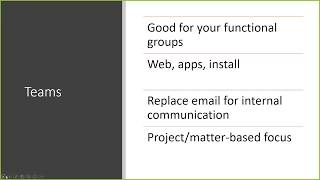
So welcome everyone to today's learning objectives webinar from the Center for Practice Management at the North Carolina Bar Association. I'm Catherine Sanders Reach, and I will be walking you today through Microsoft Teams, which is a product that actually comes with Office 365 Business Premium. And then the other thing that it comes with is Microsoft 365. Now they've renamed the kind of more expensive and enterprise-focused products in the Office 365 lineup to Microsoft 365 instead of Office 365. So that may be a little confusing, but Office 365 Business Premium is probably what most people have because you can get up to 200 participants. Anything above that, you're gonna go with Microsoft 365, which was formerly known as E3. So the first thing is kind of an overview of Teams. And so what is Teams all about? Teams is a kind of a landing page for internal communication and project collaboration. So you can use— they're actually integrating Skype for Business, so you have telephony, you have video chat, you have screen sharing, you have the ability to create these kind of little landing pages. It incorporates Outlook, Exchange Server, and it also incorporates SharePoint. The nice thing is you don't have to worry about that. It's all kind of built in seamlessly, so you don't have to worry about going to SharePoint and creating some sort of complex intranet system. That's what Teams does for you. And the other thing that I like about it is that you can communicate with your team internally and not have to email, 'cause our inboxes are kind of overburdening, and it's a way to communicate with your teams similar to products like Slack, where they're trying to get everybody out of emailing Now, for law firms, obviously you're gonna email with your clients, although you can open Teams to your clients as well. It takes some work on the backend through the administrative portal, but you can actually, so if you look at this and you go, yeah, this would be great to work with my corporate clients, you can actually add people external to your organization, but the defaults are everything in Teams is for internal communication, internal project management. One of the things that I really like about Teams is that for firms that don't have a practice management application, or they've been using some sort of practice management application, but they find that it is not really the right fit for the firm, this may be something to explore. And like I said, if you already have Office 365 or E3, you already have this built in. So I'm actually gonna walk you through the interface of Teams and just kind of from top to bottom and show you what it looks like. This won't take too long. There's a lot of functionality in here, but it's, it's pretty straightforward. So the first thing we're going to look at is Activity. And so if I click on the upper left corner to Activity, It basically, if someone's recently called me out with an @mention or responded or sent me another notification, I'm gonna see this in here. The other thing you can do is see your activity. And I can see basically anything that I've done, anything that anybody has done with me. So if you remember that someone communicated with you, but you don't know exactly which team or which channel that you communicated with them, you can go into Activity. Activity is not search, but it does have search built in. So at the top of the screen on every single page in Teams, there's a search, and search does actually two things. You can actually search for a word, or you can search if you put in the symbol, then it gives you a list of commands. First, you can look at communications you've had in searches with particular people. And then you can actually pull up some other, other stuff. One of the things that's kind of popular right now is to give praise to people in your organization. If you are looking, if you're working with millennials or you are a millennial, you probably know that all the human resources folks are suggesting that they like to get constant feedback. And so praise is something that we're seeing more and more in different applications that are being rolled out, just a way to say, "Atta boy," or, "Good job," and give them either public or private praise. But I'm just gonna do a word search for Josh, and when I type in Josh, then on the left-hand side, I can see not only when I've communicated with Josh, but anybody else anywhere in Teams that Josh, that word appears. So it's a very powerful search. You can also filter it. So if you click on the little filter, I can filter by subject, a date range, which team that communication, which channel. So if I go into CP Admin, then I can go and look in this specific channel. And so you have a lot of good filtering. So if this list is a little intimidating or too long to go through, you can go and, add filters to it. You can also, for this person, you can look at the people and then any files you've shared that have the word Josh in the file name. So it's a good search and good way to kind of figure out where you are and what you're doing by looking at your activity. The other thing I wanted to mention is if you click on a person, And I'll go into chat. You'll see that there's this thing called presence, and this is, this is part of Skype. This is part of other communication tools that are organized for a business, but it's nice because you can mouse over and see Russell's out of the office, Ashley's in a meeting, and so if I want to go and communicate with one of these people and I realize, well, Russell's out of the office, so I'll probably not bother to try to reach out to him or Ashley right now because they're busy or in a meeting. You can certainly still do that, but sometimes— and I'll show you where this is especially useful— if I wanted to call one of them through Teams and but I see that they're not available, then I'm going to go ahead and wait Wait for later. So that's Presence, and I really think that's a useful feature. Presence is based on their free/busy time in their Outlook calendar. So where this falls apart is if you don't have people effectively using the Outlook calendar to block off time. So if you've got a couple of people in the firm who just typically don't use the Outlook calendar, they use a paper calendar or whatever, Presence won't work as well for them because they'll probably appear free all the time when they're not. So chat is another feature that people like. There's a competing product called Slack, but because Slack is a completely separate product, people are starting to migrate over into Teams because it's built into the Office 365 universe. But chat is kind of, again, the way to avoid Gmail, or rather email, communication within the office. Nice thing is you can chat with people, you can search for people. I can chat with multiple people, and the way you would kick this off is in the left corner up here, you click New Chat, and then I just start typing a name or a group. So if there's a group of people that I communicate with, the people in my CPM group or whatever, I would just start typing their name. So I will start typing in Ashley, and then select her. I'm starting a new conversation with her. When I go down here to type a message, you'll see that you can type away, but there's a couple of other things you can do. So I can actually add formatting, so bold and italics and underlines and strikethroughs. I can highlight text. I can change the font color. I can actually give it styles, all sorts of things like that. If I want to link to a document, I can insert a link either to a document or to a website. And then in almost every application these days, you'll see these ellipses. That's where all the good stuff is. So click that and you can insert a table. Undo or redo and all that good stuff. Then down here you can actually choose your delivery options. Is this regular? Is this important? Is it urgent? If it's urgent, the recipient will be notified every 2 minutes for 20 minutes, so they will continue to get kind of pinged whether they're using the Teams app, because it comes as an app for iOS or Android, so you can get on your phone There is an installed version of this, so I'm, that's what I'm using today is the actual application that I've installed on my desktop. And then of course, it's available through a browser. So pretty much you can be included in Teams on whatever device you happen to be on. Then you can add attachments and you can pull it from either your computer or if you use OneDrive as a place to store your documents, you can get it from OneDrive. Of course, we wouldn't be complete without emoji and GIFs and stickers. You can also use this to schedule a meeting. So you can click on Schedule a Meeting and it'll pop up a meeting window. And then again, with the ellipses, show praise. That's, out of all of these, I think this is the most useful thing. So that's chat, and then as you chat with people, you will be able to always go back to the chats wherever they appear and look through your thread and respond to it. So you can have a group chat, you can have individual chats, and so that, that is a way you can communicate quickly without having to send an email. So I really, again, I think chat is a very useful feature, and I'll show you how it appears And this is just generally chatting with people. And then what we have is if I wanted to start a video or audio conference, again, we'll go over to Ashley's. If I started typing a chat and we were going back and forth and it was one of those things where I realized it would be just easier to pick up the phone and have a conversation, you don't have to pick up the phone because the phone is built into Teams. And so if you look in the upper right corner, you see you have video calls, audio calls, screen sharing, and then you can add more people to this particular conference. So if I were talking to Ashley and I said we need to get Dan involved, I could add Dan and then he'll be added to this conversation. You can see Ashley and Dan and me are included, and then either do a video call where if I have a camera, it'll show my head in the camera, or just do an audio call. And then if you click on the audio call, I don't know if you can hear or not, but it makes a little calling noise. If nobody picks up, you could leave them a voicemail message. And where you would find those is you go over into Calls, on the left side, and then you can see you can pin kind of a speed dial. You can create groups that you contact frequently. You can also look in your contacts. This is from Outlook, so it pulls in your contacts from Outlook. You can see your call history with people, whether it was incoming or outgoing, and then if anyone had left me a voicemail My voicemail would be here, but it also transcribes the voicemail. So whether I don't need to listen to it, I can actually just read the transcript. Now, of course, you know that the transcript is not 100% perfect. Sometimes it's actually kind of funny what it decides the person said, but it is there, and it's convenient to get just some sense of what the person was calling you about. Another thing that you get is the calendar or meetings. So over here under calendar, right now what this is doing is it is pulling in everything from my calendar. So because I mentioned it's kind of integrated with the Exchange server, I've got everything in my calendar in Outlook, so it's sharing that information, and I'll show you why it does that. Now this is only something that I can see, but If you created a group calendar, then I can see it here as well. So we'll go click on New Meeting, and you get a couple of options. You obviously can title it, and then with location, if you have physical locations like conference rooms that you have put into the Exchange server as options, they'll show up here. And then We'll, we can either pick from a team and we'll kind of go through what teams are, but you can put everybody in the firm into a team, or you can put specific people in the firm for a team. So if you have a firm that has a litigation team and a real estate team and an elder law team, you can actually create these functional teams that they communicate with each other. More so than with the entire firm, although obviously you have firm-wide communication. But I'm just gonna pick one, and then I can also invite other people. And then I'll invite Eric. Now what's interesting is that Because I picked this group and they're not in there, it won't let me because I would be inviting people outside the group. So you can just invite individual people or you can pick the group. So I'll pick the group and then I can click on Scheduling Assistant. And since it's just me, it's kind of boring, but if there were other people, you can see their free busy time until you find a time that's mutually workable for everybody, and then you click on Schedule It. And a couple of different things happen. It opens it up in, um, my CPM General team so that we see every single new thing that happens shows up in there. Then if I go back over into my calendar You will see that it adds it to this as well. There's my test. And then the other thing that it does is it adds it to— I'm gonna drag this over here. It also adds it to my Outlook calendar. So I can see, I don't have to go into Teams to see that we have a team meeting. It actually shows up in my calendar because I'm part of that group. So I find that the team meetings are very useful. And then if you click on it to go into it, you can chat with the participants, and it automatically puts in a link to join the Teams meeting through either the video call or the audio call. So you don't have to go searching for a dial-in number or anything like that. It's all built in. Pretty useful. So we'll click on Close. So that's, that's how the meetings work. Now all of this— there's one other thing to show you before I show you the actual teams themselves. So these are files. So I've got a list of recent files. I've got all the files that have been shared in different teams that I'm in. So you find the name of the file and when it was modified, and then the location, and that is our shared documents through Teams. So if you know anything about SharePoint, SharePoint creates libraries, and the libraries of documents are shared with specific people. When you have a document in OneDrive and you share it with specific people— this just happened to me yesterday— I shared it with 3 people, and then yesterday I needed to share it with another person. I forwarded the link to her, and she said, I'm not— I don't have permission because she wasn't a named participant, so I had to go back and add her. The nice thing about Teams is once you've added all the people into the team that you need to share documents with, their permissions are all set. You don't have to worry about it. If you put it in the team or the channel, it's there for them. So I can see all the documents that have been added to my teams. I can also see anything that I've downloaded, and then I can also see all of my documents on OneDrive. Some of the documents are shared. You can see that some are private to me. And then I can also down here in the left corner, add more cloud storage. So if I used Google Drive or Dropbox or something like that, you can actually add those as well. But if I go back into where my documents are shared with other people, if I right-click on a document, I can click on Edit in Teams. It'll basically, pull that document up into, in that team and let me edit it, or I can open it in Word Online, or I can open it in Word on my desktop or download it. So if I click on Edit in Teams, it's gonna pull it up, and then when I make a change, and then close it, that document will be saved, and when I open it back up in the Teams, changes that I made there will appear. If you notice, there's ellipses. I love the ellipses. They don't tell you what's behind it. It's like opening a secret door. There are other things that you can add to this list, so if you are making use of OneNote or Planner or something like that across The Firm, you can choose to add one of those so that it appears in this left navigation. Or if you click on More Apps, there's tons and tons of extensions to other products. So if you were already using a product like Trello or something like that, and you, you're like, well, I think Teams is cool, but I really wanna continue to use Trello, you just type in and see if Trello is available, and it is, so I just add Trello and it puts it here so that people can kind of, you can jump from Teams into Trello fairly easily. So you're not restricted to the Microsoft world. There's a lot of third-party add-ins that they have that have integrated with Office 365 and Teams so that your experience can integrate this into your world, but without being too Microsofty. So that's the basic interface, and now I'm gonna show you what I find to be the coolest part, which is the actual teams. And the reason I showed you this last, all of this stuff is kind of across the organization. When you start creating teams, Then it gets more specific to groups. And if you're in a very small firm, then you just add everybody. But here you can see that I have different teams that I've been added to. So our social media team, our membership department, and then I have two that I created, my department and a project that I'm working on with someone else at the NCBA. So the way that you create a new team is you go down here in the bottom left and you click Join or Create a Team. And then you've got some options. You can create a team. You can join a team if you see them and they're open teams that you can add or join. So I'll create a team. I'm gonna build one from scratch. Public doesn't mean public. Public means anybody in the organization can join. So these two are public teams that I can join, but you'll probably have named users in this. So I'm gonna give this a webinar And then create the team. And then you can start adding people, either a distribution group from your Exchange. Again, this is all pulling from Exchange, so we'll add Ashley and Amy and Josh, and they'll all get notification. Now I can change their status. If I want to be co-owner with Josh, I can make him an owner, or I can go— oops, I didn't mean to add Josh, so I can remove him. And then we'll click Close. Once you've done that, you'll see that it's got the team name, and then it's got below it General. So this is the team name. General is a default, which you can rename if you want to. You can also notify people, get notifications for the channels and all that stuff. But here are where conversations happen, any files that you share with people And this basically in Files, you create, add a new file, upload a file, get a link, or open it in SharePoint. And then you have these other things. So I'm gonna go to one that I've already created just to give you a sense of what it looks like. So this is my CPM Admin. So you can see that not only any chats that I've had just within this particular team, occur here, but also any activity that I've— so if I've added something to the calendar or started a new tab or anything like that. So it's not just the conversations with the team, it's pretty much everybody gets a heads up what's been going on. The next thing over is Files, and this is a default. So you can upload files to share with this particular team. Then they've added this meeting notes, and meeting notes is just a blank page that you can, if you, every time you have an audio call or a video call, you can add your meeting notes, which is very useful because often people take their own notes and forget to share them. So this is kind of an automated sharing. And then I created a project plan and a product that comes with Teams, it's actually part of the Microsoft Office universe called Planner. And I'll show you a little bit more about that in a second. But basically it's a Kanban board. If you've ever heard of Kanban as a project management tool, that's what it's based on, but it's a little bit more robust than that. And then this is something that I created yesterday. I mentioned that the underpinnings of Teams is SharePoint. So, for instance, this is not something that comes out of the box ready to go. And remember when I created the test for webinar and I applied it to this particular team? Well, there it is. And if I click on it, then people can join it right from here. But this wasn't something, like I said, that I could just add easily. It's not too hard, but I actually had to go create this in SharePoint. And what I'm gonna do is send you a video tutorial on how to do that, because it also shows you how to add document libraries from SharePoint and other things. It's probably a little bit, it's kind of 201 kind of stuff for Teams, but super useful and really not that difficult. So I'm gonna go back to, the one I just created. Now, one thing you can do is add more channels. So you can see here for the membership department, we have General, and then we have the Membership Appreciation Month. These are called channels. And so in a law firm, you may say, okay, we have 3 different practice areas, and then we wanna create a channel for each one of the clients. Now that could get a little sticky, um, but you just have to think about what's gonna work best for an, how your firm works and how it's organized. And so then if I go up here and click on more options, I can add a channel. And I'm not being particularly worried about automatically show this channel in everyone's channel list. If you don't, they won't see it. They may not know it's there, so we'll do that. And you can see that I have this new channel. So then, to kind of show you how you build this out with all the things I showed you in the CP Admin, you've got the conversations. Then if you go to files, you can just upload a file or add a new folder. Then it creates this thing called a wiki. And I actually love the wikis because they're infinitely extensible in terms of what you use it for. So you've got a page name and an untitled section. You can add as many sections as you want, and then within these you can type something in. And then if you want to add a new page, you can add new pages. And so if I go back over to show you kind of what it looks like all built out, because I use these things a lot. Under planning notes, and you don't have to name it wiki, you can change the name of it. I've got a list of webinars. I find the wiki stuff is really useful for kind of running lists of things that you want to update, and putting into a document is a little too formalized and a little too it's, it's too stodgy to share in a document. This is just so instantaneous. So as I think of things, or if Eric and I talk about my travel schedule, I've just got these things in the wiki. They can easily be updated and amended. It shows last updated. And so that's kind of the purpose of the wiki. The projects are cool because Basically, if you've done any work with Kanban, the, the basic premise is you've got different boards, and the basic boards are To Do, Doing, and then Done. And then within each one of these If we were working on an estate plan and we realize somebody needs to contact the client for the spouse's name, we can set the due date as tomorrow. We can assign this to anybody who's in this group, so I'll assign it to myself, and then you can actually click on this Add task. Now your task is here and you have a new, a new kind of card. This is what they're called, cards. If I click on into this card now, I can actually add some more stuff. I can change it from to-do to doing. I can change the progress to in progress. I can add a start date. Obviously, I always feel like I'm either doing it or I'm done with it. I don't necessarily always put a start date. Descriptions, you can add checklists. So if I want to add a checklist, You can actually, for any task, add subtasks, and I really like that. Also, I want to show this on the card here so that everybody can see it. If I wanted to add an attachment, comments, so on and so forth. And then once I'm finished with this, I— oh, I can also color code it, so you can have color-coded and change the labels. So there's a lot you can do with this, and this is Microsoft Planner. And then the cool thing is that if I don't do this task that's been assigned to me, I will start getting notifications in my email, which I don't necessarily love to be bugged by more stuff in my email, but that's just to ensure that you're actually working the task. So once I've done this and I want to move it over into Doing, then you'll see the task is moved over here. Then I move it to Done. So one of the other things that's cool about this task management is that if I go over into this project and I'm using Planner here, I can see what's, what's left out, what's in progress, what's late. So I can get a really clear sense if you use this as a simple project planning tool. You can get kind of charts to show you who hasn't done what. It's all me not doing things. And then if you have any deadlines assigned for a task, it will show it on a schedule calendar as well. So that's just something that's built into this. How you add these things is in your channel you go and click on this plus button and add a tab. So if I wanted to add a wiki tab and call it— and save it, then there it appears. If I wanted to add a planner and create a new plan and call it and save it, and it adds that. So as you click on this button to add more things, you can add Excel spreadsheets, you can create forms. There's all this stuff that's built into Office 365, but like I said, if you're using some other tools They've got a whole universe of other products that they integrate with that you can add into these functional teams. Law Toolbox, which is a kind of a court rules deadline database that lets you integrate court rules and do ticklers in your calendar, actually has a pretty deep integration with Teams. Worldox is working with an integration with Teams. The legal world is starting to wake up and pay attention to the fact that Teams is a new way to work and developing products. So as you, you know, you might be looking through this list and going, well, I don't use any of this stuff. You will start seeing legal-specific products that you can integrate into your Teams, I think, in the near future. So I'm looking at your questions. As far as if a sole practitioner was going to use this, I think obviously you're not gonna chat with yourself, but you could just eschew the whole team and use the Project Planner, which is something that you get with Office 365, if you think that's something that you would find it useful for. Or you can get your administrator set up to invite your clients if you have clients who would be interested in using this type of thing. So it's not as functional for a sole practitioner because a lot of it is obviously communication-based. But even if you just created channels for your individual clients and kept the files associated with that client and created wiki pages for kind of info notes and all those kinds of things. I think you could use it as an organizational tool because the nice thing is it's kind of like an intranet in that it's pulling things from your calendar, it's pulling things, the files, it's giving you a project planner and all that in one space. But it's definitely probably more useful if you have other folks on your team. And I think that is all I've got for you right now. And so what we're going to do is I'm going to stop the recording. If you do have any questions, please email me at csandersreach@ncbar.org. You can also text me or call me, and I'd be happy to walk you through, talk to you about how your firm might leverage this. It is kind of— it's a little freeform, so sometimes you might need help thinking about how do we leverage this and how do we work. So I'm more than happy to help you out with that. And give me a second, I'll stop the recording, and then I'll open up the line for questions.










