Knowledge Management with Feedly and Evernote
Catherine Sanders Reach shows attorneys how to use Feedly to aggregate legal news from blogs and newsletters, then clip articles into Evernote for searchable storage and annotation. She covers Feedly's feed organization, read-later features, and Evernote's web clipper and tagging system for building a personal knowledge base.
Chapters
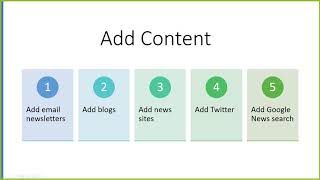
So welcome everyone to today's learning objectives webinar. And this is a series brought to you by the Center for Practice Management at the North Carolina Bar Association. I'm Kathryn Sanders Reach. I am the director. And I have a library science background. I was a law librarian before I started doing practice management at the American Bar Association a zillion years ago. And so there are a couple of different tools that I've used to keep up with what's going on in practice management and technology. But these tools can also be used by any attorney to keep up with your practice area, to keep up with your interests, and then also to get back to the content. And so a lot of times, I feel like one of the use cases is you see an article. It came to you via a listserv. You saw it on a social media feed. And you didn't read it very closely. In the old days, if we thought it was a good article, we might have printed it out and put it in a folder. But now there's a digital equivalent. Equivalent to doing that. Also, you're getting information from so many sources that having a streamlined way of getting the information in and then saving it and getting back to it is how these two products fit into the world. So we're gonna divide the talk into looking at these two different products, and the first we're gonna look at is Feedly. And Feedly, the basic premise is having information come to you all in one place so you can deal with it. And probably one of the most recognizable names in feed readers or RSS feed readers. And RSS stood for Real Simple Syndication. No one ever knew what that meant, but people used Google Reader. And then Google, like they often do with free products, decided to sunset it, and we were forced to move to other things. The feed readers still exist, and in fact they're very powerful tools. The one that I use is Feedly, and basically it allows me to subscribe to blogs, newsletters. I can actually do searches and get results from those searches when it gets indexed by Google. I can get Twitter feeds in. I can use this one product to get information flowing from a whole lot of different places into one interface and then deal with it that way. So We're gonna walk through what that looks like. It does have a free version. It's fairly limited in what you do. Then it has a $6 per month version. They do, to get the $6, it's, you pay the year. The one that if you were gonna be serious about this that you would probably wanna get is the $8.25 per month version, which is Feedly Pro. And it gives you pretty much all the bells and whistles you would need. So $99 a year. And then the last one is the Feedly Groups or Feedly Teams version, which is $18 per user per month with a 3-person minimum. This is for a bigger firm that wants to really focus on sharing information in a group setting. But I'm just gonna stick with the one that's $8.25 per month. But again, you can try it out for free, see if this is something that you would use, and then go forward from there. So we're going to look at adding content to this feed reader in a variety of different ways, from email newsletters, blogs, news sites, Twitter, um, and then Google News search. So let me hop into the interface and I will show you what that looks like. So this is the feed reader and kind of break it down for you. Every day when you open it up, you can change which, which view you want it to be in, but I choose the Today view. And basically what it is is today, all these different resources I follow, whatever they've posted, whatever's new for the day shows up in this view. And I have this open up and I can show you how to do this. I add it to my homepage in Google's Chrome browser. So when I open the browser in the morning, this is the page that pops up. I read through my headlines and I can act on it or do nothing with it. If I read through the headlines and I do nothing with it, then it just gets replaced. One of the things with the Google Reader was it would— things would stay on there forever and you would have to kind of dismiss them. I'm no good with that. So you can choose how you deal with it. Basically, I'm gonna read through the headlines. If I don't see anything that seems interesting, I move along. Tomorrow there'll be a bunch of new headlines. I read through them and so on and so forth. So I have mine, again, because I have a library science background, but I think lawyers are similar. I group them by topical areas. So for my personal feed, which a lot of times when I do these demonstrations you're seeing my stuff, I have a cybersecurity feed. I have law and technology. I have just plain tech for kind of tech tips. And then mentions in the news. But you can create as many of these groupings as you want. So I would just kind of scroll through, read the headlines. If I thought something looks interesting, like this Google Maps wear a mask alert, what's, what's going on here? I click on it and then I can see a bit of the article. Depending on the source, sometimes you get the full article, sometimes you get a partial article. But you should get enough to get a sense of whether this is something you want to continue to read. If it is, then I just click on Visit Website and it opens up the website. I can read more about it. If I read a little bit more, decide I don't care, then I go back to my feed reader. To dismiss this preview, I just click the X and I'm back to reading my headlines. Now, if you wanted to see a different view, you've got a couple of different choices. So I can look at it, and this, this orientation is called title only. You can choose magazine, so it gives you a little bit more information about each of the posts. You can view it in cards, so it shows you pretty pictures when they load, or the article view, which is the full article. I like something a little bit more condensed, so I use this view. So that's kind of the gist of it, and then I can go into different sections and just look at the headlines in this particular section to see more and from previous days. So how do you add stuff? That's, that's the big question. So there is a big box with a plus sign here, and I'm going to show you how to add different types of information. So first thing is we're going to go to a blog. And so this is one of the NCBA's shining star members, Matt Cordell, who has just moved his blog to his domain. And so if you were following it before, you'll have to find it again. But I want to make sure that I see what Matt has posted, but I'm not going to visit Matt's blog every day to go see if he's posted something. That's the whole purpose of the feed reader. When he posts something, it's going to show up in my reader. I don't have to go visit it every day. I don't have to follow him on, you know, the thing is I, I follow him on LinkedIn and he usually posts when he's added a new blog post on LinkedIn. But the way the algorithms work in social media, there's a lot I don't see. You know, I don't read every single post in LinkedIn, Twitter, Instagram, you know, Facebook, and all that. So I do actually use my feed reader. So anyway, if I want to add Matt's blog to my feed reader, I just copy the link up here, go to my feed reader, click on the little plus, paste the link in, and what it will do is if it recognizes as a source, then you can just click on it. So I'm gonna click on it, and it shows me the last couple of posts that he's made. Then you click on follow. When I click on follow, because I've got this set up with multiple topical feeds. I'm going to put his in cybersecurity. Click add. And now he is going to be, and I'll show you where it shows up. So if you remember, that's the first post from his blog today. There it is in my cybersecurity news feed. And then when I click on this, he's, he's got one of the ones that actually puts all of the content on in, into the feed reader. I don't even have to go visit the site. Now that's how you add a blog. But say you wanna find blogs and you don't even know who's got blogs out there. And I have two articles I'm gonna send you that give you all the links to find this stuff. But there is this blog search from a company called Justia. And they have hundreds of legal specific blogs that you can search. And so if you are interested in, say, nonprofits, so you can see that the Specialty Insurance blog has— so I'm actually searching, doing a keyword search across thousands of legal-specific blogs. So that's one way I can do it. If I wanted to set up a feed to get the search results from all these different blogs, there's this thing that says RSS subscribe. If I click on this orange button, it gives me this page of horrifying looking gobbledygook, but don't panic. So I'm going to select that and copy it. I'm gonna go back to my feed reader, gonna click the little follow new resources I'm gonna paste that and hit enter. So this is giving me the search results. So every time somebody in the legal blogosphere posts something about nonprofits, I will get that in my feed reader. And I'll say follow. And say I want to add a new feed. I want to have one topically focused on nonprofits. I just click on new feed. Say nonprofit. And create. And now you can see that I have my nonprofit feed with all the different search results from hundreds of legal blogs for that search. So that's one way you can get really good useful information from people who are doing things on a kind of cutting-edge level because the publishing rate for blogs is a lot faster than peer-reviewed or even print publications. I write for print publications and I turned in my article for Law Practice Magazine for the September issue in May. So the amount of time it takes for that information to come out, hopefully it's not stale by then, but you know, blogs are a great place to kind of get cutting-edge treatment. So that you can do that search and do and get the results. Or you can actually go to their directory and see if there's a couple of blogs that are focused on not-for-profit or nonprofit. And so yep, we've got 17 blogs that focus on just nonprofit law. And I can subscribe to just this feed, just all the new headlines from these blogs that are posting information about nonprofits, or I can go to a specific one like Lawyers to the Rescue, or here's one, Nonprofit Law Blog. So this actually takes me to the blog itself, and they've got lots of good articles coming out. So I just say I just wanna follow these people, just like what we did with Matt. I am going to copy the link. I'm gonna go over here. I'm gonna click the plus. I'm going to put this. It identifies this as a feed. And I'm gonna say, oh look, they've got a couple. So we're gonna go with the nonprofit, follow, add it to nonprofit. And now we've got our search and we've also got the specific blog. So now when I go to the nonprofit, feed, I've got all these headlines that I can go through and read them. And if I want to change how it looks, I can do the title-only view. Um, and then if I want these all to disappear at the end of the day, um, I can mark all as read. However, you don't have to because they'll just fall off automatically if you don't read them. So no stress. It's not just gonna keep building and building. They just they'll fall off at the end of the day. So that's a couple of ways to get content into your feed reader. Other things that you can do is I mentioned you can do get newsletters. So this is a little bit trickier. So if you add, click on the plus button, for one thing, they've got a bunch of different suggested content that you can go through. But I think you probably have your trusted resources and you'd probably start with that. But you can add websites. You can do a Google keyword search. So if I'm gonna do a keyword search, so every time Google indexes any content that has the following words in the Google News Feed, I will get it. So I'm going to put in insurance dispute. And you can get really specific. So say I'm interested in getting news about insurance disputes with either COVID-19 or pandemic, and I'll click on follow. Again, I can add it to a specific one. In this case, I'll add it to news. And now in my newsfeed, I'll be able to see whenever there's content that has those keywords in it. So that's another way you can get content to come to you. And then the other one, which I will show you in a halfway, is adding newsletters. So if you click on newsletters up here, it says free your inbox from information overload, follow newsletters. Okay, fantastic. This is one of the paid, so it says I need to upgrade. This is the one that costs $8.25 a month or $99 for the year. It's probably worth it if you wanna rid your inbox of all of those email newsletters. But if email newsletters is how you get stuff and that works for you, fantastic. I kind of like a little bit of both. If I can substitute a feed for a newsletter, I would prefer to. But not so much that I'm gonna pay for this particular service. And the way this would work is you would literally subscribe to the listserv or the newsletters you get via email with a special email address that you would get through Feedly. But there's a different way of doing that if you kind of want to cheat the system, which I will show you. It's not cheating. It works. I don't know why that would be cheating. So here's a couple of newsletters I get. And this Law 360 is really good. It's legal ethics. It's definitely something I want to follow. But I'm terrible about opening it and reading it. And, you know, so what I'm going to do is I'm going to see if I can get this into my feed reader instead of getting this email subscription. So I'm going to click on legal ethics. And when I mouse over it, I see it's actually going to take me somewhere. So I'm going to click on this. And it takes me to a page, and I go, okay, let's see if I can subscribe to this. So I'm just gonna copy the link, go back into Feedly, and paste the link and hit enter and see what happens. Guess what? Looks like I can follow Law 360 Legal Ethics without getting an email every day. So I will click on Follow. I'll add it to my Law and Technology feed. And I can unsubscribe from that newsletter because now I can follow it in my Feedly feed reader. And I don't have to clean out my inbox and feel guilty for all these legal ethics emails that I've gotten that I haven't read. So it doesn't always work, but it's worth a shot. So the way that I have found that it works is if you get an email, this is, I want you to subscribe to my email, but but I don't necessarily want you to have to get an email in your inbox every Friday if that's not how you prefer to do it. So the way you can kind of tell whether you can get it through your feed reader is if it says view this email in your browser and you click on it, it's either gonna give you one of two things. It's going to give you a, it's gonna say C://. That means it's opening the email in, a browser, but it's local to your system. But if they're using a modern email delivery technique, then it's actually opening on the internet. And so remember I said that Feedly was an RSS feed reader. So if you kinda look at this page, see this button, click on RSS. Again, you get this horrifying looking page of gobbledygook. Don't panic. Just copy it, go over, click on plus, paste it. There's the In Case You Missed It Weekly Update Archive. And then I can, now I'm already following it, which if you find something you go, oh, this is really useful, and you've already added it, it will tell you you're already following it. So that's one way to get some of these newsletters out of your inbox and into your feed reader. Or you can pay to get a special email address for Feedly so that you can subscribe to the newsletters with that email address from Feedly so that it'll show up. One is free, one is not. Similarly for Twitter feeds, this is a paid service through the $8.25. If you really wanted to keep up with Twitter hashtags, specific people, searches that you set up. You can do all sorts of things and get it here. I don't actually mind going to Twitter, and I also use a product called Hootsuite, so it's never been a big deal. So that's kind of different ways you can get content. Another thing is, let's go, say every day you read the News Observer. And you'd like to get that in your feed. So I just go to the News Observer site, I copy the link, I go to Feedly, I click on the plus sign, I add the link, I follow it, I put it in news. I had an error message. I don't know why. Maybe it needs to go somewhere else. But usually it works. This is what happens when you do live demos. I will go back and get it in there. But then I get the News Observer headlines in my feed reader and I don't have to remember to go visit it. I don't have to subscribe to the email for the new headlines. And you can do that with pretty much any news-based website, whatever newspaper you follow. So some other things to be aware of once you start getting all this content and you're reading through your headlines and you see something that's interesting to you. So let me find something that I think is interesting. Some days that's nothing and I've gone through my headlines. I didn't see anything that captured my attention. Okay, Wired has a Llamas Can Help Us Fight COVID-19. I'm intrigued enough, so I click on it. Now, I can actually interact with this a little bit. So if I just want to quickly say read later, I click on this and it bookmarks it in the system for me. And if you want to go back to the articles that you've marked to read later, you just go over into this left-hand panel and click on read later and see all the ones. The star is for group use of Feedly, so we're not gonna go through that today. This is Evernote. I will show you Evernote. If I just wanna copy a link to the clipboard, I can do that. I can email it to a colleague. I can post it to Facebook. I can put it in my Hootsuite, so I can save it and send it to multiple social media channels. Can send it to LinkedIn, Twitter. Facebook, and many others. And so the way that you get that is you click on that personalize and you can go over here and enable these different tools. So you just, you know, like say you use OneNote, not Evernote. So click on the Evernote or the OneNote box and then you'll log in. And there's a lot of other options here that you can go through. But that's how I enabled all those tools. So for fun, I'll save it to Evernote. The nice thing is it's got some good integration, so it's actually giving me the notebooks that I use. I'm gonna add it to this notebook. What if I want to add a note for myself? Why was I interested in this article? So I add a note to myself. And when I want to go see things that I've made notes on, I can go over to Annotated. Here's that article that I've saved with the note. And here are other notes that I've made to myself. Your phone GPS is tracking every move. I note to self, turn off GPS. And things like that. So it gives you a little context. Text about why you saved something and what you were interested in and what made you read it or pay attention to it in the first place. The other things that you can do in addition are like if I open this article, if I select some text, if I think something is important, you can export passwords to a CSV file. So I'm going to highlight that. I can actually highlight it. This is going to show up in my annotated as well. But if I mouse over that, I can get some other options. I can search Feedly for content like this. I can tweet it. I can clip it to Evernote. So I didn't have to right-click. I just selected the text and it gives me a bunch of kind of inline options. So This is, can be a very powerful tool for annotating, giving yourself some ideas about why you've done stuff. It has an artificial intelligence bot that can help weed out stuff that you're not interested in. There's all sorts of different things you can do. So one more thing to show you is that there is a search. So I can search across all my feeds. I'm gonna search for reputation management. And you can say I want to look for forever and see articles that have shown up in my feed over time that have the phrase reputation management. I can just look for that in the title. I can sort by popularity or newest and so on and so forth. So I can also look in a particular feed. So if I'm interested in reputation management, and law and technology, I can just look for those feeds. So that's Feedly kind of in a nutshell. If you want to mess around with your settings, you go into the little icon down on the far lower left side, click on settings, and there's all sorts of settings you can do. Like you can make it go into dark mode. You can automatically set all your feeds to go into the, the newspaper view and things like that. Another thing on occasion you can do is click on Organize Sources. Because the free, the completely free version limits you to 150 feeds, this is something you probably want to keep a look at is 10 of my feeds are inactive. So if I click on that, I can see that they have not posted any stories in the last 11 months. Since I don't have unlimited feeds, I can click on that and unfollow it. And it just takes it out and I, I can add something that is legit. There's also 4 unreachable, so I'm gonna select all of those and unfollow. So that is Feedly in a nutshell. So the next thing we want to do is quickly look at the other tool that I like which is Evernote. So Evernote is also a freemium, and freemium just means there's a free version or you can pay to get more features. I pay for Evernote as well. I've been using it forever. The reason I started paying for Evernote is to share notes with other people on my team. So I find this very useful. Basically, Evernote is a tool that lets you clip content. So while you can kind of try to track stuff in Feedly, it's really only things that have come in through the feed reader, whereas the reality is we get information coming at us from everywhere— from social media, from emails, from the web. And I have Evernote in my browser, on my phone, and if I see something that I want to get back to or remember, then I put it in Evernote. So, and you saw from Feedly, I can add it to Evernote if it's something I want to be able to get back to. So Evernote, you can organize it by notebook or you can use tags, and I'll show you what that is. You can share them if you pay for it. And then there's a lot of different ways you can get Evernote wherever you are. So there's a, a mobile app, there's a downloaded installed piece of software that you can have on your desktop. You can just use the browser and you can also forward emails, and that's a premium feature. You can forward emails into Evernote. So I'm gonna run through the interface here. So here we are in Evernote, and they just introduced a new version. One of the things I like about web stuff is they'll say, "We have a new version, you can test it out, but if you want to revert back to the old one, you can." So I tried the new one yesterday. I didn't like it as much, so I reverted back to the old one. I also gave some feedback, so hopefully they'll fix what I told them. So remember when I was in Feedly and I saw this article from Wired magazine about llamas helping us fight COVID? So here's the link to the original article. It went into this notebook, and here's the full text of the article. Now here I can add a tag. And so the way I prefer to organize content like this that I save from the web is by adding tags. So it all goes in my Katherine's Notebook, and then I can add tags because I can add multiple tags, and I'll show you why that's useful. So I have a tag that I've already created called COVID, and say I wanted to create a new tag— not that I would actually create a tag called llamas— but if I have not already created a tag, it will show— it'll let me create a new one. And so that's the article I saved from Feedly. And there's two orientations. You can look in your notebooks. So here's all my notebooks, and then here's all my tags. The reason I like tags is again because you can associate multiple tags with a particular piece of content. It's very rare that I find articles that don't have more, you know, just a single subject. They probably have multiple subjects. Again, bringing libraries back into the world, if you think about if you went to the library and you found a book and you looked at the subjects for that book, there's usually multiple subjects. Tags are equivalent to subjects. So you can add multiple tags to any particular article. Which helps me because then I can go through and look through all my tags and anything that I've seen that has to do with ethics, I've got— I can just see all the different articles that I have tagged as ethics. But you can see that this one I tagged as ethics, email, and for my newsletter. So that's how I think tags are much more powerful than if I tried to put each one of these articles in a particular notebook. It just kind of adds some intelligence about it. So the way that you would add content to Evernote in addition to directly from Feedly, there's a couple of different ways. So I got this, the Law Practice Today issue pulled up, and if I'm going through I can see, okay, there's a couple of different articles that I may want to save for later and be able to get back to. So say this article on two ways hackers spy on you. So I may quickly read this, but I think, all right, there's a link to the 2019 data breach investigations. This, this could be useful content for me later. The reality is I will not remember where I saw this. It was an email from Law Practice Today about the new issue. I went to the new issue. I went to the particular article. In 3 weeks, I'm not going to remember where I saw this. I might, but that's a glancing chance. So I want to add this to Evernote. So Evernote has this thing called a web clipper. And it's a little tool that's a Chrome extension. It works in Firefox, it works in Chrome, it works for Microsoft Edge, works in Internet Explorer. And when I click on this little Clip to Evernote, it pops up this thing. And this is the really cool part about it when you're clipping content from the web. So I have a bunch of different ways I can get it into Evernote. So this one will, and this is again why I pay for it, this is actually grabbing all the text from this particular article. That gives me better search. It also means if this disappears from the web in a year or it goes behind a paywall, I grabbed all the text. So it's mine to keep. If I don't want all of this other extra stuff, I can click on simplified article. And this just makes it much easier to read because it strips out all of the ads and other things. If I wanted exactly how it looked, I click on full page. If I just want to bookmark it, if I'm pretty confident this information's gonna stay on the web and I just want to link to it, I can grab the bookmark. If I just want to get a screenshot of something, say I, for some bizarre reason, just want to grab this ad from Action Step, I do a screen grab and then I can actually annotate it right here. Why did I think this was important? Doesn't matter which type of clip I get. So we'll do the simplified article. I can choose which notebook to put it in. For all of my research, I just put it in the default notebook. I can add my tags right here. So we're going to say— I'm going to put this out in In Case You Missed It. And I am going to also say this is cybersecurity. I can also say follow up with author for questions and save the clip. If I— to get all of this to show up the way you want it to, you just go into settings And you can use smart filing, which is basically which notebook does it think it should go, or you can just say put in my default, default, that default notebook. Smart filing, it will start based on the content suggesting tags that you've used before. Default to the last used clip format and stuff like that. So you can make some changes to these and then clip clip it. Then when you go back into Evernote, it automatically— I'm gonna go back into my notebook, and it'll take just a second, and there's the article. So that is how you just basically add content to Evernote. Then you can also search through your Evernote. So you can either go find it in a notebook via tags, or you can do a search. So if I do a search, I can search in particular notebooks, I can search by particular tags, or I can just do a keyword search. So basically Evernote is how no matter where I see content, I save it. I can search through it. I can browse through it. I can look at my tags. But I can get back to it. Two other things. A lot of times I'll see content on social media. So this is LinkedIn. Ben Shore posted an article about free video tutorials for Microsoft 365. So I'm gonna click on this. And again, I don't wanna bookmark this. I don't wanna print it out. I don't wanna save it, but I do wanna get back to it. So I'll just clip it to Evernote. And we'll say Office 365. And save the clip. And it's as easy as that. So anytime you see anything, no matter where, you can save it to Evernote. There is a setting in Evernote that I think I will show you what this happens. So when I search Google So I just did a Google search. One thing that you can set up in Evernote is I can actually see not just what Google gives me, but also it searches— I'm using Google and it's searching Evernote and giving me the results from my Evernote notebook as well. So I can go, oh yeah, Here's a formal ethics opinion regarding this because I saved it to my Evernote notebook. And here's an article on retention of email and client files. So it's not just searching Google, it's actually also searching in Evernote. And I'll go, oh, I already saved an article that I thought was relevant based on those keywords, which to me, that's a really cool little feature. You can turn it on or off. So that is basically my pitch for Evernote and Feedly. They kind of work in tandem. I'm getting content pulled into me, and then I'm able to save it and get back to it when I want. So I will stop the recording now and send you the video.










