Managing Documents Like a Boss
Catherine Sanders Reach shows legal practitioners how to build document workflows in Microsoft 365, from templates and clause libraries to e-signature and document assembly tools. She covers Word form fields, Outlook email templates, third-party solutions like HotDocs and DocuSign, SharePoint for version control, and built-in AI features like Editor and Dictate. She also walks through stripping metadata and protecting files before sharing.
Chapters
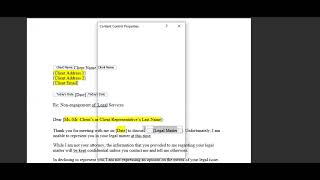
So welcome everyone to today's learning objectives webinar, and today we are going to talk about lots of things, some of which I recently learned about taking control of documents, and hopefully go through with, um, talking about some products that are on the market that can make your life easier. And then also just things you can do with the tools you already have on your desktop. I am going to be doing demonstrations in Microsoft 365, the version of Word that's on the desktop, but it is the 365 version. So if you have an older version like Office 2016 or something like that, a lot of the stuff you can do, some of it you won't, and I'll be able to distinguish which. At this point, I really suggest that everybody move to Microsoft 365. I know that you have to pay $1,250 per user per month, but the amount of stuff that you get with it is remarkable. It's a really good price for the fact that you get hosted document storage and a hosted Exchange server and 5 licenses per user for the apps, the browser access, the installed software, and all of that. So it's actually a really good deal. So the first thing we're going to talk about is templates. And so I'm just going to kind of go through a workflow where you can create a template, create some, some clause libraries, and then other ways you can use documents that you already have in new ways. So the first thing is when you have a you need to create a new document. A lot of attorneys just go into their file storage and pick the last version of the document that is as close to what they're going to start doing and start copying and pasting and finding or replacing and going through the document like that. And for some, some reasons that, that works, but there are other ways to do it, especially things that you could turn into a template. And just fill in the blanks. And so what, what we're gonna do is look at how you create a template instead of a document and how you work with it. And so to give you an example of something like this, so that when you create a, a brief, you put in all the kind of fill-in-the-blank stuff, put the— get the formatting, get the, you know, whatever the court says you need to get in terms of headings and footnotes and, you know, all this already predefined in the styles and then save it as a template so you start typing. The thing is most people want to hang on to that last brief because there may be, you know, a clause or something in there that you want to reuse, and we're going to look at how to do that as well. So I'm just going to jump over into Microsoft Word and we're going to go ahead and get started. So I want to show you an example right off the bat of what an already created form would look like. And I believe that this is the one I want to show you. So this is a non-engagement agreement. And I have taken it and put in some representative— actually, this isn't a non-gaggage grant. Sorry, this is a cease and desist for IP. So I turned this Word document into a form and a template. And so what you do is you can go through and tab through, and you have created dropdown menus. So we're going to say we're going to send this via email. And you just tab through. And you can see that I've added dropdown menus, date pickers. Just text blocks. And then this is where the magic comes in. So you go through and you just basically type in the words that you need to fill in. Under this, choose a building block. I can go in and drop in hunks of text. So you can actually save these with your template. So this is just an easy way to create a template, fill in the blanks, Drop-in clauses, and then the nice thing is you'll note this is the file name, Sample Form Template.dotx. When I open it, it turns it to Document 1. So I'm not overwriting the template, I'm creating a new document. I'll need to save it with the new name and save it with the client file. So how do you do all this? And close this one. So remember, it— when it opened a new file, um, I'll have to go to file name and, and close it. So the way you do this is, say you've got a non-engagement agreement or letter, And I wanna turn this into a form, um, or a template. First thing I wanna do is save it as a template file. So that's just going into the File menu and clicking Save a Copy, choosing where you wanna save it, and then going in this menu here, um, under File Type. And we're gonna choose a Word template. You'll notice that the file extension is no longer a.docx, it's a .dotx Word template and click Save. When you look at it in File Explorer, um, you'll see that the icon is slightly different, but not significantly different, and that the file type is now a Microsoft Word template. So that's step 1. The next step is if we want to add those fill-in-the-blank areas, then we need to make sure that the Developer tab is showing. This is not on by default, so we want to, um, turn this on if you don't see the Developer tab. And the easiest way to do it is somewhere in your ribbon, right-click in sort of a, a blank space and click on Customize the Ribbon. And when you open it up, scroll through on the right-hand side and make sure this developer box is clicked. And once you click that and click OK, then this little toolbar will show up under a tab. So that's how you actually turn a, a document into a form. So we've created a template and now we're turning this to a fillable form. So I've just kind of blocked out what I want to be form fields. And these are the tools that you want to use. And so I'm going to click over into design mode just so I can see what I'm doing. You've got a couple of different options. You've got a rich text control, which will keep your formatting, a plain text control, which will not keep your formatting. So generally, if you're already happy with the font size and the styles and all that stuff, keep your rich text controls. You can also add a Picture and choose from any images that you have on your computer. The Building Block Gallery Content Control, which is a whole lot of words, which is actually Quick Parts, which I'll show you. Then we have the checkbox, we have a combo box, so multiple, multiple selection. We have the dropdown for single selection. We have the date chooser, and then these others are legacy, so you can kind of ignore them. And so what we're going to do is client name. I'm going to— I selected that. I'm going to give this a name. Then I can go into Properties, give it a title, make it show as a bounding box. Just so it's easier to see. You can make it a color if you want to. Um, use a style to format text typed into the empty control. We're going to use the default paragraph font. Remove content control when contents aren't edited. So this is important to check because what happens is when you fill this out, it's not that it won't be editable, but it will remove that form field once you fill in the information. That way, when you send it over to your client, there's— it doesn't have a fillable form. So you want to, you want to make sure this is done. And then click OK. And basically, you go through and you do this for each one of your fields. For your date, if you want to have a date chooser, you go into the— let's see, the DatePicker content control. And in Properties, we want to remove the content control, and then you can also choose how you want the date to appear. So whether you want the full date, we'll do it like that. And then again, go through, in this case, let's say this is a dropdown menu. So what we can do here, is add a dropdown menu. Click again on the Properties, remove the content controls, and this is where we add the items. And so on and so forth, and click OK. And then you can go through and do all that. Now, say we want to add some clauses in here. So some variables. So in this case, I decline to represent you, I'm not expressing an opinion. So we have other ways to phrase this depending on did the person come in for an initial consultation and you don't want to represent them? Did they come in for a consultation and you don't think they have a case? Or, you know, whatever, depends on your practice area. But you may have different clauses. So what I'm going to do is go over into where I had been storing my various non-engagement agreements. So say you've got a document that you put a bunch of different variations on a theme, you know, non-engagement after review, non-engagement to an initial review. So you can copy and paste the different sections that you might need to drop in there. So I'm just gonna select this text, go over here, paste that in, but I'm not gonna leave it pasted in so I have to go delete it later. What I'm gonna do is select the text. I'm gonna go to Quick Parts, which is actually in— if you go to the Insert menu, go over into Quick Parts, click on Save Selection to Quick Parts Gallery, and in this case, you can go into the category and create a new category. So we'll call this one Divorce. Then you'll note that in Save In, If you have not created this document as a template to begin with, what it's gonna do is it's gonna save in buildingblocks.dotx. That's going to save it on your computer, but not with this form. The reason you wanna make sure that you save it applied to this form is because it actually saves this building block text so that if somebody else in your firm needs to go and fill out this letter, so you save it on your server, you save it on your shared drive, They pick this up, they open it up, they fill in the information. I can try to zoom in. And I'll, I'll record it. And for the person that says it's small on my screen, I, I can't really zoom in unfortunately on this. But what I can do is on the recording, I'll, I'll go enhance it. But you save it basically with this particular form, and then you click OK. And you can go through and do that a couple of times. So say I'm gonna pick up a different bit of text. Select it, go back into Quick Parts, Save Selection, Quick Part Gallery. We're gonna put it in the Divorce category. It's gonna be saved with this, um, template and click OK. Then I'm going to take these two things out and back in the Developer tab, I'm going to add the Remember when I said Building Block Gallery Content Control is the same thing as Quick Parts? I'm going to add that. Actually, we don't even need to put that in there. And we'll go into Properties. And again, remove the content control after we've put it in there. The gallery is coming from the Quick Parts gallery. We can actually say just the Quick Parts gallery that we've saved in the category Divorce, so we don't see everything in Quick Parts and and click OK. Then we're gonna turn off the design mode and people can go in and type in client name and pick your dropdown and so on and so forth. When you get to that building blocks, we're gonna click on this little button and drop in that text. So you have variable clauses you can drop in the text by creating Quick Parts for the document and then putting it in as a kind of form field. So once I've done this, obviously you want to make sure that this is saved. And then when you go through and open it, again, remember that it's now a DOT So that's how you create a template with form fields in it using the tools you already have. Let's see what I wanted to show you next. So Quick Parts are something that works in Word no matter whether you're creating a template or not. But one thing to be aware of is that if you save Quick Parts with your building blocks or your normal.dotm, um, just generically, it saves it on your computer. So it's not something that will share and travel with the document. It's only going to be something that's on your computer, which makes it of limited use. So one of the things that I, um, tend to remind people is this. Now you're probably sitting here going, this is going to take forever. Absolutely. It does take some time to get these put together. You can hire somebody to put this together. You can get one of your paralegals who may have some spare time, or your office admin, or somebody who, you know, has, has a little bit of time to go through and take those, you know, frequently used documents and start converting them into forms and templates. There are lots of other tools we're going to look at that you can use to do this. More substantially. So the next thing I want to, let's show you is reuse files, because I think reuse files is really neat. And so let's see. So for this document, say you didn't really capture all of the, the options that we had and the samples. So I want to just reuse some some of the, the text from an existing document, but I don't have it as a, as a dropdown menu in my Quick Parts. So I wanna just find it. Now, the old way that we would find it was we would go into File Explorer and do a search and open the document and scroll through the document and find the paragraph that we wanted to dump in and copy and paste it and then open the other document and all of that. So there's a new button, and this is in Microsoft 365 subscriptions, and this is the Word installed software, but it's through the Microsoft 365 subscription, so it's constantly getting updated. So one of the more recent updates is this button called Reuse Files. So I'm gonna click on Reuse Files, and you'll see that it is basically right now suggesting recent documents that I've created. You can also go into More, and you can search the web for text. You can search your media library if you have images that you need, notes from your sticky notes or from OneNote, files, data types if you've got databases, all sorts of things. But in this case, What I'm gonna do is I'm going to do a search for non-engagement and hit enter. And so what this is doing is it's bringing up all the letters and all of the PowerPoints and everything else, but it tends to pull up Word documents first. So I go, okay, well, this looks like that sample language document that I had. So I'm going to click on these 3 little dots, the ellipses. I have 3 options. I can open it, so I would open the document. I can insert a link to the document, but what we— what I like is this reuse content. So I'm going to click on reuse content. It basically opens the document, and for each paragraph in the document, if you click on this button, it inserts the content. So I can go through and find that text that I wanna drop in like this. Click plus. There's, there's the, the content. So I didn't have to go do a search, find the document, open the document, copy the text, open this document, paste the text in it. The one downside is you'll note that it does inherit the, the formatting, but it shouldn't be too big of a deal to apply the style that is appropriate to this particular document. And I'll send the slide decks to you, of course, and written instructions. Another thing to be aware of is that if you are a Microsoft Outlook user, just as an FYI, there's a free template add-in that you can add to Outlook. Outlook does have Quick Parts, and you can create template emails, but I find that the easiest thing to do is use this little template button. So let me just show you that real quick. So if I go and create a new email, I have this, uh, Templates button, and I can drop in text. Like, a lot— I get a lot of people asking me how to complain about a lawyer, even though I don't work for the State Bar. So I have a preexisting response to that. And the way you do this is You'll never have to do this but once. Go find a sent message, copy and paste the text, click on template, give it a title, paste the text in there, and click save. And then your text will be in there. If you want to delete this, you can delete it. If you wanna edit this template, you click on the Edit button. So while Quick Parts is excellent in Outlook, I don't like it because it's, it's limited to your computer, whereas this Templates is actually in, it's, it's stored in the Microsoft Exchange server and you have access through the browser to it. So if you do have to use Outlook Web Access, your templates will be with you. So the next part, we're not going to go through any demos. I just want you to be aware of some options that you have. So what we just went through, the, the creation of a template, um, the creation of a clause library that you can drop in, and the, um, the ability to add text to a document, that's all through Microsoft Office. Now you can get a lot more sophisticated sophisticated by using a third-party tool for document assembly. And probably the one that you're most familiar with is HotDocs. HotDocs has been around for a long time. If you've ever tried to use HotDocs, you know that there's a certain amount of training that needs to be done. It's kind of complex. But the reality is, if you want to be able to create these kinds of fillable forms and templates, There are very sophisticated tools that can help you with subject-verb agreement, pluralization, dropping in clauses based on conditionals, doing math, all sorts of stuff. And while you can actually accomplish that in Microsoft Word, it is not easy. So there are other tools that I would suggest that you start seeking. Again, some of this you can't, you can accomplish a good bit of this in Microsoft Word if you wanna learn how to use it. There's also some plugins. There's also, if you're really just interested in those additional clauses, there's text expanders. There's also, if you have a practice management application, it's built into a lot of the practice management software. So it's basically in the practice management software, they're starting to, like Clio bought Document, and my case bought Woodpecker. And so what we're seeing is some of the standalone document assembly tools that were, um, remarkably easy to use are being bought up by some of the practice management applications, and they're being, um, added as an additional, uh, feature. But you can still get them as standalone as well. But the practice management software, you start being able to build out documents. But one of the really cool things is that you're actually using text that's saved into the database. So when you go to create an engagement agreement, you've already put the client's information into the system, you know, generated the, um, the billable— like if you're going to bill by the hour, you have a flat fee, what billable rate, you know, all that kind of stuff. You don't have to retype all that. Um, the document assembly is a— it combines kind of a mail merge type of feature where it's pulling the data from the database, putting it into the document, and then you can also enhance that with some of these, the document assembly tools. And then there's a reason for doing all this. Basically, people are wanting more transparency in their billing. You're probably looking for ways to give people additional billable billing options, flat fees, things like that. If you're not recreating the wheel every time you create a document, then having a flat fee, uh, all of a sudden becomes advantageous because you're not, you're not creating documents. You're, you're thinking about strategy, you're thinking about content, and you're not focused on just word processing. Um, also, you know, there's a lot of competition, so if you can market that your firm uses the latest and greatest technology to you know, focus on your matter and not focus on administration. Hey, you know, that's something you can say. You can take on more cases because you can do work a lot more quickly. And so those are some of the reasons I think automation— and just make your life easier and also reducing, um, risk of leaving in the former client's name. So you pull up the, um, the last engagement agreement that seems to fit the bill for this next one, and you forget to replace a client's name or a pronoun or something like that. That's embarrassing at best. At worst, it could be a lot worse. So, you know, creating forms and templates and using Document Assembly, I think, is a much better way to go. So for the Word add-ons, there's things like the Form Tool. If you want to start seeing what this stuff looks like at no cost, the Form Tool has a free version. It's a Word plugin. And basically, you go in, You do what I did before, which is identify the variables in the document. You mark them. It creates a little form at the bottom of your document. When you open that, that template, you fill in the form. It then places all the text that you just filled into that form into the document. You remove the form and finalize the document and send it on. And that's a free version. They then have a $99 version, then they have $139 version, and then they have, they have subscriptions and they have all sorts of stuff. It gets much more sophisticated there. But if you want to just play around with it, this is, this is a good place to start. Pythagoras is another tool similar to the FORM tool. There's no free version. But I have a lot of attorneys who really like it. Smokeball is a full practice management application. But it's the basis of the product was sophisticated document assembly. It does require that you have Microsoft Office and are using Windows machine. And then other tools like Lawyaw, Documentwoodpecker, these are all available as standalones, but they are also now integrated with various, um, practice management applications. Something that is another thing you can kind of automate is your digital and electronic signatures. And so, um, I have, and I'll send you again the slide deck, a little video tutorial on how you can drop in, um, a signature without actually having to print the document out and sign it. And I'll show you what that looks like. So if I wanted to put my name on this document, then I just go into the Stamp tool, and then I click on Sign Here. I drag my signature over and then shrink it to fit. If this was on a line now, because I made this a transparent signature, and this is the tricky part. Say there were a line here and I wanted it to look like I'd printed it out and signed it. Then you have to create a transparent signature. Otherwise it will, it'll just completely obliterate that line. Once you've done this, to secure your signature, there's a couple of different ways to do this, but the easiest way is to go to File, and this is kind of kludgy, but this is because the Adobe Acrobat tool that I'm using, um, to flatten a file so that these aren't layers is a little complex. The easiest way to deal with this is go File, Print. And you print it to PDF, and that makes it where people can't lift your signature off. Now, if somebody wanted to go and save this, um, your signature as an image file, they can. And there's— there are some ways to stop them doing it, and I'll show you in a second. I just wanted to show you that real quick. And then the other thing that I have a lot of attorneys asking about is, um, getting e-signatures. If you have Adobe Acrobat, uh, DC, you have an e-sign tool built in. There's HelloSign. HelloSign is built into, uh, Clio now. Um, some of the other— I think MyCase is an e-signature tool built in. So some of the law practice management systems have e-signatures built in, or you can go and get a standalone for DocuSign or, um, HelloSign or one of many other products, and you can send a document for signature adding your own signature, having a whole signature workflow. So that's another kind of document assembly thing. Once you've completed a document, you want to send it out for signature. So again, thinking about your full workflow. So some of the practice management applications that have e-signature and document assembly tools include these. And then of course, we have HotDocs and Afterpattern for basically creating much more sophisticated sophisticated document assembly, and then the ones where you subscribe to pre-formatted templates with clauses and information already in there for you. When I have talked to attorneys who have practiced in, say, estate planning for a long time, they're generally unhappy with what's available through these subscriptions. Because they've got their own stuff and that's where you're gonna have to kind of DIY this. So looking at some of the other things in Microsoft 365, um, in Word, one of the things that I really like is this product called Editor and it's built in. So if we have, um, let me find a document and I wanna go through and Basically, the new editor tool is very compatible or comparable with something like Grammarly, but it's free. So you click on editor and you can choose formal writing, professional writing, or casual writing. And it goes through and it basically, you know, it— the grammar tends to be focused on passive phrases. And in legal writing, you will have lots of passive phrases, so don't freak out when you see that you've got 36 grammar issues. You probably don't. Spelling, when you go through and it identifies issues with this, let me— not that you'll actually need to read this, but dollaranies, that might be a little— subcontracts, so we go through, excuse me, and identify spelling issues. If it is a word that you'll be using repeatedly, then you can actually add it to your own custom dictionary so it won't identify it as a mistake anymore. And so you just basically run through this thing and, you know, correct it as you go. It does have an inclusiveness checker. So say you wrote mailman, it'll say, it'll suggest Postal carrier, things like that. So it's really useful. Then at the end, it'll give you document stats, and it'll show you how many words. It'll give you a FLEISCH meter. If you are writing documents for the government, you probably know that there is a whole act regarding simple language, and so FLEISCH reading ease and grade level. For instance, this is graduate level stuff. If you're writing this for the public, see if you can get the grade level to about 9th grade. And then you can see that there's almost 35% of the sentences in here are passive. And that's why, again, it looks at this. But I just run this over most of the documents that I'm going to turn in. It's not going to pick up everything and it's going to make mistakes, but it's one of those things where I find that it's convenient. As a first pass to go through. So, you know, it's there if you need it. Other things that you can do, if you like to dictate, you can dictate in Word and in Outlook. And so in Word, if you want to dictate, you just scroll to where you want to start adding text. Put your cursor there, click on Dictate, and it will start listening to you and typing. It's very similar to Dragon NaturallySpeaking, but it's free and built in. Period. New paragraph. It also has commands like Dragon NaturallySpeaking, so if you're used to that, command kind of language. You can learn all the commands. You can just print out a cheat sheet and have it next to you until you've memorized them all. Period, next sentence. Sometimes I don't know the commands because I don't do this a whole lot. And you can also go down here to the settings, enable or disable auto punctuation, enable or disable filter sensitive phrases. Pick your language, all that kind of stuff. So, um, also, if you want to get a transcription, you now have that tool available to you through Word, but there's a twist. So I'm going to open a browser, and this is only available in Microsoft 365. So I need to go to Word Online instead of the software because transcription is not built into the software yet. So we're going to go to office.com, and I've logged in with my Microsoft 365 Business user account, and I'm going to go and open Word. And we'll start with a new blank document. And then in the Tools, um, there's a button called Dictate. So you can dictate in the browser version as well, but it's also got a little caret. If you click on the caret, then you can click on Transcribe. So for instance, when I record this Zoom meeting, it creates a, uh, it creates two files. It creates an MP3 for audio and an MP4 for audio and video. So I can go to Upload Audio. And pick, let's see, where's all my, my Zoom recordings. Pick the audio, click Open, and this takes a second. So this is where you go take a break, get lunch, something like that, because it's going to upload the the audio file, and depending on the length of the file, this could take a while. And then it just says leave this window open and check back in a bit. It's transcribing the audio file, and once that's done, we'll go check back on it in a second and I'll show you what it looks like. The other thing is, if you're a Microsoft 365 subscriber, you can use SharePoint, which is part of your subscription, as a rudimentary document management system. I am not in any way suggesting that that this is equivalent to a NetDocuments or WorldDocs or an iManage or a DocsOpen or a DoxMoto or many of the tools that are available for document management for lawyers in specific. But if your firm is not interested in investing that kind of money, and it is an investment, or you don't have enough users to really warrant that kind of powerful document management system, you've got SharePoint. And one of the things I like to point out to people about SharePoint, SharePoint is the equivalent of your file server. So multiple people can have access access to the files. But within each file, if you look for each file, I can open it, I can preview it, I can share it with other people, I can manage who has access to it, I can download it, I can add automations to it, I can see the version history, I can get alerts if someone changes the document. If I click on more, I can add workflows for approvals. I can check on compliance. Does this have a shorter or longer retention period? And then also check-in and check-out. So this is all just default built into SharePoint. And so if you have looked at document management systems and thought, oh, it's kind of expensive, take another look at SharePoint. And the one thing that I would suggest is getting someone who is familiar enough with SharePoint to make sure that you've got it all installed properly. And so So you can, you know, take advantage of it and they don't kind of mess your stuff up. The other thing is if you are using Microsoft 365, you have Teams and you can create a document library in Teams. Basically, the document library in Teams is using SharePoint, and so you'll get the same kind of options except that you don't have to worry about permissioning for the particular team that you've created for that that library, their permissions are already there. So we have, if you have a big enough, um, office or firm that you have different people who have access to different things, using Teams to control access is an easier thing to do. And it does the file versioning and it lets you check in and out documents. And it, it automatically, if you put the document in Teams, it automatically turns on, um, track changes and all of this other stuff. Stuff. The other thing is just to be aware that you have, forms built into 365. So if you need to create a, a form to collect information from a client, you don't have to go out and buy an extra tool. You already have this built in. Also workflows. So if I get an email from my boss that has an attachment, I can have it automatically put into the correct folder. So it moves the, the attachment from that email based on who sent it to me to the correct folder. You can set that up for your clients. You can do all sorts of other things. It can get quite sophisticated. But that's just a simple example. This is kind of cool. If you use Microsoft Edge and you're a Microsoft 365 subscriber and you're logged into your 365 through Edge, which is their new browser, You can actually access your files and your recent files and things like that directly from Edge in a new tab. And then the other thing that you can do is search everything. So I will show you what that looks like. So I went to bing.com/work. I'm using Microsoft Edge. I'm logged into my Microsoft 365 account, and I can connect with people in my organization. I can see this is the file, the most recent files that I've been working on. I can go into my documents, or I can search across everything. So, so when I do this search, I can limit it to messages, messages or my email. So it's searching my email and you'll see this is Outlook, or I can look at just files. If I have things stored in SharePoint, which I don't, um, for any results for this search at least, um, I'll see nothing. Or again, I can go through and just click all, but I really love that I can do a universal search across my files. And my Outlook and for keywords, and then go directly to the documents. If you— so transcription is saved. You can go through, you can actually play the transcribed file by placing your cursor on this bit. You can listen to it so you can see, you can edit it once you're happy with the text here, you just click the plus and it puts it into the document. So if you are doing online depositions and recording it, if you are recording conversations with your clients and you need a transcription and you don't want to pay to have someone transcribe it and have somebody on your team who can go through and do this, You know, it's not the most— it's not the best use of your time every time, but it is something that you have in case you need it. So that's the search. It does have filters, and I don't know why they were not showing up just now. Let's see. Oh, there. So in files, for whatever reason, it doesn't, but in messages, for what it's worth, you can say, was this message in Teams or Outlook and by date? So you have a little bit of filtering within the search for the messages. And the nice thing is if you are using Teams and you were using chat, this will pick up chat as well as your Outlook messages. Let me go through the add-ins real quick and see if I can get to securing documents. So these are some add-ins for drafting. And again, I'll send you the slide deck so you can go and take a look at them. Most of them will be happy to give you demos or let you do a trial. Loyo is kind of new. It's basically a contract template library. It'll do consistency checking. So it'll look for did you Did you express the date the same way every time? Did you express this acronym the same way every time? Did you capitalize this word here but not here? So it's looking for much more sophisticated formatting, giving you a template library, looking for consistency. If you're drafting, you know, a brief or a contract, it's $59 per seat, so it's not cheap. But considering that we know that contracts have been nullified, or, you know, become problematic because of very minor things, then this might be worth the money. LawGood is basically a clause library, but they also include clauses from other people, so you have kind of a library of clauses, not just your own but others. Office@Work, you create your own shareable clause library. It works through Microsoft 365, so it's something that everybody in the firm can use. PerfectIt is similar to Loyo in that it lets you— it does much more sophisticated proofreading, checks for Bluebook formatting, consistency, things like that. Somebody just chatted at me, isn't one of the easiest and free document automation tools mail merge? It is. And mail merge basically allows you— and so mail merge is something that you think of as a tool that allows you to create letters to a bunch of people. But it's way more than that. And I have a video that I can send y'all that walks through that mail merge process. Basically, if you have any information in spreadsheet, it doesn't matter whether it's an address or the amount of money that someone owes you for a collection or anything else. If it's in a spreadsheet, you can assemble documents from it. And the mail merge feature is what a lot of the, the practice management applications are using. So it's basically merging from the practice management database into the document. So it's a good point. It, it is built into Microsoft Word and it is document automation. It does have specific use cases, but it's very handy to merge anything from a spreadsheet into a Word document so that you create kind of that Word template and just drop your text in. Link Checker for Word. Word is $30 lifetime, so one, one-time fee. And if you have a document that has a whole lot of hyperlinks and you've gone to click on each and every one of them to make sure they're still viable, this is worth the $30. You download it and it basically checks not just hyperlinks to external websites, but links to internal references, footnote links, all that kind of stuff. It goes through and it, it gives you a little report, tells you which ones aren't good. And it's, it's one of the things that I use because, you know, if you've written something and you want to go back and check all the links, who has time to sit there and click on each one? This will do it for you in a snap. Office tab, you probably kind of saw that it's— I can basically turn Word, PowerPoint, Excel into a tab browser view. So instead of having all my documents appear in my toolbar, I can go through. The nice thing is I can right-click, open a new document, open an existing document, close these, close them to the left, save it, change the tab color, do all sorts. Basically, it turns, it turns your Microsoft Office software into a tab browser kind of scenario. I can move the tabs around, all this kind of stuff. So I love this tool. It costs, um, I think it's a one-time fee of $39. So it's worth it. I, I've bought it for 3 or 4 different computers. And then WordRake is another tool that I really like. It basically is patterned off of Gary Kinder, who's the writing expert. His best suggestions for cleaning up text, the easiest way to explain this is to show you these, this example. So here's the first sentence. We stand in agreement this section has pertinence to any contract. When you run WordRake through it, it's much more than a grammar editor. It actually corrects your language. So it says, "We agree that this section pertains to any contract." All of a sudden, you have a clean, short sentence. So if you have page limits in your— for the filings that you do, this— it just tightens up your language. It reme— remember that the editor tool identified primarily it was— it was discussed as our use of passive sentences. WordRig fixes all that for you. So it's one of the things that I really like. All right, in the last moments that we have left, I want to go through quickly, and again, I'll send you a video and some content about this, but there's two things to be aware of with your, your documents, whether it's a Word document or a PDF document. One, that you've got metadata metadata, and the other is actually protecting the document itself. So I'm gonna go over and pull a document. Okay. So in this document, if I want to remove metadata, then I go to File and then Info and then click on Protect Document, or rather, um, Check for Issues. Click on Inspect Document. I can look for comments, revisions and versions, properties, um, add-ins, embedded documents, macros, collapse headings, headers and footers, invisible content. We'll say I want my headers, footers, and watermark, so we're gonna leave that in there. I will remove the other stuff though. So we're gonna run Inspect, and it shows me that it's found certain things, comments and revisions. So we're gonna remove them. We're gonna remove the hidden text. I don't care about the custom XML data. Reinspect. It didn't find anything and click Close. I didn't show you, but this is the file properties. It shows the title, the document path. It shows you the author. It shows you the date last modified, the date created. It shows you how long the document was edited. If you don't want that stuff to carry around with your documents, and this is in addition to track changes, changes, comments, and other things that may be in the document, just run this Inspect Document and get rid of all that stuff so you have a clean, clean copy. The other thing is if you want to protect the document with a password, you've got a couple of options. Again, you go to File and then you go to Info, you go to Protect Document. You can make it read-only, you can encrypt it with a password, you can restrict editing or you can mark it as final. So in this case, encrypt with password is just as simple as clicking on this button, adding a password to it. Nobody can open it without the password. Is this the best security in the world? Probably not. Is it good enough to suggest this document should be held in confidence and, and that you need a password to open it? Yes. If somebody wants to break into it, um, that's a whole other thing. But it does, at least, put people on alert that you were trying to protect the document. If you lose the password, you will be up the creek. So this is why I love password managers, because you can put your passwords in there. I wanted to show you this restrict editing though, because this is kind of cool. So say I want to send this contract, but I want to give the recipient of it the ability to make some edits but not change other parts of the document. So what I'm gonna do is I'm gonna say, okay, I'm gonna let the, the recipient of this contract make changes to the selected text and nothing else. And so I'm going to allow track changes and, or I'm gonna say actually, I'm not going to allow any changes except the selected text. I— when I worked at the American Bar Association, this is how our general counsel did pre-approved contracts. We had pre-approved contracts with certain vendors. They were locked down for editing except certain portions. And so you can do that and make exceptions. So basically this document is locked down to read-only except for these segments that they can Edit, you put in a password and you start enforcing protection. So I just wanted to show you that. And then the other thing is a PDF. So if you have Adobe Acrobat or similar products, if you click on the Protect tool, you can protect the document using a password. And it's very similar to the process we just looked at for Word. You can protect it from viewing or editing. You put in the password and that's it. If you click on Advanced Options and click on Encrypt with Password, you get a lot more options. So you can require password to open it, or you can just restrict editing and printing. So you can actually disallow printing, disallow changes, so they can open it, but they can't do anything with it, including copying text out of it. So that's one option you have. The other is the Remove Hidden Information, and this removes the metadata because contrary to popular belief, PDFs do have metadata. So they have file properties. So if you go into the File menu and you look at Properties, you've still got a file name, title, author, created, modified, the location of the document. So that may actually expose information about a client to someone. And then if you consider bookmarks— now I want to keep my bookmarks, so I just uncheck that box. But comments and markup, I definitely want to remove any comments and markup. And you go, well, where's the comments and markup? The thing about Adobe is it's hard to see unless you open up the panel. So Do we want to keep this comment in here? And, you know, oh, well, it looks like somebody scratched through this text during editing. And so it, it's really kind of hard to see that there are comments in Track Changes, but there are. And so we're going to go ahead and again, make sure we want to select the things that we want to remove and click on Remove. And it's gonna run through and remove all of the properties and no more comments. That line that was stricken out, you know, been fixed. And that's it. Yes, and someone asked about Cofax, which was formerly known as Nuance, and they have pretty much the exact same tools. And a lot of the paid PDF creation tools have similar ability to remove metadata and secure the document. So thanks for sticking around a little bit longer than I anticipated. I told you, hey, we had too much to talk about today, and we didn't actually go through the whole thing. So I will send you the slides. I will send you the recording. I will send you other materials to help you dig into some of this stuff a little bit more deeply, and I appreciate your










