MS Planner
Catherine Sanders Reach walks lawyers through Microsoft Planner for task tracking, comparing it to Asana, Trello, and Monday.com. She demonstrates building project plans for estate work and closings, setting up tasks with owners and deadlines, and linking Planner to Teams and Outlook calendars.
Chapters
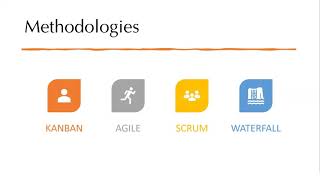
So welcome everyone to today's learning objectives, and today we are going to talk about keeping track of tasks and assignments with project management. So we're going to talk about what project management is, and we're going to actually do a little dive into a tool that you may already have. But I am going to talk about some others that you can have access to, both free and fee. The one thing about any free products is they're, they're going to be lacking in some of the more sophisticated features. But if you're getting started with project management, some of the sophistication may be not necessary or a little over, over your head. So, so let's talk about what project management is. And so project management could also be considered process management. And this, I just sold the best definition to encapsulate it into a very simple framework that it's a process of dealing— having a team, and you have goals and deliverables for a particular project. But we're going to kind of talk about different ways you can approach project management depending on if you have a team, if you have a team of two, if you are in fact the chief cook and bottle washer in your firm and you just need something to kind of keep you on task. You can use project management tools for all of those things. But project management at a kind of bigger level was a discipline that was used in manufacturing and information technology, and then law firms started using it to manage risk and predict pricing and kind of keep complex matters moving forward. That's in, you know, so when you read about law practice or legal project management versus project management. The legal project management was something that's been adopted by a lot of legal operations in larger law firms. And corporate counsel has an expectation that there will be project plans around matters, primarily because most of the companies that are outsourcing their matters to law firms they're using project management methodologies within their corporations. Again, if it's manufacturing, if it's IT, they're already used to using this. So law firms started adopting it. In the scenarios that we're going to talk about, we're not talking about sharing this out with clients. It's really more about internal team management. The benefits of this is that you can kind of control the risk in terms of who was supposed to do what, did I forget to do something, if you're still working working remotely, or if you've decided that you're going to have a partially remote workforce, then it's really great for supervision for your team in terms of seeing who's done what, is everybody keeping up with their task, and then kind of creating transparency so everybody knows who's supposed to be doing what and kind of streamlining the aspects of a matter in one place. I wrote myself a little note to remind you that project management tools are not the tools that you do your work in. It's really just a task management tool. You're still going to be doing work in Word and emailing people and doing other things like that. This is just your, your task list. But it's, it's based on methodology. So the basic concepts of project management is you have some sort of project, Within that project, you have milestones, and I'll show you an example of, of how you can identify what the milestones are. And then within each milestone, there are tasks, subtasks, and dependent tasks, because we'll explore the fact that the reality is a lot of times a task is actually— can be broken down into multiple subtasks, and the dependency is this thing cannot move forward until this other task has been done. That is a more sophisticated feature in some of the project management tools that we're going to talk about. And then you assign the task to people and then you apply deadlines to them. And so one of the things with any to-do list that I've found for myself especially is if I don't apply a deadline, even if it's a kind of false deadline, then I have no urgency. I have no, you know, it's on my to-do list kind of in perpetuity. It doesn't bubble up. And so applying deadlines is something that is really important in terms of the project management concept. And when we look at project— or Microsoft Planner, you'll see that it kind of calls out if there's no deadline assigned, it treats it kind of like a stepchild. So when we talk about project management, you may have heard of some of these methodologies that are applied. So there's Agile and Kanban and Scrum and Waterfall. And so there's all these kind of methodologies about how you approach project management. And subsequently, there are certifications that people can get. And so you can be a Scrum Master, or you can be a Six Sigma Black Belt, um, or just get a PMP. If your firm had gotten to the point where you're really, really dedicated to project management, you may consider hiring someone with a certification. But the reality is, this is all a little— if you're in a smaller firm, it's not so important that you understand all these methodologies, mostly because in the real world, most project managers use some sort of hybrid approach, because each one of these has strengths and weaknesses. Well, like waterfall, you try to plan the entire project at the beginning. Well, you know, in law, a lot of things will take a branch depending on did it settle, is it going to go to appeal, you know. So sometimes it's hard to completely manage the entire project in a waterfall methodology, whereas Kanban may be not how you necessarily think about how things— the swim lanes, which I'll show you. So don't get too obsessed about that stuff. I'm just telling you, because if you start reading about project management, you're going to see these words come up. So there's a bunch of different technology tools that you can use for project management. I will say that Outlook is not a project management tool. It's— these are specific tools designed for a specific task. And so some of the popular ones that are appropriate for a smaller firm would be something like Trello or Asana or Basecamp. Or Zoho Projects or Monday. The one we're going to do the most demonstration on today is Microsoft Planner because it's built into Microsoft 365 Business Standard or Premium. So it's something you already have. Now I will be first to say it is not as robust as some of these other tools, especially if you pay for them. So for instance, Zoho and monday.com I think are really good products. And the— they do cost a little bit of money, but they have time tracking and they have budgeting and they have things like that that may be really useful for you. But if you're really just looking at tracking tasks and assignments and deadlines, you can get away with Planner. Like I said, because you're going to be doing the work, you're going to be billing the time when you're generating a document or sending an email or something like that. This is just a tool that pushes you to do that task, not necessarily apply a time amount or billing, but it really depends on how sophisticated you want it to be. And the article that I'm going to send you goes through the strengths and weaknesses of all these different products and also looks at some legal-specific project management tools. So when you're starting out planning a project, I actually— and I'm going to I'll probably share my screen to show you that you can actually sketch this out on a piece of paper. But if you're going to start using some sort of project management tool, if you already have existing SOPs or you've got checklists and documented processes, that's a good place to start. Because one of the hardest things about putting together a project management template or tool is thinking of all the different things that you need to do and really breaking out those tasks. So, you know, you may, you may say send a letter. Okay, well, which template are you going to send the letter on? Where is that located? Who's going to send it? When are they going to send it by? You know, all this. So you start breaking what seems like a simple task into multiple parts, and the more granular you can be, the less likely you will be to find that something doesn't happen or doesn't happen the way you want it to. If you don't have existing procedures or processes, then you can start building them in a project management tool. Just be patient because it takes a while, and I'm going to show you an example of one that I used when I was at the Chicago Bar Association, and I think it took us probably 4 months to get the project plan exactly how we wanted it. We still worked the plan, we just kept tweaking it until it was the way we wanted. So timelines is another thing we're going to look at how you can plot this out on a calendar, which is very helpful. The milestones are really the big parts of the project that have to be done in order to move to the next step. They're not exactly dependent tasks. It's just that, you know, you've got to get through certain sets of tasks in order to move the project forward. And it also gives you a good baseline. Are we, are we moving this ahead? In a way that's going to meet the deadline. So tasks and deadlines and all these things are— we're going to look at how to create them. And then of course figuring out who's going to do the work. And one of the interesting things about Planner that we'll see that's not as readily available, or it's a little bit more difficult to set up in some of the other tools, is the review and approval process. So if you've got an associate who's responsible for writing a memo, but you want to have the partner review the memo. In other tools, that would be a separate task. In Planner, you can, oddly enough, and I have never seen this in any other tool, assign the same task to people. And so you can figure out how you might make that work. So if the associate checks off all the subtasks, then the partner is responsible for checking that the task is completely finalized. So when I say it's not as simple as it seems, I thought I'd use an analogy of baking a cake. So it just, just to give you a sense of there's, you know, for any something, there's a lot of moving parts and pieces, even something that seems simple like baking a birthday cake. So you've got the deadline, the birthday party, and you know who the project is for, it's for your birthday girl. But you're not just going to start baking the cake the morning of the party, or you might, but you've got a lot of other competing projects for that party. And, you know, you want to make sure that you have the time to do it. And then is there a budget? Is there an amount of money you want to spend on it? So kind of establishing the project parameters, the budget, the timing, when you need it done, all that kind of stuff from the beginning. And that can, that can be for any matter. So first off, you want to find the recipe and then check your pantry to see if you've got all the ingredients. Make a list and go to the grocery store and get the ingredients that you don't have. And then go back, get all the mixing bowls and measuring spoons, start following the recipe, bake the cake. Okay, cake's done. Now you're making the frosting. You get out the ingredients. Oh crud, the butter needed to come to room temperature. So now I'm backed up because I can't, I can't make the frosting and frost the cake. Um, while the cake cools, I might be able to let the butter come to room temp, but if it was really hard or I had it frozen or something, now I'm gonna have to wait. So that's where you start realizing where the timeline and when things happen is super important. Um, and then of course you get your frosting made, you frost the cake, you find a serving platter and a cake server. Did you get the plates and spoons? Do you have the candles? So for this we'll call baking a cake a project, you've got segments. So you've got ingredients, you've got bake cake, make frosting, prepare final cake, and serve. And so those are kind of ways to break up the project and start figuring out where the tasks fit in order to make this work. So I'm going to show you a couple of examples of tools that are out there in the world and different ways you can kind of set them up. And so for this one, this is a product called Asana. And it's, it's free for basic use. If you pay for it, you get a lot more bells and whistles. And this is actually something I use when I was at Chicago Board. This is also something our marketing department uses to keep on top of tasking. So the marketing department has their own projects, but they task the staff with stuff. We're not necessarily stuck in the whole project, we just get told when we need to do something for them. And likewise, we can submit tasks to them to add to their your own project plan. This particular one was the one that we established that I told you took a while to figure out. When I was at the Chicago Bar, we did a bunch of webinars every other week, and so we had different types of— at first we tried to do a template for every type of webinar, and then we realized that if it was a sponsored webinar versus a regular webinar, it had different steps in it. So we went through and kind of created templates for different, very discrete types of projects. Then when we created the project, we copied over the template, named the project by the date that it was due. And in this particular case, rather than using kind of substantive types, we segmented it off by the planning and then by the week that we needed to do. So if I've got a program coming up in 4 weeks, then over the course of the 4 weeks, you know, first get the concepts out, then 3 weeks in advance, do this, 2 weeks in advance, do this, the week of, do this, the day of, do this. And then we actually found that we needed to do post-work. So post doing the program, there were some other things to do. So those are the, you know, you can approach it like that. And for a template where it's like, say, for instance, you've got a probate and everything is based on timing, you could approach it like that. So you create this template and then you do the, the task list with the deadlines that kind of are looking at backing out from a due date. Okay, sorry, everything went sideways. I lost my internet. Okay, so we're back to— I'm showing you a different project management tool. This one is called monday.com and Monday, one of the things that for law firms might be interesting is that they do— you can apply time estimates to different tasks and actually track time for different tasks. If you're already using a task management tool, or rather a time and billing tool, this may be superfluous and overkill. So it's, it's one of those things where it may be a boon, it may be a curse. You don't have to use it because in, in this particular product, you, you can add as many features as you want. So you wouldn't even have to have these columns. But the way this, this template comes out, the ongoing legal task, is they've just divided it by different ones and then they just do the task. So you could have different segments and apply different tasks and not have a formal project management plan so much as having a running task list for different types of matters that you handle and with the assignments and the deadlines and the status and all of that kind of stuff. So again, it really, it depends on the kind of work your firm does, how many people are working in it, what kind of workflows you've already got existing. As to what's going to work for you. And I just wanted to show you a couple of examples. And then the next example, and this is actually from Microsoft Planner, and Planner is, it generates a Kanban board view when you create it. And in this particular instance, I took a, a sample estate plan. So if I was going to make a template for an estate plan, then I would go through and I just divided up the task for this, generating the estate plan. So we've got the onboarding, gathering information from the client, generating the documents, review with the client, and then finalize. But as you can see, there's a lot of steps in each one of those. And this is, this was just right off the top of my head. So this isn't even something that you, you know, is, is not complete. And as you move forward, if you create the sample estate plan or template estate plan, you can keep refining this over time. All right, so now we're going to jump into Microsoft Project or Planner rather. I messed up and said Project because Microsoft actually does have a product called Project. It's very sophisticated. It has Gantt charts and all, all the stuff, but it is not free and it doesn't come with your 365 plan, which is why we're looking at Planner today. So there's a couple of different ways you can make a Planner plan. And that's going to be either in Planner itself or in Microsoft Teams. So if you are already using Teams, you can add a Planner plan to the team. If you're not using Teams, then you can just go straight to Planner and create a new plan. And it's, it's fairly straightforward, but I thought I would show you what that looks like. So first we're going to go into Planner and create a new plan. So the way I get to anything that's in the Office suite that I have access to is I just go to office.com because Planner doesn't have an installed piece of software. It does have, um, applications for iPhones and Android phones, but there's no desktop version of this. The only place you're going to find it is in a browser. So again, if you have a Microsoft 365 Business Premier, Business Standard, or E3, you're going to have Planner. You just go to office.com, log in, and it, it will— may appear in the icons where all your stuff is. If you don't see it, click on All Apps. And that's going to show you all the apps that you have access to through your 365 subscription. So we can see that Planner is right here, so I'm going to click on it. And I also have some plans already here, but I'm going to create a new plan. So it's pretty, pretty easy. We're going to click New Plan. And we're gonna give it a name. You can choose public or private. To be clear, again, in the Microsoft 365 parlance, there's a lot of options for public or private. Public does not mean it's publicly available to anybody. It means it's anyone in the organization, anybody on your Microsoft 365 tenant can see the plan contents. Or you can say, I only want members that I add to this plan to see the plan contents. If you click on options, it gives you the option to create a group description. This isn't the description of the plan. This is the description of the group if you're going to create a new one. So I can create a new group or I can add an existing group. So I think I'm going to add an existing group. The existing groups come from SharePoint sites that have been created with specific permissions or Teams channels that have specific people in those particular teams. I'm going to search for— this is a group that I already have in Teams, and we'll create the plan. And so it automatically pops up like this. And if you click on these, this, this, normally this little icon would mean there's more stuff under here, and here it means that you collapse it. I like to get as much screen real estate as humanly possible. And so what I'm going to do is I'm going to just create a really quickie plan. So it automatically creates buckets. So the first bucket is To Do. You can create as many buckets and call them whatever you want. I'm going to create a Doing and Done. And then you start adding tasks. And so you give the task a name. So This is going to be, um, set up demos. And then I just hit the enter button and that adds the task. And I'll go back and make this a little bit more refined. And so on and so forth. So then once I've done this and I have my tasks, they look pretty, um, But, and that's all you have to do. I mean, you could literally leave it at that. But in this particular instance, we can add more intelligence about it. If I click on one of my tasks, you can see that I can assign this. Because I added this to an existing group, I can choose who I assign this to. Remember when I said you could assign this to 2 people? So I could assign it to 2 people and then We'll talk about labels in a bit, but basically you can create— it has a bunch of colored labels, but I can go and click on this pencil icon and I can change this label and we can say learning objectives, so low. If I were gonna do, and then if I had learning objectives, So I could, I could tag it with a label, and this is helpful because you can filter by these later. Then you can change the bucket if you want to. In the same way that Microsoft Task and Outlook always wanted you to have a progress, not sort of in progress, complete. I'm, I'm not a huge fan of that. I'm either working on it or I'm done. So it's kind of, I guess you could move it to in progress, but there's other ways to do this. You can mark priority, a start date, most importantly a due date. You can type description. So you can give yourself little notes, but you can also add a, a checklist. So this is where your subtasks come in, in Microsoft Planner. Um, It's not— you can, you can actually say you're done with this, this particular task, whether or not you check off these, and you can't assign them. This is why I think it's interesting, because if you had 2 people assigned to this, and this was, you know, writing a memo or a motion to dismiss, and you had the associate who had the checklist, and he wanted to make sure that the associate did all this work, but really the ultimate person who was assigned this task is the, the partner who's going to review the file. The associate can come in and, and check off that they've done that because it's assigned to both of them. So it's just another way to think about getting into this. You can add attachments. So from your computer, from Teams files. So if I click on Teams files, There's already, there's already files in this Microsoft Team because I associate it with a team. And so you can add attachments or you can link, and this is my preferred method, link to, to a document in your Microsoft SharePoint or in Teams or in OneDrive just so you don't accidentally create multiple versions. You can add more comments. Down here, basically, as things happen in this, as things are checked off, any notes that are added, any comments, this kind of creates a running list of everything that's been done with this task. Then I want to— by default, I want to have this checklist show on the card. So once I'm finished with that, I click it off. You can see that now we've got a lot more happening. You can see when the deadline is, that there's a document attached to it, that there's subtasks, who's been assigned, and all of that kind of stuff. And so for each task, you can go through and add a lot more intelligence. So in this particular instance, you know, I have not done this yet. You'll also notice that this isn't in a, the exact right order because theoretically the Create PowerPoint Slide should have been done before this. I can just drag it and drop it. So if I want this to appear in the correct order, um, I can, but it's really not dependent on order. It doesn't organize it by due date. That's a different place that we can look at that. Also, if I've already done this, I can either go in and mark it as done, or if I want to feel really good about it, then I can just drag it over into the done and click on that. And then it shows your completed task. So there's different ways you can do this. You can have a running to-do list, move it as you're doing it and move it over into done, or you can do it in a different way. So that's creating a plan in Planner. Um, the next one I'm going to show you is creating a plan in Teams. So if you are using Teams, then this is the Teams tool. Um, uh, let's see. In Teams, you can add, um, Planner plans as well. And so this is a, a team that I created. I'm going to click in here and you'll see if it doesn't show up, um, click on A to Z, and then it'll say Task by Planner. And when you pull it up, if you have an existing plan in Planner, like I just created, that's associated with this team, I can just incorporate it. But in this case, I'm going to add a brand new one. And this one, we'll do a residential real estate. So this, I may be generating this as a template, or you could say residential real estate buyer 45 contract Smith or whatever. So somebody commented that, can you integrate Microsoft Planner with Outlook? So that, that's a good question. Yes, you can in two ways. You can— once we create the project plan, I'll show you how you can move the entire project plan to show up in your Outlook calendar. And then the other thing is anytime I'm assigned something, anytime that I have a deadline upcoming, anytime that a task gets changed, I get email notifications. So you're still going to have to go into Planner, but you can interact with it. Through Outlook. You can communicate through Outlook with the Planner plan and, and so on and so forth. And I'll kind of show you how that works. And then another question we had was, we're trying to integrate Asana with Teams, but Asana doesn't show as available for us. How did I get access to it? Same way I just did that. So I'm going to go ahead and click save here. So when I create this Planner plan in Teams, it automatically knows who has permission, so I don't have to set up the group or anything like that. And you also get, of course, the kind of communication and the shared files And now you have a Planner plan in here. For those who want to pull in other types of project management tools, so if we have Asana, I just click on that, connect to Asana, log in. And then once, once I have that logged in and everything, I can, I can pull in the Asana plan. So you may just have to go in and do a search for it. Or like Monday, the one, the other one I showed you, Monday is available, Trello is available, and so on and so forth. So hopefully you can find it like that. So back to Planner plan in Teams. And there's a reason that I'm doing this. If you're not using Teams, again, you can just create it in Planner. But if you are using Teams, it's nice to have it embedded in your Teams with the plan. And this one, again, we're going to do is a residential real estate. So remember, it creates these buckets. For you. So I'm going to start with my buckets, and these are really my functional areas. So onboarding. And I'm going to do a little bit of backing to this. So And I will not bore you with all of it. And then And you can add buckets into as far over as you want to. And then what's going to happen is you're going to start getting slid off the page and you can just go on and do that. So we're going to, And so on and so forth. And then each— you just keep adding, um, your task for each one of those. Then again, you can go in— I find it easier, especially if you already have a checklist or process just add all the tasks, then go back and add the details. So who's going to do this? You'll note that the labels don't stick. The labels are specific to a plan. So you'll have to do these again. So we could say residential if we were going to do, you know, if we hadn't already determined this is residential, this is real estate closing, we could say residential or commercial as as potential tags. We could say this is a 45-day contract versus a 30-day, so on and so forth like that. So you wouldn't necessarily have to have it all in the title, but it doesn't hurt to have additional labels. So let's add that and that as our labels. And then we'll say this is a very important, and then we're going to make this a due date. Now, because we know we have a 45-day contract, you know, we need to get this process started with the quickness. So we'll say this is due tomorrow. And then, you know, if we had a template that we used or, you know, for the engagement agreement, you can add it here. And then add a comment for Carol., and then continue to go through adding that. So at this point, does anybody have any questions? And for the person who is looking for the Asana integration, who says we might have a different 365, I'm happy to hook up with you and try to see if we can't find it. Um, because yeah, the different plans have different functions, and if you're in a government office and you have a government SKU or you have an educational SKU, sometimes where things are different, but we may be able to do it in the Teams browser. Okay, you're in a private firm. We'll just look and we'll see. You may have to upgrade. We'll figure it out. So just shoot me a message after this. You should have the confirmation email for me. One of the reasons I wanted to show you in Teams, if you're not using Teams, don't just, just use it in Planner. But if you are using Teams and you put the Planner plan in here, but you want to see, you know, get a little bit more screen real estate and see some of the additional features in terms of reporting, then you can go up here and click this to go. It says go to website. But if I click on it, what it actually does is it opens it in the Planner tool itself. And the reason you might want to do that is because you have charts. And so you have all these filters built into the project. So I'm going to actually show you a different plan that's a little bit more complete, And yes, you can make them have pretty backgrounds and things like that. So this is a sample estate plan that, you know, I created in Teams. Oh, do you know if the URL links for LinkedIn documents and NetDocuments? Yes. So that's a great question. What I've done, and I'll actually show you an example. So in this particular task, I said use standard free— standard fee agreement template number 1, and I linked to my SharePoint repository. If there is a way to get a link to a NetDocuments document, which I think there is because it's in the cloud, and pretty much any document that's stored in the cloud, you should be able to link to it. The link isn't available to anybody but people who have login access to it. But I think you should be able to create a link and then link to the document there. So again, I'm a big fan of linking to documents versus attaching them, just so we're not creating version issues. So this plan has, you know, I've used labels, we have a bunch of different people with different assignments. And so what we want to do is say, I want to see where we are with all of this. This is where using the Planner view versus doing it within Teams gives you a little extra edge because it has this, um, charts. And in charts, I can see how many tasks are left, um, if people are noting in progress, what's late, what's been completed, um, how we are with our different buckets and the, you know, priorities. If there were important priorities, uh, they aren't started? Do I need to kind of push someone to do something? And then see who's assigned what and go, oh, Katherine seems to have the vast majority of these, these assignments. Maybe we need to add someone else to some of her assignments, or maybe we need to offload them to her because she's, you know, got, got some other major project going on. So you can, you can also look at it in a schedule. And so on the schedule, I can click into any of them, but I can just see it plotted on either by week or by month. And then if you click on this, you'll see you have a lot more options. So going back to the board view, if I want to add members, I can do that here. I can also— so it group the buckets. So these are the buckets, the review with client, finalize, generate, generate documents, all that, that I created. But you can group these by other ways. So if I want to see by assignment, or if I want to see by due date, um, or by priority. So you can actually group them in a bunch of different ways, um, whatever helps you get into the data and see it in a way that's most effective to you. Then you can also filter by a ton of stuff. And so I can filter by what's late, uh, what's due this week, next week. Did I have— I actually went back and added, but if you don't put a date, you can see that Whoops, somebody added a task that has no date. Priorities, progress, you know, assignments. And so who's this, you know, this is assigned to me. And this is what's due next week. Now, these filters stick. So if I go over here to Charts, I'm only going to see that one task that's due next week for Katherine. And so sometimes you'll go, oh wait, why am I not seeing all this stuff? If you ever— if you applied a filter, that filter is sticky. So you go, you'll notice it says 2. So we have 2 filters applied to the data. So we're going to hit Clear and everything gets back to the, the overall view, and then you can go add your filters again. So I think all of that is actually really helpful. One thing that a Planner plan doesn't have that, that a Planner plan viewed through Teams does have is the ability to see this as a list. I don't know why Planner doesn't give you the ability to view this as a list. It drives me crazy. Every other project management tool that I know of will let you view— except for Trello— will let you view things as a list. But for whatever reason, you have to view it in Teams to get that list view. But if the list view is not that big of a deal, then it's no problem. So other things you can do with this. Here in this little dot, dot, dot, which always means more stuff, I can add it as a favorite, so store it so it comes up at the top. I can export the plan to Excel. And this might be good if you were going to create this as a, as a plan, and then you just want to save it for later. It has it all and you can delete the plan, but you still have kind of all the data if you don't want to keep old plans once they're created or completed. And then other things you can do, You can copy the plan. You can copy a link to the plan. So if I copy the link to the plan, then I can send a link to someone via email if I wanted to. But if they don't have permissions to view it, they can't. So there's that safeguard built in. And then if you have files in here, which I don't think I do. I think I just have a link to the file. Nope, there it is. So there's, there's a file that I have associated with this Planner plan. So you can see what files are in the plan. And then if you go to Plan Settings, you can change the plan name, you can change the backgrounds, because that's really important. Actually, I'm being a little snarky. Having different backgrounds is, is sort of useful because it gives you a different visual cue which plan you're in. So I like that. And then if you click on Group, you can change the group information. This one's important— Notifications. When you, when you set up your plan, think about the notifications. So I have this one checked, send email to the group when a task is assigned or completed. Only group owners can change the settings. So when I set this up, um, it will, will send an email to the group that is not to my individual email. That is to when you create a Planner plan, it creates a group in Outlook, and I'll show you where that is. So it won't be clogging everybody's inbox, but the reality is they're probably not going to ever check their inbox or their group email for that. Um, so have Planner send me notifications when someone assigns a task to me and a task assigned to me is late or due today or due in the next 7 days. So those are the two defaults that I would tend to stick with, and this one is, um, negotiable. So someone asked, can you select a member and show all task timelines across all plans to have a comprehensive, comprehensive view of all open tasks? That is an excellent question, and that is not something that I have figured out how to do in Planner. That said, as an administrator, like if I've created a bunch of groups, that said, I'm often the only person in my organization who's using this stuff, so I can't really tell you for sure that you can. I know that in Planner I can click on this little tab here and I can see all my tasks. So I can see anything no matter what plan it's in. If it's been assigned to me, I can see my task. There's, there may be a way that as, as the owner of different plans, you can see who's been assigned based on member. But I, I don't know. Alright, so back into this plan. Some other things to be aware of. If I copy the plan, you can change the name, select which group. You can't move over attachments, but you can Move. Again, this is where I feel like you can either take an existing plan that you've created and turn it into and reuse it by changing the date. So you wouldn't want to carry over the dates because it's— you're gonna have to change them all anyway. And then we'll select the group. And copy the plan. There is no way in Planner to create a template. This is where you have to get kind of creative, but you can copy a plan. And then once we've copied the plan, um, Normally it would show up over here. We'll go into Planner Hub. All right, so here it is. So remember I said color coding and using those backgrounds is actually kind of helpful. So this is the copy of the plan. It did not bring over deadlines, but it did bring over all the tasks and the labels. And it does not bring over assignments, so you'll have to redo assignments and redo deadlines, but it'll pull over the subtask and you'll have to pull in the— so it's not perfect. I don't love this. This is, this is where if you get really invested in using project management tools, either have to kind of figure out a way to make this work, or you're going to buy something that lets you do templates, which are very, very useful. This is really just, again, getting your feet wet in terms of conceptually what you've got, what you might be able to use. And so we'll go back to the sample estate plan. The other thing I wanted to show you is that there's this Add Plan to Outlook Calendar. It doesn't, it's not quite how it seems. So I'm going to click on this, I'm going to say it says don't publish, keep private, task won't appear in your Outlook calendar and task information for your plan won't be shared. I don't even understand what that means. So I'm going to publish share with anyone. Anyone with an internet connection can use iCal to see what task information for this plan, but this is a link I could send to anyone, but I wouldn't send it to anyone. And it's not published technically anywhere unless I sent it to them. So I'm going to go ahead and out— add this to Outlook. And it opens it in Outlook on the web by default. And it's basically taking all of the deadlines and adding it to my calendar. So I'm going to go into Outlook proper and go into my calendar. And in a second, it will appear open. Oh, you know what I didn't do? I think I— before it made me— and you probably have to do this again. You have to tell it which calendar you want to have it added to. So if you have an Outlook calendar like mine, you have My Calendars. Other calendars, um, and it, for whatever reason, it showed up in other calendars. And I can move this up to my calendars if I want to, and then I can see my calendar and the Planner calendar side by side. I'm looking and seeing if there's any. So if you're only using, if you're the only one using some of these tools, how do you get them implemented in your group so they're effective and assignees can get? I don't assign anything to anybody. So. In a perfect world, so I personally am not your example. When I used to have a team of people that I managed, I used project management tools. Unfortunately, it's me, myself, and I. So for this, I would just assign everything to myself just to keep a running list of, you know, tasks within different types of projects. So for me, my personal projects are I do a webinar every month, I do a newsletter every week, I do a blog post every week, I do a workshop quarterly, and I could use different plans to plan all of those projects. So you can use it by yourself, but it works better as a group. And once you have a group within Office 365, you just create the group, start assigning stuff to people, and I'll show you the email. So as things are getting assigned to me, I get an email from Planner to remind me I have 2 tasks due. When I get assigned a task, I will get an email notifying me that I've had a task assigned to me. When something changes, this task had been assigned to me, I assigned it to someone else, I got a notification. I can actually click on reply in Planner, it'll pop open Planner to that particular task. And I can— again, you can see, remember, at the bottom of each task it has kind of a running checklist, running list of what's been happening with this task based on deadline. So if you change something, that all gets tracked automatically for you. And then I could note. I could leave a note for Paul, or I could email him. Um, but it lets you interact with Planner directly from Outlook. And then remember I said if you create a Planner plan, it also automatically creates a group When you have it in Teams, Teams already creates a communication stream for you. Planner doesn't necessarily have an automated communication stream, so it creates a group. So when I created the Planner plan and added the people for the NCDF project plan, it created a group email. I get an introduction into directory email, but then I can actually email the group. So it's almost like going back to listserv or something like that. It creates miniature discussion groups for your project. So you could actually interact with your group via email if you wanted to. That's not my preference. But the— some of the stuff, a lot of, a lot of the stuff in 365 has been built on existing products and existing workflows, and some of it quite quite frankly, is a little kludgy. So I just pick and choose what the workflows that I want, and, and then try to instruct people. So that's it. It's 1 o'clock. Does anybody have any questions? What I think I'll do is I'll go back to the slide deck and Show you my contact information. So if you do want to email me or you want to talk to me about how you might set up project plans or which tools maybe are the best ones for you in terms of your firm and how you work, just shoot me an email and we can have a consultation and talk about it. It's, it's a lot, it's complicated. But suffice it to say, if you're managing tasks through email and calendar, this may be a better way to do it. If you have multiple people that you need to stay on task, on track, again, these, these tools are designed to do exactly that. And you don't have to get too fancy about it. But that's, that's the tools we have. So I'm going to stop the recording. And then if y'all have any questions, you can open your mics. And ask. But thank you for coming.










