Setting Up a Password Manager
Catherine Sanders Reach explains why password managers are essential and walks through LastPass and Dashlane. A study of 300,000 leaked passwords shows how common weak, reused passwords are. The webinar covers zero-knowledge encryption, multi-factor authentication, live demos of both tools, and best practices like protecting your master password.
Chapters
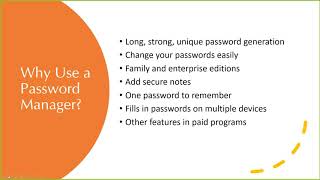
So welcome everyone to today's learning objectives webinar, which is going to be on password managers. And so password managers are something that I am really keen on, mostly because they're easy to use. Once you get used to it, it's not just completely thought-free, but it's pretty easy to use. And it's gonna keep you from doing things like this. I literally was looking at my email before we started up today, and I'm subscribed to PC Magazine updates, and there was yet another kind of exposé of commonly used passwords. And you would think that we would get more clever in our password usage, but no, according to this newest study evaluating a database containing almost 300,000 passwords. The top 3 were 123456, 123456789, and picture1. And then I guess when people thought they were getting more clever about the whole thing, then they were doing things like QWERTY or ABC123 or Pokémon Dragon Sunshine Princess Chatbooks. I love you. So we're not getting any better at making good passwords. And the reason is because the best practices for passwords is that we're supposed to use unique, long, and strong passwords for everything. And that's just really hard to do. And that's where the password manager comes in. So, you know, you're supposed to have a different password for each thing that you log into. And you really don't want to repeat the passwords because there's been story after story told where if somebody gets into a primary account, say your email account, and they have your username and password, A, you might have used the same password across multiple applications, so it's easy enough for them to use your email address password and get into other things. The other thing is once they get into your email, they can change your password, which is why we do two-factor authentication or multi-factor authentication, which is a different story for a different day. But some of these password managers help you establish this multi-factor authentication too, and that's basically Basically, even if somebody knows your name and your password, they have to go through another step to get into your account. So that's about as secure as we've got right now. But the password managers make this pretty easy to do. It also makes it easy to change your passwords and remember them. So if you get some sort of notification or you get nervous that an account has been compromised, you go and change your password, you save it back into your password manager, and you don't have to you know, go through too many steps and it's remembered. These products also have family editions. They have enterprise editions. We're gonna look at some of the team editions for your firm. Something that I also like, and I personally use LastPass, so that's where a lot of screenshots are coming from. And by the way, we're using screenshots for most of this today because I can't actually let you see my real password manager. But secure notes are something else that's added. So, you know, when you go into some sort of system, especially like banks and things like that, where the information needs to be more secure, they'll have all these kind of questions that you're supposed to answer. And so if some— for some reason you're logging in from a new computer, it doesn't recognize your IP, then you can answer a series of questions. They used to ask you questions like what's your mother's maiden name, what was your first car. That stuff's pretty easy to identify, so they've gotten a little bit better about the questions they ask, but it's hard for you to remember how you answer the questions. In a perfect world, you would lie and not answer the question correctly and make something up. So in a password manager, you can add secure notes, and I use those secure notes to put the answers to the question— the questions in there. That makes life easier. So my first question from the audience is, what if the password manager is cracked? That is a real threat. The two programs that I'm going to go through are Dashlane and LastPass. They're so well protected that LastPass has been hacked 3 times and no passwords have ever been exposed because they have this thing called zero knowledge. And the zero knowledge is they literally don't know what your passwords are. They're salted hashed and encrypted in such a way that the password manager service doesn't have access to your passwords, which means that if you lose the password to your password manager, then you really are up a creek. So I'm going to show you where you can actually export your passwords to an encrypted little file that you can keep locally or on a thumb drive or something like that. So don't lose your password manager password and We're going to look at how to create a secure password for that. I had to switch from one email account to another for my password manager, and I really felt like I was trying to break into Fort Knox to try to even just do that simple change. So I guess it's good and bad because they make it really hard, but you can add two-factor authentication to that. So I'm not as worried about it. Yes, so someone is asking me about Keeper. We're not going to go through Keeper today, but the top 3 programs that are out there according to Tom's Guide. And if you've never seen Tom's Guide, it's in my estimation one of the best review sites for common software platforms and software applications. So Tom's Guide says top one right now is LastPass. And obviously these things kind of change every year. LastPass, Dashlane, and Keeper are the top 3. And so it's really— and we're gonna look at Again, we're going to look at LastPass and Dashlane in a little bit more detail, but I think you'll be able to assess which one is going to work for you based on what do you want to pay, how many people you're trying to protect, the kind of features you're looking for, and that kind of thing. So again, the password managers, they'll, you know, keep secure notes about the logins. You just have to remember the one password. You can have it installed on multiple devices. So I have it installed on my cell phone. Or my smartphone and then on my computer in the browser. These products also, if you pay, like I use LastPass, so I pay for the premium product for an individual and it's $36 a year. So it's really not breaking the bank to get some extra features and I'll show you what that looks like. So another question that you may have is why wouldn't I just use the browser? Google Chrome, Firefox, Edge, all of them offer to save your passwords. There's a couple of reasons why I'm not a big fan of doing that. Primary one is if someone gets access to your Google account or your Microsoft account and you've saved all your passwords in that, then they've got all your passwords through the browser if it's saving it there. So I tend to want to have that segregated. It's not quite as secure. They don't have the level of salting and hashing of those, the zero-knowledge password thing that that the password manager set up. You don't have any enhanced features. You don't have any team options. There's no family passes. So a lot of the stuff that you get with these last— the password managers just simply aren't built into the browser. The browser is easy enough to use, but it's not my top choice for using saving passwords. So Next question is, well, what if I don't want to save this in the cloud? Dashlane, Keeper, LastPass, and most of the others are cloud-based. So the passwords are being saved in an encrypted vault in those companies' cloud. If that makes you nervous, which, you know, perfectly acceptable, then what you want to do is get something that is locally stored. A lot of them have options for a local encrypted vault that lives on your computer. Of course, your computer could get hacked, but if you're nervous about the cloud, then you can use a different product. The one that I started out using a zillion years ago that's been around forever is one called RoboForm. And RoboForm really started out as a form filler, you know, because we were— everybody gets tired of having to fill in the same information on online forms. RoboForm works really well for that, as do the password managers, but it is something that you install on your desktop. So you can get the desktop only with local only storage. However, if you get the, the business version, it's gonna be in the cloud. And the reason why is because if you're trying to sync and store multiple people's username and passwords, obviously, it's not going to work on a local machine. So kind of digging a little bit more into the two products that I was going to talk about today. Again, there's lots of other options. If you are a Mac, there is a product called KeePass that people like a lot. And so it kind of depends on your computing environment what's going to be the right one for you. But I'm going to save the PowerPoint with my speaker's notes in it and send it to you when I send you the recording. And it has some links to some computer comparisons of these different products. So LastPass versus Dashlane, and we're going to look at the comparison first of the free products. And so the free product for Dashlane is a little bit more limited than the free product for LastPass, and that's why I personally use LastPass. So Dashlane, the free one, it limits you to 50 passwords. You would be amazed at how quickly you go beyond 50 passwords. It only lets you save to one device, whereas with LastPass you can have the product on multiple devices. And then it has, you know, mostly the same features— two-factor authentication, security alerts, other things that LastPass does. When you move up to the premium level for personal use or individual use, you get unlimited passwords. So it's $60 a year. Again, the LastPass premium version is $36 a year, so it's a bit cheaper. But a lot of people really like Dashlane for its ease of use, which we're going to test out in a bit. And then with LastPass, the free version is basically unlimited passwords, multiple devices. It's free. It's easy. I'm going to show you some screenshots because again, I I use this product personally, so I couldn't— I don't want to expose you just in case I record my own passwords. But it's easy, and I'm going to walk you through some of the feature sets. So LastPass, in my estimation, for the free version has a lot more going for it. Once you go into the premium version, it's a bit less expensive. But Dashlane does have some nice features that are not necessarily part of the LastPass product.— which I'm going to show you, especially when we get to the Teams version. So kind of going through what LastPass does. Primary useful thing that it does is when I go to a website that I need to fill in a password, I don't have the browser remember. In fact, I don't have any— I don't have my passwords prefilled in for me. I don't have it remember my passwords, which keeps you a little bit safer. So see that little— the button here on the screen that says "Keep me logged in"? I never check that. So I have to go and log into everything. And is that a pain? It would be if I had to type in my password, but because I'm using LastPass, the nice thing is when I go to this screen in MailChimp, it automatically from LastPass, which is a browser extension, drops in my username and password, and then I just click Log In. So it's super easy. So that's, that's the number one ease of use factor with any of these password managers is that you don't have to stay logged into different services. You just let it fill in the password for you and you click login. This also reduces the threat from keystroke loggers. So if you remember— and these are still around— so a keystroke logger is basically a little piece of malware that's been inserted into your hard drive. It runs in the background. You don't know that it's there, but it is tracking every keystroke that you make and sending it to the other— whoever's tracking this. So if you're typing in your password, it knows what you're typing in. So the question is, if they're free, what's the downside? There's usually something not so obvious. This one is definitely, in terms of the free versions, they are constantly trying to sell you up. You don't— there's no ads. It's not less private. They wouldn't be able to survive if they reduced the privacy for their free products. So basically, you know, it's like a lot of the free products where it's a freemium. They're trying to sell you up. So you go and click on a feature that looks interesting and it says you gotta pay. And again, with LastPass, it's $3 a month, so it's $36 a year. It's kind of a no-brainer to upgrade. So filling in forms is the primary thing. The other thing that it does is help you create secure passwords. And so it's hard for us as human beings to create a truly random password. And that's the best security is a 12-character password that is truly random. But a lot of the times, you know, you've probably heard advice from people, you know, create some sort of passphrase so it's easy for you to remember, and then you make substitutions like, you know, an I is an exclamation, blah blah blah. A, you know, that gets a little hard to remember. You tend to repeat those and make one change at the end. You start getting creative about how you do it. I was actually talking to an attorney the other day who said, oh yeah, I have unique passwords for everything. I write them on a piece of paper and they're on my refrigerator. So, you know, this is the kind of thing that will help you keep from doing not as safe behaviors. So it'll create a password for you and you can actually go in to say how long do you want it and then whether you want to use uppercase, lowercase, numbers, and symbols. This is particularly helpful in that if you go to a site and you create a login and you create, you know, and I find this incredibly irritating and I'm sure you guys do too. So you go into a new service and you start creating your password and then it says Nope, you need a non-letter symbol. Okay, then you go add one. Now you need an uppercase. And I don't know why they can't just put in there what your password is supposed to include, but they don't. They just keep torturing you. So I tend to just go for the gusto with all of the options checked. But sometimes it says we won't take special characters. So then you can go uncheck it and create the password. But again, now you've created a unique, strong, long password and you have some flexibility and, and what you do. So I mentioned that while there is a LastPass vault, which I'll show you, it's also primarily running through an extension in your browser, and it works for Safari, Firefox. I haven't tried Opera, and I don't know if we have any Opera users, so you'll have to tell me if this works. Edge, Internet Explorer, and Chrome. And it's just a little extension, and It's always up in your browser. When you click on it, you get this menu of options. So you can open your vault, which I'll show you a screenshot of. You can also click on Recently Used. If you click on Recently Used, it shows you a list of sites that you've recently logged into, so you can quickly go back to one. So in addition to going to a site and filling in your password, you can actually launch a site from LastPass. So you can go to that Recently Used or the All Items and click on it and it will launch the site with your username and password filled in for you. If you want to create a secure password for something as you're logging in, you can click on Generate Secure Password and copy and paste it. Sometimes you will run into a website that does not work perfectly with the browser extension. So for whatever reason, you've got a bunch of little symbols in that the fill-in-the-blank box that are kind of competing with each other. Don't let that thwart you. Just go click on the extension, click on Generate Secure Password, copy and paste it, and it'll save it. And I'll show you what that looks like. They've added the security dashboard, which I'll show you. And then you've got a bunch of different account options. So this is what your vault looks like. So when you go in, you can see, you can search your vault, you can group different types. I've never bothered. Because I have a laboratory science degree, and while I love to obsessively folder and subfolder things, I've also learned that search is my friend. And so not to get too obsessive, but you can folder things. And if you're going to use the Teams version, that might be helpful to you. So if you wanted to put all the marketing tools in one folder, all your financial tools in one folder, whatever, you can do that. You can search through the vault by keyword. You can also, if you click on passwords, search by password, and I'll explain how that might be useful to you. If I clicked any one of these individual accounts, it would take me to the ability to either launch that site and fill in the password for me, or I can edit the password. So I don't even have to go through the process of changing my password with the vendor. I can actually change my password directly from LastPass, which is super, super helpful because you know that a lot of times it can be a multi-step process to change your password with a service. And then there's on the left-hand side, you can see where I can create secure notes. I am a little— okay, so true confession. I trust this, but I only trust this kind of stuff as far as I can throw it. So the things that I don't necessarily save in here are primary banking accounts, things like that, my Wi-Fi passwords. There's a few passwords I still memorize— my network password, my Microsoft 365 account, things like that. So I don't save everything in here. So if you think, man, this is the keys to the kingdom, if somebody got that, I'd be up the creek. Then don't save it in your password manager. And then you can go down and we'll look at some of the other things in there, but that's basically the vault if you need to go in and do any kind of across-the-board work. When you go to add an item, it'll let you add passwords, secure notes. The addresses makes it really easy to fill in different forms of your shipping. Again, this keeps you from necessarily saving all the information into different— so if you have a Walmart account or you have a Target account or you have an Office Depot account or something like that, we tend to let it be saved by those vendors, our address, our charge account information, things like that. But we don't know how well those databases are protected. Oh wait, I'm sorry, we do know how well those databases are protected. Because they've been hacked. Target's been hacked. And so I tend to not want to have that information stored in their systems. I want to store it in LastPass and have LastPass fill it in for me. So you can go in and if you have your home address, your work address, a PO box, you can put all that information in. Then when you're filling out those forms, you just choose which address you want to have something shipped to or sent to. Similar with payment cards.. And then you can add other information like your passport number, your driver's license. This actually gives you a little vault so you can upload documents like your insurance policies. So you can put a ton of stuff in here. And you can even create custom type items to store in here. Software licenses. So if you're in a small firm and you've got some installed software, you wanna keep the software licenses. You can do things like that. I don't know what instant messenger is. I've never used it. I'm pretty old-fashioned that way. But so anyway, there's a lot you can store in LastPass other than just usernames and passwords. This scared the pants off of me the other day. I got an email. It was in my Gmail spam, and it said, we know one of your passwords, and if you don't pay us a ransom, we're gonna, you know, launch it on the dark web or whatever. And so I first filed that information with the FTC, and then I went to search across LastPass to see where I had used that password, because it's one that I used to use all the time until I got better password management practices. So I went into passwords in my vault and I did a search for that particular password and I found the ones that I was using it for and changed them. And so again, that's where the password manager really saves, you know, saves you time and energy because I was thinking, gosh, I used to use that particular password for everything, variations of that password. So I was able to search across Okay, yes, how do you file with the FTC? There's a place where you, if you get security threats, if you get anything like that, you can actually file with the FBI and the FTC. If, I mean, they're never gonna follow up with me, but I felt like I just should do my civic duty and report somebody who's obviously a bad actor. So that's the kind of thing where again it was very scary to get that kind of threatening email and to be able to kind of go and check and make those changes and feel kind of assured that the products that I had been using that password for were not even active products that I was using. Which then begs the question, why do I still even have these? I should go— so I actually went and deleted some accounts on some some things that I wasn't using anymore. So doing that kind of password hygiene was actually a good, a good exercise for me. Some of the new things that you get with a premium account are security score. So they tell you the strength of your site passwords, how often you're using multi-factor authentication, if you're using good lock screens for your smartphone, biometrics, things like that. So you can add things to the vault and have it give you kind of a security score to remind you that we can always do better. And then the dark web monitoring is I can have different accounts. So I'd probably put, you know, the accounts that actually held my information. So I, I tend to make a distinction between things that I have a login just to access information, something like Fastcase versus something where I store information like Microsoft 365. And obviously I want to be incredibly careful about protecting that account. Whereas with Fastcase, because I'm not necessarily storing any information in there, I'm not gonna, you know, if it got hacked, they'd have my password. If I use the same password for everything, that would be problematic, but otherwise it's not as high threat. So for the dark web monitoring, putting things where I know I'm storing my personal information just to make sure that, you know, I get any kind of reports. The other thing you might have noticed in the vault is this emergency access. So this is, um, if something happened to me, um, then I can go in and put in people I trust like my husband or my sister. And then if they had a need to access my password vault, um, you can set it up to where they can do that. But there's a lot of security controls in place there. But this is just a good thing. Now they do have a family version of LastPass and Dashlane and I think Keeper. And those let everybody in the family be able to share folders with passwords, have their individual vaults, and also kind of be able to, you know, change passwords for each other and things like that. So one of the things that Dashlane has in their Teams version, which we'll look at, is you can segregate your personal from professional and have both. That is not an option in LastPass, but if that's something that sounds like a really good idea, you know, definitely take a look at that. There is a browser extension called PassProtect.io, and it's in your— it's in the materials that I'm going to send to you.. And this is a good kind of proactive way. If you go to a website and you start to log in and it will actually pop up and it's based on the database from Have I Been Pwned. And it will tell you this password has been part of however many number of data breaches. This should prompt you to go and change your password. So this is a good little browser extension to have, just again, kind of keep you on your toes. And then if you have the password manager, it's very easy to change your password. So if you know that you need to change your password, like I said, you can change it directly in the vault, or you can go to the service. Say if I want to go to Twitter and change my password, most all of the services, the place to change your password is in the account settings and then privacy and security. And so you go look there. They'll have you type in your current password. I let LastPass fill that in for me. And then I click on that little kind of circle with the lock icon, and it offers to generate a new password for me. And I fill that in. Once I've clicked fill password, since I had saved this username and password for Twitter to LastPass before, it pops up a little box that says, do you want to update the password? So you can do it either way. You can do it from LastPass, or if you're in, in a service, you can go and change your password. And then if it had been in LastPass before, you can update it. If it hadn't been, it'll offer to save it for you. So if you're getting started doing this, as you go into different services that you use and you're logging in, go through the process, you know, get LastPass set up or get Dashlane or Keeper set up. Then as you're going and logging into your different services, go in, change your password, save it to your password manager. And that's probably the easiest way because if you try to do it all at once, you're probably not going to remember all the different places that you have a username and password for. So looking at some of the Teams versions of this, or this is where we look at protecting your whole firm. I actually had a lawyer in Chicago who installed LastPass for Teams, and the next time I saw her, she gave me a big hug and she said it made her— she just felt so much more secure about how her— because she had a completely remote team, and so everybody was logging in and using a lot of passwords. It's really hard to kind of dictate— you can tell people you need to use long, strong, unique passwords, but there's not a lot of ways to enforce that for some products. Now things like Microsoft 365, there's admin controls where you can actually force people to change their password frequently, make it a certain length, things like that. But not everything offers those kinds of protections. So getting a team-based version of LastPass or Keeper or Dashlane is another option for you. You don't have to be an IT person to be able to get the setup. She set it up herself and she said it was super easy. So if you're gonna do something like this, probably I would first start with getting a personal copy just to see how it works and whether you like it or not. All of these have 30-day free trials, so you can also check it out. But LastPass for Teams is $4 per user per month up to 50 users. If you have more than 50 users or you need more bells and whistles with it, they have an enterprise version with single sign-on and a bunch of other stuff that's $6 per user per month. It's more sophisticated. You might need to get some help with that. But each user gets their own vault, but you can also have shared folders, and you get reporting, and it basically works like LastPass Personal except that because it's a team, you have an administrator who can go in and change a password. So you can go in, basically kind of look at your individual users, what their logins are, instantly change their passwords, add security policies so certain people don't have access to certain things, block their access. So there's two scenarios where I feel like things like this are particularly useful in a law firm. One, and I wrote a blog post about this, somebody comes in the office and says, "I left my phone in my car and it's gone." Well, we're not entirely confident. I was reading the comments. Someone asked if I was sharing screens of the things I'm discussing. I am— can everybody see my screen okay? At any rate, I'm recording it, so I'll send it to you. But at any rate, with the Teams, you've got the scenario where someone loses their laptop or loses their smartphone, and they had a bunch of stuff that they do for work logged in on it. And with LastPass, you can basically go change all of their passwords or remove their access to things, and you don't have to worry about it so much. The other scenario is if— well, darn, I forgot what the other scenario is. But I guess the ability to change people's passwords— oh, That was the other scenario. And this is not a scenario anybody likes to think about, but if somebody in your firm, um, you found out they were stealing from you or you needed to fire them, um, on a dime, then you can go and remove their access from all the firm's stuff. You can do that before you even let them know that you're letting them go. And sometimes things happen and, you know, in big firms, there's HR processes and IT processes that help you put controls around this. So if somebody who has access to sensitive information needs to be let go with immediacy, they kind of have protocols in place to do that. But in a smaller firm, it's not as common. It's not something you want to contemplate. But when you need to be able to do it, to try to remember what all things those people had access to and where you need to change their passwords or remove it and then do it on an individual basis could be really time-consuming in an already stressful situation. So again, things like LastPass for Teams or Dashlane for Teams give you the ability to kind of do that for an individual user across the board. You can also require multi-factor authentication for different logins. And suggest how many characters are appropriate for a password, whether they have to use symbols and numbers and all that. So you have a lot of control as the admin of your small business version of LastPass for Teams. Switching over and looking to Dashlane for Teams, then it's a little bit more expensive. It's $5 a month. Their business version is $8 a month. Again, same thing with Teams versus Enterprise in LastPass. You get a few more bells and whistles. For most of your firms, you're probably going to be fine with the Teams version. This one has in the $5 a month, even though it's a bit more expensive, not much, than the LastPass, it's got some more stuff baked into the Teams version. So single sign-on, more advanced reporting, public Wi-Fi VPNs. So you get a VPN if you're gonna use public Wi-Fi on your laptop or phone built into Dashlane for Teams. And then I mentioned that they have this thing called Smart Spaces, and that lets the people in your team account have personal premium accounts in addition to the work accounts. So they, you know, I mean, 'cause the reality is a lot of times you've probably got people who are using their personal stuff on a work laptop. You can write policies all day long that say that you don't, but unless you take steps to really lock down the computer, they're probably gonna go check their email. So having the ability to kind of acknowledge that and at least give them a way to securely generate passwords for other things that they may use their computer for, I think, is a good thing. So Someone asked about Norton Security and their password manager. I will admit fully that I don't see the Norton password manager pop up in the top 10 list of the password manager comparisons. That doesn't mean it's not as good. If you're already paying for it, certainly try it out. But I just really, I don't have much knowledge of the Norton product, although obviously they've been around and doing security for quite some time. So if they offer it and you're paying for it, I would definitely check it out. So at this point, what I'm gonna do, and this is where I'm gonna be really brave and see just how easy Dashlane is, is I'm gonna go set up a Dashlane account. So this is where we're flying without a tightrope. There's that article I saw earlier today. So I am going to go over to Dashlane and click on Get Dashlane, and we're going to set it up and see if it's easy to do. So the first thing is I'm using Google Chrome. Now I, I will say that I tried to do this on Microsoft Edge But before I even did the install as the browser extension, I read the comments. And so if you— that's something I generally do. It hasn't, it hasn't had a lot of good— everybody still says Dashlane's great, but a lot of people seem to be unhappy with it right now, specifically the extensions. But We're gonna try and see what happens. So I'm gonna add this to Chrome, and obviously you always want to read what it contains. It can do read and change data on the websites you visit. That's just the username and password. That's what it's supposed to do. So I'm gonna add the extension. And it says it's checking. Down here in the bottom left, I can see that it's adding to Chrome. And it soon should add a little thing up in my browser. So there it is. So I'm going to click on it and we're gonna get started. So first thing it says, and this is really important, again I, I will reiterate, do not lose the password for your password manager. And this is the password that's really important to possibly write down and put in a secure place. If you have a lockbox or something like that, that'd be a good place to keep it. So I'm going to create a— it says to create a strong password. So I'm just for fun going to use a not strong password. So I used one of those common ones, password123 with an exclamation point and a capital, but basically says this is not going to do it. You need something more secure. So we're going to try this again. OK. Boom! Now that's strong. So you don't actually have to retype this. I just copy and paste it. Whoops. Maybe it does make you re-enter it. Nope. It actually— so that's actually kind of good because it's making me re-enter it. Irritating. Oh, and then this is the problem with I do not want to receive emails with helpful tips and special offers, and I'm going to create my account. So they're suggesting that I pin it to my toolbar. It's in my extension list up here. I can move the extension around so I can find it more easily. So it shows you how to do that. Click on the puzzle piece and then go down to Dashlane, wherever that happens to be, and pin it so it stays up there. Alright, done. And it's kind of funny I, I knew this was a danger in doing this live, but the reality is we want to see what it looks like and how easy it is to use. So jumping in, got the browser extension, so check on that. Add your first password as you browse. Try autofill and get the mobile app. We're going to skip getting the mobile app because I don't have a good way of casting this to you. So add the first password as you browse. So pick a website that you use. Let's see, we'll choose LinkedIn. And they're gonna walk— so, so far very easy. If you're logged in, log out. Log in, save your password. Now, funny thing here is I don't know what my username and password is for LinkedIn because it's saved in LastPass. So I'm actually gonna skip this and we're just gonna try this in a freefall kind of manner. So there's this site, these people asked me to review this product and so I will just create an account with them and see what it looks like. So, I have to turn LastPass off. Rats, this is why I was gonna do it in a different browser. Now I'm going to try this again. Make sure Dashlane is running. And they have the password secure notes, payments, password health, those kinds of things. So this is one of those times where, because you've got a number of little icons here, I'm going to go into Dashlane. And click on passwords. Actually, I'm going to close this. Go over here. Go into Dashlane. Click on generator. It's created a password for me. Very similar to LastPass. I can change the length of it. This is a, a bulletproof password. And don't worry, I'll go back and change this. Paste this in here. Sure, I read all the privacy policies and stuff. And create account. And then, oh dear, I have to go do all sorts of stuff. Anyway, in theory Hopefully. So this definitely works a little bit differently than— okay, so it looks like LastPass is still kind of fighting with this, but it should work pretty much the same way. Or I can go and add the password for this because I copied and pasted that password, which I always do. I always copy and paste the password just in case anything goes wrong. So if I've created some insanely complex password I can't remember, your username there, my common name, notes. You can always log me into this website So this is another thing. If you share your computer with anybody, always require a master password if you're using Dashlane or LastPass or Keeper or any of these products. Otherwise, it's automatically gonna fill it in for you. If somebody else is using— if somebody else uses your computer, that means it's gonna fill in your passwords for them, which you don't want to do. If you say always require master password, you're gonna have to log into Dashlane or Keeper or LastPass first, and then it'll fill in for you. And then you click Save, and it's gonna be— and now this is in my vault. So that was just a quick demo. Again, it was kind of because I've got two of these kind of conflicting with each other, but it looks like it pretty much works the same way. And, and that's all you do. And then you can go to other sites and change your password and have them saved by the password manager and get started like that. And then when you go to sites, if I click on this, I should be able to jump into this website and log in with the password. It doesn't launch it quite the same way as my, my other one, so I'll have to figure out— let's see, there we go. I think because I haven't fully done this process, but it looks like it should work about the same as LastPass. I promise you it's not that hard though, so I guess that's the whole point. Go in, play around with this stuff. It's free. Get familiar with it. Get familiar with the features, features, and then if you think Hey, you know what? This is, this is something I'm going to use and this is going to be super helpful to me. Use it. And then if you think it's going to be great for your whole team and keep you all safer and keep people doing what they're supposed to do, you know, in terms of best practices for password management, then go forth and conquer. So I am going to stop the recording and then I'll let y'all ask questions.










