Silo Busting: Sharing Email in the Firm
In this webinar Catherine Sanders Reach addresses the common problem of client email silos within law firms and presents a spectrum of solutions ranging from best‑practice practice‑management integrations to low‑tech workarounds. She begins by defining the two core challenges: keeping the whole team aware of client communications and ensuring those emails (and their attachments) are stored in the appropriate client‑matter record. She then walks through a series of options: 1. Practice‑management platforms (Zoho Suite, Zola Suite, Clio, Rocket Matter, PracticePanther, Smokeball, NetDocuments, etc.) that offer Outlook add‑ins to file, tag, and time‑track emails directly into matters, often with smart‑file or bulk‑filing capabilities. 2. Built‑in client portals that replace email for secure client‑lawyer communication, with examples from PracticePanther, MyCase, Smokeball, and Clio, highlighting the benefits of centralized, privileged communication and document exchange. 3. Adobe Acrobat AutoArchive as a non‑integrated but functional method to automatically convert incoming emails and attachments to PDFs on a scheduled basis, storing them in shared folders. 4. Microsoft Teams workspaces as a collaborative hub where emails can be shared via the “Share to Teams” button, and where Teams channels act as shared client inboxes. 5. Power Automate flows that automate the routing of emails and attachments from Outlook to Teams, OneDrive, SharePoint, or specific client folders, eliminating manual steps. 6. Outlook Group Email (Microsoft 365) to create a single address that both internal staff and external clients can use, automatically populating a shared mailbox and folder structure. 7. Traditional Outlook rules combined with personal distribution groups to forward incoming client mail to a designated group, noting the limitations of rule‑based solutions (online dependency, maintenance overhead). She compares installed versus cloud‑based practice‑management solutions, discusses cost‑benefit considerations, and emphasizes the importance of consistent setup across team members. The session ends with an invitation for participants to discuss their current workflows and explore tailored recommendations.
Chapters
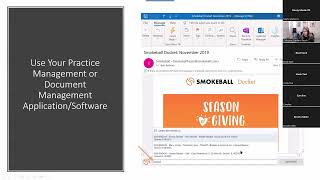
All right. So welcome everyone to today's learning objectives webinar, where we will talk about sharing client emails within the firm. And this actually came up because an attorney had emailed me and said, we want to find a way to let everybody be aware of emails, um, sent to clients and received from clients. And we want to find, you know, some way to do that. When I started looking at it, I realized there's not a lot of elegant ways to actually do this. So I started exploring different methods. So what we're going to do is start from the kind of best possible scenario to the clunkiest scenario. And again, feel free to ask questions via the chat. Or just unmute your mic, and I'll try to address them as, as we can. So the two problems that I'm kind of going to attempt to address here, even though I think some other people have expressed other problems that we may delve into at some point, are how do we keep everybody in the loop? So with email, you know, I get an email from a client, and unless I notify the team or CC the team or whomever, you know, whatever, those emails are all in this kind of silo in my inbox and in my folder structure. Um, and then the other thing is how do we get client emails into the client file? And so, like I said, there's, there's some technology that you have available to you, whether you're already using it or you're considering using it. And then there's Microsoft Outlook. I'm confident there's probably some ways to address this in Google Workspace, but I did not delve into that. But let's look first at the best possible solution, I think, is using a practice or document management system. And so I took some screenshots to give y'all a sense back, back kind of in the old days. The— before a lot of these products got more mature, the, the system would be forward a, um, forward the email into your document management or your practice management application. They've come a long way, and it often requires that you get an add-on for Outlook, and they almost all work with Outlook. Some work with Gmail. So I just took some screenshots And so this one, this one's a little unique. Um, Zoho Suite really isn't for a sole practitioner. It's, um, I think they, they want you to have at least 5 users, but the way they approached this was that you don't actually even use Outlook. You can, but they actually built email into the practice management application. And so when you're, you know, you set up your folders, you get your email, but the emails can all be applied to the matter directly and saved with the matter. So it's— you're actually not moving emails from Outlook into another product. It's actually all already in that product. So not separate. And I, you know, for a long time I thought, well, why would anyone do that? Having tested it out, I think it's actually really convenient. And the other thing is it's nice when you go to compose an email, it says which matter is this associated with? Or it already knows based on the fact that you put the client in as a client. It also color codes things. So when you email the client, it color codes it as client opposing counsel. So you're less likely to accidentally email the wrong person because it's hard to tell from that Outlook dropdown what role the person has. And then this is another shot of the, uh, the Zola Suite. Um, so you see when you get an email, you are identifying who these people are, which matter it's, it's associated with, and the emails go into that, that folder. So by default, it's much harder to keep emails out of the system. But on the other hand, if you're looking at the ability to share it, then it is done for you. So then we have Clio. If any of you are Clio users, Clio has an Outlook add-in. And so if any of you have ever talked to me or read my stuff, you probably know I have an affinity for add-ins to connect to programs with each other. So in Clio, when you get an email, you used to, and you still can forward the email to a Clio address, but with the Outlook add-in, you just click on the little add-in button and you can start a timer. You can automatically file that email to a client matter, or you can use the smart file button. And the smart file actually tries to identify which client matter it is and automatically put it in there for you. So you go in and add the add-on and then select the matter or let it use the smart tool to see if it can figure it out. And then you can do bulk filing. So you don't have to, you know, if you have a bunch of email in your inbox, you can try to use the smart filter and the bulk to select them all and move them all at once so you don't have you don't have to do it every single time. It's more like when you're cleaning out your inbox. So that, that both solves the problem of siloing the email and also getting it into the Client Matter folder. So this is a screenshot from Rocket Matter. They also have an add-in. It's, as you can see, it's, it's very similar. You can start a timer. You identify the client matter, who the billing user is, whether you want the attachments also saved in the client matter record, which of course you do. And that's actually one of the bigger issues is the, the fact that your email often contains attachments that are even more important than the communication. But if people receive those attachments and then they don't separately save the attachment to the proper client matter folder, then, then people are looking around and you may have version control issues and all sorts of other things. So you probably also know if you've done any of my programs that I'm a big fan of sending links instead of attachments, but we can only control ourselves. And so a client may not send a link to an attachment. They're probably going to attach it, and thus we have to get those, those attachments into the client matter record where people have access to them. And then this one is, uh, I just wanted to give you all a sense of all the different products on the market. I mean, most of these practice management applications have some way of saving email to the client matter record directly from Outlook using an add-on. And this is, this is PracticePanthers, and you just click it up. You can start the timer, you can migrate the email into the client matter and all of that. So this is a smokeball and very similar, except that you, in the email itself, you just type in to, you know, the client matter information by keyword, and then that'll throw it in there. So the interfaces are slightly different. This one's NetDocuments. It's— I think it's improved now, but it's a drag and drop. So your NetDocuments folders show up. As folders in your Outlook folder system, and you drag and drop the email into the correct folder. And that's with the, the ND add-on. So any questions about those? Does anyone have a practice management application where they're using the, the Outlook add-on? How many of you are using some sort of practice management application at all? So I see one person assert that they are. So if you're interested in practice management applications, which really have a lot of benefits other than just being able to manage email, we can— I can certainly talk to you about that. I know that some of you are looking at them. I mean, it is an additional expense, but in my— opinion, it can really be beneficial in terms of just getting all that— all the information around a client matter, the documents, the emails, the calendar, the ticklers, the tasks, and all of that into one place instead of having them spread out all between, you know, file servers and email and forcing you to create a client matter organizational scheme. Um, you can also search across it. You can do your time and billing. You can look at their accounts. You can manage your trust account. There's a lot of benefits to these products. So when you think about, well, that's $69 per user per month, that's pretty expensive. It is. But if it can save you a ton of time and help everybody stay on the same page and be, um, more responsive, that may be absolutely worth it. So another thing that you get with some of the practice management applications, um, is our client portals. And I'm a huge fan. And if you're worried about, um, securely conversing with your clients and sending documents to them and receiving documents from them, um, without having to add additional encryption to your email, you can consider client portals, which again often come with especially the web-based practice management applications. So keeping in mind right now, we've got two, two kind of main ways you can go with practice management applications. One is your installed practice management application. So that's going to be your Tabs3, your PracticeMaster, PC Law, TimeMatters. All of those are installed on your desktop or on a server and without having that web-based or browser-based install, it's, you often are not gonna find a built-in client portal. The ones that are in the cloud already, like PracticePanther and MyCase and Clio and ActionStep and all of those, they typically offer a client portal so that instead of emailing with your clients, you give your clients a username and password and then they can actually communicate with you, send files, make payments, check their invoices, check their calendars. You can put all of this stuff into the client portal and they can securely communicate with you. So you're reducing the use of email entirely by having this communication, plus it's already in the client matter. So whoever in your firm has access to that matter, has access to all the communications and the files and all that kind of good stuff. So this is an example of the Practice Panther portal. This is an example of the My Case portal. You'll see that we have the folders for the documents. There's an inbox again. You can also text with your clients through this, and the text messages go in the secure communication. So if you have any of these products and you haven't started looking at client communication, um, and you're wondering, well, can I really get my client to do this considering it's, it's not their usual means of communication, um, keeping in mind that you can sell this as a, you know, we're very, very, um dedicated to maintaining security, privilege, confidentiality with communication and documents, and thus we are using this client portal for your convenience. If you think about it, again, I always make this analogy, but things like the medical portals— let me see, I have one. Yeah, my Duke Health or my UNC or, you know, whatever. I have a little thing, it's— there's an app for my phone. I can communicate with my doctors. I can see all my records. I can upload things to them. I can see my upcoming appointments. This kind of thing is now built into a lot of the practice management applications, and this isn't— a completely, you know, foreign concept to a lot of people because they're already using this with their banks or their healthcare providers or other things. So this is an example of the one in Smokeball. And again, you've got the client portal. You can see that the client also can message you from the app on their phone, making it very convenient. And the communication is all happening within the portal, not through email. And so you're reducing those silos. This is an example of Clio's. Again, you've got the communication, your client and you have an app and you can all communicate together. So have any of you tried to use the communication tools in a client portal, whether that be through Citrix ShareFile or a practice management application or anything else? Okay. So seeing or hearing none, again, we can certainly talk to you about your individual use case and what might work for you, but I'm gonna move on to the— so these are my best practices. So if you're using a practice management application or something like, like NetDocuments for document management, you've got these better ways to get the better ways to, to communicate. Somebody just commented with ShareFile clients are good at downloading but not so good at the uploading. And one of the things I like about ShareFile is if you're using it, there's an Outlook add-in, um, so that you can send encrypted communications. But there's also a little button that you can add that says upload your file here. So you could actually email the client with a permanent link in your subject line Or rather in your, your signature block, this is please upload your file here, or you can have them upload to a specific folder. So if you haven't tried the, the Citrix ShareFile Outlook add-in, try that. Oh yeah, well, and that's the thing. And she's, she says she does. And so that's one thing to be aware of is that you can lead a horse, they're still going to email you. And so Let's look at if you're not using a practice management application, you don't have a way to forward emails and attachments into the practice management application, and they're not so good with the, the client portal, or they just tend to send you emails. There's other things we can do. So one that I'm going to show you is using Adobe Acrobat AutoArchive. Again, not the most elegant way of doing it, but— and the reason I say it's not an elegant way of doing this is because everybody who's getting an email has to set this up. And you could go ahead and get it set up at the beginning of a matter, but it's kludgy and you have to remember it and just adds another step. You could do it at the end of a matter. It doesn't do much. In terms of keeping people up to date as it happens, unless they go check the file. So I'm gonna show you what I'm talking about. So this is a folder with email. You probably all recognize that. So what I'm gonna do is use the Adobe Acrobat plugin. And so this is the paid product for Adobe Acrobat. I do have the DC version. It still does come with a plugin for Outlook, and you can, select specific messages and convert them to PDF, or select an entire folder and convert it to PDF. But what I think is interesting for this use case is using the automatic archive. So I'm going to click on that, and once I do, it's going to bring up this little, um, wizard. And so I'm going to enable automatic archive. And I'm going to set the frequency. I want it done every day, run at 12:00 AM. I'm going to maintain a log because I want to make sure that it's working. I'm going to choose where I want the log. It's going to have a default, but, you know, and I had already done one as a test, so we'll say this is, and then You can embed an index for faster searching. Add the folder that you're interested in. So it's already selected because that's the one I'm in. Make sure to convert this folder and all subfolders if you want that. Click OK. Ask— it's going to ask again, where do you want this? And then Make sure everything is good. I'm going to run it now just so you can kind of see what it looks like. And this is going to pick up the attachments as well as the emails, and the attachments will maintain the file format of whatever they were. So if this was a PDF or Word document, it's all saved with this archive. In their native format. Okay, so— I don't remember where I saved this, um, but there'll be a folder um, with all of your emails in it. And as you get new emails, every time you get a new email, because you set up an auto archive, it will automatically add the email to the archive when you get new emails in this folder. So all you have to do is drag the email into the folder and then the archive will update and you will get a notification, um, daily that the emails have been archived. So if you save this to a cloud folder that you share with your team or a, a file on the file server that you share with your team, rather than having it saved on your individual hard drive, then in theory, you are creating a, a record of all the emails that you've gotten from the client in a folder with the client matter folder structure. So that's one way to do it. Again, it depends on making this part of the setup. When you get a new client, you create a folder for them, and whoever else is going to be involved in it also needs to set up a folder. And in case you've got like a paralegal and an attorney working, they both need to set up these archives, and then they can both save it to the client matter folder that you created so that all of those emails are being documented and stored and available and searchable and all that good stuff. So any questions about that? Has anyone ever tried that? Okey doke. So the next one, is anyone using Microsoft Teams? Y'all are a very quiet group today. So I've done a bunch of programs on Teams. If you have the Microsoft 365 subscription, then you have Teams and I'll show you Teams. Um, so you've got chat where you can chat with people in your, uh, in your group, or you can create a workspace. And so you can create a workspace for your clients. And the matters. And so I created one for a project I was working on with a group of people. And so one of the things is I tried to get everybody to communicate, and we did pretty well for a while, where everybody was communicating within the client portal. Or rather in the, the Teams workspace. But then there were people who were just emailing. So at first I was moving the emails into the Teams. And the way you can do that is if I want to move an email into Teams, if you're using again the 365 subscription, you're probably going to see a button that says share to Teams. So I select the email, I click Share to Teams, and it is going to give me which, which Teams workspace I want to save it to, and then I can add a note and share it over. So that's one way to do it. But again, I don't want to do this piecemeal. I want to try to use some automation. So what I did was I set up a Power Automate So it looks a little bit different than when I was just moving the emails from my Outlook into the team, and you'll see that we start seeing, um, where it looks like this. This is— you can see it says Catherine Sanders reached via Power Automate. So I went from individually moving emails into the post so that everybody had access to them, to using an automation tool that again comes with your 365 subscription. And so that is Power Automate. And so I'm— to get to Power Automate, you have to go in through the browser. There's, there's not— I believe there is a download for it anymore now, but it I wouldn't use it. It's not as easy to use. So we just go to office.com, and then I'm logged in with my work account, and click on the little square of squares to see all the applications you have access to, and click on Power Automate. And then it's going to think for a second. And this is— it takes a second to get, you know, to get familiar with it, but it's— they've got all these templates. And so the way I got this set up was— and you can see they've got save Outlook email attachments to your OneDrive. That's something you could set up. You could bypass Teams altogether, or you could have Power Automate save emails to— or send them to a client folder. So there's a lot of other things you could do besides Teams, but if you were using Teams, you can use that. So the easiest way to find a template is to go over into templates, and we're going to put in Outlook and Teams, send an email. When a new message is added into Teams, or post, post an Outlook message into Teams is what we wanna see. So let's see, forward emails to a channel, and basically you're using Outlook and Teams. So I'm gonna show you one I already created just to, jump to the, the conclusion. So this one I named From Sarah. And to see how it's set up, and you can see the 28-day run history, so you've got a little log to make sure that it's working right. And if I click on Edit, When a new email arrives from this person, post it to a channel with a bot in this team, in this channel in this team. Don't worry about all this text, the code, because it does it for you. And then you click Save. And that's it. And then every email you get from a particular person, and you can add multiple people, will go into a particular Teams channel in the specific area that you want. And then if there's an email attachment to it, it automatically gets saved into that Teams channel file as well as the email. Saved as a.eml. And if I click on that, I can read the email. So you've got it in the chat, but it's also commemorated into the files, and those files are then stored in SharePoint. So this is on my desktop. I've got a lot of things running, so it's a little slow today. So that is using Outlook, Teams, and Power Automate. And again, you can skip the Teams part and find Power Automate automations to move emails into a client folder, to move the attachments from an email. I had one set up to do that. So I had, let's see, Save 365 attachments to OneNote for Business. So again, if you just want the attachments to get into the folder, um, when I get a new email, um, from Eric, move the attachment into a particular folder, and then I added an additional step of sending me a notification into my, my Teams channel. And then those notifications, it'll go into my Teams channel and I'll also get a little activity notification. So you can see that through the automation, I'm not having to move these things myself. It's all doing it for me and I can see everything that's happening in the activity or I can go specifically into the Teams. So, Whether you use Teams or not, Power Automate is a really cool automation tool. You do have to kind of play around with it a little bit, but it's, um, once you get used to it, it's not hard, and you don't have to code anything. It, it creates those codes for you. So any questions about that? Okay, so there's the, uh, what it looks like. Another thing you can do if you have, um, Outlook through the 365 subscription— and you'll note that I'm focused on the Outlook through the 365 subscription because it gives you the Exchange server, and the Exchange server, um, and the SharePoint server are part things that you get. They're kind of in the background, but it gives you a whole lot of flexibility and functionality. These were servers that you could buy and have locally installed, but 365 just makes it a lot easier. And this is the— I have the Business Standard version. There's the Premium version that has a lot of additional security bells and whistles. And if you're looking at these things or wondering if you should upgrade, you can always just shoot me an email and we can talk about it. But Creating an Outlook group email is a little bit different than what you may be thinking about. So there's two different things you can do. You can create internal groups. So if I click on to send a new email, the administrator for the bar association, but your, your firm can create these kind of I never use this stuff because I'm afraid of it. So all the account— accounting team, all the people who work on the blog, I can send an email to everybody. But people can't— I've never tried having people email these externally. The other thing is I don't have access to the folders. This is just this is just a distribution list, which is fine and works. But again, we're creating silos because all of this is going— if somebody emails MX Directors, what's actually happening is it's going to— the email goes to all of us, but it's not shared. So there's a better way of doing this, and that is to leverage the power of the Exchange server and SharePoint and 365 and create a group email.. So I created one called Client Emails, and it's— it says public, but it's not really a public group. And it has a singular— a singular email address and can be used internally and externally. And that email address is clientemails@ncbar.org. And the way you create these is you scroll all the way down to the bottom of your, um, the side panel in Outlook and click on Groups. You'll see that I have a lot of groups. That's because when you create a Teams channel, it automatically creates a group email. So if you can give the client the group email, you don't have to worry about migrating over. You, you know, you can use these as well, but the way you would create one if you're not gonna use Teams, is you right-click on Groups and click on New Group, and it pops this up. So we're gonna say, and keep in mind the name of this is going to be the email address itself. So we'll call it Test for Share. The email address will be test4share, and the people would email both internally and externally test4share@ncbar.org. And then you can— members and non-members of this can see the description. So again, thinking about who can see this. Then we're going to look public. Anyone in your organization can see group content or private, only the members. Depends on the size of your firm. So if you have enough people where you've got ethical walls set up, so certain people can't see certain things because you've got conflicts, then I would use the private. If not, you can use public. So that anybody in the firm can see this. But say we're going to set it up to private so just specific people can see it. You can click on More Settings. The only more settings that's exciting is the language, and then click on Create. The next thing it's going to do, because we made this private, we've got to add members. So we're going to add Cheyenne. And this is all people in the firm. And Amy and Kate. Now, all of these folks, there will be a new folder added not only to my, um, folder structure in Outlook, but also in theirs. If you don't wanna have to scroll through your lengthy folder structure, you can just move it up into My Favorites so that it's up there. Now people can email, uh, this email address. So I'm gonna do that right now from my phone. So I emailed from my Gmail into this, and hopefully we'll get an email in here. It'll probably take a second. So meanwhile, let's look at a different way of making this happen. Oh, wait. So it takes a little while longer than regular email. It already shows that you've got it, but I can't see it yet. It, it seems to have a little bit of a lag, um, before it shows up, but I've tested it. I promise it works. So the next and the last thing that I, I want to, um, consider is using rules. This is my least favorite of all of the mechanisms. Is anyone using rules to share emails? So in Outlook, they have— there's been rules since, I mean, many, many, many versions ago. And the one— the reason I don't like rules is because if you're using the Exchange server, depending on how you wrote the rule, it actually has to be connected to the Exchange server. So you— this does not— the rules don't actually work until you're connected to the Exchange server, which means that you're likely going to need to be online. So it doesn't, it doesn't work until you're online or connected to the internet in some way, but This is something that everybody has and has had in Outlook forever, so we'll look at it. So there's actually two parts is writing the rule, but the first thing you want to probably do is create a contact group to make this a little bit easier. So I will go into Outlook and I'm going to create a contact group. Now, if you remember any— if, by the way, if that, that group that we created, the group email, you can do it from your contacts as well. And remember, for the new contact group, we saw that we had administrative-created groups. This is one that you're creating yourself. So we're going to call this group We're going to call this Jane Smith, and Jane Smith is the client. Then we're going to add people to this. So you click Add Members from your Outlook contacts, and we'll add Amy. Sometimes, depending on your organization, you may have lots of address books. So I'm going to go to all of my address lists and— I have to pick which one it may be in. Basically anybody who needs to be in this group, and I guess we'll keep it consistent and add, um, Kate and click OK. So now I've created a distribution group. It's a personal distribution group for this client, Jane Smith. Um, and then we're going to save and close. So the rule that you're going to want to write is if I get an email from Jane Smith, automatically forward it to that distribution group. So to create a rule, we go into the Move group in the Home tab, click on Rules, and then we're going to click Create Rule. It automatically kind of starts with this, um, where, whichever they, they try to make it easy for you. So if you have highlighted a particular email, it's going to basically look at doing something with that particular email, which you can use. So if you get an email from Jane Smith, just click on, you know, create a rule, and it'll automatically say from Ashley, and we're going to move the item to a folder, but it doesn't give you that option to forward it here. So we have to go to advanced options anyway. So from this person, which you can change this person. So you can go in and select Jane Smith as long as she's added to your contacts, and then click Next. And you want to forward it to people or public group, and then you would go back and find that group that you created. I'm just gonna find an easy one. You have to double-click on it, make sure it shows up here, and click OK. And then click Next. You can add exceptions, um, and then click Next. Turn on this rule. Run this rule now on messages already in the inbox so you can clean everything up. Now and click finish. And now every time I get an email from this person, it's going to send it to this little district distribution group that I created. Um, and so they're all kind of heads up. Obviously you can also, when you send an email to the client, CC all the parties that need to be, um, notified. That said, if the client hits reply and not reply all, you're still gonna be in the business of sending all those emails to everybody else who needed to be aware of it. Blah, blah, blah, blah, blah. So that's pretty much the good, better, best solution to doing this. And I'm going to let y'all tell me now, kind of what you're doing, what you're thinking about. I'm— for the purposes of doing that, what I'm going to do is stop the recording. I'll send you this recording, but then we can kind of have an open discussion.










