How To Build A Course In Click Funnels 2.0 | Upload Videos, Edit Lessons
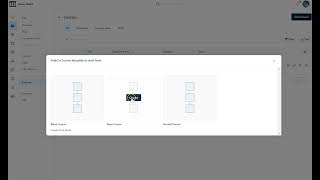
Danny Walsh walks through building a course in ClickFunnels 2.0, from creating modules and lessons to uploading videos and documents directly into the platform. You can embed media, set headers and footers, and mark content as draft or published without needing external services like Vimeo or Kajabi.
Chapters
Hey, it's Danny Walsh. And in this video I am excited again, we are inside of ClickFunnels 2.0 and if you've got your trial, I guess you want to actually make something in your trial, right? I'm getting a big bunch of questions in email from people about the editor and building funnels and how to move courses over and all sorts of questions. And you write to ask these questions because every single time log in, I'm seeing new features being added and little updates, little things that you might not notice, right? And already the software has come on leaps and bounds and loads of people using this. Now don't be afraid of reaching out to click Funnel Support. There's a help button in the corner just out of view for you on this video, reach out to support and say, look, I'm trying to do this and it's not working. You, you need to bring any little bugs to their attention, right? So this thing is evolving and already it's proving to be one mighty piece of work because the things that you can do in ClickFunnels 2.0 actually replace a bunch of the things that you have to pay money for, right? And I'm going to show you some of that stuff now. So one of the things that people have been asking me about is courses. And loads of people have actually got a course, right? So you've got some digital content that you sell or you share with your members or you give away for free. Whatever you do with this course, you need to set your course up in a structure. And in ClickFunnels 1, what you have to do is create a membership area. And then there's like this, this like editor, which was a bit clunky and you had to build out all your sections and grant X access and all of these different things, but you had to do that for every single funnel, or you have to do that and set it up for every time you wanted to create a new membership, right? So in ClickFunnels 2.0, what they've actually done, if you, you know, we started off at the dashboard on the left hand side. If you come down to sites and funnels and actually go down to courses, what they've done is they provided a centralized single place where you can come and create and edit and manage courses and your members, right? And this section is already proving to be super powerful. So I want to kind of use this because it encompasses the editor, it answers the questions about courses and people want to migrate the course and they want to put things in ClickFunnels 2.0 now, like I said, on a 30 day trial, you've got to pay 297 at the end. And I want you to get to the end of that trial thinking, you know, this is the best software and this is the software that I want to stay using and this is the software that I'm going to build my business on, right? You don't want to get to the end of the trial and be confused and just cancel and never come back. Because if you do that, you're going to miss possibly one of the biggest opportunities in business right now. Because as you know, ClickFunnels doesn't just give you some software. ClickFunnels give you a community and training and incentives and advice and help and support every step of the way. And, and you can get into this stuff for free. So at the moment, you know, you might be watching this and there might be a challenge running or there might be an event running or funnel. Hacking lives on and you've got an opportunity to get into all of these different things. But it all kind of starts with you. And it starts with you having a product that you can believe in. So if it's your course or it's your book or it's, you know, some, some stuff that you buy and sell, it's a product that you actually have to hold and ship and send whatever it is, ClickFunnels can help you sell more stuff online. Now of course, some people sitting there thinking, but Danny, I don't have a product and I have nothing to sell. That's cool, because if you get the software, you can even use the affiliate program to make yourself a big bunch of money selling click funnels and doing videos and things like what I'm doing now. So really the only barrier to you making money online either as an affiliate or physical products or digital products or courses or whatever it is, you know, health supplements or dieting advice or how to do woodwork, fishing, tackle, you know, golf, you name it. You guys, right? So when you're watching this thinking, I've either got an idea or I've got a, you know, something that I want to put in funnels, something that I want to build in clickfunnels or I'm just getting started, it's super important that you make the most of your trial so you can make an informed decision and then you don't have to pay for that privilege, right? So you've got time to 30 days or less to get to use, get used to and get to know clickfunnels 2.0, right? So you got to get to know clickfunnels 2. 0 and if you click on courses on the left hand side, we're kind of gonna deep dive and you can sort of do this, do this stuff along with me or you can take notes or you can record this video or whatever you need to do. I'm gonna show you quite quickly some of the features inside of 2.0 right now in the course section. But this also relates to the editor as well, right? So we're going to look at the editor, we're going to look at courses, some of the cool stuff that I found and I think by the time we get to the end of this video, your mind is going to possibly be blown and hopefully you've learned a few things and you can go away and you can do some of this stuff. If you need me, reach out and, and subscribe to the channel. There's going to be more videos. We're going to cover as much as we can in as much detail. And look, a lot of the click funnel stuff, it's fantastic, it's brilliant. But a lot of the stuff is very, very high level. Sometimes you just kind of need to know where to click and sometimes you don't even know. You need to know why you're clicking there. You just need to know that that is what you press to move on, right? And it's very important that you move on. Does that, does that make sense? Because a lot of people, you know, I've been using clickfunnels for years and I've helped hundreds of people use clickfunnels and I've been great at the affiliate stuff and all the rest of it. I've built e commerce businesses. We've made millions of dol 000 pounds on the Internet over the last, you know, sort of five years in, in various different guises. But there are people out there that get stuck then they never make progress, they throw it all away and they're kind of giving up the dream. Right? So it's super important that you get the most out of this trial, that you take the training and I'm hopefully going to be able to show you very quickly some of the stuff you can do and where to click and how to get your business into clickfunnels. Right. So we're going to sort of start with the courses. I'm going to do other videos as questions in the comments. Like I said, don't forget to subscribe. You can reach out on Facebook, whatever you need to do to connect, there's stuff in the, in the description and all the rest of it, right? But look, come into your dashboard, go down to your sites and your funnels and then come down to courses. And in here you will see all of your different courses. Now you'll see one in the middle here that's called test. And this is something that I've already started to, to kind of help speed up the process of this demo. And if you get in here and there's absolutely nothing, what you need to do is create a new course, right? So if you press new course kind of makes sense. There's only so many things that you can actually press. So don't think that this is going to be like some, you know, what would, they would say, rocket science or, you know, something that you need a degree for. There's only so many things you can do and it's all designed to be intuitive and kind of set things up for you and give you templates. So don't panic, right? You're going to do a new course. And out of these options that are available at the, the time of recording this video, I believe that if you go for the middle one, which is basic course, you will get a template to work with. And you've, you've got to think of this like a skeleton, right? This is a skeleton and you need to put on the, the, the meat and, and all the rest of the stuff, right? So you get in a skeleton, you need to put the meat onto the bones. Click. Funnels are not going to give you the content you need to put this stuff in, right? And I'm going to show you how you can lay out your content so that people can easily find it. But I'm also going to show you something that I'm not sure anybody else would ever teach. And it's super important, right? So you stick around. I'm going to show you that in a second. But what you need to do to get started is come on here and choose the basic course. If you go for the nested course, you click on there. That's really. If you've got something super complicated and you need sort of submod sub menus and sub modules and sort of like module 1A and module 1B and all the rest of it. The basic course gives you three modules and nine lessons in total, right? So you're going to set that up and I'm going to show you this, this little trick in a second that's just going to help you to, to get on and get started and get moving, right? Because you don't want to get to the end of 30 days, done nothing, cancel and throw away this opportunity, right? So look, we're going to make a course and your course is, is your course. And, you know, it could be about, you know, how to walk a dog or how to put children to sleep at night without them getting up five times out of bed, or it could be a cookery thing, or it could be something to do with health or fitness or, you know, sports or whatever it is, right? So whatever your course is or, or if you choose to use this system to deliver any sort of content, the skills that you're going to kind of learn now are relevant to the rest of ClickFunnels, right? So even if you don't have a course, this will help you, right? So most of the stuff, like I said, is designed to build half of it for you, to give you that skeleton. So you can just put the meat on real quick and you can take this to market, right? So in this little wizard, this little interface, you can see there, title, call it whatever you want, right? Description. If you want to write a description, write a description. The path, the URL, it needs to be lowercase, no spaces. If you are wanting to separate the letters and numbers, you can use a little hyphen, a little hyphen in between. So it's going to be lowercase. You don't have any spaces and you don't duplicate URLs, right? So don't try and call two funnels the same thing. Always have different paths. And if you make these short and sweet, you can remember them. And if somebody's like, hey, Danny, what's that membership thing you was talking about? You're like, hey, it's Danny Walsh.co.uk forward/, courses forward slash, whatever it is, right? You see where we're going with this? Or Danny Walsh.co.uk forward/clickfunnels or, or whatever, right? So you try and make these things easy to remember, but in this case we're just literally going to call it Test 2. And it will tell you that that URL has not been duplicated, right? Which is a cool new feature and it's something that you didn't get in clickfunnels1. So already this thing's helping you to give you this skeleton for you to just put the meat on the bones, right? So dead simple, fill this stuff in, then you've got to choose a theme, you go on there and you can choose the theme. There's only one theme, so it's a really simple choice. Press on it and then press Select Theme. Scroll down a little bit further and you can have a thumbnail image to depict your course. Maybe you've got an ebook or some imagery or whatever it is, some graphic. You click Create Course and obviously I've already got a test course in place, so I've clicked Create Course and lo and behold, you return to your little dashboard and there you have it, your course. So in 11 minutes, I've talked a big bunch of stuff and some theory and whatnot, but literally in seconds, we've got the bones, the skeleton of our course. So what you can do is if you look in here, you can edit the settings. So it's pretty much going back to where you came from. And when you come back the second time, there's some advanced settings as well. Forget that stuff for now, right? We're not doing advanced stuff. We don't need to look at that just now. Maybe we will do in the future. You can edit the settings, you can edit the layout, which I'm going to show you in a second, you can duplicate your course. So if you make one course and maybe then you're going to duplicate that, change the URLs and stuff and add some additional content and call that the VIP version or something, right? So you see, you can duplicate. You can take the best of one course, turn it into another. Maybe you do a version 2.0. You see where you can go with that, right? So there's, there's a lot of power and flexibility in the system and you're not messing around with individual funnels and individual members, areas that need individual access pages. And you have to go in and you have to style all these things in ClickFunnels 2.0, if you saw my last video on YouTube, you'll actually see that you can use universal headers and footers. So anytime you edit these footers, that's the same footer that will be across the entire account. And that means you only need to change things once. And I'll show you some of that stuff in a second. But it's super exciting, right? You've made your first course, you've got this. And you'll notice you can either make this publish or in draft. We'll keep this in draft for now. We don't want the public seeing this and. And we don't want this out there anywhere. You see there's a number of members. That's where your Little thumbnail image will appear, but the bones, the skeleton appear when you press the actual name of the course, right? And you'll come on inside. So in we're inside the test course, there's a little mock up, shows you what it's like on a computer, what it's like on a form, and it shows you what theme you've got. There will be more themes in the future. You can then see here that you can actually assign your team, right, which is super cool. In the previous version of ClickFunnels, you'd be sat there and you'd have to give your password to somebody or use LastPass or do something crazy, or you would pay $10,000 to ClickFunnels. They'd certify you as a consultant, as a coach, and you would then have this feature added to your account. You kiss goodbye to all of that stuff. It's already available in 2.0, so straight away, when you're in your membership area, you can just assign your team member, know that they are going to go in there and they can do whatever work you require. You pay them the money and they manage it for you, right, so that you don't have to, you know, put all the data and the images and the videos and all that stuff in yourself. But even if you do, it's super simple, right? But even if you're going to, you know, hire somebody and whatever, you'll see how simple this is. You think about that when you write in a big check. So there's a lot of simplicity. And once you've completed some of these steps, you literally have the skeleton to start adding that, that meat to the bones, right? And that's what we're going to do right now. So you scroll down a little bit and what you can see here, you guys, is I've been provided with some modules. Now, I've messed around with this a little bit, and this is the little hack that I wanted to sort of tell you about earlier. This is super important. If you come on here and you've got, you know, 10 modules laid out for you, and you've got, you know, loads of lessons laid out for you. So in this case, we've got module one, modul, module two, and if you collapse them, that is kind of like the. The main menu that people would see when they arrive. And then inside each of these modules, you've got three lessons. When you first load this template, you get three modules and nine lessons in total. And people will look at this and think, but I now need to create nine lessons. I'm never going to be able to do that. And they quit. What you do is you delete. This is the little hack, right? And this is, this is like. Seems so difficult for people to do. It's one of those crazy things that just blocks people from moving on and making progress. They're afraid to remove part of the template. So if this thing gives you three modules and you have only got one module, delete the other two. You see how powerful that is, right? Because you're not going to then have to go away and create loads of other stuff just for the sake of the fact that whoever set this thing up has given you three modules to start with. If you need more modules, add a module. It's common sense, but you'd be surprised how many people will look at that and think, oh, I don't have that much content and therefore I'm gonna have to make that content. And now I'm just gonna drive myself crazy when in effect, whether you add more modules, as you can see there, dead simple template, the URL, boom, boom, boom. All the things that you need. We're not going to do that, right? We're just, we're just going to go back and discard these changes. And what we're actually going to do is work on the course. And all we need is two modules, right? Two modules. We might not even need three lessons in each module. So now we're back to the screen and you can see on here you've got these modules we've just been talking about. So you've got module one, module two, you can actually click on these things and you can edit them, right, as you, you would expect. So if you look, these are published, you can have draft modules and then introduce them when they're ready so people don't accidentally see the content as you're working on it. So, you know, in ClickFunnels 1, right, you create this membership site and then the access page, and then you go in there and you create your sort of your categories and then you go into there and you create your little lessons. As soon as you create a lesson that was live in your membership site and that always had like some clickfunnels video in there, like a placeholder. You don't need to be doing that, right? You don't want to be giving your customers some totally alien content, right? You don't want to be giving them some stuff they've never seen before and some mad links to clickfunnels they've never heard of. This stuff. So what you can do is just literally make your lessons or your modules draft so you know that things are only going live when they're finished. Should we take a look at what this would look like right now if we were to just look at that URL and land on the page, Right? So up here you can see there's a preview button. So if you click this, it's going to flick over to another tab and this is what the customer would see if you gave them that link now, right? And it's super important with clickfunnels that when you're working on stuff that you kind of look at what you're working on and also look at what the customer sees. And then every time you kind of make an edit, you press save, you go over there, you hit refresh, and in doing that, you can kind of see your progress. And you know that this is, this is, this is working, right? So what we're going to do is jump back in, because you can see there they've got simply the two modules. You can go to each module and in there there's going to be some lessons, right? So what we're going to do is go back and we're going to start making this look something that's, that's off decent. And if we do that quite quickly, you guys are going to see the power of ClickFunnels 2.0, right? So we're going to go back into the editor and jump back in there right now and we're going to start making these look interesting and kind of give you an idea of the functionality, right? So the very, very basic sk. It's up to us to put the, the meat on the bones, right? Okay, so we're back in the main section with the modules and the lessons, and it's up to you to decide what's draft, what's published, and what lessons you want. But let's look at some of the functionality, right, you guys. So first and foremost, you guys, remember you've got things in draft, things are published, so you need to make those things work. You know about the various settings. So you can go in there and you can change different things if you want to change those links or you want to change those titles or whatever. But the stuff sort of happens in these modules, in these lesson sections, right? What you need to look at up here as well is the actual home page, and you can change the home page as well. So what you need to do, if you want to sort of make that look pretty to start with is press customize at the top. It sort of makes sense and it's going to open up the new editor. And this thing's amazing. And what you're going to see in here is some stuff that's really going to take your business to another level. And straight away you can see, when you look at any of the sections, some of these are now a universal section, like I just mentioned earlier. And this universal section means that if you edit it, it will be the same wherever you put it, across the whole of your funnels, across the whole of your membership courses. And that means you only need to make your menus once. Or you can make different universal sections and call them, for example, in your course. Some may be going on your main site, on your funnel hub, wherever you want to put these different sections. But you don't need to recreate this for every single page that you're going to build. So on this sort of page you will also see that they've done a lot of magic with sort of placeholders. So this text will be replaced with the text that you entered in the, in the settings earlier, right, when you, when you set up the skeleton. So again, we can look at a preview and we can see what the customer is going to see, right? So if you look at the preview and compare this, I'm not sure exactly what it's previewing there, to be fair, but if you look at the preview, you can compare what it is that you're working on to the things that you're changing in this editor. So for me, that initial page is not going to display all of this stuff, it's just going to display the things that we've got set up, right? So it's got placeholders, if you've got loads, but it will only show the amount of sections that you've actually created in those modules. So we don't need to do too much work to this page. But if you did, you could add an element and you'll see in here there's loads of different things, loads of new elements that clickfunnels have introduced. You've got the headlines, the sub headlines and paragraphs. And you may want to put a video in there, you might want to put an image in there, or a welcome text or whatever it is you want to do. You can put audio in there as well, which is a new feature, which is kind of cool. You're going to get excited about some of this stuff in, in a second. In your universal header, you can already have your logo set up and the same applies for your footer. So you can have a universal footer and you can edit these and you can change your logos around all different things, but the content is generated by the things that you create and edit on this page. Does that kind of make sense? So this customize button at the top is for the look of this page, right? The thing that everybody sees. So when, when people are going to your link, this is what they're going to see, right? So it's previewing properly now and they've got a choice. Go to module one and then go to module one and then in there's the lesson, right? And then they can go to lesson one or lesson two. Notice we made some draft. And then you notice in there the, the there's a video lesson, right? I've got some fish swimming around as a little test video because it was, it was easy to upload. But you can see then they've got the menu to go back at the top and everything just kind of makes sense. And it's not put out in a way like the last course was, where everything's all on top of it itself in ClickFunnels 1. So what you've got here, you guys, is a quick way to then add content and menus and all of the rest of the stuff. You might want to go in there and you might just want to remove the menu from the top. You see where I'm going with this? So you can go in there and you're not deleting your menu from the universal header section or the universal footer section. You're just removing it from this page. Because I think that having that on there detracts from the, the content, right? Because you don't want to be giving people like links to take them out of your course. So what we've done is we've just left it at the course title. And for example, you could come up in, in here and you could put some text and you could put in front of there, welcome to my. And then a space and then the title would appear, right? Does that kind of make sense? So these things can be used mixed in with, with text as well, and you can create all sorts of awesome effects that your visitors are going to think, hey, this is really personalized, right? So already you're seeing some of the. The simplicity. We just click one thing and deleted that section. But it's like, oh man, I've deleted something simple. You just undo it, right? So we want to get rid of this thing at the top. We Just hit the trash can in the corner and we're going to hit save. And when we've done this, all we're leaving ourselves with, and indeed, let's get rid of the footer as well. We don't want links going to Facebook and different things. So we remove the footer, we remove the header. But remember, those universal headers and footers are still available in your sections. If you click Add section and you'll see in there that you've got my assets and then you've got all your universal sections with your headers and your footers and more. And you can call these on any page you want. But I don't want them. I've got rid of them. All I want is the content. So if we go back to our page and we hit refresh now we've made some changes, you'll see that we've just got the title and we've just got the modules and there's nothing else to distract our customers. At the top, you notice this yellow thing, and this is because the funnel is in a payment gateway test mode. Right? Once you turn that off, this thing will disappear. And this is a member's area at the moment that doesn't have any order form or any kind of payment gateway or anything connected to it. This is just looking at the basics, the editor and how to structure your course. I saw somebody on one of the groups or on the Internet talking about how he transferred his entire course to clickfunnels in 30 minutes, which is amazing. And if you could do that, I'm sure that would be, you know, fantastic for you. But I do recommend you take some time and, you know, you spend some time working on this because if you run too fast with editing and trying to just get something slapped up there, it's not going to be as good. And I'm sure if you do have a really detailed course and you've got multiple modules, you want to make sure that the things that you publish are all published perfectly right. You don't. You don't want to be putting something up there with spelling mistakes or anything like that. So don't try and rush it, don't try and do it in 30 minutes. Remember what's draft, remember what's published, and remember, of course, at the top, you need to make the whole thing public by publishing everything. Remember, think about those URLs, give access to your team. You can keep an eye on what they're doing. You customize that page like we just did, remove the footer, remove the header, whatever you want to do. Add more stuff, add a video, whatever you want to do. And you can customize that there. But now we're kind of going to get into editing some of the lessons, right? So if you come over to this side, you'll see with the lessons that you've got these little boxes, right? And you can also, before you edit the lesson, you can edit the. The module the same way. So what you can do over here, you can edit the settings and you can change the title. So this might be welcome section, right? And then you're gonna have hello and welcome. And then you can give it a URL that we just looked at. But most importantly, you can give this, this a thumbnail image as well. So you can put your own little image on there. So if you're going to put an image and you can select your image and then you can add something on there from your computer so that when people arrive there, it's something that's super attractive, right? It doesn't look just like a gray thing. You get the idea. You can upload an image. We're not going to waste time doing that, you guys. And once you've made your changes, you update your module and these things will now magically change, right? So this is the welcome section. And if you did change the image, that image would be this one. Does that kind of make sense? Super simple, right? It's not overly complicated and you're saving a bunch of time and probably saving money. We've only got the welcome module available. That's the only one that's published. And what we're going to do is edit the settings of the actual lesson now, right? So we've done the module main sort of sections and we've called this the welcome section. And we've edited what we can. Maybe we've given this an image. We're now going down, doing the individual lessons. So the first thing we do, and this is where things are going to get a little bit crazy, right? The first thing we do is edit the actual Lesson section. So again, you can change this to whatever you want, Lesson and rules, or whatever you want to call this, right? Probably best not to use dots. Welcome Lesson and Rules. You can call it whatever you want. Again, you can give this a thumbnail image. It's kind of cool. And then you see some things that you've never seen before in clickfunnels, right? And you'll see that the little fish video that I showed you earlier is actually embedded in the lesson, right? And this is where you, you start to think what this is, how does this work, right? Because the big problem with ClickFunnels is you've had to rely on things like Vimeo, right? Or Kajabi or different things, hosting platforms, right? You don't need to do that anymore. You can actually upload your videos, your audio, your documents, your files and you think about video. Russell Brunson must be paying a serious amount of money to server companies, right? Because some of my videos are like 10 gigabytes for one one hour video, right? So if you've got some big 10 gigabyte video and you put that on, maybe more or whatever, you're putting loads of videos on, that's eating into server space. And it seems that you can upload videos hour long, two hours long, three hours long, whatever you want, right? Of course it makes sense to keep the file size down, you guys be uploaded 10 gig videos. But it seems as though ClickFunnels 2.0 is getting rid of. You can now go and cancel that Vimeo subscription and you don't have to fill in all of the stuff. And like which demand does it work on? And is it in like your members message you and say, I've tried this video and it's not working. And you've realized you've not adjusted one of the gazillion settings and you've paid like £100 a year or 100 a year or whatever it is for Vimeo Pro. And you don't Want to use YouTube or you're using some other platform, you don't have to do that anymore. It's all in clickfunnels, right? So what I can show you real quick is how to put your videos into clickfunnels, right? It's dead simple. So what you do is you go into your settings. So we'll open this in a new little tab. You go into your settings in 2.0 and down the side you'll see assets, right? And instead of having to go into a funnel and open the gallery and like get the URL of the image or do something crazy and complicated to kind of find your images, they're all like standalone. And this is one of the features that I've just like begged clickfunnels over the years and be like suggested in the groups and all different things. If you could just have this standalone gallery, that would be amazing. And of course you can upload all of your images, right? So you can upload all your images. So if you want to put an image in there, you'd upload whatever you want, right? So you'd upload your images. But now this is where it gets clever. You can upload videos. So I put some videos in there, right already. You can put your downloads in there. So Maybe it's a PDF file or an mp3 file or whatever it is and you can have audio that plays right there in the members area. And check this out, you can also now upload fonts. So if you're doing the Halloween thing or you're doing the, the Christmas thing or you're doing the, the, the summer theme or whatever it is, you can actually just no more need to pay anybody for custom css and they're just going at the like the cord off like some free chord thing. And it's just loads of money for simple thing. Clickfunnels have done all this stuff for you. So you upload your videos. Now depending on your Internet connection, you can't blame Russell Brunson if it takes you three days to upload that 10 gigabyte video or whatever you're doing. This thing is super fast. Your Internet connection will sort of tell you how fast you can get videos on here. But I've got quite a good connection and unless I'm recording videos and sort of burning out my CPU with, you know, sort of memory and all the rest of it like we're doing now, things usually move really, really fast on, on my side. So an hour long video that's not overly big, it's definitely not going to be, you know, one gig, half a gig. It's, it's done on a webcam or a screencast like I'm doing now. These files are not huge, right? So this file should probably take you maybe 5, 10 minutes at the worst to upload. So I went on there the other day and I, I put a bunch of videos on, right? And the same sort of thing applies. You upload them, you give them a title, it picks up the height and the width automatically. It tells you when you've added them and you can delete them. There's not a great deal to press. Same for your downloads, your audio, your images and everything in there can be used in any of your pages, right? And in your emails, which is like amazing. And yes, you can send emails out of clickfunnels and yes, you can take payments and clickfunnels and the payment gateway and all that stuff I'm gonna do all videos on. But look, you just upload your videos or you upload your audio, right? And you get Rid of Vimeo and all the rest of these things. That's taking loads of money off your credit card. And what you do is dead simple. Just like we had the universal header sections in the members area, we've also got a new element that's called a lesson video. And that lesson video element, it doesn't ask you for your YouTube URL, it doesn't ask you for a Vimeo URL, it doesn't ask you for anything, it just automatically grabs whichever video you choose in your lesson settings. You see here, you guys, we've got like a bunch of videos. It's like a couple talking and scrolling on social media. There's a fish, loads of fish swimming around. You can choose the video, whatever you want, right? So you just change the video and that could be your seminar, it could be your webinar, whatever video you want, right? And this is just automatically pulled in to the lesson for you. So unless you need to add other content, you update your lesson section and, and your lesson. Once you've done that, your welcome lesson is pretty much done. And, and you might think, well, that's crazy. Well, if you go to module one and you sort of, you go into this and this is your welcome lesson that you've just done, obviously you're going, going to have an image and then you go to the lesson itself. And would you believe it, once this thing opens, you've got the automatic universal header. We need to get rid of that. You've got the lesson content, right? So let's go into the editor. Now look at that element, that new lesson video element. And let's get rid of the header and, and the footer. And then lesson one, maybe just add a little bit more content, but that's done. So you didn't need to go to YouTube, you didn't need to go to Vimeo, you didn't need to worry about copyright. And these, like, if you've got music on there and they're gonna say, hey, you can't use this video. You don't have to worry about people taking your video, your URL, there's no link or anything that people can take. You don't have to worry about videos appearing at the end. And all you're doing is uploading an MP4, right, which is the most common sort of video format. And this thing will absorb other formats as well. Now you can adjust the player and the widths and all the rest of it. And that's kind of like what we need to do, right, you guys, this sort of like Exciting. Is this fun? Is this something like, oh, man, this is just. I just need to get the trial. If you look below the video, you can click the link. You might be in time for the challenge. But if you get the trial, by the time you've watched my videos and done the challenge and all the rest of it, and I've given you loads of bonuses, you can even speak to me on the phone. We're gonna build some cool stuff, right? If you're gonna build some cool stuff with me, that's your choice. But let's continue and have a look at. Actually, now we've done the settings. Like I said, it gives you the skeleton. We're putting the meat on the bones. You go in the settings. There's like five things. We've done them. We've added a video in assets, we've pulled it in, and now we've got a video. You could use audio if you want. Now we're just going to edit the content, right? So we click on Edit the content, and would you believe it, the editor appears. Now, this might seem a little bit overwhelming, and some of you guys think, oh, man, I hate this thing. You can hire somebody. But look, it's dead simple. What we're going to do, just like we did last time, is we're going to come into our editor and you'll see there's a warning at the top, right? So only lesson content can be edited on this page to edit the surrounding content or edit the template page. So you'll see what ClickFunnels has done here, right? You guys, the video, because that gets pulled in from. From the settings, the header and the footer is made in like a template. If you want to edit the lesson and put some writing and some images and stuff below the video around the video, it will allow you to do that, right? So you can click on that and you see that all you can do is add below sort of in between the footer and the content, because all of the other stuff is pulled in from your settings. Does that make sense? So what we want to do is we actually want to edit our template, right? So you can see there, if you want to add some content, there's all sorts of cool stuff. So underneath you might put one of these awesome stacks. These things are amazing. You need to go and get the trial and play with this stuff. Just like last time, you could come in here and you can just height and all the rest of it. But once you've added your own section, this is for this page only. Right. And it's the normal green boundary box with the rows in blue, the elements in orange. And you can go in there, as you would expect. You can change text, you can add images, you can click stuff, everything you click, you can move, you can drag things up and down. It shows you what you're holding. When like a little thing pops up, says, hey, you've grabbed all of an image. But that's the usual click funnel stuff, right? And there's loads of tutorials on how to do that. We want to look at some of the new stuff. So yes, you can decorate your page. But look what we want to do, if we just come back out of this, you guys, we'll go back in. What we want to do is actually edit that template, right? So every single lesson from that moment forward doesn't have the header, doesn't have the footer, it's just got the content. And all you need to do is go down, click settings on each of your lessons, change the title, change the image, and pull in your video from ClickFunnels. And that's just saved you a bunch of money, time, stress, embed codes. You don't have to do any of that stuff. You don't need a developer, you don't need anything, right? So once we come back into here, what we want to do is we want to edit the template. And you can see on the left hand side you've got this little menu with, with like sections and all the rest of it. You go to templates and you'll see there's a default lesson page. So if you click that, it's going to then open up the actual template. And you guys can see now that you can edit the header, which is the universal section, you can edit the footer, which is a universal section. And you've got this bit which is opposite the bit that you can't edit. This is the dynamic content that you would add when you edit the content that we've just shown you, right? So if you put that stack in, that would appear here. So it kind of gives you two templates that merge into one. Once this appears publicly, ClickFunnels does the magic. You don't need to worry about it. But what you can do is use for example, the little squiggly brackets and you can have yourself different things in there, different elements that sort of pull names in. For example, which is super exciting. But look, click on the video element. Or if it doesn't exist, you would need to change it or add it, Add an element that's got a video. And you'll see that when you go to do that and just show you to add any element, you just click on the plus button underneath there. You'll see that in here you've got course, you've got lessons, and in lessons you've got video. This is the video that relates to the video you chose in the settings, right? Sort of following where we're going with this, right? So you make sure that you understand that this video that you drop in here is in the template. And all you then need to do once you've set this up is change those settings. You don't need to come into every single page, you don't need to copy and paste another URL. It's all done inside of clickfunnels. And if that's not super exciting, I don't know what is. So I'm going to get rid of in the template, the header, I'm going to get rid of in the template the footer, but I'm going to make sure that I leave the dynamic bit because that's where any lesson changes are going to appear. Make sure that I've got that lesson video element, not just the standard video element. And I'm going to hit save, right? So we've edited the template now and we never need to touch that again. Unless for example, you want to come into your course and you want to go, hey, I'm going to put an image across every single lesson in my whole course with for example a banner promoting a webinar or a new piece of training or a new download or something like that, right? So you might want to put a banner on your template and know that as soon as you do that, every single lesson in all of your clickfunnels funnel hub is gonna have that banner at the top or that extra text or whatever it is, right? It's kind of make sense. But to get started, strip out the header, strip out the footer, leave that dynamic content, make sure that is the video lesson element, right? So you add the element, you go to courses, you go to lessons, you get that video lesson element super important. And that means once you've saved this thing, all you need to do now to change the content in any of your modules. If you're using video, of course, you might want to, you know, some might want to be audio different things. All you do is you come down here, click the settings, go to video, you select your video from the little drop down list or from your gallery, which was super, super awesome. You choose Your video now from the gallery. It's not a little drop down list anymore. They've literally changed that as well as we're doing the video. So this time we'll have the, the fishing video. We're just going to call this fish and we're going to update the lesson and lo and behold, when you come back to the public page, your changes have instantly taken effect. Right, so we've got the mod, the welcome section. Go to the welcome section. In the welcome section we've got the welcome section of rules. You can go to the lesson and you know that the header and footers disappeared. It's just the video, it's got the title underneath and people can mark the lesson complete. So it gives you sort of like their progress back in, in the dashboard. So there's that section, you can come back out of there, you can use the little menu at the top, you can navigate back to where you want to. So come back to the main course. We've completed the welcome section, go to module two and in there we're looking for the fish section. So we're going to go to fish and of course you can put a picture of a fish and in there, would you believe it, with no header, no filter, you've just got the markers complete section. You've then got, got the fish underwater doing its thing and you are no longer a fish out of water. You guys, right, you, you've got the power in your hands to literally create a course super fast, dead simple with your videos and modules just by using the skeleton that ClickFunnels provides. And remember, if you want to change something under the video, you just edit that, that individual page. So for example, in our fish module we go into here, we press edit. Everything's super fast, the editor super fast. All these new modules and sections and elements and all these different things and it's not overwhelming at all, right? And on the left hand side, you see there, you can actually navigate your course content as well, which means you can flick through things in the editor, you don't have to keep sort of diving in and out. So in this case we're looking at the templates, we're going to go to the actual course and in this, in this case we're going to open up our course home. We can edit that in this section we can open up our welcome lesson and we can open up lesson two. So if we want to now go into our welcome lesson and say, right, what we're going to do down here is we're going to Add in the little editing zone, we're going to add a new section. It's going to be wide in there. We're going to add, hey, we're going to have this thing. He's like, oh man, that's just super easy. And we've added all this stuff. We don't want that one, so we'll take it out. Or maybe we could just do some free building. So we're going to add a three column raw and in the first one it's already asking what do you want to put in here? We want an image and then we're going to duplicate that image and we're going to move that across. So we're going to go like super fast and then you can kind of click and you can go into your gallery and you can pull images in and all this stuff that you do now is just going to be on like the lesson itself, right? Individual lessons. You could duplicate stuff. You move stuff around, put things in different boxes. All of that stuff is just dead simple, easy to use, easy to understand. You hit save and ultimately you go back to your lesson in your course. Everything's updated instantly. You don't have to wait, you don't have to work for servers and all the rest of it. When people go to these different sections, all your edits will have appeared. And I'll just show you that real quick now, where we go back through to the welcome section. Click on the welcome section and underneath you'll see all those changes that we've just made, right? So it's dead simple, easy to understand. Drag and drop. And look, if that was your banner and that was your logo and, and that was some other stuff about your course and you've already uploaded your videos into clickfunnels. You don't have to mess around with Vimeo or YouTube or any of this stuff. You just go into the settings, you pull the thing in. Once you've set that template up, you're ready to like populate a course in literally 30 minutes or less. And I guess when I saw somebody on the Internet the other day saying they've done that in 30 minutes and I mentioned this earlier, I thought, now that's going to take a real long time to do. And that's, that's like a crazy statement. And literally in around 30, 40 minutes, you've just seen how powerful this is and how fast this is and how versatile this is. And you only need to make those edits and changes once. What's actually stopping you now from jumping on to ClickFunnels 2.0 getting that trial and go in and start building out your membership section or building out a funnel. And it's kind of like I said earlier, there's only so many things you can press. So if you were to go to funnels and this is where we're going to pick up in the next video, you can then start looking at how do you get people to pay for these courses that you've created? How do you get people to pay and download these books and watch these videos? Are you excited? This is like ah, this is the most amazing thing ever. If you want me to help you, you can ask and you can ask comments down below and I'll do my best to answer. If you want to reach out, feel free. There is availability for me to do stuff with people and if you buy ClickFunnels through my link, there's a link below. Explain everything you can going to get. I'm going to give you a call and downloads and more of these videos and, and you can come on, have a look in, in my funnel hub and my community and we're going to kind of build this together. It's going to be amazing and I can't wait to see where, where this stuff leads. But one thing for sure, you'll be able to do loads of new stuff and you'll be able to get rid of all of the software and expensive subscriptions and all these things that you, you're not going to need anymore, right? And you're not going to have to mess around with access pages and different steps and access and chopping things up and trying to get links and all of this crazy stuff, it's like it's just done for you. And once you've got that skeleton and you have the meat to your bones and you put your content in here and you start sharing these links and giving this to your customers, they're going to be super impressed and they're going to spend more money with you and more time in, in your ecosystem and you're going to make more money and you're going to do more with your business and you're going to do more for your clients and it's going to be amazing. And I can't wait to get started doing more of this stuff, right? So I'm going to end this now. I'm going to record another video starting soon on funnels. Make sure you subscribe and all the rest of it so that you know when these things are done and you get a notification and that Means you'll be able to watch this stuff. There's going to be some live videos as well as some stuff on Facebook. I'll tell you all about it. But for now it's Danny Walsh from Preston in England. We've just built a fantastic skeleton. We start adding meat to the bones and we're gonna have a membership course before we know it, full of content and videos. It's not just going to be fish out of water, you guys, it's going to be some amazing content. And look, if you jump on and you go through the challenge, if you can get the challenge, or you take out 2.0 through my link, you are going to get access to a big bunch of videos in that very same format. And all of the stuff that we record and more besides, it's going to put on those pages and it's going to be awesome. And we'll have a Facebook group and all the rest of that stuff. Right? So if that sounds exciting and you subscribe as we move forward, I'll release more details on that stuff. But for now, from me, from everybody in Preston behind what we're doing here, we can't wait to see you on the next video. Make sure you check this stuff out. You click the link below, you can be in this, like in 5 minutes time doing this. There's no need to wait. You don't even need to pay. You don't have to do anything. But in 30 days you will start getting charged. And in that time, we kind of want to make sure that you've built something right or you've made your mark on the Internet. Don't let that dream sort of be wasted. And don't sit there and think, oh, maybe in, in a month or two months or three months, this might be like $697 in three months. And it would be worth it because I've just got rid of the Kajabi, I've just got rid of the, the Vimeo Pro. I've just got rid of a bunch of other stuff and like SoundCloud, you can get rid of that because you can put your audio in there. You don't need any sort of separate gallery softwares. And I've also got rid of the email thing. I don't need to worry about like Send Grid and all the rest of that stuff. And I'm not messing around with Strike. I've got a payment gap on. This is so amazing. And I can't wait to show you more of ClickFunnels 2.0. Let me know what you think in the comments. Give me some likes, subscribe all the rest of it. I'll see you on the next video. It's Danny from Preston. Bye. Bye.