Starting A Funnel Hub Website With Click Funnels 2.0 And The New Editor
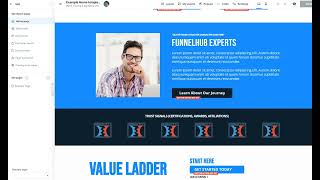
Danny Walsh shows how to build a Funnel Hub website in ClickFunnels 2.0 using the new editor. He covers domain setup, adding Google Analytics, editing headers and footers, and creating hero images in Photoshop. The video includes practical tips like avoiding placeholder images and saving often.
Questions this video answers
512 by 512 pixels.
By 20th of July 2023 (he states "I think").
40 (percent)
Chapters
Hey, it's Danny Walsh and we are back inside of ClickFunnels 2.0. And today I want to do some work on my own Funnel Hub, my own main website. So you see there, we're in the dashboard. Everything starts in, in the dashboard on the left. Sites and funnels, if you're interested in courses, we have other videos on this channel. Make sure you subscribe. You can check that out. There's an overview on there as well. I've done a video showing you how to connect your domains, which is kind of crazy and easy. But in this case, what I want to is actually create an online presence for my business. That is a classic funnel hub, right? A website somewhere where people can go, they can find out about me, what I do, how we do it, and they can access a bunch of my other funnels, Right? Does that kind of make sense? They can access my courses, they can access my content and they can get involved in this ecosystem that I've put online and they can buy stuff, they can get involved in groups and training and more. Right? It kind of makes sense. So ClickFunnels 2.0 automatically gives you a Funnel Hub, right? And it's, it's basically a web template that you can edit and it puts it on this domain. Right? But I want to change this demand. So the first thing I'm going to do when I arrive on overview is go to this little thing at the top right hand side. And in here I'm going to start giving my site personality. Right. Remember from the other videos I've done that? ClickFunnels 2.0 is just going to give you a skeleton to put the, the meat on, right? So you need to have the images, you need to have, you know, the, the text, the copy all, all the videos and things like that. And hopefully I can show you a little few, you know, quick hacks, how I quickly create images and different things, right? So there's some stuff hopefully you'll learn in this video. But the, the common sense, easy to figure out stuff is like, hey, this is asking for a title. Let's give it a title, right? So I am, in fact, I'm not going to put Danny, I'm just going to put Walsh like that, that's my name and this is Walsh Training and Marketing. Right? That's, that's the, the business and we're actually a limited company, so I'll have that as well. Now I've already done a video on my domain and you can see I did that literally five minutes ago. Depending on when you're watching this. So the setup's still in progress. I'm going to trust this and I'm just going to change the demand. So the demand for my Funnel hub is Danny Walsh vip. Now I arrive at this section. So if I click on the header logo, the gallery is actually improved since last time I seen it because you can now add folders. So you could have folder for marketing or a folder for fishing sites, or a folder for E comm images or whatever it is. So I've created a marketing folder and in there I've started to put different kinds of graphics. Now this wasn't here like three days ago, so already I'd started to dump images into like the all images folder. But going forward I. I'll separate things out, I'll keep things organized. Great feature from clickfunnels, right? Because back in ClickFunnels 1 you'd go in there and all your images and you'd have like page 97 and you were trying to think, ah, which images on which page. You don't need to do that anymore. Keep them organized. But in this case I just want my logo, right? So I'm just going to put my logo in. In this one it ask you for a time zone. Now we can put GMT and see what happens. Obviously I'm in the UK and what we want to be doing is finding the Edinburgh, London. There you go. So I'm a London time and they change that. And in clickfunnels one they didn't know about, like Europe existed or England existed or India existed or Australia, everything was like American time zones. Again, big high five to the clickfunnels guys for sorting that out. The next thing is something called a favicon, right? It's the little icon that appears on the tab at the top of the screen. And this one needs to be a specific size, right? So this needs to be 512 by 512 pixels, right? And you're not going to be able to just create that on, on your computer. The best way to do that is use something like Canva or Photoshop or some editing software. But you will need either to pay somebody or edit it yourself. Now the easiest thing for me with favicons especially is just do it myself, right? So what I'm going to do is use Photoshop and you can see that we're in Adobe Photoshop here. What I'm going to do is I'm going to create a new file within Photoshop and I'm going to actually make this file exactly what they asked for. Right. So it's 512, doesn't need to be 300 pixels per inch. So we'll just make this like 72 pixels. That's fine for Favicon. And we're going to press Create. This is Photoshop. If you don't know about Photoshop, get to know. There's actually some Photoshop training that I've done. There's reams of this stuff. It's. It's free to start and then a small investment if you want to take the full course. That's available in the link around this video as well. So you can check that out if you really want to get into Photoshop below. A Favicon doesn't have to be over complicated. All it needs to do is help you identify your site in a sea of tabs. Right. So what I've done is I've added some text. I'm going to change this font to Impact, which is the font that I can use for everything. So I've pressed text, I've clicked on there, it says Lorem Ipsum, which is the Latin standard placeholder. I'm just going to put dw, right? Or should I have dw? Should have wm. I don't know. I'm just going to put DW for now. Or you don't want like big long word. This needs to be kind of square. Let's think about it. So it's a Walsh Marketing training, right? That that makes sense. Or is it Walsh training and marketing? That's what we need to do. So I'll put wtm, right? That looks even better. And what I'm going to do is just let me be able to edit that with this little grab tool. And I'm literally going to make this as big as possible. And I'm actually going to skew the ratio so it kind of fills that box really nicely, which means it will then fill the tab at the top. So when I'm searching through a million tabs to try and find my website, that should be very prominent, right? I'm just going to leave it in that color. I don't really care. I'm going to export this as if you go in here and I'm just going to export this as a JPEG image, right? So it's small. So change this to JPEG and you can see there That's. That's like 57.4 key care. If I go back to PNG, it's only 8 and off, right? I'll keep it as a PNG that's even smaller. I'm going to export that into one of my folders. Here we go. And we'll call that FAVBY and press save. And now I can switch back to ClickFunnels 2.0. And I think I'm just going to call it ClickFunnels from now on because number one, it's quite quickly gonna, I think, disappear at this rate. Don't panic. I'm sure they're not gonna switch it off overnight. But who wants to be using that when, when this thing exists? So we go into the files we grab with favi, it uploads it in like a split second. You click it once and would you believe it, you've now got a favicon, a logo, the English language. That's what you want. You can have it in all sorts of different languages, which is amazing. Your time zones in there. You scroll down. I'm going to make this public. People can watch this develop. And now you've got some other room to put head codes and footer cords now header code. I would go and put my Google Analytics code in there. So I'm just going to fly over to Google and grab that as if by the power of magic of the Internet, I've just gone and copied my Google Cord. Now if you're using Google Analytics, you'll notice depending on when you're watching this video, that they're actually upgrading to Google Analytics 4. And you will need to do that by, I think, 20th of July 2023. For now, I'm going to use the one, the, the existing Analytics. I put the script in there. If you want to put tracking other tracking codes in there like Facebook pixels and things like that, you can. I'm not going to bother right now. It's also kind of makes sense to put your Zendesk help desk cord and you can put that under your Google Analytics tag as well. And that means you'll get a help button on your site. I'm not going to do that right now. I'm gonna, I'm gonna carry on none of the existing advanced settings. I don't think I need to mess with any of these at this point. The only thing you can see down at the bottom is the SEO stuff. So we're gonna put Walsh training Marketing and then we're gonna put help with click Funnel more. Copy that into there. And we're just going to have the default sharing image can be my logo for now. So whenever anybody shares this on Facebook, that is what the image that will be. If you need to get rid of that, there's a way to do that. You search for Facebook Debug Tool and you put your URL in there after you've changed the image and it will remap, sort of replace that image on Facebook. Right? It makes Facebook forget and then visit your site again. But other than that, we've done all these things. We're going to press Update at the bottom, which is just out of shot for yourself. But look, we've now got Danny Walsh vip and we've. We've put a big bunch of stuff. I'm actually going to see if this works because it looks like. No, we're still not ready yet. We've only just changed the domain name settings. This will come online, I'm sure, quite quickly. We're about an hour into it. But look, while we're waiting, what we need to do now is actually customize the site. Right? So what we're going to do is press customize and this is going to take us into the editor and open up the predefined template, what's been provided by ClickFunnels. Right, here we go. As you can see, we are now in the editor. And if you see my other videos, you'll know that that ClickFunnels 2.0 now comes with these universal sections with your sort of header, your logo, your navigation, all of this stuff. And you can edit that in one place. And once you've done that, the same menu can be called into any funnel, any site, and you don't have to keep recreating those sections. That's like super cool, right? Same applies for the footer at the bottom, but you can also do this with lots and lots and lots of different things in clickfunnels. Right? So what I want to do straight away is I want to get rid of everything on this page and I'm just going to go press the. The little trash cans in the corner and I'm literally going to delete everything, right? So I need to find the edge of this. This container. There it is, the green container. I think they've on that one. When they've made this element, they've made it difficult to click the green. If you find that's the case, I think if you press Layout, what it's going to do is it's going to bring out the little side panel and you can see there then that you can click sections and you can. You can sort of remove them from within the sidebar. So if you're struggling to click on the little section and highlight it and press stuff. And then you can do that at the top where it says layout. You press delete on all these things because nobody wants a funnel that looks like somebody else's. Right, so I'm just going to start from scratch and I'm going to get rid of all these things. I'll leave the footer in place and what I'm going to do is I'm now going to add by pressing layout again, I'm now going to add myself a new section. Right, so instead of. Sorry about that, you press assets at the top. Still getting used to this. And you'll see you've got a big bunch of sections. And if you look down this stuff, you'll see you've got your universal sections. You've also got header sections, you've got stack sections, which is like all the things you're going to get in an offer. You've got your footers, you've got your sub headers, you've got your features, you've got about tools, you've got testimonials, you've got all the elements that you need to build a really good page, right? FAQs and content and more. Right. So all of this stuff is designed by experts to help you sell more stuff online. What you need to do is, is start to build your basic framework. So the first thing I want is a header and something like this looks amazing. So I'm just going to press this and see what we get. If we have to drag this in, I'm going to drag this into the site and lo and behold we now have like this fantastic looking website that's kind of off built and this has got an opt in form there and different things that you might want to use, you might not want to use. Are we creating a funnel here or are we creating a funnel hub? Right, so I want to adjust this slightly. Everything you get in clickfunnels you can adjust. So I'm going to remove that element. I'm going to, in fact I'm going to remove this entire column, this entire row. I'm going to leave the picture. Clearly that's not me. So I need to change that and I'm going to leave the headline in the text, but I'm going to get rid of the form. Right. I don't want this form here. I don't want people to, to be opting in on this page at this point. So this is kind of like how I want it set out and Again, we can head on over to Photoshop to create an image that kind of fills this space, but obviously with me or something that's relevant, right, because we don't want this lady on here because it's. It's. You don't know who that is, you don't know where that image is from. And it's good practice to replace all of the images, right? So what we could do real quick is go into Photoshop and create something. So to me, that looks like a square image, right? So what I'm going to do, head back on over to Photoshop, I'm going to make a new image. And look, I'm doing this in real time, right? We're 14 minutes in and we've nearly built a web page. I'm going to make this 1200 by 1200. Never be afraid of things like Photoshop or Canva or these programs. Once we create, that's what we're going to do. So. So let's remind myself what that image is, is composed of. There's a person with a laptop and then there's like a square and a bit of stuff going on behind some, like, background stuff. So if we could quickly recreate that background thing in Photoshop and then put a picture of me there, that would make this site pretty much complete, right? So what I'm going to do, right? And. And you might not be used to this stuff, but it just gives you an idea. If you pair designers, this is what your designer's gonna do, right? They're gonna. They're gonna come into Photoshop, they going to grab themselves like a rounded rectangle and they're going to put that there. It's pretty simple, right? Everything that you do in Photoshop then becomes a layer. So I'm going to give it that sort of yellow color. And you can see down here, I've now created rounded rectangle one, which is a layer, right? That's a layer I'll leave the background on. But what I'm going to do is I'm going to fade out the opacity or the transparency of that shape. So it's kind of like similar to what we had on the website. And I'm going to delete the background. You see where I'm going with this, you guys? Right, so now I'm going to create another layer with some ellipses or circles. And what we're going to do here, if we. If we press down here, we get a new layer and we're just going to draw a couple of circles. Like that. So there's one circle and same thing. You can, you can fill that shape, put whatever color in or whatever you want to do. And I've done that. And what I'm going to do is I'm going to get rid of that border around it. Now I'm moving super fast here, you guys, but I'm just going to put that down there, which is kind of where that little circle and this little dot thing, I'm not going to bother with anything too much more than that. What, what I think I'll do is I'll just duplicate that and we'll have another one kind of up here. Now because these are layers, what we can do is we can move those to the bottom. But you'll see because we made it transparent that you can still see and you can still see through. So what I'm going to do quickly to fix that is make this full again. And what I want to do, if possible, is now I'm going to make this one complete image like that. I'm just going to add these together and then I'm going to make the whole thing transparent. You see what we've done there, you guys? So that is like the little image that goes behind the girl in the clickfunnels template. But what we're gonna do now is we're gonna replace that with an old picture of me. Right. One second. So I've got some pictures of me and these are quite old pictures, to be fair. They're like five years old. The beard has grown since then. But just for demonstration, going to grab this one and what I'm going to do is drag this into Photoshop like this. And you'll see now there's a side eye picture of me there. We'll use that just for demonstration. I'll move that down like so. And then what I'm going to do is hopefully I can just delete the background. Hopefully if the T shirt's too white, it might not work. It might not work. So what we like to do is just quickly cut Danny out. So I'll use the magnetic cutout tool and we'll just follow the contours. The arms and stuff are easy, but when it gets to the T shirt, you just have to be careful because it's on that white background. This is the idea where you use a green screen, right? So you can just delete the green. The photographer had a white screen, but you can get around most of, you know, a body or a shape or whatever and get rid of this background. Super quick. If you sort of go in too far like that, press the little delete key and kind of get back on track. And this magnetic lasso thing is usually super accurate. Right. So you don't want to cut out a big chunk of anybody's face or anything like that. But if you do this real quick, you can get rid of the background and then there's you over your new background. And we're going to put that in clickfunnels and it's gonna be a quick way to get your branding on a page. When you get to the end, double click. And then we're going to right click inverse the selection and delete the background like that. And now that we've done that, we've kind of got Danny stood against the background that we had with, with the girl like that. I'll make that image a little bit bigger. What even is that background? Nobody even knows what it is. And I'm going to delete the other bit of white stuff there. We don't need that. That's kind of like what we had on the ClickFunnels page. Right. But I'm just gonna rotate this a little bit and widen this a little bit further as well, which kind of gives it, I don't know, it's a background. It does the trick. Right. But what I don't want to do is like end at the top with my head cut off. Right. So I'm just gonna move me down a little bit and make sure that there's no unnecessary white bits. But there you go. Right, that's. That's like, I don't know, three minutes of Photoshop. We're going to export that as a PNG because the PNG will retain the clear background. We'll put that in my new folder, which is over here. Danny Hub background. Right, See where we're going with this, you guys? It's. It's not rocket science to build yourself presence online. So this lovely lady, now, she's toast. I'm gonna go in here, I'm going to replace it with my ugly mug. So here we go. We're going to upload from my thing and you find Danny Hub background and see what this looks like. Right, but it's a square. It fits. It shouldn't have the background. It should be similar. And we're going to put that in. And would you believe it, we. We've now got a bit of a presence forming online. When you've done a bunch of work, hit save. You don't want to lose your Work or lose your mind in the process. And here, now we're just going to give this a headline, right? So like, welcome to my funnel hub. Or maybe you're thinking, what am I going to write in this place? Right? So it's, it's like if you're saying welcome to my funnel hub, people don't care. They don't care about you, they don't care about me, they care about the information that the. They're getting. Right? So let's do something different, right? A complete collection of training resources and video tutorials that any business can use to sell more products online. Kind of make this stuff as you go along. And then in this bit, you could put something like, even if you have no idea about the Internet marketing, can't even spell with typing that fast or any of that technical stuff, right? There you go. We've. We've done something I think that's kind of cool. Now I could play with the backgrounds. I don't know what this thing is. It's like, why is the. These circles and there's this guy with this side eyes. Of course, that might not be the version that I put on the completed site. Right. But here we go, we're getting there. So now I want to add another section. So for me, let's. I want to play with these, like, sections that we've got. I think the next best thing to have is a testimonial, right? So if we're going to put what other people are saying, I don't like that one. I wonder if we click twice, will it add two? Let's see what happened. If we click twice, it's going to add, it's going to add two, right? So you choose the one that you want. I'm going to try and get one that's sort of fits above the fold. So I want this to kind of fit on the, the bottom section of the, of the page so it's visible when people arrive. They see me, they see the headline and then they see the testimonials. Right? Let's see if we can do that with the sections. Testimonials. Is there like a. We're looking for like a thin testimonial section, right? That's what I'm looking for. Meet the dream team. This, this might work. One, one of these. So we'll do people behind the brand, but we'll change that to testimonials. Does that kind of make sense? So what we're going to do is get rid of this and what we're going to do is use the settings of the raw. Of the, of the actual container. And we're going to get rid of the padding at the top. Get rid of the padding to move that up to like five. And we'll get rid of some of the padding at the bottom as well. Leave that at like 10. And what we're going to do is put what our clients are saying and you might be tempted to, you know, mix, make something up what our clients are saying, you might be tempted to make something up in this section, but it's probably recommended that you don't. And look, I'm not sure that that really is somebody called Jamie or that's really somebody called Prakash or that's really somebody called Hannah. Right? These are just mock images. Don't be the guy that uses mock images. We've actually seen it online where somebody did that and they just copied a big bunch of images. And the guy in the image actually sued them for using his image. And it was like, oh, this was a template. And he's like, no, it was my template. And you didn't buy it. You've copied it off somebody. You've used my image and now you're being sued. Right? So you don't want that. So what you can do is you can create again, similar Photoshop images. I like these, they've got the, the people stood with, you know, the, the, the background behind them, the head over there. And you basically cut out a person using that Lasso tool. You've saved it as a, as a PNG with a rectangle in the background. It's like, has that just like shortened your, like online marketing Facebook images curve? And if your design is charging you $300 a pop sack your designer, it's easier to kind of learn this stuff yourself. Right? So what I want to do is put some testimonials in there that are actually relevant. Right? So what I can do is I can go on over to our trustpilot and we can find reviews on our trustpilot. And this is one of our trustpilots. You can see there's a big stack of reviews. But that's for the fishing company, right? So we've got a fantastic fishing e commerce brand and we've got thousands and thousands and thousands of great reviews that would be unfair to use because this isn't for the marketing company. Right. So what I need is, I need some testimonials for the marketing company that are going to be as real as possible. Right. Does that kind of make sense. So what I'm going to do is I'm going to change these images and I'm actually going to ask people like yourself to give me some testimonials. So what we're going to do is we're going to leave this section, we're going to click here and we're actually going to click the little I keep it on the page but we're going to remove it for now until it's finished. Does that make sense? So it's hidden in there under layout. You'll see we've got the other section and you see over the side, it's got the little eye knocking that out, right? So we, we don't want to put testimonials next but now we need to move on and continue building the layout of our page. Right? So what we're going to do, come back on the page. We would have me with the headline, then the testimonials, then we're going to go into some content, you guys. So content sections kind of makes sense. And I like these scroll stoppers, I like this thing. But these kind of content sections are dead easy place to start. We'll have the three column one that's being added now and we can go in and we can edit all of these sections, right? So we do, we help all people in all industries for businesses who want to sell more online. That's what we do. And I'm going to put some examples in. Right? So do this funnel hackers. Nobody even knows what that is. Sort of like E commerce owners. That's what we're going to put in this one. E commerce stores, right? We're going to put in here authors and if we can just double click that offors, what else can we do? Coaches, right? So we do things for coaches. Coaches, let's do for mal educators. We love an informal educator. What else, what else do we do? Affiliates, marketers. You see where we're going with this you guys, right? And you want to kind of fill this up. But remember the other video I did? There's a little hack. If you can't fill all the sections and you're like, oh man, I really can't fill these last three, it's going to ruin my design. Don't worry about it. Right? Just move a couple of these things around and what you can do then is you can delete the ones you don't want. So it could be like, right, we're going to take informal educators and we're going to grab it by the little Move tool. And we're going to move this hopefully over there. Maybe this being a template, it's just being a little bit resistance. But what we could do is we could get rid of this entire right hand column and then move a couple of the others up. That kind of makes sense. Right. So let's see if we delete these like this because we can't please everybody and we're not going to sit at our computer trying to fill a space that we can't fill. So that's it. And I'm just going to get rid of the bottom row. Right? That's. That's what I do. And, and who we do this with. And I'm gonna spend some time making this better get started today. I don't need that here right now, but I am thinking about what order am I putting things on my page, what images am I putting on my page? I'm a staying on brand. At some point I will go back to having a button there, but I don't want to put anything on that people can see that's not ready yet. Right. So for now, that's kind of where we're at. But look at the bottom. That's not my logo. I've changed it. So I actually want to edit this section. I want to edit the actual template itself. So we're going to change the logo to the new one, which is this one like that. And you see now we're in a dark background. So let's change this background like so. That looks a little bit better. Right. And it's in keeping with the rest of the site. We want to get rid of this stuff. But if, if you're thinking, oh, I'm going to leave that on the, on the bottom and I'm going to be really nice to, to Russell and to Todd. And what you want to do is make sure that you've got your affiliate link in there. Right. And I think it actually automatically does that and it does link it back to your site. But you will need to check that. I'm not taking any chances. So what I'm going to do is I'm going to go in here and make sure I've got my affiliate link. Does that kind of make sense? So you, you don't want to be sending a click straight to clickfunnels without getting paid for it because they'll pay you good commission. 40. So put your affiliate link in there. Now I've put the one to my video for the challenge and the free trial of 2.0. That might change once the challenge is over. So make sure you don't have an out of date link at the bottom and then all of this stuff to be fair. Have I got these things set up right now? No, I haven't. So what I'm going to do is I'm just going to get rid of these for now and then we'll go back in there and we'll edit that template at a later time and make sure that we've got links and stuff. But we don't want people going on the Internet and clicking things that either don't exist or take people to irrelevant sites. Right. So maybe we put the logo above this. If I could just move this down. Is it going to allow me to move this? Boom, boom, boom, boom, boom. Move boom, boom, boom, boom, boom. We're going to move this around. Can we move it down here? I think we are still working on a few bits and pieces. What we'll do is we'll add an element, add an image and we'll change that to our logo here. Sometimes things you'll need a little workaround. But look, we're 31 minutes in and I've built the, the crux of a page, right? So I'm going to delete that one. I'm going to delete the, the raw. I'm going to make this image like much smaller like that and I'm going to put my logo above the click funnels thing. Move this one down below the logo. It's been a little bit sticky this. I'm not sure why, but I'm sure that these little bugs will be ironed out. But look, that that's where we're at. That's what we're going to do. We're going to hit save on the section and when we go back to the actual site now, all of the bottom pages will be like that. And maybe I put the terms and conditions and, and we do have some links on there below that isn't now pre populated with Russell Brunson's product. And what I'm going to do is go down and kind of rinse and repeat adding a section. As long as I've got some content to put in there, maybe we have a video on there, whatever it is. But then you might want to say right in this section I'm just going to build my own thing and I'm going to put some text on there. So it might be like from the desk of Danny Walsh and welcome to this page. What we want to be doing is making sure. We've got enough content on the page that is on your brand and then you can reintroduce the menus at the top, linking out to all of your different funnels and things like that. Right. So eventually what we're going to do is we're going to come back, we're going to get one of our headers, we're going to look in my assets, we've got our own navigations that we've got pre designed in our, in our universal sections. So, you know, we've got the, the top section, we're going to bring that back in. You see that now and you'll see when we edit that section, we can then do the same. We can change the logos round and we can also change the navigation links. And that means that every time you pull this section in, your customers are getting the links to all of your different things. But for now, because these are not ready, I don't want people clicking dead links. I'm just going to keep that off the page. So we won't do any of that stuff now. I'm just going to keep that off the page, leave it like this for now and then I'm going to get to work thinking about what content am I putting on, what links am I putting on, where am I going to put these? But the, the simplicity of ClickFunnels 2.0, right, it's, it's like you get the layout, you create sections. Maybe you are going to use your universal sections and just pull those into different pages or you make a new section each time. You're going to change the images to your images, you're going to change the copy to your copy. You're going to have calls to action that lead people to your funnels. Your navigation leads people to your funnels. The stuff at the bottom, make sure you put it to your affiliate link. Don't leave anything on your page that is not yours, right? And you can do this in like 34 minutes. I'm explaining. Why don't you go click the link now down below, get yourself your trial of click funnel 2.0 and go and build your funnel hub. Right? If you need any help with Photoshop, I've put the link for the Photoshop training as well, which is free and you can get access to templates and all sorts of cool stuff in there as well in a membership area. I've got loads more to come. You guys comment on the video down below, what you want to see, some of the other things or the features you want me to explore already as we're working through, what you're finding is new things are coming online, right? So these guys are working super fast. And as soon as I see a new feature, I'm trying to do a video and get that up on YouTube. You guys can watch this. You can go and put this stuff into practice in your own business. Just keep me going with some likes and subscriptions and let me know what you think. And of course, if you need me, reach out and we'll get you some. But for now, I'm going to carry on working on my funnel hub and I can get this up on Danny Walsh VIP quite quickly. Hopefully today, maybe it's going to look different when, when you come to look at it. Maybe I'm going to do something different on Photoshop, look at the colors and, and the rest of it. But one thing for sure is ClickFunnels 2.0 has revolutionized the way we build our presence online. And if you think, you know, this is too good to be true, you need to get your trial. So start clicking stuff. Especially like the domain. It was like, oh, man, this is just set up in two seconds. It's like, oh, that's amazing videos. You can upload them into clickfunnels. You don't have to put them on Vimeo. You've got your blog in there. You've got all the different pages. You can even put products. And you've not even started with a funnel yet, right? So you're building your funnel hub. So when people do land on one of your funnels and they're like, hey, this looks great, but I'm not sure about this guy. You've got a link back to a homepage that gives them the information, gives them the testimonials, shows them who you are, what you do and where, where you've come from. Whereas in the past, they might end up sidetracked and on a competitor's page or whatever it is, right? So think about your structure, think about what you're doing. Delete the things that you're given and rebuild them with your own stuff. If you can't populate a section, remove it. Populate it when you can. But this is like the coolest thing ever. And I want you guys to get into this. I'll give you some time on, on a call with me and I'll give you some bonuses and more training and it's just gonna be amazing. Join my Facebook group as well. Whatever you want to do. All the links are below the video. You can get the other training for the Photoshop stuff and more. A lot of this stuff's for free, of course. If you want to do some work with me, that. That's amazing. But if you don't, you just copy this stuff, click where I click and get your site online super fast. It's Danny Walsh from Preston in the uk. I will see you on the next video. Bye. Bye.