Danny Walsh shows how to build a webinar registration page in ClickFunnels 2.0 in two minutes, using Russell Brunson's layout as the template. He walks through adding sections, headlines, columns, bullets, and images, then adjusts backgrounds and padding to match the design.
Chapters
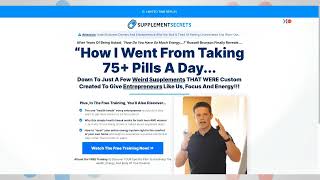
Hey, It's Danny from ClickFunnels Community Outreach Team. What I want to do in literally two minutes is make a model of a best selling webinar page. And this is Russell Brunson's latest webinar. And this page has got a structure. We're not going to copy it word for word. We're going to use the structure because we know that this converts. If it works for Russell, it's going to work for me. Right. But I need to put my pictures and my headlines and the rest of it. So what I'm going to do is, is hop on over to ClickFunnels 2.0 and we are on the page where you would then add a template. Right. So we've gone to funnels, we've chosen new funnel and now we're going to choose a template. We press the plus, we go to page, we choose an opt in page, but instead of picking one of the awesome templates, we press new page, we give this a title, blank test page or whatever it is that you want to do. And as always in Clickfunnels it actually takes longer to type things in than it does to build the funnel. Right. This is super fast. So what we're going to do is go to edit and we now have a blank canvas to work from. So if we go back over to Russell's page, you'll see we've got a blue bar at the top that says limited time replay. Then a logo, then this other attention thing, and then a headline and then a couple of columns with pictures and bullet points. Right. That's what we're going to replicate in, in like seconds inside of ClickFunnels 2.0. So you're ready to get started. So the first thing, add a new section at the top by pressing on the thing that said add a new section, press full page, press one column and then in here we could put a sub headline that says limited time replay. See where we're going with this? Right. So if you hover over the green section and you strip out the top and, and the bottom padding and you go down to where it says background and then you change this to a color that you like, doesn't have to be blue, but you're modeling the structure. Now you've got that bar at the top. Then what we're going to do is we're going to add another section, full page section, and then we're going to add another section. Right. So in this one what we're going to do is add a row One column row. You see where I'm going with this, right? And this is going to be for our logo. So if you do an image in there this time and you just click this and then you kind of put your image in, you go and get one of your logos out of your thing. And there you go, we've got a logo and we're going to make that a little bit narrower. And what we're going to do is go up here over this green section and again we're going to take out the top and bottom padding so it all moves up. You can keep stuff above the fold. You can mess around with this stuff beneath that. In our next row, what we're going to do is add one column row. And in here we're going to add another element. We're going to have a headline. Beneath that, have a sub headline. And then what we're going to do is have another section. Would you believe it? In there we're going to have two columns. This time we're going to move one over this way and in here we're going to have another headline. We're going to have another sub headline. Beneath that we're going to have our bullet points. You can see there that's that easy to do. Everything's kind of drag and drop. This side we're going to have an image. Below the image we're going to have a button and you can see the buttons on the page. Now we can edit all of this stuff. So with a little bit of clicking, dragging and dropping, we've pretty much laid out the structure that Russell has on this other page. And if you remove those top and bottom margins, you change some colors around and you put your words in, in literally two minutes, you can have the same structure as what somebody's got on a very high converting page. Right, Right. So that sound like a plan? What you need to do is get yourself started in ClickFunnels 2.0. Head over to the editor and start modeling something that, you know, works. It's Danny Walsh from ClickFunnels Community Outreach Team. I will see you on the next video.