How to Post Your First YouTube Video [Step-by-Step] in 2025
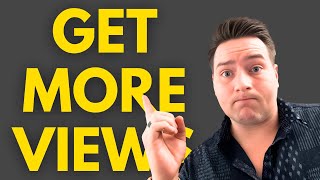
Darren walks through uploading your first YouTube video: picking an MP4 file, writing an SEO description with ChatGPT, designing a thumbnail in Canva, and choosing between private, unlisted, or public visibility. He covers playlists, tags, end screens, and why you shouldn't mark it made for kids.
Chapters
Alright, today I'm going to be showing you how to post a YouTube video. Now this video is for the person who has never posted before on YouTube, and it's gonna be quick, simple, straight and to the point. Let's get right into it. I have my YouTube channel pulled up right now, which by the way, make sure to subscribe if you haven't already. Um, but let's go ahead and get into it. In the top right corner here Once you have your video edited, once you have it created, ready to go, you're gonna hit this Create button up here. Now there's two parts of YouTube that you need to make sure you have access to. The first one is your normal YouTube page, and this is what that looks like. The second one, you're gonna click your profile picture, go up to YouTube Studio, and you can hit that, and then it pulls up the backside of your YouTube channel. Excuse me. Oh my goodness. So you need to make sure that you know kind of how to get to both of these spots because this is where you can view all of your analytics, all of your trends, all of everything behind the scenes, uh, behind the scenes related to your numbers. So we'll go back over here to your channel. You're going and you can either post on YouTube Studio, which is what we just were in. Or you can post here on the home page. So you're going to hit create. You have 3 options here. You can go upload video, go live, or create a post. We're going to go ahead and upload a video, and it's going to pull up this in your YouTube Studio. So let's just take, uh, a video. We'll just take this one, for example. So make sure it's an MP4 file, first of all. The next thing we're going to do is pick a title, and you want to pick a title that intrigues interest. Don't just put some basic title that like describes exactly what the video is. Make it intriguing, make it feel like the viewer has to click onto the YouTube video. And you want to spend a little bit of extra time on the title and the thumbnail, which I'll show you here in a second. What that looks like, but make sure to put an intriguing title and look up what's trending. Do your research beforehand, see what titles are working, go to channels that you like to watch, and then try to not copy them word for word, but use the same format, use the same wording, and make it your own, make it better as opposed to what they posted. So we'll go here. Let's just say this video is about cameras, like a new Sony camera. In my instance, I review a lot of camera equipment for content creators and business owners, as well as teach them how to use it. And so let's go— Sony put out a new camera recently, so we'll do Sony did what? Intrigues a lot of interest. Anybody who's interested in cameras, it's gonna be like, what, what is he talking about? What did Sony do? And that's where you want to be. So the next thing you're going to do is make sure to put a description. I have a bunch of links here. I usually don't put a super detailed description. Every now and then, if I do a podcast, I will put it in there. The more you put, the better, honestly, because the more information you feed YouTube, the more it has available to send it to the right audience and the right viewer. So I put a bunch of keywords here at the bottom, but put a description, throw it in a ChatGPT, just ask it to write you an SEO optimized description. And boom, you're done there. The next thing you're going to see is upload a file, um, for thumbnail. So you can do a couple of different things. There's a testing option, which is pretty new. Um, you can put up to 3 different thumbnails and over 7 days it allows you to test which ones work better. So you can do your research and continue to get better every single time you post. So you can put 3 at a time. If you hit auto-generated, it just pulls up images from your video. That you can use. I always like to go to Canva and make my own thumbnail and then go directly here. And I already have some made. I made this one with ChatGPT. So we'll just put this one, uh, or we'll do that. We'll do this one. We'll just put this one in there for now, and then it pops up as the thumbnail. So the thumbnail is the first thing and the first picture that people see, or that you see when you're scrolling on a home page, on a recommended page, you're searching for a video, that's the picture that pops up right above the title. So this is extremely important, and pay attention on this. Um, look up a bunch of YouTube videos and learn how to make a good thumbnail because everybody does it a little bit different, but there are some key things that you don't want to miss. The next thing you see when you scroll down is your playlists. If you have different playlists on your channel, I recommend putting every single video into a different playlist because it helps organize all of your videos, all of your content, and helps people find specific types of things on your channel. So we'll just say, we'll do review for this instance. You always want to check no, it's not made for kids because it will limit your reach if you put yes. So make sure it says no. Scroll down, no altered content. Obviously, make sure to follow the guidelines there. Go down, add tags. Tags are— there's a mixed opinion on tags. These are another option. They're not— they're separate from hashtags, they're separate from keywords. These are just going to be additional information. So say you're talking about Sony cameras. Sony camera, Sony camera, camera review. In this instance, I would put that many. You can put up to 500, but if you hover over— or if you— nope, that's not what I wanted to do. So tags, it says tags can be useful if content in your video is commonly misspelled. Otherwise, tags play a minimal role and helping viewers find your video. So don't spend too much time worried about this. Your thumbnail and your title are going to be your most important things as far as getting reach. So you scroll down, make sure to put the recording date, um, at the most recent date. That way YouTube knows like, hey, this isn't like a historical video or anything. This is like relevant. This is today. I am releasing this video because I filmed it today. Video location, we'll just put Abilene, Texas as an example. Make sure to put a location of where you want to target. If you're targeting local, this is even more important. Scroll down, keep scrolling down. Allow video and audio remixing. The two categories that I would recommend you put it is either education or people and blogs. That seems to get the most traction and the most traffic. You can change your comment settings here. Okay, once you're good to go on that, go over here. You're going to want to make sure to add an end screen is what it's called, and you can pick one of these different options here. Let's go ahead and pick this one. And that way, and Google joins the premium AI subscription arm. These are the things that you see pop up at the end of the video. You can do a recommended video, you can do a playlist that you have, so it kind of just feeds them into the next video automatically. So we'll just, uh, okay, so it says choose a playlist. We'll click on that playlist. We'll just send them to our reactions. Hit save. Add a card. You're going to want to do this. You can add multiple. Um, what I usually do, I go to channel and I'll type in the channel that I want to link. So I'll type in myself. I'll put subscribe. Also, while we're talking about subscribe, if this video has been helpful, please make sure to hit the subscribe button. It— I truly appreciate it. It helps the channel grow and helps more people learn about this stuff just like you. Watch out, Winnie. My dog's trying to get on my laptop. All right, here we go. Save. And then we're going to hit next, next one more time. This is where it will tell you if there's any immediate copyright strikes on your content. This is the last option here. You're going to choose either private, unlisted, or public. Private, um, it is up on your channel, but only people that you choose can see that video, and they have to be basically invited to see that video. Unlisted, it's, it's on your channel, but they have to have the link. To see that specific video. It doesn't just show up on somebody's home feed. Public, everyone can watch it. It's a public video. I like to set a lot of mine as premieres just because it kind of feels like it's a show and it does a countdown. YouTube does a whole countdown beforehand. Um, and let's see if we can— there's some way you can set it up. I don't remember where it's at right now, but You can do the different things. Um, oh, maybe here. Yeah. You can set up Premiere. If you schedule it, you can choose different themes. Let me go and show you what it looks like here. Countdown length. I usually do like 1 minute. Um, you have a couple of different options. You can add a trailer, you can redirect them. Um, we'll just go ahead and hit save. And then after that, you're going to hit schedule. And you're done. It's ready to go up and it's live as either right now if you just hit public or if you scheduled it, it will go up at the correct time. And that is the full from start to finish way to post a YouTube video in the most effective way. Again, utilize tools like ChatGPT, see what other people are posting and how they're writing their descriptions to get put at the top of the feed. So I hope this helped out. Make sure to hit the subscribe button, leave a comment below if this helped out. If you want to see more videos like this, um, let me know. I've been thinking about doing some stuff on Instagram, Facebook, and TikTok, just basic tutorials just like this one. Um, so yeah, we'll see you guys in the next one. Peace. Hey, I hope you found some value. This is editor version Darren. Um, I hope you found some value in this video. I wanted to let you know that we're having a free social media training for business owners. So if that's you, if you're a business owner wanting to learn the basics on how to create content that actually converts into clients, that's what I've been doing. I've been posting on YouTube for the last 11 years and I've started a business in the last 4 years called Howdy Media. And we do just that. That's how I started it, got off the ground. The company now brings in multiple six figures every single year. And so if that's you, if you're wanting to learn these exact systems, We're going to be talking about content funnels, how, what type of content to make, when to schedule it, what platforms to hit, all the things. It's going to be an hour of nonstop value. I hope to see you there. There's going to be a link in the description if you're interested. And yeah, we'll see you then. Thanks.
More from Daron






Entitled Woman Tries Suing Man For LEAVING Her Mid Date, Instantly Regrets It

This Is Why More People REGRET Buying Their Electric Vehicle Than Ever Before