A step-by-step guide to streaming a church service with StreamYard, covering setup with a Focusrite Scarlett 2i2 and Sony FX30 camera, scheduling across YouTube and Facebook, monitoring live quality, and uploading the edited recording afterward.
Chapters
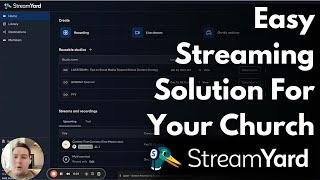
Alright, let's do this test. Okay, should be going. Alright, this is how you set up the StreamYard for Bethel Assembly of Albany. So the first thing you're going to do, which you already— we should have already set it up for you. So it's going to go live stream. We click this reusable studio button. So that's going to be on and it'll show up in your reusable studios here. So for example, livestream, this is my personal one, but yours should say something like Bethel Albany livestream. You're going to enter the studio and this is before you ever start the service. This needs to be like whenever you you get there in the morning, you're setting it up. So you can put whatever is the display name. We're going to turn that off here in a second. You're going to hit the microphone button and you're going to select Scarlett 2i2 for the Focusrite audio interface. And if it doesn't show up, unplug it and plug it back in and it should pop up. The same thing goes with the camera. The camera, you're going to be selecting I believe it's the Elgato Cam Link 4K, which is coming from the Sony FX30 camera. So that the camera is going to be your source input for the video camera feed, and the audio interface is going to be your sound input for the feed. So then you're just going to enter the studio once those things are set up, and then you're going to go straight over here to You can hit Add to Stage and it shows your camera. So it's showing me right now. I'm going to take it off so it's not weird looking. But whenever you go over here to Style, you can change like colors. If, if you want text on the screen, you can change the colors and do all that jazz. I usually just turn it off. So the Show Display Names, you you can turn it on or off. And so when you turn it on, your name will pop up in the bottom corner of whatever you're showing. So now you can see it pops up here, and whenever you turn it off, it goes away. So for y'all's purposes, turn it off, um, because it just doesn't make sense for it to be there. People are watching the sermon and following along with the worship. So that's that. Once you're done with that and it all looks good and the, the audio interface is selected and the camera is selected for the FX30, you're going to hit Create and you're going to go to Livestream and you're going to select, um, what destinations you want it to go to. So in this case, it would be YouTube and I would stream it to Instagram or Facebook, whatever you want to stream it to. You can do as many as you want or you can just do one, that's fine too. So you're going to put in the title so you can go Bethel. Try to be consistent with the titles. So Bethel Albany, you can do Sunday livestream, something that's repeatable. And then you can put the date. So like today's the 17th, so you put 2/17/25. The description, welcome to Bethel, doesn't have to be too crazy, something simple and to the point. You can put whatever you want underneath that. So then you'll do schedule for later, pick the time. So it would be Sunday, but like usually 5 minutes before service is whenever it's a good time to go live. Upload a thumbnail, go into Canva and make a thumbnail, YouTube thumbnail, and upload it here. Because if you don't have a good thumbnail, it's gonna be hard for people to want to click on your video. So that's really important whenever you're posting to YouTube. So you can go in here and customize to each destination. There's different options depending on the platforms, but for YouTube, it's just gonna be the title, description, and Make sure it's set to public unless you specifically don't want it to be public, like you just want to go to YouTube. Like if it's a funeral or something and it's like a private event, you can go private here and just share the link off of YouTube to whoever you want. But you can do a specific thumbnail for YouTube here, um, and then you should be good to go and you'll hit save changes. Oh, let's take off Instagram. It doesn't like Instagram. So he'll hit save changes and then it's scheduled for that specific time. And you can go over here to the comments section and see all the comments that are going on, on all the platforms. So once it's scheduled, you can hit go live and it will go live at the time that you scheduled it for. So it says here it won't go live automatically. You'll need to click go live. Whenever you schedule it, it's just basically setting it up. And so you could just hit go live and all the settings are already there and you don't have to worry about filling it in right before you go live. So that's the perks of that. So yeah, you'll hit go live. Full high definition. If 4K is an option, then hit 4K. Local recordings, turn this thing on. That way you can go back and record the whole file if you need to. We'll turn that thing back off. Intro video, if you want to throw a countdown video, then this is where you would put the 5-minute countdown video and you can As soon as you hit go live, it'll play that specific video. So you'll hit go live and then that's it. And then make sure to pull up your YouTube Studio, which is— looks like this. And whenever you're live, you'll be able to go to your content, live streams, and you'll be able to see that you're live right here and click into it. If you want to look at any of the analytics while you're live, you can see how many people are watching. You can respond to comments there. It also shows you on StreamYard. It'll say like, uh, there'll be a little person here with a number and that's how you can tell what's going on there. But make sure to always have another tab open watching the live stream on YouTube, making sure that it sounds good and it looks good. If you need to brighten the camera up, I know y'all are getting lighting pretty soon. Then on the camera, there's what's called ISO, and you can turn it up just a hair. It's just like basically your gain, quote unquote, for cameras. And so yeah, that's how you do that. I went ahead, and if you go to the Bethel Albany page right now, I went ahead and put a couple pictures here. I just ripped one off of social media, the best one that I could find, and I put it here. I put y'all's logo here, the description, just to kind of get y'all started. Let me show you. Let's show you. Well, yeah, let's go to Bethel Anson's page. Really quick, and I'll show you how we format it and how we post things. And you can do it if you like, or you don't have to do it at all. So this is our channel here. We have 145 videos. That's over a lot of years of posting, but here recently, you can see these are our live streams. Majority of them have a pretty decent thumbnail. Some of them I still need to go in there and change, but these get quite the traction on YouTube. That's a good thumbnail and a good title. People love watching church online. You can do the live streams. And then after that, I usually export the, the whole file. So in your case, you would download it from StreamYard and you would just trim it down to just the sermon. And then that's in this video section. So we have just the sermons. It's like the full sermons, no worship or anything else, just the full sermons here. So people who don't want to listen and skip through the worship, they can just go straight to the sermon. Um, But yeah, that's basically a very beginner breakdown of how that works. Um, I hope this helps. If you have any questions, let me know. Thanks.