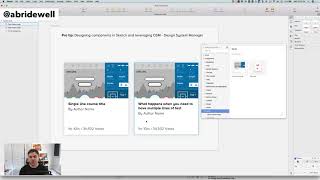
Drew Bridewell gives a short YouTube tutorial showing how to design a single reusable, responsive card component in Sketch and manage it via InVision DSM. He demonstrates making a card symbol that handles single- and multi-line titles, using pinning and the Anime plugin for consistent spacing, using an image container as a fill, and how to update and sync the master symbol in DSM without overwriting existing overrides.
Chapters
Hey everybody, Drew Bridewell here and I have a pro tip for you about designing components in Sketch and leveraging DSM Design System Manager to do it. So I've been getting a lot of questions around how should I design my card or my symbols inside of sketch? So I'm going to show you a quick video on how to do that and how it can save you when you have multiple lines of text in your cards and you don't want to have to recreate multiple symbols and store them inside of DSM because you could just have one. Okay, so let's do that. So first off, I'll show you one in action. So I've already built this. So I have a course title, I have by author name and oftentimes one, you know, I might need to resize this for, you know, a certain reason. But here, let me just undo that. I'll just delete that and show you how easy it is to get things back in there from dsm. Alright, so what I'm going to do is I'm going to show you the fact that I have some overrides already set up. So ideally you might have a big old course title in here. So for a single line course title you have one line, it doesn't break. Okay, that's, that's pretty cool. But what about when you need to have a multi line course? So let's just say what happens when you need to have multiple lines of text. You want it to resize. So see how it's doing that? But it's not resizing my card. It's gonna still stay in the grid. That's the kind of interaction that you want. Okay, so let me show you how that's done inside of Sketch. And then just so you know, all of that work that you do around your symbol is gonna be maintained inside of Sketch or inside of dsm. So with when you add it and you create it back inside of dsm, you're going to be able to get that. And then if you update your overrides, it's not going to change those text when you update your symbol. So let me show you that too. Alright, so I have this. This is great. If I wanted to go in and kind of tweak this and move this around. One thing that I'm using is the plugin Anime. And Anime allows you to be able to have a certain distance between certain objects. So my course title and my author name, I want there to be eight pixels between that always. And I can do that with anime. I can Also make sure that I'm pinning my elements to the bottom so I know that my duration is always at the bottom of my card. And then for my image, what I did was for this image container, which is a fill because I want to be able to change the image for every single thumbnail. What I can do there is I can resize. It resizes on the left and the right and the top. That way it's always going to be to the side top the card. Alright, so I'm going to come back out of here. But let's just say I end up deciding that I want to make a change to the core, the core symbol that lives inside of dsm, that source of truth for that card. What I can do is just drag that out because I already made some edits and I can still see that I have my default course title here. I'm going to click into that and let's just say I wanted to come in and change the this course title to example course title. The first thing that I want to be aware of is that that doesn't automatically change inside of dsm. It doesn't change my other cards. Right? All I did was change that symbol. So if I want to be able to update that, what I need to do is select it, hit plus, get that back into DSM so I can see my old one, my new one, I'm going to replace it. So now that updates the entire system. So let's just say I'm another designer. I go off and I want to be able to get the latest car design. If I'm working off the shared draft inside of dsm, I can just hit this pull button. So if I pull that button, it's not going to change all my other overrides that I already created, right? They're still there. But what I can see is when I select on this, these other ones, I'm seeing the example course title inside of that override. So it does give me the updated version, but it doesn't wipe out all my overrides. So that is a really important thing that DSM has to offer. So just keep that in mind when you're building these things out. So that's a quick little pro tip of using it. It's not going to mess up your work, but you do want to be able to just have one card so you don't have to have multiple versions of your component for different title lengths. Okay, so that's really important. Hope you enjoyed this quick tip and I will see you next time.