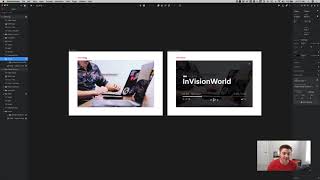
Drew Bridewell shows how to resize and toggle InVision Studio's timeline editor. Use Command+P to reveal it, drag it to the left panel for more workspace, and edit animation delays without losing screen real estate.
Questions this video answers
Command+P
June 12, 2018
Chapters
Hey, everybody. Drew here, your friendly senior design specialist, and I have an update for you around studio. And I'm super excited about this because it's just the little things that matter, right? So real quick, I'm gonna click on. I have this little video player. Let me just show you real quick what it is. So I just hit command P, and then when I hover over this. Cool. I have a little hover over the video player, and then, boom, I'm out. But the thing that I'm super stoked about is now when I go and edit my timeline. Now, you can edit the size of your timeline editor. So if. If I was to switch this back over into over on my left panel now I can have a little bit more room to work on when I am messing around with my editor. Look at that. Awesome. Now it's perfectly fit in here. So if I wanted to work on any of the delays, I can now do that. So just wanted you to have this really cool update for you and your designers and your teams, and that's it. So I hope you enjoyed this, and I'll see you next time.