This is a short tutorial video by Drew Bridewell (senior design specialist) demonstrating a DSM (Design System Manager) update that lets teams organize and reorder their design system hierarchy. The video shows reordering sections (e.g., onboarding, templates), moving artboards/templates into subfolders (but not into top-level folders), and instructs users to refresh the Monument website to sync the updated hierarchy.
Questions this video answers
Drew Bridewell (senior design specialist).
Design System Manager.
August 14, 2018.
Chapters
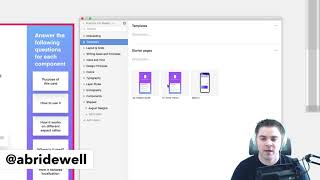
Hello everybody. Drew Bridewell here, your friendly senior design specialist. And today I'm going to show you a new update that DSM just released. Now, DSM is Design System Manager, InVision's newest design system tool to help you manage, organize and govern your internal design system. So inside of dsm, if you haven't seen it before, you get a generic default 5 colors, typography layer, styles, icons and components. Now, before, you weren't able to organize organize the hierarchy in the way that you wanted to organize it. For example, if I wanted to move up my writing goals to the very top of this list because that's the first thing I want my team to see when they open up dsm, I couldn't do that. But now I have the ability to organize it in a way that meets my team's needs and my company's hierarchy. So I'm going to show you right now in a tutorial video on how to do that. So let's jump in. So right off the bat I have these sections, but with this tool all you need to do is just move these things up and now you have the ability to do that. So I'm going to move up my onboarding because when a new designer joins the team, I want them to understand how to work inside the tool. I also have some templates that I want to move up some of my templates, but I'm going to move that a little bit higher. So now this is just making it really easy for me to deprioritize certain things and move these things up the way that I want to see them. So if I wanted to be able to move one of my templates. So I have a couple files here, I created a ship folder of these art boards and all I need to do in order to move these from like this entry points over into my August designs is I just need to select this and drag this into the sub folder. Now it's important that it's inside the subfolder and not the hierarchy folder because you just can't drag these into the top level folder. So if I go to August now, I can see that these are in here and there's one more quick thing that I want to show you. So when you make this update inside of dsm, all you got to do is toggle over to your Monument website and you'll see that you are viewing an out of date version. All you got to do is refresh this and it's going to update all your hierarchy structure over here on the left. So as this refreshes, you'll notice that all my new categories have automatically been changed and updated. And now I'm in business. And that's how easy it is to organize your hierarchy, your components inside of dsm. So I hope you enjoyed this quick tutorial video and see you for the next one.