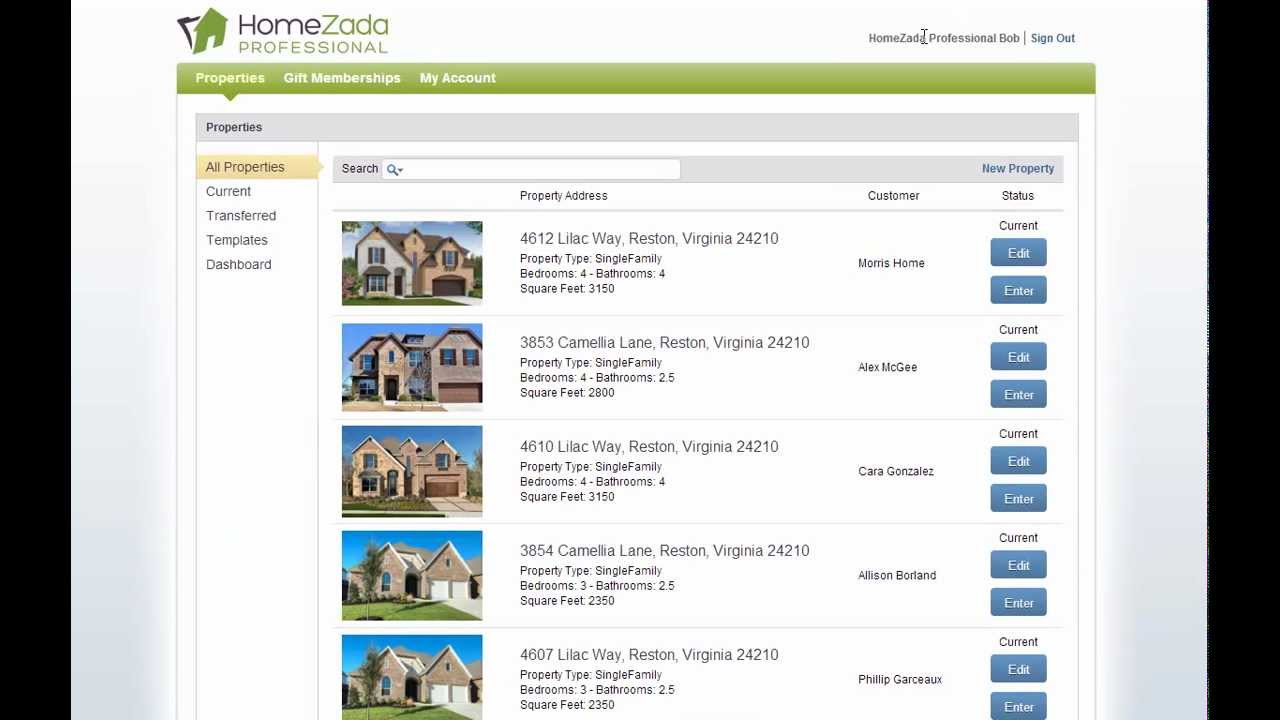
In this tutorial, Elizabeth Dodson demonstrates how HomeZada Professional enables professionals—particularly home builders—to streamline the creation of multiple similar properties by using customizable templates. She walks through marking a property as a template via a pencil icon, uploading shared documents (contracts, floor plans, manuals), configuring standard rooms and fixed assets with common manufacturers and owner‑manual links, and building electronic maintenance checklists that populate a to‑do calendar. The presenter also shows how to pre‑define default projects (e.g., landscaping, patio, pool) and a preferred vendor directory for each template. Finally, she illustrates creating a new property by copying an existing template, entering the specific customer’s address, and then fine‑tuning the copied property—adjusting rooms, assets, manufacturers, to‑dos, projects, and contacts—to reflect any customer‑specific variations. The overall message is that templates dramatically reduce repetitive data entry and save time when onboarding multiple homes.
Chapters
As a professional, you may have a set of data that is common to all of your customers. HomeZada Professional makes it extremely easy and reduces your input time by allowing you to create your own templates. As an example, this sample is set up for a home builder where you can see I've got multiple specific addresses with specific customer names, but this could be part of a subdivision where I've got 4 common home that can be a template for each type of home. So as an example, I can go into the Roosevelt model and it's very easy to denote which properties are templates. In the upper right-hand corner, there's this little pencil icon where you can change each one from a yes to a no. This allows you to go through and create a property and enter in all the common information and then denote this as a template. And we'll see how that comes to play when you create new properties. Once you've determined that this is a template, now you could upload all of the common information for this particular template. So common information in the context of a home builder could be a contract, floor plans, maintenance guides, etc. And if we enter the property, this model and template may have all these standard rooms on the left. I can drill into any one of those rooms and start looking at the fixed assets, and I could go to the dishwasher, and perhaps part of my template is I've got a common manufacturer. And a common link to the owner's manual for the dishwasher. I can also go to my to-dos and create a property checklist, which is my maintenance guide in an electronic way that's gonna automatically show up on a to-do calendar to remind my customer of all these things that need to get done based on this frequency. As a home builder, I know that when I turn over a home, many of my customers end up doing backyard projects, so I can automatically create a default list of projects like the backyard landscape, a covered patio, swimming pool, even window blinds. And I may have a preferred list of vendors in the area as it relates to potential people for my customer to call in their directory. Now if I return to the property list, let's show you how easy it is to actually create a new property by copying that existing template. We just go to the New Property menu here And we enter in our customer's name, the Morris Home. And once we're done entering in the specific address of the home, then we click the Next button. And instead of selecting the number of bedrooms and bathrooms, which are the default HomeZada templates, I want to use my own templates. So I go down to the bottom of this form and I click on that down arrow and up come up the 4 different templates that we saw before. So I'm copying— I'm creating this property based on the Roosevelt model, and now all I do is hit Save Property. Now you can see at the top of the list the address, 4612 Lilac Way, and it's the Morris Home. And now, of course, I can tweak this particular property because if you look in the upper right-hand corner, This is now not considered a template, but we copied all of the information from the template. So perhaps I need to upload specific information for this particular customer. I can also go in and enter the property, and I can tweak the information. Perhaps this customer changed some configurations or went with a different style in terms of options. So if this customer did chose the house without a foyer, you could go in and enter that particular. Space and delete the space, and now you're actually doing minor tweaks to the overall property. Or you could even go in and change the manufacturer because perhaps they had an appliance upgrade and they chose a different manufacturer for the dishwasher. Of course, you can even go into the to-dos and you can add or delete whatever to-dos and maintenance items you want, as well as tweak any of the projects or even the contact directory. So you can see how easy it is and how much of a time saver technique is when you have a lot of repetitive data as it relates to creating multiple templates and using that to create properties prior to transferring them to your customer.