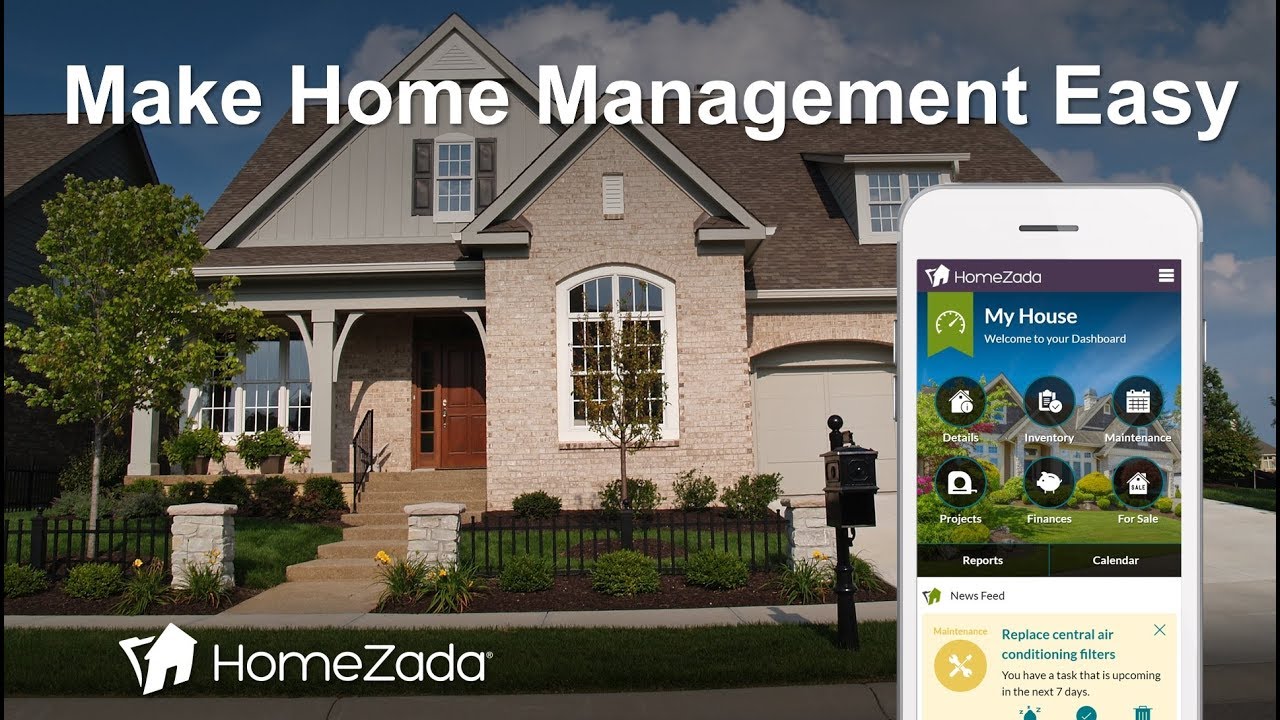
HomeZada is a digital platform that auto-fills your home details from your address, instantly generates a room inventory, and creates a preventative-maintenance calendar with over 50 tasks. It tracks your home's value, mortgage balance, and equity while letting you budget household expenses and plan renovations across desktop, tablet, and mobile.
Chapters
HomeZada is a fantastic digital home management platform. Let's dive in and see how easy it is to create an account. After you create your username and password, you come to a step where you'll enter in the name of your property, and then you can enter in your address and your zip code. And this is a smart part of the process where HomeZada's got to figure out a lot of this information for you based on the address of your home. When you click the Next button, it's automatically going to determine your full address And it's going to check the number of bedrooms and bathrooms. Obviously, if our check is slightly off, you can certainly change those numbers. And then you can click on what's called Predict My Rooms. This is where Homesota is basically predicting the common rooms in your home. And you can certainly add additional rooms for your house, or you can delete ones. And you can see this is a pretty basic house here at that address. And it really allows you to kind of preset up your home inventory. Then when you hit Confirm Your Spaces, you also have the choice of choosing whether you want Homes Auto to pre-populate your fixed assets and your inventory. And you'll see that as it relates to how it helps create a faster home inventory. Then click Populate My Spaces. And now the system is taking your address and it's building all kinds of smart intelligent things for you, including checking your house value, your mortgage, your equity, expenses. You'll see all that here in a few seconds. Now that we're done with this particular aspect of the signup process, you can see we're on the main dashboard page. The main items here, the icons give you the ability to navigate to the different aspects of the product. You can also scroll down to the page where's the news feed. And we're going to focus in on that a little bit later in terms of that's where the system is giving you personalized proactive recommendations. Over on the right-hand side, you can see a lot of sort of tutorials to help you get started. if you want to learn how to get started on doing a home inventory or tracking your maintenance calendar or any of those things. Now one thing to demonstrate is I'm taking this video on my desktop, but HomeZada is built with what's called a responsive design. So you can see here that if the user was to log in with a mobile phone, this would be the user experience that the user would get with their mobile device, which is the exact same user experience that they get with a desktop or a tablet. And our Homesota customers really appreciate this because it allows them to log into their account with different devices. Now let's go here to the details. And the first thing that you can do here is scroll down this list, and based on the address, you can see that Homesota has automatically prefilled lots of different information, everything from the date your house was built to the square footage to the County number, the census tract number, the parcel number, all the basic details about your house. If you click on Photos, this is now the ability for you to basically take and upload photos of your house. So the first thing we recommend users to do is to take a picture of the outside of your house. You can quickly upload that, and now it's going to replace that image with your house image. The system also gives you the ability to do photo tours. So this is when you're taking a home inventory, it kind of encourages you go to the next But we'll save that for another demo and we'll explore that in a few moments. Another thing you can do here is click on the Documents tab. This is where a lot of our customers will upload documents about their house that may be appraisal documents, closing documents, sales documents, any kind of document you want to upload about your house. But if you go back to the My House dashboard, you can see now that the photo has replaced it with your photo. And this is the really valuable part about the signup process. You can see this first newsfeed item says your home inventory is already 34% complete. If you click on that, it's going to take you to a link that's going to show you all those rooms that you saw in that initial setup process are automatically created for you and are ready for you to either upload a photo of that room or upload a video of that room. If you click on that actual room, for instance, the family room, and click on the Items tab, You can see here it's automatically predicted all the common items that you would typically find in a family room. Same situation, you can go through now and basically take photos of all your furniture and electronics and all the other information in that room. Pretty powerful stuff to really facilitate the ability to take a quick home inventory. Now let's look at the maintenance schedule. If you click on that, HomeZada has automatically created over 50 preventative maintenance tasks for you. So all of this is automatically laid out on a calendar for you that's showing you common preventative maintenance tasks that are going to automatically remind you to make sure that your home is operating efficiently and in a safe manner. Obviously, you can personalize this, and we'll show this in another demo, but you can quickly delete any maintenance task that's not applicable, and you could certainly add as many new ones as you want. But the benefit is HomeZada has done the bulk of the work for you. If you go back to the main dashboard and look at the next item, you can see the system automatically has 40 templates over common home improvement projects. So if you want to do a bathroom remodel or a basement finish project, or you want to put in a new deck, you can just pick any one of those templates and away you go as it relates to tracking your project. One of the most powerful things here that I personally like is if I go down here and you click on your— my home value and equity is already updated. Again, just based on that address, HomesADA has gone out and got real-time information that's kind of showing you that the estimated value of your house is worth about $262,000. We've roughly calculated the approximate loan that you have and your loan balance. And really the most important piece there is the green bar showing you how much equity you own in your home. Again, very powerful stuff that's automatically set up for you, that's automatically going to update you on a quarterly basis to keep you aware of the changing nature of your home financials. If you click on this bit, this is where we actually did the mortgage calculation. Again, we got this based on the address and we estimated based on what your original loan was and the loan date and basically have determined a full amortization schedule so that you can see approximately how many payments and how long it's going to take you to pay that off. And last but not least on the dashboard is if I come down here and click on household expenses, the system has automatically created a budgeting system for you to budget for all your house expenses. Obviously, we have calculated what your annual mortgage costs are going to be. We've calculated what your property tax is as well. And now you can use this to track all of your utilities, your garbage, your water cost, any other home services that you have. So now you can see how powerful the Homes Auto setup process is, how you get instant value out of this system, and we'll talk more about this news feed in, in future demos, but this is where we're constantly going to present you personalized and updated information. Thanks for watching this demonstration of the Homes Auto setup process.