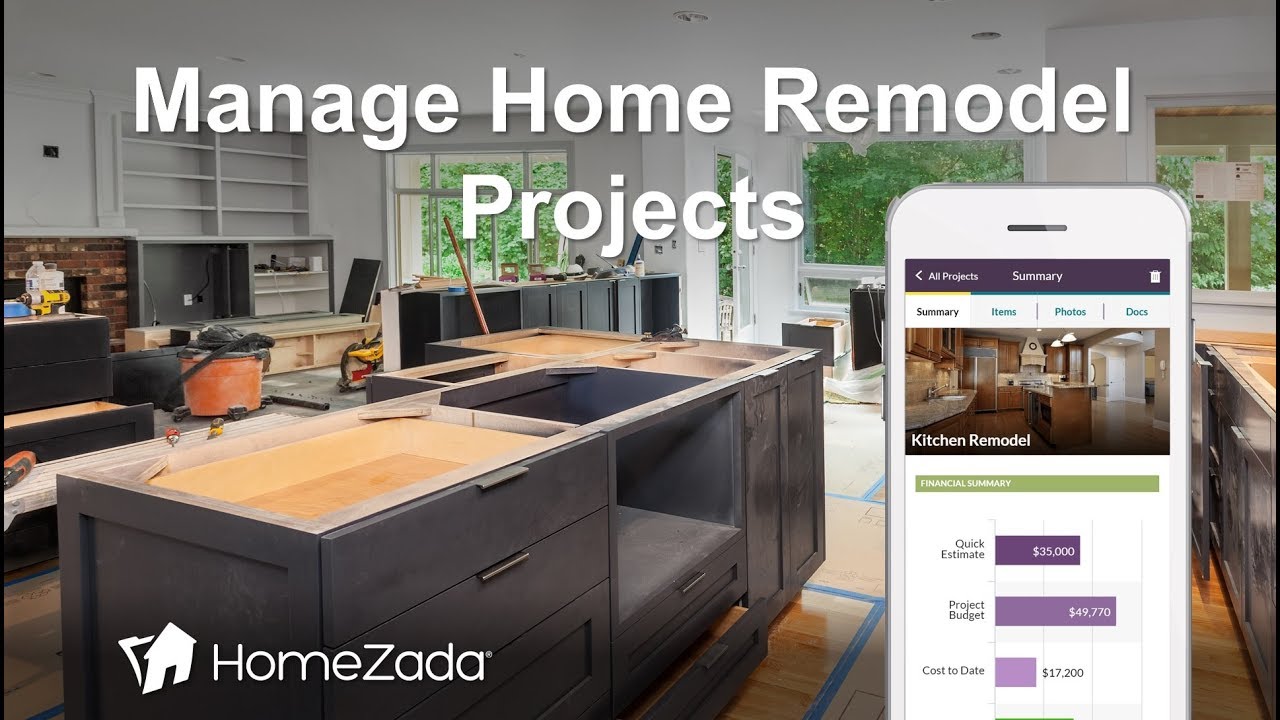
HomeZada helps you plan and track home remodels with 40-50 templates for kitchens, bathrooms, roofs, and more. Track costs against estimates, compare contractor quotes, store before/after photos, and calculate tax basis for resale. Access your projects on any device.
Chapters
Today we're going to demonstrate HomeZada's project remodeling tracking features. From the main dashboard, click on projects and you go to a projects dashboard where on the left you see the user is tracking 2 projects that are what's referred to as their wish list projects. These are projects that you're planning on doing and you're using the tool to plan out your budgets. Over on the right-hand side, you can see I've completed 3 projects for $78,000, which is an important number to track if you look over on the right-hand side. The system has a scorecard that's called Tracking Your Tax Basis, which really adds the original purchase price that you paid for your home plus how much you've invested in your home with remodeling projects. Because if you ever decide to sell your home or at tax time, your accountant's going to want to know what the tax basis is to calculate your tax situation. If the user wants to create new projects, you just click on the New Project icon, and HomeZada has templates, probably close to 40 or 50, common home improvement projects, everything from outdoor landscaping projects to indoor remodeling, even interior design projects that may be very furniture-oriented where you can track the individual budgets for these kinds of things. All of these projects are also grouped, so if you want to look at just all of the templates that are the major remodels, it's going to group that entire list. You can see everything from replacing your HVAC to putting on a new roof. Even if we scroll to the next page, you can see some more items here in terms of siding replacement, putting on a solar roof, upgrading your washer and dryer. And if the user clicks on any one of these templates, you can see here that we're going to give the user kind of a shopping list of things that they need to consider to buy for that particular project. And then if you want to copy that template, you just click on the Start Planning button, and you can see the system gives the user kind of a high, medium, and low estimate over how much they think that they're going to budget for their particular project. They can even choose to decide whether they're going to hire a contractor or do it themselves. And then once Once they hit Create Project, that drops them into a gallery of just their projects that they're tracking. So for the sake of demonstrating, I'm just going to go to my All Projects list here. And here you can see that the user's got a number of different projects with different statuses. So the top items, the bathroom remodels, the new windows, these are all wish list items. But the projects that have been completed are the bedroom floors, the swimming pool, and the kitchen remodel. And as an example, I am demonstrating this off of my desktop, but for users who log into Homes Auto with their mobile phone, they get all of this functionality in a web user interface, in a mobile interface as well as tablet. And users really appreciate this because they can log in with different devices and have access to all their project data. If we click on the kitchen remodel, now we're going to drill deeper into understanding what Homes Auto does in terms of tracking. So we can scroll down. Now you can see some of the items in terms of our Quick Estimate. We can track the start and finish dates. And here we start to see a chart over how much my original estimate was versus how much did I budget for, which we're going to get into here in a second with all the individual items. How much have I spent? What's my balance to spend? If I go to the Items tab, here is where that template is going to pre-populate all of the items that are required for your project. This is important for users because many projects are over budget because people forget certain products that are required. For a kitchen remodel example, people forget about the garbage disposal and the lights and the sink and the faucets. And now you can use this as a simple spreadsheet tool to kind of give yourself a budget for each one of these items, and you can track the actual cost and the actual brand. If you also click down here on this icon here where it says Shopping Choices, A lot of the bigger projects like bathroom and kitchen remodels, people will go to other e-commerce sites for a few weeks or months before they actually execute on the project. And the Homesata has the ability to bookmark your shopping research. So here's an example where you're considering 3 different refrigerators, obviously completely different price points from different e-commerce sites. And you can use this to kind of help determine whether you're going to spend $20,000, $50,000, or $80,000 on your kitchen remodel. If we go back to the actual template of the remodel project, another useful feature for users is the Actions tab. And this essentially gives you a checklist of things to do, especially if you're going to hire a contractor. So you can use this list. As we know, the process of hiring contractors, there's a number of things that you should do from a best practice perspective. All of this gets pre-populated for you, and you can use this as a simple yes/no on whether you've gone through this process of finding multiple contractors, getting quotes, getting insurance and contractor license validation, all of the important things that you need to make sure your project gets executed correctly. Before, during, and after photos are also important. If anything is ever installed incorrectly on your project, it's great to have lots of before, during, and after photos. This is also useful for tax and resale purposes, and you can store all of your documents. So on a larger project, you may have a contract with a contractor, you may have a permit, You may have drawings. You can upload all of that information with your overall project. You can also go to the Compare Choices menu, and it's just another way of looking at all those different choices. So that for that kitchen remodel, you can see here are all my items on the left. That's my list of different cabinets that I'm considering. Here are my list of different dishwashers that I'm considering. And again, this becomes the ability to kind of go over to this Budget Summary tab. And being able to look at, okay, if I go with all my high-priced items, this is going to be an expensive kitchen remodel. And I can go with my low-priced items. Kind of gives you the ability to kind of shop for these different types of things. If I go back to the All Projects Summary here— actually, I wanted to go to the Projects Dashboard here. I apologize. I wanted to show you the different reports that you can get. So here, if you click on Reports, the one master report here shows you by status which projects are you still considering and planning, which ones are in progress, which ones have been completed. And here you will see your entire list of all your different projects, which is again great information for tax or resale purposes. If I also go back to the main dashboard, one other thing that many people don't understand and don't realize is after you finish a major remodel project, if you look at this last green News Feed item, oftentimes you need to increase your dwelling coverage. You just finished a $40,000 kitchen remodel. The system is going to alert you that you should probably make sure that you're properly covered. Again, one of the things that HomeZada does as it relates to News Feed to create proactive recommendations for you to become smarter when it comes to managing your home. So thanks for watching the demonstration on HomeZada's project remodel tracking features.