Learn how to set up and track home maintenance tasks in HomeZada. Browse built-in checklists, create custom items with schedules, and manage to-dos by date, type, and responsible person. The calendar view lets you drag tasks to reschedule and log maintenance costs.
Chapters
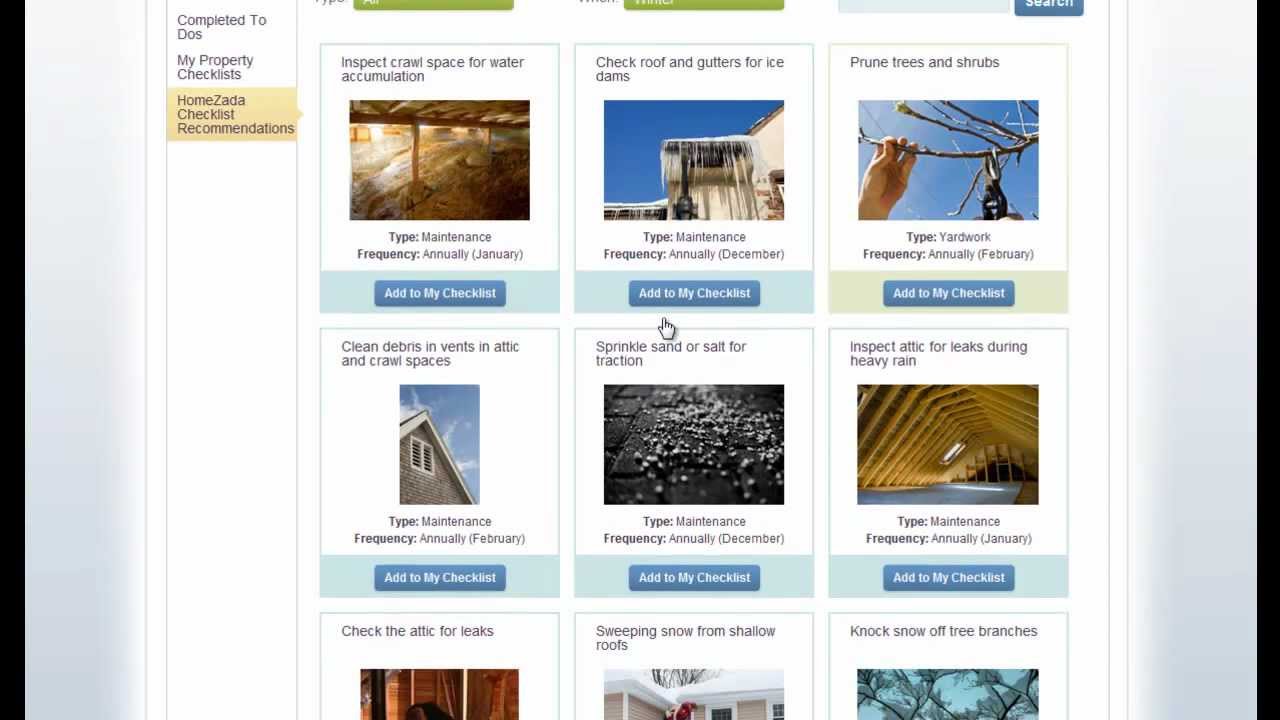
Welcome to HomeZada's Home Maintenance and To-Dos Guide. The Get Started page has 3 recommended steps on how to start using the system. Let's begin this tour by selecting the To-Dos menu item from the top navigation bar. On the left side of the screen are 5 features that work together to manage and maintain your home. The center of the screen is your shared property calendar that is completely empty after you create a property, because HomeZada lets you choose how to use the system based on your home and your preferences. A great place to start are HomeZada's checklist recommendations. HomeZada has developed hundreds of checklist recommendations for how you can properly manage and maintain your home. You can see these on the screen here, and you can scroll further down and see more of them, and you can go through multiple pages to see these hundreds of checklist recommendations. Or you can use the filter box at the top to filter by 3 common types. The cleaning recommendations are ones for cleaning your home, maintenance recommendations are maintaining your home, and yard work recommendations are for things outside the house. Let's click on maintenance, and you can see that the recommendations are going to be filtered for the typical things that require maintenance in your house. Again, you can choose to scroll these and basically pick and choose which ones you want to place on your property calendar. You do that by selecting the Add to My Checklist. So let's choose the Seal Exterior Wooden Decks. You can come in and choose who's responsible for that item. You can choose the start date over when you want to actually start this task, September 24th, and we'll leave that as an annual frequency, and that's something that I do once a year. And it's as simple as that. It's been added to my property calendar. If I go back up to the top of the list and remove the original filter, I can choose the When filter where you can see that HomeZada also provides a way to filter the recommendations by season or by month. So if you want to build your property profile, you could choose perhaps winter and see all of the checklist recommendations that you can pick and choose from that are typically done in the wintertime. You can also remove that filter and choose the search box to search for keywords like ventilation. And once you search, it's going to filter the list down to the items that match that text. So for instance, from a cleaning perspective, it's not a routine task, but it's something we like to do once a month, which is wash the ventilation hoods that you want to put on your calendar. Again, you can hit Add to My Checklist. This time we're going to type in, say, Somebody else's responsibility, Frankie. And we can again choose to change the default frequency if we want, but we'll leave it for monthly, and we will choose a default start date of the 21st. Now we've added 2 checklist recommendations to My Property Checklist. And the way you can see that is by going to the left navigation item called My Property Checklist, and there are the 2 HomeZada recommendations that we have accepted to My Property Checklist. HomeZada also provides you the ability to create your own checklist. You can quickly select the Add New button, and for instance, you might have to spray deer for a deer repellent based on where you live in the country. And you could say that that's a yard work item, and we'll say that Hank is going to be responsible for that, and that is typically done in the front yard. Up at the top, we can choose the Schedule tab, and what's important here is choosing the frequency of your own checklist items. How often are you going to perform this task? We'll say we're going to do this monthly as well, and we'll also give us a start date of this Saturday. And now we hit Save Checklist, and now we've created our own checklist. If we actually go to the to-do list, now you can see that that on the top of the form are 3 filter boxes to filter your entire to-do list. The first one is filtering it by date, so you can quickly filter future to-dos by what's due in the next 7 days, 14 days, etc. You can also filter by type. So for instance, let's filter by just the cleaning to-dos. And what you'll notice here is, if you recall, when we chose the HomeZada checklist recommendation, the wash ventilation hood filters was a monthly frequency. What HomeZada has automatically done is created 12 specific to-dos for each month for a reminder on your property calendar. You can also refresh the filter and choose to filter your to-do list based on who's responsible, both either family members and/or even service providers. Once you start using the to-dos, you can quickly go to the right-hand side of the screen If you've completed a to-do, click on the Done button and it will instantly allow you to mark that as a completed to-do. If you want to snooze a to-do, you click the Snooze button and it will add 7 days onto the to-do. If you want to delete a to-do because you don't feel like doing it this week, you just click the X button and you delete it. Now if we go back up to the to-do calendar, the calendar is the exact same view of your to-dos as the to-do list. It's just showing it to you in a calendar view versus in a list view. So at the top, you can choose to scroll to different months from October back to September. Up in the upper right, you can again choose to see it by month or by week or by day, and you can also choose to filter your calendar based on type and responsible so you can see who's responsible for what. Also on the to-do calendar is you can drag and drop items if you want to move them. So for instance, maybe something comes up this weekend and you're going to delay that task to the following weekend. Just drag it and drop it to that date. You can also click on a task and it'll actually drill down into the specifics of that task where you can actually make some more edits here as well. As well as if you click on any empty date, you can actually create a brand new to-do. So this might be a something has been broken and you need to fix the garbage disposal. And we're going to assign that responsibility to Hank again, and this time it's going to be a fix-it, and we'll give Hank a due date of, well, the 16th. And you can also see that you can come in here when you've actually done it, you can log in the cost to track your overall maintenance costs. We scroll down the list, we save the to-do, we go back to the calendar. Now we see the fix the garbage disposal to-do item. Also, if you ever wanted a printout of your overall calendar, just use your Internet Explorer print command and you can actually get a printout of your overall calendar. It's pretty handy if you want to print out a month in advance what your to-dos list are on your property. And that's the end of the HomeZada's guide to maintenance and to-dos.