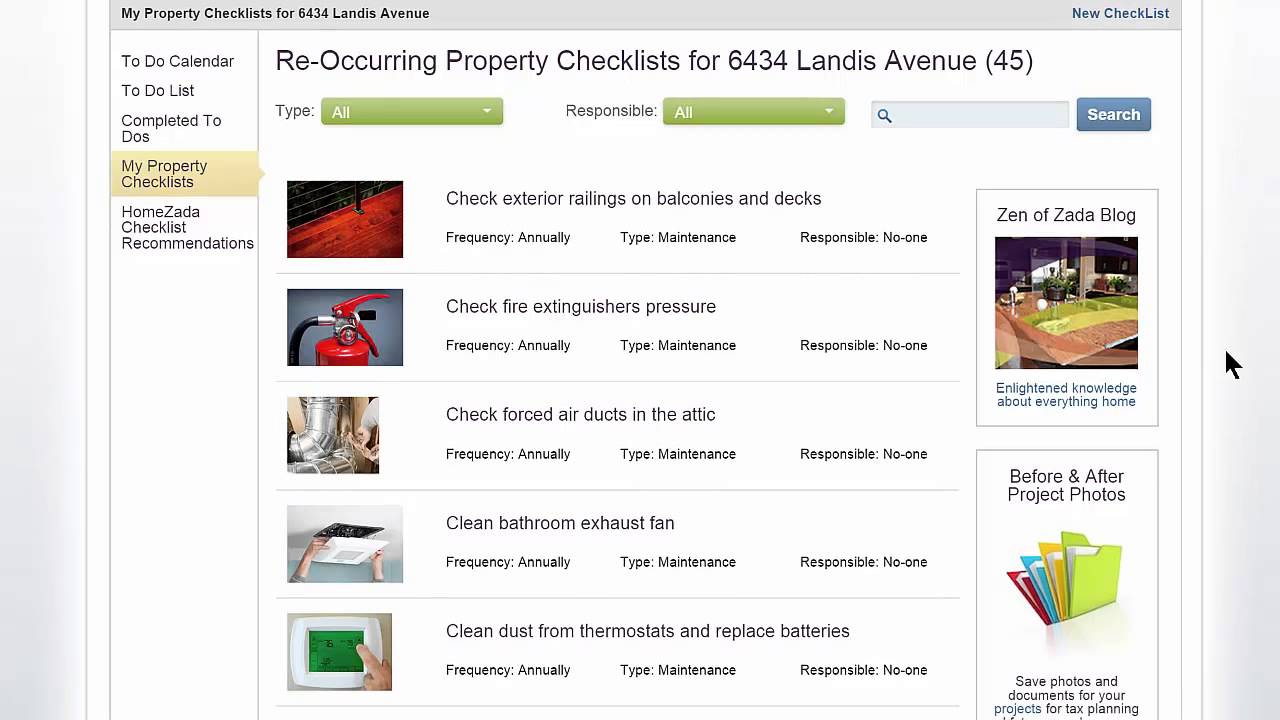
Real estate agents in HomeZada Pro can create properties by entering the address, bedroom and bathroom counts, then share the complete digital package with clients via email. The system automatically generates rooms, maintenance tasks, and lets clients track photos, documents, and home projects.
Chapters
Before you get started creating properties, make sure you've uploaded your photo, logo, and contact information on the My Profile page. Then go to the Properties menu in the upper left, and whether you're a listing agent or a buyer's agent, this is where you're going to create all of your properties. So for this example that I'm going to use in multiple training videos, we're going to be the listing agent creating a new property. The first screen comes up that asks you for the property name, which is where you can either use your client's name or the address. Once you're done filling out the address, just click the Next button. The next screen is where you can enter in the number of bedrooms and bathrooms, which HomeZada will use as a template to create all the common items as long as these checkboxes are checked. Fixed items are all the fixed assets of the house, and if you wanted to be convenient and give your customer the ability to track their inventory, you could include those as well. Let's not include those for this particular example. When you're done, just hit the Save Property button at the bottom of the form. Now you can see your new property has been created and it's shown at the top of the screen. And if you hit the blue Enter button, you can go in and actually see that HomeZada has created all the typical rooms in that particular house. And if you drill into a room, for instance, like the kitchen, down below that you see all the typical fixed assets that you could use to highlight in terms of the features of that particular home. And the other huge benefit is if you go to the Maintenance tab, Homesota has pre-populated a list of common maintenance tasks for this particular house which you can provide in your marketing or as well as when you transfer this to your client in terms of a maintenance schedule. Now let's go back to the property list and symbolize a buying agent scenario. Let's say your buyer just bought 504 Clover Lane and your client is Joan, you could go through the same process and create the property and then just click on this to edit it where you can see you can put in the information. And maybe you want to be a little bit helpful to your new client by basically uploading a few exterior photos of the home. And if you go to the Files and Documents, here's where you can upload perhaps important documents that your buyer— that you collected on behalf of your buyer during the process and you want to give these to them electronically. All you have to do is upload that information, and now just go to the Transfer to Customer and enter in your customer's email address, confirm that email address, and click the blue button. And HomeZada is creating a complete digital copy of this information and sending your customer an invitation to join their own consumer account with all that data automatically populated. Your client gets an email that's got your branding in it, and at the bottom of the email is a link for them to accept their account. Once your buyer clicks on the link, all they have to do is enter in their own password to confirm their consumer account and click the blue button. Now your buyer has created their HomeZada consumer account, and on the dashboard page in the upper right-hand corner, your branding ad is displayed every time that client logs in to use HomeZada to manage their house. And if they click on that particular house, you can see that they have a digital copy of all the photos that you provided for them As well as all the digital documents. And if they go to the Inventory menu, they are now ready to start using HomeZada to manage their inventory for home insurance purposes. If they click on Maintenance, all of the reminders from that automatic calendar are automatically set for them, which is going to remind them of their important maintenance tasks that they need for their home. And if they're planning on any home improvement projects, HomeZada has a series of templates that they can use to now actually manage all of their home improvement improvement projects moving forward. So you can see how easy it is to create properties whether you're a listing agent or a buyer's agent. Thank you.