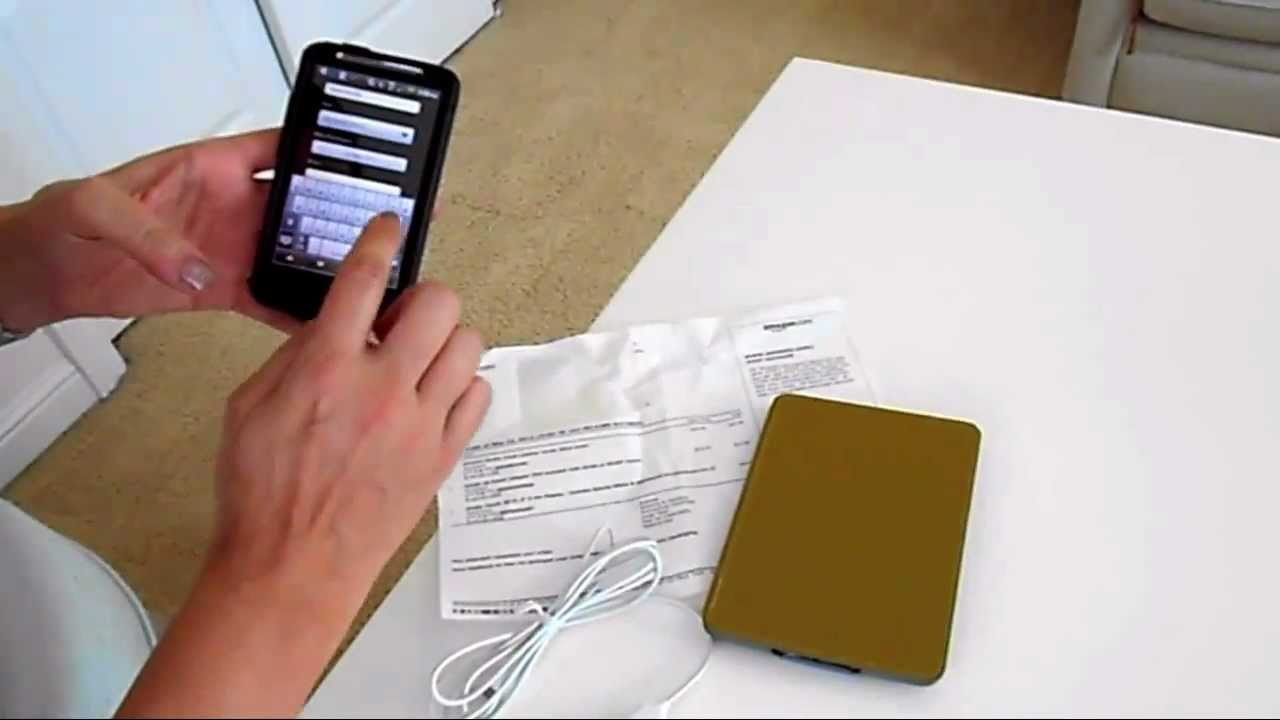
In this short instructional video, Beth Dodson, co‑founder of HomeZada, walks through the process of adding a brand‑new item to a HomeZada inventory using an Android phone. She logs in, selects the appropriate space (Beth’s office), and initiates the "add item" workflow. She names the item "new Kindle," marks it as a personal item, enters the purchase date (May 22 2012), price ($138.98), and vendor/manufacturer (Amazon). After saving the textual details, she demonstrates attaching a photo—either by taking a new picture or selecting an existing one—showing the Kindle and its accessories together. The video ends with the completed entry displayed in the inventory, emphasizing the ease and speed of the mobile interface.
Chapters
Hi, this is Beth Dodson, co-founder of HomeZada. Wanted to show you a quick tip on how to add a brand new inventory item on the fly using your phone. I'm getting ready to go to a party and I remember I purchased this new Amazon Kindle and I wanted to add it to my new inventory. So I've logged into HomeZada using my phone. I use the Android. I'm going to add an inventory item from my HomeZada account. There's my house. I'm going to choose my space, and for this space, I'm going to make sure it's in my office. So it's bedroom 4, which is Beth's office. Imagine that. And I'm going to add a new Kindle. So the way it's going to work is you're going to hit menu, add item, and then I'm going to name it new Kindle. I love my Kindles, by the way. So if anyone has not received a Kindle, then you might want to actually add those. For me, I'm gonna make it a personal item because that's just my choice. I have a date that I purchased it because I just purchased it, May 22nd, 2012. So let me add that to the system. Okay, the price, I know that. So what I did was I picked up not only the Kindle, but I picked up extended warranty as well as The components to add to the Kindle so I can take it on the road and charge it. The total amount was $138.98, so we're going to add that to the system. I purchased it from Amazon, and I know that they are also the manufacturer, so I'll add that in there. And then I'm going to save it. And so there you see it right there, my new Kindle has been added to my new space, in my space Beth's Office. Now I get the opportunity to take a picture. You can take one, pick one, or edit. Well, I've got it right here so I'll just take it right now. I'm going to put the components and along with the Kindle in the same picture, and I'm going to take it and I'm going to click Done. And as you can see, it's saving the picture to my inventory. So I've taken my picture, I've edited all my information, and I've added my new Kindle. As easy peasy as that. We'll be back with some more tips for you in the next couple of weeks.