Beth shows how HomeZada's Snapshot tool captures product links, images, and prices from any shopping site and organizes them by project category like countertops or faucets. Save items, set budgets, and compare choices all in one place instead of scattered bookmarks and notes.
Chapters
Hi, I'm Beth with HomeZada. If you're anything like me, you've probably done a lot of research on brands and products of what you want for your decorative DIY or home improvement projects. And you end up with folders and bookmarks on your desktop that track all of this, but you can never find everything, or it's somewhere in a file cabinet somewhere in your house. Let's take a look at how HomeZada can help you actually manage this more effectively.
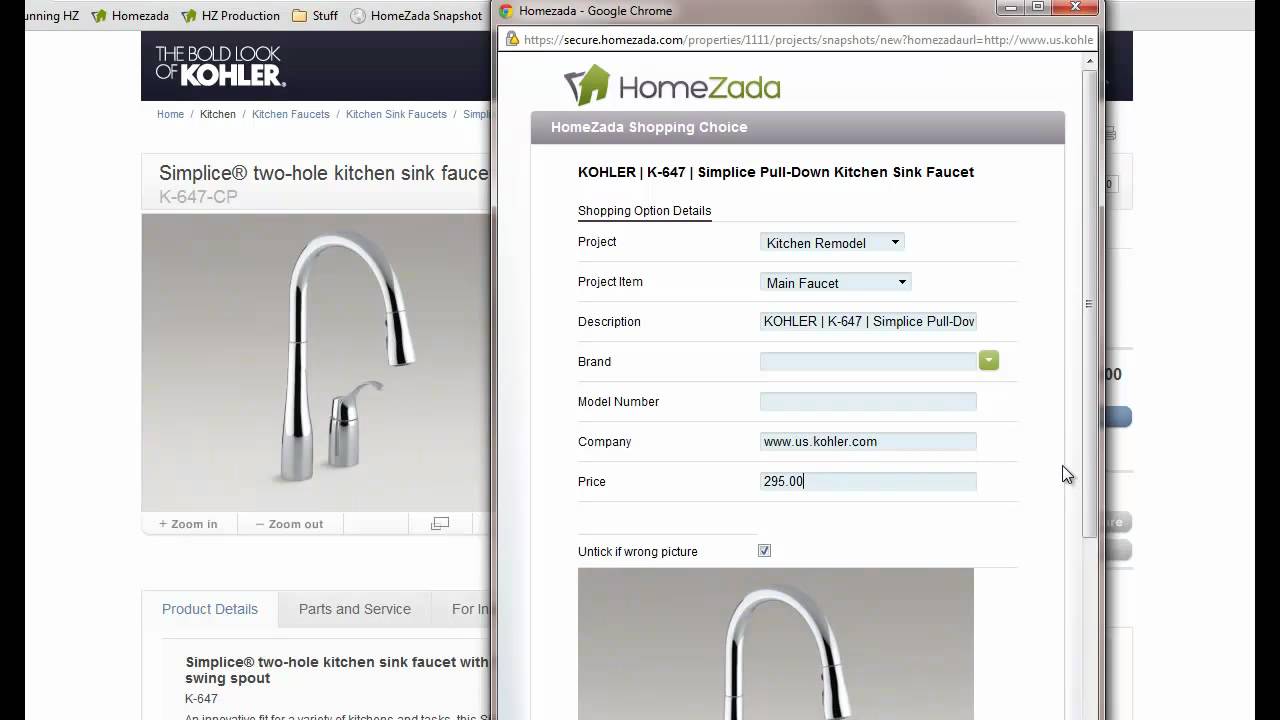
All right, let's get to the exciting part, and that's shopping with HomeZada. If we look to the right-hand side of the screen, we've got this button here called the HomeZada Snapshot. If you drag that up to the top of your browser, that is a bookmarking application that will save your research from other internet shopping sites. We'll get back to that in a second, but I wanted to drill into the kitchen remodel project and select the project items. If you recall from a previous video, HomeZada automatically predicts many of the items that you should be shopping for in many of your home improvement projects. And what HomeZada also allows you to do is go to every single one of these line items if you wish and kind of give yourself a budget. So here I've gone to my countertops line item and perhaps given myself a $1,500 budget. It allows you to go through each individual item and give yourself a budget. But what it also does is it sets the stage for this other tab here called Shopping Choices. Where this is where HomeZada is going to save all of your different internet research from different shopping sites. So you can see here, same, all the items are listed here, but we don't have anything in the grid because we haven't done any shopping yet. So let's go to the fun part and let's go to a couple of sites that we've found some products that we're interested in buying. And when we find a product that we're interested in, for instance, this sink faucet, we just go up to the Browser toolbar and hit that HomeZada Snapshot. And what HomeZada is doing now is basically saving a copy of that URL link as well as the picture, and it's saving it inside of your HomeZada project so that you can refer to it later. And really what you need to do here is pick which project you want to assign this item to because we have multiple projects. So this is our kitchen remodel, and this is our main faucet, and this item was $295. And if we scroll down a little bit, we can hit Save Shopping Choice, and now we've saved that within HomeZada. And this works on a variety of different sites. So we've gone to yet a different site here where we found a dishwasher that we're going to consider. Same thing, we hit the HomeZada Snapshot button, saving the link to this particular site. We're going to change this and apply this to our dishwasher item here, and We're going to plug in the price so they can remember at this point in time it was $499 and hit Save Shopping Choice. And really this works with just about any internet site as long as you drill down into the very specific product page for that particular site. So for instance, we're looking at glass tiles here for our backsplash. Same thing, we hit the HomeZada snapshot and this is Save to the backsplash, and I think the price for this was $350 a square foot. And it's as simple as that. And so when you go back to Homes Auto now and refresh this page, you will see now we're starting to save our shopping choices. So we've got one black backsplash, one dishwasher, and when you click on any one of these rows, it takes you to another page where along the left-hand side you can see all of your different items, and in the center here, all your saved links from different sites. So here's our glass tile backsplash. If I click on my dishwasher, you can see that it saved the dishwasher that I was also considering. And if I went to my main faucet, here was the faucet that I was considering. So obviously you can do this on just about any internet shopping site and save your research so that at some point in time you can come back and make your decision over which one you want to buy. So thanks for watching how easy it is to save your shopping with HomeZada, and stay tuned for more demos from our projects piece. Thanks.