Learn how to run a multilingual broadcast with TranslateLive. Generate a QR code for participants to join without signing up, manage who speaks with raised hand requests, and watch real-time translation work across multiple languages at once.
Chapters
Welcome to this training module. On Translate Live's Broadcast mode, I'm going to show you how this powerful feature allows unlimited participants to join translation sessions from anywhere in the world, making it perfect for presentations, meetings and group events. What is Broadcast Mode? Broadcast Mode is designed for one to many communication scenarios. Unlike our one on one rooms, Broadcast Mode allows any number of people to join simultaneously, each selecting their preferred language for real time translation. Key features include unlimited participants from any location. QR code for easy connection. No registration required for participants. Cross translation between all connected languages to have people join your broadcast room, you are first going to need to prepare your QR code. When you click on the QR code from your host screen, it will bring up a window where you can click the button that says Generate PDF. After you do this, we will email you an image of your QR code that you will be able to put on flyers, post around a room during an event, etc. Participants simply scan this QR code with their mobile device or camera. They don't need to download an app or create an account. When someone scans the QR code, they'll be taken to a connection page where they can select their preferred language. Optionally enter their name and email address.
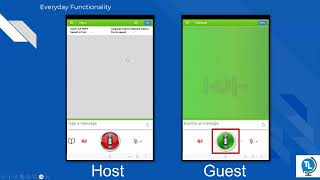
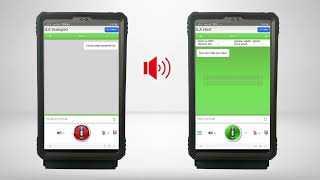
Click the green Connect button. Once they connect, participants enter a waiting room until you start the session. If you've already begun, they'll join immediately. On your host screen, you'll see several important Attendee counter. This shows exactly how many people have joined your session in real time. Clear Room button. Use this to remove all participants from the room if needed. Join Room button Unlike One on One mode, where the guests begin the conversation, the host initiates the session in Broadcast mode by clicking this button. When you're ready to begin, click the Join Room button. This moves you into the broadcast interface which looks very similar to our one on one room. You'll see the same controls you're familiar with the big red Microphone button and the option for Always on microphone mode. In Broadcast mode, the always on microphone is often what is used so the host can be hands free while while presenting. I've prepared a demonstration using three browser windows, each set to a different language. English on the left, Spanish in the middle and Japanese on the right. Watch what happens when I activate my microphone and start speaking. You can see the translation appearing simultaneously in all three languages. This works regardless of geographic location. Participants could be in different countries and still receive real time translation. Key point. Any number of users with any number of languages from any number of locations can connect simultaneously and receive accurate real time Translation Broadcast mode has evolved beyond simple presentation format. Participants can now request permission to speak using the raised Hand feature. Notice the hand icon in the bottom left corner of the participant screen. When they click this, it sends a notification to the host. As the host, you'll see the raised hands counter at the top left corner. The number here will show how many people have requested to speak. When you click on the View button that is at the top of your host screen, it will open the Participant Management panel. Here you'll see a list of everyone who is in the room. Those who have their hands raised will have a hand icon next to their names. I would like to note here that if your guests have not entered their name when they were first logging in, they would be listed here as Guest. To grant speaking permission, simply click the microphone icon next to a person's name. This gives them access to the red microphone button on their device. Here's where the Broadcast mode really shines. When a participant speaks, their words are translated not just back to the host, but cross translated to every other participant in their selected language. Watch as our Spanish speaker asks a question. You can see it translating to English and simultaneously to Japanese. For our other participant, you can grant speaking permissions to multiple participants simultaneously. This is particularly valuable for small group meetings where everyone needs to communicate across language barriers. Example Scenario Imagine a business or parent meeting with four to five people each speaking different languages. Grant everyone permission to speak and as they communicate, everything gets cross translated so everyone understands each other in real time. Important as the host, you maintain complete control over who can speak at any time by enabling guests microphones on their devices. When you're ready to conclude your broadcast session, click the blue end button. The system will ask you to confirm that you want to end the session. This prevents accidental disconnections during important presentations or meetings. Broadcast mode is ideal for international presentations and webinars, multilingual conferences and events, Commencement ceremonies and other large events Training sessions with global teams Community meetings with diverse language speakers, educational workshops and seminars, and even classrooms. Remember these essential points about broadcast Unlimited access Any number of participants can join from anywhere in the world. Easy connection QR code scanning requires no downloads or registration Real time translation Simultaneous translation across all connected languages Interactive control Host manages who can speak while maintaining session flow Cross translation Participants communicate with each other, not just the host. Broadcast Mode transforms how you communicate across language barriers in group settings. Whether you're presenting to a global audience or facilitating a multilingual meeting, this feature ensures everyone stays connected and understood. Try using Broadcast Mode and experiment with the features we've covered today. For additional support or questions, contact our training team. Thank you for completing this Broadcast Mode training module.