Download and set up the AILA app on iOS or Android, sign in with your company or school code, then join a session using a room code, QR code, or web link. Use press-and-hold to speak, toggle text-to-speech on, and speak in longer phrases for better results.
Questions this video answers
www.translatelive.comdownloads
www.123isla.com
www.translatelive.com help
Chapters
Welcome to the AILA App Setup and Basic Functionality Training. During this training, we will cover how to download and begin using the AILA app. The first step is to navigate to www.translatelive.comdownloads.
If you are using an iOS device, select the Apple iOS button. If you are using an Android or Google device, select the Google Play button.
This will take you to the AILA download page.
Download and Install AILA App.
Now that you have downloaded a, Tap the AILA icon to launch the AILA app.
You will be prompted with the ILUST setup procedure. Select your language and dialect.
Then select Start.
Select I am with a company or school and I have the information needed to use their plan. Enter the name that others will see. This can be any name you'd like. Enter Enter your email address.
Enter the setup code given to you by your company or school.
Select Verify and accept terms and services after review. Now the AILA is ready for use.
Here is the AILA app homepage. On the center of the screen you will see your room code. This room code is specific to your device. There are multiple ways guests may remotely join your session. Guests may navigate to www.123isla.com and enter your room code. Scan your QR code located at the bottom of your home page or join via web link which you can copy and share. Once the guest has selected a name, language and dialect, the session will automatically start, allowing both parties to communicate freely.
You may join another AILA host by selecting the Join Remote Host button located in the AILA Host menu.
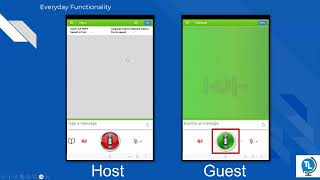
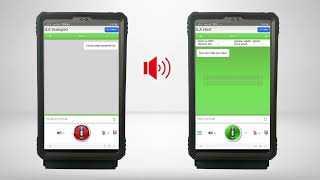
While in an interaction, locate the Settings button. Here you will have the ability to customize the size and colors for the displayed text, as well as options to turn on and off text to speech. Once a session has started, simply press and hold the microphone located at the bottom of the app. As you speak, the AA will capture your words and begin translating them. Once you release the button, it will translate what was said to the guest device and even speak the translated text out loud if text to speech is enabled and the selected language supports this feature.
Now let's talk about the buttons down by the microphone button. To the left of the microphone button we have the speaker button that can toggle on and off text to speech. To the right of the microphone we have a smaller microphone icon.
This will toggle on and off the Keep pressed feature so that you will not have to hold the microphone icon down to speak through the ayla.
Lastly, this icon will show or hide the Type A message section.
There are a few best practices to keep in mind when using the aila.
First and foremost, the translation engine is very context driven, so the more you say, the more accurate the translation will be. For example, if you give a one word answer, the islet doesn't have enough information to be accurate if that word has multiple meanings. Let's say a guest is asking where a specific building is and you respond with building 17. The is doesn't know if you mean building number 17 or that you're constructing 17 of something and it has to guess where. If you were to answer with it is in building number 17, the ISLA will fully understand the context and translate properly.
In addition to this, the AYLA works best with clear pronunciation spoken at a good volume. If you follow these best practices, the ISLA will not only understand you clearly but but it will also be very accurate and quick with its translation.
Now that we know how to join a session and also know the best practices, you can go back and forth as you would during a normal conversation. Just be mindful to hold the microphone icon down when speaking.
Once your conversation is over, simply tap on end to stop the interaction.
Once the interaction ends, the AILA app host will be taken back to the main menu.
This concludes the AILA app basic training. For additional information such as best practices and frequently asked questions, navigate to www.translatelive.com help.