ChatGPT Image Prompt Generator + Library BEST IMAGE PROMPTS for 4o new Image Feature GPT v4o
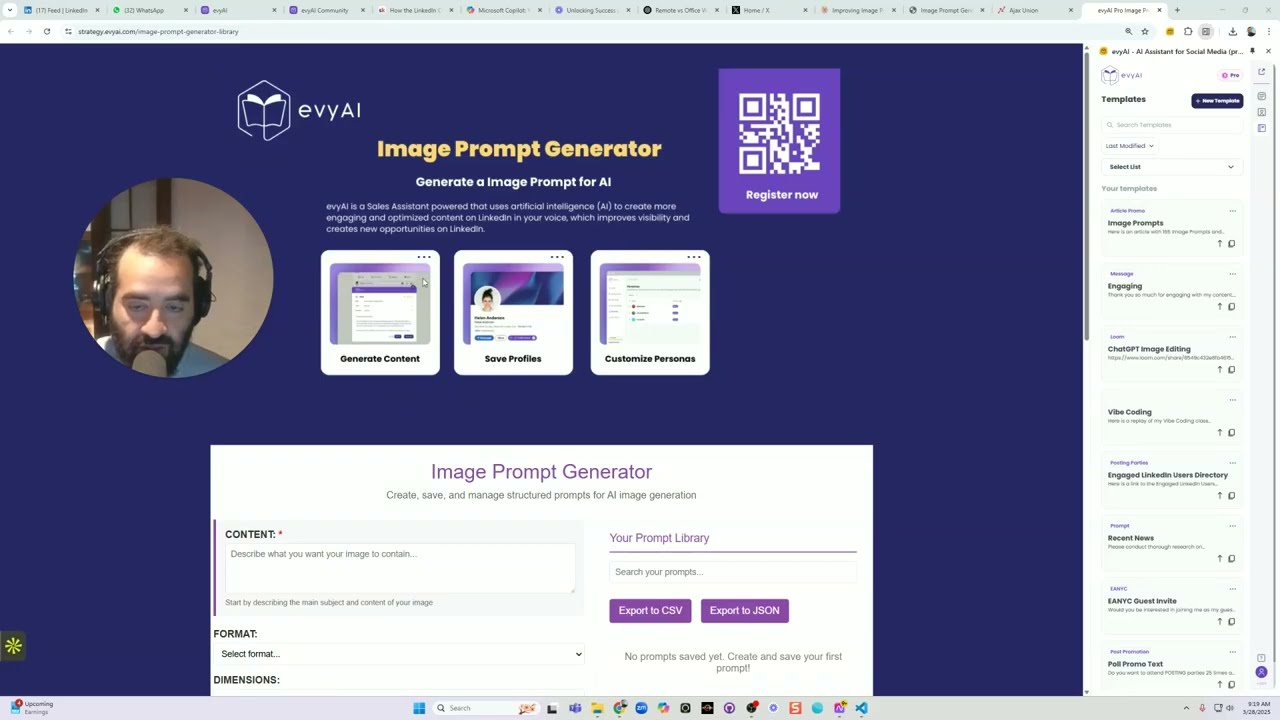
Joe Apfelbaum walks through Evie AI Pro's Image Prompt Generator, which lets you build detailed prompts with voice input and visual parameters like style, color, and layout. The tool saves prompts to a library, exports them as CSV or JSON, and feeds them into GPT-4o's image creator to generate graphics. You can also auto-write LinkedIn posts with Unicode formatting and schedule them directly.
Chapters
One of the benefits that we make available to Evie AI Pro users is that we have a suite of tools, over 3 dozen tools, and we're building more. One of them is called the Image Prompt Generator, which also has a prompt library. So if you want to quickly compile a library of prompts that you can use to create infographics inside tools like ChatGPT, check this out. I created this infographic this morning using our prompt generator. So how does this work? How does the prompt generator work? Well, you have to first write, describe your content. So how would you want to describe your content? So for me, the way that I would want to describe my content is I click on the microphone on the bottom right inside Evy AI, and I say something like, create an infographic that describes how technology works within the marketing funnel. So there are 3 steps to the marketing funnel. There's the top of the funnel, the middle of the funnel, and the bottom of the funnel. And I want to be able to clearly explain to people how to use the funnel, but within LinkedIn. Top of the funnel are people that you don't know very well that you want to create awareness for. Middle of the funnel are people that know you, but you want to build trust with. And bottom of the funnel are people that you've spoken to and you want to turn into customers because they're qualified leads. Okay. So now that I have this done, I spoke it. I'm going to press the up arrow. It's going to go into here. You see, I press that up arrow on the right. It goes into here. Okay. So now I want to select my format. So the format is I want a process explanation. So there's different, different formats. You can do a meme, you can do a chart, a flowchart. You can actually pick any, anything that you can think of, but this kind of helps you by guiding the process. The next thing is the dimensions. I'm going to want to do it for LinkedIn. So make it a little bit big, just like this. Then the style will be, um, You know, I have many different styles. I'm going to do corporate and professional. The color scheme is going to be more of a pastel palette. The typography is going to be, I kind of like a playful mix of fonts. So we're going to do that. And then we're going to do layout. We're going to do a split screen comparison, left to right progression, hierarchy, top-down flow. I like the hierarchy top-down flow, but in this case, just to kind of Just to kind of make it interesting, I'm going to do a Z pattern reading flow. And then we're going to do visual elements. We're going to do custom iconography set, data visualization charts, photorealistic images. We're going to do— I like the custom iconography set, so we'll do that. And then of course branding, we're going to do watermark throughout, centered logo on the bottom, co-branding opportunity, no branding. I'll just do white label, no branding needed. And then of course, inspirational, motivational, we'll do that. Or we could do professional and corporate, we'll do that. And then audience, it's going to be mainly for marketing professionals, so we're going to do that. And then the call to action is going to be download full resource, we can do that. Limited time offer, scan QR code, save for future reference, that'll be that. And then prompt name is going to be, the prompt name will be how technology works within the marketing funnels. Okay, so I'm going to go down over here. I'm going to call it that, and then I'm going to hit generate prompt. When I generate the prompt, it takes the content from the top and all the different things that I said here. Now I want to save this to the library so I have it later, and I could always export all my prompts right from here. This all saves it on my computer. It doesn't save it to the web or anything, but if you want to create a bunch of different prompts, you can use this technology to create a bunch of prompts and then export them as CSV or JSON And you have, or you could just keep them here and you can use them as often as you like. So now let's say I want to use this to create an image here. I'm just going to use the Advanced 4.0 Image Creator, and you're going to see it's going to just create an image based on these factors. And we'll come back to the image based on the factors. I want to talk about Evie AI for just a moment. Evie AI is a sales assistant that will enable you to be able to do some pretty fancy things online. For example, I want to write a piece of content related to what I just did. So I'm just going to take the same thing that I said here, and instead I'm going to go here and I'm going to select my persona, which is a posting template persona. I'm going to hit generate, and it's actually going to write a very solid post that I can use on LinkedIn. And I'll be able to inject it right into LinkedIn by clicking the insert button once the post is written. And the beauty of this post is not only is this a really good post, it also includes bold text that works on LinkedIn. We do that using Unicode. It's very specific in the prompt. And we have an entire library. If you go to our classroom, we have hundreds of different resources like links and texts and comments and templates and tutorials and classes and persona examples. We have so many different persona examples for everything that you can do on Twitter, Facebook, Instagram, YouTube, email, messaging, blog. Whatever, and just keeps going on and on and on. So definitely join our community. Evie AI is one of the most powerful assistants you can have in your business because it helps you with generating content, which includes posts, comments, messages on every platform, emails, summarizing YouTube videos, whatever you need it to do. But it also helps you organize your network. So I have a list of people in many different places from different worlds. So for example, if I want to see all the people that were on the Marketers Cruise, I just load this list up and it shows me all these people. And if I want to research any of them, for example, maybe I want to research Diane, I just click on the little AI research button and I can use 5 different agents. I'm going to use this one right over here. And it pulls up all her information really quickly. And if I don't get the information that I like from this particular agent, maybe I'll pick another agent to go off and do research on this person. And it searches the web, finds all the information I need about the person, their target market, their key services, their solutions, how she helps clients. And you don't have to prompt or anything. It's just a click of a button and it pulls all information. And often it'll get their email address, sometimes their cell phone number and all this information. So it's really, really helpful. All right, let's go back and take a look at what prompt it built. So now you could see it made this funnel here. You see it's a little cutoff here. So what I'm going to say is, I'm going to go here and I'm going to select this area here and select this area here. And I'm going to say, fix the text to make it fit and make it look good. Okay, I'm actually going to go here, grab here. And do this like that. I'll do the whole thing here like that. Okay, and let's just see what it does. Let's see what it does. All right, I'm gonna hit go, and let's see if it does it correctly this time. Sometimes it kind of has things cut off, but you can just tell it to fix it. But the, the, the generator is really powerful. Now you can push a button called Get Lucky and it'll just create a prompt for you, a random prompt. So I'm going to hit Save to Library, Get Lucky, Save to Library, Get Lucky, Save to Library, Get Lucky, Save to Library. So as you can see, it's just creating, it's just creating tons of prompts for me that I could use. So I have the one that I created and then they have the ones that the AI is creating here. And there's so many of them that you could use to— I mean, it's just endless amounts of prompts that you can create. You could just keep hitting get lucky, generate prompt, get lucky, generate prompt, and then just generate tons and tons of examples. And this doesn't use any resources. So, you know, all Evie AI clients have access to this. If you need the access to this technology, just let me know. I'm happy to send you the link to this technology to be able to support you and help you in your business. So It's still designing this here right now. I want to show you something very interesting. So if I want to see Diane's recent posts with Evy AI, I just click on recent activity here and I'm able to pull up all of Diane's recent posts. So you see she has a post over here that she did 20 hours ago. I'm going to go ahead, like the post. I'm going to go into the AI writer in the side panel, and then I'm going to select my persona related to leaving a solid comment. And then I'm just going to hit generate. Now I can drag the text from LinkedIn into the side to give it context. And now it understands exactly what's going on. So I'm curious, Diane, how do you see the role of laughter overcoming challenges? You see that I asked her a nice little question there. Now if I want to pull her up on, say, Facebook, I just click on her Facebook icon right over here. And I'm able to pull her up on Facebook. As you can see, I see her on Facebook and I want to leave her a comment on the thing that she did March 1st. So I'm going to go in here, I'm going to click here, I'm going to type in Facebook. So here's a Facebook post response or a Facebook comment reply. I'm going to do a Facebook post response. I'm going to select the text that I want to respond to just like this, drag it to the right, and then hit generate. If you can't drag it, you can right-click and copy. We also have the ability to send to sidebar using this tech, but it doesn't work on all computers. I'm going to hit copy over here. I'm going to press comment, and now I just left her a solid comment. Then if I want to be able to do this on any platform, on Skool, on Twitter, inside Facebook groups or wherever. The idea is to go into Evvii AI, hit login, and then on the left side, click on personas, and then you can literally create any persona you want. So for example, this is one I have for Twitter. I'm gonna press edit. This is create a tweet as Joe Apfelbaum, CEO of Evvii AI, the author of High Energy Networking, blah, blah, blah, blah, blah. And then it basically says what you should do, your voice, your banned phrases, anything that you want. All right, let's just see what it did over here. And as you can see, it did not fix the text. It doesn't look like it fixed the text over here properly. So I'm going to press download. Let's just see what it looks like. It looks like it's still cut off here. So I'm gonna have to play with this to make it work better. But as you can see, um, it's— there's definitely something here to be able to— let me just see why the— did I tell it to be cut off? No, I didn't tell it to be cut off. So let me go here and say 1200 by 1200 and see if it does something better. I'm going to go in here, create an image, and I'm going to say 1200 by 1200 and hit go. Let's just see what it does. We're doing this in real time, see if we can get it right. I don't know why it's still getting cut off even though I'm telling it not to be cut off, but the idea is you you have a beautiful prompt that you can use over and over and over. And this is the dumbest the AI is gonna be. It's gonna get smarter and smarter and smarter and smarter over time. So watch what happens. And you can actually drag in something that you have for your own brand into here and it'll design it in the colors and fonts and look and feel of your brand. So this is the latest and greatest technology. Hopefully— It'll fix it, yep. So now I made it wider and now it actually fixed it correctly. So we'll wait for that to load and then we'll use Evie AI. So you can go back over here in Evie AI and grab that post. So I'm gonna copy this post. I'm gonna go to LinkedIn. See, I go right into LinkedIn. I'm gonna hit start a new post, get ready to post that infographic, and I'm just gonna press insert. And instead of posting it today, I'm gonna schedule this post to go out in the future. So there's a little schedule for later button on the bottom right of LinkedIn, and you can schedule the post. Well, let me quickly read this. In the world of marketing, we often think that to dive straight into the end to make a splash, but what real magic happens is the gentle ripples of connection. Building relationships through referral marketing. How can your funnel grow? Top of the funnel, middle of the funnel, bottom of the funnel. But here's where people get wrong. The key takeaway, blah, blah, blah. What strategies have you found effective? Okay, this is very good. It's a very good post. I really like this. So I'm going to go here, grab this, amazing reference image that I created. Now, if I want this to be in the colors of my brand, I can tell it to make it in the colors of my brand by giving it the colors of my brand. I could even just take a screenshot of my company. So I'm going to go here. I'm going to go to ajaxunion.com. I'm going to take a screenshot of just my website, just like this. I'm going to grab a screenshot. Let's see if I can take a screenshot right now. That'll be interesting. And by the way, what we're doing is we're doing something called vibe marketing right now. Joe, text me. Okay, text me, thank you. We're doing something called vibe marketing right now. What? Tell me bye. Okay, come back, thank you. Okay, so I, now I have this like this. I just took a screenshot of this image. I'm gonna take another one here. Let's just see if this works. Okay, so now I have a screenshot of this image. I'm going to go into, into this conversation. I'm going to paste the image and I'm going to say, create the same infographic with the Ajax Union brand colors. Okay. I'm going to press go and let's just see if it's able to, detect the brand colors of Ajax Union and kind of make me a version of this that looks like the Ajax Union brand colors. And of course I can train it using a custom GPT to automatically know my brand colors and my palette and my styles and everything. And then I can even use something called GPT tasks to automatically create images for me on a daily basis, on a regular basis. So look at that. It's already Picking a much darker color than the colors it had before. And one of the things I also like to do is I like to first chat with it a little bit about what I want to create. And then once I chat with it about what I want to create, it can then use the things that we chatted about within the image. So instead of it just trying to figure out what I want in the image, I can kind of talk to it a little bit for a couple minutes and, and be able to do that. But, you know, what I love most about this prompt generator is that it helps me format the prompt, that helps me format this in a really organized way. Anyway, hope you enjoyed watching this video. I'm going to wrap up because I have to hop on a call. But yeah, I'm just excited about, about sharing this information and disseminating it. So if you like this, go ahead and share it. And yeah, let me know what your thoughts are about this technology and let me know if you want access to it. All right. Talk to you soon. Boom.
More from Joe


How to Beat the Algorithm: Remove Hidden Watermarks & Scale Content with evyAI









AEO & GEO: SEO's Future Explained! Master Answer & Generative Engines! #shorts