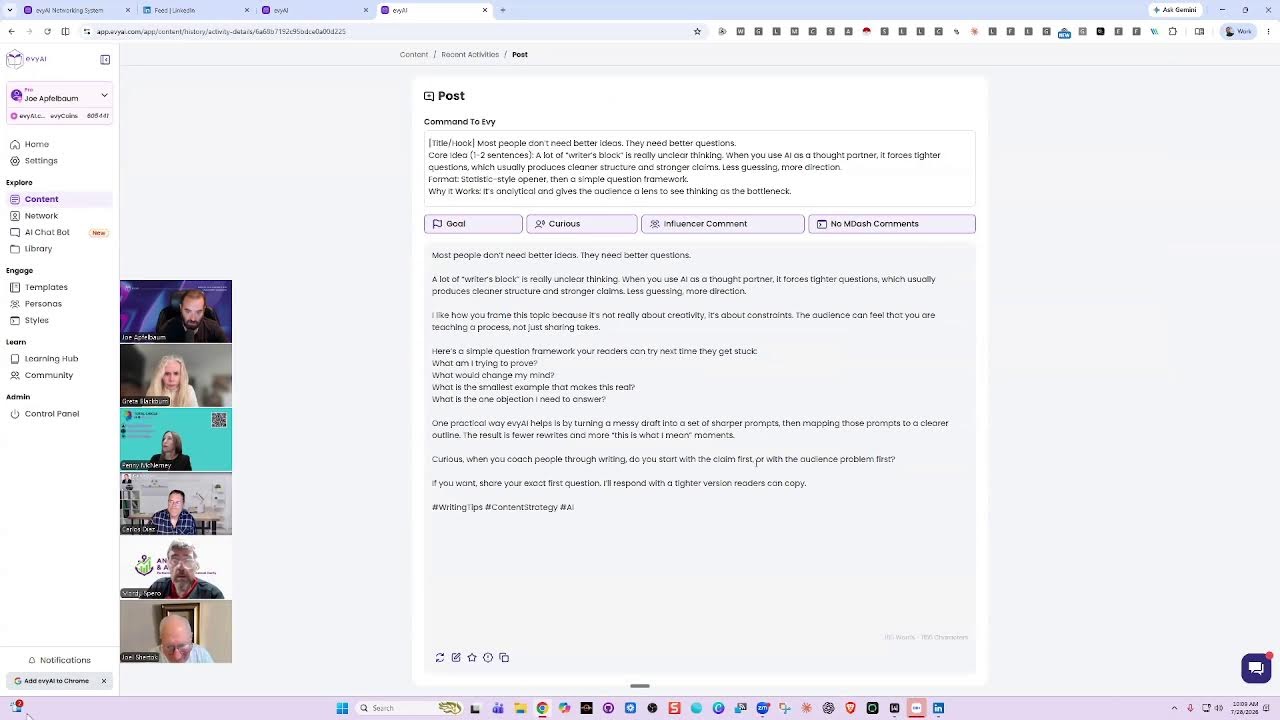
Joe Apfelbaum walks through using Evvy AI to generate LinkedIn post ideas and images, then publish them. He shows how to use the Idea Generator, pick a concept, create an image, and read the post aloud to make a video version automatically.
Chapters
Just go to evyai.com. On the top right, click login. And then what we're going to do is we're going to create an idea with the idea generator today. Then we're going to write a post and we're all going to publish our post on LinkedIn. We're going to do it all together right now. So as soon as you're done with your post, write done writing the post, write done. And then I'm going to teach you how to create an image for the post. Okay, we're going to teach you how to create an image for the post. So if you're having a hard time logging in, let me know and I'll get my team to help you in a breakout room. Rabbi Daniel, if you're having a hard time logging in, just write need help and we'll put you in a breakout room with someone from our team. Yes, can I do that? Yep. Juan, can you get into a breakout room with him and help him with his technical issues of logging in?
Habiba and Isa, go to the breakout room and please help.
Thank you. Okay.
For sure.
So we're gonna put you in a breakout room now with one of our team members, and we're gonna help you log into Evvy AI. Okay?
Thank you.
All right, so guys, what would you say is your biggest challenge when it comes to using LinkedIn? I want you to think about that. What is your biggest challenge?
Just one second. Jen, Jen, are you here? Did you make breakout rooms? Please unmute and let us know. I have a breakout room created.
I am sending Rabbi Daniel to the breakout room. Aiza is there. I'm also sending Habiba to the breakout room.
Great. Thank you, Jen.
Someone just invited me to his wedding. A client called me up and he's like, Joe, I'm getting married on Thursday at 11 AM. I said, I have to go to a networking event. I'm sorry, I can't make your wedding. Oh my God. Go ahead, Greta.
So I went to LinkedIn and I did start a post and now I can't find the Evie AI place where that you went to that was the comment and do all that. Sorry.
Do you know how to open up? Yeah. Do you know how to open up a new tab and go to the website called evieai.com? And click on contact on the left side.
Well, I've created bookmarks all over the place. This shouldn't be that hard for me to do.
That's okay. That's why we have office hours. If you can't figure this out now, don't stress out. Let's not focus on this. If it's easy enough for you to do it, then let's do it. If you can't figure it out now at 12 o'clock today, come share your screen and we'll walk you through step by step. This is more of a mastermind, but I also want you guys to take action if it's easy enough to do. If it's not easy enough to do, Write down as your action item, I need to learn how to post on LinkedIn and then come to office hours. That'll be your action item. Come to office hours and you'll learn how to master it. You'll learn how to post. You'll actually write several posts and you'll schedule it out into the future. Okay? So don't stress out, Greta. You don't have to get it done right now. If you knew how to do it, it would take you not even a minute and you would do it. I'll do it again just to kind of show you guys how quickly I'm able to generate it. I log onto LinkedIn, I log onto Evvy AI, I click on content on the left side. I click on idea generator. I type in what I want to generate an idea about. 4 ideas show up. Then I take one of the 4 ideas that I like. In this case, I took this one and I press create a post. When I press create a post, a post appears. This is what the post looks like that just appeared. Took 2 seconds for the post to appear. If I like this post, what I'm going to do is I'm going to copy the post and then I'm going to go back to content and I'm going to click on image generator. Do you guys see it says image generator on the top right here? Now in the image generator, I have lots of images that I created already. You see? So I can select an image that I already have that I like. For example, I really like this image of me sitting at a coffee shop. I also like this image of me sitting here and at a sitting with a with a book. So I'm going to download this image of me sitting with a book, and I'm going to look at it. You guys see I'm looking at this image. Now what I can do is I could zoom into the image if I like, and I could take a screenshot of the image. That's what I like to do is I like to take a screenshot of the image because when I take a screenshot of the image, it gives me, it cropped out in the way that I like to crop it out. And so that's what I'm gonna paste into LinkedIn. Okay, I'm gonna click on start a post, paste that image into LinkedIn. I'm gonna go back into Evvy AI to the content section. I'm going to open up the post that I just created, press copy, and I'll go back into LinkedIn and paste it in here. Now that I pasted this post in LinkedIn, I'm going to read it. Guys, it's important for you to read your post. So I'm going to read it out loud to you. And by the way, when you read your posts out loud, that means your post can turn into a video. Do you get it? Your post can turn into a video. So if you read your post out loud in front of the camera, that's a video you just created. So I'm gonna watch me create a video right now. I'm gonna create a video on my phone. I'm gonna put my camera on, on my phone. I'm gonna turn it into my, to my, towards myself, and I'm gonna look at the screen and just read. You ready? Most people don't need better ideas.