How to build a Basic Make.com AI Automation and then Build a DETAILED web application via API
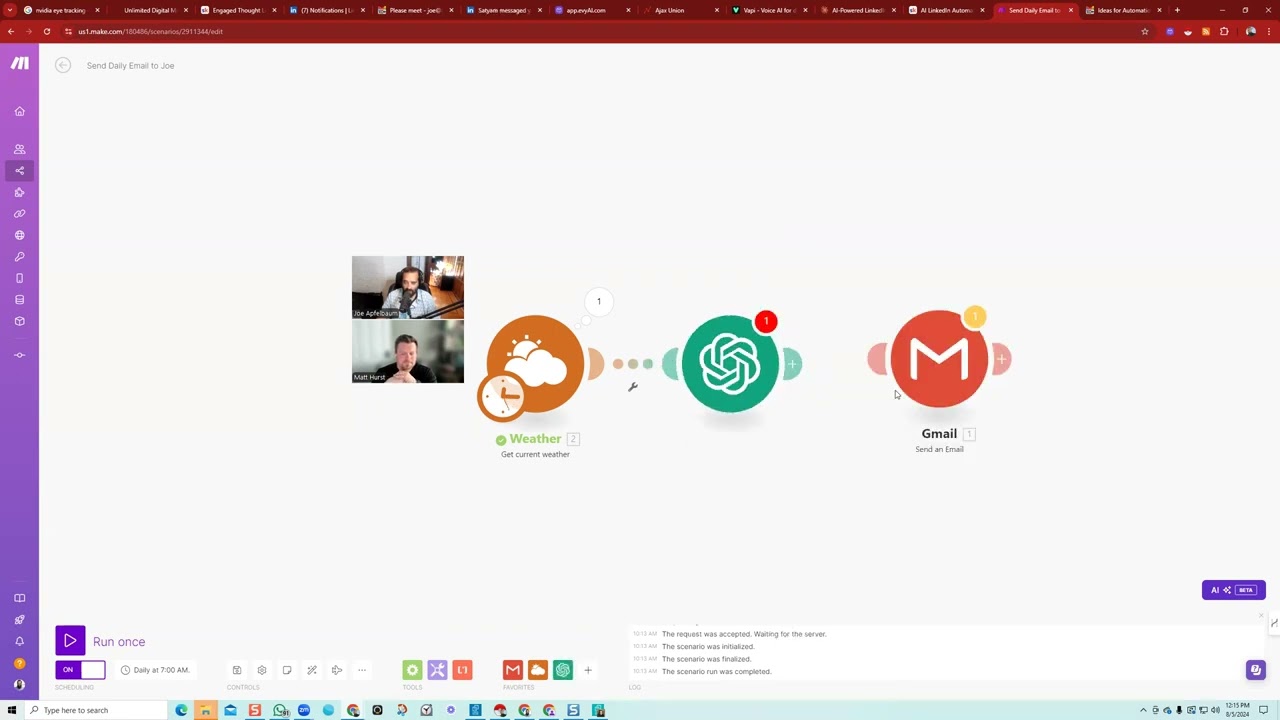
Joe Apfelbaum walks through building a LinkedIn persona creator on Make.com, starting with basic automations like scheduled emails enriched with weather data and AI-generated content. The full project combines a webhook, a Replit UI, Claude and ChatGPT for prompts, and Make.com orchestration, then publishes it on a custom domain via GoHighLevel.
Chapters
Welcome to the community. Good to see you, Matt. Thank you for joining us. Thank you for being a member.
There we go. I think that should be working now. No, it's all good. How are you? You okay?
Doing wonderful. I'm doing wonderful. Yeah, I'm so excited that you have become a member here. That's awesome. Do you know how to use Skool? Or you want me to give you a little training on how to do that? Or you have any questions you want me to answer?
So somebody I work with actually has their own, so I'm a little— I'm familiar with it. Yeah, I am. I am familiar with it.
If you ever have any questions related to AI automation or anything or LinkedIn, you could always just put in your title, your comment here, and then you could just write that it's a question that you need support or you have some stuff so you can get involved in the conversations. You could also search for anything on the top here. And then if you click on the classroom, you're able to see all the courses and replays. I would recommend watching this LinkedIn profile optimization course. It's a pretty short course. It's only a couple minutes long, but it takes you through all the different elements of your LinkedIn profile that you can do. And if you ever need sessions like training replays, we do trainings twice a month. And so you can catch the last 3 months worth of replays over here for different trainings on automations. And we do the coworkings over here. And then every time we do a coworking session and it's interesting, well, if it's not interesting, we're not going to post it. But if it's interesting like this one, hopefully with all your questions, it'll be super interesting. We'll, we'll post the replays here of the coworking. And then we have other stuff that we do on a regular basis. There's always tips going out and there's always questions people are asking. I'm always posting videos and stuff. So whenever you see anything here, if you like it, just make sure that you leave a comment on it so that I know that you watched it. You know, like it and leave a comment on it with your thoughts or with your questions or whatever. And feel free to ask as many questions as possible. The more questions you ask, the better, the better the community is for everybody. So get involved. And that's it. That's that. Now, in terms of make.com, what is your, what would you say is your expertise level on make.com? Like how well do you know how to use it?
Beginner. So I'm gonna hold my hands up and say that I found out about it. I think it was yesterday when I mentioned I, I found your, your YouTube video. So that's like the first interaction I've had with, with make.com, to be honest.
Okay. So the first thing that you wanna do is you wanna create a free account. Did you create a free account yet?
Not yet, no.
All right, so you could create a free account on the top right where it says start a free account. It's really simple, you just click on start a free account and then you could either register with your Google or you could put your first name, your email, your password, and then sign up for free. That would be the first step. I'm gonna press login for myself and this is what it looks like. When you're logging in, you can have multiple organizations that you're part of. So for example, if you have an agency or you're part of other companies, you can have other people that are in those things. I'm gonna just go to my private one, make.com, Joe Apfelbaum Make. And then as soon as you get in, you're gonna see a, a little dashboard with your organization and then how much operations you used and your data transfer. So they give you 1,000 operations for free. I'm on the annual plan for $108 where I get 10,000 operations a month. This month I needed more operations cuz you can see I used 15,000 so far.
Mm-hmm.
Every time anything happens in a module, an op— it takes up an operation. There are some of them that are automated and there are some of them that are just trigger at certain times. I'm gonna show you how that works real quick so you can understand that. But this is one of the many automation platforms that exist, and this is the one that gives you 1,000 automations for free. I used this for 2 months straight with doing all types of automations before I actually paid for it, just FYI. So I was able to do a lot before I even started to pay for it. So the first thing that I would want you to learn how to do is to send out an email.
Okay.
So, um, each day I want you to send out a daily email to yourself. So this is what the daily email module looks. So you just, um, all you would need to do to really get started is you go to the top right where it says create a new scenario. Do you see it says create a new scenario on the top right?
Yep.
When you create a new scenario, this little purple box opens up. This little purple box is where you add the modules to the scenarios. So the scenario is what workflow you're gonna do, what step-by-step process is gonna happen in the automation. And the modules are what are the actual apps or connectivities that you're gonna have? What are the different things that are gonna happen? So if you wanna do Gmail, you type in Gmail and then you can add Gmail to it. And then when you click on Gmail, it asks you, okay, what do you want to happen within Gmail? What are the triggers and what are the actions? The triggers are like, If you want to look for like new emails that are coming in, that's a trigger. Actions are what do you want it to specifically do? So in this case, maybe I want to send an email. So over here I would click on send an email. You see that? Mm-hmm. And now it's already connected to my Gmail. If it wasn't connected to my Gmail, you would have to, um, connect it, go through the process of connecting it by hitting add and connecting it. And now that it's connected to my Gmail, I just have to fill out these forms. So what would I fill out? So over here under add a recipient, who wants to get it? So if I wanna send the daily email to joe@ajaxunion, I'll just type in joe@ajaxunion, just like that. If I wanna send the subject, it'll be like ideas for automations, and then the content would be idea 1, idea 2, idea 3. And eventually we can have AI fill in what's in here, the idea 1, idea 2, idea 3, whatever. But at least you're learning how to do this. You can also add attachments, and if you click on map, you can map specific fields to specific And then if you show advanced features, you can add a copy recipient, you can BCC recipients, and so on. You see that? And you could also change the from.
Okay.
Okay, so I'm going to press okay here. And now this module's set to go. So when is this module going to go? When is it going to go? So on the bottom left, you see where it says on or off scheduling? Right now it's off. But if I want to turn it on, I first select the frequency that I want to turn it on for. In the module set, in the schedule settings. Do you see here? I clicked on where it says every 15 minutes. I clicked on that and I can say at regular intervals, once, or on demand. So in this case, I'm going to say, send it to me every day. And then I can pick a specific time. I could pick AM or PM. So what we're going to do is send it to me every day at 7:00 AM. Okay. So now at 7:00 AM every single day, I'm going to get this email. And I could also do a show advanced options. I can do it started at a certain date, ended at a certain date. So only do it for 10 days or whatever. I press OK, and now it's ready to go, but it's still off. The automation is still off. You see that? So I'm gonna press scheduling turned on, but I can't turn it on until I save the automation. So on the bottom, it was here where it says save. I can press save and I just saved the automation. You see that?
Yeah.
So just to recap, what I did was I created a new scenario. I added a module called the Gmail. I selected within the module, send email. I opened the settings of the module. I put in where I'm sending it to, the subject line, the contents, and then I saved the scenario. I set the time for daily at 7:00 AM, and then I turned it on. So now it's gonna run once a day, every day, and every time it runs, it uses an operation 'cause it's doing one thing. That's one operation. If I added another module to it to say, okay, after it sends the email, send another email to another person, or— go into a spreadsheet and log that it sent the email, I can do that. You get what I'm saying? So you can add a whole chain of operations over here that happen every single day. I can say send the email, then go into ChatGPT, look for a response, get whatever. You can do the whole thing. But your homework, to keep it really simple, and anybody else watching this video, your homework is to send yourself an email every day. Can you do it? It's a challenge. That's the first thing I always tell people to do when they're getting Make.com. Connect your Gmail. Somebody, somebody, uh, a different student tried to do this and they're like, I, I just can't figure it out. If you can't figure out how to send yourself an email every single day from make.com, then get a tutor, get someone to sit with you for an hour a day for the next month to figure out how to do this automation, because you can't do anything else if you can't figure out how to do this. Cuz this is like the basics. Now you can also name your automation on top. You see, it says integration Gmail. I recommend naming it. Send daily email to Joe. Okay. You see, it says it over there, send daily email to Joe. And then the contents of it is over here. Okay. Now, um, you see this little time thing, you can move this little time thing, which is usually the what's connected to here. So if I had another module and I wanted to make that the first module, I would move the time thing from this module to that module. And I'll show you how that works in real time when we work on actual automations. But we just created an automation.
Congratulations!
Ta-da! Let's see if I can get a round of applause. That's the wrong one, Matt. We did it! We created an automation. How cool was that to see this in action and to be able to actually have an automation done?
You you made it look so simple, right? So yeah, definitely going to do this.
A lot harder than it seems because once you start doing it, you're going to have. You're gonna have questions. You're gonna be like, what do I do? I'm stuck here. You'll take a screenshot, you'll put it in the community, and I'll help you. I'll make a Loom video and show you. Okay? That's the thing. You're gonna, you're gonna be like, what the hell? How am I supposed to do this? You go back to the organization. I'm gonna hit save changes. You're gonna go back to the organization and you're gonna see that I have different types of scenarios here.
Mm-hmm.
So over here, look at this. These are my active scenarios that I have going on here. Now I haven't even tested the scenario to see if it would work, the send daily email to Joe. You see, I haven't even tested it. So how do you test it? How do you test the scenario? So if you wanna test the entire scenario or you wanna test the module, you do different things. You can right-click on the module and run just the module if you just wanna test the module inside the scenario. But if you wanna run the whole scenario, then on the bottom left you click on run scenario. So I'm gonna run it. It's gonna go like that and it's gonna give you the results of the fact that I ran it. And you're gonna see it sent the email. You see the input and the output. Okay, so how do I know that the email was sent? How do I know that it was successful? Well, I can just go to my Gmail and check. Let's go to Gmail and see if I received an email from myself with this. Look, idea 1, idea 2, idea 3, the title from me like that. You see that? It worked. So this shows that this automation will work every single day. Now let's say I want to actually send myself something clever. I don't wanna send myself an email that just says idea 1. I wanna send myself something even more clever than that. What would I want to send myself? So if you wanted to send yourself something, what would you wanna send yourself? The weather?
The weather, yeah, or reporting data from Google Sheets.
Okay, great. So let's start with the weather. Brooklyn, New York. Uh, the city is Brooklyn. Press OK. I'm going to run this module once to see what I get. Look at that. It gives me all the weather here. You see? Now the question is, how do I get the weather to be first in order to get the weather in the email? Right? I want it first to get the weather, then throw the weather into the email. So what do I do? The first thing is I'll disconnect these 2. So how do you disconnect them? You right-click here and you do unlink. You see? And now I'm gonna show you what I did before. So now I want that to be the first one. So I'm gonna grab this. And move it to this. Now this is the first one. And then take this, put it after this, and then automatically connect them. And now the weather is first. It checks the weather and then it sends the email to me, but I have to put in the weather data into the email, right? Is there weather data in the email right now? Let's check. No, it just says idea 1, idea 2, idea 3. The weather data's in the email. It, the weather data's in the weather module. How do I get the weather data into the email? That's where the magic happens. That's where the magic happens. But before I do that, I don't just want to get plain raw weather data. What I want is I want artificial intelligence in here. So what I'm going to do is I'm going to right-click and unlink. You see that? I'm going to unlink this and I'm going to add a ChatGPT module. Okay, it's called OpenAI. I'm gonna add a ChatGPT module, and over here I'm gonna say create a completion. I could do message an assistant if I had an assistant. We'll get into all that, but create a completion is basically just me prompting the API. Okay, I'm gonna press create a completion. Now it's gonna ask me, what method do you want? What GPT model do you want? Okay, well I'll say here's the model that I want. I want the 4.0 system. Or I want 4.0 Mini, or I want 4, or I want 3.5 Turbo. I'm gonna select 3.5 Turbo because it's really inexpensive. It's like costs nothing to use. And then I'm gonna say the max token is 5,000 tokens. Okay, now I'm gonna press okay. But I didn't give it a message, so it's gonna gimme an error when I press okay. What is the message that I wanna send it? So I wanna say your role is a user, which is basically me. And then the message would be, Create an HTML email with a daily report briefing Joe Apfelbaum, CEO Ajax Union, and include the current weather and, and a clever Quote by a popular author related to personal development. Make the HTML email look nice. Here is the weather. Now I'm being very general with it, so it's going to make the HTML email look like whatever. Sunrise. I'm going to say sunrise. Look at this. Sunrise. Sunset. Oh, I like this. Sunrise, sunset. Temp. You see sunrise, sunset, temp. Let's see what else we have here. Yeah, wind speed. I'm going to do wind speed like that. Here's the weather in Brooklyn, New York. Return only HTML that would go in the body of the email and nothing else. Okay, you see what I did? Now we're going to test this out by running the whole— oh, we have to put the completion in here. So instead of the ideas, we're going to change this and we're going to put in the actual completion. We're clicking— click on choices and we're going to click on message and we're going to click on content. Okay, so this is the variables within here, the response. Does that make sense? And I'm gonna say daily email to Joe, and I'm gonna put in the date here. So where's the date? How do I get the date? If you click on this little sign over here, this little thing here that shows you a picture of a calendar, you can actually create a date by clicking now. But the date that it's gonna give you that's now is gonna be formatted in like this weird computer time. So what you need to first do is, You need to click on Format Date. See, it says Format Date. And then within Format Date, then you put in the variable. You put in the variable called Now, and then it explains to you there how to do it. You'll put in, uh, mm/dd/yyyy, okay, which is the date. Okay, you're right. Does that make sense? I'm going to press OK. I'm going to press Save. And I'm gonna run the whole scenario. So step number 1, it's gonna check the weather. It's gonna send the weather to ChatGPT and it's gonna make a Tony Robbins quote or something in HTML. And then it's gonna dump all that HTML into the Gmail and send out the Gmail. Do you wanna see it work? All right, let's try it.
Let's see it. Yeah.
Yeah. Okay. ChatGPT had a heart attack. It said max tokens too large. Okay, so the max tokens it could do is 400. So we're going to do 4,000, the max tokens. Okay. Because it's, it was, it was an error. I'm going to press save. I'm going to press go. And now it's doing, it's doing the scenario. Prepare the HTML. It sent it to me. So now let's see what it prepared. Let's look at the choices and message content. Look, it prepared DOCTYPE HTML, blah, blah, blah. The current weather in Brooklyn, New York.
Da da da.
Hope you have a productive day. You want to see what the email actually looked like? Good morning. This is your daily briefing. The current weather is blah, blah, blah. Here's a quote by Marie Reich. You see that? That's the HTML. Now let's go into the email and see what email I got. Me, daily email. Look at this. You've created the HTML. Good morning, Joe. Here's a daily report briefing. Current weather in Brooklyn, New York. Temperature, wind speed. Temperature is 30 Celsius. Now I'm gonna say, make the temperature in Fahrenheit. You see that? Now, what else would you wanna add to your daily briefing? Maybe you wanna add your up— your upcoming calendar invites, upcoming calendar events. You can look up the latest news. You can like, whatever, you can build a whole daily brief, but you see the possibility. Your homework is not to build this whole thing out that I just built now in the past 15 minutes. Your, your job is to just send an email, but I wanted to show you the possibilities of why is it important to send an email because of what you can do. Uh, together with that, you know, like you can scrape Quora, get questions, put all those answers in there. You can email your ex-wife, like you can, like anything you want based on what the weather is, you know? So we're gonna change it to Fahrenheit here. How would you change it to Fahrenheit? You would just make the quote better. Here's an HTML, create an HTML. Now the, the way that I'm gonna make this quote better is I'm not gonna do it myself. I'm gonna have Claude do it. Have you heard of Claude.ai? No. Claude.ai is another artificial intelligence tool, and we cover all the different AI tools inside our— we have a monthly AI circle. It's called the AI Business Development Circle, where we meet for 3 hours once a month and we go really, really deep into learning all different types of AI technology. It's not AI automation, it's just like AI period, you know? And that's a separate class that we do once a month for 3 hours a month. It's called the AI Circle, and we have information in our classroom about how you can join that if you're interested in joining that. This is specifically about AI automation, this community. But let's say I'm going to go in here and I'm going to prompt it. I'm going to say, create a, uh, better prompt for ChatGPT for sending a daily briefing to Joe Apfelbaum, CEO of Ajax Union. Make it do the weather in Fahrenheit, not in Celsius. And also— Oh, that's cool. Be creative about what else it should include. Add at least 10 items to the briefing.
Okay.
To get the juices flowing. for Joe Apfelbaum each day. Here is the current prompt. Okay, let's just see what it does. I'll create an improved prompt for a daily briefing for Joe Apfelbaum. Look what it's going to do in the artifact window. Create an HTML email with a comprehensive daily briefing for Joe Apfelbaum. The email should include a professional yet engaging design, temperature in Fahrenheit, humidity percentage, wind speed, A brief daily description, a motivational quote, top 3 headlines from the business world with brief summaries, a tip of the day, a random fact to spark the creativity, a brief market update, a day in history, a recommended book or podcast, a health and wellness reminder, a tech trend, an inspirational corner. Format using HTML, CSS, and virtual appealing responsive design. Use the appropriate headings, bullet points and dividers to organize the information clearly. Include a footer with the Ajax Union's contact information. Return only HTML that would go in the body of the email without additional text or explanation. Oh, so much better, Matt. This is so much better. This is so much better. Isn't that, isn't that so much better? All right, so we're gonna—
Incredible.
Yeah. Just like that. Okay, so now, but now I don't know that it's gonna work with GPT-3.5. Because 3.5 doesn't access the internet, right? So we're just going to use GPT-4 just to kind of see. It's much more expensive, but who cares? Let's just go crazy. I'm going to press save. Remember, 3.5 doesn't have access to the internet. I believe 4 does. So let's just see if it, if it can. Let's see if it'll— what it's also going to take considerably longer, but let's hope for the best. Let's see what comes out of this puppy. It's preparing a comprehensive 5,000-token email. 4,000-token daily briefing. Now I could also send it to a landing page, you know what I mean? I could have it prompt on my homepage. I can create a blog post and automatically post it to my WordPress with all this information. Like, do you see the, the crazy possibilities of what you can do here? And that's what these weekly working, working hours are for, for us to kind of sit together and build these automations together because When are you gonna have time to actually do it? When are you gonna have time to actually build out the automations? It's like you come in here and we actually have coworking. Now you might go home and say, okay, Joe, I have an idea. This is what I want to create. And then we go off and just create it together. And you use my expertise and knowledge to be able to do it. Um, let's just see what happened. We just got an email, daily email to Joe. Good morning. Here's the temperature in Fahrenheit. Feels like 28 Fahrenheit. Really? It's not 31F, but whatever. Um, it's a sunny day with a high of that and a low of that. Okay, motivational quote, briefing, business headlines. Give me some crappy headlines. Tip content here. Okay, so it didn't actually do any of this stuff. Ajax Union, Madison Avenue. Where'd it pick up that information from? What? Did a terrible job. All right. So instead of using ChatGPT for that, because it did such a poor job, such a poor job, such a poor job. We're going to change it to GPT-4. You failed me. Let's see. We'll use GPT-4. Mini and see if it's any smarter.
Okay.
What is— what does the prompt say? What does the prompt say that it's making? Okay. Oh, include a footer. No, don't include a footer. Don't include a stupid footer. What the heck? Inline CSS. Use appropriate header and below header. Okay. Um, and I'm gonna say sunrise, sunset, wind speed. Where's the temperature? Oh, temp in Celsius for you to convert. I don't have to, you know what I mean? Because I have to give it the temperature. Um, it might not have it. Personalized greeting for Joe by name. Current weather in Brooklyn, New York. Temperature. Feels like a motivational quote for personal development, leadership. Include the author's name. Okay, so let's just see. Let's just see what it does now. Save. Now instead of it running the entire thing, I could just run this once and just check this out, but I'm gonna run the entire thing cuz I want to, I don't wanna have to bother pasting the weather in. But if I wanted to just run this thing, I would just run it in like ChatGPT and see what it produces as a prompt right now. And then it's see if it, if it gives me anything proper or if it just give me garbage. But as you can see, it gave me this garbage over here, um, at the bottom here because, and did it, did it gimme the right Facebook links? No, these links don't even work, but at least it gave me its email. Had found info@ajaxunion. That's interesting. How do you even know that that was the email? And look, it, it also gave me this like HTML garbage over here on the top. Which I told it not to do and it did it anyway. Oh, it looks like it sent me another email. Let's go. Daily email to Joe. Oh, much nicer. Much nicer. Ooh, look, it's giving me information about the market. It's giving me a tip of the day. Ooh, high and low wind speed. It converted it to Fahrenheit. Very good. But a motivational quote. Now what I can do is I can say with a click of a button, Click a button here and it'll tweet it. That would be epic. That would be epic if I could just click on it and it'll tweet it. No, wouldn't that be cool? I can do that. Um, health reminder, take short breaks. This is good. So now this is gonna happen every day by itself. I just set it and forget it. I'm done. I, I can wash my hands. I can walk away. I'm done. This is insanity. This is insanity that how, how quickly I was able to build this whole thing out. Now, what I would tell you is you can actually make it more predictable by giving it the actual framework for what the response should look like. So I can give it an example response for what I want it to look like and what I don't want it to look like. And this way it'll show up predictable, cuz right now it's blue. on top, tomorrow might be purple or green or whatever, right? So if I wanted to have consistency, I can say, use this logo, use this HTML, fill in the blanks here, use variables. Like I can really tell right now it's just wild, wild west. Every day it's gonna come up with something else. Now what I can also do is I can send a daily briefing from each AI so I can create something called a router. I don't know if you want me to get— is this gonna be too much for you if I give you a little more info now, or is this, Is it cool if I show you something else?
I think let's jump in. Let, let's see it. Yeah.
All right, so check this out. Let's say I wanna say I wanna add a router here so you could add a router. And then what I wanna do is I wanna add a different artificial intelligence here called Perplexity. Okay. Perplexity. Have you heard of Perplexity? Okay, so Perplexity is, uh, an AI that searches the web. Okay, so we're going to do Perplexity Minstrel. I'm going to say max tokens 4,000, temperature 0.07. Okay, and then the message is going to be the same thing as this. And the role's gonna be user. Okay? Same thing. Same exact thing. All right? Now what I'm gonna do is I'm gonna send a separate email. I'm gonna shift-click, Ctrl+C, Ctrl+V, and put that here. I'll send a separate email from Perplexity. So we're getting 2 daily emails. First one's gonna be ChatGPT daily email. Daily email to Joe. And then this one is going to be Perplexity daily email to Joe. And this one over here, instead of the message content coming from ChatGPT, it's going to come from Perplexity. Okay, same thing, different email. All right, so now same thing happening. Remember, this one's getting the information for Perplexity. This one's from ChatGPT. And now remember, I can add Gemini as another one. You see, if I want another one, I can add Gemini. I could add Grok. I could add whatever. I could add whatever I want. I'm gonna press save and I'm gonna hit run. And remember, this is gonna use 1, 2, 3, 4, 5 operations to get this done. Every day it's gonna use 5 operations now. Do you understand what I'm talking about now? Okay, so you're getting it. This is epic. This is an epic lesson in how to use, um, how to use this tool. All right, let's just see what came out to the— should we check the email? We got 2 emails, a Perplexity Daily email and a ChatGPT. Look how Perplexity comes out. Did you know that the alarm clock could only ring at 4 AM? The Dow. This day in history, eBay was founded as AuctionWeb. Oh wow. Recommended content, podcasts, health and wellness reminder, inspiration corner. Oh, look at that. It gave me this weather at 88 degrees. Let's see what the weather ChatGPT says it is. The temperature is 84 degrees. So who did better? Tip of the day, the Dow, the Nikkei.
Wow.
History, inspiration corner. Isn't that cool? I love it. So I'm getting different emails from Perplexity. Now I used the Minstrel Perplexity. I don't know if it did as good. I'll use a different one and see which one does better. I can change around. Thank you very much. Have a successful day. The Ajax Union team. But now you learned how to use a router. You see, you can route the same information to multiple places and send out 2 separate emails. Now I can have them both be on the same line and send that, put, add different information from here and different information from here, and then combine them all into one email if I want. You know what I mean? I can have 20 different AIs doing different research, or I can have ChatGPT do a few different tasks in small bites and then prepare each task separately, which makes you get much better, more accurate results than doing one mega prompt and getting a bunch of random stuff in it. know. But that's it. We sent this email. It'll go on forever as long as I have credits. Pretty cool, right? So what'd you learn? Do a recap of what you learned today.
Basically how to initially get familiar with, with, with the platform, right? Um, so I can't wait to actually jump in and try it myself. be honest, and put this to, to the test tonight.
Gonna be epic. Any questions you have for me about any of this type of stuff?
None yet. I think I just want to jump into it tonight myself after this, uh, and, and put it to the test.
Incredible. This is another platform that I'm using here called Link Helper. Are you on LinkedIn? Are you, are you active on LinkedIn?
Yes. So I have, I've watched a couple of the, um, sort of replays. So I have seen you go, go through this, which looks interesting.
Okay. Yeah. So this allows you to do some automation on LinkedIn and be able to send out. So I queued up this person's 10,000 contacts, this 10,000 LinkedIn contacts, and it sent out 172, but it's going to send out all 10,000 messages to these people one at a time. So the goal is to do 150 a day over the course of the next, I don't know how many days. Well, let's just say every 10 days it'll be 1,500 messages. So it's gonna take 100 days. So 3 months, over the course of 3 months, she'll message every one of her connections, all organized one at a time. So every connection will actually get a message from her. So she'll touch every connection over the course of 90 days. Consistently without even loading their profile. So LinkedIn gets pissed off if you load too many profiles. So this is actually doing a bypass on that and it's not loading the profile. It's searching them in the messages and pulling up the message from the backend as if a human being is typing it up. It's not going to their profile, clicking the message button. It's actually looking up their name in the messaging, like as if you know who they are and you're typing it up. So this is much better than doing it manually, because if you did it manually, you did all this activity manually, LinkedIn would think you're scraping them and they would say you're using automation even though you're doing it manually. But if you're using automation, LinkedIn will think you're doing it manually if you're doing this, this level of, of work. Um, but yeah, this— so our community, just to give you a quick briefing, our community is all about is all about LinkedIn AI automation. So our goal is to be able to teach you how to use automate LinkedIn outreach, automate LinkedIn posting, automated personalized email automations. And the goal is to get to 10,000 followers automatically. That's the idea. The idea is to use things that we're teaching here to be able to use automation to help you accomplish what you want to accomplish. If you go to our calendar, we meet every Monday from 12 to 1. That's the goal. Meet every Monday from 12 to 1. And then we have a 1-hour training sessions every other Tuesday from 1 to 2. So tomorrow we have a, um, a training session that we're gonna go through and train on specific things. Now there is a, um, a Miro board that I created with a LinkedIn map of all the different things that we can cover. Um, so this is called a mind map. Have you ever heard of a mind map before? This is all the different things that we can technically automate or we can discuss. So if you want access to this, let me see if I can export this mind map somehow. Oh, share. Escape. Stop presenting. Share. It's right now shared with the world, but how do I— Download it. Maybe this save as PDF, save as image, save as image small. Let's just see what that looks like. That's all. That's all it gives me. Oh, it only gives me the current view. Let me see if it'll save it as a PDF. Save as PDF. What does it mean, add a frame? Oh, got it. Oh, that's a frame. You can make this smaller that fits into the frame, and then you can export the frame. That's cool. Now let's just see frame 1, LinkedIn mind map, and we're going to export the PDF. Let's see how that looks. Really? Really? They're going to vectorize it? They're going to rasterize it because they want me to pay? Son of a gun. They're like, listen, if you're not going to pay, we're not going to let you zoom in and properly show what you're going to need to show. What's the point of exporting if you can't see it? Save as Google Drive. See what it saves it as. Joe Apfelbaum. Continue. Okay. Report has been saved. Okay, so what does that mean it's been saved? Oh, export as a spreadsheet. Oh, that's interesting. Let's see what that looks like. Let's go to my unzip. I have a, a tool that I built that where you can just drag a CSV file in there and it'll just show you what's in there. Ah, isn't it cool that I built this with Claude and then I put it on my website and then I could send it to a webhook. I could send it to make.com. Wow, that's cool. So that's what it sends you, LinkedIn mind map. Account alerts, reply with questions. So it randomly put this together, it didn't actually organize it. All right. Let's see. Save board as template. Embed. Ooh, you can embed it. Oh, I wonder if you can embed this in a LinkedIn, in a LinkedIn. Oh wow. Should we try to embed it? Copy in a LinkedIn presentation. Let's try that. Let's go to linkedin.com. Let's try to embed this into LinkedIn. Write an article. Click here, embed code, embed, apply. No, it doesn't work. Let's try code. It's just going to have the code. Oh well. You can only embed YouTube, LinkedIn, and Vimeo links. I'm glad they added LinkedIn. Before, they only had YouTube and Vimeo. Can you do Loom? Bloomberg, can you do Loom? That would be interesting to embed a Loom video. Mind map. Let's see if I can embed a Loom video into LinkedIn. Ah, but look how it came out. I guess if you click on it, it'll go to the Loom video, but it won't play in here. Or maybe it will play. I don't know. That's cool. I recently started using Loom a lot. Have you ever used Loom? Loom's epic. I just paid for it. Yeah. So what I'm going to be doing here is I'm going to be doing a— so we do have— oh, I wanted to tell you also that we do have other communities. that you can join. Um, by the way, have you used Evy AI yet?
I've not. I was on the website yesterday though, um, but I've not actually used it.
Evy AI is epic. If you're not using Evy AI, it is epic, epic, epic, epic. So it's your LinkedIn AI assistant. So, um, in the backend you can write posts, You can generate ideas, you can save specific people's profiles, and then you can comment on their specific posts automatically. So she sent me a connection request, it looks like here. I'm gonna press accept, and then I can drop a comment right here. I can drop a comment right here, just like this. Generate. It'll read her post. Draft a comment. I'm gonna say, by the way, love your voice. Boom. See that? I said love your voice and I tagged her. Let me look you up. I can't find you on LinkedIn, it looks like. I'm gonna look for you on Google. Are you a cricket English player?
I'm not a very good cricket player.
What is, what is, uh, your company name?
Um, I was on, I was on the third dropdown, I think, on LinkedIn, but if you put in Dark Horse on there, it should come up.
D-A-U?
D-A-R-K. Dark horse. Yeah. There we go.
Let me try this. Let me see. Post scraper. Let me take a look at all your posts.
I don't have many posts, I'll be honest.
Well, this will tell me if you do or you don't. Is this the right URL for your posts? Adam Hurst, is that you?
That, that's my URL. Yeah, that would be mine. Add Matt Hurst. I can't change it, annoyingly.
Uh, you could change it. Oh, look at— you have 2 posts. Yeah, this one has 100 likes. That's amazing.
That was a shared one. Yeah, it was a client's campaign.
Let's get you posting, man. Let's get you— let's get you posting, like automated. Let's get you some automated posting going on. Um, with make.com you can automate posting, you know that? Mm-hmm. Um, with Evvy AI you can write the posts and with make.com you can schedule them and automate them. So I would, I would tell you get Evvy AI, write yourself 5 or 10 posts that you like. I'll help you write up a persona right now. So let's get you, let's get you a persona right now. Let me just see this post real quick. Okay. Jen's an absolute legend from 8 months ago. All right, we need to get you a post ASAP. So, um, should we create an automation that automatically writes a persona for you? Oh my God, how cool would that be?
Oh.
Oh my God, let's do that. Let's, let's, let's create an automation that automatically creates a persona for you, and let's see if we can do that in less than 10 minutes. Damn. Do you think that's possible?
I think anything's possible based on what you've shown me so far.
All right, so let's do it. Let's go in here, start a brand new scenario. I'm gonna hit save changes cuz we, we wanna save these changes. Let's do it quickly. Okay, let's go here. Let's create a new scenario. We're gonna go to the top here.
Okay.
I'm gonna walk you through everything that I'm doing. First step I'm gonna do is I'm gonna create a webhook. I'm gonna create a custom webhook. I'm gonna call it import Profile, import LinkedIn profile to create persona. I'm gonna press save. Okay, now I have the webhook. So what is a webhook? The webhook is the ability to send the LinkedIn profile to make.com. I need the LinkedIn profile, right? Copy, copy address to webhook. Press okay. I have the, uh, address copied. Now I'm gonna go to Claude and I'm gonna say, Start a new chat. Create a simple UI that works to send a LinkedIn URL to make.com webhook, and then it will process the URL by sending it to a reverse, um, reverse contact tool and scrape the profile and then send it to ChatGPT and get some output. And then send it back as a response to the UI. Make the UI in HTML, CSS, and JavaScript. And add error handling on the HTML. So that if it doesn't have a response, it just says no response, try again. And if the webhook is not available, it says system down, please email joe@ajaxunion.com.
Okay.
Let's just see what it builds. Okay, now we're going to host this, but before we host it, we're gonna go to Replit. Replit is software that allows you to kind of iterate and test very quickly. replit.com. It's free. I'm gonna create a new Replit. I'm gonna call it LinkedIn. I'm gonna create a Replit. CSS HTML Replit. I'm going to call it LinkedIn Persona Creator. Okay, now I already did 3 Replit, so it doesn't let me create a new one. So I'm just going to do it right here. I'm just going to add a new HTML file right here. Okay, how do I add a new HTML file? You see on the top left here, I click New File, say Persona Creator.html. Okay, so now I just created a new HTML file called PersonaCreator.html. I'm gonna type in PersonaCreator.html. I'm gonna press run. It shows that it's empty. Test, run. Now just PersonaCreator not found. Um, copy link. Just see. Test. Okay, so that works. Now let's go grab the, the code from here. I'm going to press code. I'm going to copy this code, paste it in here just to kind of see if it works. Hit run. Now it's running the code here. You see that? Now what I'm going to do is I'm going to take your LinkedIn URL. Where's your LinkedIn URL? Where's your link? Here it is. And I'm gonna scrape, I'm gonna try to send this LinkedIn URL to the webhooks. But first I gotta turn the webhook on. I gotta go in here and right-click on it and hit run once. Now the webhook is looking for data. Okay, so it's waiting for data. It says if it's on over here. Now that it's waiting for data, I'm going to Hit analyze. It says system down, but it sent the data. You see that? It successfully sent the data. Now that I have the data in make.com, I could do anything I want with it. Literally anything I want. I'm a king. So what am I gonna do? How am I gonna take this LinkedIn URL that I received and how am I going to take that and scrape it? So I'm gonna use a tool called Reverse Contact. Okay, so what is Reverse Contact? Reverse. It costs $100 a month. There are many other ways to do this, but I'm just gonna use this. I'm testing it out now. Um, and you get 2,000 reverse contacts. So I'm gonna say get LinkedIn profile. I'm gonna put the LinkedIn profile from here. Okay. And then I'm gonna say send it back as a response to the webhook. And before it sends it a response to the webhook, we're gonna send it to ChatGPT. So we have to right-click here on link. We're gonna go here. We're gonna say send it to ChatGPT. And we're gonna say use the better one, the 4o Mini model. Remember that one was better? 4o Mini system. And then we're gonna say max token 4,000. And then the message is gonna be user. And then it's gonna say something like, uh, let's see if we have a good prompt for that. AI persona. Okay, create a persona for Oya based on the information below. Blah blah blah blah blah blah blah blah blah. Based the information on this person's profile. So how are we going to get this person's profile? What we're going to do is we're going to get the person's information. So we're going to get Um, the first name, the last name, the headline, location, photo URL, the date that they opened it up, their followers, how many connections they have, their email address, their phone number, positions. Uh, let's see, their company URL, company name, how many employees they have, the description, the tagline, the industry, and then the LinkedIn URL for the company. Okay, we got all that information here. You see that? Now what I'm going to do is I'm going to copy all this. I'm going to go to Claude. I'm going to go to Claude. I'm going to say, Make me a ChatGPT prompt to ask ChatGPT to create a JSON with the information from reverse contact and include this type of type of info for you to be able to process the info properly on the HTML page. Here is the current prompt and make.com variables for you to optimize For ChatGPT to give you an output you can use in the response webhook that would make it easy to display info in the webhook. And let's just see what it does. That's going to create a prompt. You see the way it's writing up the entire thing for me?
Yeah.
I don't have to sit— I can sit there and write it all up myself, but I had Claude write it all up. So this is like a hack. So Claude wrote up the entire, um, the entire content of this. I press okay. Oop. And then I add the information to the webhook from ChatGPT. You'll need to connect it to a scenario now. And then I'm gonna go in here, go choices text, uh, choices message, not text, choices message content. Press OK. Okay. All right. Let's just see. Let's just run this. Run. Let's see what it does. Let's just see what other instructions Claude gave me here. ChatGPT analysis. Here's the UI. Oh, so it gave me a new UI. I've updated the HTML.
Okay.
So let's, let's Let's put in the new UI. You understand what I'm doing here? Control A, control V, run. Now it's giving me the new UI. The webhook is running. It's waiting for me to send it the LinkedIn URL. So let's put in your LinkedIn URL and hit analyze. Let's see if it's doing anything here. Oh, it's still doing the ChatGPT. You see how I'm looking and checking on both ends? ChatGPT's still preparing whatever it needs to prepare to send to the webhooks. It still didn't finish. System down. Okay, so what did I get? I got this back. So I'm gonna say show, download the output bundles. I'm gonna press Control. Oh, download the input bundles. I'm going to press Ctrl+A, Ctrl+C. So I'm going to copy this. I'm going to go to Claude and I'm going to say it got back a good response from ChatGPT, but it did not display in the UI. Can you figure out why and add a debug window? with the actual JSON at the end so I see if it's coming through. Okay, so do you understand what I'm doing over here? I said I got a good response, but it didn't actually display it on the landing page. So WTF, fix it. That's what I basically said, fix it. So now it's gonna redo all the code for me for the landing page to be able to write up your persona for you. I'm doing the work of a developer right now. That's what I'm doing. But I'm creating an automation that allows me to be able to do this once and never have to do it again. And so anytime I need this done, and, and I'm gonna probably have to do this a few times, it's probably gonna be broken now. I would be very surprised if it's working now. Like if this just works right now, I'll be like, damn, that was, that was good. You like improved. Um, but let's just see. Chances are it's not going to work and it's going to be broken again. Then I'm going to have to try again. Okay, let's try this again. Analyze. Oh, because it's, it's still doing the ChatGPT thing. Now what I'm also going to do is I'm going to say cache the data. So if I try it again, it just shows me cached data and it doesn't go and call it again. So if you do the same URL over, let's say I did the same URL and I clicked cleared it by mistake and then I needed it, I can store it in the JavaScript so that I don't have to call it again and use another credit. Okay, so it failed to parse, it failed to parse this, but I got the whole JSON. So I got all the information here. You see? All the information is here except it failed to parse the JSON. So I'm gonna say failed to parse JSON. I'm saying that, okay. The debug info came out great, but the HTML did not display the data properly on the window on top of the debug window. Here is the error I got. You understand what I'm doing here? I'm basically just walking it through saying, hey, it almost worked. It almost worked, mother effer. It almost freaking worked, but it didn't quite work. Like you're almost there. Now, my friend told me that he used to work with people overseas and he used to take him like, you know, he would get back something and it wouldn't work and he would send it back and he would get it back and it wouldn't work and he would get it back and it wouldn't work and he would send it back. And it would take him 2 or 3 years to develop something and it cost him $15 to develop it, but it took him 2 or 3 years. Now it's gonna cost me $15 to develop it and it's gonna take me 10 minutes because I have the ability to go back and forth over and over and over as many times as I need until you get to the limit, which by the way, I often get to the limit of Claude and says, dude, cool off. How much am I paying for Claude? Um, I'm paying $20 a month. Okay, so let's just see if it's gonna work. And right now I'm using, I'm burning credits. I'm burning credits on make.com. I'm burning credits on Reverse Contact. I'm burning credits on ChatGPT every time I do this, I burn credits. So technically I could set variables in make.com to have the information already here so that when I burn credits, I'm not burning actual credits with reverse contact. It costs me like, you know, 20 cents each time I run this, you know, but I don't care. I'm gonna use it anyway. I'm gonna do it anyway. I'm gonna hit analyze just to save time because I could have just hardcoded the variables into make.com and the data would already be there and I wouldn't have to call it every time. And it would also go much, much faster. But I wanna run it a few times to see if ChatGPT produces the same information every single time because it may change every time it brings it because I didn't give it an— I don't know. I didn't even look at the code to see if it gave it an example or not. Like I didn't— oh, look at that. It did it. Congratulations. We have a working project. Ding, ding, ding, ding, ding, ding, ding, ding, ding, ding, ding, ding, ding. We did it. We did it. We just created a persona creator, my friend. How exciting is that? LinkedIn Profile Analyzer. I'm gonna hit save cuz this is a working project. I'm gonna press go, turn it on, and now I'm gonna host it. I'm gonna host this publicly. Now where am I gonna host it? I'm gonna host it on my website. So how am I gonna do it if I'm not a coder? How do I host something on my website? I have GoHighLevel, which we resell to people, by the way. It's, unlimiteddigitalmarketing.com. I click on sites. I'm gonna click on the enriched LinkedIn URL. I'm just gonna click a new funnel just to show you how to do it. I'm gonna call this LinkedIn profile analyzer. I'm gonna press create. I'm creating a brand new funnel from scratch just to kind of show you how easy it is. I'm gonna click new steps. I'm gonna call it LinkedIn profile analyzer, create a step in the funnel. So this basically creates a window, like a, a domain. I go in here, I press edit to this domain, right? This, uh, landing page, whatever. Then I'm gonna add a full-width section. Then inside the full-width section, I'm gonna add a row. And inside the row, I'm gonna add some code. You see it says code, and that's it. Now I'm gonna copy and paste the code from here. Ctrl+A, Ctrl+C. Without me knowing any code at all, code editor, I'm gonna paste this in. Now I'm just going to remove the last 2 tags of body and HTML, cause I don't need it cause it's already there. And then I'm going to remove the first couple of tags cause I also don't need those tags. And then I'm going to take the style tag and put it in the header. Control X, and then I'm going to remove the extra head and body tag, which I don't need. Okay. So that's basic HTML, just removing the body that I don't need. Then I'm going to go into the header tag on the top left header tracking, and that'll put in the CSS code. Now I'm going to press save. Now it's going to app.ajaccedian.com. So I have to connect the domain. I'm going to hit connect domain. I'm gonna set the domain to be strategy.joeapplebaum.com and I'm gonna hit save. Okay, so it's, that's the domain. I'm gonna hit publish and now this domain is officially public. And now we have a public working website, strategy.joeapplebaum.com/linkedin-profile-analyzer. And you can put in any profile here and it will do it. So let's pro— let's analyze somebody else's profile. Who do we want to analyze? Uh, let's see who you have here that we, that you know. That could be a potential client of yours. So you said you did this for a client. So let's see who, which client this is. Simon. All right. So let's just analyze Simon's stuff right here. So where is this? strategy.joeapfelbaum.com. So it's public. I'm gonna hit analyze and let's just see if it does it. I don't know. I, what I'm gonna do is I'm also gonna put a countdown timer here. So instead of it just processing, it'll just have confetti and like I could have a whole, Oh my God, I'm gonna build a game that you could play while it does it and it gives you points. Oh my goodness. Oh my goodness. Okay, but it did it. You see, dude, dude, this is just, this is mind-blowing. This is just mind-blowing that I can do this. I, I don't know. I don't know. My mind is completely just like, I don't know what to do with myself. I don't know what to do with myself that I can do this. I can do anything, right? Like you can do it. If you can do this, you can do anything, but you have to learn the process of how to do this. And it takes immersion. It takes coming to the sessions every week, digging in, doing your homework in between. So I give you a simple homework, just sit Send out an email. But after doing this for several months, you'll be able to build your own applications. You'll be able to create anything you want in your business, in your role. That's the idea. Anyway, thank you so much for being here. I appreciate you very much, and I'll talk to you soon.
Thank you so much.
It's been really eye-opening. As this is your first session here, you're literally in here for 24 hours. What was your experience so far, and what would you tell other people that are thinking about joining the AI Automation Community?
Honestly, join because this, this last 60 minutes has been mind-blowing and eye-opening. Like, there is so much potential out there if you just start to get— jump into this and start to pick it up. Then the opportunities are potentially endless.
But how would you compare this to like watching YouTube videos? Like being in this and watching me do it step by step, how would you compare it to people trying to learn it for free by themselves?
It's just invaluable. So for comparison, I was— this is how I found you. I found your YouTube videos yesterday and I thought I'll jump in and give it a go. So the 24-hour difference of me being on this session compared to yesterday watching a couple of YouTube videos is night and day. I can now go away, do the homework, get familiar with, with mate.com, and then start to continuously come to these sessions, continuously learn and develop and pick it up so much faster compared to trying to hobble it together from free YouTube videos. It's just gonna be so much more efficient, so much more in-depth, in detail, and ultimately so much more valuable.
So if somebody was considering joining and they were kind of on the fence, what would you tell them? Being again that you're on your first session, Like, do you get your money's worth? Do you feel like you'll be able to monetize this? Like, how do you feel?
It's going to be— once I've picked up the fundamentals of Make.com, it's going to be invaluable to what we potentially do in terms of business. And it's going to pay for itself incredibly quickly and more.
Awesome. What do you think about the learning style? You know, you— we sat together. Were you having fun? Were you bored? Like, explain the learning style.
So engaging. So, so engaging. And absolutely will be coming to as many of these sessions as I can just because it is so detailed and yet so You don't get confused because it's— I don't know how you do it, but you almost take something so intricate and so complicated and make it— I don't want to say layman's terms, but you make it so easy to actually go, ah, I get it now. I see how it's done. And then obviously, I think this is the first time in my life I've ever been excited to do homework.
Awesome. Well, thank you very much for being here. Thank you for being part of this, and I'm looking forward to building a relationship with you and seeing you in all our sessions. I'll see you tomorrow at 1 PM at our next session.
Thank you. Take care. Bye.
More from Joe


How to Beat the Algorithm: Remove Hidden Watermarks & Scale Content with evyAI









AEO & GEO: SEO's Future Explained! Master Answer & Generative Engines! #shorts