How to build a Google Chrome extension with AI
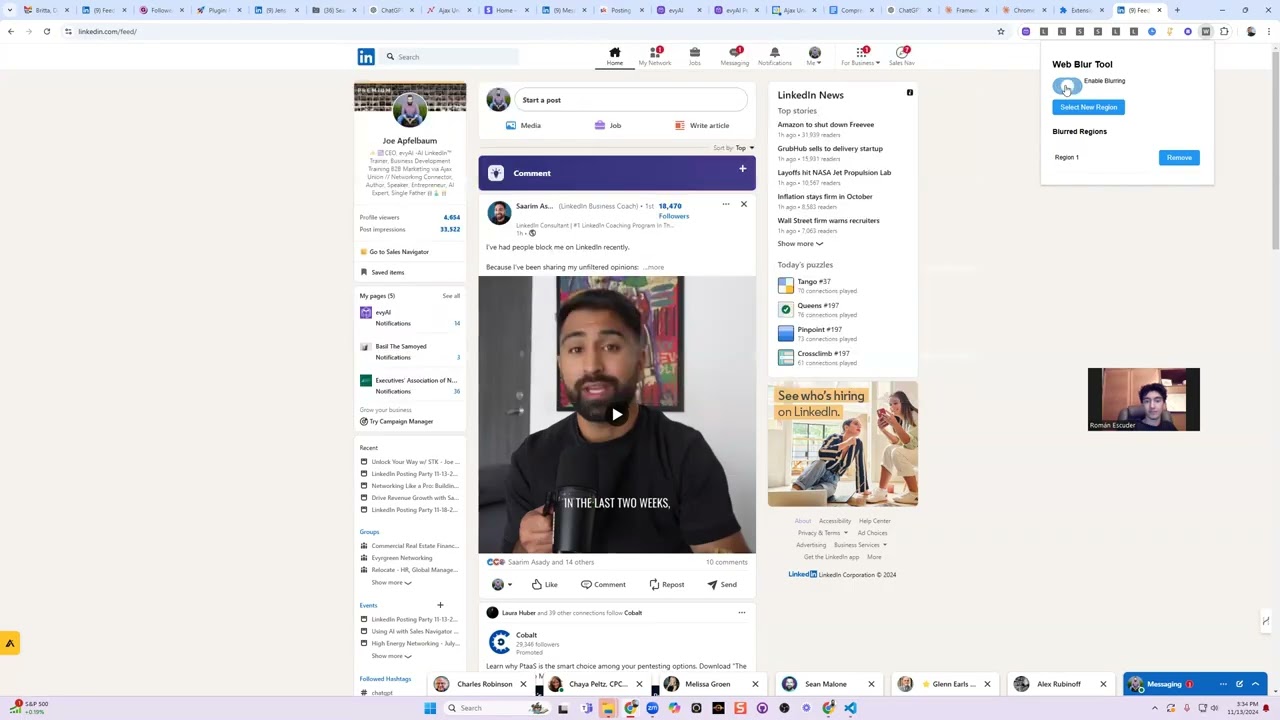
Joe Apfelbaum builds a Chrome extension called Blur Baby with Claude AI, generating all the code files at once, then debugging and refining features in real time. The extension lets users blur webpage regions to hide credentials in recordings, and the workflow shows how AI cuts development time versus hand-coding.
Chapters
learn how to—
So you want to learn how to do what?
How to create an extension.
And let me teach you how to build a Chrome extension. Do you have any ideas for what you want to create? Or should I just show you?
Yeah, I was hoping to do an extension for N8n. We're gonna blur the credentials and all this information and don't want anyone to see. So in this way, if I record the video for whoever, okay, I don't show that information.
Okay, great. So let's go to Claude. I would like to create a Google So I'm just going to talk to it instead. I would like to create a Google Chrome extension that allows me to be able to blur parts of my web page when I'm recording a video. So what I want to do is when I can select different parts of the web page that I want to blur, for example, maybe an API key or something, and then when I turn on the extension, that part of the web page is blurred, and when I turn off the extension, That part of the web page is no longer blurred. Would you do that as a sidebar? Would you do it as a pop-out? Would you do it as a toolbar? Give me suggestions of how you would do that. Think it through and then go ahead and create me the files for the extension. Thank you. That's what I'm going to do. All right. So now it's going to create the extension. So now I'm going to— the way that— When it creates an extension, an extension has several files. It has a manifest.json. That's one file. It has a popup.html or a sidebar.html, but it has an HTML file. HTML file is essentially a file that loads inside Chrome. It's like a website. It has a, uh, a JS file, like a JavaScript file. Usually it's the same name as the HTML file. In this case, it's popup.js. And sometimes it has a content.js and a background.js. In this case, it has a content.js. And let's see, let's see if it has a background.js as well. It also has a CSS styles.css. You see that?
Yep.
So this is the entire extension now, but the extension needs to be broken into different files. Um, so how do we go ahead and do this? How do we turn this into different files? We're gonna copy the content of each one and put it into either a text editor or you could use Visual Studio. I'm gonna do open folder and I'm gonna go into Apfel's Creations, Final Chrome Extensions, select folder. So I have a folder over here and I'm gonna make a new folder here. Okay, so I'm gonna click out here. I'm gonna click on this little folder button here, new folder. So I can do this in Windows or I could do this anywhere, make a new folder, but it's a new folder. We're gonna call this extension Blur Baby. Okay, this is called Blur Baby, this extension. Now I'm gonna create a new file. I'm gonna call it, uh, blurbaby.md. And then that's an MD file, which is just a file where I can put everything into it once so I don't have to go back and forth between Claude and here. You know, I just pasted everything in here. MD just stands for Markdown. Um, and then what I'm gonna do is I'm gonna create all the files. So we know we, we right-click over here, we do new file. We're gonna do manifest.json. That's one file that we need. We need popup. What was it? Popup or popout? Popup.html. We're gonna copy manifest.json and put it into manifest.json and save Ctrl+S. We'll delete the comment on the top. Oh, Ctrl+Z, Ctrl+S. We're gonna right-click over here. We're gonna say new file. We're gonna say popup.html. And we also want popup.js, right? And then we also want popup— and then we also want content.js, remember? And then there was a CSS file. I think it was style.css. Let's Double check.
Style.
Style.css. So we'll do a style.css. So now we're going to grab all the information from popup.html all the way to popup.js. Copy this. Put this into popup.html. Save it. Go back into here. Grab popup.js all the way down till content.js. Let's keep going down, down, down, down, down. No, I think we passed it. Let me go back up, up, up, up, up. Function, function, function, function, function till slash slash till slash slash content. Do you see content.js? Copy, put this into popup.js, paste it, save. Go back to Blur Baby, grab this. This is the content.js all the way till styles. These are a bunch of functions. Uh, function, function, function, function, function, function till styles. It's not style, it's styles.css. You gotta make sure you put the right thing in. Paste. I'm gonna right-click over here, new file, styles.css. And then we're gonna go back into here and grab styles.css. And those are the styles. Okay, Ctrl+C, go to styles.css and paste and save. Now everything is saved. Okay, so I have all these files saved in this folder called blurbaby.cs. I'm gonna right-click on the folder. I'm going to share in Explorer just to kind of show you where it is. It's right here. You see, it's a folder and it has all these files. I'm going to copy the URL of the path of that, and I'm going to go into Chrome. I'm going to put Chrome in developer mode. On the top right corner, you can turn on developer mode, turn off developer mode. You see?
Yep.
Now, when you turn on developer mode, there are 3 buttons that appear here: load, pack, and update. If I turn it off, those buttons disappear. I'm gonna turn it on. Load. I'm gonna go to load. I'm gonna paste in the URL of where the files are. I'm gonna press select folder and the extension has been loaded. You see it says extension loaded. Now I'm gonna pin the extension on top so that I can actually see it. I'm gonna look for it. Web Blur Tool. It's the last one here, you see? And I can make an icon for it as well. Right now there's no icon, so there's just a W here, you see? So now let's see how this works. I'm going to click on it. Now enable blurring, disable blurring. I'm going to select a new region. Uh, I don't know how that works. Select new region and then enable blurring, blurred regions. I don't even know why it doesn't work. Nothing happens when I clear it. Select new region. But do you get what I'm saying? Select new region. Oh, is something blurred?
Enable blur.
No, it's— Let me go to a web page. You know what? Let me go to a new web page, google.com. I'll just go to, let's say, for example, LinkedIn. And let's select a region. Oh, look at that.
Oh, well.
Let's select the region like that. And now I'm going to do enable blurring. Okay, let me just remove this region. Oh, enable blurring, remove, select new region. Oh, look at that! Okay, enable, disable, enable, disable. Okay, that works. Deleting doesn't work, but enabling and disabling works. So then you go through and you start telling it, okay, deleting doesn't— removing doesn't work. You see? That's cool!
The way you update the extension is just Write in again.
Yeah, you can say, okay, it works well. However, I cannot remove the— the extension works perfectly fine right now, except there's one issue. When I want to remove the region, when I click the remove button, nothing happens. Can you help me identify why when I hit the remove button nothing happens? Maybe fix the function or something. Thank you. We defined it as a window method, but we need to properly attach an event listener to remove the button. Let's fix this. All right. So now it's coming up with a new, a new extension for me. So now what we're going to do is we're going to copy the new files. Copy. And we're going to go into here. We're going to go to manifest.json. Paste. Nothing changed here. We're going to go to popup.html. Copy this. Go to popup.html. Control A, control V. Nothing changed here. We're going to go to popup.js. See what happens. Oh, much smaller. Copy popup.js, Ctrl+A, Ctrl+V. This changed completely. And then content.js, I'm gonna go for content.js. Content.js, very similar but also change a little bit. Ctrl+C content.js, Ctrl+A, Ctrl+V, Ctrl+S. And then the CSS styles. Copy CSS. Oh, something happened. Something broke here. Something's broken here. Let's see what's going on here. What's broken? Oh, I copied everything in here. I copied everything by accident. Okay, let me remove. Okay, that's it. Control S, styles.css, Control V, S. And then you go back here and then you go into the extension and then you find web, web, web, web, web, web, web. Which one is it?
The first column.
The first one. Okay. Then you just refresh over here. So it refreshes. Then you refresh the page you wanna blur. And then you go to the blur extension and then you remove the region. Ah, that worked. Okay, perfect. Oh my God, this is such a good extension idea. I'm going to click on select region. I'm going to blur all this and let's see if it works. Enable blurring, disable blurring, enable blurring, disable blurring. That works. Not perfect because when I start it, when I, when I selected it It enables it without me enabling it, you know? Oh, when I scroll up, it disappears. But at least it works, you know? Okay, we have to fix that. Now we're gonna go there and tell it to fix it. You get it?
Yeah, the thing is talking to the AI for an hour trying to make it work.
Yeah, that's the whole game. The whole game is you talk to the AI, you spend an hour, you go back and forth, you fix all of it till you get it perfect. And once it's perfect, it's done. Then you can upload it online if you want.
Okay, looks great.
Cool extension idea. I like this extension idea.
Yeah, my idea was to not just select on the screen, but it to recognize certain HTML elements. For example, the credential.
Yeah, we could do that. We can say— we can give it the HTML of the page, And say anytime you find a box, blur it automatically. Anytime you find any box, blur the box so no one can see what I'm doing in the box. And then you'll have the same exact functionality. Say turn on blurring and it'll just blur all the boxes. So whenever you're typing, everything looks good, but whenever you're typing it, that blurs. Yeah, you 100% can do that. You tell it what elements to blur, it'll automatically blur those elements. But that's, that's how a Chrome extension works. Now you understand how it works. This tool here that I'm using is called Visual Studio. It's basically like a text editor.
Yeah, I know Visual Studio.
For development. Okay. You know Visual Studio. And then the format of me putting it is basically essentially just a bunch of files. That's what it is. And then you edit each file. And you edit the functions within the file. Do you want me to explain to you each file, what it does and how it works? Manifest—
Uh, I think I got the point, but okay.
manifest.json is almost like the index file that tells the extension where everything is. It's like the, the brain, the wrapper for the entire extension. So if there's any files that wanna be included in the extension, they have to be listed in the manifest. Manifest also says what type of rules And security should you be adhering to. The manifest is where the security is, the list of files, basically all the permissions, the version. If there's icons, you add the icons to the manifest and then you link them to where the icons are. And you can have, you know, like for example, I have different icons up here. You see this icon, this icon, this icon, all these icons were created with an SVG file in Claude. And it creates the SVG file, then you do SVG to PNG converter and boom, there you go. Um, then there's, then that's it. Everything else is optional. There's nothing else that you really need. Everything else is like, if you want it to be a pop-out, you can call it pop-out. You can call it whatever you want, but usually the pop-out is pop-out.html. If you want a sidebar, there is, um, there's sidebar.html. It'll come up as a sidebar. So check out this sidebar. This is a cool sidebar. Boom. You see? It's called the Skool Sidekick.
Oh.
You saw that? The sidebar comes out. Um, there's dropdowns, there's popups, there's popouts. There's so many different ways to be able to do an extension. There's embedding things in something like, for example, inside Skool, I embedded these, these things. So if I hit 6, I want to save this into this extension. I press save and it saves it right here. You see, if I want to generate a reply to something—
Oh, it's on the website.
What? I want to go—
No, it's built on the website and not on the sidebar.
Exactly. You could build it, you can embed it into any element on the website. So for example, if I wanna reply to this, I could easily go here, click on AI replies, and I can generate a reply. When I generate a reply, the reply gets generated here, and then I could put it in here. So I'm gonna hit generate reply. It's gonna send it with a webhook to AI. It's gonna produce the reply. Then I can copy the reply and then I can paste it in here, or I could just inject it by pressing insert. You see, nice reply. Hey Joe, awesome to share such a valuable resource. The blog generation template looks like a fantastic tool for those to blah blah blah blah blah blah blah. On LinkedIn, one of the big challenges is getting noticed.
You see, it does hustle, right?
So that's another extension. I have an extension that if I want to save something to a spreadsheet, I click on this button over here. I can start recording. Wow, this is such a great. I had allow. Hang on. Wow. Error starting recording. Stop recording. Delete. Wow, this is such a great website. I really like how it does all the things that it needs to do, especially cuando la gente no saben lo que hacer porque de repente empiezan a hablar español y se vuelven locos. Anyway, it didn't know I was speaking in Spanish, so it got a heart attack. But then you can select the category and then you could submit it, or you can set a webhook. You can submit it, it goes into a spreadsheet. I have a spreadsheet set up in the webhook, and I also have this as a sidebar as well. Pretty cool, right? I have a little timer that times every single thing.
Very cool.
Check out this report. Just tells me every website I went to and how long I spent on the website. It just sits there as a Chrome extension. I could do today, I could do yesterday, this week, last week, whatever. It just sits there and just times everything I do. I have a link. I have—
I really like this one.
Yeah, I have this one called, um, I have this one that I built that checks who's online on LinkedIn. So if I go to LinkedIn and I click on my network, I have another one that tells you how many followers each person has. Look, it's an overlay. Tells you how many followers each person has on LinkedIn. So if I want to prioritize this person, I could prioritize this person. 'Cause he has a lot of followers. If you keep going down, it'll, the extension will automatically add the followers to each person. You see it added follower, follower, follower, follower, follower, follower, follower. See, see?
Yeah, it's doing it real time. Yeah.
Yeah, it does it in real time as it loads, it loads. Um, but that's pretty cool that it has that feature. I'm gonna click on my network. I'm gonna show you another feature that's also really crazy. Do you see the way everybody has a green dot by their name? Yeah. Those people means that they're using LinkedIn right now. So how do I only show the people that have green dots? Let's say I scroll down and I load everybody here. How do I show all the green dots only? So I built an extension that does that, that will filter out all the green dots. So I can go down, download, open up everything. Everyone's, everyone here. Right? I could load 5,000 people and then I can click on that. I can click on this and do check connection. It says, shows me the 29 that are online. Then I do show me only the ones that are online and it shows me all the green dots. You see? And so I can talk to all these people that are online right now. Um, I have another one is let's say I wanna scrape an entire list of All the links that are here, I can collect all these links. You see, collects every link and then it puts it into a spreadsheet for me on any page. And then I can say, go to the next page on each one of these pages and collect all the links from those pages as well. And then I can dedupe, I could remove duplicates. Um, I have an extension that allows me to extract posts from Skool. So if I want the post to be extracted and put into a spreadsheet or a JSON, I can do that. Um, I have a Link Navigator extension that allows me to navigate specific links. Let's say for example, I want to quickly view all the tech blogs or all the popular websites or all the news websites. I want to quickly, in 25 seconds, I want to view all these websites. So I hit start navigation and it's just going to go start going through, through all the news websites. 5 seconds, 4, 3, 2, 1, next. You see it goes through each one. It's navigating. Shows me all the— if I want 100 websites, it'll load 100 websites. And then I can take each thing, scan what it says, and give me a little summary with AI. Or just send an email to people. You know what I'm saying? I can—
Yeah, yeah. That's a lot of things.
Yeah. Um, I have, I have a LinkedIn profile saver. Did I show you this one? This is what it does. Look what it does. Let's say, for example, this person over here, I want to get all her information from her profile and I want to put it into a little box. So I do save profile. It pulls everything from her profile, including her birthday, puts it into this box. If I want to send this to a CRM, I press send to CRM and it organizes it into a spreadsheet through a webhook. So if I, if I go to my saved profile, if I go to my saved profile from Chrome extension, she's right here with all her information. Meet Vandeen Kurlam. She's a financial coach and blah, blah, blah, blah, blah, blah, blah. Here's her email. Here's all her contact information, her birthday. If she's a female or male, it like analyzes it based on her name. And it has tons of other information, how many followers she has, how many connections. If she's paying for LinkedIn or not, who her active clients are, everything about her, all right here on the spreadsheet. Pretty cool, right? That's a Chrome extension. Anyway, thank you for being here with me and thank you for being in my life. Any questions about that?
Oh, I'm, I'm going to create my own right now.
Yeah, go ahead, create your own. Was it helpful that I explained to you step by step how to create a Google Chrome extension?
Yeah, because this morning I was trying to look for it myself and I kind of understand the thing of the files and all that, but I want to see how did you do it because you have a lot of them. So.
I've created 3 dozen Chrome extensions myself and I use many of them every day. There's one that goes into WhatsApp, that goes into WhatsApp. Takes your phone number and saves it into my Google Contacts so I don't have to save it on my phone. So somebody messages me, it just automa— and it does research online to figure out who you are. If I don't know your phone number, Yeah. It'll do like a reverse lookup on your cell phone number to figure out who you are. And then it'll just put in your name, your email address, everything into my contacts in Google Contacts and my CRM. From WhatsApp. Damn, son. Damn. Damn. Anyway, I'm having way too much fun. But it does take— it doesn't take 2 seconds. I just created an extension in what, 10 minutes? You know, you saw I created an extension that blurs and that solves a problem in like 10 minutes or 5 minutes. But if you wanted to get it right, it's going to take 3, 4 hours of just going back and forth with Claude. Yeah. But if I was going back and forth with developers, it would take me 3 or 4 years because I, yeah, that's true. You know, a week passes, another week passes, another week passes. I test it, it doesn't work. And then 2 years. But with this, I can sit with somebody in an hour and build them a, a, a, I can build you a web application that ties into a Chrome extension. So you, the same way I'm building a Chrome extension, we can build an actual React web application and host it. with a database and everything with AI, A to Z, full SaaS with authentication, Supabase, Firebase, whatever you want to do, wherever you want to do it. And it'll just do the whole thing. It's pretty incredible what you can do. Bon appétit.
I find it on my table. I was not going to edit it.
Anyway, I appreciate you and I look forward to chatting with you again soon. Thanks for hitting me up.
No worries. See you soon.
I'll put this on YouTube.
Yeah.
All right. Bye.
More from Joe


How to Beat the Algorithm: Remove Hidden Watermarks & Scale Content with evyAI









AEO & GEO: SEO's Future Explained! Master Answer & Generative Engines! #shorts