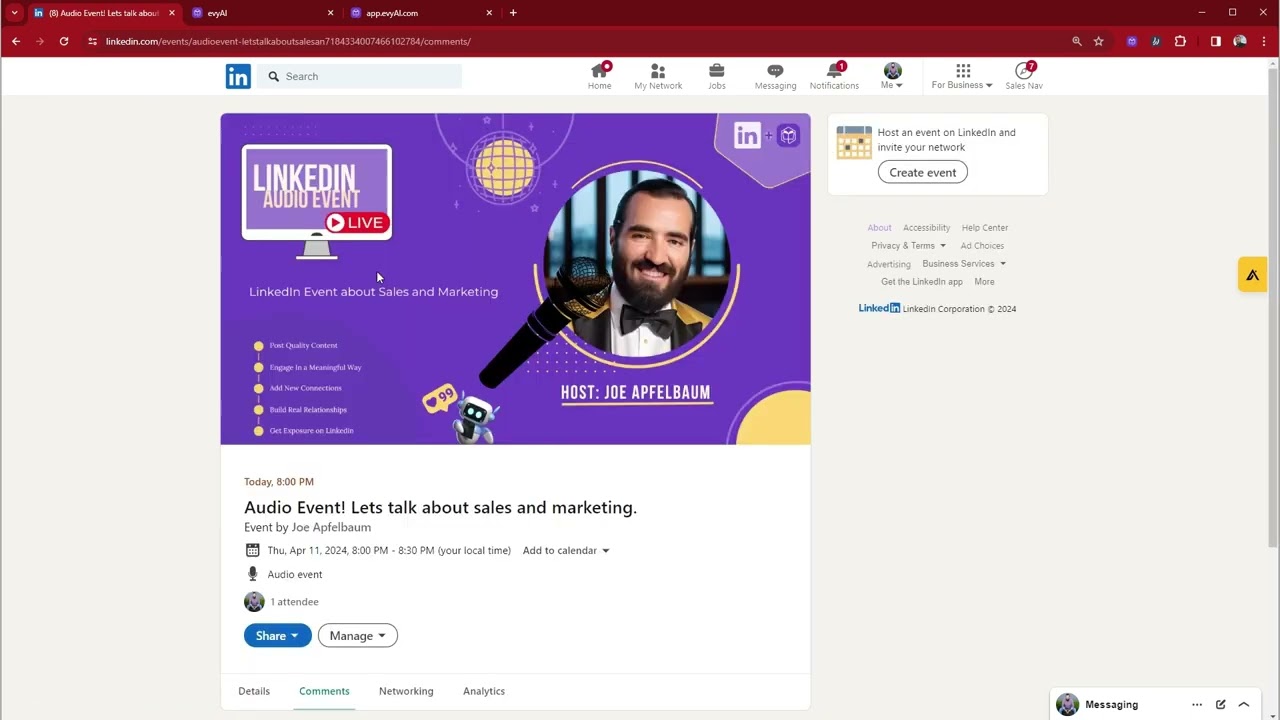
Joe Apfelbaum shows how to set up a LinkedIn Audio Event from start to finish. Create the event in LinkedIn, design a cover in Canva, use Evvy AI to auto-generate a promotional post, then invite contacts by name or share the link directly. Manage attendees and event details in the networking tab.
Chapters
How to create a successful LinkedIn audio event with Evergreen Networking. My name is Joe Apfelbaum, and let's get into the presentation. Step number 1 is you go to the LinkedIn feed. You scroll down to where it says events. You click on the little plus sign, and then it's going to ask you to put in a cover photo for your event. I already created a cover photo in Canva. I wrote LinkedIn audio event. I press apply. Now it's going to ask me, is it online or in person? I'm going to select online. It's going to ask me for the event format. You select LinkedIn audio event. I'm going to put in the name. I have lots of names here. Let's talk about sales marketing audio event. And then over here, it's going to ask you what time do you want to do it? In this case, I'm going to do it at 7:45 or 8 o'clock. I don't think you can do 45s, so we're going to do 8 PM. All right. I put it from 8 to 8:30. I wrote learn to leverage LinkedIn. To do sales and marketing successfully. This audio event will change your life if you join in. Make sure to speak so you can get involved in the conversation. I'm also going to put myself as a speaker. If there's any other speakers, you can just add them over here. You press next. It's going to ask you to create a post. The tool that I use to create a post is called Evvy AI. I'm going to press login. It's going to log in. I'm going to select the goal, the tone, and the persona. And then it just generates this right over here. And then on the bottom, I hit copy, and then I just paste it right into here, just like that. I also like to delete things, so I'm just going to delete this first part over here, and then I'm going to make this a little bit easier to read. And just like that, and now we're ready to go. I'm going to just post this. It has all the hashtags I need. I press post, and now this goes live just like that. Now that you have your event live, you can invite people to the event. So if you go here, click on events, you can see what events So this is LinkedIn Live Events. Over here it says Thursday, April 11th at 8 PM. See that? I click on it, and in order to invite people to your event, click on Share and you click on Invite. If you're doing it way into the future, you can invite thousands of people. So you can search by name. For example, you might want to invite all your Sarahs. See that? I'm inviting all these Sarahs over here. And I press Invite and it sends them an invitation to join. If you want, you can also repost in the feed, you can send it in a message, you can copy it, you can tweet it. I love tweeting things, so I'm going to go ahead and tweet this right now. I just tweeted it onto Twitter just like that. Once people start joining this, you're going to see them in the networking tab. If you click on the details tab, you can edit it and add more information. If you click on manage, you can manage the attendees, you can cancel the event, and you can delete the event. And if you want to add it to your calendar, you just click on add to calendar and you can choose the calendar that you want. And that is how you do a LinkedIn audience. I like promoting my LinkedIn audio events and talking about my tool called Evy AI, comment generator, post writer, messaging helper. And this also helps me promote my audio events as well. You can sign up for free at evyai.com.