How to message 100 people on LinkedIn in a less than an hour - 151 LinkedIn Live 2024 with Joe Ap…
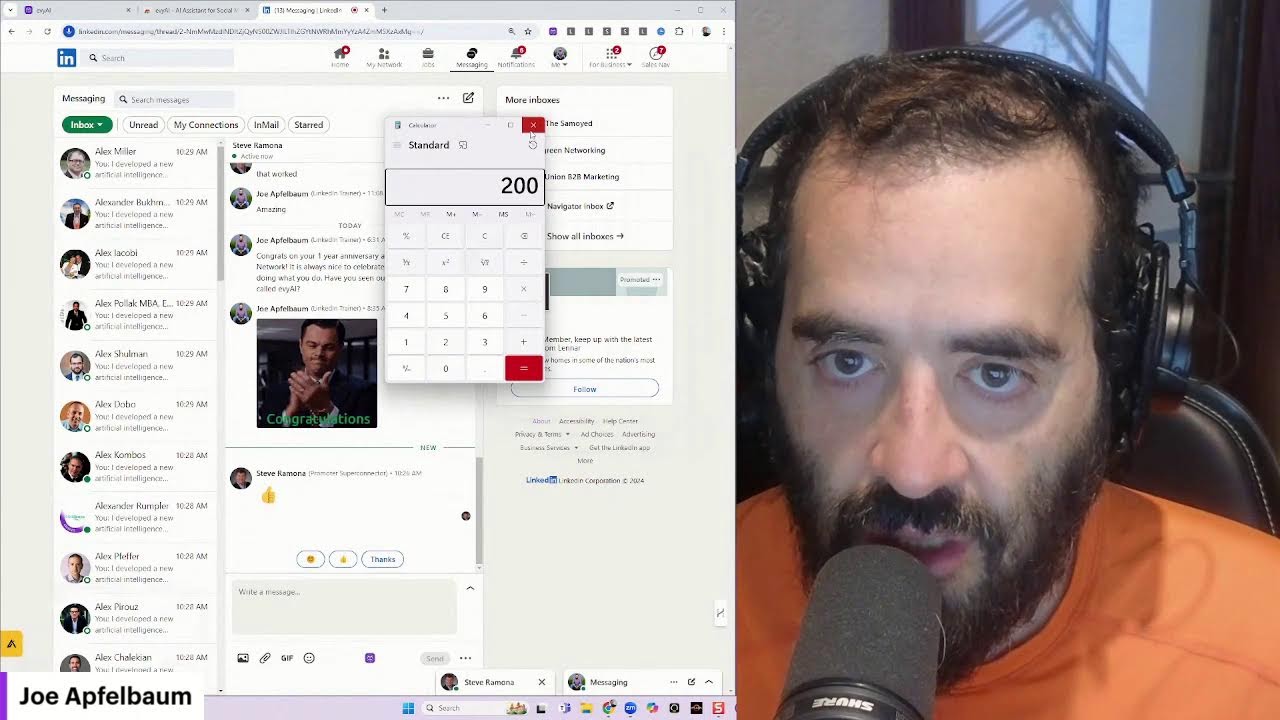
Joe Apfelbaum shows how to send 100 personalized LinkedIn messages in 15 minutes using the Evvy AI Chrome extension and its voice dictation feature. He demonstrates the timed process, sending 20 messages in three minutes, and explains how to use triggers like job changes and birthdays to start conversations that lead to referrals.
Chapters
Alrighty, ladies and gentlemen, we are live on LinkedIn, Facebook, and Twitter. So you might be wondering, how do I message all of my connections quickly? Let's go to LinkedIn.com and think about who we want to message. Now, when it comes to using LinkedIn, you want to be able to do things that will get you conversations, will get you referrals, will get you clients. Really, that's the name of the game. But in order to do that properly, you need to have the right technology. My recommendation is to use Evvy AI, your LinkedIn AI content assistant. And if you go to the Google Chrome Store, you can see the latest version of Evvy AI. So in this case, we came up with it on October 29th, version 2.2.160. So let me teach you how to update your extension if you have not updated your extension. So I'm going to click on the 3 dots on the top. I'm going to click on extensions and then I'm going to click on manage extensions. Now I'm going to delete the temporary one that I have over here. That's how you remove extensions. And if I have, if you want to find the Evi AI extension, you search Evi and then you click on details and then you're going to see the version that you have. So I have version 2.2.15. This here is version 2.2.16. So I need to update the extension. So if you're not on developer mode, you put on developer mode. This should happen automatically anyway. But I'm just gonna hit update over here and you're gonna see it's gonna change from 1.5 to 1.6 in just a moment. It says updating. See, now it's 2.2.16. Once you update your extension, you gotta make sure that your LinkedIn is actually closed and kind of like reopen it. You gotta reopen your LinkedIn, like close it, reopen it. Um, I wouldn't keep LinkedIn open with an old extension. Um, I would just close all my tabs, maybe restart my browser, maybe even restart my computer. Um, doing that will allow you to be able to get the most bang for your buck. All right, so let's open up a, a version of LinkedIn right now. I'm opening it up right now. All right, let's test it out. The first thing you want to do is you want to make sure you pinned your extension. So you look for your extension here. If you don't see your extension here, make sure that you actually have the extension. So I'm going to go back to Evie AI. I'm going to make sure that it's on. You see, in this case it was off. Make sure that it's pinned. You can actually move it around as well. I like to have it all the way on the left here. Um, as my first extension. So I'm gonna click on it. It takes me to linkedin.com because the extension only works on linkedin.com right now. All right. And now it loaded this box. That means that we are in and it's working. Um, also this purple box means that it's embedded in LinkedIn. All right, so now I'm gonna go here and I'm going to click on this little comment box and look at this. There's a microphone here. This is amazing. We now have a microphone on Evie AI. All right, so I'm gonna press generate over here just to kind of see how this works. And I'm going to leave a comment just like that. You see, I just left a comment on Kevin O'Leary's post. Now, why did I leave a comment on his post? It's because if you check out Kevin O'Leary, you'll notice he has 4.1 million followers on LinkedIn. And someone that has 4.1 million followers typically gets dozens, if not hundreds, of likes and dozens of comments. So if he has dozens of comments, say 44 comments, what I can easily do is leave a comment, and then all the other people that left a comment will get notified that I also liked it. Left a comment and they will kind of check out my profile and hopefully look into my business, build a relationship with me. And I can see who looked at my profile here. Once somebody looks at my profile, I can easily send them a message. So why would you want to message people on LinkedIn? Well, the reason I want to message people on LinkedIn is I have a trigger. So if I want to be top of mind with someone on LinkedIn, for example, this guy named Alex, co-founder of Everly Market, He, um, I said, thanks for connecting on LinkedIn. This was March in 2023. Then October, he had a birthday, so I messaged him. Then he had a birthday again this October, so I messaged him again. He responded, thank you, Joe. And now what I'm gonna do is I'm gonna say, have you had a chance to check out my LinkedIn artificial intelligence assistant? I'm curious to know because I want all of my connections to check it out. Thank you very much, Alex. I press insert and now that inserted that. So I literally spoke into the LinkedIn DM, right? Wow. In the chat, if you are just like floored by the fact that I spoke into the DM, this will save you so much time. If you wanna send hundreds of messages on LinkedIn, you can either speak them, you can speak the messages. Let me just, I don't know why this is still here. This little box on the bottom. There you go. Okay, I'm gonna click here. Okay, good, I'm in. I don't know why that happened, but you could either speak the messages, you can use templates. I have lots of different templates that I can send people, but the problem is, is when you load too many profiles on LinkedIn, LinkedIn slows down to a complete crawl. And so I found a way to be able to send messages to people without slowing down LinkedIn and without getting LinkedIn to slow down to a crawl. And the way that you do that is you click on Connections on the left side. You see that I clicked on Connections, and then you can start messaging people. Now I have 29,000 connections. I'm curious to know how many connections do you have on LinkedIn? Go ahead, leave a comment now and let me know how many connections you have on LinkedIn. I'm going to log into Tammy's profile real quick. I'm going to find this live on LinkedIn by going to the homepage of LinkedIn. And typically when I go to the homepage of LinkedIn, LinkedIn shows my live to my connections. And so Tammy's one of those connections. I'm gonna go ahead and hit that repost button. Hit the repost button. And you can also, if you're watching this on the feed right now, just hit that repost button so more people see it. Hit that like button. Maybe hit like the light bulb. Maybe hit like the round of applause. Maybe hit the heart. Um, and then also leave a comment. Let me know what city you're dialing in from. I'm gonna say California. That is where I'm at. Love this mic on Evvy AI. All right, so I'm gonna hit comment and now Tammy left a comment. Now Tammy, um, her profile left a comment over here. I'm gonna respond to her comment using Evvy AI. So how am I gonna do that? Well, I can do that automatically using AI. Now some people don't like artificial intelligence. and they don't want to use AI, that's totally fine. If you don't want to use AI, you could use a template. So for example, I'm going to, if I go in here and I try to reply to this comment, it's not going to work. So LinkedIn doesn't allow you to comment on your own video while you're on live for whatever reason, that just doesn't work. So instead what I'm going to do is I'm going to go to linkedin.com/joeapelbaum/recent-activity/all. That'll load up my live because that's my most recent post. And then what I'm going to do is I'm going to give myself a little light bulb. And then what I'm going to do is I'm going to reply to Tammy using Evie AI by clicking on the Evie AI box over here and clicking on generate. And it's going to generate a reply for Tammy. I'm going to hit reply and now it just replied right over here. Okay? Now what I'm going to do is I'm going to teach you the step-by-step process to message people. Now you have to have a reason to message people. You don't want to just message people for no reason. So it's either their birthday. So if you go to My Network on the top here, you have something called the Catch Up tab. And in the Catch Up tab, you have job changes, you have birthdays, you have work anniversaries, you have education. So for example, I can say, congrats on starting in the Institute of Medicine, or congrats on finishing up INSTEDD, or congrats on finishing up Harvard Business School. Do you see that? So I messaged— Oh, that's great. these people and all these people get messages. And you see how quickly I did that. This was 3 in 3 seconds. So if you want to do 60 seconds worth, you can literally go and message all the people that have birthdays. And as you can see, I already did this for all the people that have birthdays. You can use technology to help you do this. Let's say you already did this. Okay. Let's say you did the birthdays, you did the work anniversaries, you did the job changes, you did the education, and you want to message another 100 people. I recommend using something called the Connections Dashboard. If you need a dashboard, just write in the chat, I need a dashboard, and I'll be more than happy to help you get a dashboard. But let me look at all my Alexes. I'm gonna search Alex here under my network. Again, this is not loading any additional pages on LinkedIn. And now I wanna send Alex, every single Alex I'm connected to, a message. So what I can do is I can craft a message, put it into Evvy AI, and start sending all these people messages. So check this out. I'm gonna click on Alex right over here. And I could see I've been messaging Alex for quite some time. I see I sent him my phone number. I don't know what happened over here. Let's see what you do for CEOs. Boom. Do you wanna chat today? Yes. Blah, blah, blah, blah, blah, blah, blah, blah, blah. So I'm gonna click on the Evvy AI thing. I developed a new artificial intelligence technology for LinkedIn, and I wanna make sure that all of my connections know about this technology. Would you mind if I sent you a quick video to watch that explains how it works? Please let me know. Thank you so much, Alex. I appreciate you. Okay, so now I'm gonna press insert, and what I can do is I can just simply copy this. Okay, so I just press copy and I press send. Okay, I developed a new artificial technology for LinkedIn, and I wanna make sure that all my connections know about this technology. Would you mind if I send you a quick video to watch that explains how it works? Please let me know. Thank you so much, Alex. All right, now I'm gonna make sure that I send this to all of my connections. So I'm looking through this, um, and I see I haven't sent this already. I need to make sure I see the context for each connection. But how quickly, how quickly am I going to send these messages? You know what, why don't we put up a timer? Let's go to Windows. Let me type in timer. I'm going to put on the clock and let's just see how many, how many connections I can send out. I'm going to click on this timer here. Um, let's see how many connections I can send out. Let's see if I click over here, does it go away? Yeah, it goes away. Um, let me see if I can click here. It still goes away. Let me click on this. Oop. Now it's here. Oh, now it doesn't go away. Look at that. And I can, can I make it bigger? Ooh. Can I make it bigger? Can I make it even bigger? And it still doesn't go away. Oh yes, I did. Oh, it didn't go away. All right, here we go. So the goal is to see how many connections I can send out in, let's say 5 minutes. We're gonna go for 5 minutes straight. Let's just make sure I don't have another call coming up because my assistant is MIA today. Uh, let's see what I have here. I have Joe and Scott. Okay, so I only have 4 minutes, so we're gonna go for 3 minutes and then we're gonna end it because I have a call coming up with this guy named Scott and I don't wanna miss it. All right, so let's go. Here we go. You ready? Get set. Go. So 3 minutes, we're gonna start messaging my connections. I first need to review to make sure I haven't already sent them a message. Um, he says Supreme, pretty cool. Really excited about it. Um, I already messaged him about Evie AI, but I'm gonna message him again and see what he says. Okay, so this guy's name is Alexander. His name is not Alex. Um, I'm still gonna send him the Alex message. That's fine. I just wanna go for volume now. So that's 3, 4. 5. Let's see. Over here, I'm gonna say, what do you think? So I'm gonna click on this little thing. What do you think of our artificial intelligence technology? Your feedback is so valuable to me. Okay. I just sent him this update. I'm gonna click on Alex again. We're going for volume. This is 5. Alex, I'm not gonna send this Alex a message where he knows what I'm doing. Okay, I'm gonna send him this one. 6, 7. I'm gonna go for this Alex over here. 8. I'm gonna click on this Alex here. That's 9. We haven't been in touch since 2020. Look at that. 9. We're gonna go for 10. Let's see when the last time we spoke was August. We already had a conversation. That was nine. Okay, so we're gonna go for ten. Okay. Now we're gonna do Perrier Alex Resharan. We're gonna skip that one. We're gonna do Alex Hit. We definitely spoke about it already. I'm not gonna do it again. Alex Negum. We haven't been in touch since 2020, so I'm gonna send him that message. Alex Elkin. Let's just see. 2019. I'm gonna send him a message over here. Alex Perez, 2022. Definitely need to send him a message. Alex Pfeffer, again, another message. Alexis definitely knows about it. Uh, Alexander Rumpler, send him a message. I'm not even keeping track as to how many I'm already sending. But I'm definitely sending a ton. Alex Komos, Alex Dobo. As you can see, I've already been messaging many of these people. Alex Schulman. This one's a good one. Let's see who else. Alex Pollack. As you can see, I'm not even up to 3 minutes, and you can see how many people I've already messaged. We're gonna go to Alex Jacoby. I've never even messaged Alex Jacoby, it looks like. Alex Hormozi, we're gonna skip because he's probably not gonna see it anyway. I'm gonna message him again. Alex Miller from this Pro Insured Sales. Okay, so we got up to 1 minute, we got up to 3 minutes. Now we're gonna stop and we're gonna go back just to count how many we did. So 1, 2, 3, 4, 5, 6, 7, 8, 7, 9, 10. 10. 8, 9, 10, 11, 12, 13, 14, 15, 16, 17, 18, 19, 20, 21. Okay, so we got about 20 in 3 minutes. I'm gonna stop this timer. So 20 in 3 minutes is not bad. So if it's 20 in 3 minutes, let's open up a calculator. Let's do the calculation over here because we're not geniuses. I'm gonna close this timer here because we don't need the timer anymore. So if you do 20 in 3 minutes, how many could you do in 30 minutes? You could do 200. In 30 minutes, right? So 20 in 3 minutes. So you times that by 10 as you add another 100, that's 200. So in about 15 minutes, if you did this for 15 minutes straight, you'd be able to get to 100. In 15 minutes, you can get to 100. Now you might say, well, Joe, I don't wanna message all my Alexes. All right, who do you wanna message? Your Jessicas? And this is with me, including with me doing some voice chats. This is with me like looking back at the conversation history, which right now if you're using automation, there's no automation that's going to go back and look at the conversation history and understand context. That's not there yet. That will happen eventually, but that's not there yet. So I just want to say that if you're not leveraging these tools, you're really missing out. So thank you for watching this 15-minute video. I'm going to go to my next call, but I want to say thank you for being in my life and we'll talk
More from Joe


How to Beat the Algorithm: Remove Hidden Watermarks & Scale Content with evyAI









AEO & GEO: SEO's Future Explained! Master Answer & Generative Engines! #shorts