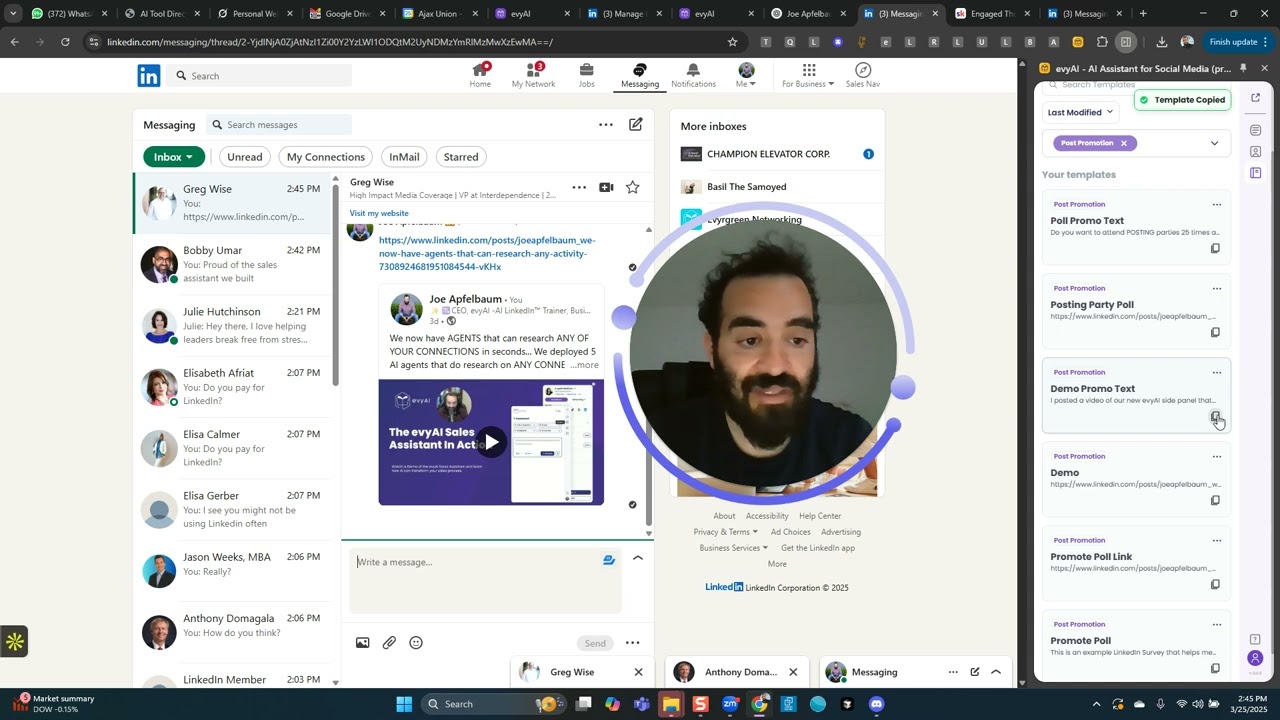
Joe Apfelbaum shows how to send links on LinkedIn without burying your message. Send the link first in its own message, then follow with a separate text explaining what you want the person to do. He demonstrates with contacts Julie and Greg, using a two-message workflow that improves visibility and response rates.
Chapters
So here's the wrong way to send somebody a message. Check this out. Julie sends me a message and I just see it says view event in the little box. And even if I make it bigger, it still just shows me an image of an event that doesn't have any text to it. Now she did put text. Check this out. She did say, hey there, I love helping leaders break free from stress and burnout. If that resonates, I'd love for you to join my webinar. And sometimes people send me these links and I don't read the text because I didn't know I had to scroll up to read the text. Often it'll just show up like this and I'll just ignore it. I'll just see a little thing like that. I won't see any text and I'll ignore it, especially if I'm sending a message for somebody to say, comment on a post for me or to repost it for me. If I send them the text and then the post, all I see is the post preview. So here's a way to do this the smart way. You'll go to your messages and you'll figure out who you want to send the message to to help you out. So for example, let's say I want to send it to Greg. Okay, Greg sends me this thing and I want to send him a promo. First of all, Greg is spamming me, which is fine. Hey Joe, as an independent, blah blah blah, whatever. I'm not going to read that anyway. So I'm going to test this out just to kind of show you how it works. I'm going to go in here and then I have something called promo links. I'm gonna take off the promo links thing and I'm instead, I'm gonna do post. I have a post promotion. So these are the posts that I'm promoting. So I'm gonna click on the actual link, which is a separate template. It's a demo link. I'm gonna paste it in and send it. So this has just the post alone with the link and the post, and it shows up as a preview. But after that, what I do is I send the text related to that demo. So I call that the promo text, and that goes right after that. So when it pops up, it'll say, I posted a video of our new Evvy AI side panel that has 5 AI agents you can use to tell you everything about people on LinkedIn as it searches the web for them. Can you please like, comment, and repost? Looking to get a few more dozen engagements today. So I created a little urgency. I was very specific with what I wanted, and now the person can look up and see, okay, I have this video that he wants me to like, comment, and repost. Much more likely for him to go ahead and do that. I'm gonna do the same thing for Julie. I'm gonna go ahead and grab this demo video. I'm gonna send it to her, and then I'm gonna send her the text as a separate thing, which will allow me to be able to communicate what I want her to do and for her to actually read it versus for it to just disappear into the ether. So that's how you do it. This is the 2-message strategy that I teach my students in the Evergreen Networking System. If you want to see more, come to our webinar next week. Go to eviai.com/webinar. Or if you want to see a demo of this particular video, just send the word demo to 973-841-8868 as a text message and we'll reply. That's demo to 973-841-8868. My name is Joe Apfelbaum and I love these little hacks. Boom.