How to strategically use AI to comment on Linkedin
Joe Apfelbaum shows how to use Evvy AI to turn LinkedIn engagement into ROI-driven work. Comments longer than seven words show up in your connections' feeds. The tool drafts comments, writes posts with GPT-4, and optimizes profiles using personas and tone controls.
Chapters
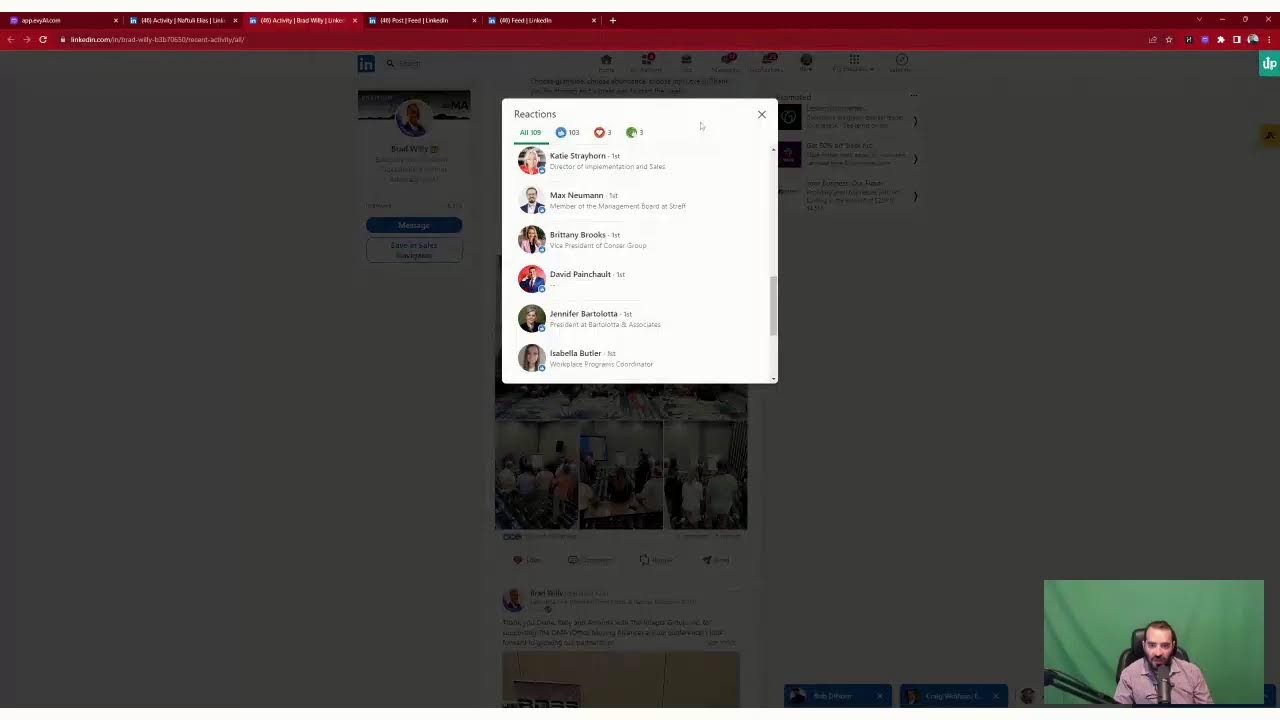
Evergreen and founder of Evie AI, and I'm really excited about talking about today's topic. Today's topic is called How to Strategically Comment on LinkedIn. A lot of people are using LinkedIn, but they're not using it strategically. They're kind of being reactive. They're accepting connection requests from people and getting spammed, or they're just randomly going on there and just checking the feed and hoping for the best. Hope is a great thing; it's just not a great strategy. So today, I want to talk about how to strategically. Comment on LinkedIn using artificial intelligence to help you be able to actually get something out of LinkedIn. I'm going to stop sharing my screen for a second. I want to emphasize something. I want to emphasize that if you want to be successful on LinkedIn, you have to know how to get a return on investment. You have to understand what is an ROI for you. So if you're watching this live or the replay, let me know what industry you're in in the chat. I'm just curious to know. Because an ROI would be different depending on the industry that you're in. And let me know what your goal is with LinkedIn. Do you want new clients? Do you want more exposure? Do you want to find a job? I'm just curious to know what your goal is, and this way I can make this particular live work specifically for you. Now, there's a particular tool that I'm going to be using, and that tool is called Evvy AI, and I'm going to share my screen and show you the tool in action. Uh, so let me just quickly share my screen here and show you this particular tool right now. Now, this tool that I want to share with you is an artificial intelligence Chrome plugin for LinkedIn to improve your credibility and engagement on LinkedIn. The reason I use a tool like this and I add it to my Google Chrome is because it allows me to do 6 things. Number 1, it allows me to leave comments. Number 2, it allows me to write posts for LinkedIn. It allows me to leave recommendations with artificial intelligence. It allows me to send messages to people like message replies. It allows me to optimize my profile and send custom connection notes using artificial intelligence. Now, this doesn't do it automatically for you. It just drafts it for you. And the reason we created this is because we've trained over 1,000 people on how to use LinkedIn over the past 3 years. And what we found is that people often don't know what to do. They don't know what to say. They don't know how to do it. And so this tool is going to intelligently help you be able to be more strategic. Now, there are 2 videos here that you can watch. One of them is how to install the EvAI Chrome extension, and one's how to use the EvAI Chrome extensions. I recommend you go watch those videos at the bottom of the landing page, and then later click on Add to Chrome. Now, if you're wary about adding Chrome extensions, you could always click on Go to App here. Do you see on the top it says Go to App? You click on Go to App, it'll load the app, and then you could log in and still use the Post Writer, still use the personas, still use the Save Profiles feature. And this is how you strategically will leave comments on people's posts. So for example, if I want to leave a comment on Dottie's posts, I can go to her profile, or I could save her profile into Evvy AI, and then it'll always show me her recent posts. So I'm going to click on See Recent Activity. It's going to load a new window. So this way I still have all these saved profiles here on the first window. I'm going to go to the second window over here, and as you can see, it shows me that 23 hours ago she posted something and I already left a comment. Now look at the comment that I strategically left on Dottie. I said, great post, Dottie. I completely agree that it's important to go, uh, beyond just changing behaviors and focus on deeper development of lasting results. Do you see You see that? That's because I already saved her here. So I don't have to like go to the feed and like wait for a post to show up. You see, I don't have to like wait for this to show up. If I want to wait, you know, go to the feed and see people strategically and leave comments, I can do that. I can click on the little Evii logo. You see the little purple logo over here? I can select a particular persona. I can hit generate. Mm-hmm. I can select if I want 3.5 or if I upgrade to premium, I can select 4, which is much smarter. And it knows who I am. You see, as a CEO of a digital marketing agency, it knows that I'm the CEO of a digital marketing agency because I trained the AI. So I press post and you see the way it gave a really nice piece of advice in the comments of this post. So if I want to stay top of mind with strategic connections, for example, Robin is a strategic connection of mine. 25 minutes ago, she posted on LinkedIn. Hmm. Now I'm going to click on this. I'm gonna select Joe Apfelbaum. I'm gonna press generate. And what it's gonna do is it's gonna read her post and then it's going to draft a comment for me. Now, I don't have to put that comment in. I can modify the comment if I want before I insert it. Robin, your post resonates with my own experiences working with women entrepreneurs. Their resilience and innovation are indeed inspiring. As a CEO, I've seen how their unique approach to juggling personal and professional commitments can lead to remarkable business growth. Now if this sounds a little too wordy for you and you want something less wordy, there's a little box that we included up here where you can actually change the style, you can change the tone, you can actually write anything you want. So in this case over here, I'm going to say use a conversational voice, Spartan, don't use corporate jargon, keep the comment to 23 words or less. I'm going to hit regenerate, I'm going to hit regenerate on the bottom. Sometimes it does experience an error because OpenAI will experience an error, and if there's an error, no problem, just hit regenerate. Cheers to any strong women entrepreneurs out there. Your resilience and passion are truly inspiring. Keep shining. So I'm going to press that. Now I'm going to strategically tag her as well over here. I'm going to press post. And so I have 2 different comment options and then I can modify the comment based on my own prompts, based on my tone, based on my goal, based on who I am, based on my persona. But Robin is strategic for me. So what I'm going to do is I'm going to save Robin to Evie AI, so I strategically can log in in the morning, check if she has any posts, and I have to wait for her to load in the feed. I could just go over here and you see Robin is now as a saved profile. And every single day, if I have 5 or 10 minutes, I'm going to go through these people's posts over here. And for example, Jeff and Greg and Scott and Lewis, these are all referral partners of mine. And if I drop a comment on referral partners, a partner's posts, what ends up happening is they're much more likely to remember that I am who I am, remember that I exist, and then send me business my way. So let me go into LinkedIn just quickly and check if anybody left any comments. Let me know what city you're dialing in from right now. I do see we have quite a nice little crowd here looking at what I'm talking about over here. One of the ways to see who left a comment on your particular LinkedIn Live in real time is to go take a look at your own posts, your own recent posts on LinkedIn. And then you just, by the way, give it a light bulb. If you're on here live right now, just give it a little light bulb. If you're watching the replay, give it a little round of applause if you're watching the replay. But as you can see, I'm going to click on show more comments and you can see 3 comments were left. So let me know where in the world you're dialing in from. Let me know what your industry is in the chat. And also let me know what your goal is with LinkedIn. So Bren says, I've spent 8 minutes before on my next call and this is the best place for me to spend it. Tom says, moving and logistics, OMA partner, commercial real estate, such important subject. Thank you. Now, being strategic on LinkedIn means leaving comments on people strategically, not being random on the feed. So I don't want you guys to be random on the feed. I want you to have a plan. So what is a plan? The plan is making sure that you're leaving comments with people that are in the position to refer business to you? Who's in the position to refer business to you? Is it just strangers or is it people that are already liking and commenting on your stuff that you have a relationship with? So for example, George Murray is already liking, commenting on my stuff and he's a referral partner. He also happens to have 17,000 followers. So he'd be a great affiliate for me and a great partner. So I'm going to save him into Evvy AI. And now I'm always able to see his recent activities with a click of a button. By going back into the app, into the platform. Again, you don't need the Chrome extension to use the platform, but if you have the Chrome extension, you have Evvy AI here. And today we're gonna be dropping a new feature that allows you to also customize who this person is to you in a list so that the AI can more easily help you do what you need to do. So I'm gonna click on this post, this recent post that he has, and you can see I already left him a comment here. You see that? He said, thank you for your perspective and appreciation and reinforcement of the book. You see that? I'm going to say, always happy to help. Always happy to help. Okay, now I'm helping him. I'm making a difference. Every time you leave a comment strategically on someone's post, when you leave a comment strategically on someone's post that you actually have a relationship with, that's a referral partner, they end up remembering you. They end up building a relationship with you. They end up connecting with you. And they're much more likely to leave comments on your post. Somebody said yesterday, Joe, why am I not getting any comments on my post? I said, have you left comments on other people's posts? Let's take a moment and be honest. Have you been leaving 5 or 10 comments on posts? And if you haven't, then it's a great opportunity for you to save a few profiles into a tool like Evvy AI. Now, there are many other tools you could save profiles in, but ours allows you to see the recent activity of the people and be able to leave a comment. As you can see, I did not leave a comment yet on this. And this was posted 23 hours ago. So I'm going to spend just a few minutes dropping a comment over here. Instead of me trying to think about what to say, I'm literally going to have the AI draft it for me, but then I'm going to modify it. I'm not just going to post this. I'm going to say it's a shining example of how effective communication, his ability. I'm going to say, so glad, so glad we met at JVMM. I wonder if he would be a great member. Okay, and then I'm going to Brandon him. Brandon. Okay, I'm going to click on his name and post. Do you see the way it kind of helped me out over here? I don't have to include the entire comment. I don't have to be super wordy, but this helps me be able to stay top of mind both with Brandon, also who's a referral partner, also with John who is a potential client. And then on top of that, I'm able to stay top of mind with the 16 people that liked and the 7 people that commented. And it also goes into the feed because it's more than 7 words. I want you to understand something. I'm going to stop sharing my screen for a second. I want you to understand something. When you leave a comment on LinkedIn strategically, when you leave a comment on LinkedIn, your own connections are able to see that on the feed. So your connections can see when you post on the feed. But if you drop 10 comments and each one of them are more than 7 words, Each one of those comments are going to start showing up on the feed of some of your connections, and then they will notice you again. This is extremely strategic and useful if you want more exposure, if you want more credibility, if you want to book more meetings. Most people don't even know the fact that comments show up on the feed. So a post is very valuable. You have to sit there and write a post, and with AI you can write posts, and I'll show you how to write a post right now. and how to post it, let me do that right now. I'm going to share my screen again. I'm going to share the same tab I shared before, and I'm going to go into the Chrome— I'm going to go into the platform app.evi.ai.com. I'm going to select my goal. My goal here is going to be to provide value. Then my tone is going to be a professional tone. Then I'm going to select a persona. In this case, I'm going to select a persona called Evy AI, and I'm going to say create a post About why it's important to leave comments on LinkedIn and use a voice that is empathetic and acknowledges that people don't have time, have time, so they need to use AI to help them, but they can't leave AI to its own, and they need to make sure that they are customizing the AI with a persona and editing the content just Like a copywriter would give it to you. Okay, now I know I have misspells like the word like. I'm going to leave those misspelled. I'm going to use the more advanced version of ChatGPT, which is 4. You do need to upgrade Evy AI in order to leave the 4 version because 3.5 is good, but 4 is great. I just want to show you a great version of that. Um, share this tab. I'm going to share this particular tab right here so you can see what I'm doing. So what I did was I went to app.evyai.com I clicked on post writer, then I selected my goal of provide a goal. Then I selected professional, the tone. I selected Evvy AI as a persona. And then I said, create a post about why it's important to leave comments on LinkedIn and use a voice that is empathetic and acknowledges that people don't have time, so they need to use AI to help them leave. They can't leave AI on its own. Instead of own, I wrote on its one. And they need to make sure that they are customizing the AI with a persona and editing the content just like a copywriter. Now, do you see all the misspells here? If you can see the misspells, right? I can see the misspells, Joe. I can see the errors. It's okay to have errors when you're talking to artificial intelligence. You don't have to sit there and edit the whole thing because AI is going to actually edit it all for me. I don't have to like sit there and worry like, oh my God, what am I going to do? But do you see how quickly it typed everything up for me? Yeah. It said, in a fast-paced world of technology, we often find ourselves short on time. It's not always easy to stay active on LinkedIn, let alone leave thoughtful comments on posts. But what if I told you there was a way to do both efficiently? Meet Evy AI, your intelligent LinkedIn assistant. With Evy AI, you can draft smart LinkedIn posts, create relevant comments, and even reply to direct messages. But that's not all. Evy AI also comes with a unique feature called personas that allow you to customize your AI according to your needs. Now what I'm going to do is I'm going to click on the little copy button here. Do you guys see the little copy button on the bottom right? I clicked on that. It says text copied to clipboard. Okay, text copied to clipboard. Now I'm going to go back into LinkedIn. I'm going to click on share this tab instead. Hopefully you guys can see what I'm talking about here. Can you guys see my tab? If you can see it, say Joe, I see it. I'm going to go to the homepage of LinkedIn and I can click on the top start a post. Do you see where it says start a post? But instead I'm going to use another Chrome extension called AuthorUp. I'm going to click on this Chrome extension here and it's going to load up the ability for me just to paste this in right over here. Do you see that? In a fast-paced technology, we often find ourselves short on time. I'm going to press Save Draft, and it's going to save the draft into this Chrome extension, which allows me to be able to post it later on LinkedIn. This also— this Chrome extension also allows me to make certain things bold. Short on time, like for example, the word short on time, I'm going to make it bold. You see that? I made that bold. It also tells you the grade of the content. This is a C 6th grade content, like level 6. You see that? Meet Evie AI, your intelligent pal. With Evie AI, you can draft posts, but that's not all. It also— but that's not all. Evie AI comes with a unique feature called personas that allow you, um, to get all your needs. Now what I'm going to do is I'm going to customize a little bit. Did you know that I created an article about how to train AI for LinkedIn? In my recent LinkedIn newsletter, you see that I'm customizing this just a little bit. I'm going to underline it. You see, did you know that I created an article? I'm going to say I'll drop, I'll drop that in the comments with more resources. Link in the comments, more resources. Now That makes it sound like me. You see this adding a little more context to sound this— now instead of saying this way, I'm gonna say, by the way, when you train AI, your comments, posts, and messages will always be personalized. But remember, while AI can be a great tool to assist you, it's important to add your personal touch. Just like a copywriter will give you a draft, AI provides you with a base for you to edit and customize. This ensures that your LinkedIn presence is not only efficient but also authentic. Does that make sense? Okay, now AI would never write, does that make sense? But I would say that to people. By the way, if it makes sense, give me a boom in the chat if you're liking this, if you're enjoying this. I'm going to quickly just, um, take a look to see who's checking out my stuff, and I'm going to give you guys a couple more tips. I'm going to share this tab instead. I'm going to go down here, I'm going to click on See All Posts. I just want to see who's leaving comments and who's not leaving comments. Go ahead, drop a comment. I'm going to click on most relevant, most recent, just to see all the most recent comments. Guys, promote yourself. Tell me what you do in a— for a living in the comments. I'm curious to know, what do you do for a living? I'm loving this over here. Give me a light bulb if you're live. Give me a little round of applause if you're a replay. Okay, really interesting. Can you explain how you can help me reach people who just add me to their network? I love that question, Nick. I'm going to get to that. Christina says, I'm late for the conversation. Are using ChatGPT in which program? Okay, so for those of you that are late to the conversation, I'm going to quickly do a quick recap of what I just talked about. I'm going to share this tab instead. So I'm using an app called Evy AI, E-V-Y-A-I. If you go to evyai.com, this is a Chrome extension, but it's also a platform, so you don't need to install the Chrome extension if you don't want to. I do recommend installing the Chrome extension because then you can integrated into LinkedIn, but you can just click on Go to App. And when you click on Go to App, you can click on the Post Writer and write really strategic and smart posts for LinkedIn. If you want to access the GPT-4, you can upgrade by going to app.evyai.com/upgrade. And there are 3 options, the free version, the monthly version, and the annual version. And then you get unlimited access to unlimited posts, unlimited comments, unlimited direct messages, and so on. So super affordable. We made it super affordable for anybody. You have the ability to add personas. So as you can see, I added a persona for me, for Opportunity, for Dottie, for Evergreen, for Evie AI. And I'm going to show you how to use these personas in real time in just a minute. But what I want you to know is that when you're leaving comments on people strategically, you're much more likely to stay top of mind. So Brad hired me to do a speech for the OMA, and so far he's introduced me to 2 potential clients. So what I'm going to do is I'm going to go And I'm going to leave a comment on Brad's posts. Do you see this? I'm going to find Brad's posts. I'm going to give it a like, and I'm going to leave a strategic comment like this one. Great post, Brad. I couldn't agree more with your message about choosing gratitude and cultivating productivity. Now, what I'm also going to do is I'm going to check out who all the other people that commented are and see if there's any of these that could potentially be a client of mine. And I can ask Brad, because I'm doing Brad a favor and I'm commenting on his posts on a regular basis, I can ask Brad to make an introduction to one of these connections that actually know him. I can go through this 108 people that like this, find someone who's a potential client and ask Brad for an intro because I'm doing Brad a favor and I'm constantly commenting on his posts. And look how many people I have here. For example, Naftali. I'm going to click on Naftali. I'm going to click on share this tab instead. And it's going to load on LinkedIn. Do you see all his posts load directly on LinkedIn? So if I want to leave a comment, as you can see, I already left him a comment over here. Hello, Naftali. As a CEO and entrepreneur, I find your focus on offshore solutions for construction industry particularly intriguing. And he writes, hi Joe, thank you so much for the kind words. Remote work truly has the potential to revolutionize industries. So I'm building a relationship with this client and this center of influence and this person who's in the position to refer business to me. And if you're not doing that, you're missing out. Now, I also showed you guys how I created a post for LinkedIn just by putting in a prompt here with everything misspelled. I literally just put a prompt over here, everything misspelled. I'm going to say, give me 10 ideas for things to post about on LinkedIn related to Evvy AI. Now, if, if I don't tell it who who Evvy AI is, it's not going to know. So I got to train it, and that's where the personas come in. So I say related to Evvy AI, I'm gonna put generate, and it's going to give me 10 ideas. Then I can take those 10 ideas and then I can create posts about those 10 ideas. So really, really powerful. I'm going to get back to share this tab instead because this is where I'm sharing, um, how to post on LinkedIn. So this is the post I created with my Chrome extension Evvy AI, with the app Evvy AI. So I'm going to say, meet Evvy AI, your intelligent LinkedIn AI assistant. I'm going to write AI assistant. With Evvy AI, you can draft smart LinkedIn posts, create relevant comments, and even reply to direct messages. But that's not all. Evvy AI comes with a unique feature called personas, which allow you to customize the AI according to your needs. By the way, I didn't write any of this. You guys saw the AI write this. But if you're like me, I'm still going to say, if you are like me, Me. I'm going to say you often find yourself, often find yourself short on time. It's not always easy to stay active on LinkedIn, let alone leave thoughtful comments on posts. But what if I told you there's a way to do both efficiently? Do you see the way I change this a little bit? If you're like me, you often find yourself short on time. It's not always to stay active on LinkedIn. Meet Evy AI to Evy AI, blah, blah, blah. It's not all Evy AI also allows you personas. Does that make sense? With Evy AI, you can also store your LinkedIn profiles, top connections. Um, I stored over 30 and I check their recent posts with a click of a button so I can stay top of mind. By the way, if this is cool, write cool in the chat. I want to see some people commenting in the chat. Also, I'm going to check out some of your profiles in a minute. Plus, you can use your company page to leave comments, create exposure, and create credibility for your brand. And I'm going to show you how to do that. You can use your company page. Boom. This is a very powerful thing as well, to use your company page to leave comments. Oh my God. Why not give Evvy a try? Visit evviai.com. Now I don't want to include a com— I don't want to include the link. Why not give Evvy a try? Visit Evvy AI in the comments. Leave more to get more, to learn more about the features and help you gain more credibility on LinkedIn. Download our Chrome extension, try it free today. Let's redefine LinkedIn success together. What are your thoughts about using AI for LinkedIn engagement? Share your thoughts in the comments below. Okay? Now what I'm going to do is I'm going to find an image that I can use together with this. Now I use a tool called Canva. Does anybody here familiar with Canva? C-A-N-V-A. C-A-N-V-A. Canva. C-A-N-V-A. So I'm going to log into Canva right now. I'm going to stop sharing my screen for a second so I can answer questions. Stop sharing my screen. All right, so I want to let you know that if you're not using AI with your LinkedIn, you are not doing it in a way that is most effective for you to be successful with LinkedIn. Why? Because AI saves you time. Simple as that. It saves you time. So check this out. I'm gonna share my screen right now and show you how quickly I can even use AI together with Canva. Let me see if I can find the window, the Canva window. I'm gonna find the Canva window. I'm gonna share. So this is called Canva. I don't know if you guys could see my window. Let me see what you guys are even looking at over here now. Okay, you guys should be able to see my Canva window. If you could see Canva, right? I can see Canva in the chat. I'm not sure who could see Canva and who's not. So Canva is like an image editor that allows you to quickly edit images. Um, it's very, very cool because now they have a bunch of Magic Studio features that allow you to quickly be able to create posts and graphics for LinkedIn using AI. And we actually have a mastermind, an AI mastermind coming up, and I'm going to be teaching you how to use these tools in particular in our mastermind that's coming up on January 30th. So if you want more information about our mastermind, just write mastermind in the chat. I would love to see you guys leave a comment letting me know what you do for a living. What do you do for a living? What problem do you solve for customers? Let me see. Can I comment like, bro, check my message I sent? Yes, you can comment like, bro, Pro, check my message I sent. I'll show you how to do that in just a minute, and I'll show you how to also use a company page as well. So let me, um, let me scroll down over here and just show you. So I created this post over here. I created all these LinkedIn ads. My team helped me be able to create a lot of this stuff here. So what I'm going to do is I'm going to just take one of these posts. I'm going to take this. Okay, so check this out. Train AI with personas. And now I'm going to use Magic Switch. Look on top. You see it says Magic Switch. And I'm gonna tell it to change the size of this to, uh, 1,000 by 1,000. I'm gonna say continue. And what it's gonna do is it's gonna change the size and kind of keep the stuff. I'm gonna say resize is the sign, copy and resize. I'm gonna do copy and resize, and it's gonna create a new image. Um, I'm gonna open it up. It's gonna create a new image and it's going to allow me to be able to maintain a lot of the stuff that I already created here. So I just have to make this a little bit bigger like this and like this, and it maintained everything and it used AI to simply do this just like this. I'm going to take this logo, move it up just a little bit, make it a little bigger. Do you see that? Maintain this. And over here I'm going to say, uh, use AI to strategically Leave comments on LinkedIn. Boom. Okay, now I'm going to take this. I'm going to take— I'm actually going to take all this minus this minus this. I'm going to move this here. If you guys want to learn how to use this tool effectively, then I highly, highly recommend that you consider joining our mastermind because we're going to be showing you how to use AI tools like this to generate images, to be able to resize things. It's really, really powerful, these tools. And if you're not using them correctly, you're gonna miss out. So highly recommend using AI tools like this to do this. Now what I'm gonna do is make this a little bit bigger, just like that. Make this a little bit bigger, just like that. Move this up here. Now what I'm gonna do is I'm gonna grab an image. Now there are lots of different images that you can use, but check this out. I'm gonna click on uploads. I'm gonna click on photos. And what I love about this is that you can take an image with artificial intelligence And you can do a lot with an artificial intelligent image. So I'm gonna take this image over here and I'm gonna press edit photo. And I'm gonna use some of the magic tools to kind of like remove the background. You see that? I'm gonna remove the background and it's gonna just literally remove this background. So cool the way that AI works. And I could also expand the image. You see that? It'll kind of remove the background. I'm gonna make it like this. Make it a little bit bigger. You see that? Um, just like this. I could also use Magic Erase to kind of erase that little, that little part over here, this part. So you see that I can expand the image if I want. I can expand this image and add more to it. So if I want to expand the image into this whole thing, it can kind of like take over the whole thing with Magic Expand. So there's a lot of features that you can use. I'm just going to leave this like this for now because I don't want to sit here editing this image. I'm going to press LinkedIn post about commenting. Now I'm just going to press share. Okay, I'm going to press share and I'm going to download this particular thing as a PNG. Okay, now what I'm going to do is I'm going to go back to LinkedIn. Okay, I'm going to go back to LinkedIn and I'm going to go back to that post that I started drafting. I don't know if you guys remember that post. I'm going to stop sharing my screen so you guys can see what I'm doing. Stop sharing my screen. Stop sharing screen. Okay. What I just did was I took an image that I already had and I had AI resize the image and keep all the graphics there. Then I moved everything around, found an image of myself. I had AI remove the background. And now what I'm gonna do is I, I, I downloaded it. Now I'm gonna just post it on LinkedIn with the AI-generated content that I already have. So I'm gonna press share this tab. Um, hopefully you guys can see the tab. I'm not sure if you guys can see it. So say, Joe, I can see the tab. I can see your draft. And I'm using a tool called AuthorUp to kind of make this nice, um, with bold text and emojis and stuff like that. So now I'm going to click on Start a Post on the bottom of LinkedIn over here where it says Start a Post. You see that? I'm also gonna attach something. I'm gonna click on Start a Post. Hopefully it starts to post. If it doesn't start the post for whatever reason, I could always copy and paste this out. Let me just close this tab over here, reopen it, start a post. Let's see if that— I don't know, for some reason it's not working. Okay, now it saved that draft already, so I'm not worried about losing the draft. But let's refresh the page. I'm going to press AuthorUp. I'm going to go back to my drafts. I'm going to click on this right over here. I'm going to press open draft. I'm going to press attach. I'm going to click on image. I'm going to find that image I just have. I'm going to press next. You see that it's all ready to go right over here. If you're like me, you often find yourself short on time. It's not always easy to stay active on LinkedIn, let alone leave thoughtful comments on posts. I'm going to press post. Okay, so I just posted something on LinkedIn and you guys saw me do this in real time. And now I have a really nice post with a picture of me. And I had AI help me both design the image and the content, but I also customized it to make it look really good. Okay, so if you go to my profile, if you click on my profile and you scroll down to my recent comments, my recent posts, you'll see this right over here. This is the post that I created using artificial intelligence, but I also customized it to make it look like me. Okay, if you thought that was cool, just write cool in the chat below. I'm curious to know if you thought that was cool. I'm going to refresh to see who's been leaving comments. And who's actually active on this live right now. Now there's another thing that I did before yesterday, actually. I'm gonna give myself a little like, and I'm actually gonna take the link to this article here. I'm gonna copy the link to this post, and I'm gonna say— I'm gonna go in here and leave a comment, and I'm gonna say, check out the link to this article about how to train AI. Okay, now I'm going to hit generate. I'm going to click the persona, Joe Applebaum, generate, and I'm going to generate a comment to leave on my own post. I'm going to leave a comment on my own post, but I'm going to have AI kind of draft it to make it look a little bit better. Hey everyone, I just wanted to share an amazing AI LinkedIn assistant called Evai AI. Game changer. With Evai, you can check out this comment. So I'm going to press insert, and it's too long. I'm going to say check out the training here. Okay, and I'm going to press post. And now I just left myself a little comment over here. And of course I can customize it, make it a little better, whatever. But I just left myself a nice little comment that was a little bit better than the other one. And of course I trained the AI on knowing who I am, so it's able to know everything that the app can do and so on. So really, really interesting the way you can leave comments on your own posts, but also comments on other people's posts. Now check this out. This, this clip was— I used Opus Clip to create this. So this clip right here was from my LinkedIn Live. So I'm going to take this LinkedIn Live, I'm going to drop it into this tool called Opus Clip, and it's going to make little clips like this. I use the free version of Opus Clip just to kind of show you how easy it is. Um, and then I posted it and hundreds of people saw it. So, um, I'm gonna take this video that I'm doing right now and I'm gonna post it into Opus Clip and it's gonna make a bunch of little 20, 30-second clips for me, make my life much, much easier. I use AI to create this. AI created this with my images, the content, everything was created with, um, with AI. Really, really powerful. Of course, I had to sit down and customize it a little bit. But my content, you cannot tell that I used AI for the most part. Sometimes I strategically make it obvious, but for the most part, you can't really tell I used AI to create it. Even for example, this article on how to train AI, if you read this and you even put this through an AI detector, you're not going to be able to determine that this was created by AI. And here's the training, the JSON training that I use. Now, if I want to leave a comment on someone's post, like for example, Angel's post, I want to leave a comment and I want to use a company page, check this out. I promised I would show you that. So you click on this, you click on your company page, you press save, and now I'm able to click on Evvy AI, select the company page that I have a persona for that I trained, and now I can generate a really smart comment on her post and use my company page to leave the comment. And this will promote my company page. So you can drop a few comments with your personal page, with your profile. You can drop a few comments with your company page. And it just makes life a lot easier. GPT-4 is much smarter than 3.5, but you have to upgrade to get the 4 version. You see the way it enters her name? It says, your journey of disliking and embracing social media. As an AI LinkedIn assistant, I can help with the importance of systems and tools and processes. Okay, perfect. That was perfect. You see that? So if I drop a few comments with my company page, it makes it much more likely that people will then check out my company page, both her and her followers. Will check out my company page. So this is all brand new, brand new features, really, really cool features. And hopefully you guys got value. If you did get value, let me know, uh, below. Let me know that you got value from this. I would love to hear from you. I would love to hear your thoughts. I would love to hear what you, what you guys do for a living. Put that in the comments below. Let me know what you guys are up to. Let me know how I can add value to your life. Ask any questions that you have and I'll answer them in the comments. If you want to see everybody's comments, just go to my recent posts, click on, um, the live that you see over here, click on comments, and you'll be able to see every person's comment over here. And then you'll be able to like on some of the comments, build relationships, see what people are doing. By the way, guys, put in what you do for a living in the comments. Okay, look at that mastermind. If you guys want the mastermind, we have a mastermind starting on the 30th, so definitely check out the mastermind. I'm going to click on Relevant, recent. So I see the recent comments. Write what you do for a living. This was awesome. Okay, I gotta go to a call, a sales call that's starting in just a minute, but I just wanna say thank you so much for being here. I really appreciate you guys. I'm gonna take this entire video, I'm gonna put it into Opus, and then what I'm gonna do with that is I'm gonna turn it into a bunch of clips that I could use for my other social medias. So Lisa, I'm gonna send you information. Brianna, I'm gonna send you information. If you wanna learn about our mastermind, it's called the AI Circle. Go to evergreen.com, E-V-Y-R-G-R-E-E-N.com/AIcircle. Sir, AI circle. By the way, it takes me really, really long to type things up. So it just, ugh. So instead of me typing things up, I have AI. So this is the mastermind. It's all right over here, but I'll send you guys the information if you left a comment that you want it. I'll send you guys information about it. Thank you so much for being in my life. Thank you for watching this. My team is calling me off the hook, so I'm going to have to hang up. But I'm going to try to go live more often. And if you want to see my lives, say, Joe, I want to see your future lives in the comments, and maybe I'll add you to something that allows you to get notified where my lives are. Go to my profile, click on the bell so you get notified when I posted something new. Thank you once again for being here. I appreciate you, and I'll see you on the other side.
More from Joe


How to Beat the Algorithm: Remove Hidden Watermarks & Scale Content with evyAI









AEO & GEO: SEO's Future Explained! Master Answer & Generative Engines! #shorts