How to use AI to get Clients on LinkedIn - 160 LinkedIn Live with Joe Apfelbaum
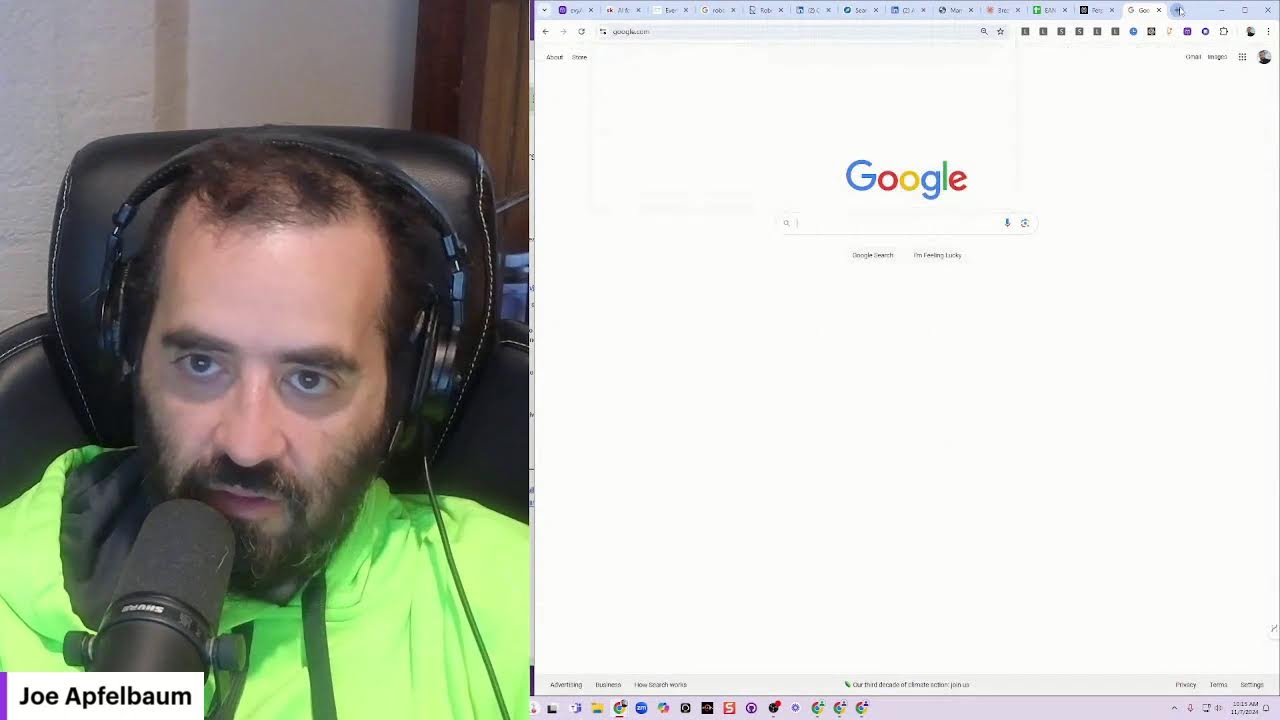
Joe Apfelbaum shows how to use AI tools like Evvy, Claude, and Make.com to automate LinkedIn outreach and research. He walks through preparing for networking events by extracting guest lists, researching attendees, and generating personalized connection notes at scale.
Chapters
So how do you go live on LinkedIn and how do you get clients with artificial intelligence using LinkedIn? My name is Joe Apfelbaum. I'm the CEO of Ajax Union, and today I'm going to show you how you can save time, save effort, improve your visibility, improve your credibility, and get more clients with artificial intelligence on LinkedIn. I'm going to be using a tool as my assistant called Evvy AI. It's your LinkedIn AI content assistant. I'm going to first go into the web app. By clicking on Go to Web App, and you'll be able to see how much activity I'm actually doing using this tool. Because this tool is an extremely powerful tool that allows me to be able to save specific people's profiles into lists. So for example, if I want to see what Millie's up to, I just click on See Recent Activities for Millie, and it shows me all of her recent activities. And then what I can do is I can go ahead and leave comments on on her recent activity. So for example, I see she's doing an event. I can go ahead and leave a comment that's analytical, that encourages engagement. Very powerful. I press comment and there you go. I left a comment. If I want to be able to engage with her and have her notice that I exist, one of the most important things that I can do is make sure that I'm building relationships with her. And the way that you do that is by leaving comments on LinkedIn. Most people don't know that leaving a comment on LinkedIn is one of the most powerful things that you can do on LinkedIn. So saving specific people's profiles from LinkedIn. So say for example, I'm on the feed and I see Cody Sanchez on LinkedIn, or I see Matt Gray on LinkedIn, and I see she posted this 31 minutes ago and she has 82 comments on LinkedIn. That's definitely not organic, but let's just say I want to be able to leave a comment on her post. I can go ahead and leave a comment just like this. I can tag her, you see that? And then I could just leave a comment, and then her audience of tens of thousands, if not hundreds of thousands of people, will then see that particular comment or post or even see my activity. So I really enjoy leaving comments on people's posts, but I don't enjoy the process of having to actually leave the comment. That's really annoying. Right? So if you're going along with me over here and you see what I'm doing, you'll notice that instead of me figuring out what to say, I have the artificial intelligence help me decide what to say. And then I look at it and it's in my voice. Hey David, that's what's talking about. You're really crushing it. Um, uh, loved our convo today. I'm here to encourage you in the comments. Okay, so you know people see this, people see this, and then they're like, "Wow, I'm the only one that commented on this." And I want to say, David, see you in a few weeks. Good luck at YPO. Okay, I'm going to press send. And so now I gave him a notification of me that I commented on this comment. So it's 2 comments, they're both me. Really powerful, you know, mentioning people in the comments like that. But do you see it took me longer to write a manual comment than it does to be able to do a comment just like that? Now in my notifications, you see it says join Joe Apfelbaum's live. Now in order for me to see who's commenting on my live, I go to my profile And then in everyone's profile, you have different modules in the profile. You have like the identity, your name, company name, where you work. You have your analytics for yourself. You have your about section, your services section, your featured section, and you have your activity section. In your activity section, you're able to click on show all posts and you can see all of somebody's posts. That's the crazy thing. The crazy thing is that you can see all of somebody's posts. So if you go ahead and give that post a like, or you switch to a company page and you have the company page give it a like, the company now gets exposure. Now I have multiple company pages, so I could switch from company page to company page on my own post and give myself different exposure. And now you can see I have a light bulb, I have a heart, and I have a little round of applause just like that. How cool is that? Now what I'm also going to do is I am going to Take it, take the time to identify who wants to join my live. So I copy the link to the live and then I send it to a connection of mine and I say, hey, check out my live. And then all of a sudden the connection gives me a round of applause and all of a sudden the connection leaves a comment. And if I refresh the page over here just to kind of see, all of a sudden I have more likes and I have more comments. You see that? I have more likes and I have more comments because people are watching this live. Now, if you're watching this live, write watching live, and I'll be able to see that you're writing watching live in the comment box, 'cause I have the comments open over here. I'm gonna click on the chat. Well done. Thank you, Sarah. Sarah said, well done. I'm gonna go ahead and reply, and I'm gonna say thank you. Just like that. See that? I wrote thank you. And so leaving comments, responding to comments, building relationships with people, that's really key. Let's take a look at what people have been commenting. You see, this is a very promotional post over here where I'm promoting my communities. And look at these people writing about this. It's awesome to see how people are using AI. I'm going to write boom. I'm going to hit reply. And then I'm going to see all the other things that people are doing over here. Do you see that? John Browning leaving a comment. Now with Evie AI, you can have multiple personas. So I have a persona right over here that allows me to do a comment reply. That's a very short comment reply. And so if I hit generate, it's gonna say digital transformation is a key. I press insert, it tags the person automatically, and I just responded. This is a great way for you to acknowledge every person. That leaves a comment for you. If somebody leaves a comment on your post, you want to make sure that you're building rapport, that you're opening the door, and that you are doing what you need to do in order for you to be successful. Most people are not taking these actions. Most people are ignoring their connections. So if somebody left you a comment a couple of hours ago, you want to make sure that you're replying to every single comment for people that have commented on your post. So if somebody comments on your post, you want to acknowledge them, right? The best way to acknowledge them is to reply to their comment. Now, this is why I don't want to go viral, because if I get a million people to comment on my post, I'm not gonna be able to have the time to reply to every single person or even build a relationship with every single person. But if I see that a dozen people or 2 dozen people commented on my post, I can take the time to go through each person and build a meaningful relationship with them and reply to their comments and check out their posts and check out their profile. So it's very limited what you can actually do if you're building a relationship. People don't understand that there's a difference between networking, marketing, and prospecting on LinkedIn. Networking is building those relationships. Marketing is trying to let people know, creating awareness about your brand and about your business. Jen's saying it's a little low. Okay. Uh, how do I make it louder? Let me see. Let me see. Sound settings. Settings. Let me see if I can make it louder. Volume, microphone. Okay, how about this? Jen, is this better? Do you hear me better now? I just made my microphone louder. For some reason, my microphone went down significantly. All right, let's go here and just keep going. Let me know if this is a little bit better. Yeah. My sound microphone was low on the computer, so maybe that's why it wasn't working right. but hopefully it's better. Let me know if it's better in the chat. If you can hear me a little bit loud and clear, just write loud and clear if it's loud and clear. Let's go in here and keep commenting. So there are 3 things that you need to be doing on LinkedIn: networking, marketing, and prospecting. Networking you do on the organic version of LinkedIn. This is me networking with these people, building relationships with them, getting to know them. Replying to all their comments. That's, that's networking. That's building, building relationships. Prospecting is what I do inside Sales Navigator. Inside Sales Navigator, what I'll do is I'll go ahead and send InMails to people who are potential clients, who are centers of influence, who are people that I want to build a relationship with and get to know. There's so many people on LinkedIn. Figuring out who are the right people that you want to get to know and building a relationship with the right people is going to be key. That's why you need to be strategic instead of hoping for the best, actually be strategic on the platform. Having an actual strategy is key. We have something called the LinkedIn Authority Blueprint, where we help you be able to build a strategy on LinkedIn and help you be able to achieve more results on LinkedIn. So if you're interested in the blueprint, just write blueprint in the chat. And I'll be more than happy to help you figure out the whole concept of the blueprint and how it works and send you a link to it. But what I want you to know is that LinkedIn is not some magic box, just like networking is not some magic box. You don't just show up to a networking event and you hope for the best. You actually start building those relationships. Now, let me show you an organization that I'm part of called the Executives Association of New York City and show you my workflow of how I prepare for a meeting. Okay. If you've read my book, High Energy Networking— High Energy Networking, this is the book. It's on Amazon. You can download it right now with the Kindle, or you can buy the paperback for $23. This book is something that will teach you how to get anything you want in life while building meaningful relationships that last a lifetime. And in this book, I talk about my experiences. And one of the things that I teach in this book is that what you need to do is you need to prepare for networking. So how do you prepare for networking? Well, I'm going to go to app.connectable.biz. I'm going to go into the event calendar, and then I'm going to go to the actual meeting. Now in the actual meeting, what I can do is I can see who the confirmed guests are. You see that? And who invited who. So I'm going to copy this list here. And what I'm going to do is I'm going to go into Claude. I'm gonna go into Claude right over here, Claude.ai. I'm gonna say, break, break down this list into 2 parts. The first part should be all the guests, which include all the people that say invited by. The guest's name should be first name, last name, company, maybe their role or whatever you can find that's on the list, and then who invited them. And it should say guest. The second list should say member and should say first name, last name, company name. And any other information that you can put in there. All right, make 2 separate tables for me, make it a numbered table, and let me know what you think. Okay, now I'm going to paste this information here. I'm going to hit go, and it's going to organize this into a meaningful way. It's going to organize it into a meaningful way. So this is the guest list right over here. I told it to make it into a table, but it didn't do it. That's fine. So I'm just going to email this to everyone now. So this is, this is, uh, what we have here. Invited by Joe Apfelbaum, invited by Jen, James at Tesco. I don't know who Tesco is. Um, Spear Travel Group, Abby Spear, Abby, um, Jonathan Goldstein, Lori Boss, Miguel Pedro. So I'm gonna do research on each one of these people over here. James from James C Flooring, Michael, Brian, Veronica. You see that? Let's see, A1 Roofing. Let me see, invited by ELM Suspension Systems. Okay. Now give me a numbered table with all the guests. Let's see what it does now. Okay, so now it's putting it into a table. That's a numbered table with all the guests. You see that? See the way it breaks it down? So now I'm gonna copy this numbered table and I could put this into a sheet or I can send an email to the Executives Association or I can have AI do research on each one of these members. So I'm just going to share a sheet. I'm going to go to sheets.new and I'm going to paste. I'm going to hit Ctrl+Shift+V. That didn't work. Let me go in here. Somebody told me if you just copy it from the outside, it'll work. Ctrl+C, Ctrl+V. Okay. That worked. Okay. So now I have all this over here. So what I want to do is I want to do research on each person. In order for me to do research on each person, I got to find out what their link, what their domain name is or their email or some information about them. So I'm gonna go to Perplexity. I'm gonna try this out. I'm gonna copy these 3 things here. I'm gonna go to Perplexity and I'm gonna say, act as a research assistant and find me a LinkedIn URL and website for this person. Okay, let's just see what happens. Okay, so it found me It found me this information here. You see that? This is the LinkedIn URL for this person. So let's click on it and see if it works. It did not work. Okay. That did not work at all. That was a big failure, but it did find a lot of information about this person. You see? So maybe her LinkedIn URL changed since then. So what I'm going to do instead is I'm going to go to google.com and I'm going to search for this person like this. I'm going to click on it. And it looks like this is their LinkedIn URL, 133, 133. There's a 4 at the end. You see that there's a 4 here? Okay. Give me all her info in JSON format. Let's just see what that does. Much better. Much better. Look at this. Look at this JSON that it gave me, a beautiful JSON. So let's test this out over here. Now once I have this JSON, I could automatically convert this JSON into the spreadsheet. You see that? Ah, beautiful, beautiful. Okay, so now I'm going to do LinkedIn and I'll paste it right here. See that? Actually, I'm going to delete this. I'm going to copy the no formatted and paste it in here. Okay, so now I have the LinkedIn URL for Veronica. Now I'm gonna use artificial intelligence to automatically, um, help me come up with a note. So we're gonna use, I'm a member of EANYC connection note. Hey Veronica, it was nice to see you at EANYC today. Let's connect. That's not the one that I want to use. Looking forward to seeing you at the Executives Association today. Let's connect on LinkedIn. Let's see. All right, that was easy. All right, do you see the way it kind of sent her that connection request? Just like that. Very powerful. It included her name and everything in there. Um, if you think that's powerful in the chat, write powerful. I'm also curious to know if you're watching. I'm gonna write powerful. If you wanna learn how to do this, we actually teach in our community exactly how to do this. So how many connections do I have on LinkedIn? I have 29,998 connections on LinkedIn. So I'm limited as to how many people I can actually have on LinkedIn. But because I'm building a relationship with Veronica, you see I'm building a relationship with Veronica, I'm able to, I'm gonna say ENYC guests. 11/7/2025. Okay, so now we have, so here's her LinkedIn. So if I wanna get her, let's say for example, email address or whatever, I can have AI go ahead and gimme her email address and everything. Make me a prompt that does this in JSON format so I can use it. again in the future. Let's just see. Act as a research assistant. Provide me with comprehensive information that does the following in a JSON format. Ooh, I like this. If you guys want this, I'll pop this in the chat. Um, let me pop it in the chat for you guys. Actually, you know what? I'm gonna put it in our community. So we're gonna go into community here, discover our community. We're gonna go here to the community. I'm gonna write something. How to have AI do research on LinkedIn online to find a prospect. Before I go to a networking event, I wanna make sure that I research people. So I have artificial intelligence help me be able to research people, and I use this particular prompt. Okay, I'm going to hit Ctrl+Shift+V and I'm going to do AI tips research and I'm going to press post. Okay, I use this particular prompt. I'm going to edit this right over here. Act as a research assistant just like this. I'm gonna hit save. Okay, so now the prompt's here. If you guys need the prompt, just go to school.com/avi.ai. Okay, so I'm gonna copy this prompt here. I'm gonna go ahead and try this again in Perplexity. I'm gonna hit new thread. I'm gonna paste it. Um, I'm going to grab the person's, uh, first and last name from the sheet, just like this. And then I'm gonna paste it into Perplexity. I'm doing this manually just to kind of show you the process of testing this out. I'm going to press go and let's see what it picks up. All right. Oh, let's see if this actually worked. Look at that. Marketing executive at CoStar LoopNet. So I'm going to paste this in here. And I can have this automatically do all the research and put all the stuff here automatically. As a matter of fact, I'm going to go into Evvy AI and I'll save, I can save that as a template in here under templates. You see this? I have templates. So I'm going to do AI research. And I'm gonna hit tags. I'm gonna do prompt, and then I'll paste in this into Evie AI. So I have it saved. You see that? Save template. Now I have this saved as a template inside Evie AI, and this makes my life so much easier. I don't have to like think about like, oh, where is that template? You know, let me use this other account while this loading. Let me save this other account and just go to the homepage. Let's just see what's cooking here. Okay, so that's here. If I wanna be able to edit this, I just do edit template. I can also copy it out right from here. You see that? That's fabulous. Love it, love it, love it. All right, it looks like people are taking action here in the comments. Thank you guys for taking action. I'm gonna go to Perplexity. So if I want this to happen automatically, I would just go to make.com and I would hit login and I would do research assistant. Oh, I could do LinkedIn URL Finder. But we're going to do Research Assistant. We're going to go in here. We're going to do AI Research Assistant. We're going to call this AI Research Assistant. We're going to find a spreadsheet. We're going to do find a row. I'm gonna search rows and we're gonna pick, we're gonna pick this here. And over here we're just gonna say research and we're gonna say yes. We're gonna research yes. We're gonna say yes to all these here. Okay, perfect. And now we're gonna go in here and we're gonna, oh, we're gonna copy the name of this. From up here. We're going to say from all. We're going to paste the ID here. Then we're going to call Sheet 1. We're going to say give me one at a time, so limit 1. And then we're going to filter for research, yes. I'm going to press OK. And then we're going to run it as a test. So now it picked up this person's name. Perfect. Now we can add Perplexity as the next thing, but I'm going to say research. So we're going to rename names to research, and we're going to add another one here, and we're going to call this Perplexity. We're going to create a chat completion so we can do research. We're going to do max 500 tokens, temperature 0.01, 0.07. We're going to add an item. We're going to use artificial intelligence over here. We're going to use the Evie AI prompt that we have here that we just saved. I'm going to paste it in here. And instead of doing person's first name from company, we're going to say person's name. We're going to do name. Oh, we're going to grab the name here. About. About, let's see, guest name from company with role. And role is that does— What role? M&A advisory. Okay. So we have that. Now we're going to press okay. And we're going to say research agent. Okay. Now we're going to see what the output is. We're going to hit run and just test out the output, see what it does. It's doing research. Let's see if I actually get a result. This is taking a long time. It shouldn't take this long. Maybe I'm using a slow model. Let's see, usage, 500 tokens, completion, message, content. Here's a comprehensive JSON about Michael. So we have this Michael Givener here. So we have to parse the JSON here. So we're going to use a JSON parser. Um, we're going to do parse JSON. I'm going to parse this JSON that we received here. We're getting a JSON, and then we're going to be able to place it in the sheet. So where do we parse the JSON? We take the message content. Press OK. So this ideally will parse the JSON. Let's see what it does. Let me grab this. Choices, message, content. Full name. Da da da da. Look at look at what it's pulling up over here. It's pulling up all this information here. So much information is pulling up. It's crazy. But I really just want the LinkedIn URL. That's what I want. I want to place the LinkedIn URL. But I have location, industry, position, company, duration. Look how much information I have about this person here. This is insane. The amount of information I'm able to pull on this person. Um, I actually want to make this a much simpler JSON. Make it a much simpler JSON. Uh, let's go in here to Perplexity and say, can you make this a much simpler JSON with just LinkedIn URL and have the AI return nothing else but The JSON with LinkedIn URL and no markdown or explanation. Okay, let's see what it does. What would be the prompt for that? Provide a JSON containing only LinkedIn URL for Ryan without additional information or explanations. All right. All right, let's just see what— let's see if we can do that. It'll probably go faster too if we do that. So act as a research student and provide me with— let's see, provide me with a JSON for— without any explanations. Control-X. For in JSON format, in JSON format without any explanations, only only include JSON. Okay, I'm going to hit run, run once. Transformer should not be the last on the module. Run anyway. Okay. Let's see what it replied with. Choices, message. Okay. Do not include this. Do not include this or anything else. Just the JSON. I don't know why it does that. It's so annoying. I can also, um, break it down. I have to save it first. Save anyway. Run, run. Jen, I see you calling me. Hang on, let me go into my WhatsApp and see what you've been sending me. Do I have a call starting at 10? Is that the issue? Let's see. You're, you're whispering. You sound like you're whispering. Okay, I'm whispering. Oh, that was from before. That was 9:37. Okay. She says, do you want to join Pagani Pens? No, um, I don't need to join that call. Okay, moving on. Let's see what it returned now. Message. Oh no, it's still returned. Oh, did I run it? Let me run it again. Run anyway. Let's see what it does here. Operation failed. Source is not a valid JSON. Okay. So, I'm going to say remove this. I'm going to hit replace. I'm going to do— I have to do a replace here. Replace. Where's the replace? Replace. Replace. Replace. Replace this. All right. Let's just see what happens. Let's see. Raw content. So, hello world. Hello. Hi. Hi world. With what? With nothing. You want to remove world. You put this in the beginning and you tell it what you want to remove at the end. You want to tell it what you want to remove. Hello world. Replace the word hello world with— oh, remove hello. So in the middle you put in what you want to remove. Okay. And at the end, whatever you want to add, because it didn't say hi. What do you want to replace it with? So we're going to replace it with nothing. So we're going to take this, the full thing in the beginning, and then we're going to— in the middle, we're going to say what we want to remove. Press OK. And then let's just see if we run this, if it would get a valid JSON at the end. Okay, not a valid JSON. Let's see what it received. It still received this JSON string, um, even though I told it to remove it. Did I tell it to remove it here? Replace this. What am I doing wrong here? Let's just see. All right, let's just hit save. Save, run it again. Operation failed. It still received this, even though I told it not to receive— not to— so maybe I need to set a variable and then replace it in the set a variable thing. This is so annoying when it does this, when it doesn't listen to me. Only include JSON. Do not include dot dot dot JSON. And do not include at the end. Here is an example. Okay, let me give it an example output. Let me give it an example output. All right, let's see. Save, save anyway, run, run. Oh, look at that, it worked! Perfect. Now what we're going to do is we're going to go here, we are going to click on Google Sheets, we're going to do update a row. That's going to say where do you want to update it? We're going to update from all. And then we're going to select the sheet ID here. And then the sheet name will be just a variable from the other sheet. And then the row number will be the variable from whatever row we want to update. Okay. And then over here, we're going to say done in A. And in, and in F, we'll update the LinkedIn URL. F. We'll go to F. We'll update the LinkedIn URL from from here, okay? We did that. All right, done. So our research assistant is done. We're going to hit run once and we should see that update. Now we're going to change the limit of how many you can do. We're going to change the limit to 10 and watch all the LinkedIn URLs appear. So let's just see how it does it. Watch the LinkedIn URL, and it should change one at a time. So James from JCM Flooring, if it finds it, it'll go. If it doesn't find it, I wonder what it's going to do. It'll probably break if it doesn't find it. Okay, it didn't find it, so it broke. I need to put some error handling here. Let me just do a Google search for this guy here. James. What's this guy's last name? So I'm just going to do no. And I'm going to do no. All right, let's just run it again. It should only find the people that are yeses. Okay, so it found one. It found 2. Let's see if it finds 3. Okay, good. It found these people and it's operation complete, safe. So I just had an AI agent do research for me on a sheet. Now, can you imagine you had 20, 50, 100, 1,000 people. Very powerful tool. All right, now what we can do is we can use another tool to look through this sheet and do research on these LinkedIn URLs. You see that? We can go through each one of these LinkedIn URLs and find out all the information about them automatically, and also automatically connect with them on LinkedIn. But in this case over here, I'm just going to add a note. And I'm gonna use Evie AI to add the note so I can just have, um, Evie AI just write it or I can speak it out. I'm gonna hit generate. I'm gonna hit go and I'm gonna do it for all these people here. Now, not all of them are going to accept my connection request, which is totally fine. Not all of them can accept my connection request. Because some of them are not going to be able to do it because I'm almost out of connections. I got to find some connections that I got to remove. So I'll go ahead and remove some connections in just a few minutes, but let me just make sure I connect with all these people before the event, at least send them a connection request. So this way, when I see them at the event today, they know who I am. I know who they are. They can check out my profile while they're going to the event. Let's see, Evie AI, generate, insert. Okay, Laurie. CEO out front. You see that? I'm going to send her a connection request, connection note, just like that. Generate. Press Insert. Now I want to go here and connect, add a note, and I'm going to hit generate as well. Let me know if you guys have any questions about what we're doing over here, if you understand what we're doing, if you don't understand what we're doing. And what you think about what we're doing. Do you see the power of this? For me, this has been a game changer to be able to put these things together and troubleshoot them. That's why we do coworking literally 6 times every month. We do that. We do coworking. Very, very interesting process, right? All right, let's see what people are saying in the chat. Okay, so Steve says amazing and powerful process. Sylvian says harnessing the power of AI is a game changer. Jen says your sound's a little low. Now it's a little better. Thank you, Jen. And the other Jen said powerful tool. Awesome, awesome, awesome, awesome sauce. All right, let's see. I got some messages here from people. What is let me know? Elaine said no thank you. Oh, perfect. So she says no thank you. So what do I do? I'm going to go ahead and click more, and I'm going to go ahead and remove connection. Okay. So if somebody is not interested in at least watching a video of what I do for a living, I don't want to, I don't want to communicate. I don't want to have them as a connection. They're not even willing to know what I do for a living. So I'm gonna reply to her. Absolutely no problem. I hope you don't mind, but I removed our connection so that I make room for people who are interested in learning about what I do for a living. Okay. I'm gonna press ignore. I'm gonna check it out. Now I made room for somebody else to connect with me. Now Rick just connected with me. I had a great conversation with Rick yesterday. 5 minutes ago he connected with me. You see that? So now I'm gonna hit message. I'm gonna message him and I'm gonna say, I'm gonna choose from there. Thank you for connecting with me, just like this. Mentorship requests, profile review. Thanks. Thanks for engagement. Network expansion. Thank you so much for connecting with me. It was really great talking to you yesterday. Hit generate. Okay. All right. I'm going to press, uh, notifications. Let's see what we have over here. People have been commenting on my content here. Let's see how many comments. Look how many comments I have. I got to reply to these comments here. I'm going to get to these comments later. But that's the idea. The idea is posting, engaging, and messaging and building relationships. That's, that's the idea on LinkedIn. If you're not leaving comments, if you're not posting on a regular basis, I'm going to show you how to contribute to a collaborative article real quick. If you're interested, I'll teach you guys how to do that. Let me go in here and do a comment reply. Let me teach you how to do that. I'm going to go to my profile. I also am curious to know if I'm getting towards my goal of leaving 250 comments for the week. I wonder how many comments I left so far this week. This is how you tell. You go to show all analytics. And I'm going to close this out here. I'm going to cancel. I'm going to hit save. I'm going to click here, click here, click this, close, close, close, close, close, close, close, close. I don't need this open. Actually, you know what? I'm going to do this over here, grab this like this. Grab this like this, and I'm going to say, here are today's. Okay, I'm going to copy this like this, and I'll send out an email to the group saying, here's today's. EANYC. Members at EANYC. I'm gonna do members. And then what I'm gonna do is I will email them and say something like— what am I gonna say? I'm gonna say, today's guests, and I'll put in the date. The date is going to be— what's today? 11/7/2024. Okay. I'm going to press send. I'm going to press send. And let me see. Can you give me an overview of what each guest does in a list format? Let's see if it can. Perplexity might be better at that. Ooh, that's a good idea. Let's try that. Perplexity, can you give me a short overview of what each guest does in a list Format. Let's see. Can you give me a 100-word networking snapshot of each person? In a list format. And also let me just see if Google will pick up anything for this person here so I can get their LinkedIn URL. Uh, it looks like this person might not even be— oh, here it is. He doesn't have information about himself at all. I think that's him, but we'll find out. James Card Money. And then, oh, that's this one here. Control X, control V. And let me do a Google search for this person here as well. Abby Berg, Abby Berg, Abby Berg, and then Nadine Sino. We have her here because she's my connection. I'm inviting her. All right, good. So we'll go here and put this here. Now we'll do this. You know what? I'll just send the links over. So it's easier. Let's see if it does research on each LinkedIn URL. Really? No information? It got tired? You got tired? Give me the rest of the people. Give me Nadine. Ah. Now put them all in a table. Oh yes, baby. Oh yes, baby. Oh yes, baby. Now I'm going to go here and go to my sent items. Go to the members. I'm going to say, hey, used AI to do some research on our guests. All right. Look how beautiful that is. And I sent the email. You see that? This is the research on each person here. Unbelievable. Un-freaking-believable. That's how quickly I'm able to do things and send it out to the whole group. I'm gonna hit save into Abby AI. Then I could research Abby and see what she's up to by clicking on the dropdown here. I could hit summarize profile. Perfect. I can use summaries like that as well. So beautiful. Look how beautiful this is. I could take all this, put this into a sheet here. It's not letting me do it properly. Look at that. Look how beautiful this is. I can put it in here like this. I can also take this and say wrap it. Wrap. Wow. That is really nice. And now I can start researching them. Now I can start the process of getting their cell phone number and email address and all this other goodness. Very powerful. All right, I could even tell it who to prioritize. Like I could say prioritize this person over that person and so on. Extremely, extremely powerful. All right, well, thank you very much for watching this. I appreciate you learning how to use artificial intelligence. I hope that you guys can get Evy AI and start using it because it'll change your life. If you do, just go to evyai.com.
More from Joe


How to Beat the Algorithm: Remove Hidden Watermarks & Scale Content with evyAI









AEO & GEO: SEO's Future Explained! Master Answer & Generative Engines! #shorts