How to Use Linkedin with AI to get Clients 116 LinkedIn Live 2024 with Joe Apfelbaum
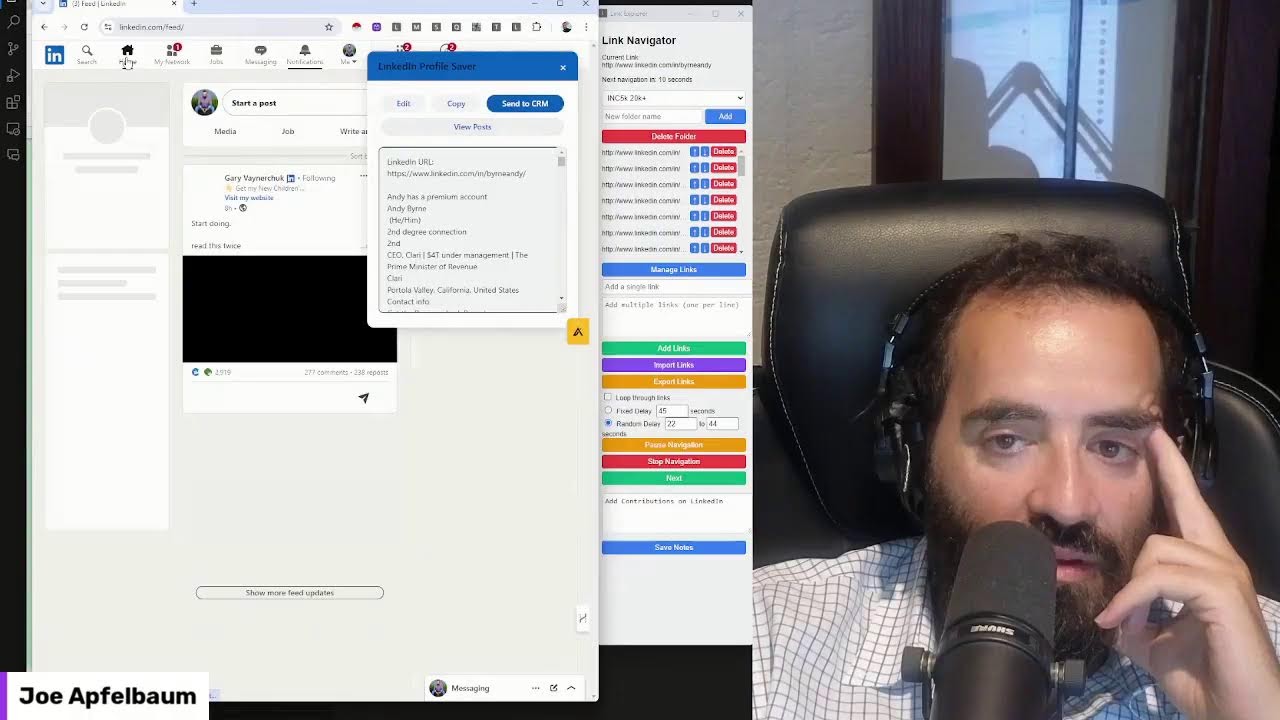
Joe Apfelbaum demos Evvy AI, a tool that turns a 15-minute LinkedIn commenting process into one click and generates hooks, posts, and CTAs instantly. He also shows Link Navigator, a Chrome extension that automates profile browsing, adds notes, and filters high-value prospects like Inc. 5000 CEOs.
Chapters
This video is called How to Get Linked— How to Get Clients on LinkedIn with Artificial Intelligence. How to use LinkedIn with AI to get clients. If you want to get clients today, you need to start using artificial intelligence together with a platform that people are on. Now, there are many platforms out there. There's Facebook, there's Twitter, There's Instagram, there's YouTube, there's TikTok, but LinkedIn is the number one professional social network. What does professional social network mean? It means there's 60 million people on LinkedIn that are logging in every day for more than 17 minutes a day. And there are a billion people that are registered on LinkedIn. I take the liberty to identify who those people are and then strategically connect with the right ones and build relationships. Now I use this tool called Evvy AI to help me be able to be more strategic and save a lot of time. The name of the game is saving time, improving your visibility, and having more credibility. So my question to you is, how many comments do you leave on a daily basis? If you only have 15 minutes a day and you're commenting manually, it's going to take you 3 to 5 minutes every single comment. You got to read the post. You got to think about what to say. You got to edit it. You got to delete it. You got to rewrite it. It's like a whole process. But with AI, you push a button, the comic gets generated. It's usually really good. You press go, maybe you delete a part of it, and you, you move on. If you wanna write a post, today I was driving the car, I pulled over by a red light. I didn't have much time. I just wrote a sentence. I hit go and it wrote me a post with a hook, main points, call to action, and hashtags, all from my mobile website, evviai.com. I posted a video, then I went to a networking event. You wanna see what the video looks like? Let's pull it up. What does the video look like? Let's go to my LinkedIn profile. Let's scroll down. Let's click on videos here. You see this video? And let's see this video right here. Prioritizing your time. How many people saw it? I don't know. 486 people saw it. It took me 3 seconds to write this post. What if I told you that your success hinges on a simple jar filled with rocks, pebbles, and sand? That's the hook. The metaphor perfectly illustrates the importance of prioritizing self-care. The rocks represent your most significant priorities, your health, relationships, and personal growth. And if you don't fill the jar with those first, the sand, the trivial distractions, will take up all the space. Dude, the AI wrote that in seconds. In seconds. 20 likes, 9 comments, 486 views. Let's watch the video.
Your 24 hours are like a jar. In the jar, there are 3 things that you could fill it with. You could fill it with rocks, pebbles, and you could fill it with sand. Sand is all the things that just happen in your life. If you don't put in your priorities first, the big rocks into the jar, there's no way that once the sand fills up the jar that you're going to be able to put in the big rocks. They're not gonna fit. You might be able to get a few pebbles in, like work, but the big rocks, like the things that are really important, like your health, those things you gotta put in first. Then the pebbles I'll put in, which is work, and then the sand will be everything else that fills up my life. If you think of how much time you have in your life, you'll realize that you have enough time to do it, but you're not prioritizing it. And if you don't prioritize yourself, yourself will fall apart.
Wow, that's a good one. It's a good video. If you didn't watch it, go back and watch it. Give it a like. Let's go see another video. Let's see if there's more videos that we could watch. This is a good idea. Maybe I should just play videos for you. Let's listen to this one. It's a 2-minute video right here.
I want to take a moment to say that if it was easy, if it was truly easy, everybody would do it. It's not easy. It's simple, but it's not easy.
Let me explain.
So many people are afraid to share their ideas in public. I had an idea. I said, you know what? Why don't I create an AI for LinkedIn that'll help you write posts, write comments and, and, and help you with messages and help you with strategy and support you and help you save profiles to lists and do all types of things that you need to do on LinkedIn without automation, without automating LinkedIn, complying with TOS, all that. And I shared it with the world. And because I shared it with the world way before my idea was ready, way before I launched it, way before I developed a line of code, 100 people lined up And paid for the idea of getting access to the tool. And that's why I developed it. Now we have 13,000 people that are part of this. Evvy AI was born because I had the courage to share an idea that I believe in truly with all my heart. And if somebody else can do it better, go do it better. Do you have any idea how hard it was to execute over the past year? To deal with bug after bug after revision after bad developer. After issues and getting sued and lawyers and God knows what. Think about it. If it was easy, everybody would do it. Warren Buffett said it's not about the great idea, it's about the mediocre idea with great execution, with great people. I have amazing people in customer service. I have amazing people in product design. I have incredible developers after failing with so many. I want you to think about this for a second. If you can assemble a team like that, then you can build a business, you can build a legacy, and you can make a difference. So don't be afraid to share your ideas. Billionaires share their ideas. Don't hold it so close to your vest. Get help, get support, get clients. Boom.
Get help, get support, get clients. Boom. Well said, Joe Apfelbaum. Well said. Let's go to the next one over here. We might as well watch some videos. I don't even, never even watch my own videos. I didn't even watch that video. Let's look. Ooh, I really like this one here. This one's cute. Let's listen to this one here.
Most people don't know that AI edits videos for you. Most people don't know that AI captions videos for you. Most people don't know that you can summarize talks. I can take every LinkedIn Live that I've ever done. The AI will type the whole thing up, turn it into an article, and email it to 10,000 people. How's that even possible? And somebody's like, yeah, but Joe, I don't have email addresses for all of my LinkedIn connections. I have them. I just push a button. The AI finds me all their email addresses, then I Put it into my own marketing automation softwares, and let's rock and roll.
Most people don't. So cute. Such a cute video. Such a cute video. Oh my goodness! My eye is itching me. My eye is itching me.
All right.
Let's see if anybody commented on the video. Guys, give it a like if you're watching this live. Hit that repost button. Let's see what's going on here. It looks like we have a like, ladies and gentlemen. We have a like. It's official. The party has started. The party has started. When we get a like, that's when the party starts. And the party started. So now once the party started, you can't stop it. You can't stop the party. My eye's itching me. I'm feeling so itchy right now. Itchy, itchy, itchy. That's what I'm feeling. I'm just feeling itchy. All right, I want to show you something. I have this list of engaged LinkedIn users that I prepared. 1,000 engaged— 1,000 people that have engaged with my LinkedIn post. I know that sounds a little crazy. I know that sounds a little meshuggah, but I have a list of 1,000 people that have engaged with my LinkedIn post. Okay, and I'm going to refresh over here. Let's see if we got We got some more action over here. Wow. Wow. Look at the action. Look what's going on over here. People are commenting and liking. It's so beautiful at 9 o'clock at night. Someone said, Joe, never go live in middle of the night. But meanwhile, I'm getting likes and comments in middle of the night. Why? How's that happening? How's it happening that in the middle of the night people are watching me on LinkedIn? Tammy's commenting on my post. That's amazing. Thank you, Tammy. All right, let's, uh, let's talk about this for a minute. Let us have a conversation about LinkedIn. Let's have a conversation about Evy AI. If you didn't get Evy AI, now's your chance. Go to evyai.com, grab a copy of this AI, click on the Chrome extension store like this, download it. Look, look what Igor said. Igor said Evy AI has revolutionized my LinkedIn experience, turning it into a dynamic platform for networking and personal branding. With intuitive AI-driven features, it's able to draft posts and comments that resonate with my audience, significantly boosting my engagement and visibility. The persona features allows for tailored content creation, making my interactions more authentic and effective. Moreover, the seamless integration with LinkedIn through a simple Chrome extension means I can optimize my profile and posts on the fly, enhancing my professional presence effortlessly. If you're looking to amplify your LinkedIn game with AI assistance, Evvy AI is an indispensable tool. Wow. Epic, epic, epic, epic. Wow. The support and strategies provided by the team led by the legendary Joe Apfelbaum are $10,000 a year minimum. I can't recommend highly enough. So beautiful. So beautiful. I found this helpful. I definitely found that one helpful. That is beautiful. All right, let's get into it. Let's start reviewing some, some things. We're going to go into the backend real quick just to kind of show you how it works in case you haven't seen it. The backend has a subscription button where you can upgrade, saved profiles where you can see all the people that you've been, that you saved their profiles and you can filter by different lists. So for example, if I have a list of people who watched my LinkedIn Live in the past, These are the people that recently watched my LinkedIn Live. I can go to their posts, their profiles, and I could engage with them just like that. You see, leave a comment on her post. And if I want to message her, I could also click on her profile and say, thanks for being my connection. Thanks for being my connection on LinkedIn. Boom! I just sent her a little message over here, so she might come on and be like, oh my God, Joe's live, I gotta watch his live. You know, these are people that were already live. Look at that, more likes, more comments. Love that, love, love, love that. All right, I have a question for you. Do you use Evie AI? If you do, say yes, I use Evie AI. Say that in the comments. If you don't, say I don't use Evie AI. So if I want to be able to see a list of people's recent posts, what do I do? How do I do that? How do I do it automatically? So this is what I'm going to do. I'm going to close this whole thing right here. I have a list. You see this list over here? This is a spreadsheet. In this spreadsheet, I have a list of people, like for example, Sebastian Rusk. I'm going to open up his profile over here. You see, this is his profile, and I see that he has 9,132 followers. You see that? He posted 9 hours ago. 9 hours ago he posted. So I'm going to go ahead and give him a like. I'm gonna leave a comment. I'm the only one that's gonna leave a comment on his post. The only one leaving a comment on his post. You see? Let's just see why. Oh, I don't know why, but I'm the only one. He has 9,132 people. Let's move this to the side here. Move this right over here. 900— 9,000— what? 9,132. So it's 9,132 people. Let's write that over here. 9,132. That's how many people are yes. Let's look at Faith. Let's look at Faith's recent posts. So what do we do? We just go right here. Now, but I don't want to have to do this one by one. It's annoying to have to do it one by one. So what do I do? How do I do all of them at once? By the way, I'm going to message her and say, I see you haven't posted. I see you have not posted in several Several months on LinkedIn. Do you need some help with posts? Happy to give you some content to post. I have an AI that can write it for free. Let me know how I can support you. Look how beautiful that is. I am making an offer to write a post for her for free. Wow, how beautiful is that? How lovely is that? She has 3,903 people that she's connected to on LinkedIn. 3,903, and she's doing nothing with it. Well, let's check the rest of these. Okay, let's check the rest. These are all 500+, but they're not really 500+. Look how many we have. Have here? We have so many. Okay, this is way too many to check now. So how many should we check? Let's just check, let's say, let's check this many. Let's check 15. Okay, I'm going to copy these 15. Now what I'm going to do is I'm going to go here and I'm going to check all 15 at once. You want to see how I do that? I'm going to first move this like this. Uh, yeah, we don't need that sidebar. Okay, so this is where it is. I'm going to make it a little longer just like this. And now what I'm going to do is refresh the page. Okay, that worked. Okay, now I'm going to open up an extension that I made. This is— this extension is called Link Navigator. I'm going to select a folder. Actually, I'm going to make a new folder. I'm going to call the folder Engaged Users 500+. I'm going to hit add. Now I'm going to select that actual folder, Engage Users 500+, then I'm going to click Manage Links and I'm going to paste all the links. I'm going to press Add Links. Okay, now all the links are right here. Now what I'm going to do is I'll extend this so you can see what's going on over here. Now what I'm going to do is I'm going to press Start Navigation and the links are going to start loading here, but I first want to choose how long I want the delay to be, so I'm going to choose Random Delay. And I'm going to say do it between— give me at least 20 seconds to 39 seconds. I'm going to say 21 seconds to 39 seconds. Somewhere in between, it's going to shift to the next one. Okay, I'm going to press start navigation and it's going to start a navigation right now. Now this is Kenneth Lang. I see Kenneth posted 13 hours ago. I can easily leave him a comment. Now the counter is going down. I got 14 seconds left. And now it just left a comment. Now I can just chill here. I can go to his profile, I can click around, or I could just wait. I could wait for this to go to the next one. It's going to go in 3, 2, 1. Okay, we got the next one. The next one didn't work clearly. Rebecca Wolf Hirsch didn't work. I could look her up. Uh, I can go to linkedin.com and look her up. Rebecca Wolf Hirsch. Rebecca Wolf. Rebecca Hirsch. She took off her last name. That's her right there. That is her right there. Let's see what's— all right, well, let's go into the next one. Too late. All right, Jim Morales. Jim Morales posted 8 months ago. Wow. Okay, I see you have not posted in Many months. You know what? Let me just. Oh no. Let me know if you need help posting. I can have my AI write a post for you. Okay, just like that. I went for it. You know what? I'm gonna copy this. Oh, too late. Too late. Four months. Same thing. Same problem. These people are not posting. They used to be super engaged on LinkedIn. They are on my engaged LinkedIn users list. They— I have 1,000 of these people and these people are no longer posting. I see you have 12K followers, but you are not posting. Do you want me to have my AI write a post?
Okay.
That's a good one. Let's see, Donnie. Donnie has 11,000 and he posted a day ago, so that's cool. All right, let's see. This guy's writing about Hamas. Let's see what he's writing about over here. What kind of realtor am I? Okay, I'm not going to actually I'm not going to comment on this at this moment. They got to the next one. Carmen has 2,700. I'm going to say you have 2,700 followers, but you're not posting. Do you need my help? Okay. Look at that. And I can actually go to evviai.com and add it as a template, but I'll just paste it for now. 5, 4, 3, 2, 1. Okay. Now this link over here, this is Levi Liebling. I see he commented. He wrote a post. I'm gonna quickly drop a comment for him. Just like that. Nice. All right, Dr. Gabriel posted 2 weeks ago. That's cool. I'm gonna leave a comment. Actually gonna change my persona here. Let's see what I should change it to. I have so many personas I can choose from. I'll just choose the Joe Apple. I'll just drop a quote. I'm gonna drop a quote. You see the AI just wrote a quote. I'm not even connected to him anymore. Look at that. I used to be connected to this guy. Oh well. Nothing to post. Oy vey. All right, let's see what this person has to say. This person isn't even commenting. They're not doing anything. Oh, look at this person. This is— who is this? This is Lisa Diane Team Nova. Lisa Diane Team Nova. I'm gonna look into that. I should like have like a little note that I could put next to it. Or a little note box over here. That's a good idea. I'm going to add a little note box here where I could take notes, like a little text window where I can take notes about the— about that particular link. That's a good idea. I'm going to— I'm actually going to do that. I'm going to drop a link here. 18 hours ago. Leo Prada. Nice, nice post. Luis Fernandez, 3 weeks ago. Holy shit, that was amazing, he says. All right, I'm gonna drop a comment. I need to add a little box right here ASAP. I'll show you how I do it. It's not rocket science. All right, let's see who this is. This is Stephanie Van Berlo, 7,800 followers. Let's drop a comment here. Let's see what she writes. Great insight, Stephanie. Understanding your audience is key. Let's look at her profile. She's from Spain. Look at that. Oh man, epic, epic, epic, epic. Oh, who's this? This is Michael Pariser. Michael Pariser's thing is broken. Amazing. Let me see where Michael Pariser is here. Michael Pariser. Leo Prada, Jonathan, Stephanie. Okay, second to the last. I got one more. I got 11 seconds left till the next one. Let's see if I can get this out in 6, 5, 4, 3, uh, 22 seconds. Hey, I don't even know if I made it. 22,000 followers and he posted 14 hours ago. Epic. This might be the last one. Yeah, this looks like it's the last one. I definitely am gonna go add a little note box here. And that is that, ladies and gentlemen. That's the whole kit and caboodle. Now I can delete these. I can move them up and down. You see, I can move them up and down, and I can delete them. Or I can just delete the whole folder. Boom, the whole folder's gone. All right, I can close this, I can close this, I can close this window here. I can go to, say for example, Michael Pariser. Let's see what happened to him. Yeah, he has a 404 error. We will have to search for him on LinkedIn and see if we can find him. Let's see if we can find him here. There he is. Put this like this. Is he even here? Excuse me. I don't even see him here. He must have like canceled LinkedIn or something. He's gone. This man is gone. Let's see on Google. Dr. Michael— oh, Microsoft. Yeah, I don't know what happened to him. He used to be pretty active on LinkedIn, and now he is gone, and now he is gone. Let's, uh, let's analyze some Inc. 5000 people here. Let's run this. Let us run, let us run, let us run in the fun. Let us run, let us run, let us run. All right, let's see what's going on here. No LinkedIn URL. Let's, let's go here. I am enriching the Inc. 5000 list right now, 100 at a time. Let's see. All right. Oh, this guy only has one follower. Oy vey. Oy vey. Oy vey. Oy vey. Let's see. You know what I should do? I should do a pivot table. I can call this followers. I can call this location photo, location photo, year, year open LinkedIn, I don't know, account. Since, I don't know, I guess I got account age. Maybe account age. When did you open your account? You opened your account on opened account. I'm thinking about what to say. Summary. This is the— this seems like it's the industry. This is— what is this? This is company LinkedIn. This is employees. This is phone. This is logo. This is company founded. Company description. Company tagline. What's this? This is Company followers, company name, website. This is recommendations. Let's see if it's true. Let's see if this guy DC Supply has 3 recommendations. Let's go here. Boom, Ctrl+C. Open this puppy up, see if he has 3 recommendations, and we'll know if it's true or if it's a lie. Received recommendations, 3. 1, 2, 3. Epic, epic, epic, epic. So now I can see which people have how many recommendations. So I can send a message to the person, I can send an email and say, hey, look, I noticed you don't have any recommendations on LinkedIn, or I noticed you have 2 recommendations on your profile. I'd love to give you another one, but we're not connected. That's such a good one. That makes me so happy. So I wanna add a text box. I wanna add a text area. So I'm gonna go here to ChatGPT. I would like to add a text area to my Google Chrome extension sidebar. Can I give you the HTML of the sidebar and you help me create a text area box on the bottom of the sidebar? I want the extension to remember the text I put in there, even if I close it. I also want a save button on there.
Okay.
Do I want a save button on there? I also want a save button on there. I don't know. Let's just see that. I'd be happy to provide— please provide me with the HTML for your Chrome extension. Okay. Let's do that. Let's pull up the HTML for the Chrome extension. Let us go here. Close. Let's see what this is. This is my Instant Data Scraper. Don't save this. Open. Open. Open. Open. Hide Explorer. I want to close this folder. Close folder. Close folder. Where's close folder? Let's see. Open editors. No. All right, let's see. File, open folder, open file, open folder. Uh, okay, so let's go to documents. Where did I store it? Desktop, Donna's lead magnet, Sales Navigator 2. No, sidebar link navigator. I think that's what it's called. No, it's Maybe it's— maybe it's v2. Maybe it's v2. Maybe it's v2. Maybe it's not. Let's see. background.js, manifest.json, link navigator, panel.html. So they want panel.html. Okay. Let's see if the If the button, next button's on the bottom here, okay. Control A, control C, let's give it, let's give ChatGPT the code. All right, to add the text area to the bottom of the sidebar with a save button and ensure the text persists through the windows as closed, you can modify the HTML and include JavaScript for the saving of the text. Here's how you do it. Okay, now update your panel.js to handle the saving and retrieving of the Chrome storage. Uh, if the panel.js already exists, append the following code to it. Okay, so let's grab this div tag here. Ctrl+C. Let's add it to the bottom here. Save. Let's go grab this. Document.addEventListener.function. Let's go to the panel.js. Let's add it to here. I don't know where to add it, but I guess I'll add it here, and I hope for the best. I don't know if I'm supposed to have this like semicolon here or not, but I know what I added, so I know what can go wrong if I I don't know. I hope I, I hope I did it right. I just press save. It looks like I'm doing it right, but I'm not sure honestly. But let's see. Let's load the Chrome extension again. Let's right-click. Let's go open up the Chrome extensions. Um, extensions, manage extensions. Let's go to Link Explorer, refresh. Let's click. Where my box be? Where my box be? I don't see my box anywhere. Let's see these errors. What is these errors? DOCTYPE issue. Refused to execute inline event handler because it violates the following security policy. Either the unsafe inline keyword hash is required to enable inline execution. Note the hash does not apply to event handlers, style attributes. Okay, I don't know what you're talking about. Refuse to execute inline. Okay, let's just do clear all for now. Let us go back and let us click details here and let us click OneDrive, Donna's, oh, test extension. That's where it is. Whoops. Whoops. It's under test extension. Whoops. Wrong file. So Ctrl+Z, save. Back to the HTML, delete this div. Save. Let's go back to File, Open Folder. Test extension. Select folder. Okay. Panel.html. Go to the way bottom. Add. Let's go to ChatGPT. Grab this. Add it to the bottom. Hit save. Grab this. Add it to the panel.js at the way bottom. Hope I don't break the whole thing. Save. Go back here, pull up the extensions file, manage extensions, refresh, click on it. Oh, look at that, I got a little box here now. Save notes. All right, test note, save. Note saved successfully. Note saved successfully. Note saved successfully. I'm going to say, can you make the note saved successfully not pop up as a freaking alert box, you mental case? You mental case. Can you make the note Saved successfully not be a popup box because it opens inside the side panel and I can't hit OK to the alert. Can you make— make the confirmation under the Save button? To display the confirmation under the Save button instead of using a popup, you can modify the JavaScript confirmation text on the sidebar. Here's how you do it. Replace the alert with confirmation message. Document event listener, blah blah blah. I don't understand any of this. This is mumbo jumbo to me, but let's try it. Let's try it. Let's go here. Document event listener, blah blah blah. Paste. Save. Hope for the best. Hope this works. I have no idea if this will work because I don't even know what I just did. But I'm gonna refresh. I'm gonna click this puppy here. I'm going to say na na na save. Oh, look at that! That worked. Bum bum bum save. Bum bum bum save. Bum bum bum save save. I love that. Now I have notes. Now I have notes. Now I have notes. All right, let's see if this works now. I'm gonna take this, put it on the side, take this like this, put this right here, and let's look at the news now. Let's go to the news. Let's hit start navigation, and we're gonna see every 5 seconds, we're gonna see another news website. Oh, all eyes. Wow, it's opening up all the news websites. That's cool. I'm in love with this extension. This is the best little thing ever. Delete is not working now, and up and down is not working. Why? Why is delete and up and down not working? Let's see. Let me see if there's any errors. Refresh. Error, error, error, error. Let's see errors. Let's see what the errors are. Okay. I am having an error. Help me find out why I have this error. Also, the delete is not working. Can I give you the panel.js to look at? Yeah, give me the panel.js. It'll help me troubleshoot the errors related to the Chrome security policy on the onclick. Please share your panel.js. All right, so let's give him the panel.js. Ctrl+A, Ctrl+C. Ctrl+V. Resolving the security error when you're encountering due to the inline event handlers, example onclick attributes, Chrome security policy. To fix this, move all the event listeners to your JavaScript file. Delete— fixing the delete button and the inline handlers. To resolve the issue delete functionality CSP error, you need to attach the event listeners for the delete and move buttons dynamically within your panel.js. Here's how you update your code. Dynamic listeners instead of onclick in the HTML event listeners now attached to dynamic using event listener in the JavaScript file. This complies with the CSP rules and avoids inline event handlers. Delete functionality, the delete button now correctly triggers the removeLink function when clicked. General initialization. Once you, once you used DOM content loaded multiple times. Oh, since you use DOM content loaded multiple times, you can consolidate the initialization in one block. Make sure all these elements set up properly. Here's the updated initialization block. I'm going to say, can you give me an updated panel.js and an Updated panel.html that would work well. Give me the full files. Thanks. All right. Let's see what it does. Yo, yo. This extension is just trippy. It's a trippy, trippy extension. So I'm going to go ahead and create a new folder. Uh, new folder. Where do I create a new folder? Under test extension, I could do new folder. Oh, hell yeah, I can do a new folder. I'm going to do a new folder here. I'm going to call it Link Navigator V3. Then what I'm going to do is I'm going to take the background.js. I'm going to go in here, I'm going to do I'm gonna open this up. I'm gonna do new file. I'm gonna call it panel.html. I'm gonna call it panel.js. I'm gonna call it manifest.json. New file, new file. Manifest.json. And what do we have? We have panel manifest background.js. New folder, new file, background.js. Okay, so we have 4 of them here. We'll copy the background.js in there, paste it in here, save. We'll copy the manifest.json, manifest.json, paste it in here. Now we're gonna grab the panel.html and the panel.js. That ChatGPT is writing. I'll continue generating. Oops, an error occurred. We broke the machine. We officially broke ChatGPT. What did it do? Okay. All right. So give me panel. Give me panel.html again. Okay, it's gonna give me panel.html. So I have over here, this one here is panel.js. So this is the updated panel.js. Okay, save. And let's see if it'll give me panel.html nicely here at the bottom. It's almost finished writing it. Pause. Next. Here we go. All right, let's copy it. Copy the code. This is the panel.html. Ctrl+A, Ctrl+V, Ctrl+S. We're going to go to manifest.json and we're just going to call this Sales Navigator— just Link Navigator v3. Okay, I'm going to press save. And I'm just gonna give it the background.js. I'm gonna say, by the way, here is the background.js in case you want to see it. Background.js looks well structured for handling creation and management. Key features. Da da da da da da. Possible feature extensions: window resizing, multiple panels. Optimization consideration: if your if your extension becomes more complex, you want to manage multiple windows. Consider the Chrome Storage API. Okay, I'm not going to do that. That's way too complicated. I'm not managing multiple windows, but that's not a bad idea. I'm going to do clear all. I am going to go back to the extensions. I'm going to remove this extension. So I have this copy of Link Navigator 1.0. I'm going to remove it. And I'm going to do load unpacked, and I'm going to load Link Navigator V3. Under Test Extension. And then I'm going to click here. I'll pin it. Link Navigator V3. And now we're going to load it. Oh, look at that, we loaded it. We're going to select a folder. Uh-oh, it deleted all my, all my stuff. I had a bunch of stuff there. Folder name News. Add. Now it's here. Oy vey, oy vey, we deleted it. We deleted all the news articles. So let's go, let's go add them now. Let's go to, uh, manage links. We're going to add http://www.cnn.com. Add, delete. Oh, that worked. http://www.cnn.com. HTTP www.drudgereport.com.
http://www.msnbc.com. http://www.foxnews.com.
http://www. I'm going to ask Perplexity, what are the— give me the top 10 news websites on the internet. Let's see. BBC News, MSN, CNN, New York Times, Google News. Get just Give me the URLs and nothing else. Uh-huh, done. All right, now we have this Huffington Post, Daily Mail. So we got CNN in there, we could delete this. Um, MSN, we could do MSNBC, we'll delete that. Fox News, we can delete that. And just paste that, and we could do save. Add links. Oh, you can export links. I didn't know you can export links. That's a new feature. Is it a new feature? I don't know. Test. Test. Save notes. Ooh, I like that. It saved the notes. Okay, now that we have the news, let's go watch the news. Let's watch the news. Five seconds. Per news website, max. Let's just see. 5, and the countdown timer starts. 4, 3— MSNBC. It's supposed to be MSNBC, but whatever. We got CNN. We got the New York Times. We got Google News. Kamala Harris makes her case to the new. Okay, we got Yahoo News. We got Fox News. Farla Soros huddles the government blah blah blah. We got NBC News, and we got HuffPost. Wow. Well, something's going on with Kamala Harris right now. We got Daily Mail. Who added this? Who reads Daily Mail? Oh my goodness. This is crazy. I love that I could add notes. That makes my life so much easier because I, because I'm middle of a workflow and then I have to remember who I need to remove from the workflow or what I need to do. And now I have the ability to have notes. I'm keep improving this. I love this. I love that I can delete a folder. I love that I can move links up and down now. Look, look, I want to move CNN up. I move CNN all the way to the top. That is epic. All right, let's close this. Let's see what else we got here. What other types of— what are the types of lists would you like to see? Um, I guess I would love to like go through my workflow. So I'm going to call it LinkedIn workflow. I'm going to say LinkedIn, LinkedIn workflow. I'm going to say add. Okay. So now I have a folder called LinkedIn workflow. So what, what does my LinkedIn workflow look like? Uh, let's move this all the way here. What does my LinkedIn workflow look like? All right. The first thing I want to do is I want to look at my, all of my recent posts. So that'll be my first workflow, my first part of my workflow. So the first thing I'll do is I'll look at my recent posts and just kind of see, you know, if there's any people that have commented. So I'm going to add recent posts there. Okay. I'll actually add it one link at a time just to kind of test out that functionality and link. Okay. So we got my work, my, my that. The second thing I'm going to do is I'm going to look at my recent messages just to see what's cooking. All right. So linkedin.com/messaging, that would be my messaging. So I'll spend a minute or 2 minutes looking through my recent messages. Okay. That's my workflow. So I'm going to do add links. I got my messages. So I got my, that my message. Now I'm going to spend like 60 seconds looking through my notifications. Uh, so I'm going to grab my notifications. I'm going to say add links. Then I'm going to spend time looking at who looked at my profile. Okay, so we're going to look at who looked at my profile. We're going to add that, add links. Then I'm going to spend some time looking at the performance of my recent content. So my dashboard, look at my dashboard, add that link. Then I'm gonna go to Sales Navigator and look at my recent, see if anybody messaged me. So I go to /inbox. Sales, sales/inbox. Okay, add link. Add link. Okay. Then I am going to go back to my LinkedIn home. There we go. My Social Selling Index score, of course. Okay, I'm at 81 right now. That's terrible. Control C. Why am I only at 81? Okay, my Social Selling Index score. Then I'm going to see what else I have over here. I'm going to go to my LinkedIn. So I got my Social Selling Score. I got my recent posts. I'm going to check my new LinkedIn services requests. That's important. Uh, let's add that. I want to see who's been sending me LinkedIn services. Then I am going to check my Sales Navigator inbox, my recent LinkedIn connections, just see who recently connected with me. That's a good one. Oy vey, I'm almost at my capacity. I gotta remove some connections ASAP. Add links. Then I am going to look at who viewed my profile, I did that. First-degree connections posts, sent invitations, articles, recent posts, content 24 hours, followers on LinkedIn, check out my recent followers, that's cool. Followers. Who are my recent followers? Add link. Because you never know who's following me. I spend a minute, at least a minute looking at that, right? And then what I'm going to do is I am going to look at— let's see, may as well look at this guy Strati. I love Strati's content. This guy has really good content. He always does. I'm going to look at Strati, Mr. Strati's content and links. So this is 1, 2, 3— let's see. Let's see how long it would take me to do this. It's 1, 2, 3, 4, 5, 6, 7, 8, 9, 10. 9, 10, 11, 12. So this would take me 12 minutes if I did it 1 minute per link. So let's do 45 seconds per, and let's see if we can do this in 10 minutes. All right, so let's hit start navigation. All right, let's go. So we got 45 seconds to look at my recent content. All right, let me like my own post over here. Let's see who engaged. Let me see who engaged over here. I spy Larry Weiss. Ah, I got 30 seconds left. Boom, well done. Okay, Tina says amazing lineup. Happy to share them with you. My mother said boom. I'm gonna say boom right back. Boom. All right, let's see what happened over here. Oh, look at that, 43 likes. Epic, epic. All right, so that's done. Next, I'm gonna look at the, the messages. Here it is. Thanks a lot. All right, let's just see. Let's see what people are saying to me. Sounds good. I got 29 more seconds to see the messages that people are sending me. And the messages I'm sending people. All right. This is crazy. Oh, damn pinkus. He gave me his cell. I have to copy this. Control C. Notifications. Okay, so this is my notifications. My notifications. It looks like Sarah liked my thing. Hey, you want to connect? I appreciate it. 3 days ago. Oh wait, I'll go back. Look at who looked at my profile. Accredited speaker. Thank you for checking out my profile. Gabriel Altman. I'm gonna accept it. Why not? He's a lawyer. Ba ba ba ba da. Ba da da da da. Ba dum ba dum bum bum. I gotta add contributions. I'm gonna put a note here. Add. Contributions on LinkedIn. Save notes. All right, let's see what else I got going on. Let's look at my posts. What did well? My kitchen countertop guy stared at me with his mouth wide open. Yesterday I was sitting with my brother eating dinner. I take inbound calls from strangers and I'm nice to them. Those are my top three posts of the past seven days. Not bad. Let's check in my Sales Navigator inbox. These are the responses from people. LinkedIn, LinkedIn said you cannot send any more messages to strangers. You sent already eight hundred this month. That's the max. That is the max that I could send out. That is the max that LinkedIn allows me to send out. Amazing. Amazing. All right, now this is my Social Selling Index score. People on your team, people in your industry, people in your network. You're in the top 1%, top 1%. So what's wrong? It's saying I'm not engaging with Insights, but I am leaving so many comments. Discover and share conversation-worthy updates. To create and grow relationships. Huh. And this one over here is identify better prospects in less time using search and research tools. I guess I'm not doing enough searches. Establish your presence, complete your profile with the customer in mind, become a thought leader by publishing posts. Dude, I am publishing posts. Oh, look at these people sending me messages here. Who are these people? Who are you? This guy wants a business plan. A student. You want lead gen? I'm a professional lead gen expert and email scraper. So people are spamming me through this. I don't understand, like, really? I don't understand. We're a printing company, we do security printing. Wow. These are my recent connections. Look, I have 30,000 connections. I'm all full. I can't accept any more connections. I have to remove people now. Who am I gonna remove? I'm probably gonna remove David. Why? Okay, let's remove some Davids. Let's go find a David to remove. Which David should we remove? This David we should remove. Hell yeah, I'm gonna remove this David. He doesn't even have a picture. Remove, remove. Have a good day. How are things? Oh, look at this. These are my followers. Interesting. So if it says following, that means we're connected. If it says follow, that means I can follow him. Wow, look at that. These are all my followers here. Look at that, how many people are following me. There's so many people. See if there's anyone that I recognize well that are following me. I should put music on and watch this. This is watch— this is binge-worthy. Ah, and this guy Strati. Let's look at his posts. Boom, boom, boom, boom, boom, boom, boom, boom, boom. You know what? Let's scrape all his posts. Let's do that. Let's grab all of his posts. Let's go to marketinginspector.com. Guys, check this out. marketinginspector.com. All right, let's put his posts over here. Let's hit analyze and let's check out his last 50 posts. Oh my goodness, he received 4,500— 4,500 reactions on this post over here. What is that post? Just this: never stop praying even after God gave you what you were praying for. Continue praying with gratitude and faith, nurturing your connection to the divine purpose, staying grounded with the blessings you receive. And apparently people like this. Wow, a lot of people like this, especially my friend Brad. Look at that, people really like this. Oh wow. Gratitude and humility. Uh, thinking about you, Brad. Boom. All right, ladies and gentlemen, you saw me do the LinkedIn workflow, you saw me do the news. If you want, you can watch me do the more stuff tomorrow because I'm going to come back on live tomorrow. Hopefully you found this valuable. If you did find this valuable, give it a like. Let me know if there's anything else that you want to watch me do, and I'll be more than happy to show you how to use artificial intelligence to grow your business and make that money. Make money, money. Let's see. And if you need me to build you a list, just tell me what type of list you need me to build you. Let's see what we have over here. $1,900. Wow, we're already at $1,900. Yeah, we're at $2,000. We collected 2 freaking thousand. This is where we're up to.
Wow.
Wow, wow, wow, wow, wow. Let's filter for people that have more than 20,000 followers. Let's do that. Let's go here. Let's click on this button. Let's say filter. Show me people that filter by condition, um, more than— let's see, number is greater than, greater than 20,000. Let's see what happens. Oh snap, how many do we have? How many do we have? How many do we have? Uh, we have 32 people. That is epic. 32 people that I'm not connected to that have— that 31 people that I'm not connected to that have more than 30,000 followers. That is something I would definitely want to check out. More than 20,000. Okay, let's see who— there's 30 people. I want to, I want to look at all of them. How would I look at all these profiles? Very simple. You go to the bottom, you grab one, you go all the way to the top, you grab 30, copy. You go here, you add a new folder here. The folder is going to be called Inc. 5K, 20K plus, 20K plus. I'm gonna press add. I'm gonna go to that folder. I'm gonna add the links here, add links. Then I'm gonna say, make a random delay between 22 seconds and 44 seconds. Okay, so I wanted, I wanted to see between 22 seconds and 42 seconds. Start navigation. So it's gonna make me a nice little show. This is a nice little show with all these people's profiles. And I can actually save each profile if I want. So I just go here, link, save, and I can send it to my CRM just like this, boom. I just put it in my CRM. Sam Brenner, 24,000 followers. I got 27 seconds to play. Why not save him to my CRM? Saved. He is in my CRM now. Um, wow, he posted 2 days ago. Interesting. Last thing over here, you guys, in 2021. How many? Yes, 32,000. That's epic. I got 34 seconds to play. Save. Send. Wow. He's a Forbes Council member. Interesting, interesting, very interesting. He's in Las Vegas. Look at, look at Chad. Chad is in Austin, Texas. 28,000 followers, LinkedIn Premium. Let me save his profile real quick. Very little info sent to CRM.
Wow.
Number 496 on the Inc. 500. No recommendations. Look at that. Look at Rob. From Michigan. This is epic. I am loving this, loving this, loving this. I am loving this. What is going on over here? Michigan State University. Very interesting. Scott, CEO and Chairman of the Board of Ace Group. And some people tell me, you know, Joe, there aren't any CEOs on LinkedIn. Who even uses LinkedIn? Look at all these people. These people have over 20,000 followers. These are all influencers and they're on the Inc. 500. I should invite them all. I should make a mass email and put these together and say, hey guys, you all have over 20,000 followers. You were all on the Inc. 5000. Let's get together and come up with a plan To support each other's content. We all have a massive network. Let's put our, let's put our thing, let's put our thinking caps together. Let's figure out how to grow each other's businesses. Oh my goodness, that is such a good idea. I'm gonna do that. I am going to do that. Oh my God, that's so smart. And I didn't even finish most of the list, you know, like I have only half the list done. Probably next week I'll finish the whole list, you know, really optimize. Look at 33,000 followers, Liana Golan. I got 17 seconds. I got 17 seconds. Sent to CRM. Wow. Wow, let's see, 23,000. Look at this guy, he posted 9 hours ago. He's getting action, this dude. This dude is getting action. He's getting action. Joe Butterly. Wow, that's an interesting name. He has Chinese. You think he knows he has Chinese on his profile? He must be a genius. Summer intern, Yale School. No recommendations. Very interesting. I gotta make room for all these people. Zach Dugow, YPO, YPO. I got 3 seconds left. I love that he wrote that he's in the Inc. 5000. Okay, she has a top voice. She's 47,000 followers, 300 likes on her recent post, and she— oh, because she reposted it, it's not even her post. Nice. Chief Executive Officer of Lattice. This is so cool that I can do this, that I can pull up every single person's profile on the list. Elizabeth Johnson, CEO, Performance Inc. 5000, 3 times. Wow, very impressive. Very, very impressive. Very impressive. Let's look at this. Welcome to Path. Thank you for raising up women in business. Oh, Anthony Casa, CEO of U Mortgage. Master mistake maker. Master mistake maker. I like that. I like that he's calling himself master mistake maker. Wow, no one left a comment on his post here from ten hours ago. I will be the only one. I will be the only one, the only one, the only one. I will be the only one. Michael Butts. Yo, I got big butts and I cannot lie. Isn't that funny? Uh, let's see. Michael Butts. Uh, 15 hours ago he posted something. No one liked it. I'm gonna give it a like. I'll come back to it because it's just sending me to the next one. 43,000 followers. This guy's serious. This guy is serious, yo. He's a serious guy. Sent to CRM. He's the most recognized, respected independent ERP and HCM systems expert in the world. Wow, that's a lot of acronyms. That is a lot of acronyms. Mr. Eric Kimberling. Eric Kimberling. Evan Erdberg. Evan Erdberg, 24,000 followers. Erdberg. He was definitely made fun of in school. Erdberg. That's a hard name. That's a hard name to have as a kid, you know. Let's see, 2 comments. Let's see, 2 comments. Uh, let's leave him a quick comment. You got 14 seconds to leave him a comment. Let's see. Great insights, Evan. Supporting our kids through change is essential, with a nice Dale Carnegie quote. Look at that. Is that a gun he's holding in his hand? What is he doing? What is he doing? 30,000 followers. Epic. Wow. I'm ready to go to sleep, guys. I'm tired, but I got to get through this list. I got to get through this list. We're prospecting. We are prospecting. Till the early morn, till the early morn, we're prospecting. Let's see, he posted 2 days ago. No, he got 5 comments there. I'm gonna drop a comment here. Boom. Could you imagine I do this and I report back and I made like $50,000 off this little thing here that I just did? I'm just— my brain is just like, oh my God, this is so cool. This is so cool that I get to browse through all these people's profiles just like that. And then I could save the ones that I want. It actually even pulls his birthday out, you know? I love that. So I can message him later and say happy birthday. Happy birthday on September 19th. Happy birthday on September 19th to Greg Friedman. Mr. Greg Friedman, happy birthday to you. Let's click on his profile. 28,000 people. Wow, 20,000 people. Greg Abad, president in Reston, Virginia. Wow. Wow, he's a president in Reston, Virginia. Who's this guy, Jay Toro? What's he saying? I hope you to sell your business or retire soon. Me and my business partners are seeking to run a private company to manage and grow. No thank you. Who would want to sell their business if it's profitable? And if it's not profitable, you're not going to give me any money. So what am I gonna do? April Coe, New York City. Look at her, Spring Health. Wow, 2 days ago she posted, she got 139 likes. She's a rock star. She is a rock star. Let us engage. Let's find a post that— oh wow, 2,000 likes. Oh my God. Wow. $3.3 billion. Wow. Is a $3 billion evaluation. That is insane. That is insane. Andrew Skivelly, 22,000 followers. He posts and 4 people leave a comment from 3 weeks ago. Not very popular. And it's his company that left a comment. I got 6 seconds to leave a comment here. All right, done, left a comment. Goodbye, next.
Andy Byrne.
Yo, the revenue leak. The revenue leak save. Sent to CRM. What's this notification here? Teresa liked my comment.
Gary Vaynerchuk.
Did get carried away and then I stopped doing it, but this is gonna hold me accountable in 1 second. It just gets me right back on track. I love that. I love that. What was I doing? Oh yeah, I was reviewing Inc. 5000 CEOs' profiles and saving them to a spreadsheet. I already have them in a spreadsheet, but I wanna just pull all these together and see what data I can get by doing that. It's crazy. CEO of KG Tiger, bringing advance to talent acquisition and payroll. She has a payroll company. Greg Van Horn. Greg Van Horn. Epic. Serial entrepreneur. What is it, like cornflakes? Is that what type of cereal you're offering? I'm gonna go in here and drop a comment for Mr. Cereal Entrepreneur, Mr. Fruity Pebbles. There you go. There you go. I just give you a comment. I just give you a nice, a nice juicy comment. You better appreciate it, Mr. Greg Van Horn. Greg Van Horn. Ba dum bum bum ba dum bum. 404. After Greg Van Horn, after Greg Van Horn, there is a 404. Save notes. See, now I have notes to save. You know, before I didn't have notes. Now I know, and I could press next here and it just goes to the next one. You know, like I don't have to wait. Josh, Mr. Josh, Mr. Daniel. I got Mr. Josh, I got Mr. Daniel. I can go back to Josh if I want. Actually, it's not going back to Josh. It skips Josh, goes straight to Daniel. He's a president of executive people. Brendan Hall, James Cord. Oh, it's messing up. It's doing 2 now at a time because I press next and next breaks the whole automation. I think that's what's going on. Iowa, Iowa, Iowa. I'm gonna hit pause. Oh, look at that, the seconds keep going after I hit pause. Resume. I wonder if it starts from the top. 22,000 followers. Oh, look at that. He's boasting about his Ink 5000 thing. Love that. All right, we reached the end of the list, ladies and gentlemen. That's it. We're done. We are officially done. Done and done. That was a nice journey. That was, I don't know how long that was. That was like 30 minutes or so. Man, was it like 20 minutes going through these tedious, this tedious stuff. It's, it's tedious, but it's worth it. Totally worth it. Totally worth it. Anyway, hope you guys enjoyed this. Let me pull up my Restream, see if it's even working still. Yep. It looks like it's working. Let me know what you guys think.
More from Joe


How to Beat the Algorithm: Remove Hidden Watermarks & Scale Content with evyAI









AEO & GEO: SEO's Future Explained! Master Answer & Generative Engines! #shorts