How to use the evyAI web platform May 2024 - AI for LinkedIn in Safari or edge, or mobile devices
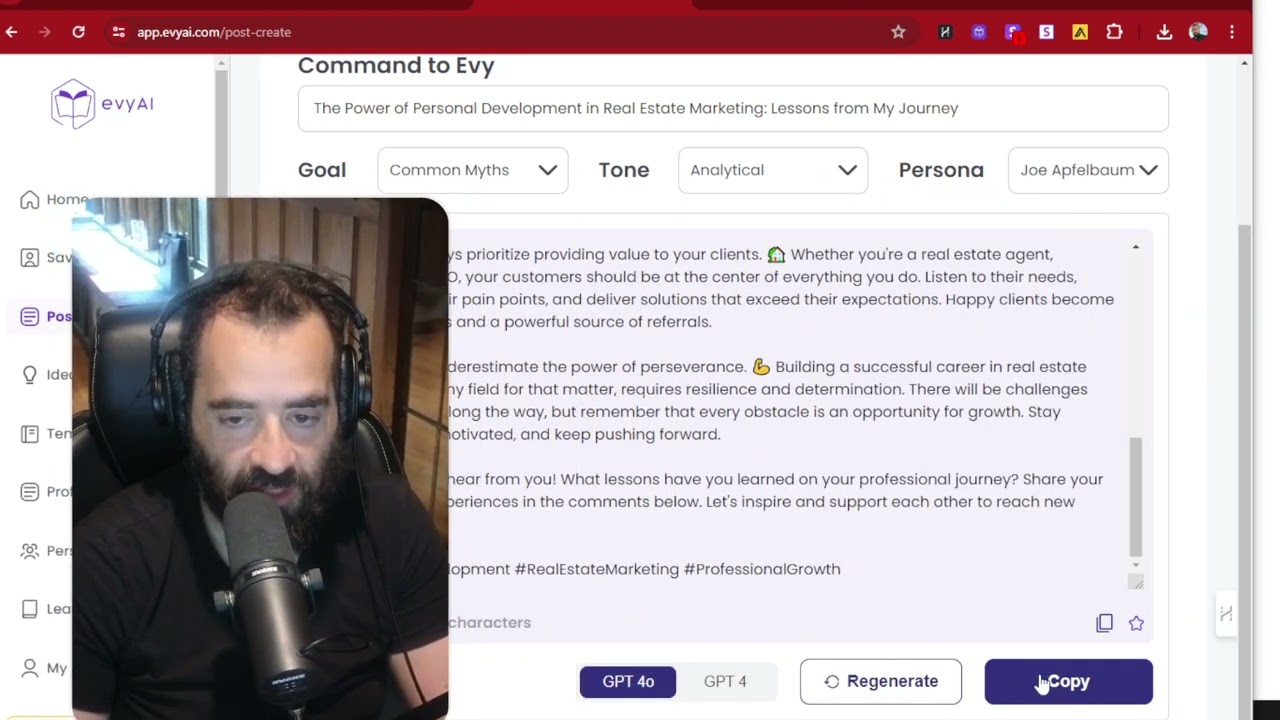
Joe Apfelbaum walks through Evy AI's web platform for LinkedIn, showing how to save profiles, generate posts with the Post Writer, create reusable templates, and optimize your profile headline and about section. The platform works on Safari, Edge, and mobile devices.
Chapters
Welcome to Evy AI. My name is Joe Apfelbaum, CEO, and I'm so excited about this AI because it'll help me be able to use LinkedIn more efficiently and help me be able to succeed. And we have both a Chrome extension and a web app. Today I'm going to show you how to use the web app. So on the top right, you just click login. Once you log in on the left side, you're going to have a navigation, home, save profiles, Post Writer, Idea Generator, Templates, Profile Optimizer, Persona, Learning Hub, and My Account. On the top right, you're going to see it's going to say your name. When you click on your name on the top right, you're going to have Settings, Manage Subscriptions. If you want to upgrade, this is where you go. Contact Us and Delete Account. If you want to become an affiliate, we have like an affiliate link on the bottom here. If you do want to download the Chrome extension, we have the Chrome extension on the bottom left here. And if you want to share it with a friend, you just click Share with a friend. All right, so let's go through all the different features. So Home is where you have all your recent activities, everything that you've done, and also your saved items. So if you like something and you save it, it'll go over here. Saved Profiles is where you save all your profiles. You see that? You have lots of different profiles that you can save here. You have different lists. If you want to manage your lists, you click on Manage Lists. You click on Select Lists. Like for example, if I want to see all the people that are in the, say, LinkedIn Accelerator training, I click here, click Apply. And then it kind of just filters these people. If I want to add a new profile, I see a blue button here, add new profile. I could add a new profile manually. If you had the Chrome extension, you'd be able to add profiles directly from LinkedIn. But over here you could just do it manually, just copy and paste the LinkedIn URL. You click on this and ask you for LinkedIn URL, first, last, you hit save. You can add them to a list after, and there you go. How do you add someone to a list? You just click on their name like this. And then there are 3 dots on the right over here, you click on these 3 dots and then it says manage profiles list. And when you click on that, you can add him to any list that you want, you just select the list. So for example, here I click list and I click save changes and now he's added to the list. If I want to remove him from that list, again I click on the 3 dots, manage lists, and I can X out of that list, hit save changes and then I'm done. If I want to write a post, I just click on post writer. All I gotta do is select my goal. In this case, it might be, my goal's like myths, common myths. Over here, it might be analytical educational, right? And I can select my persona too. I have lots of different personas that you can use. You can select your persona on the right, and then you put in your prompt. You have, you could have lots of different prompts, but in this case, I could say create common myths about the benefits of networking. And then on the bottom, You can select your GPT level. So if you want GPT-4o, which is really fast, or GPT-4, which is very sophisticated, and you press generate. If you want to change your language around, you can definitely change your language over here. It says language. You see where it says EN, click on it and you can select from a variety of different languages to write the post. And once you're done, you hit generate and then you can copy it and then you're good to go. If you click idea generator, you just put in a topic that you want an idea for. Right over here, you select the persona related to that. So for example, I might want to select a persona called Joe Apfelbaum, and I want ideas related to marketing real estate businesses. And I press generate ideas. It's going to go ahead and produce 4 different ideas for me, which I absolutely love. I could pick the best idea that I want, so I can select the idea that I want. So maybe the power of personal development and real estate in my journey. And then on the right side, I have the option to click generate post over here. See that? I can also star any of these ideas if I like them. I could also edit the idea before I hit generate post. So I can hit edit the idea, the power of personal development in business marketing, lessons from my journey, from CEO, from rabbi to CEO. And I press save. And I press generate post. And this will take about 10 seconds and it'll generate a post with a hook, main points, call to action, hashtags, the works, which I absolutely love. Now the post is done. I scroll down right over here and I see the whole post is done. If I don't like it, I can enter something on the top over here in the command, change it. And then on the bottom I can hit regenerate. You see that? And then, or I can press copy and copy and paste it right into LinkedIn just like that. If I want to change the tone, I can change the tone. I can change the goal. I can change, anything I want from right there. Makes it really, really easy. If you want to use templates, I love templates. Templates are really cool. So if you want to save particular templates, I have different types of templates, templates for connection notes, templates for messages, templates for prompts, lots of different templates. So you can go in here on the top right, you can say add new template. And this will ask you, what is the template name? What is a tag for the template? You can tag them yourself. And then you put in the template content. So if you have common comments that you like to use, you can save them as templates and later you can copy them and paste them. Or if you don't want to use the AI, or if you have messages that you typically like to send, like thank you for checking out my profile or whatever. We have a whole video on how to use templates, but I have like an offer to review people's profile. So I save this template and later if I want it, I could just come back here, hit copy and paste it into wherever I want on LinkedIn as a message. So it's a nice little library of templates. That allows me to save everything. And when you use the Chrome extension, those templates can be injected directly into LinkedIn. That's why it's useful for there. But even if you're on your mobile device, you can access the templates. You can access the post writer from any mobile browser, the idea generator, the save profiles, everything's accessible from there. So it makes it really easy for you to have a good LinkedIn workflow. If you want to optimize your profile, this will write up your whole profile for you. Just write a little bit about you, write your goal, your tone, your persona. And then you hit generate on the bottom right and then boom, it writes you up your whole persona, your headline, your about section, all that stuff gets written for you. If you want to add a persona, this is where the personas are. We have a whole 1-hour video inside our community, skool.com/eviai, where you can watch that 1-hour replay video that explains exactly how to use these personas. But it's really simple. You click add persona and then you put in the name of your persona. You select if it's a person or a company page that you're representing. And then you put in your industry, your preferred tone, your keywords, and then you put in background info. And the background info, it's basically like your prompt. You write, act as a, or act as Jason and do X, Y, and Z. And when you're done, you scroll all the way to the top and you click on save persona over here in the actions, save persona. And then that persona gets generated and you're done. And if you wanna change it, you can come back to personas. And then you can just press the edit button here on the top right corner and you can edit it. We do have a learning hub for premium members that has lots of different quick links, like, you know, how to download your LinkedIn connections, how to find people's birthdays, how to, you know, how to, how to do tons of stuff, how to check your pending incoming connection requests. We have lots of things. We have the top 100 hashtags of LinkedIn, who viewed your profile. We have a LinkedIn 101 course. We have a lot of different things that are available for premium members. So I highly recommend you go premium. Even if you're using the web platform, it's truly, truly powerful. So check out Evy AI, tell your friends about it, check out everything we have to say over here. And if you enjoy it, just let us know that you're enjoying it and that you're getting value from it. You can write posts, you can optimize your profile, you can come up with ideas, and we're gonna be adding many more features to it as well. We have a whole roadmap of features that we're adding. If you wanna become an affiliate, here's the affiliate link. If you wanna check out the blog, Here's the blog. You can read the blog. We're always adding new content to the blog. We just said mastering LinkedIn, blah, blah, blah. So yeah, hopefully you enjoyed this. Thank you for watching this video. My name is Joe Apfelbaum. This is your Evvy AI LinkedIn assistant. If you need help with LinkedIn, if you need support, I'm here to help you. Thank you for watching this and have a blessed day. Boom.
More from Joe


How to Beat the Algorithm: Remove Hidden Watermarks & Scale Content with evyAI









AEO & GEO: SEO's Future Explained! Master Answer & Generative Engines! #shorts