How to Vibe Code a Working Application with AI - Joe Apfelbaum
Joe Apfelbaum builds a working content-brainstorming tool and Chrome extension in one session using AI assistants. He codes a JavaScript app with CSV export and local storage, designs a promotional graphic, publishes it with SEO metadata, then pivots to build a lightweight extension that auto-checks LinkedIn event invites. The whole workflow shows rapid prototyping, AI-assisted code generation, and shipping to an audience.
Chapters
How do you vibe code something from scratch? How do you— like, what's the method to do that? By the way, check this out. Cute little idea generator graphic. I'm gonna say option 3. Let's do option 3. I'm gonna hit create image. That's canvas. Let's do option. Where's the image one? Did they get rid of it? Oh, I guess they got rid of the image one. There used to be like a little thing that said create an image. It is not there anymore. All right, so it's— so this is what I did was I took my post, I pasted it, and I said make me a graphic that is visual related to this, but first ask me which 3 ideas you should create. And then I went ahead and created it. And then I started thinking to myself, I'm a LinkedIn coach that helps people come up with ideas for LinkedIn posts. How would I go about helping people brainstorm? And then it gave me a bunch of key questions for LinkedIn content. And then I said, if I was to make AI to make suggestions, what would be a simple form that people can fill out? So industry. And then I said, I wanted to make it simpler. Let's do multiple choice. Okay, so it says IT, banking, finance, healthcare, education, marketing, manufacturing, retail. Okay, these are good. Primary target market, C-suite, mid-level, um, HR professionals. Main goal with content. Then I started thinking to myself, huh, what if I can create a JavaScript tool? So I'm going to cancel this over here. Let's start a new chat, and then I'm going to say something like, I want to create a tool that allows me to enter a keyword, and then the JavaScript will create questions from the keyword. For example, I put in Sales Navigator, And the JavaScript will create, what is Sales Navigator? Or how do I use Sales Navigator?
Etc.
Can you come up with a list of questions that the tool can create without using AI just with JavaScript. Tell me a full list of questions the tool can generate. Then I thought maybe it can also make statements that people might search for. But let's start with questions and make a suggestion, make a suggestion for me. So let's just see what this works. So what I want to do is I want to create a list of questions. What's the keyword? What does the keyword mean? How do you define keyword? Um, why use the keyword? What is the keyword? What are the benefits of the keyword? What problems does the keyword solve? Oh wow, so this is like basic definition questions, purpose questions, how-to questions, comparison questions, cost-related questions, feature questions, troubleshooting questions, integrate questions. Integration questions, alternative questions. Oh, I like this. Oh my God, this is really great. Let me create an artifact. That's so— created an artifact to do this. Statement patterns. As you suggest, let's consider statements related to your keyword. Okay, so create a JavaScript HTML and CSS landing page that allows me to enter a keyword, and then I hit generate questions, and it generates all these questions in a card. And it allows me to copy each question if I want and allows me to download all questions in a CSV file or as an HTML. And each time I ask a question, I do a gener— and I generate questions. It saves it to local memory as a card, and then I can see all the questions I asked in the past. I created in the past. I created in the past. What do you think? I think it's a good idea. Think of that type of tool, and what other features would you suggest that are client-side only with no server-side or API required? All right, let's just see what happens. Let's see what it does. I'd be happy to come create a landing page JavaScript keyword to questions generator. It's an excellent idea for a client-side tool that can help with content creation, SEO research, and brainstorming. Oh, brainstorming. This is, uh, all right, so we're doing this. We're getting busy, busy. Uh, now what I'm going to do is I'm going to Um, what am I gonna do? I am going to pull up my Joe Apfelbaum thing here, and I'm going to go to Canva. I'm in Canva right now, and I'm going to pull up— let's see, what am I going to pull up here? I'm going to pull up Oh, a graphic. What are we going to call this tool? Uh, it's a question keyword to question. So I'm going to click on this here and make a graphic real quick. Question generator. Enter a keyword and get Questions you can use quickly and brainstorm questions quickly and brainstorm questions quickly. All right, there we go. Question generator. Okay, so we're building a question generator. We're going to go here. Question generator. It's question, not questions. Question generator. Okay, so now we're going to export this file. Download. We're going to just select the question generator image. We'll download as a PNG file. So now we downloaded the question generator. Now we can minimize this. Now we can test this out. Download as HTML. And we are testing this out. Download as HTML. Did it download? Yep, downloaded. All right, so let's enter a keyword. Digital marketing. Include questions, include statements, save to history, generate questions. Ooh, what is digital marketing? How does digital marketing— what does digital marketing mean? How do you define digital marketing? Why use digital marketing? What is digital marketing used for? Damn, son. Wow. Oh my God. We just built something amazing. You can export as a CSV. Let's just see what that looks like. Oh my God. Look what we just built. We have a CSV. I am very happy right now. Very happy. So happy. Happy, happy, happy, happy. Very happy man. Okay, so now I'm gonna take this and activate it. Put it on a website so you can use it right now. What a happy man now. Okay, I'm gonna press copy. Look how quickly I'm gonna put it on a website. I'm gonna use app. Ajaxunion.com, where you can get access to this through unlimiteddigitalmarketing.com. And let's see if this works. All right, so I'm going to click on sites, then I'm going to go into my funnel that already exists called LinkedIn Brainstorming. Then I'm going to take my Evie AI LinkedIn PDF to elevator pitch, We're not going to do that now. We're going to clone this step. We're going to clone this step in the funnel. Okay. Now that we cloned the step in the funnel, we're going to edit this. I'm actually going to change the name of the step and we're going to call it LinkedIn Evie AI Pro Questions to— what was it? Keyword to Questions. Question generator. Question generator. Okay, so over here we're going to do question generator. Question generator. All right, vibe code. We vibe coded this. We came up with the idea, vibe coded it. Now we're just gonna question generator.
Generator.
Okay, so now we are going to click on Edit Page, and all we gotta do is paste in the code, update the graphics, and we are done, done, done, done. We're gonna upload this graphic we downloaded from Canva. Okay, so we uploaded the graphic, the graphic is done. Now we're gonna click on Custom HTML and JavaScript, open up the code editor. Paste in the code we just got from Claude. That works. We're going to take the header stuff and put it in the header. So we're going to just pull in this header stuff, hit save. So the header goes up here under tracking code. You don't need to do this, but it just makes it cleaner. Okay, so I just clean up the header. I just saved it. Now we can just hit save here. It's going to say, oh, do you want to update the The HTML, the header, the SEO meta tag. Question generator. Generator. Enter a keyword and get questions you can use for SEO or content ideas. Okay, and I'm gonna do social image. We're gonna update the social image to the one we uploaded. Now we're gonna press update SEO, and we're gonna hit publish. Publish. We officially have published this application, and baby, it's working. Let's test it out. Baby, it's working. Let's do sales Navigator. Generate questions. Ooh, what is Sales Navigator? What does Sales Navigator mean? How do you define Sales Navigator? Why use Sales Navigator? What is Sales Navigator used for? What are the benefits of Sales Navigator? What's the problems with Sales Navigator? How do I use Sales Navigator? How do I get started with Sales Navigator? How do I— how does LinkedIn Sales Navigator work? How do you set up Sales Navigator? Sales Navigator versus other alternatives. Is Sales Navigator the best option? What's the difference between Sales Navigator and similar tools? How do— how much does Sales Navigator cost? Is Sales Navigator free? What's the price of Sales Navigator? Is there a trial of Sales Navigator? What features does Sales Navigator have? What do you do with Sales Navigator? What are Sales Navigator capabilities? Why isn't Sales Navigator working? How do you fix Sales Navigator? Common Sales Navigator issues. What do you— what does Sales Navigator integrate with? Oh my God. Oh my God, look at her butt.
Wow.
And, and it has the results right over here. So if I want to do another one, and then I can hit it.
Wow.
So now we're gonna make a video about this. Let's make a video about this question generator. So let's get a full page. And let's open up Loom. I'm gonna open up Loom right here. I'm gonna open up Loom. So this is what Loom looks like. Oh, actually, I'm gonna turn off my camera so you can see my whole screen. My camera is now off. Let me move OBS out of the way. Let me turn camera back on. InstaLink. Pop this in like this. Am I using the right thing? Yeah, I'm using the right thing. Move a little more here to the center. There we go. And hit start recording. All right, here we go. 3, 2, 1. So if you're ever wondering what you should be posting online, I created a question generator. Now this question generator will help you come up with all the different ideas for the things that you could be posting online. And it doesn't use artificial intelligence. It just uses a really smart way of pulling together questions. So here's what we do. You put in any keyword, say for example, you are a financial, let's say you provide a service like content strategy. I'm going to take off save to, I'll leave it on save to history. I press generate questions instantly. All your questions get generated. What is content strategy? You can write a post about that. You can make a video about that. Why use content strategy? What is content strategy used for? What are the benefits of a content strategy? So you can see you have many, many, many questions. You can save this as an HTML. You can save it as a CSV, which gives you an Excel sheet that you can create questions off and videos off. And then we have statements too here, like content strategy disadvantages, content strategy for small business, content strategy for marketing. You see that content strategy news. These are all keywords that you can use. And this is extremely beneficial when you're coming up with topics for what to post about on social media or what videos, or for SEO or for research or brainstorming. This is a good starting point for you to be able to generate questions that will allow you to create content very quickly. So if you want access to this right now, you can try this for free at strategy.evi.ai/question. Generator, /question-generator. You generate the questions and then you can check off, do you want to include questions or just statements and save it to history? It'll save it to the history on your computer. So if you want to pull up a previous one, you can hit load results and it'll pull up a previous one that you can then check out. If you want to copy any of these out into your clipboard, you can press a little copy button. Eventually I'm going to have my team click a button to be able to create a post out of this. So this way you can just hit create a post, create a post, create a post, create a post, create a post, create a post, or create an FAQ or create whatever, create an email out of this. But I think this is a really good starting point for anyone that wants to be able to quickly create content. Start by creating questions and statements. Let me know what you think of this. Let me know if you would use this. Thank you very much for watching this video. I'll talk to you soon. Boom. So that was 2 minutes and 30 seconds, a quick little video. Now I'm going to go into our community. I'm going to copy this. I'm going to go into our community and I'm going to, um, simply write about it here. I'm going to say— I'm actually not even going to write about it. I'm going to put a video here and then I'm going to say— I'm going to go to here and I'm going to say make me School post about this tool we just created. Uh, let's see what this is. Ooh, okay, so it's done. It says additional features you might consider is question categories, how-to comparison and cost, allowing filtering, customized templates, let users create their own question statement templates. Save templates to local storage. What does templates mean? Their own question statement templates.
I don't know.
Bulk operations. Advanced keyword analysis. Combine keywords. Smart generation. Auto-detect keyword type. Auto-detect keyword type. Product Oh, um, import/export settings, themes, question rating, uh, rate the quality of generated questions. I like that. I like those. But, um, we should do the customized templates thing. Let users add their own questions and statement templates. Save customized templates. Oh, it hit max length.
Okay.
All right, let's just see. All right, all right, let's just go in here. Key features, what is this for, and then I'm not going to say any of this. Why I made this, try it yourself. And then I'm going to put in the link. All right, there we go. Put a category, how I use WAI. Keyword question generator post. All right, so I just posted it here in the school community. So if you want it, you can grab it. What I could also do is turn this into a video that I can put on, um, on YouTube and LinkedIn. So I'll just go here, refresh. Hit the 3 dots, hit download video. So if you're ever wondering what you should be posting online, I created a question generator. Now this question generator will help you come up with all the different ideas for the things that you could be posting online, and it doesn't use artificial intelligence. It just uses a really smart way of pulling together questions. So here's what we do. You put in any keywords. Say for example, you are a financial— let's say you, you provide a service like content strategy. Okay, I love that. That makes life very, very simple. So good. Okay, so now what we're going to do is we're going to go to LinkedIn. And we're going to post this. We're actually going to write a post with Evie AI about it, but let's go to media, hit next, and then we're going to go to content on Evie AI, show all filters. We're going to do the posting template, then I'm going to grab the content from here. Paste it in here, hit generate. Let's see what this comes up with. Okay, I like this. I'm going to click in here and hit insert. Creating content sometimes feels like a needle in a haystack, especially if you're creating for your audience. But what if I told you the right questions could lead you to creative data? Imagine having a tool that Here, here's what I found. The keyword generator is one of the best friends of content creation. One-click generator, 40 questions your audience is designed. No signups, no fuss, just productivity. It's too excited. It's empowering. I'll drop it in the comments so you can try it out. By the way, we have Dozens of tools like this with Abby AI Pro that you get instant access to when you sign up. Use the tech and tell me what questions it came up with. For you in the comments.
Boom.
Free access. Okay, so I'm going to press post, then I'm going to go to my templates here. I'm going to create a new template, question generator.
I'm going to—
here, Abby AI. Here is a question generator tool I created to help you come up with topics for LinkedIn posts, blogs, and emails. Let me know if you use it. Enjoy it. It's totally free. No, it's totally free to try and it doesn't even use AI. Okay, so I'm going to copy the link. Here is the link.
Enjoy.
Copy. Save. Question generator. You see that? Now I want to put this in the comments of the post. I click on comment and I just click the up arrow and I just commented on that post. Now if I want to take this and comment on my other posts, I just go to my profile. I go to my next, my other post that I posted this morning, which is this one here. And then I click in here and then I press the up arrow and boom, I just created this. You see? And then I want to send this to him like this. And do you see the way it has like the SEO image that I created as well? Very powerful. When is your next webinar? Also, I'm looking to bring you as a panelist to my summit July 31st. Let me know if you're available. I can make myself available. I'll have my team email you next steps. Best email is scheduling@ajaxian.com. So, Jen, let me see when the next webinar is. Webinar, how to use How do you use LinkedIn webinar? April 29th at 1 PM. April 29th at 1 PM. Let's just see what we have going on. April 29th, 1 PM. We have meetings daily too. Uh, so office hours at 10:00 AM with Carlos. That's cool. And then tomorrow we have a template party at 10:00 AM with Steve. And then what we should probably do is schedule a LinkedIn Live now. Why not? Let's schedule a LinkedIn Live. Let's go to Canva. Let's go. Let's schedule a LinkedIn Live for Friday. I'm going to open up my calendar for Friday. Let's schedule a LinkedIn Live for Friday. Friday. For Friday. Let's do it Friday at 1:30 PM EST. 1:30 PM EST.
Live.
Let's see if we have a LinkedIn Live. See all of my designs. I don't know, I don't really see a good live one here. Let me go to the other one here. Let me go back to home, home, search live, live. Let's just see. Advanced AI creation. Oh, I like this one here. Let's do this here. What are we going to call this? LinkedIn Live. Um, let's call this one content. Idea generation unlimited content idea generation unlimited content idea generation for LinkedIn. Let's do some vibe marketing. Let's just invite marketing on LinkedIn. Let's just invite marketing on LinkedIn. All right, so let's just see. We're gonna do— we're gonna call this Unlimited Content Idea Generation. Okay, we're going to save this, share, download. We're only going to do the first one here, download. Okay, so it's going to download this right now. Then we're going to go to restream.io. We can close this out, we're not going to do anything after this. restream.io, we're going to schedule it here. We're gonna enter studio. We're actually gonna hit schedule here, and we're gonna— you know what, let's see if we can schedule it from the outside in. Draft, it says.
Schedule.
Look at that. So we're gonna do Friday, 1:30 PM. 1:30 AM. 1:30 PM. 1:30 PM. 1:30 PM. We're gonna replace this thumbnail.
Beautiful.
We're going to call it 08 Unlimited Content Idea. How to learn how to create unlimited LinkedIn content ideas. Okay, so we're gonna do April 18th, 1:30 PM. Next. Okay, so it's unlimited, unlimited, unlimited, and then unlimited. Okay, so we're putting it all over the place. Let me just confirm my calendar. 1:30 LinkedIn Live. LinkedIn Live with Joe Apfelbaum. All right, so I'm gonna hit create event. Oh, it says streaming not allowed. Oh, to those places. That's okay. Let's just see if it works. Let's see if it works. We're gonna go to linkedin.com. Go to my profile, see if it worked. Okay, so I have this here, that's cool. So video, that's cute little video. Let's just see what else I have over here. I have this one, this one, this one. Let's just see if the event was created. Look at that, the event is created right here. So now I'm going to do show more. I'm going to make a template for the event. I'm going to say join me on Friday. I'm going to go to templates. I'm going to search live. LinkedIn Live. I'm actually gonna just look through my promo events. Post-promotion. Let's see, live replay. Live. I don't have a live replay. I have a live replay, but I don't have like promoting a live. So we're going to do a new template. I'm going to do live. Join me on Friday, 4/18/2025, to discuss how to create unlimited content ideas for LinkedIn. We will be live on this amazing platform. We will be live taking questions and showing incredible strategies. You don't want to miss it. Add it to your calendar. Okay, and we're gonna do post-promo here. Save changes. So now I have this thing called live. So whenever I search live in here, I can pull it up. And now I can go to my other posts and promote this post from my other posts. So I can go in here and then I can go in here and then I can put this in here. Join me on Friday. Look at that. And now I'm going to go back to here. I'm going to go here and I'm going to pop this here. Then I'm going to go in here, pop this here. Okay, good. I don't like my own posts. Then I'm going to go into our classroom— not our classroom, our calendar. Go to Friday the 18th, 1:30 PM, duration 1 hour, LinkedIn Live with Joe Applebaum. Content ideas LinkedIn Live. Want to learn how to create the perfect content ideas for your business? Join us on LinkedIn Live. Email address, I'm going to do link, upload cover image, save, remind everybody a day before. We will be covering the strategies to get unlimited content generation for your business.
Okay.
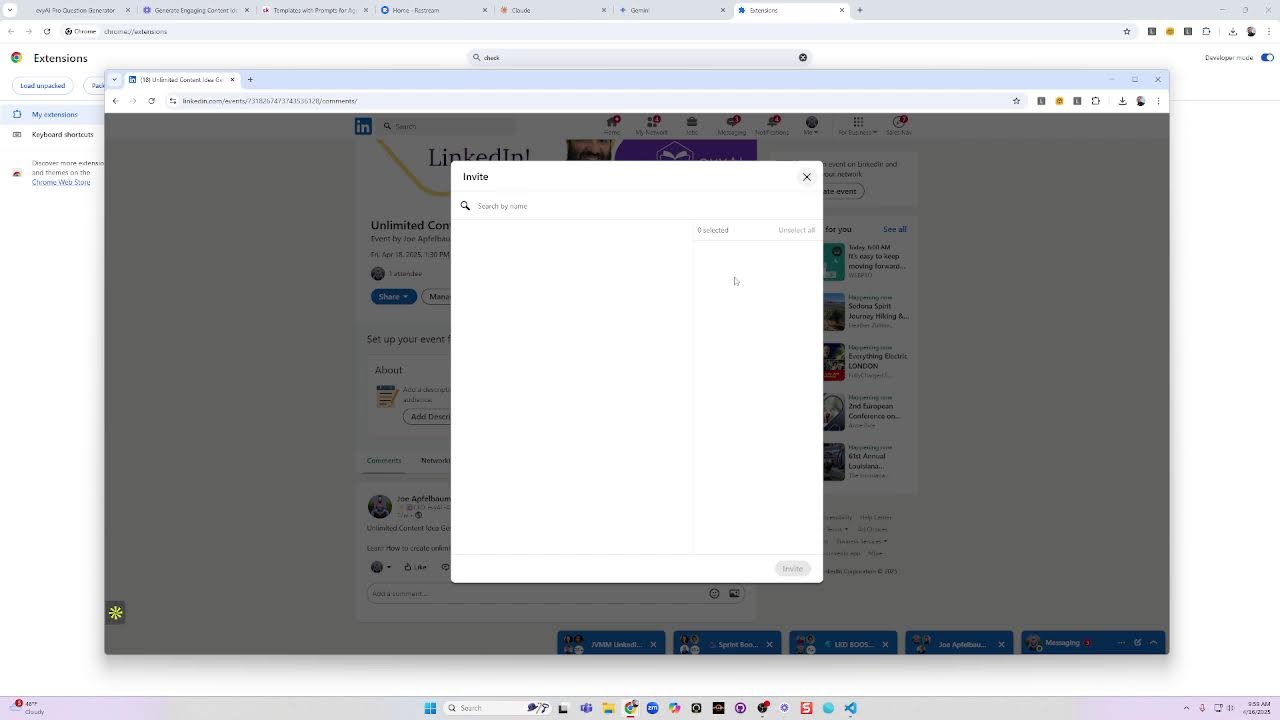
So now we have a class on LinkedIn Live at 1:30 PM. So now we have every single day we have a session going on. Now we're going to invite people to the event. This is how we invite people to the event. You click share, invite. I'm gonna invite Randy, invite. That's one at a time, but watch this. I'm gonna click share, invite. I can search Evan Messman. I can do all my Evans. Oh, look at that, look at all these Evans.
Let's see.
Oh, that's cool. So many Evans. That's a lot of Evans. Evan Goldenberg. All right. That's how you do all the Evans. Let's do all the Tinas. That's pretty cool. I never really thought of doing people by first name. Um, I wonder if I can create a tool that that will automatically allow me to click checkboxes off. Holy schistles. Should we do that? Should we create a Google Chrome extension now? I'm thinking we should do that. How long do you think it'll take to create a Google Chrome extension with Claude? Let's go to Claude right now and try to do this. Create a Google Chrome extension with no icons, please, that does one simple thing. It checks off all the checkboxes, all the checkboxes on LinkedIn when I'm inviting people to something like an event. So first you hit a button that says count Checkboxes. Then you hit another button that says check all, and you can also uncheck all. Here is the HTML code on LinkedIn. Please make it simple. All right, let's try it. Let's go here, share. Let's get the HTML code. Right-click, inspect HTML code. Where is the HTML code? All right, let's just see. Right-click.
Let's just see.
Let's just see if it works. Boom.
What?
Do it, please. It says it cannot do it. You know what, I heard Gemini is pretty good at this. Let's go to Gemini. Gemini. Let's see. Flash, Flash Thinking, Flash Pro, 2.5 Pro.
Okay.
I totally just gave it code without instructions. Wow, look at this. Do you see checkboxes in the code? OK. Now I'm going to say, can you— Oh baby, we are getting going on, we are getting going on. So let's open up a CLE Visual Studio Basic. Let's go here and let's go to File, Open Folder. We're going to open up a folder called Final Chrome Extensions. Okay, so now we have this folder open, and then what we're going to do here is we're simply going to make a new folder. We're going to call it LinkedIn Checker. Should we call it LinkedIn Checker? What did it call it? It called it LinkedIn Invite Checkbox Helper. So we'll call it Checkbox Helper.
New folder.
Not there. Not there, ladies and gentlemen. We're going to go here. Checkbox helper. And then right here, we're going to do manifest.json. Okay, so that's the file it wants. It wants me to do manifest.json. Copy, paste. Save. Uh, what the heck is going on here? Okay, let's delete this extra thing. Ctrl+S. Okay, now HTML. So popup.html. So once a popup.html, so we're going to right-click here and we're going to say new file popup.html. Okay, now paste that, save. Now it wants a popup.js. Okay. So we'll do popup.js, right-click, new file, popup.js.
Okay.
Save. And we're done. We made the extension. So now let's go install the extension and see if it freaking works. That would be insane if it works, if we just created an extension in 5 minutes. Manage extensions. Load unpacked. Downloads, Apple's Creations, Final Google Chrome Extensions, Checkbox Helper, select file. All right, check Checkbox Helper. Is it on? Checkbox Helper, it's on, it's right here. All right, so let's refresh this page here. Let's click on the Checkbox Helper. LinkedIn checkbox helper. All right, access requested. Okay, click invite LinkedIn check count checkboxes and null checkboxes. All right, let's check again. Now check all, uncheck all. Oh, access requested, discard. Let's just see what that means. Invite checkboxes. Let's try again. Invite. Null checkboxes. Let's refresh again. Invite.
All right.
Let's just see. Okay. Place all 3 files inside the folder. Open the Google Chrome extension, developer mode. Load unpack. Navigate to the file you created. Extension should now appear. No icon. Navigate to LinkedIn. Uncheck, uncheck all. Found null checkboxes. Why do you think this is happening? How do we debug? Let's see if this puppy will work now. Okay. Found null checkboxes usually means a script executed, but the function count visible checks will return null instead of a number. Script execution error. The function checkboxes and Encountered an error while running on a LinkedIn page. Could be the match likely null. Timing issue, maybe running before LinkedIn page is fully loaded. The elements, um, the checkboxes might be inside an iframe. LinkedIn code changes, how to debug. Go to LinkedIn page, you see the checkboxes, right-click anywhere on the page and click inspect. Click on Console within the tab of the Developer Tools. Make sure the dropdown next to the filter says Top. Click on Console tab within the Developer Tools, making sure the filter says Top on the main context, not your extension's context yet. Now click on the extension button. Find the puzzle piece if needed. Click on the Count checkboxes. Look closely at the Console tab. Do you see red error appearing immediately when you click Count checkboxes? If so, these errors are likely coming from injected function. Tell me what went wrong.
Okay.
All right, let's try to figure this out. All right, so let's do this. Let's do what it tells me to do. How to debug. Go to LinkedIn invite page, right-click and click inspect. All right, so let's do that. Let's go to LinkedIn. Gemini, did this guy do anything? This guy still didn't do anything. All right, so let's go here, click share. Oh, let's right-click and hit inspect. Okay, now we're inspecting. Now what do we do? Now, uh, click invite. And then what? What did it say to do? It said to go to console or something. Uh, right-click, inspect, then click on console tab in developer tools. Make sure the dropdown filter on the top says top on the main Page context. Make sure the dropdown next to the filter says top. Okay, let's go to the console tab. It says top. Okay, top. Okay, done. Now click on the extension button on the puzzle piece and click on count checkboxes. Okay, click on the extension.
Fine. Okay. All right.
Let's just give it this error. We need to make sure the code is being executed on the page contains everything it needs. The simplest way to do this is to include the selector logic directly within each function. So here's the corrected popup. All right, let's try that. So we're going to go in here, Ctrl+A, Ctrl+V, Ctrl+S. We're going to go in here and refresh this. Now we're going to go back to LinkedIn, close this, refresh this, and then we're going to go into share.
Invite.
Count checkboxes. 48. This worked, baby. This worked. Check all. Oh my goodness, ladies and gentlemen, what did we do? We did something naughty. We just did something naughty. Hello, hello, hello, ladies and gentlemen. Wow.
Okay.
Now we got to zip it up and send it to the community. So we're going to— okay. We're not going to show you how to do that. We're not going to show you how we do that, but that's fun. That's fun. Hello. When it works, when it works, it works, ladies and gentlemen. What can I say? All right. Hopefully you come to our LinkedIn Live and let me know what you thought about this puppy. Let me just see what people are saying over here. Is anybody even watching? Oh, look at that, we have some comments. Let's just see, let's go to me, recent activity. Dude, that worked! That was epic. Let's just see what people are saying here. Anybody watching me? Is anybody watching me? When I click on copy link to post, I see comments, but the comments aren't showing up, so I don't know. I don't know if anybody commented. It does say comments on LinkedIn. However, I don't know. I don't know what to tell you, ladies and gentlemen.
I don't know.
I don't know what to tell you. If you commented, I'll check the comments later. Anyway, thank you for watching. Appreciate you very much.
More from Joe


How to Beat the Algorithm: Remove Hidden Watermarks & Scale Content with evyAI









AEO & GEO: SEO's Future Explained! Master Answer & Generative Engines! #shorts