Johnny Beirne + Joe Apfelbaum
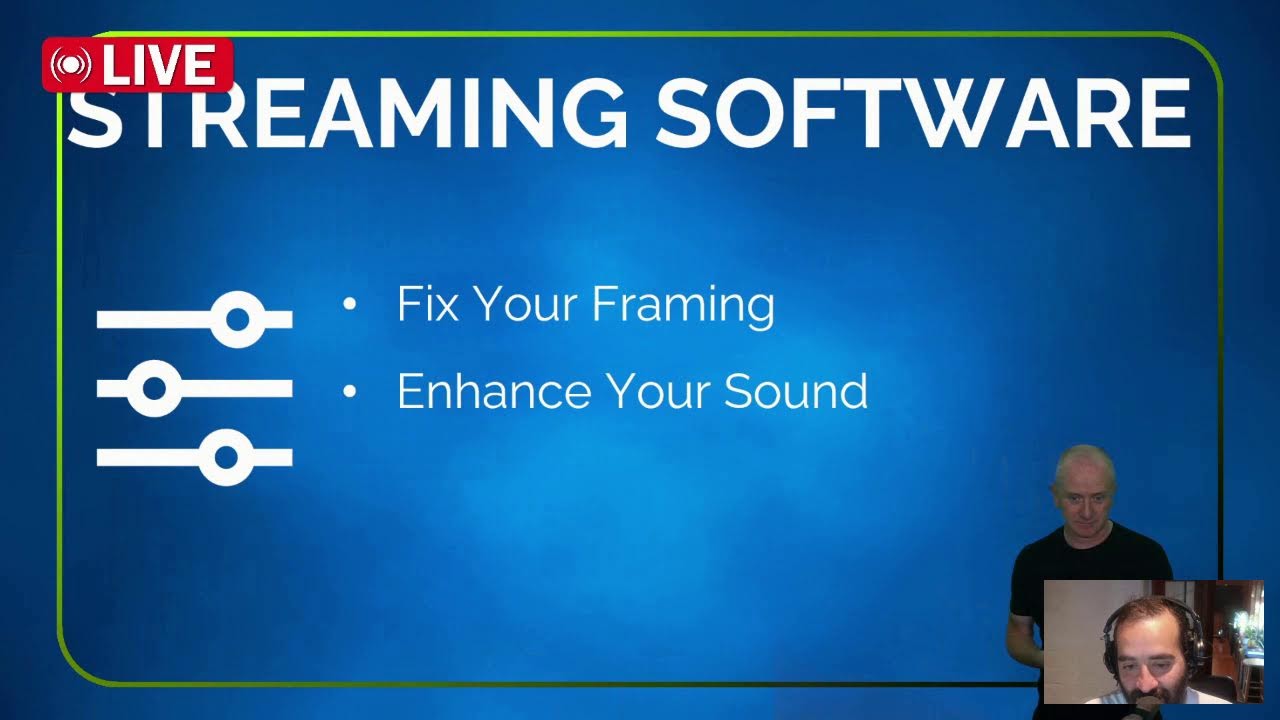
Johnny Beirne, an Irish presentation specialist, shares how to keep online audiences engaged by changing visual or interactive elements every 8-10 seconds. He walks through 17 specific interrupt techniques, the free software and hardware setup needed (OBS, Stream Deck, microphone), and his $997 course for webinar hosts and course creators.
Chapters
We are back and we are live. This is Joe Apfelbaum, CEO of Evvii AI, and together with me I have my friend Johnny B. Johnny B, what's going on, Johnny Burney?
Good to be here, Joe. Thanks for the opportunity to join you live.
It's my pleasure. So do you want to take a moment and just introduce yourself to the audience and let them know who you are, what you're up to, and Sure.
Yeah, so Johnny Byrne is the name, and I am based in Ireland, and I work with experts who present a lot online. And essentially what I help them to do is do essentially effortless transitions into their presentations and maybe go to slides only and all that kind of good stuff without having to fumble around with the mouse and say things like, hold on while I share my screen, and all that kind of stuff. I show people how to use free software so that they can be more engaging and better results from their presentations.
So Johnny, what's the one thing that makes presentations the most engaging? What would you say is the one thing, like if somebody had to improve one thing about their presentation game, what do you think it would be?
Pattern interrupt. So what I mean by that is every 8 to 10 seconds or every couple of sentences to do something different and ideally somewhat unexpected within reason on the screen, but at least to transition into their slides and continue to present and then maybe go to slides only and then come back. But also, you know, other things we show people how to do, for example, is if they want to address the elephant in the room, They can do things like that. So really what you want to do is avoid death by PowerPoint. You want to sound good, look good, and all that kind of good stuff, which are the fundamental basics, and then do something a little bit different than everybody else, which is essentially pattern interrupt.
So when it comes to pattern interrupt and interrupting people's patterns, what would you say interrupts people's patterns the most? Is it kind of like music? Is it Is it like the screens moving around? Is it like what would you say in your experience interrupts people's patterns?
So the one that has been used most often that still works is to get audience engagement. So put 1 in the chat, put yes in the chat, etc., etc., things like that. So getting people to do something, that would be a big one. The other thing then from our perspective, as opposed to getting them involved, which is great, is to do something, as I mentioned, do something different regularly. The other thing is, you know, engaging and participation, not just in the chat. So like I have pre-programmed breaks where I can hit a button and it goes to a timer and I give people time to do an exercise. And, you know, learning by doing during the presentation is also good. I show people how to write on a tablet in front of themselves, which is quite engaging. I've developed about 17 different pattern interrupt techniques in presentations depending on the presenter, the audience, and the content. I wouldn't use all 17 in any one given presentation necessarily, but I would definitely choose from the 17 on a regular basis just to mix things up a little bit.
Wow. 17 pattern interrupts. And, and you help people be able to use these pattern interrupts in their presentations and help them be able to keep them engaged, keep them excited, keep them entertained, keep them educated. Like pattern interrupt, do you think it makes people dizzy when you're kind of moving around a lot? Or do you think that people are craving this?
Yeah, so again, it depends on what you mean by a lot. But if people are, for example, if you look at TikTok, something fairly significant happens every 3 and sometimes even less than 3 seconds. So it depends what you do. I wouldn't necessarily— you bring a TikTok kind of production to your presentation, but when you see me do a few together, it looks like a lot. But when you only do them every 8 to 10 seconds or even a little bit more, then it's not a lot. And again, with TikTok and movies and TV and all sorts of things, pattern interrupt is going on in video all the time. So no more than to say that our attention span now is a couple of seconds and we have the memory of a goldfish and all that. Definitely when we're watching video, because we've been, we've been just consuming so much video over the years that we do need to change it up pretty regularly. But I'm not suggesting that it's so often that it takes from the message.
Yeah, the key is to like mix it up just enough to entertain people and show a level of professionalism while at the same time not overdoing it. What made you get into like becoming an expert at this? Did you just go into OBS and decide to become a junkie, or did something happen? Like, what's your history? Like, how did you get to be this expert?
Yeah, great. So for over a decade I've been creating online courses, and during that time I was always looking at ways to make courses look and sound better, be more engaging, And just as importantly, make them faster. So I started to look at OBS and a Stream Deck and different things where I could actually do this as I was recording so that I could add these elements to my presentations and my courses as I was recording, more so for my courses. And then I started to share, particularly during COVID these tips for making courses faster, and people started to ask Can you use these techniques live when you're presenting live? And I was like, absolutely. And the demand was so great and the questions were coming in that I developed a course called Presentation Transformation. And you can use it for making courses, as I mentioned, but it's really, really popular as well for presenting live, whether that's like now or in a webinar an online workshop, group coaching, even when you're meeting a client and you want to walk them through a fairly significant, important presentation, being able to do this on a one-to-one basis is quite impressive as well. Or so they— so they— is the feedback I get from my students and clients that their students and clients are always impressed.
Can you show us a little bit behind the scenes of what you're actually doing so people understand if they want to do it themselves? What would they need to like technically do? Do they need to spend thousands and thousands of dollars on equipment and on microphones and on tons of web cameras and a whole studio and a green screen and all this stuff? Or is it a little simpler than that? Maybe getting, you know, $500 worth of equipment and then, you know, taking your course or maybe hiring you to set it up. And somebody wrote in the comments, Jennifer wrote, what programs do you have to work With people. But can you, can you show us a little behind the scenes and maybe address Jennifer's question?
Yeah, so in terms of the equipment, let's start there. I always suggest to people, use what you have, you know, um, and let's see how we can improve what you have. I'm not— for environmental reasons and budgetary reasons and all sorts of stuff, let's see how we can get the best out of what you have. And then if you still believe, and sometimes I give one-to-one feedback or to my students, if you feel that it still doesn't sound or look good enough, then yes, you're going to need to consider an extra light or 2, maybe upgrade the camera. There's some great webcams that are almost as good as a DSLR or mirrorless, like for $300, like your Insta360 Link or your Facecam web— Elgato Facecam Pro. So definitely start with what you have, and you may need to upgrade. The green screen is optional. Now, to do what I'm doing right here, you do need a green screen, but it's a $30 fabric green screen that I can pull back anytime I want. And then, you know, because there's a window there that I like to use when I'm not presenting. So the green screen does give you a little bit more opportunity to do this more walking around immersive experience, which is still only PowerPoint slides on a second monitor. But that's using OBS, which is free, and you can program an app on your phone to switch the scenes. So this is a scene, this is another scene, this is another scene, and so on. So it's one camera, whether it be the one you have or you upgrade, one camera, OBS, which is free, and then ideally you would get a Stream Deck. So I've got one here with 32 buttons. You can get one with 15, you can get one with 6, or you can use a 6-button app on your phone. The physical one is better than the phone. You kind of have to look down, whereas your fingers get— your thumb primarily gets familiar with where the essential buttons are. And then I can look down and kind of recalibrate if I need to bring in something else. So it's essentially a good mic, good camera, a bit of lighting. If necessary, depending on what you have already, and then OBS and the Stream Deck. And if you want to add the green screen, it is optional. You can do lots without it, and you can do even more with it. And then in time, you could say, I want to draw, so you get a Sketchpad iPad, a reMarkable, whatever it might be. So in time, you can start to add a few extra items to it for sure.
Wow, that's really cool. Do you have like a shower curtain on top that you have things that are sitting on your shower curtain?
Yeah, so it's a rail that is attachable to either wall or ceiling, about $30 as well. And so if I hit behind the scenes here and grab another camera, it's essentially attached to the ceiling. And that is definitely a nice option because it just goes out of the way when you're not using it. Alternatively, what you can do, if I go to here, there's a pull-down version as well.
Oh, so you have a pull-down version and then you have a rail on top of you.
I don't need the rail if I'm using the pull-down version. The reason I went for the pull-down version is it gives me more space. You can see the width of the green screen versus this wraparound gives me more room to walk around. Makes sense?
Yeah, no, totally makes sense.
Yeah, there's a pull-up version as well, so you don't really need a whole lot of space if you were to do this in what we call your, your home office, where, you know, whether you're sitting or standing.
Because you're putting the wrap around you, that wraps around you, and then you're standing. Do you have like a lighting setup as well?
Yeah, so I have 2, uh, lighting— 2 lights facing me and then 2 on the green screen to get that even light, which is important when you're using a green screen.
Okay, cool. So you have lights facing the green screen in front of the green screen but facing the green screen behind you.
Yeah, but the pull-up green screen, when you're sitting down, and depending again on the lighting, sometimes the 2 in front of you is enough to put even light on the green screen as well. So what I would suggest to people is if they want to use a green screen, get the screen first and try it out if they're definitely going to use it, and then get the additional lights to tweak it rather than buying a bunch of lights and not necessarily needing them. So, you know, you can have a pretty small setup with the pull-up green screen sitting down at a desk in your house or in your office.
That's really cool. I love that. Um, Sarah asked in the comments, where do you put your camera so that— um, where do you put your camera to do what you are doing now standing? Like, it's not on top of your monitor, is it?
So my camera, if I go behind the scenes, it's inside my teleprompter.
Oh, nice.
But it is typically on top of the monitor, whether you have a teleprompter or not. What I've done is I've added a second little mini monitor, which is a replica of the main one mirrored into this one, which means that I can see my audience when I'm presenting. I can't See, well, you can't now because I'm going behind the scenes, but my Zoom audience will be in there, which means that I'm always making eye contact with them. And then when I'm making a course, I use it as it was intended, which is for an autocue teleprompter.
Okay, cool. So you paid for a separate teleprompter?
Paid for a separate teleprompter. So now I can see you and I in the teleprompter, which reminds me to make the eye contact. And then if we look at the setup at home, pull up green screen, a nice even spread of light. It's about 3 feet from my desk. When I'm not using it, I fold it down. It goes in behind the couch, and I've got my sitting room back to myself. But it very quickly just set up if you have a meeting where you want to do something like this.
Oh, that's really cool.
Yeah, it's about $150 for that screen. Great quality. It's crease-free. It's from Elgato as well, and it's really good quality. It's slightly— it's not just as wide as the pull-down. They've now got an XL version that's as wide as the pull-down, but it pulls up.
Oh, it pulls up instead of pulling down. That's really cool.
Yeah, because you have to wall or ceiling mount the pull-down one, and you need to make sure that it's— because you are literally pulling down the screen.
Some people have a microphone like I do and they talk into the microphone like this, but I saw that you have a shotgun mic. Can you explain why you have that microphone versus having a microphone that's in the screen and headphones that are in the screen?
Yeah, so the shotgun is when I'm sitting down and having more of a one-to-one, or even standing up and having more of a one-to-one. If I'm going to be presenting and walking around, I'm actually wearing a microphone.
Okay.
But my brand is black t-shirt because to go with the logo and everything else, and plus it's just not as obvious that I'm wearing a microphone when you do that. But for this, if you're going to be walking around, I highly suggest you wear the microphone. If you're going to be up close, then yeah, shotgun or one that you have. What's great about what you have or the shotgun is you don't have to wire yourself up and make sure the battery pack is charged every time. But some people love to do the kind of more walking around experience to make it look more like a, I guess, an offline event in an online setting.
100%. 100%. No, it's really nice. And you do seem like you're very far away from the camera.
Yeah, about 4 feet.
Okay.
But I've resized myself as well. So if I go up to my desk—
Right, now you're my size. Now you're my size and we're side by side. We're about the same height. But if I wanted to get to your size, I would have to like go back— I would have to go back 4 feet away from where I was standing before.
Or you could, you could use OBS to make yourself smaller in a separate scene.
Oh, got it. Okay.
And not move at all. So I haven't moved, I've just used OBS to move me.
Okay.
So if I click on the, uh, camera here and I just unlock this, I can put myself wherever I want and make myself as big or small as I want without moving away from the camera right here.
Got it. That makes sense. That makes sense.
So if I undo and undo, it brings me back to where I was. So the optical illusion here is the slides don't change, but when I go back here, they look so much bigger.
Right, right. That's really, really cool.
So it does look like the training room. And then all you do is with your mouse or with your clicker that you may have from presenting offline, you can just walk around and present, and you've got like nice animated slides perhaps. And then you can subtly come over and reach down and disappear. And the other option, which I'm going to grab here, that I'm going to start to use a little bit more is a foot pedal. So you can walk around and be completely hands-free, and pressing on pedal A might put you here, and pedal B might put you here, and pedal C might bring you back.
Oh, there's 3 pedals. Got it.
Yeah. So you can program that to do a bunch of things. There's also If I grab it here, you're really taking me behind the scenes now, which is fine. There's a Bluetooth flick button that if you press it, this could happen. If you hold it down, this could happen. And if you release, it goes back to here. So there's lots of different— like $35 for the little Bluetooth flick button. There's lots of little add-ons that in time you can say, now I want to be able to do that. And without having to change anything else, it's just an additional piece which might be the foot pedal or the flick button. Again, just something to make it very effortless for you, the presenter, and very engaging for the audience.
Guys, if you're enjoying this, write you're enjoying it in the comments below. We'd love to hear from you. We'd love to get some feedback. Also give it a like, hit that repost button if you're watching this live. We're always curious to know what your presentation questions are and what you guys are thinking about. Um, also let us know if you're new to live or you do lives, or you want to be able to film your own courses, because this is not just about going live, right? This is presentation, period. You know, this could be on Zoom. This could be on live. This could be anywhere. Do you feel like the virtual camera from OBS is a little bit lower quality than a regular camera, or it's kind of the same?
Uh, it's, it's the same in my experience. It's essentially taking— once you have it set to, uh, 1920 by 1080 in OBS, it's typically the same quality what the camera will be putting out anywhere else. Um, what a lot of people are using this for is, like you said, presenting anywhere, like going live on LinkedIn. But what a lot of people are also using it for is to make more engaging looking videos for LinkedIn or YouTube. So, you know, they would have— they would create a small set of slides on something quite specific within their overall topic, and they would walk around presenting that. And it's actually a scroll stopper in YouTube where, did I miss a live event somewhere along the line, or where was that person presenting? It looks quite, you know, professional and engaging, and it looks very much like an event that And they would have liked to have seen, like, they're kind of drawn into it. And then if the content isn't for them, the content isn't for them. But it is more of a scroll stopper than some of the traditional stuff you would see on YouTube.
Okay, got it. So a lot of the people that have by default OBS, it's set to 1280 by 720 or whatever, but you're saying set it up to 1920 by 1080. For the output so that you don't, um, you don't lose the scale. That's why those people are experiencing a scale issue.
Exactly. Yeah, you want to keep it at 30 FPS, particularly for Zoom frames per second, particularly for Zoom, uh, but you do want to look at 1920 as opposed to 1080 for streaming. Yeah, and you can be recording to your computer with OBS and streaming at the same time. Or you can just use OBS for recording, which is what I do, because what's really efficient is one of your buttons on the Stream Deck can be record. So you can just reach down, maintain eye contact, hit record, and start recording. And then without breaking eye contact, you can subtly reach down or use your foot pedal and stop recording. And it doesn't say, are you sure? It just stops recording. Also, the button is actually moving when I'm recording. So if you are on slides only and you just want to double-check that it's recording, the button is actually pulsating on, uh, on the Stream Deck to tell you, yes, this is recording.
That's nice.
Um, it's really easy to bring a testimonial as well. And you know why? It immediately plays. Like, having to play a video in your presentation live that's embedded on a slide continues to be Very, very difficult, or opening a browser or YouTube video. Whereas with OBS, you would preload the testimonial, have your finger at the ready, and then you say, now let's hear from Rory.
Oh, Johnny, this is great.
Or in this case, Greg. So it plays immediately, and you can set OBS that your music fades in and fades out. So if you're doing your pre-show And then you come on, you know, you can really grab people from the beginning.
How do you stream your audio? So there's a virtual camera concept, right? There's a virtual camera. So right now into Restream or into Zoom, you can pull a virtual camera, but how do you pull the full audio as well from OBS into whatever you're doing if you're using the virtual camera feature?
Yeah. With Zoom, you can share your computer audio.
Okay.
Um, with some of the others, you may have to get a little free virtual cable.
What's a free virtual cable?
So virtual cable is a free download that you install with OBS, and then that puts out your microphone audio in addition to your video.
Oh, got it, got it.
Yeah, so it's called VB-Cable for, um, it's a virtual cable and it's free.
Okay.
So that's just an extra step, but then that guarantees that, uh, your mic and any other audio is going out into the stream in addition to the video.
Very cool, very cool. Who would you say is your most ideal client right now? Like, who's the, who's the person that is most ideal for you as a client?
Yeah, the people that get the most value out of this are primarily people who do a lot of webinars because in a lot of cases they're relying on the webinars to make sales, whether they're selling coaching, a course, uh, whatever it might be. And up to 60% of webinar attendees can leave before the end. So if you can get that number down by being more engaging, looking and sounding more professional and grabbing and keeping their attention, then they're more likely to stay to the end. And if more people see your offer, just doing a standard 5 to 10% conversion, if you can maintain the conversion rate and more people see it, you're going to make more money. They're mainly the people who get most value. Course creators use it quite a lot. And again, anybody then after that who presents quite a lot or makes a lot of video content, particularly educational content, and they want it to look educational, if that makes sense, they get a lot of value out of it as well. And they tend to be the same person who wants all of that, typically.
Interesting. Where do you find those people?
LinkedIn.
Okay, so LinkedIn's a big platform for you, finding people that are posting videos, hitting them up, giving them tips on how to improve their videos. Do you do one-on-one coaching with people? Is that an option?
That is an option for sure. So I have a full pre-recorded course and I have coaching. The course walks them through equipment, the software, and pattern interrupt techniques. And the coaching is, what do you have? What do you need? What look are you going for? What's your budget? What's your room size? Let's create a bespoke solution for you fast. That's what the coaching offers. And learning lots from you, Joe, on the LinkedIn strategies that work as well. So, it's a combination of both.
Nice. Very, very nice. Cool. This is exciting. Any questions you have For me about anything that you're wondering about or anything that you want to share?
For me? Well, I'm looking forward to having you answer my questions for my audience in the next 2 weeks, I believe, where you're going to share valuable LinkedIn strategies and also the tools that you've developed, Evvii. So, I'm keeping all my questions.
What about questions about how I present or questions like, If you are walking a client through a consultation, just so people know how helpful you can be, what questions would you ask them for them to be able to answer, for you to be able to give them a really good experience or for them to know that they need to start working with you?
Yeah, so really what we go down through is what gear do you have, what look are you going for, share a little bit, share, send me a few minutes of the webinars you've been doing or your recent presentations. And in a lot of cases, they come to me already knowing that they need to improve, that they don't look as professional as they'd like, they don't sound as clear as they'd like, and, you know, they typically end up in the corner when they're presenting, and they don't like that either. So, you know, typically we go through, as I said, What space they have, what budget they have for gear, if they need gear, what gear have they, and let's get the most out of that. And then I walk them through pattern interrupt techniques with OBS. So they're typically the questions: do they want to sit or stand or a combination? Are they Windows or are they Mac? OBS works with both anyway, so that doesn't matter. So they're the sort of discovery questions we go through, and then We map out what they need to do based on what they want to achieve.
Very cool. Sounds really exciting. It sounds like you really, really can help people. What would you say are the 3 main benefits that people face when they are working with you? Like, what are the things that you really help them with the most?
From their own feedback, for them personally, they always say, how presenting is much more enjoyable than it used to be. And I think that is because it's much more effortless for them, but also they know that they now look and sound better than they used to, and that's important to them as well. And the third big thing is they do genuinely get better results, more positive feedback, people stay longer on their calls or webinars, So there are a couple of main things that people share with me on what they get from working with me or going through the Presentation Transformation Course.
Okay, very, very cool. And when somebody goes through the Presentation Transformation Course, do you provide them with support?
Yeah, they can ask questions 24/7. So they watch a video and they go through it, and if they have a question, they can type it underneath. Then I get an email. So me or one of the team would respond to their query. I would look at their question in detail and watch the video back myself to make sure that I haven't missed a step in the video that's led to the question. But usually the questions are quite specific in a lot of cases. Some cases not. But in some cases, like, I don't have your camera. Will my camera work? I'm like, absolutely. I don't have a green screen. Is it essential? And I may have said it in the video that it's not, you know the way. So, but yeah, people can ask questions all the time. Um, they get— they get— they can ask 24/7 and they get a response within 24 hours.
That's really, really cool.
Um, and you got the equipment list as well and floor plans and different suggestions. Or they can send me a WhatsApp video of their current setup and I would give them some pointers Um, based on what they have, if they need that kind of behind-the-scenes help as well.
How much does it cost to buy your course?
So the course at the moment is $997 US dollars. Yeah.
And how many hours of training is it?
There's about 2 hours in it plus project work. So examples, suggestions, uh, practice techniques, confidence on camera. A few things like that. So 2 hours to walk through it, and, and then some time to implement the learning, because knowing and not doing is not knowing. So they do need to spend a little bit of time implementing what they're learning, and they get access for a year. They get the equipment list and any changes or suggestions or ideas that I would add or come up with. They get those too for the year.
If somebody wants to get into your free funnel, what do you give out like as a free thing or a gift, or where can people get resources from you for free to start getting to know you a little bit?
Yeah, so if they go to johnnyburne.com, at the top there, there's the presentation tips, and in there they can start to watch, and they'll also get the opportunity to get the Pattern Interrupt Playbook. And that walks them through how to get started with the software and gives them an idea, over 12 ideas, of how they can use pattern interrupt in their presentations. And we go from there.
I love that. Pattern interrupt is so important and most people are just doing boring presentations. And you really help people transform a space with a small budget in a small space And stop subjecting their audiences to death by PowerPoint, which is what you say.
Absolutely.
So people don't have to fumble with their mouse. Do people need to be very technically advanced in order for them to be able to properly use these tools? Because it seems like, you know, some of the stuff might be a little technical. Am I right?
There's definitely a technical element because there is technology involved, like OBS and a separate switch. And it wouldn't be fair for me to say it's easy, so I'm not going to. But my students would always say it's a lot easier than they thought. So, you know, if you've been using Zoom for a while, or I always say to people, look at the technology that you take for granted that you've mastered, that when you got it first, you were like, Not sure about this email stuff, not sure about this smartphone thing, not sure about this internet thing, I'm not sure about this AI thing. And now it's like they're using it, or even driving or swimming or taking up a musical instrument, and they're like, I'm never going to get it. And now they're in a band. So with the right direction and some simple advice and how-to videos, it is a lot less technical, is the feedback I get, than you might think. I'm simply pressing a button that's preconfigured with OBS. Yes, I've done— I have a green screen and stuff, but it's a lot less technical and genuinely a lot easier than people might think when they see me present first.
Yeah. Once you set it up, it works. That's the key. You got to sit down and set it up.
Yeah. And all I say to people when they're starting out, if you can go from being full screen on camera to effortlessly being beside your slides, green screen or not, and then slides only. If you can do that effortlessly in your presentations, you will be so much better than you probably are and so much better than a lot of presentations that still happen online. And then in time, if you do want to address the elephant in the room or, or bring a little bit more 3D to the presentation, that's just another button, another overlay, another little scene in OBS essentially.
Wow, that's incredible. But you can only really do the elephant in the room if you have a green screen, correct?
Or you can do it anywhere? No, no, the elephant was filmed on a green screen. So instead of seeing my blue background— so if I pull back the—
I love the behind the scenes. You have a whiteboard and everything.
Yeah, and a 25-minute timer to take regular breaks. So you see the elephant appears in the room.
Yeah.
Whether or not you have a green screen. So I'm always sharing with people ideas that work with or without a green screen. Sorry about the noise as I pull this back around. But I mean, you cannot immerse yourself in the slides Without the green screen. What you would see in that blue area outside of the square is your room, but that's okay too. Or you could be in a circle inside your slide. But if you want to, you know, if you want to be down here literally inside your slide, you do need a green screen for that.
How many scenes do you have right now on your OBS? Do you have like 100 scenes?
No, I typically— so we have this one, and then this one, and this one, the 3 main ones. And then the elephant in the room, or a timer for breaks.
Wow.
I have another scene where I show people how not to turn up. And I'm kind of trying to orchestrate a bad look with the Zoom virtual background and fingers somewhat disappearing. And then you go to this one. But the Go To button is go to slides and then look down slightly if you want to have— if you're like, where's that other scene that I need to bring in? Then just go to slides. And then you're looking down and nobody knows. So for example, you say, oh, now it's time to bring in the testimonial. So I come back full screen, but I have my thumb on Greg here. Not literally, but I have it on the Greg button. And I just press Greg.
Oh, Johnny, this is great.
So, um, you can always recalibrate by looking down.
Wow, that's incredible.
Not on camera. Yeah.
Do you recommend Restream for streaming, or do you recommend StreamYard or something else?
Um, I haven't— I'm always conscious of, of one or the other in case the one I used to use has what the one I use has it now, if that makes sense. I prefer Restream, not because we're on it now, but the playlist feature and scheduling. You go live and you say, I want to go live— particularly because I'm in Ireland, I want to go live in the morning and schedule that to go live again later on in the day, maybe at 9:00 PM Irish when I'm not online anymore or whatever. there's a couple of features in Restream that I like. If StreamYard does those now, then StreamYard is definitely worth checking out. A few things about Restream I really like though.
Wow, fantastic, fantastic. Well, thank you very much for, um, showing up on this live. We're almost at time. I just want to say thank you, and, uh, you did a great job presenting and showing the value of what you can do. If people want to sign up for your coaching or set up a call with you, they just go to your website? Is that the easiest way?
That's the easiest way. Just go to johnnyburne.com, or you'll get me on LinkedIn. Send me a DM, or yeah, pop into johnnyburne.com and you'll get the Pattern Interrupt Playbook. There's a way to book a complimentary call so you can connect with me, but through the website or LinkedIn is the main way to get me. And just Yeah, I'm happy to meet for a quick chat, you know, to go through what your options are. And then if people want to work directly with me after that, that's great too.
Awesome. Thank you very much, Johnny. Looking forward to seeing you on the next one.
More from Joe


How to Beat the Algorithm: Remove Hidden Watermarks & Scale Content with evyAI









AEO & GEO: SEO's Future Explained! Master Answer & Generative Engines! #shorts