Join the AI Automation Community and learn AI Automation and Make.com
Joe Apfelbaum walks through building a landing page with Make.com webhooks and Claude prompts that collects user data and sends it to a webhook. He shows how to add Perplexity research modules to enrich the automation, then export the whole workflow as a reusable blueprint for sales teams and CRM integration.
Chapters
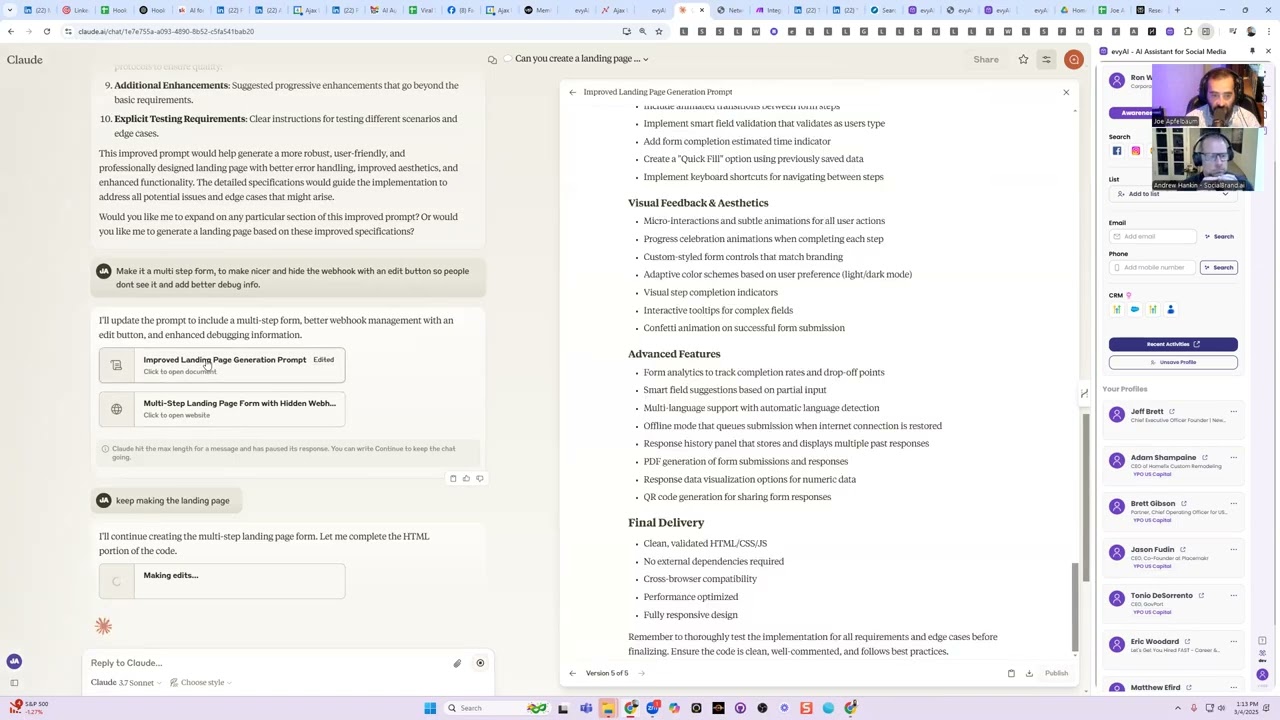
Welcome to the AI LinkedIn Automation Community. My name is Joe Applebaum. I'm so excited that you guys are here. What we're doing here is we are learning how LinkedIn automation and AI automation works. So what is AI automation? If you go into our classroom, you're going to see we have courses, we have how to use LinkedIn and AI, we have webinar replays. If you click on courses, trainings, and replays, you're going to see all the replays For all the different automation things that we had going on over here. You can feel free to check out everything from Profile Optimization Course to APIs for Beginners to Coworking Replays and many of the trainings that we've done in the past. So definitely check them out. We also have AI Automation Overview, Future Automation Ideas, and a lot more. So definitely check out the classroom where it says Courses, Trainings, and Replays so you can check out the rest of the AI automation stuff. Today I want to show you how to use the community. So if you go into the community and you click on these 3 little dots over here, you're going to be able to see all the default, the top, the new, the hidden. You can see everything that's here. And you can search for specific things within the community, and that will help you be able to see what's going on. If you click on classroom, you'll be able to get to the classroom, which has all the different courses. And if you click on calendar, you're going to be able to see what we have coming up. In our community. We're probably gonna be changing the time from Tuesday at 1:00 PM to probably Mondays at 12:00 PM. So we're gonna be changing it starting over here, um, just so that more people can join because people are not able to join on Tuesdays at 1:00 PM typically from what I heard from the community. So we're gonna move it to 12:00 PM on Mondays to make it easier, uh, for people to come and join us in this community. And we meet twice a month and we discuss AI automation. So what is AI automation and how does it work? So there's a particular tool that I'm very fond of called make.com. Have you guys ever heard of make.com? Make.com allows you to be able to automate things. So for example, if I want to be able to automate something on a landing page, let's say I want to create a Some type of generator of sorts. So I can use make.com to help me be the backend of that technology. So, and it can automate literally anything that you want. So when I log in, very simple, I just click on create a new scenario. So here I created a new scenario. See that? Your automation journey begins. Hey Joe Apfelbaum, you can build from scratch, start with a template, or create using an AI assistant. I'm going to click on Build from Scratch, and then it says Build Your First Scenario here, and it kind of guides you through the process of building a scenario. Create a connection, configure a trigger, choose where to start, run this module, add another app action, map the data, schedule the settings, and activate the scenario. Okay, so I'm going to close this out. Now, what the first thing I'm going to do is I'm going to add something called a webhook. Do you guys know what a webhook is? A webhook allows me to be able to pull information literally from anywhere. So I'm gonna click on webhooks and then I'm gonna click on custom webhook. So this is a custom webhook. I can choose a hook or I can add a hook. So in this case, I'm gonna add a hook. I'm gonna call this hook test webhook 3425. Okay, so that's a test webhook. I'm gonna press save. And now I have a webhook URL with the test webhook. I can copy the hook, the webhook to my clipboard, which means it puts it into my clipboard. And this is the webhook here. You see that I have a webhook. Now this webhook is not yet waiting to receive information, but I can activate it to make it wait to receive information. How do I activate this webhook? I right-click on it and I hit run this module only. You see that? Now it contains some errors. It wasn't saved yet, so I'm gonna save the scenario. It says a value must not be empty. Okay, so we're gonna add an additional webhook response to the end of it. I'm gonna say, got the data. I'm gonna press save. Now I'm gonna press over here and I'm gonna say, test webhook. 3-4-25. So I know when I did it. Okay. Now I press save. Value must not be empty. Save, save anyway. I'm gonna hit run this module only. Scenario contains some errors. Fix the errors. I'm gonna click on this again. Choose a hook. I'm gonna choose this hook. I'm gonna hit save. Okay. Then I'm gonna hit save again on the bottom. So now I have, I have a webhook and I have a webhook response. I'm gonna rename the webhook to GET data from landing page. And then I'm gonna say send response to landing page, send response to landing page. Do you guys understand what's going on over here? I can send data to this webhook, to this URL, and then I can send back data to wherever, whoever sent me that data. Okay, so we're gonna test this out by going to Claude and by asking Claude to create a landing page for me that allows me to be able to, let's see, landing page form. I created a landing page form that collects the user information, sends it to a webhook. You see that? I said, can you create me a landing page that has HTML, JavaScript, and CSS that saves the information that gets filled into a form to local memory, stores the first name, last name, email address, LinkedIn URL, website position. And when you hit submit, it goes to a hook that you can save it on the page. Okay? So do you get what I'm saying? It's just a basic form. So I'm gonna say, make the prompt better, comprehensive structure, detailed specification, enhance the form requirements, improve integration, consider UX design. Okay? So I'm, I asked it to make it better and I also gave a better prompt for it. So what I'm gonna do is I'm just gonna use this one. I'm gonna, I'm actually gonna show you how it improves right here. Make it a multi-step form to make it nicer and hide the webhook with an edit button so people don't see it. And add better debug info. Okay, I'm going to press enter. I'll update the prompt to include a better webhook management with an edit button, enhanced debugging information. Okay, so now it's making me the hook, it's making me the prompt. You see that? So now what I'm going to do is I'm going to take this prompt. Once it's done editing, making edits to this prompt, you see that self-diagnosis, error recovery, testing protocols. Perfect. Now what I'm going to do, I'm going to press copy the contents of this. It's actually still making edits. Advanced features. Okay, so it finished making the multi— oh, now it's actually making it. It's actually making the— so it updated the prompt and now it's making a multi-step landing page form with hidden webhook. Let's see what it does. It's probably gonna error out in a minute and I'm gonna tell it to continue making it and then it'll finish it. Because it can only write a certain amount within one conversation. You see the way it's writing up all the text, all the code for this? I'm not writing it myself. I'm not a coder. Let's see. Let's go in here. It's writing up all the code for me. And I'm not sure if it's gonna crash on me or not, but if it does crash— and look at that, it's doing a multi-step approach. It's creating a save button, a webhook save button, so I can paste the webhook from make.com into there. Amazing. Okay, let's just see. Oh, it says it hit the max length. I'm going to say keep making the landing page. So it's going to keep making the landing page. You see that? It died in the middle. So now it's going to keep making the landing page. Andrew said, I saw a great quote today. More people will lose their jobs from laziness than AI taking their jobs. True. Okay, now it's gonna have a loading indicator. And by the way, if you guys want this prompt, I'll put it right in the community for you. It's a little bit long for me to send it to you on Zoom. Okay, let's see if it finished. Oh, it's debugging it right now. It's making edits. It's removing things that you don't need. Now it's writing the script to make it work. So I'm gonna click on this just to see if that works. I'm gonna press copy for the prompt and I'll, I'll give you guys this prompt. So this is a crazy prompt which allows you to be able to create any landing page in seconds. Let me go into the community, put it in here for you. Where is the community? I'll just go to school.com/ai-automation. And I'm going to go in here and I'm going to create landing page with webhook. For make.com test landing page with webbook for make.com prompt. Okay, it's a pretty long prompt. You see how long it is? So I can't share that in Zoom because it's too long. I'm going to put it on general discretion. I'm going to press post. And I just shared with you the entire prompt. You see that? Now let's just test it to see if it works. So we're in here, edited. I'm gonna press pub— I'm gonna press download. So I just pressed download. I downloaded the HTML file. Where is the webhook information collection form? Joe Apfelbaum. Next step. Did it crash again? Let me just go here and see if it crashed. Keep finishing this. Oh, yeah, it died in the middle. I'll continue adding the JavaScript. So, yeah, that didn't work because It's still going to finish editing this. You could use other tools like Cursor. Have you guys heard of Cursor? Cursor is like an IDE that has this built into it. Okay, so now I did it. Now I'm going to go and download this just to kind of see if it works. And then I'm going to click here. Then I'm going to open up the landing page. I do this again, do this again, do this again. Next, company name, CEO. Next, LinkedIn URL. Oh, wrong one. LinkedIn URL, website. Review information. Add a valid URL, http://. I love that it has URL validation. Okay, submit information. Configuration, please set up the webhook. Where do you set up the webhook? Where do I set up the webhook? Uh, where do I set up the webhook? Can you give me UI for that in the HTML so I can press edit webhook and add it there once and save it? The webhook is already part of the landing page I created. It's accessible through settings icon on the top right corner of the page. Let me explain how it works. Okay. I did not see a settings icon. Did you guys see a settings icon? I don't see a settings icon. Adding an edit webhook button improved UI visibility and making save progress more intuitive. Okay. Is this form hosted? Can it be there permanently? Yes. You need to move it elsewhere during production? Or even GitHub Copilot. Is this edit information? Yeah, this is, this landing page right now is on my computer. You see that? But I can host it and I'll show you how I host it so anybody can access it and I'll give it to you guys as well in, in the community. I'll drop it in the community. Okay. Once it's done editing the page, I'll have a finished page and then anybody can use it just to kind of test things out. Okay. So now I'm gonna press download. Oh, you see it says edit webhook on top now. I'm gonna press download file. Okay, so now this has all the information. I'm gonna do edit webhook. Oh, beautiful. Now I can put my webhook in there. So I'm gonna go in here, get my webhook, press copy link to, to a webhook. I'm gonna put it in here and paste the link and press save webhook. You see that? I could even test the connection. How cool is that? Oh wow. I, it added a test connection thing. I love that. So webhook configured. Do you see it has webhook configured? This is so smart and it's just JavaScript. There's no backend to this. It's on my computer. Oh my God. So powerful. Okay, so I'm gonna hit, so this is what I'm gonna do. I'm gonna first turn on the, the, the, I'm gonna run this one. So I'm gonna turn this on. So this is gonna be sitting here waiting for data from the landing page. You guys get that? You get what it's doing? It's waiting for data from the landing page. Then I'm gonna go to the landing page. I'm gonna press next as if I'm filling it out. I'm gonna press next. And I told it to remember everything so I never have to fill it out again. I press review information, then I press submit and it sent it to make.com. Wow. That's epic. I love that. That makes my life so happy. So happy that I did this. And now what we're gonna do is we're gonna add, we're gonna add some perplexity information in the middle here. So we're gonna do add a module. I'm gonna say perplexity, and we're gonna do some research. So we're gonna use, we could use Sonar, we could use Llama. I guess we'll use Llama 3.1. We'll use the large, the small model. And then in the message, we're gonna say max tokens, let's say 5,000 tokens. And then the contents of the message, we're gonna say role as user. And the context is gonna be research this person and give me a summary about who they are. Who they help and how they help them. Okay, and it's going to say first name, and then you put in first name. Last name, then you put in last name. You guys see how I'm just clicking on things? Email, colon, email. And then Company, company name, and then position, and then position, and then LinkedIn URL, LinkedIn URL, and then website, website. Okay. And I'm going to press okay. And then I'm going to put temperature 0.07. I'm going to press save.
Okay.
And now I'm gonna go in here and I'm gonna say, instead of got the data, I'm gonna say, gimme what Perplexity sends you. I'm gonna go in here, I'm gonna click message content. You see that? And press save. I'm gonna save the bottom. I'm gonna hit run once and I'm gonna submit the same information and see what I get from the, from the webhook. Now it's sent it to Perplexity. It's gonna run the prompt and it's gonna gimme a summary of Joe Apfelbaum. Who we help, how we help them, LinkedIn expertise, AI-powered tools, personal development. In summary, Joe Apfelbaum's a multifaceted professional who helps blah, blah, blah. We did it, ladies and gentlemen, we did it. We built a Perplexity research thing from an information collection thing. And we can do anything. We can send this information back and we can play with it and we can have fun. We can copy it to the clipboard, we can download it as HTML. We can have a lot of fun with this, but you guys saw the way we created a lead magnet or a form. So now let me host this form and make it public. And also let me send you this form in our community so that you guys have access to it right in the community. And what I'll also do is I can also save, I can also export this blueprint. Do you guys know what a blueprint is? So I press export blueprint and that'll actually give you the blueprint that you can just click on these 3 dots and then import the blueprint again to get it. You know what I mean? So let's go in here and let's just add a folder, a new, a new thing. And I'm going to say, I'm going to call it testing landing page with make.com blueprint. Okay, I'm gonna say I created a landing page that has a blueprint and the actual HTML that you can host anywhere and you can test it out where you create your webhook and then you send a response to the landing page and you can just click the edit button and boom, there you go. Okay, I can either do it this way or I can say Explain what you did. Explain you— explain what you did for an article that is going to give people instructions that will also include a blueprint for make.com. But make sure to clear— make a clear explanation for how to use this landing page. Okay, I'm going to close the artifact. I'm going to press here. Explain what you did in an article. Oh, look at that. I don't actually have to write the post. This explains everything. Yep, that worked.
Yes.
You guys like it? We like it. Now I'm gonna go in here and I'm gonna do attach the blueprint, attach the landing page, and I'm gonna hit Tools and post. And I just did it. Done. Finito la commedia. We just got it done. And we got it done very fast. If you press Windows H, you can access the Windows voice typing tool. We also have a sidebar extension with Evie AI that allows you to add voice to anything. So if I want to type anything up, I could just use the voice command inside the Evie AI sidebar and anywhere I am on the internet. You see the way it types everything up? I can just use Evie AI's voice command with our sidebar. That helps me be able to type anything I want, and then I can generate it into something if I want. Okay, this is cool. Um, and if you guys want access, it's just available at skool.com/ai-automation.
Okay?
skool.com/ai-automation. So what else can we do with this? I mean, there's so much that we can do. We can host it inside here. So I'm gonna go back here and I'm going to, instead of doing it within Evy AI, I'm just gonna do it, say, within Apple's Creations. I have a funnel called applescreations.com. I'm gonna create a new step in the funnel and I'm gonna call the page webhook. Tester, right? We'll just call it Webhook Tester. I'm going to press Create Final Step, and it's called applescreations.com/webhook-tester. Webhook Tester page. Webhook Tester. Update. And then we're going to just edit the page, and we're going to add the HTML that we got from where? Where did we get the HTML? Do you guys remember? Yes. Very good. We got it from Claude. So we're going to open this up. And the first thing we're going to do is we're going to add a full-width section. In the full-width section, we're going to add a one-column row. Then we're going to add an element to the one-column row called code. That's all we're going to do. Then we're going to open up the code box here, the code editor, and we're going to paste in the code that we got from Claude. So we're going to go back to Claude. We're going to get the HTML from right here. We're going to click on code and then we're going to press copy on the bottom. And then we're going to go back into our code and we're going to paste it. Then we're just going to remove the end body tag. And then we're also going to pull the style and put it in the header because we don't need the style to be in the body. You know what I mean? We need it to be in the header. We could keep it in the body. It'll work. But it's easier to take these 500 lines of code or 600 lines, apparently, um, these 678 lines of code, pull them out and then just put them into the header under tracking code here. See that? I added it as tracking code. And then I'm also going to delete the title tag because we don't need the title tag here.
Okay.
And I'm going to press save and I just saved this. I'm going to press save. Now it wants to preview content for SEO purposes, so I'm going to say webhook tester. Here is a landing page that allows you to test a webhook with a multi-step form. Okay, I'm going to press update SEO metadata, save, and then publish. And now we have the webhook tester hosted on unlimiteddigitalmarketing.com. Okay, it's done. Now I can edit the webhook right over here. I can add my webhook. I can do the whole thing here. So if you guys want to access this, you can go in and access it. Right now the webhook is not configured, but it would be really easy. You just take the blueprint information You make yourself a little webhook. You copy the information, paste it here. You press save connection. You want to test it? You can test it. We verified it worked. Now we can add all the information. Heavy AI CEO. Next step, add my LinkedIn profile. Add my website, heavyai.com. We're going to do this and change it to Heavy AI. Press review information. Press submit information. It didn't work. It said accepted because this thing is not running. So I'm just going to hit run. And I'm going to say wait for new data. I'm actually going to turn it on so that it always works. I'm going to hit submit again. Just to see if it works. Now it's working in the background, so we're not going to see it working. But it's gonna do the same thing. And do you see that? Joe Apfelbaum's the founder of Ajax Union, a B2B marketing agency, helps companies with blah, blah, blah, how he helps them, blah, blah, blah. Joe's a business strategist, LinkedIn expert, blah, blah, blah. And all this information, do you see the way it pulled all the information from the internet? Did a research for me. So I can get much, much more complex in terms of what we can do here, but this is kind of like the basics. I hosted the page on a website. And now we have an automation that we can have run for like forever. Pretty cool, right? Andrew, what do you think?
Just lots of stuff going around my head about how you could— and I've just come from the previous call as well— but how what you're talking about with the Heavy AI dashboard, how you could— I've started doing some— I'll get to the point in a minute, but I've started doing some face-to-face networking and speaking to people face-to-face to find out what their problems are. And lots of sales managers have young sales teams who spend ages and ages and ages doing research. And the power of the AI in this can do research, scrape a website and give you all the updates on a company as well as with the LinkedIn stuff. You could then give a list of, as you say, what that, the company that they're targeting, what will open a conversation, what they've achieved over the past 12 months, 24 months, all that sort of stuff. And you, you'd be able to sell that piece of tech into numerous sales teams, if that makes sense.
Yeah. And you can build a custom landing page that allows people to put in whatever and I can have it automatically connect to their CRM as well and automatically be able to pull the information from their CRM. So instead of having to fill out a form, I could just say, look in the CRM, type in the name, hit send. It It does that thing in the background, pulls all the information out, shows it to you, and then you could push it back into the CRM if you want. You could do the— I did it just on a regular HTML landing page, but you could do it within a CRM as well. Any CRM will be able to allow you to be able to do things like that. Even, even go high level, like, you know, you can, you can do all this stuff within there, which makes it very, very powerful.
Yeah. And I've, I've not seen the, the writing code side of stuff before with, um, With Claude, which is just phenomenal.
Yeah, it's really amazing. So, anything else that you guys have questions about or wondering about? Anything that— any thoughts that you have about anything? All right, so I appreciate you guys being here today. Thank you for joining me. If you guys have any additional questions, um, is the third-party voice a keyboard? No, I already explained that. All right, so thank you here for joining me here today, and I'm looking forward to seeing you guys again in 2 weeks. I'm gonna be doing this every 2 weeks and teaching a very particular skill, and the replay will be available at school.com/AIautomation. Take care. Have a wonderful day, everyone. Bye.
More from Joe


How to Beat the Algorithm: Remove Hidden Watermarks & Scale Content with evyAI









AEO & GEO: SEO's Future Explained! Master Answer & Generative Engines! #shorts