LinkedIn Training + Vibe Coding with Joe Apfelbaum 2025
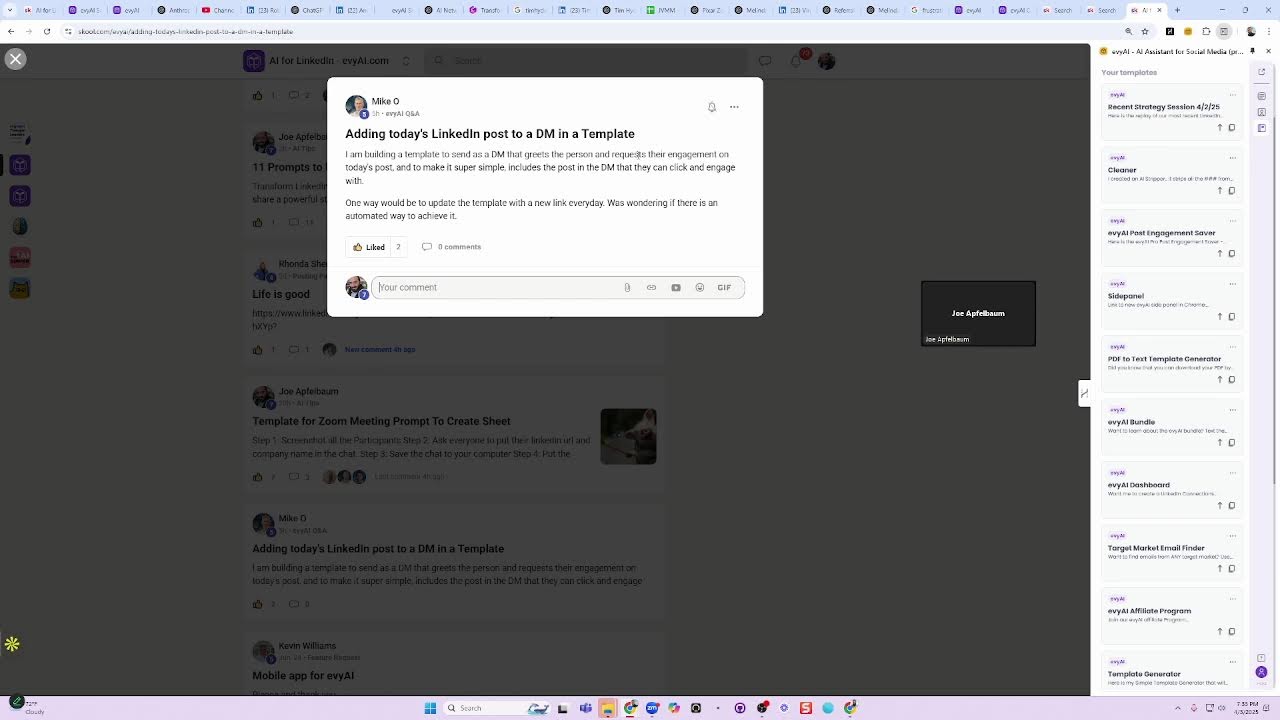
Joe Apfelbaum walks through the Evy AI community platform, showing how to manage memberships, assign courses, post content with AI personas, and use the points-based leaderboard. He covers the difference between the free community and premium groups like Engaged Thought Leaders and AI Automation.
Chapters
Evy AI community. So the fastest way to get into the Evy AI community is to log into Evy AI by clicking on the login button from the homepage. On the left side, you click on community, and then in the center it says discover our community. When you click on discover our community, you're going to notice the Evy AI, AI for LinkedIn community. The URL for this is school.com/EvyAI. This is the about section here. To get to the about section, you can click on about. But this is where you see the settings of the community. So when you click on settings, you can see the link to share to people. And there's many other settings in the community if you have access to settings. Um, if you're on the community, there are 3 C's, the community, that's where all the chat's happening. The classroom, that's where all the classes are, the templates, the tips, and then the calendar. That's where all the events are happening. So today we have an event happening at 7:30. Called Learn LinkedIn 101 with Joe and Friends. And me and Nika are going to do this together. And she's going to be presenting with me and we're going to be doing a LinkedIn 101 at highenergyzoom.com, which is very exciting. Now in the community section, there's also something called membership request pending. So if I click on membership request pending, you'll see that Rachel Monks is a membership request. I don't know if she's a a potential client or not. But I go to her profile just to kind of seek her, make sure that I see what she's doing. And I see that she's in a lot of free groups. You see that? So she's in a lot of free groups. She might be a spammer. So I do look at her LinkedIn just to kind of check out what she's up to. And I see she's in New Zealand and she has LinkedIn, but she's not paying for it, but she is verified with a government ID. So chances are she's a real person. So what I'm going to do is I'm just going to let her into the community right now. Because I see that she's a real person. So we're going to go back. We're going to let her into the community and hopefully she won't spam us. Now I can click on members and I can see all the members we have in the community. And if I'm an admin, I can click on membership and I can see the person's email. I can see the questions that they answered. You see that? The questions that they answered. And I can see what courses they've taken and what progress they have for each course. If I want to give her access to a particular course, I can give her access to a particular course. And we're going to create additional courses here that different members have access based on their level. So right now we have a community and the community has 2 pinned posts, and then there are multiple posts under that. Now there are subfilters in the community, like for example, client wins. When you click on client wins, you can see all the different wins. When you see how I use Evie AI, that's how I use Evie AI. When you click on more, there's more. There's posting parties, there's LinkedIn tips, there's AI tips, there's feature requests, there's bugs, ideas. And less. If you click on these 2 little dots over here, you can change to filter for new or for top posts. So if I click on top, then you can select the top of the day, top of the week, top of the month, top of the year, or top of all time. If I click on top of all time, this shows me the post that is the most top post in this category for all time. I want to see the posts for all categories, you press all and you can see the most popular posts. You're going to do the top And then you can do all time, and that's the all-time most popular post in the community, which is introduce yourself. I do recommend that when you log in, you introduce yourself. There's about 700 comments here, so you can go through these and kind of learn about different people. And if you want to DM somebody, you can hover over their name, click on chat, and then you can send them a DM. I'm going to say thank you, Lisa, for being part of the community. of our community. You see that? I just said, thank you, Lisa, for being part of our community. Thank you, Hama. And I just sent her a little message. If you're an admin of the group, you can send as many messages as you want to people in your group. But if you're in a different group, you can only send 10 messages to people in the group per week. Mm-hmm. Okay. So now if I click on the notifications over here, I can see what's going on in my notifications. I can mark them all as read. Or I can see all the groups and I could, or I could see the notifications just from this group. So if I click on just from this group, I see all the notifications just from this group. And what I can easily do is I can mark them all as read. So how do I mark them all as read? So what I do is I scroll down to the bottom, I load them all. And then on the top, I could easily mark them all as read by clicking on mark all as read. And now I just marked them all as read. Then I have no more notifications inside this group. Now if I want, I can go into the classroom and I can browse the different things, or I can search for things. So if I want to find prompts, I just search prompts, prompts. And as you can see, I'm searching through the community, 94. I'm searching through the classroom and I'm searching through the members. If I want to find Nika in here, I just search Nika and I see I found her through the members here. Um, I could see she was active 16 days ago last. She has a free account. She joined on February 18th, 2025, and she has lifetime access. I also see her in the community. I see that I wrote, I tagged her in the community here under where it says how to see all the newest posts on LinkedIn. If you want to see all the newest posts on LinkedIn, just search unread and you're going to see this unread thing, how to see the newest post. And I also have a video here that explains how to do that, how to sort and filter. And this one is called How to Use Evvy AI, How to See All the Newest Posts on LinkedIn. So if I click on this and there's a link here that you could bookmark, you can click here. It'll show you all the posts that are unread. You see that? These are all the unread posts and I can go through this and start reading them and start answering them. You can also see all the unread posts that have no posts, that have no comments. So if I go to unread and I click here, this is if you want to see posts that have no comments in our community, click on this. And it shows you all the posts that are unread and they have no comments. You see that? So I click on this over here and he said, your thoughts on this post. I'm going to say, my thoughts are boom. And now I click on the post. And if I want to leave a comment on the post, I can easily leave a comment on the post by clicking on the comment generator, clicking in here, and then supporting Mike. With the LinkedIn comment persona. So the way that you can leave a comment easily is you can select the post, you can right-click on it, and you can send to the side panel, and you hit generate. That's how you do it manually. There are ways to do it on an automatic basis, but I just wrote a comment just like that. I press insert and it'll insert the comment into his post. If it doesn't insert for whatever reason, you can always copy and paste it in, but in this case it inserted. It's fascinating to see the statistic is 60% of customers when someone says single is not just a transition. Let's keep the conversation going. I'm going to delete the let's keep the conversation going part and I'm going to hit comment. Okay, so I just left him a very, very solid comment on his post over here about part 3 of newly single. I'm going to close this out. Now let's say for example, she posted something over here. I have a persona called the school persona. Mm-hmm. So you see this school post reply? So I can go here, School Post Reply. I can select this content here. I can right-click, send to sidebar, side panel. I press generate. And then once it generates, I can easily click the insert button here and insert the reply. Anita, I love your curiosity about personas. It's so important to have a variety of voices in online spaces. I totally get what you're feeling like there's more personas out there. Each platform has their own vibe. Let's keep the conversation going. Maybe we can brainstorm together to come up with some fresh ideas. Um, yes, I'm gonna say, look at— look at— I'm gonna say, hint, look at the library in the classroom. I'm gonna press enter. Go. You see that? So I just replied to her. So you're gonna be in here whenever you do your office hours. You're gonna be in here replying to people. And making videos. You know, somebody asks about personas, you might make a video about how to find the personas or whatnot, or find the video that I already did and share it, and so on and so forth. Now remember that all the content that's in this community is SEO-friendly. That means if you search something on Google, this community comes up for those things. For example, I just posted how to get— how often do you get featured on podcasts? You see that? I posted this 2 days ago. So if I search, how often do you get featured on podcasts, Joe Apfelbaum, Evie AI, just to kind of show you, you're going to see it's already ranking on Google. You see that? Yeah. Nice. So it ranks on the first part page of Google. Now, if I remove Evie AI, it might not rank on the first page of Google, but it does. Look at that. Crazy, right? Yeah. So I click on it and there's tons of information over here that I put down here and everybody comments on it. And so the more information that we put, the more tutorials we make about how to use LinkedIn, about how to do everything, the more high-quality content we put out here. And you can use Evvy AI to write the high-quality content that we put in here, the more we're going to rank online. Now we do have another community called the Engaged Thought Leaders Community. This is more of a premium community where people are coming here to post their posts and engage with each other. This is called the Engage Thought Leaders Community, and we also have the AI Automation Community as well, which is also another one. But you're just going to worry about the school.com/evai community. That's the main one. Now, if you want to change your own profile, you can click on the little picture of your own profile, and then you can click on profile, and then you can look at your profile, see your profile, and on the right side, you see it says edit profile. You can edit your own profile. So I'm going to click on edit profile, and do you see the way I have social social things under here. LinkedIn, Facebook, YouTube, um, Twitter, X. Twitter, X, exactly. It shows you if I'm online or not. It shows you where I'm located. It shows me everything here. So if I click on edit profile, and by the way, notice that I have points here and I'll explain the point system in a second. But if I click on edit profile, this edits my school profile across all platforms. I can have my social links in here. You see that I put all my social links and I could also show my membership visibility to show which which groups I'm part of and which groups I'm not. So I can remove those. Most people don't even know this exists. This is a great place to update your bio, your location, and your social links. And you want to make sure that everyone that's in the community has updated their information. Now I'm going to go back here. I'm going to go back to my profile, see my profile. When you click on the dropdown, you can also check out your affiliates. You can check out your settings. You can check out a lot of things here. So I'm going to go back to Evie AI. This is the community. This is a classroom. This is a calendar. These are the members. Then you can also filter members by many different factors here. Admins, online, monthly, annual trials, free courses, last active. You can sort by newest or last active. So I can do last active and hit apply. And I can see all the people that are the most active in the community. You see that? Mm-hmm. Masha Nova. Heather, Mike Weiss. And if you want to see everything that somebody posted in a community, you click on their name. And then over here on the 3 dots, you click this and you say just posts. And you can see all the posts that they posted in the community. Now, if they're in other communities with you, you can click on the dropdown and you can select the other community. But in this case, this is the only community I'm with her. So this is what I can see. And as you can see, welcome Heather. Great to have you here in the community. You see that? Ah, good to know. Thanks for the deal. Obviously it's a solid goal tool, but I'll be using the shit out of it. Okay, great. So I'm going to click on these 3 dots over here, see if there's anything new. And I'm going to go back to the homepage, go to members, and then I'm going to click on the filter again. And I'm going to click on last active and hit apply. And I can see the last active people, which is Mike. You see, he was the— he just logged in. If I want to see Masha Nova, I click on Masha Nova's profile. I could see she started a program called the AI Business Upgrade, and I can see she has 4 memberships in mind. You see, these are the memberships, 4 memberships in common, but she's in many different groups. You see that? Yeah. So I can send her a chat, little message and be like, how are you? See, I just sent her a little chat. Mm-hmm. Because I see she's active now. Okay. Now I'm gonna go back to the homepage by clicking on the top. Then if I click on leaderboards, you can see the people that are the highest leaderboards that have the most points. Every time you get a like or you get a comment on any of your posts, you end up getting more points. And the more points you get, the higher level you get. I'm up to a level 7. Rick, for example, is a level 6. So if he posts and I like his post, I like his comment. You see, he posted, I liked his comment. He gets a point. You see that? Oh, okay. So she did the comment generator. Is there a storyboard generator? I remember something in January. So he says, yes. I'm gonna say, check out www.evy— go check out strategy.evyai.com/story. Let me know, you know, if you like that, Anita. You see, I just gave her that. Mm-hmm. Um, all right. What else? What else do we have going on here? So we did the leaderboards. I showed you the leaderboards. I showed you all that information. Now let me see if there's anybody— You also get points for posting, right? You also get points for— you don't get points for posting. You get points when people like your post. Okay. So if you posted, you don't get a point for that. So we covered the about section. We covered the leaderboards. We covered the members. We covered the calendar. We covered the classroom, we covered the community. I want to talk a little bit more of the classroom. The classroom is really simple. We have different courses. For example, we have this one, and every course, if you're an admin, you can add additional folders and additional pages, and you can delete courses. You obviously don't want to delete any courses, but each one of these is its own course, and you can create content under each one. And we're probably gonna have to redo all these tutorials anyway. Because these tutorials have the old extension. So we need to add the new extension. So you see, install the new extensions. I already redid this one, but I could add content under this, like over here. I can add content under it. And I'm going to go to my Heavy AI and I'm going to grab the side panel thing here. And I'm going to paste it right here. And I just use a template. You see, I use the template from the side here to update this here, link to the new side panel extension. When they click on this, It goes to the new side panel extension. You see? Yeah. And we already have 25 reviews. The goal is for us to get more reviews here. So this is the last review we got. We're going to get more reviews. My goal is to get 100 reviews. Okay. So that's the idea. So constantly posting ideas, constantly sharing, constantly helping people out. That's what the community is all about, making a difference for other people one step at a time. In order to post, you click on write something. You put your title, you put your body, you select your category. You can add an animated GIF. You can add an emoji. You can add a poll. You can add a video. If you're adding a Loom, you just paste the link to the Loom video or the YouTube video, and it automatically loads. You can add a link and you can add an attachment like a PDF or any type of file, like a zip file or whatever it is. And that's how our community works. Really powerful community. You can check out your messages, your chats here. Um, you can see who's online by clicking online here and it shows you who's online right now. Mm-hmm. You see that? Who's online? So the URL is member online equals true. So if they're online, you can easily message them and ask them how they're doing. So I'm going to click on Motion Newman. I'm going to say, are you enjoying our community? Are you enjoying our community? Okay, I broke the ice. I sent him a message. You can see what other memberships people are on. You can see he's paying $97 a month for this community here. And then we're going to have a directory of all the people in the community, and we're going to organize that directory to figure out who's who, who's the paid members and who's not, so that you'll have access to that and everybody else will be able to see Who the people are, and you'll get to know the people. That's the key. The key is to get to know the people, invite them to coming to your sessions. So this guy over here wrote, adding today's LinkedIn post to a DM template. I'm building a template to send as a DM that greets people and requests their engagement on today's post. To make it super simple, it includes a post in the DM to engage. One way would be to update the template to link every day. I was wondering if there was an automated way to achieve this. And I'm going to reply with a school reply. I'm gonna right-click on this, send to side panel, and I'm gonna say there is no automated way to update the template with the latest post because we don't know what the The URL will be in advance. Okay, hit generate. Hey there, I love the idea of the DM template. It might be tricky to automate a template every day. Think about how impactful the personal touch can be. You can add your manual link every day, maybe a reminder to do it at a specific time, your initiatives, your occasion, and I can't wait to see how it evolves. Okay, I'm going to press insert. I'm going to press comment. You see that? I just replied. And that's the idea. The idea is building relationships one day at a time. Any questions? Not so far. All right, excellent. So this concludes our session on how to leverage this technology. Thank you very much.
More from Joe


How to Beat the Algorithm: Remove Hidden Watermarks & Scale Content with evyAI









AEO & GEO: SEO's Future Explained! Master Answer & Generative Engines! #shorts